Mac Apps
ScreenFlow 10.5.2
Mac AppsUpdated
| Requirement | On file |
|---|---|
| macOS | macOS 10.15 or later |
| CPU | Apple Silicon, Intel 64-bit |
| Download | 95 MB |
Trainers who build software walkthroughs, educators recording lecture materials, and support teams who need to show a bug rather than describe it — these are the people who reach for a dedicated macOS screen recorder. ScreenFlow covers both sides of the job: capturing what happens on screen and assembling the clips afterwards.
What the installer looks like and whether it runs on your Mac
A common question before downloading is simply whether the app will launch. ScreenFlow 10.5.2 runs on any Mac with macOS 10.15 or later, on both Apple Silicon and Intel 64-bit processors. The current build also addresses a crash that appeared on macOS 26.2 and above, so users on the latest OS get a clean start. It is a macOS exclusive — there is no Windows version to confuse things.
Chroma Key exports no longer break
Version 10.5.2, released 2026-02-12, is a maintenance release. Exports that use Chroma Key on certain recordings now render correctly instead of breaking. The Manage button under licences no longer points to a dead URL. And the crash on macOS 26.2 or later is resolved, which means recording sessions do not vanish mid-edit. These are the kinds of fixes that matter when a deadline is close and the export queue is long.
Everyday speed and stability after 10.5.2
Once the crash on macOS 26.2 disappeared in 10.5.2, the daily experience settled into something predictable. A 30-minute 4K screen recording with a camera overlay and system audio lands in the media bin without stutter on an M1 Pro with 16 GB RAM. The timeline stays responsive during trims and ripple edits, even with three video tracks and a half-dozen callouts stacked on top. Memory pressure sits around 2.8–3.2 GB for a moderate project, which leaves headroom for a browser, a notes app and a messaging client running alongside.
Export times depend almost entirely on the codec and the Mac's media engines. An H.264 MP4 at 1080p runs through the hardware encoder fast — rough rule: a 10-minute timeline finishes in under two minutes on Apple Silicon. ProRes 422 HQ exports take longer because the bitrate jumps, but the progress bar moves evenly and the estimated time remaining stays accurate. Background exports arrived a few versions ago and they work: you can switch to another Space and keep working while the encode runs, though scrubbing a second timeline during an export is not something the app encourages.
One quirk worth noting: projects that mix H.264 screen captures with ProRes camera clips sometimes stall for a few seconds when the playhead crosses a format boundary. The fix is straightforward — transcode everything to a single editing codec before assembly, or let the optimised media option do it in the background. The option is off by default, and turning it on adds a few minutes of prep time at the start of a session.
Installing with confidence
Does ScreenFlow record system audio without extra drivers?
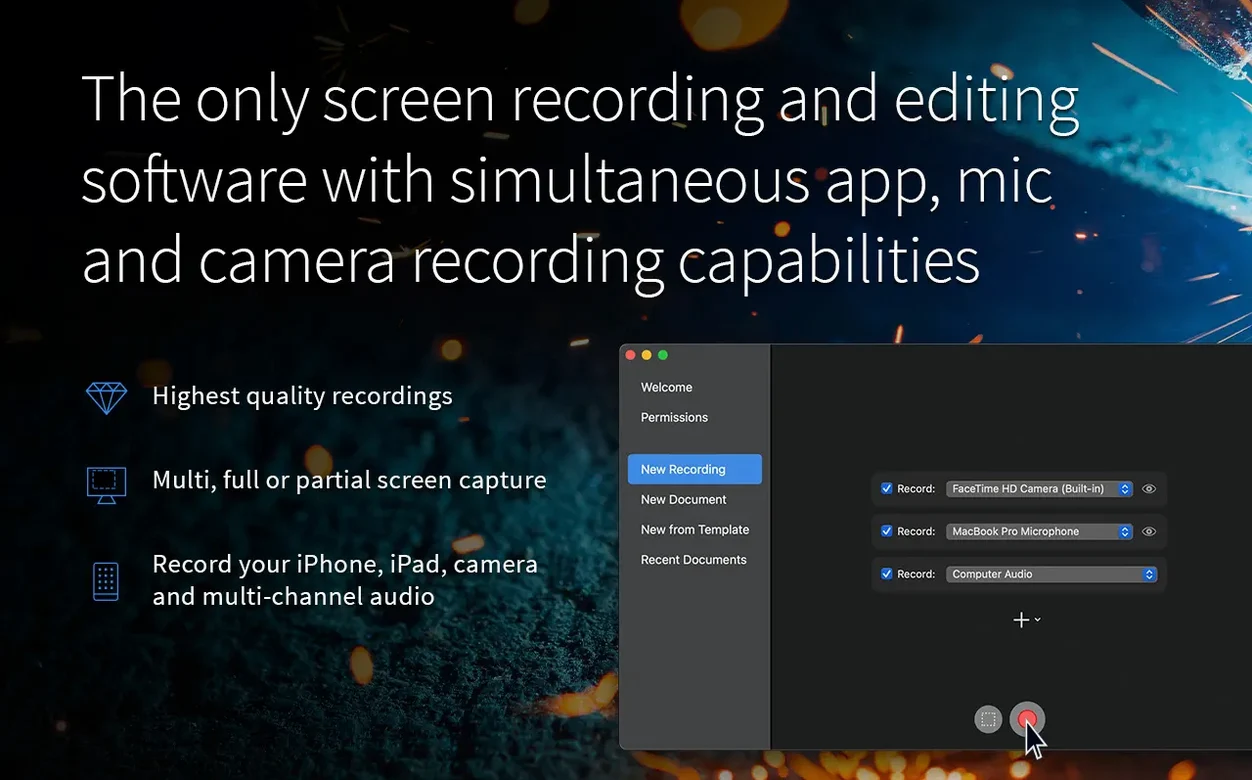
Yes. It uses the macOS screen recording framework to capture computer audio directly. No virtual audio driver, no Soundflower, no BlackHole. The toggle sits in the recording setup panel as "Record Computer Audio" and it picks up whatever the system outputs. On Apple Silicon Macs with macOS 14 and later, you may need to grant ScreenFlow the Screen & System Audio Recording permission in System Settings the first time. If the toggle is greyed out, that permission is missing.
Can I record an iPhone or iPad screen through the app?
Yes, via a wired USB connection. Plug in the iOS device, open the recording setup, and it appears as a source alongside the camera and screen options. The capture runs at the device's native resolution and frame rate, typically 60 fps on recent iPhones. Wireless recording is not supported — this is a direct connection only, which keeps latency low and quality predictable.
What export formats do I actually get?
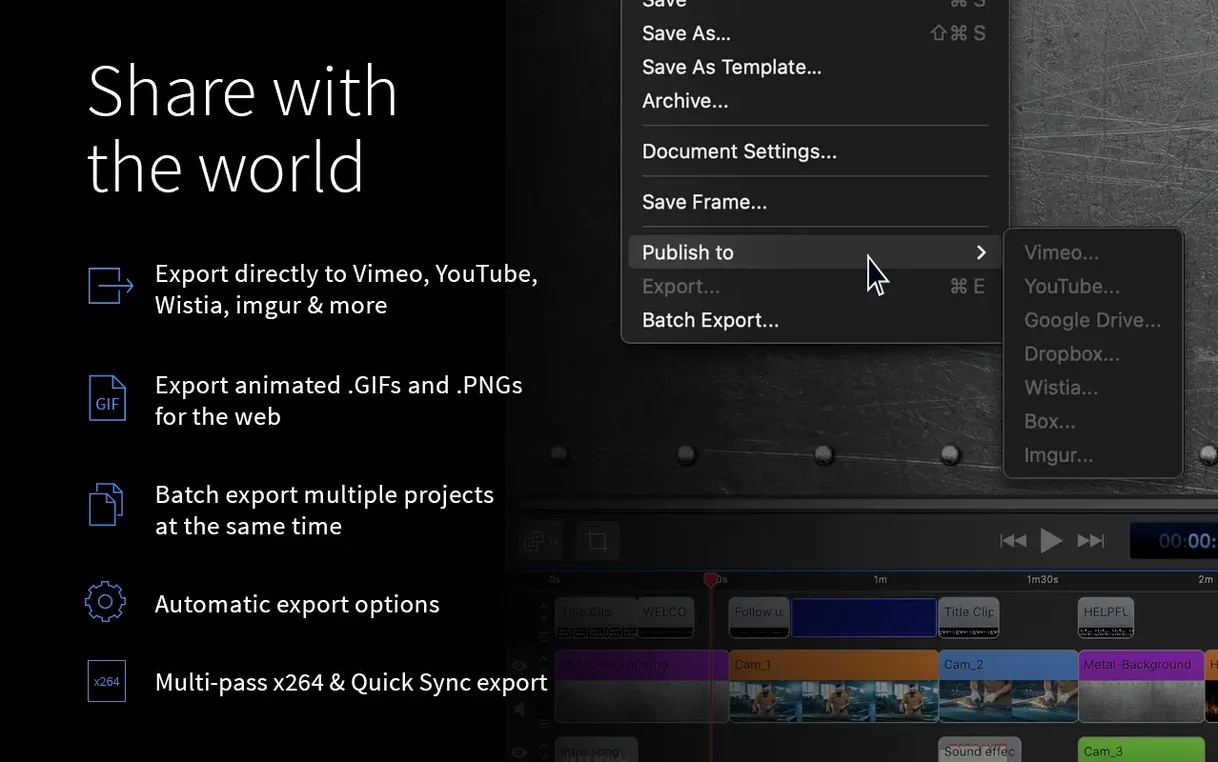
MP4 (H.264 and H.265) and ProRes (422, 422 HQ, 4444, and 4444 XQ) are the built-in options. Animated GIF and APNG are available from the File menu for short clips under 30 seconds — useful for embedding in documentation or chat replies. Direct uploads to Vimeo, YouTube, Wistia, Facebook, Google Drive, Dropbox, Box and Imgur are baked into the export panel, with resolution and quality presets that match each platform's recommendations.
Does it handle multichannel audio properly?
It does. If your interface feeds in four or six discrete channels, ScreenFlow records them as separate tracks in the capture file. In the timeline, each channel appears individually and can be muted, soloed or routed independently. This matters for podcasts and interviews where you want to split host and guest mics after recording.
One-pass screen, mic, and camera sync
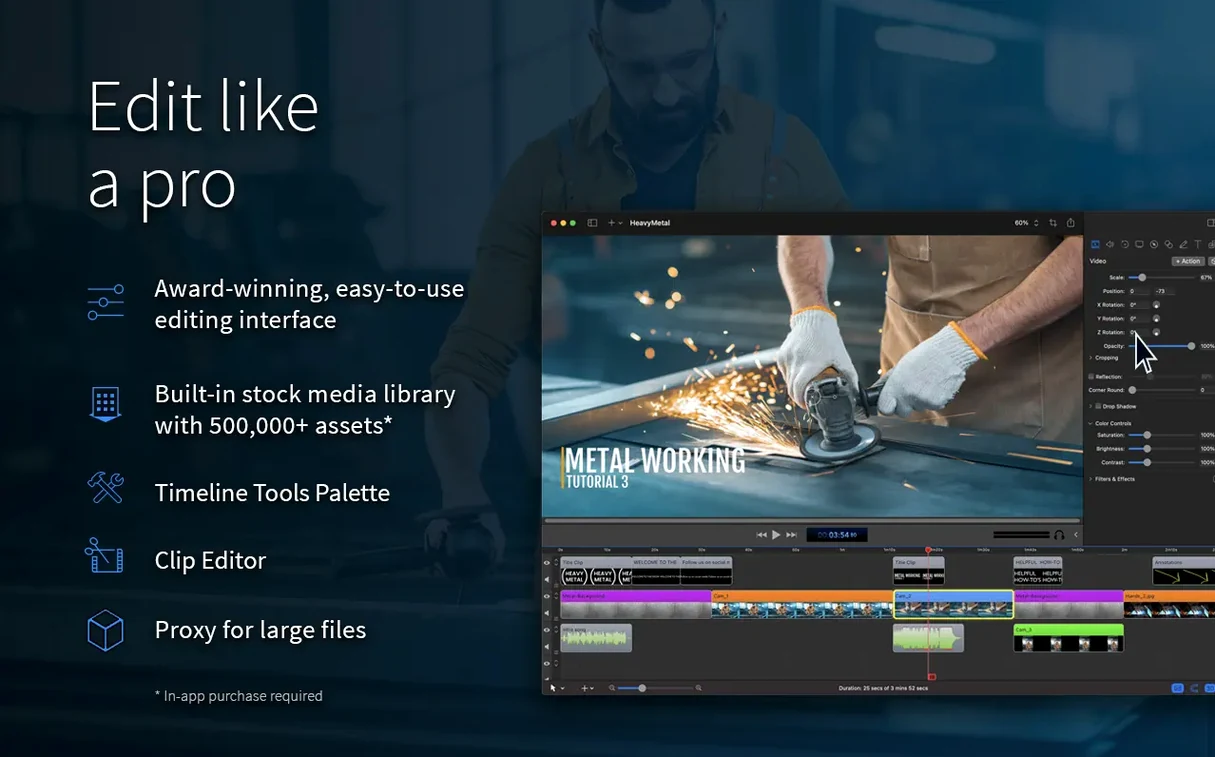
Tutorial creators are the obvious fit. One recording pass grabs the screen, the narration and the face-camera, and all three stay synced in the timeline by default. Editing is non-destructive: trims, split clips and ripple deletes work without touching the original media files. The annotations library — arrows, boxes, highlight zones — sits in a dedicated panel and drops onto the canvas with adjustable timing. Someone producing two software walkthroughs a week can go from Record to Published in under an hour, and the direct YouTube and Vimeo upload saves the step of bouncing a file to the desktop first.
Support and QA teams benefit for a different reason. The ability to record a bug reproduction with system audio and a voiceover, then circle the problem area with a callout, then export a 15-second GIF — that replaces three paragraphs of text in a ticket. The GIF export caps at 30 seconds and the colour palette maxes out at 256, so it is not for everything, but it works for quick demos in Jira or Slack.
Educators who record lectures get the multitrack audio and the iOS capture. Lecture slides on a Mac screen, a document camera via USB, and an iPad as a virtual whiteboard can all be recorded in one session. The timeline then lets you cut between angles without stopping the recording. The subtitle track accepts SRT imports and lets you adjust timing on the timeline directly, which is useful for accessibility compliance.
People searching for a screenflow solution often arrive having tried built-in screen recorders and found them too bare. QuickTime Player records a screen and a mic, but gives you no editing tools. The macOS Screenshot toolbar records a rectangle and saves an MOV — no annotations, no multitrack, no export presets. ScreenFlow fills the gap between those one-button tools and a full NLE like Final Cut Pro, and it does so without asking the user to learn a complex timeline paradigm first.
Granting screen recording permission
Recordings start with a black screen. This almost always traces back to the Screen Recording permission. Open System Settings → Privacy & Security → Screen & System Audio Recording and confirm ScreenFlow is toggled on. If it is already on, toggle it off, quit the app, toggle it back on and relaunch. macOS occasionally loses track of permissions after an OS update, and 10.5.2 does not override that behaviour — it just plays by the rules.
Computer audio records silence. Check that "Record Computer Audio" is enabled in the recording setup window before you hit record — it is not on by default for new custom presets. Also confirm the output device in System Settings matches what you expect. If you switched from built-in speakers to headphones mid-session, macOS may route audio away from the capture stream.
Exports with Chroma Key show artefacts. 10.5.2 fixed the specific case where certain screen recordings produced broken exports. If you still see green fringing after the update, try adjusting the Smoothness slider in the Chroma Key filter panel. A value between 0.04 and 0.08 usually cleans up edges without eating into the subject. Also confirm the background colour you keyed on is uniform — uneven lighting or compression artefacts in a webcam feed work against any keyer.
The app feels sluggish after 45 minutes of editing. This tends to happen when undo history grows large and autosave kicks in frequently. Clear the undo history (Edit → Clear Undo History) and check the autosave interval in Preferences. Setting it to every 10 minutes instead of every 5 reduces the background writes. If the project file itself is over 500 MB, consider splitting long recordings into separate documents — the media stays referenced, not embedded, so the project file size reflects edit density rather than source footage.
iOS device does not show up as a recording source. Trust the computer on the iOS device when the prompt appears after plugging it in. Use a cable that carries data, not a charge-only cable. If the device still does not appear, quit ScreenFlow, unplug the device, restart the app, then reconnect. The capture source list refreshes on connection, not continuously, so the order matters.
Users who go looking for a screenflow mac torrent sometimes find older builds that predate the macOS 26.2 crash fix. The 10.5.2 update is worth having for that alone — a recording tool that crashes on the current OS is not a recording tool for long. The same applies to anyone considering a screenflow mac crack that bundles version 10.5.0 or earlier: the Chroma Key export bug and the dead licence management URL remain unfixed in those builds, and the macOS 26 compatibility patch simply is not there.
- macOS 26.2+ stability — Resolved a crash on macOS 26.2 and later.
- Chroma Key exports — Fixed export errors with Chroma Key on certain screen recordings.
- Licence management — Fixed the Manage button under licences pointing to a non-existent URL.
- macOS 10.15 or later
- Apple Silicon or Intel 64-bit Mac
Questions on file
Is ScreenFlow available on Windows?
No. Telestream designs ScreenFlow exclusively for macOS, and it requires macOS 10.15 or later on an Intel 64-bit or Apple Silicon Mac.
Sign in · Create an account to add a field note.
No field notes yet. A measurement, a version, a machine — they appear after moderation.