Mac Apps
Screen Studio 4.1.0-5005
Mac AppsUpdated
| Requirement | On file |
|---|---|
| macOS | macOS 13 or later |
| CPU | Apple Silicon, Intel 64-bit |
| Download | 981 MB |
Version 3.7.5-4595 ships with no new feature notes, which means the existing toolset is the focus — a stable, spec-driven screen recorder that leans on automatic zoom and cursor tracking rather than a timeline-first editing model. If you have just installed it on macOS 13 or later, the fastest way to understand what it does is to run through four deliberate actions.
Record, tweak, export — four first-day steps
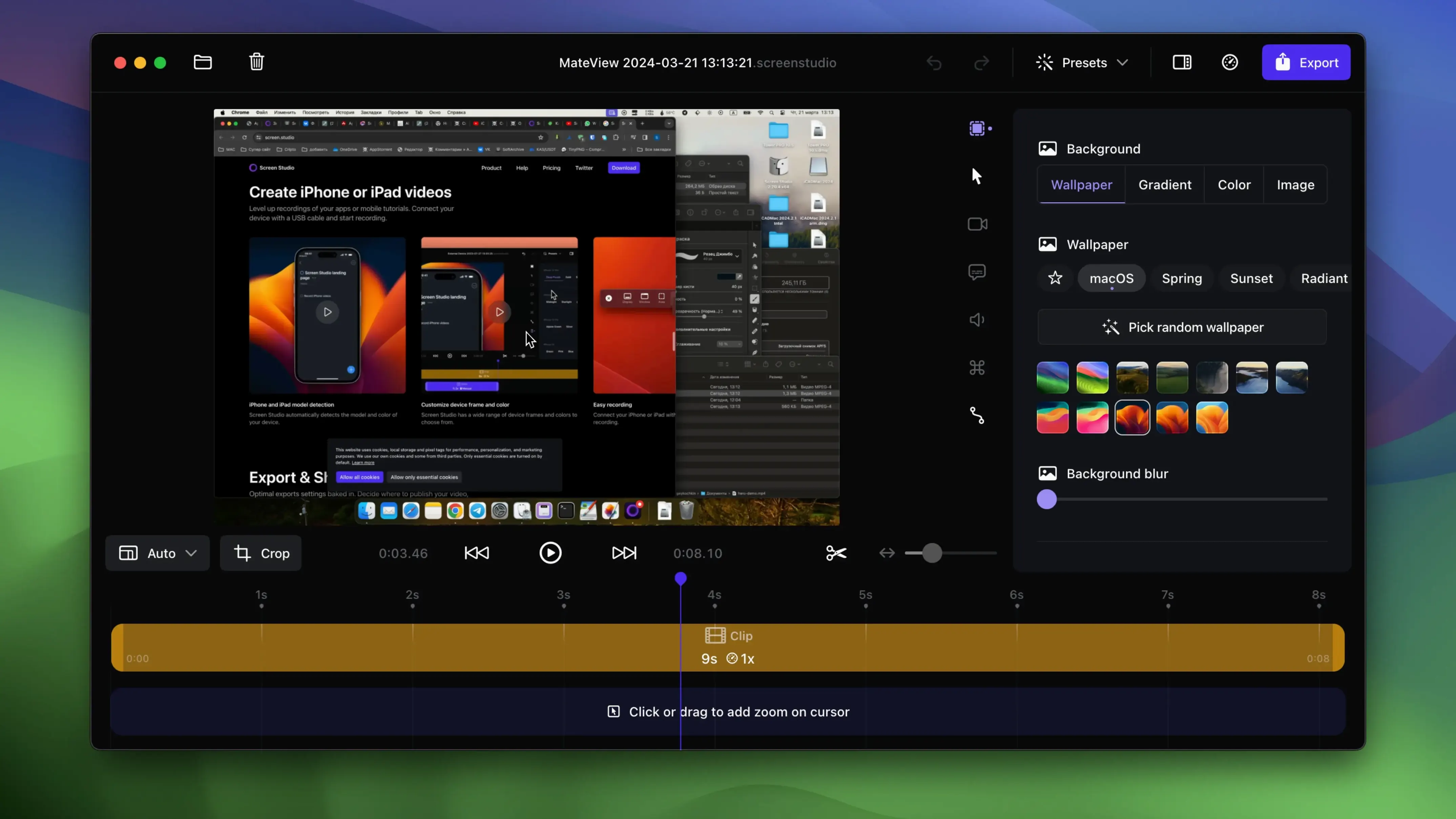
- Let it zoom for you. Start a recording of any windowed action: clicking menus, dragging sliders, typing text. Screen Studio analyses mouse movement and click targets to apply zoom cuts automatically. After the recording stops, drag the zoom regions in the timeline if you want manual control over what gets magnified.
- Plug in an iPhone or iPad. Connect a device via USB and it appears as a recording source. The software detects the model and colour automatically, then mirrors the screen at up to 4K 60 fps. This is the quickest way to capture mobile workflows without a separate capture card.
- Grab system audio selectively. Open the audio source menu and choose between all system output or a specific app. Voice normalisation and background noise removal are on by default; toggle them off in the export panel if you prefer raw levels.
- Generate a local transcript. After recording a voiceover or meeting, run the transcript tool. Processing stays on the Mac — no upload required. Copy the resulting text or the finished video to the clipboard for pasting directly into Slack, Notion or an email.
Two less-obvious settings worth switching on
Enable keyboard shortcut display before recording a tutorial — keystrokes appear as floating badges in the export. If the mouse sits still for more than a few seconds, the static-cursor hide animation keeps the frame clean without cutting the clip. Both are tucked in the overlay preferences and alter what the viewer sees without adding editing steps.
A Figma tutor's three-recordings-a-week workflow
Imagine a freelance educator who builds Figma courses for a small subscriber base. She records three times a week: short feature walkthroughs, longer project builds, and the occasional vertical teaser for social media. Before each session she plugs in a Logitech webcam, checks that system audio capture is set to Figma only, and hits record.
The automatic zoom follows her pointer as she drags components across the canvas. When she pauses to explain a concept, the cursor-smoothing effect removes the micro-jitters her trackpad normally introduces. After stopping the recording she trims the dead air at the start, drags one zoom region to linger on a property panel a little longer, then exports a 1080p 30 fps file for her course platform. For Instagram she ticks the vertical export checkbox, and the scaling adjusts without cropping her face from the selfie overlay. The whole flow — record, tweak, vertical export — takes under eight minutes for a five-minute final video. That speed matters when a subscriber question arrives on a Tuesday morning and she wants to publish the answer before lunch.
Fixing recording snags without restarting the session
System audio capture is silent on the first run
macOS gatekeeps system audio access more tightly than microphone or screen recording permissions. After installing Screen Studio, you must manually add the app in System Settings → Privacy & Security → Screen & System Audio Recording. If the toggle is already on, toggle it off and on again — a quirk that persists through several macOS updates. After a restart of the app, the All system audio option appears in the source menu and captures Chrome tabs, music, and notification sounds as expected.
Connected iPhone shows a black screen
The USB detection logic reads the device model and colour almost instantly, but a black mirror feed usually means the iPhone is locked. Unlock it, tap Trust This Computer if the dialogue appears, and keep the screen awake during recording. A second cause: the cable. Apple’s own USB-C to USB-C cable works reliably; third-party charging cables often lack the data lines the mirroring protocol needs. Swapping the cable resolves most black-screen reports in under a minute.
Vertical export crops the selfie overlay
When switching from landscape to vertical output, the selfie overlay position and size are recalculated. If the overlay ends up half out of frame, open the overlay controls and reduce its scale by 10–15%. The vertical export engine preserves the relative positioning from the landscape edit, but a manual nudge is sometimes needed after a resolution change. Saving a preset for vertical exports avoids repeating the adjustment.
CleanShot X, Kap, and OBS: where the overlap actually ends
Three apps tend to occupy the same conversations: CleanShot X, Kap, and OBS Studio. Each shares a slice of the screen-recording pie, but the overlap is smaller than the feature lists suggest.
CleanShot X is the closest neighbour. It records screen, captures stills, and annotates. Its recording tool is quick — press a shortcut, drag a region, get an MP4. But CleanShot does not auto-zoom, does not smooth cursor paths, and does not generate local transcripts. Where Screen Studio applies polish during and after a recording, CleanShot delivers a flat, unprocessed clip that you would push into a full video editor. The choice reduces to polish now versus edit later. People who record quick bug reports or static UI screenshots often prefer CleanShot for its annotation speed. People who record tutorials or demos that need motion and framing gravitate towards Screen Studio.
Kap is an open-source lightweight recorder with a minimal toolbar and a handful of export formats including GIF. It shares Screen Studio’s clipboard-copy and GIF export features, but stops there. Kap has no zoom engine, no device mirroring, no cursor smoothing, no transcript generation, and its system audio support is limited to a single aggregate-device workaround on recent macOS versions. Where Kap appeals is sheer simplicity: open a tiny window, record, stop, trim the ends, export. It works well for a 15-second screen grab. It is not built for a 20-minute tutorial with five zoom cuts and a synced voiceover.
OBS Studio sits at the other end — a broadcast-grade mixer that handles scenes, sources, filters, and streaming to any platform. OBS can record a Mac screen, layer a webcam, and capture system audio, but every effect that Screen Studio applies automatically (zoom on action, cursor smoothing, keystroke badges) requires manual scene setup and third-party plug-ins in OBS. The resource comparison is instructive: OBS runs a compositor that keeps the GPU warm even when idle, while Screen Studio uses the native AVFoundation pipeline and idles at roughly 3–5% CPU on an M2 when not actively recording. For live streaming, OBS has no equal among these four. For a polished, ready-to-share screen recording without a timeline editor, Screen Studio trims the toolchain to a single app.
Apple Silicon CPU and memory during a 1440p recording
On Apple Silicon, a screen studio mac session recording a 1440p Retina display with system audio and a 720p selfie overlay pushes CPU usage to the 8–12% range. Memory sits around 400–600 MB during a recording, dropping back to 120 MB at idle. Export is GPU-accelerated via the Media Engine coprocessor; a five-minute 4K 60 fps H.264 file renders in roughly 90 seconds on an M2 Pro. The same file on an Intel i9 MacBook Pro takes closer to four minutes, with fans audible by the two-minute mark. Stability across a week of daily use — multiple recordings, trims, transcript generations — is uneventful. Crashes are rare, typically tied to a specific USB device handoff when an iPhone disconnects mid-recording. Autosave catches the raw recording before the drop, so data loss is minimal.
One latency worth knowing: the transcript generator processes at about 1.5× real time on Apple Silicon. A 10-minute voiceover takes roughly six to seven minutes to transcribe. The model runs locally, so network speed is irrelevant, and the accuracy holds up well against clear, North American English speech. Heavy accents or fast overlapping voices degrade results noticeably — the engine is not Whisper, and it does not claim to be.
Real-time noise removal arrives before export
Version 3.7.5-4595 is a stability release with no new feature notes, but the two preceding minor cycles introduced changes that affect daily workflows. Background noise removal moved from a post-export toggle to a real-time preview option, so you can now hear the cleaned audio before committing to a render — a small shift that cuts down re-export time for voiceover-heavy projects. The vertical export scaling algorithm was retuned to preserve overlay positions more reliably, which reduced the manual resets described earlier. Keyboard shortcut badges gained per-app exclusion rules, meaning you can suppress them when recording a password manager or terminal without toggling the global setting off and on. And the static-cursor hide animation received a timing adjustment: the fade-out starts after 2.5 seconds of inactivity instead of 4, keeping tutorial frames tighter by default.
- macOS 13 or later
- Apple Silicon or Intel 64-bit processor
Questions on file
Can Screen Studio crop or speed up sections of a recording?
Yes — the built-in editor lets you crop the canvas, split clips and adjust speed for any segment before export.
Does the transcript feature require an internet connection?
No, transcription runs locally on the Mac with no data sent off-device.
What export resolution and frame rate does Screen Studio support?
Videos can be exported at up to 4K resolution and 60 frames per second.
Sign in · Create an account to add a field note.
No field notes yet. A measurement, a version, a machine — they appear after moderation.