
Mac Apps
Sensei 2.1.2
Mac AppsUpdated
| Requirement | On file |
|---|---|
| macOS | macOS 14 or later |
| CPU | Apple Silicon, Intel 64-bit |
| Download | 30 MB |
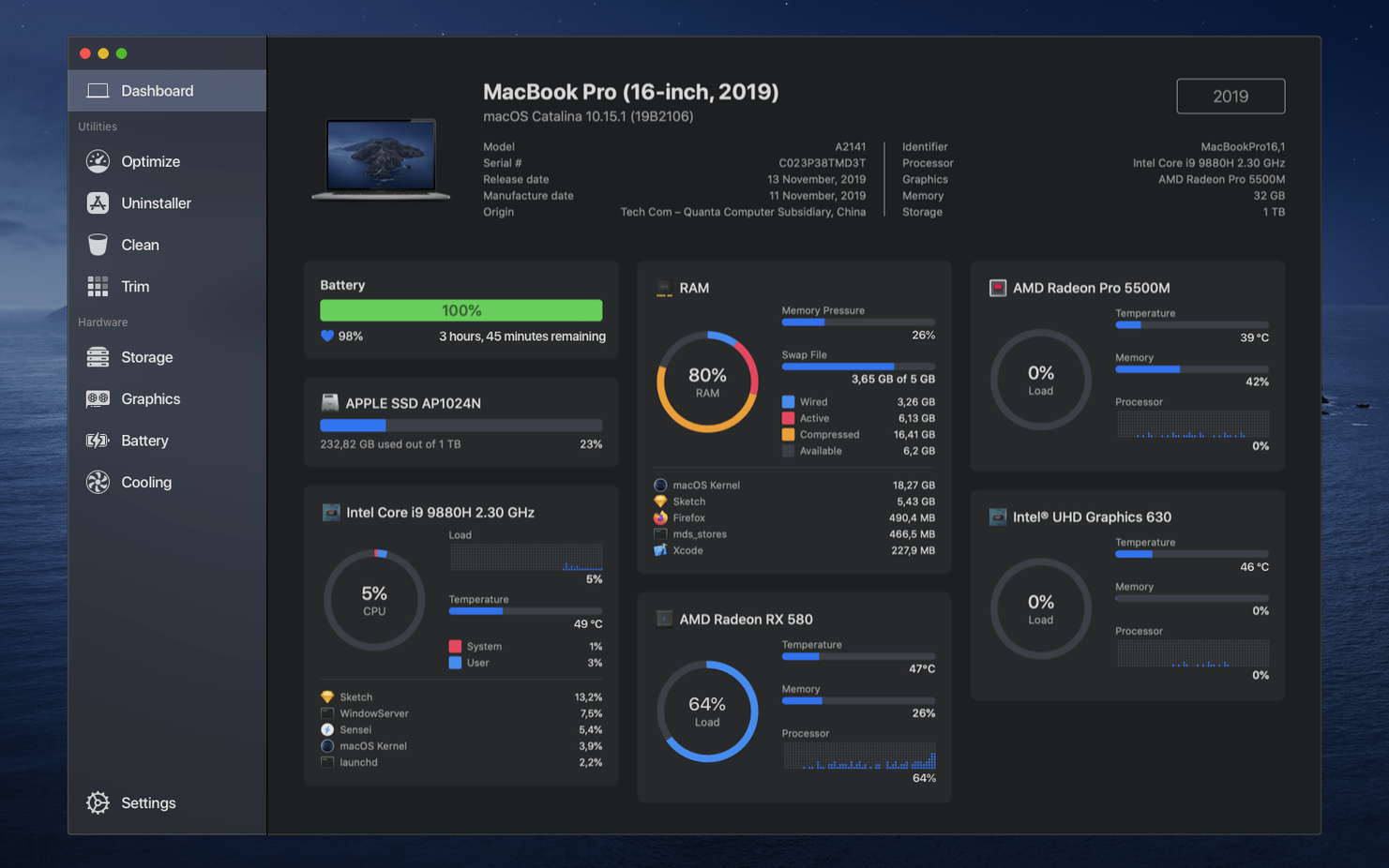
Sensei runs on any Mac that supports macOS 14, whether it uses an Intel processor or Apple Silicon. The app loads a Dashboard that pulls live data from the GPU, CPU and RAM, giving you a real-time view of what the hardware is doing without opening half a dozen separate utilities.
Continuous load monitoring, SSD TRIM toggle, battery health and uninstaller
- Continuous monitoring of processor, graphics and memory load from a single window
- SSD TRIM support for third-party drives, with a straightforward enable/disable toggle
- Battery health reporting that tracks cycle count, design capacity and temperature
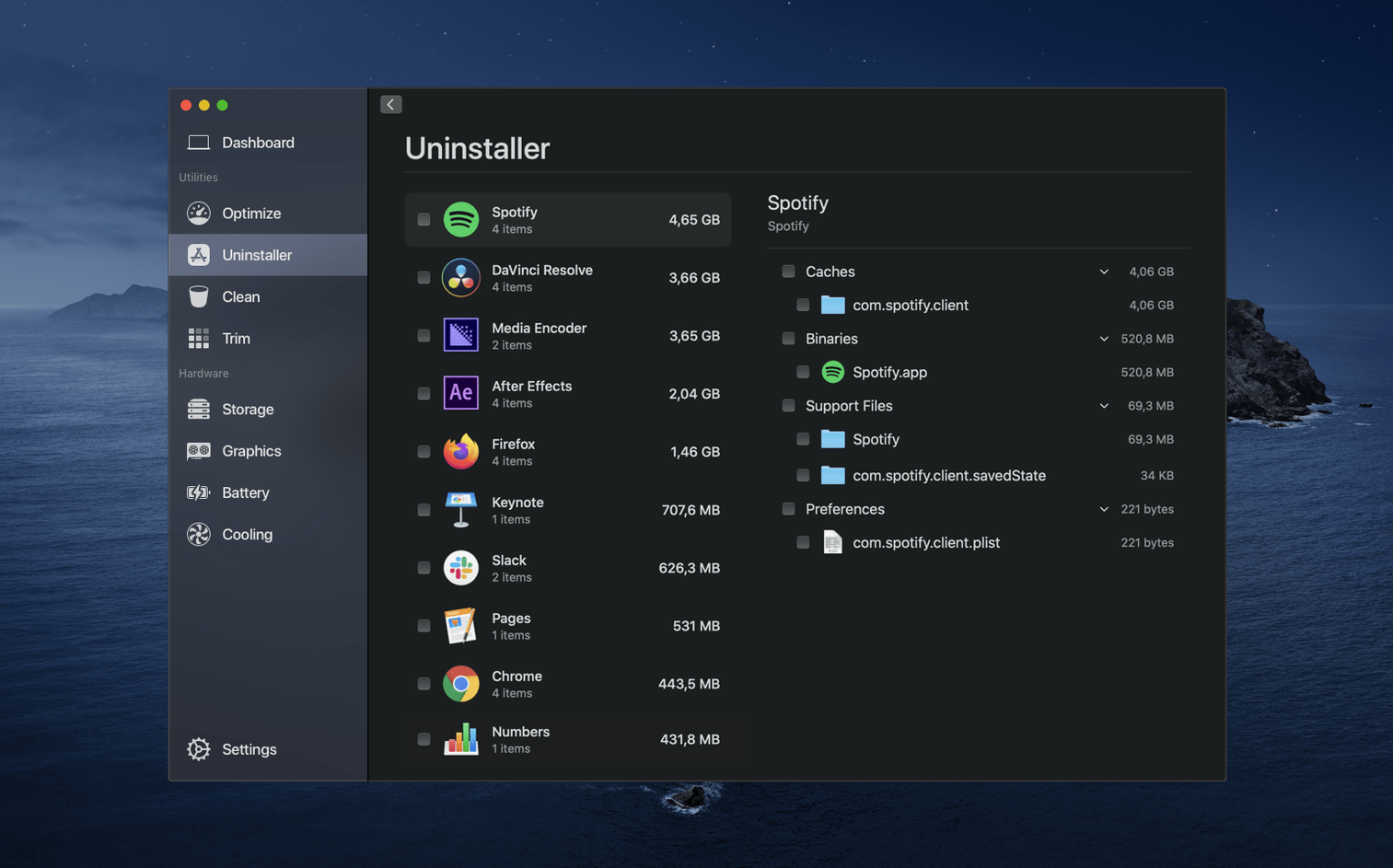
- Application uninstaller that hunts down leftovers most drag-to-Trash routines miss
- Menu bar Monitor built directly into the app, no separate helper process required
Same clean layout and eight localisations carry over unchanged
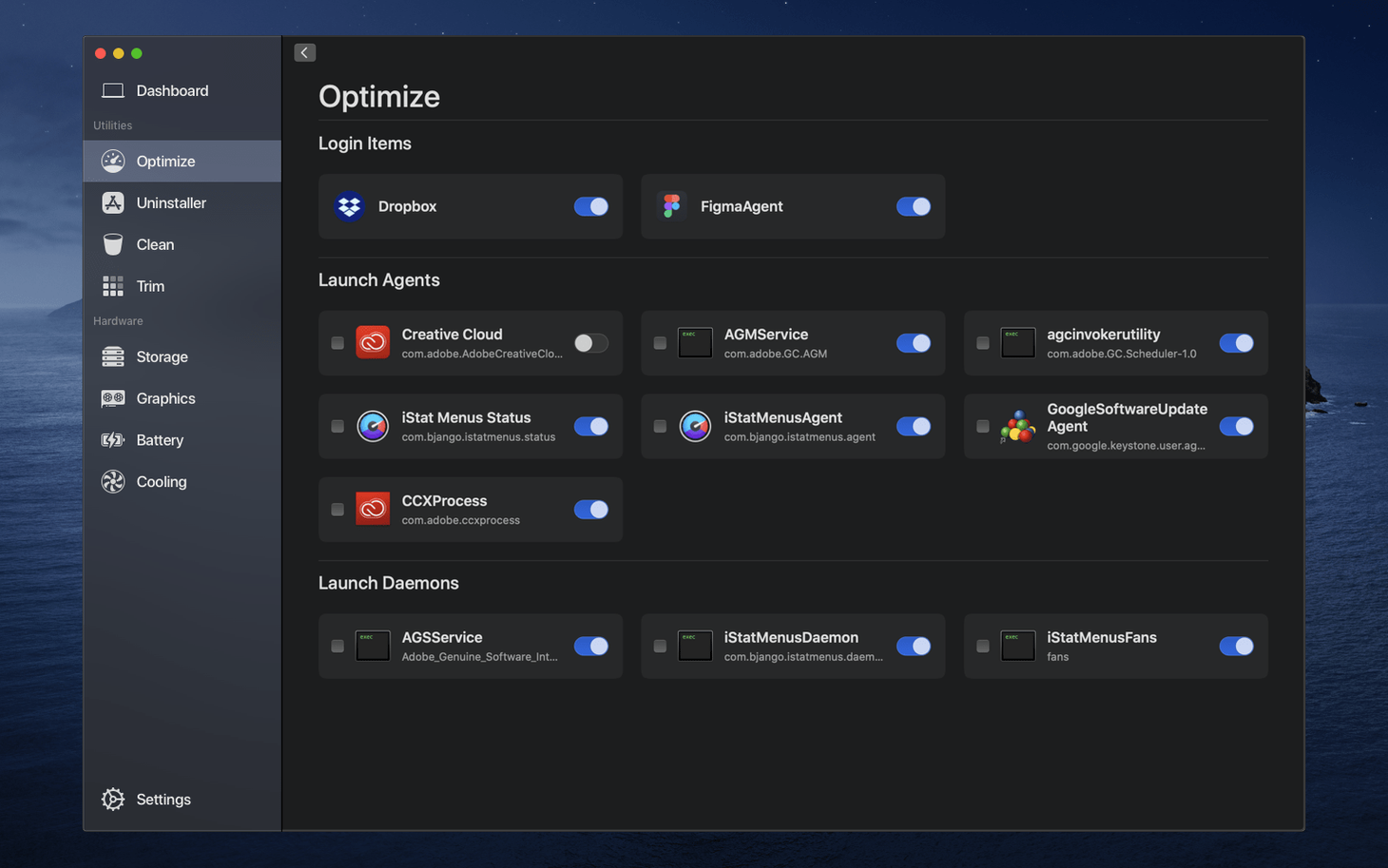
Version 2.1.2 sticks with the same clean layout Cindori AB has refined over several releases. No new modules, no redesigned panels. The Russian, English, Spanish, Simplified Chinese, Dutch, French, Swedish and Japanese localisations remain intact, and the Dashboard still defaults to a dark-themed panel that keeps system vitals readable at a glance. If you used Sensei 1.6.0 or 1.7.0, the jump to 2.x already delivered the interface overhaul; this update simply keeps it running on current hardware.
Double-click a metric tile to isolate that reading
The Dashboard alone gets most of the attention, but a handful of shortcuts and secondary panels save real time once you know they exist. A double-click on any metric tile — CPU load, GPU temperature, network throughput — isolates that reading in a compact floating window that stays pinned above other apps. Dragging the window to the edge of the screen snaps it to a quarter-width column, which is useful during renders or large exports when you want an eye on thermals without switching spaces.
The menu bar Monitor holds a few hidden triggers of its own. Option-clicking the icon cycles through display modes (graph, percentage, temperature only) without opening preferences. Right-clicking reveals a quick-actions list: force-quit the hung app, open Activity Monitor, or jump straight to the Uninstaller. If you set the Monitor to show CPU temperature by default, a secondary reading — GPU die or SSD sensor — appears when you hover for half a second. Small touches, but they cut down the trips into the full window.
In the Clean section, holding the Option key while clicking “Scan” runs a deep scan that includes system cache directories the standard pass skips. The app does not advertise this anywhere in the interface, but the scan log confirms the extra paths. For users who regularly purge Xcode derived data or old iOS simulator files, this catches roughly 2–4 GB that a normal scan leaves behind.
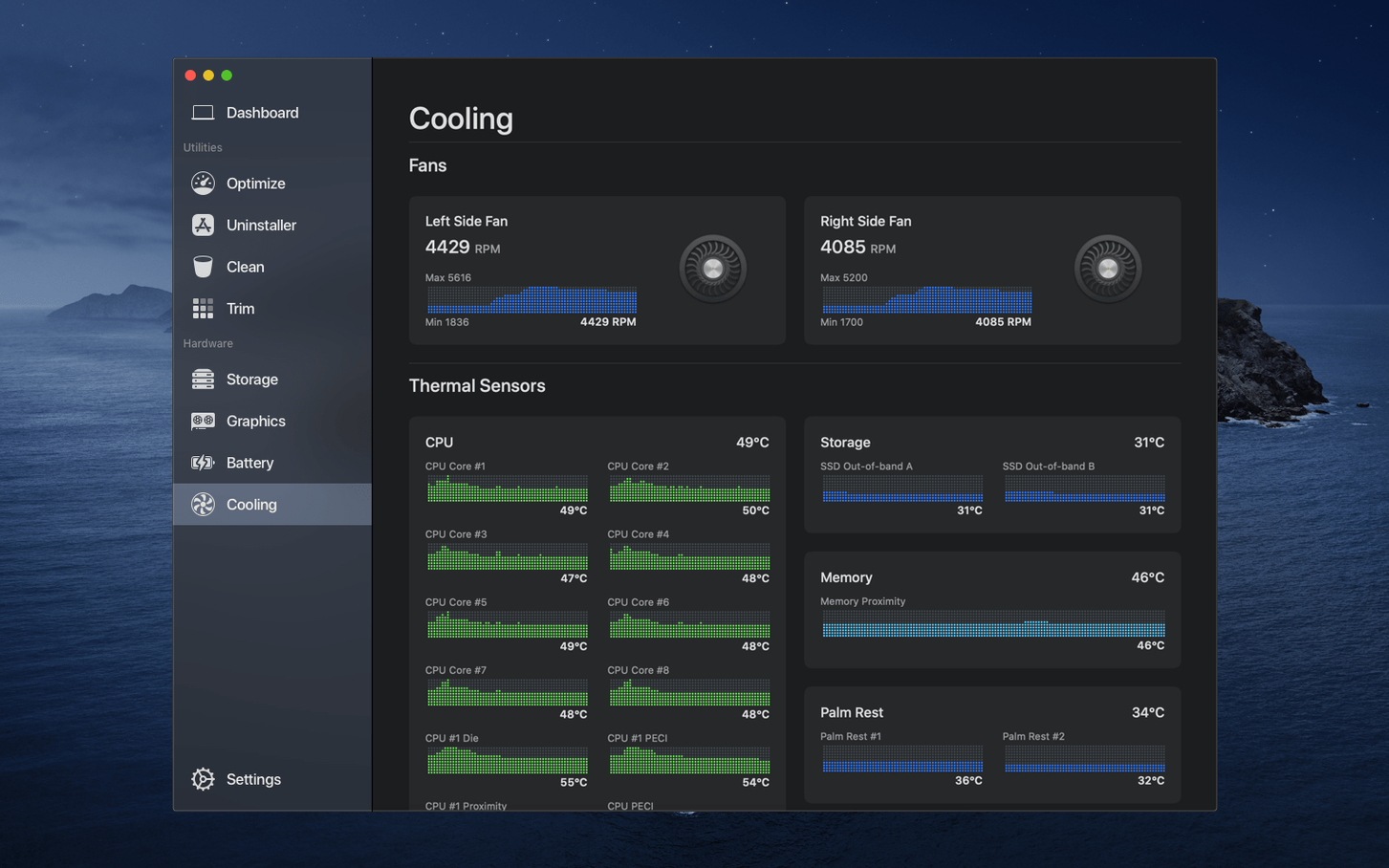
Fan control also has a mode that is easy to overlook. The automatic profile respects Apple’s default curve, but setting a manual base speed and then toggling “Adaptive ceiling” lets the fans climb above that floor only when a sensor you specify — CPU proximity, GPU die, battery — crosses a threshold. This avoids the noise penalty of a fixed high RPM while still holding temperatures below a safety line during sustained loads.
A scenario: the photographer who noticed the battery swelling before the case did
A working photographer running Sensei on a 16-inch MacBook Pro kept the battery panel open after an on-location shoot. The design capacity readout had dropped from 100 % to 87 % over six months, but the immediate concern was the temperature sensor: 38 °C at idle, well above the 28–30 °C range the same room temperature normally produced. The cycle count was 340, nothing alarming. The dashboard also flagged a “Service recommended” status the macOS battery menu had not yet shown.
That single reading prompted a Genius Bar visit where the technician found early cell swelling before it pressed against the top case. The photographer backed up the library that evening, booked the repair, and avoided a trackpad-damage scenario that would have cost far more than the battery replacement. Sensei did not diagnose the swelling — no software can — but the combination of a higher-than-expected idle temperature and a quietly dropped health flag turned what could have been a missed signal into an early catch.
Workflow: scrubbing a Mac before handing it off to a new user
When a studio machine moves to a different team member, a simple macOS wipe leaves user caches, orphaned preference files and app leftovers intact on the volume. Sensei’s toolset handles the pre-wipe scrub in roughly 20 minutes.
- Open the Uninstaller module. Sort by size and remove large apps the next user does not need — Adobe suites, DaVinci Resolve, older Xcode versions. The Uninstaller lists associated files per app; select all and confirm removal.
- Switch to the Clean section. Run the standard scan first, then Option-click “Scan” for the deep pass. The combined results typically surface 10–30 GB of system logs, user cache directories, old iOS backups and language resource files.
- Review the “Large files” tab inside Clean. Sort by size descending. It often reveals forgotten disk images, archived project folders and duplicate media files tucked into Downloads or Desktop. Delete what is not needed.
- Open Dashboard > Storage. Check the drive’s S.M.A.R.T. status and total written bytes. If the drive health is below 80 %, flag it for replacement before the machine goes to the next user.
- If the Mac has a third-party SSD, enable TRIM via the toggle in the Storage panel. A fresh macOS install will not re-enable it automatically, and the performance drop on some NVMe drives without TRIM becomes noticeable within weeks.
- Sign out of iCloud and deauthorise any Apple ID services, then perform the standard macOS erase from System Settings. Sensei’s work means the leftover clutter is gone before the volume is wiped.
The whole process adds roughly 15 minutes to a hand-off routine and avoids the awkward moment where a new user finds someone else’s Final Cut render cache eating 80 GB of the drive.
Menu bar Monitor stuck on “Waiting for data” after a macOS update
A few recurring issues show up across forums and support threads, and most of them have straightforward fixes.
Menu bar Monitor shows “Waiting for data” and never populates. This usually happens after a macOS point update when the XPC service responsible for sensor access has a stale launchd registration. The quickest fix: open Sensei’s full window once, let the Dashboard populate, then quit and relaunch the app. If that does not clear it, running sudo kmutil clear-staging in Terminal and rebooting forces a kernel extension cache rebuild that resolves the sensor communication path.
Uninstaller misses files from apps installed via third-party package managers. Homebrew Cask and MacPorts place files in directories Sensei’s uninstaller does not index by default. For apps that arrived via brew, run brew list --cask to find the exact package name, then brew uninstall --cask [name]. Use Sensei’s Uninstaller for drag-installed apps and the package manager for its own domain; mixing the two causes partial removals.
Fan control slider is greyed out. Only Macs with Intel processors expose manual fan control through the SMC interface. Apple Silicon machines do not present the same control path, so the slider is intentionally disabled. The automatic profile still works, and the temperature sensors remain fully readable regardless of architecture.
TRIM toggle does not stick after reboot. System Integrity Protection must be enabled for the TRIM setting to survive a restart — counterintuitive, but disabling SIP prevents the system from honouring the trimforce flag. Check SIP status with csrutil status. If it is off, re-enable it from Recovery, reboot, then toggle TRIM again in Sensei.
Battery health percentage fluctuates between launches. The reading comes from the battery management controller, which recalculates based on recent charge-discharge cycles. A variance of 2–3 % across a day is normal. If it swings 5 % or more every time, the battery controller needs recalibration: drain to 0 % until the Mac sleeps, leave it unplugged for five hours, then charge uninterrupted to 100 %. Sensei’s cycle count and temperature readings remain accurate regardless.
- macOS 14 or later
- Intel or Apple Silicon Mac
Sign in · Create an account to add a field note.
No field notes yet. A measurement, a version, a machine — they appear after moderation.