
Mac Apps
SiteSucker Pro 6.2.2
Mac AppsUpdated
| Requirement | On file |
|---|---|
| macOS | macOS 26 or later |
| CPU | Apple Silicon, Intel 64-bit |
| Download | 6 MB |
You have a flight in three hours and the reference docs for a field deployment live on a web server with no public internet access at the destination. A local copy is the obvious fix. That is the kind of job SiteSucker Pro is built for—grab a whole site, mirror its directory structure on your Mac, and open it from the local disk without touching a browser.
First download: a four-step setup
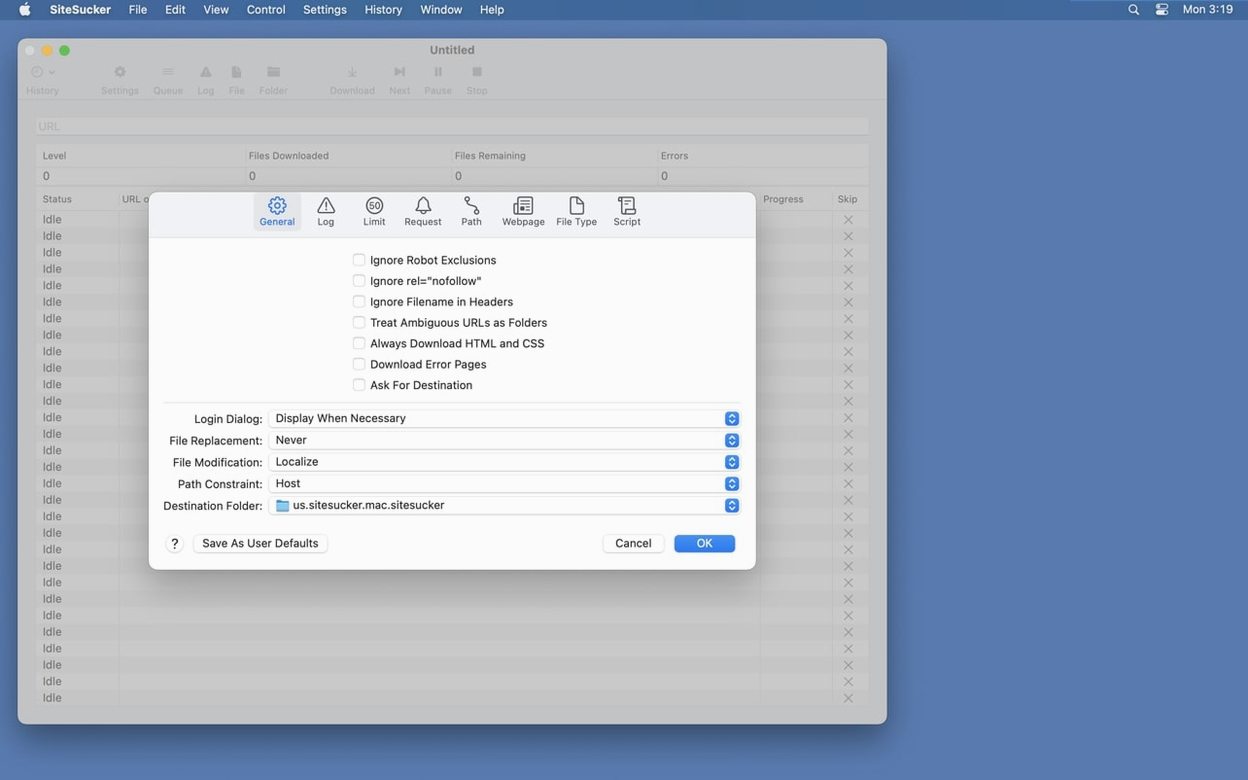
These are the settings a newcomer should touch before pulling down a site. The defaults are sensible, but a quick pass through four sections avoids pulling half the internet onto your SSD.
- File Types. Open Settings and go to File Types. The app can download all files or only selected types. For a documentation site, ticking HTML, CSS, JavaScript and images keeps the local copy functional without dragging in large archives you do not need.
- Paths. Switch to the Paths section. Here you can force specific page links to download or skip entire sub-trees. If the target site has a /blog/ path unrelated to the reference material, add a skip rule immediately.
- Limits. Set a maximum download depth (3 or 4 levels is plenty for most microsites) and a file-size ceiling. This prevents the queue from ballooning on sites with auto-generated archive pages.
- Advanced. If the site serves different markup to different browsers, change the user-agent setting to Safari or Firefox. The setting lives in the Advanced section and takes effect on the next download.
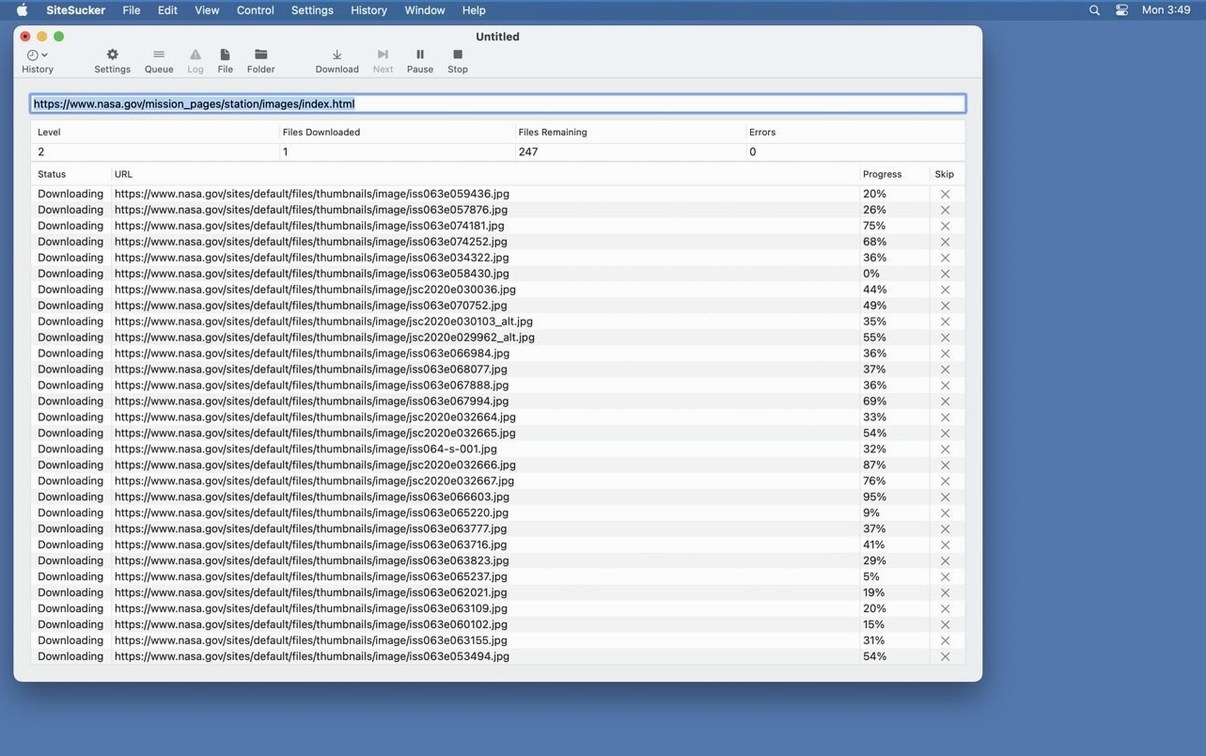
Enter the starting URL in the main window, hit Download, and the app duplicates the site's directory structure on disk. By default, paths listed in robots.txt are skipped, though that exclusion can be switched off in Settings if the content is needed. The Pro edition adds embedded-video downloading for pages that host media directly, and the current version 6.2.2 includes a new Format HTML option under Webpage settings alongside PDF-related bug fixes.
Operation Log Catches Every Redirect and Error Live
Several features sit in plain sight but get overlooked on the first few runs. The operation log is one of them. While a download is underway, the log records every request, redirect, skipped path and error. Click the Open Log button on the toolbar and the file opens in Console, which is far more useful than the tiny inline panel in the main window. You can filter by status code, spot 404 chains that might indicate a structural problem with the site, and see exactly which file triggered a timeout. For larger grabs that run overnight, the log is the quickest way to audit what landed and what did not.
Another overlooked detail is the Webpage settings panel. In version 6.2.2, the new Format HTML option lives here, and it determines whether downloaded HTML files are saved as raw source or tidied with consistent indentation. Raw source is faster and byte-identical to the server response; formatted HTML is easier to read when you need to extract snippets by hand. Switching between the two takes one checkbox and applies to the next download only, so you can change it per-project without altering the global defaults.
The minimum file-size filter in the Limits section is worth remembering for sites that serve dozens of 1×1-pixel tracking gifs or empty beacon responses. Setting a floor of 1 KB trims those out of the queue before they waste fetch slots. Combined with the maximum file-size ceiling, you get a bandwidth window that fits the project rather than the whole domain.
Keyboard shortcuts are minimal but practical. ⌘D starts a download; ⌘. stops the current job. If you have multiple URLs queued in the main window, the Stop command halts the active fetch without clearing the list, so you can resume the remaining items later. The app does not have a pause-and-resume function per download, but stopping and restarting with the same settings file achieves essentially the same thing for a static site.
Drop Downloads Straight into a DEVONthink Indexed Group
SiteSucker Pro writes plain files to a folder you choose, which makes it agnostic about what reads them afterward. A common pattern is to point the download destination at a directory inside a DEVONthink indexed group. When the grab finishes, DEVONthink picks up the new HTML and PDF files automatically, OCRs any image-based content, and makes the whole site searchable alongside the rest of your research material. No export step, no intermediate format conversion.
For developers, downloading a static copy of a site and opening it in BBEdit or Visual Studio Code turns the local mirror into a searchable codebase. The preserved directory structure means relative links between pages still work, so you can navigate the site in a browser while keeping the source open in an editor. CSS and JavaScript files land with their original names and paths, which makes debugging offline straightforward.
macOS Quick Look works directly on the downloaded HTML files. Select a page in Finder, tap the spacebar, and you get an instant rendered preview without launching a browser. This is faster than opening a full browser window when you only need to verify which version of a document was pulled down. The app also respects the system language setting: the interface switches between English, German, Spanish, Italian, Portuguese and French based on your macOS region, with no separate localisation pack to install.
On the automation side, SiteSucker Pro does not ship with AppleScript support or a command-line interface. The practical integration path is folder monitoring: set the download destination to a folder watched by Hazel or a launchd script, and post-processing can begin the moment new files appear. For repetitive grabs of the same site, saving a .sitesucker settings file and double-clicking it from Finder reloads the exact configuration, which is the closest equivalent to a scheduled task.
PDF Creation Fix for Incomplete Content-Type Headers
Version 6.2.2 is a maintenance release that addresses two specific pain points. The PDF creation bugs fixed in this build affected sites where the server sent incomplete content-type headers for printable pages. Earlier versions would sometimes produce blank or truncated PDFs when the MIME type was ambiguous; the fix correctly interprets the byte stream regardless of header quality. For anyone archiving documentation sites where the printable view matters, this change eliminates a manual verification step.
The other addition is the Format HTML option mentioned earlier. Before 6.2.2, downloaded HTML was always saved in the format returned by the server—usually minified or whitespace-stripped on production sites. The new toggle lets you request human-readable output without running a separate beautifier after the download. It is a small quality-of-life change that saves a toolchain step when the local copy is meant for reading rather than bit-exact preservation.
Earlier updates in the 6.x line brought the app to Apple Silicon with a universal binary, so the same download runs natively on ARM and Intel Macs. The interface moved to the current macOS design conventions, and the Settings window gained the tabbed layout that groups General, Logs, Limits, File Types, Paths and Advanced into a single pane. Users upgrading from version 5 will notice the tighter integration with Console for log viewing and the rewritten URL queue that handles redirect chains more reliably on sites behind CDNs.
HTTrack Offers Command-Line Resume and Proxy Support
Three other Mac apps overlap with SiteSucker Pro's core function, each with a different emphasis.
HTTrack (via Homebrew or a third-party wrapper) is the long-standing open-source site copier. It offers granular command-line control, proxy support, and the ability to resume interrupted downloads from a cache file. The trade-off is that it has no native Mac interface—running it means the terminal and some manual configuration. SiteSucker Pro covers the same ground with a GUI, and the Pro edition's embedded-video handling is not present in HTTrack's default build. For a one-off archive of a media-heavy site, the GUI saves time; for automated nightly mirroring on a server, HTTrack's scripting edge matters more.
WebCopy by Cyotek is a Windows app that some Mac users run via CrossOver or a virtual machine. It scans a site, builds a sitemap view before downloading, and lets you cherry-pick pages from a tree. SiteSucker Pro does not have an interactive sitemap preview—you configure rules in the Paths and Limits sections instead. WebCopy's visual selection works well for small sites where you want to download 15 specific pages and nothing else. SiteSucker Pro's approach scales better for large domains because you define rules rather than clicking individual nodes.
Wget is the classic Unix tool that ships with macOS and requires no installation. A single wget command with recursive flags mirrors a site, and it handles cookies and authentication headers natively. The gap is that configuring Wget for a complex job—depth limits, file-type filtering, path exclusions, user-agent spoofing, robots.txt overrides—means memorising a dozen flags or keeping a shell script. SiteSucker Pro wraps all of those controls into labelled Settings tabs, which is less flexible in a scripted pipeline but far harder to misconfigure at 11 p.m. before a deadline.
PDF creation — Fixed bugs related to creating PDFs.
Webpage settings — Added a Format HTML option.
- macOS 14.0 or later
- Intel or Apple Silicon Mac
Questions on file
Does SiteSucker Pro respect robots.txt exclusion rules?
Yes, by default it skips file paths listed in robots.txt. You can turn off this exclusion in the Settings if you need to download those resources.
Can SiteSucker Pro download embedded video from a website?
The Pro edition can download embedded video files. The standard edition does not include this feature.
What version of macOS does the current release of SiteSucker Pro require?
The developer lists macOS 14.0 or later as the minimum requirement for the current 6.2.2 release.
Sign in · Create an account to add a field note.
No field notes yet. A measurement, a version, a machine — they appear after moderation.