Mac Apps
SuperDuper! 4.0.7
Mac AppsUpdated
| Requirement | On file |
|---|---|
| macOS | macOS 10.13 or later |
| CPU | Apple Silicon, Intel 64-bit |
| Download | 10 MB |
Switching to a larger drive or moving a full system to another Mac usually means a fresh OS install and hours of manual file transfers. The alternative is a block-level clone that captures everything — system files, applications, settings and hidden volumes — and boots on the destination hardware without extra steps. That is the core problem SuperDuper! solves.
Bootable disk clones for instant hardware swaps
- Creating an exact, bootable copy of a startup disk for quick hardware migration.
- Scheduling periodic backups of important data to external media via its built-in scheduler.
- Running custom copy scripts for selective folder syncs rather than full-disk clones.
English-only interface and script-authoring prerequisites
- The app is localised in English only; no other interface languages are included.
- Manual operation is straightforward, but script support requires comfort with defining source and destination rules.
- On macOS 27 Golden Gate, a startup-drive registration issue required a workaround added in version 4.0.7.
Startup-disk visibility fix after cloning on macOS 27
The jump to version 4.0.7 brought one practical fix that matters during system migrations. Under macOS 27 Golden Gate, the startup disk occasionally failed to appear in System Settings after a clone completed — the copy was valid and bootable, but the Mac refused to list it as a selectable startup volume. Shirt Pocket added a workaround that re-registers the cloned drive so it shows up reliably in the boot picker. For anyone who clones a system before swapping hardware, that single change removes a moment of panic where the destination drive looks absent despite a successful copy.
Earlier 4.0.x releases tightened Apple Silicon handling. Block-level copies on M-series Macs now preserve the signed system volume structure that Apple enforces for boot security, which means a cloned external SSD boots on an M2 or M3 machine without requiring a fallback to Recovery mode and a reinstall of macOS over the top. For Intel users the path remains unchanged — a straight block copy with no signature wrangling needed.
Scheduling behaviour also settled down. Where older builds sometimes skipped a scheduled copy if the destination volume had been renamed between runs, the current build matches volumes by UUID rather than mount name. The practical effect is fewer missed backups when you swap external enclosures or rename a partition for clarity.
A Specific Kind of User
Consider a technician who services Macs for a small design studio. Six workstations run different macOS versions because two Adobe CC installations lag behind on compatibility. When a machine needs a larger internal SSD, the technician connects an NVMe enclosure via Thunderbolt, launches SuperDuper!, selects the internal drive as source and the external as destination, and chooses "Backup — all files" with the "Erase then copy" option. Forty minutes later the enclosure holds a bootable clone. The old drive comes out, the new one goes in, and the Mac boots from the clone on the bench. A reverse clone pushes everything onto the new internal drive. The machine returns to its desk with applications, fonts, licence files and network settings intact — no Adobe reinstall, no font manager rebuild, no half-day lost to setup.
A photographer’s Friday-night library sync to a bus-powered SSD
Imagine a photographer who keeps a working library on a MacBook Pro and a duplicate on a bus-powered USB-C SSD at home. The session starts at 6pm on a Friday.
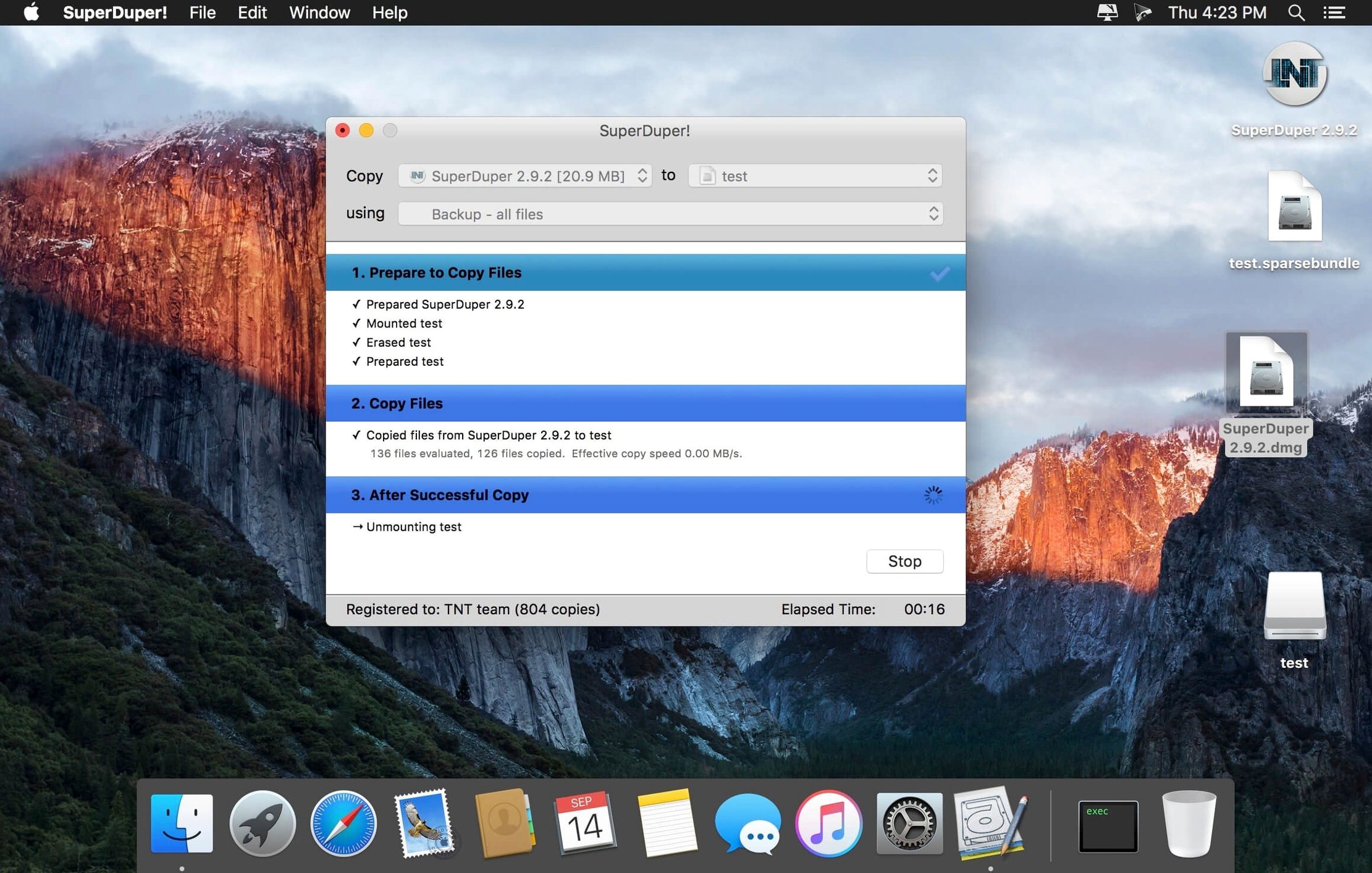
She plugs in the backup SSD, which mounts as "Photo Backup." She opens SuperDuper! from Launchpad. The main window lists two pop-up menus: the top shows "Macintosh HD," the bottom shows "Photo Backup." She sets the third pop-up — the copy method — to "Smart Update." This method scans both volumes, copies only changed and new files, and deletes nothing from the destination that still exists on the source. It is the setting she uses every week after the initial full clone.
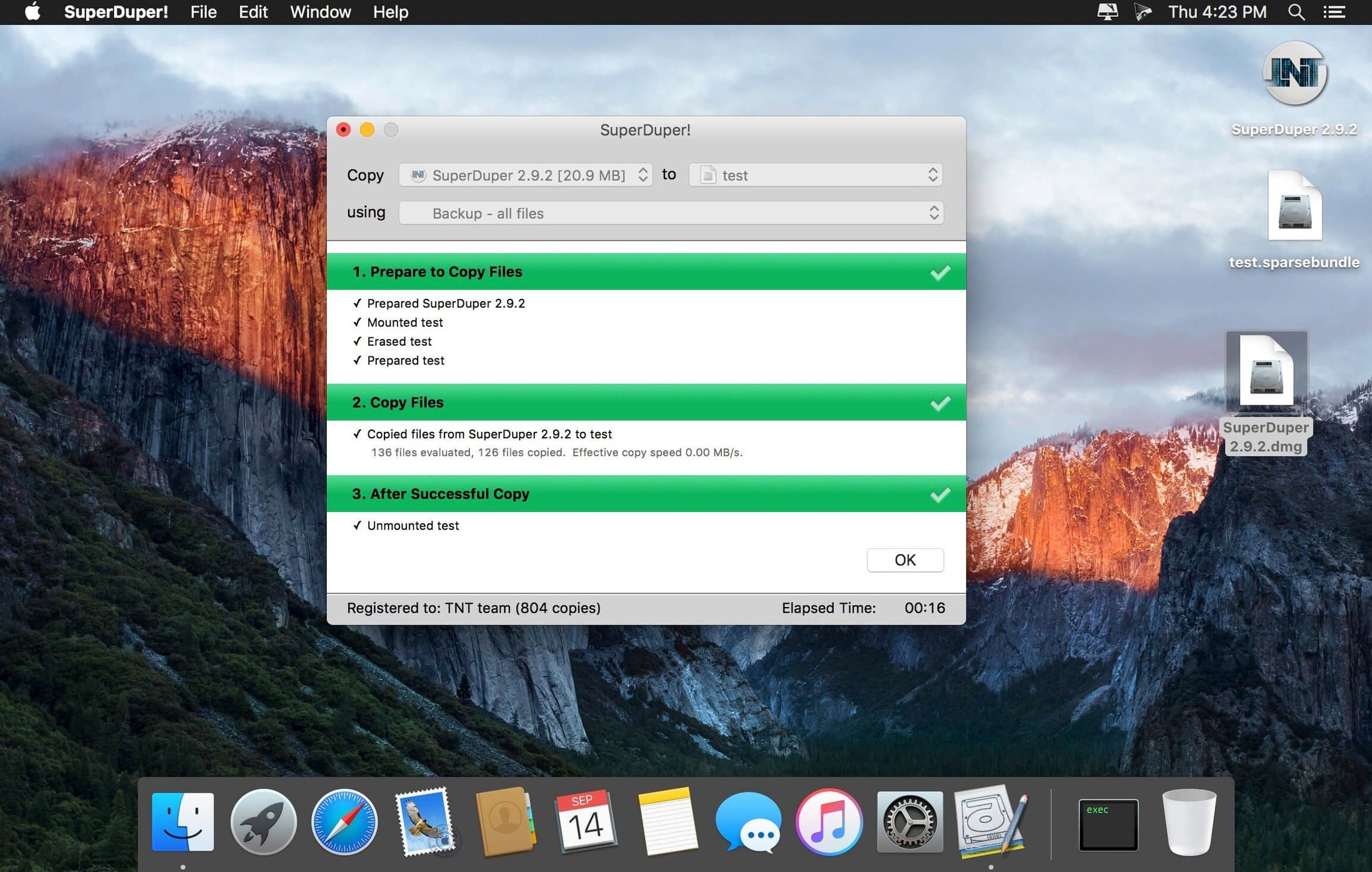
She clicks "Copy Now." A progress bar fills the lower half of the window. The first two minutes are an inventory pass: the app walks the source file tree and compares timestamps and sizes against the destination. Then the actual data transfer begins. Lightroom catalog files — a few hundred megabytes changed since Tuesday — transfer in under thirty seconds. A folder of exported client TIFFs takes longer. The whole run finishes in roughly eight minutes.
When the bar reaches the end, the destination volume unmounts briefly, remounts, and the app reports "Copy complete." She checks "Photo Backup" in the Finder: the free-space figure matches what she expects, and a quick boot test — holding Option at restart and selecting the external drive — confirms the clone is bootable. The SSD goes into a drawer. Total active time spent: about ninety seconds of clicking and selecting. The machine does the rest.
Native Apple Silicon support for signed-system-volume clones
Does SuperDuper! work on Apple Silicon Macs? Yes, it runs natively on ARM and Intel 64-bit Macs. The current build handles the signed system volume layout that Apple Silicon requires for bootable clones, so an external clone of an M-series Mac boots without extra steps in most cases.
Will a clone include everything — system files, hidden volumes, Recovery partition? A full "Backup — all files" clone copies the main system volume and user data. On Intel Macs the Recovery partition is not transferred by the app itself; macOS recreates it on the destination during the first boot if needed. On Apple Silicon, the signed system volume structure is preserved, and the clone includes what the OS requires to boot. The result is a fully bootable copy.
How is this different from Time Machine? Time Machine stores versioned snapshots and is not designed to produce a bootable drive. SuperDuper! creates an exact, mountable, bootable clone that you can use immediately as a startup disk. The two tools serve different purposes and many people run both: Time Machine for hourly version history, SuperDuper! for a ready-to-boot spare.
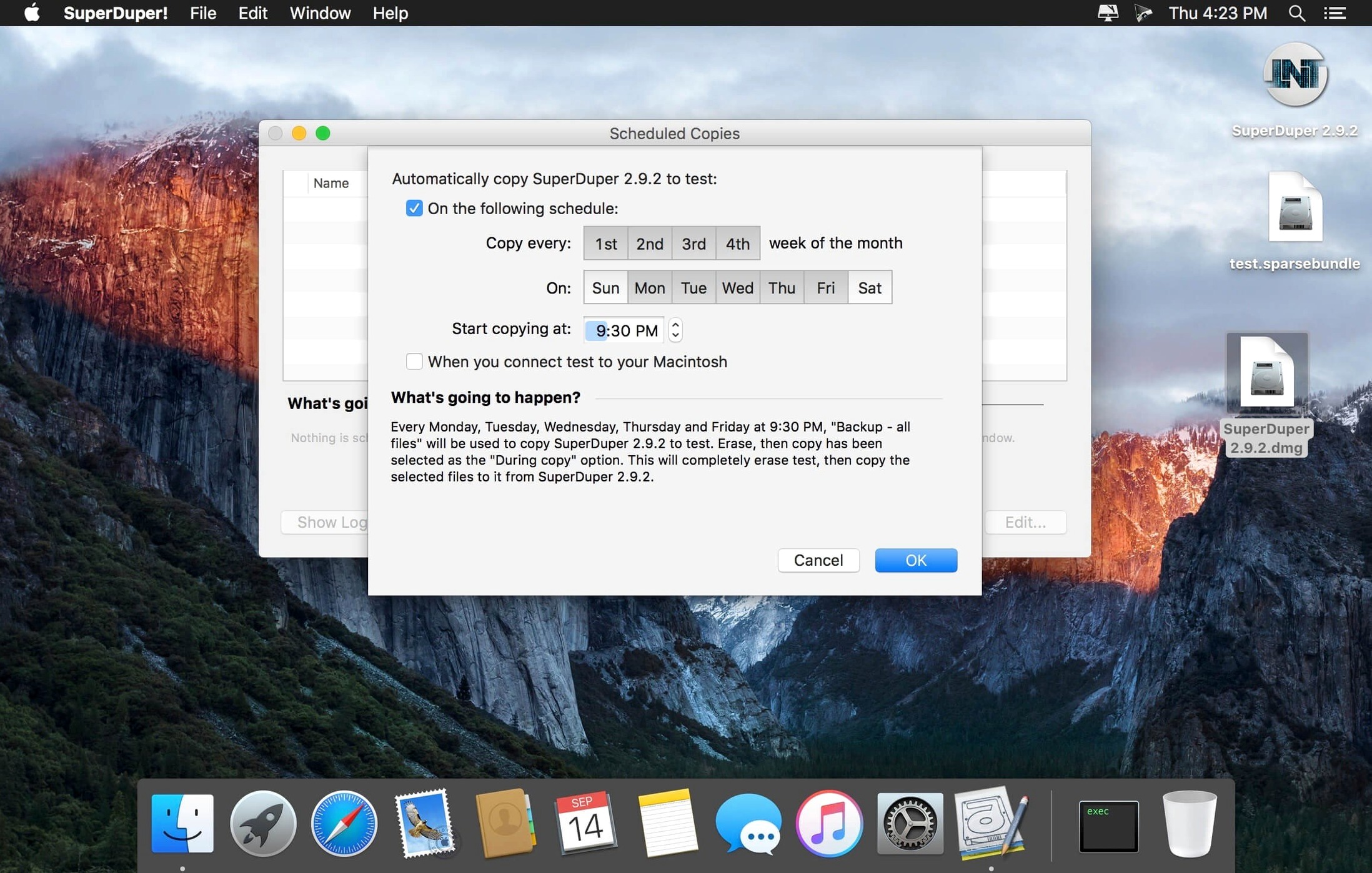
Can I schedule backups and forget about it? Yes. The scheduler lets you set a copy to run daily, weekly or on specific days at a chosen time. You can also set it to run when the destination drive is connected, which works well for people who dock a laptop at a desk with an attached backup drive. The app wakes the Mac for scheduled copies if the machine is asleep and on AC power.
- Startup-drive handling — Added a workaround for a boot-registration visibility issue under macOS 27 Golden Gate.
- macOS 10.13 or later
- Apple Silicon (ARM) or 64-bit Intel Mac
Questions on file
Does SuperDuper! create a clone that can boot another Mac?
Yes, it can produce an exact copy of a disk that boots on different Apple hardware, moving the full system without reinstalling.
Which Mac architectures does version 4.0.7 support?
It runs natively on both Apple Silicon (ARM) and 64-bit x86 Macs, requiring macOS 10.13 or later.
Sign in · Create an account to add a field note.
No field notes yet. A measurement, a version, a machine — they appear after moderation.