
Mac Apps
TechSmith Snagit 2026.4.3
Mac AppsUpdated
| Requirement | On file |
|---|---|
| macOS | macOS 15 or later |
| CPU | Apple Silicon, Intel 64-bit |
| Download | 195 MB |
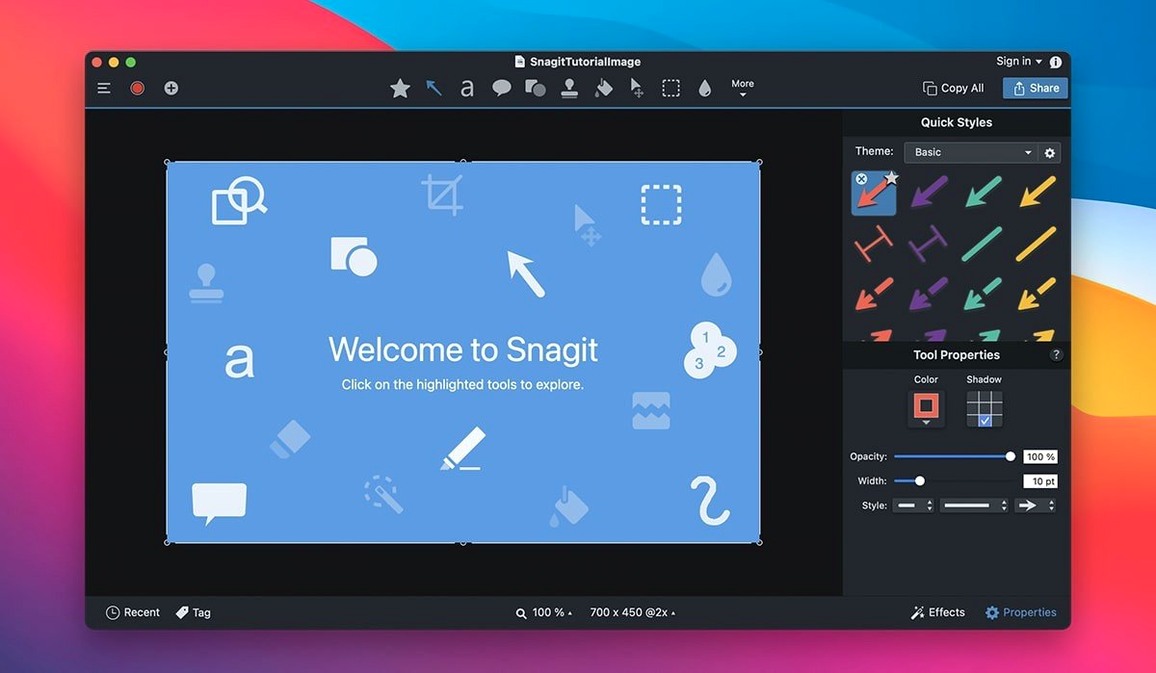
Every capture can carry up to 40 assigned tags inside the library. Snagit sits between QuickTime Player and a dedicated image editor: it records the screen, grabs scrolling windows, and then lets you mark up the result without opening a separate app.
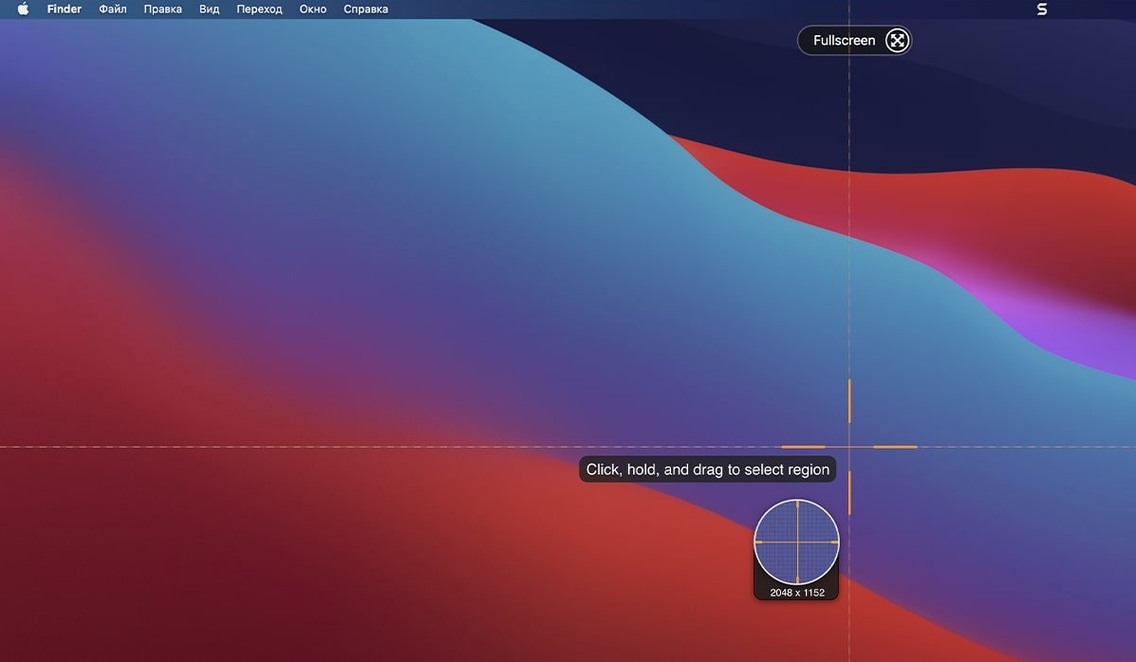
Screen capture — Still grabs of a region, window, or full screen. A web-text capture mode pulls formatted text from browser content.
Screen recording — MP4 video of a selected area, with system audio and microphone input recorded on separate tracks.
Snagit Library — Every capture lands here first, auto‑sorted by date and application. Tags, flags, and search narrow the view before you export.
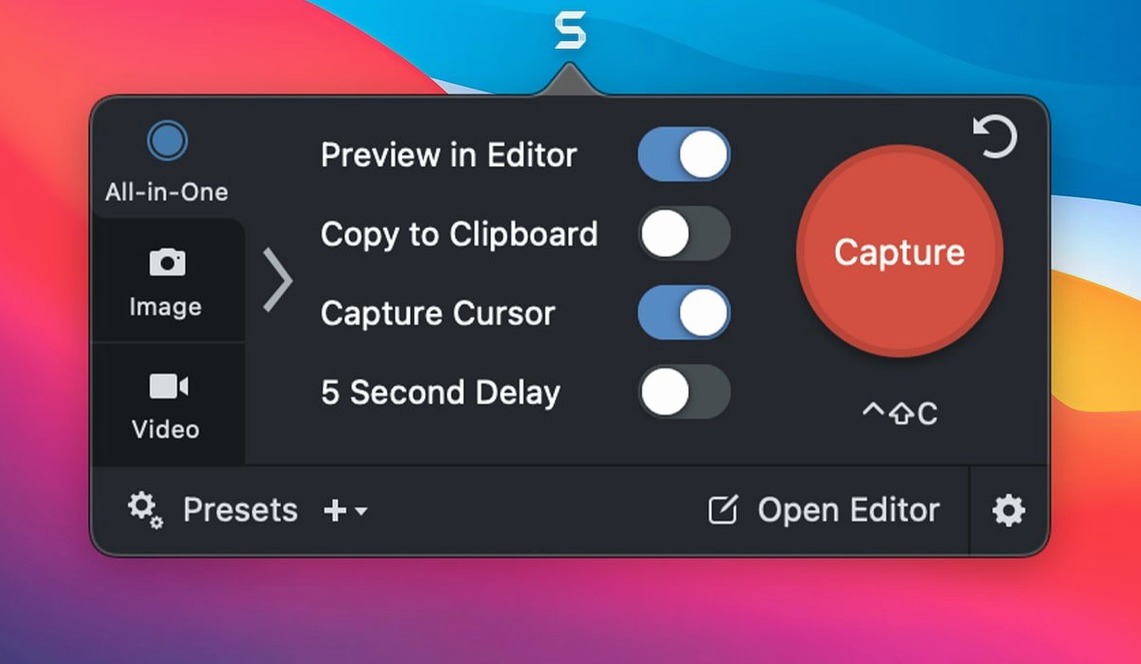
Preset system — Capture presets pair a region shape with an effect chain and a share destination. Switch presets from the menu bar instead of re‑configuring each time.
Image effects — Shadow, rounded corners, highlight, and dimming apply to the whole image or a selected area. The cut‑out tool removes a rectangle and closes the gap.
Callout tools — Arrows, numbered steps, and text labels snap to edges. A background‑fill option replaces the canvas colour behind a pasted object.
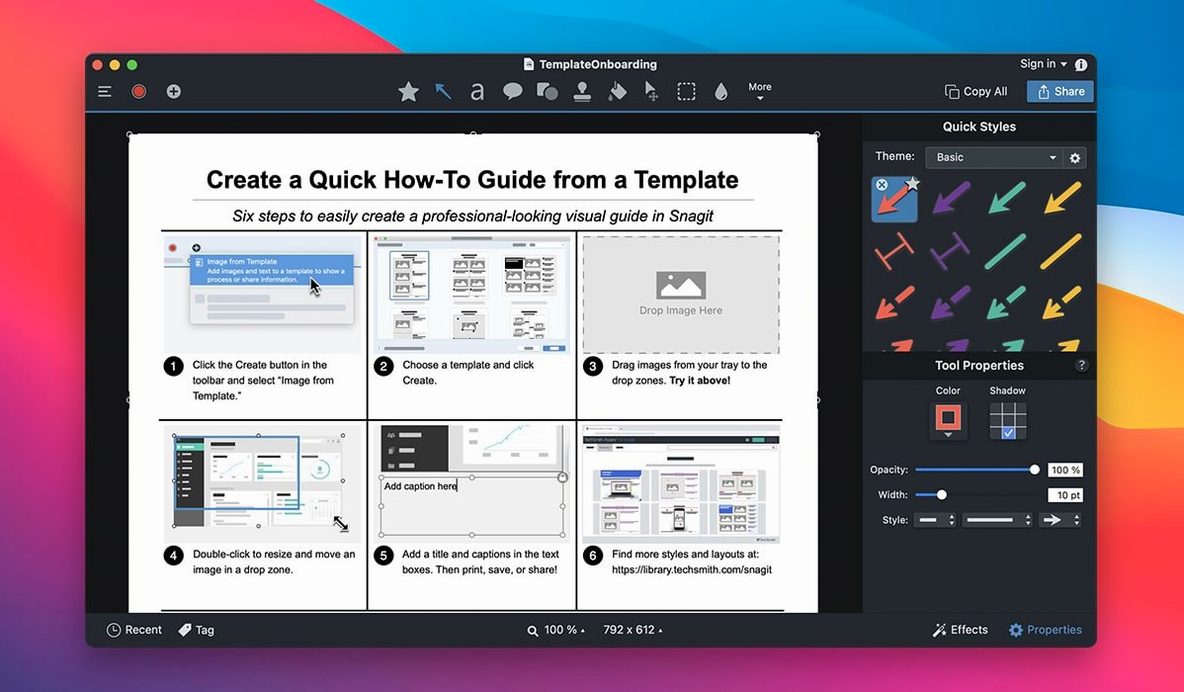
Collage builder — Select multiple library images and arrange them side‑by‑side on a single canvas, then export as one file.
Snagit does not replace a layer‑based editor, but the markup tools cover the most common annotation jobs without leaving the capture window. For anyone who documents software or reports bugs, that cuts the round‑trip through an external editor.
No Kernel Extensions, Just Standard macOS Permissions
Does the capture engine hook into macOS Screen Recording permissions cleanly, or does it leave a kernel extension behind? Snagit uses the standard system permissions framework — no kexts. On first launch, macOS asks for screen recording and accessibility access. Grant both, and the capture toolbar appears on demand. Revoking permissions later disables capture without breaking the library browser.
Another frequent question: can you install it on a managed Mac without admin rights? The app bundle itself runs from ~/Applications if you drag it there, but the initial launch requires a one‑time Gatekeeper bypass. The Terminal command (sudo xattr -d com.apple.quarantine on the app bundle) needs an admin password. After that, the app opens without further prompts.
People also ask whether captures bloat the library folder and how much disk space a typical workflow eats. A full‑screen 5K Retina PNG lands around 8–12 MB. The library stores originals uncompressed; exports are what you make them. One minute of 1080p recording with system audio sits at roughly 45 MB. The app itself occupies about 380 MB on disk.
Does it play nicely with multiple displays? Yes — the capture toolbar can be pinned to any screen, and the crosshair snap respects display boundaries. Recording a secondary 4K monitor while working on the primary one causes no frame drops on an M2 Pro with 16 GB RAM; on older Intel machines with integrated graphics, recording above 1440p30 may skip frames if other GPU‑heavy apps are running.
Cold Launch in Under Three Seconds, 45 MB RAM Idle
Launch time from an internal SSD is under three seconds — the library index loads asynchronously, so the capture toolbar is ready before thumbnails finish populating. The background helper that listens for global shortcuts consumes about 45 MB of RAM while idle. During a 1440p screen recording, the process climbs to roughly 280 MB and CPU usage hovers between 6 and 9 percent on Apple Silicon.
On an M1 MacBook Air with 8 GB RAM, recording a browser window at 1080p while running Slack and Xcode leaves about 1.2 GB free. The video encoder stays on the hardware acceleration path, so the fans rarely spin up. On Intel Macs — particularly 2018–2019 models with thermal constraints — a 4K recording over five minutes can push CPU temperature high enough to throttle, which introduces occasional stutter in the saved file. Dropping the capture area to 1080p resolves it.
Stability in version 2026.3.3 is uneventful in the best sense. The editor does not beachball when applying shadows to large PNGs, and the library search returns results faster than Finder's own search on a library with 2,000 captures. The one recurring quirk: quitting Snagit while a recording is in progress warns you but does not always stop the encoding thread gracefully. The temporary file ends up in /tmp and recovers on next launch.
Shift for a Perfect Square, Option to Expand from Centre
- Shift‑drag to constrain. When selecting a capture region, holding Shift locks the marquee to a perfect square. Holding Option grows the selection from the centre instead of the corner.
- Space bar toggles. After pressing the capture shortcut, tap Space to switch between region and window capture without touching the toolbar. The cursor changes to a camera icon over any window it will snap.
- Double‑click a library thumbnail opens it directly in the editor, bypassing the preview pane. Command‑Return does the same.
- Stamp tool memory. The editor remembers the last five stamps you placed — arrows, callout bubbles, step numbers — and you can cycle through them with the bracket keys instead of reopening the tool palette.
- Timed capture delay. Hidden in the capture preset editor is a countdown field that accepts values from 1 to 60 seconds. Useful for capturing hover states and context menus that disappear on click.
- Video trim before export. The recording review window lets you drag start‑ and end‑point handles to trim dead air. The trim is non‑destructive until you export; the full recording stays in the library.
- Share destination chaining. A capture preset can send to multiple destinations at once — save locally and drop into a Slack channel in one step, provided the share scripts are configured.
Silent Playback Failure Fixed on macOS 27
Version 2026.3.3 is a maintenance release focused on macOS 27 compatibility, but the fixes affect everyday reliability in ways that matter more than feature bulletins suggest.
The playback control fix addresses a silent failure: on macOS 27, the video review panel would display the scrubber but ignore clicks on play, pause, and skip buttons. Reviewing a recording meant opening it in QuickTime Player instead. That workaround is no longer necessary — the built‑in player now responds correctly, and the frame‑by‑frame advance keys work as expected.
The QuickLook arrow‑key fix restores a workflow that broke on macOS 27. Previously, pressing the arrow keys while previewing a capture through QuickLook inside the Snagit Library would do nothing — the keys were swallowed by a focus bug. Now, left and right arrows step through captures in QuickLook view without clicking back to the thumbnail grid. For anyone sorting a large library, this cuts the review time noticeably.
The toolbar‑movement fix resolves a frustrating regression where capture toolbars and control palettes were locked to their default screen positions. Dragging the capture crosshair panel or the recording controls to a second monitor simply did not work. With 2026.3.3, the toolbars are freely repositionable again, which matters for multi‑display setups where the default position overlaps the very UI you are trying to capture.
None of these are headlined features, but together they remove friction that accumulated with the macOS 27 transition. The update does not introduce new presets, tools, or export options — it stabilises what was already there.
Release notes for 2026.4.3 are published on the developer's support site. This update includes the latest fixes and improvements from TechSmith.
- macOS 15 or later
- Apple Silicon or Intel 64‑bit
Questions on file
Does Snagit capture text from web pages?
Yes. The text capture mode recognises formatted text on screen and copies it as editable text rather than a flat image.
Sign in · Create an account to add a field note.
No field notes yet. A measurement, a version, a machine — they appear after moderation.