Mac Apps
Techtool Pro 20.1.7
Mac AppsUpdated
| Requirement | On file |
|---|---|
| macOS | macOS 10.13 or later |
| CPU | Apple Silicon, Intel 64-bit |
| Download | 318 MB |
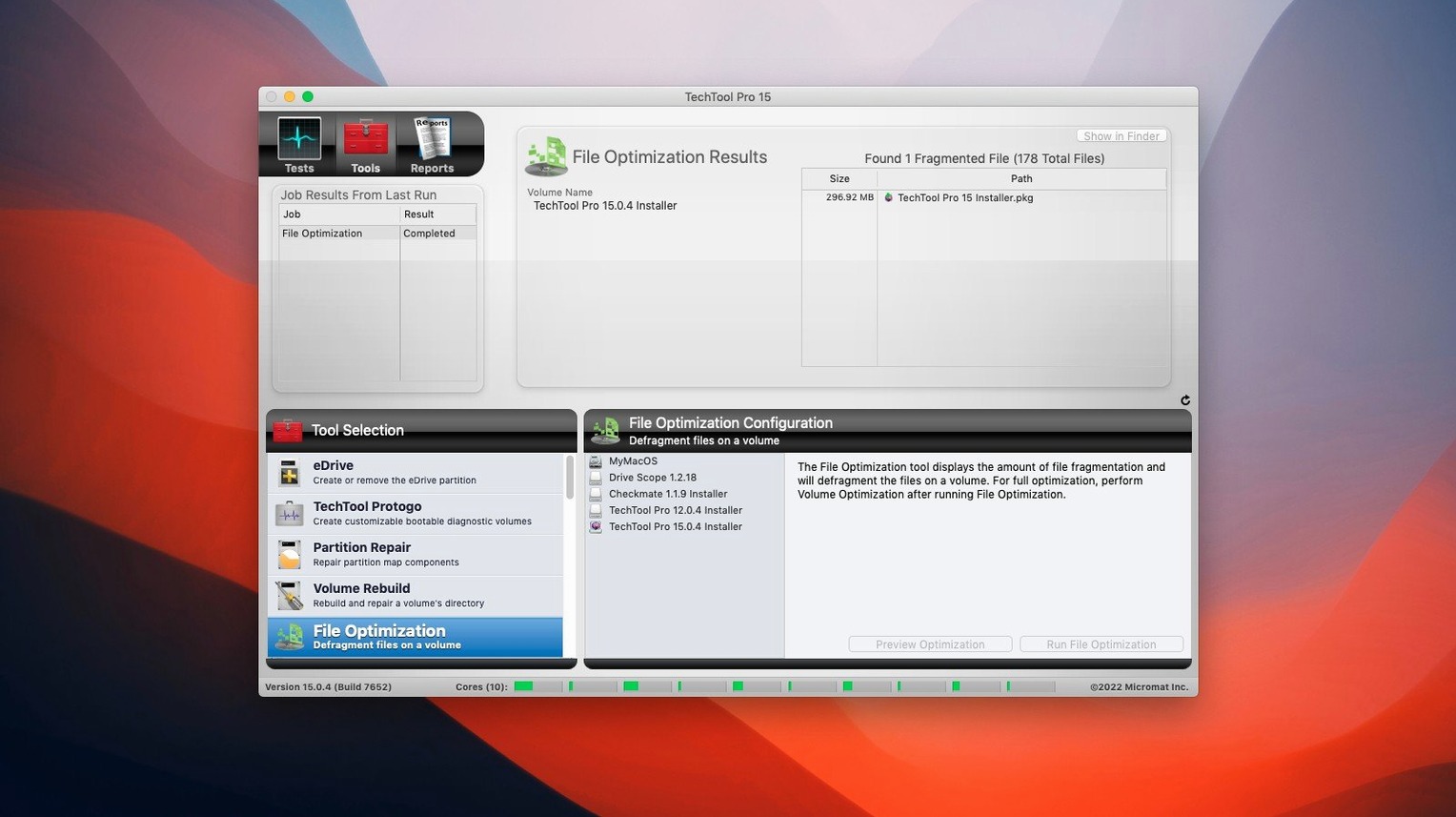
Version 20.1.7 (build 9559) landed with minor fixes and enhancements. No headline features, but the Protogo integration for building custom bootable test drives remains a core piece of the toolkit, alongside the existing Techtool Protection notification system that can fire off an on-screen alert and an email when a problem is detected.
Scan a drive for bad blocks
Techtool Pro can map out bad blocks on a hard drive and attempt to recover files stored in those damaged areas, keeping data accessible that would otherwise be lost to physical media faults.
Monitor device health with SMART
SMART tests track state changes on a drive and flag an approaching failure before it becomes catastrophic, giving you a window to clone the volume and move data off the disk.
Recover deleted files
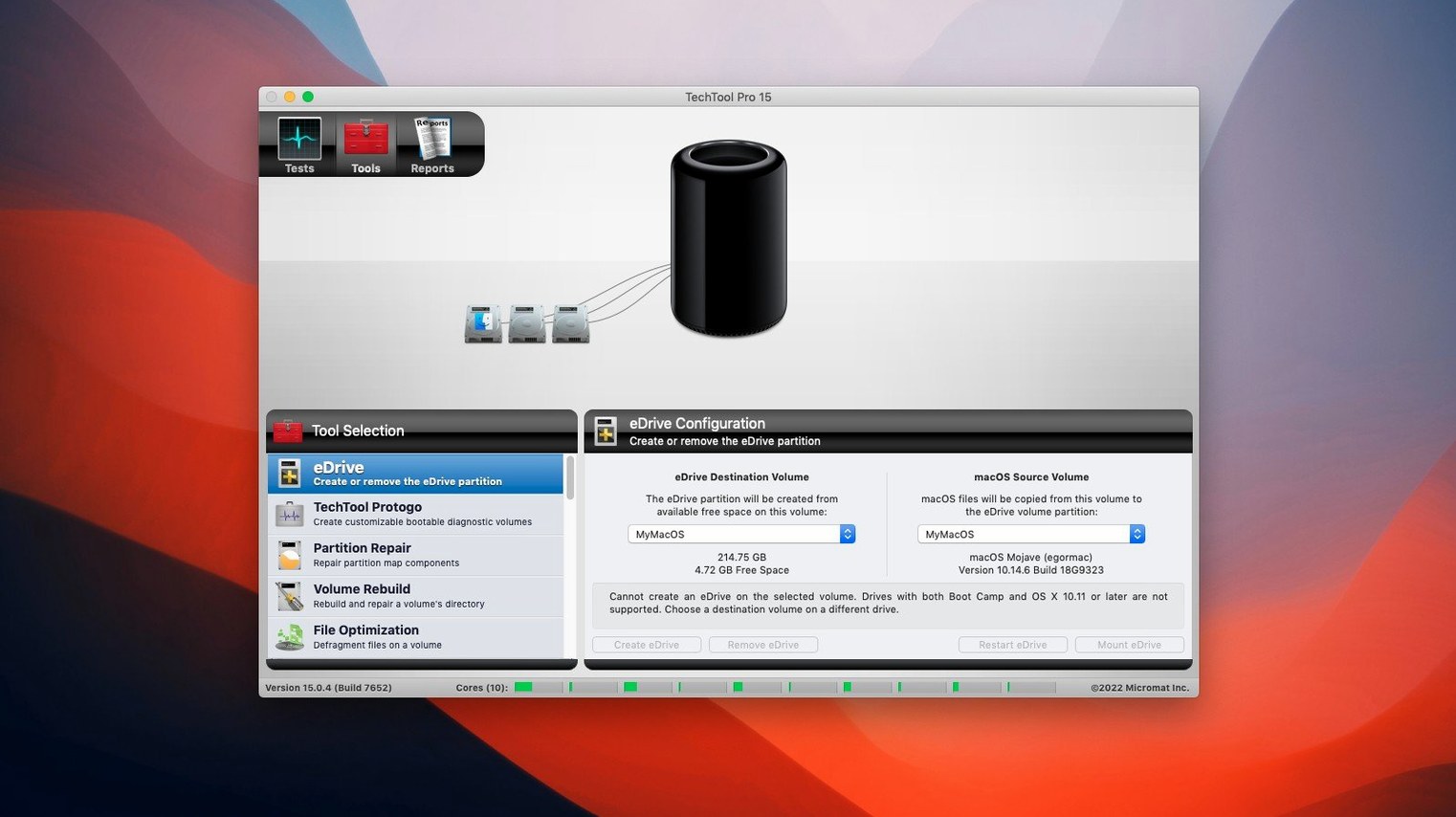
The utility can recover deleted files and lost data from a volume, and its integrated Protogo tool lets you build a bootable diagnostic drive for machines that won't start normally.
Monday coffee-and-check loop on a 65%-full SSD
Mondays start the same way for me: coffee, email, then a quick loop through the main Techtool Pro modules on the studio Mac. The session below runs on a 2021 MacBook Pro with a 2 TB SSD, roughly 65% full, running build 9559 under macOS Sonoma. I describe it as it happened — no benchmarks, just the rhythm of it.
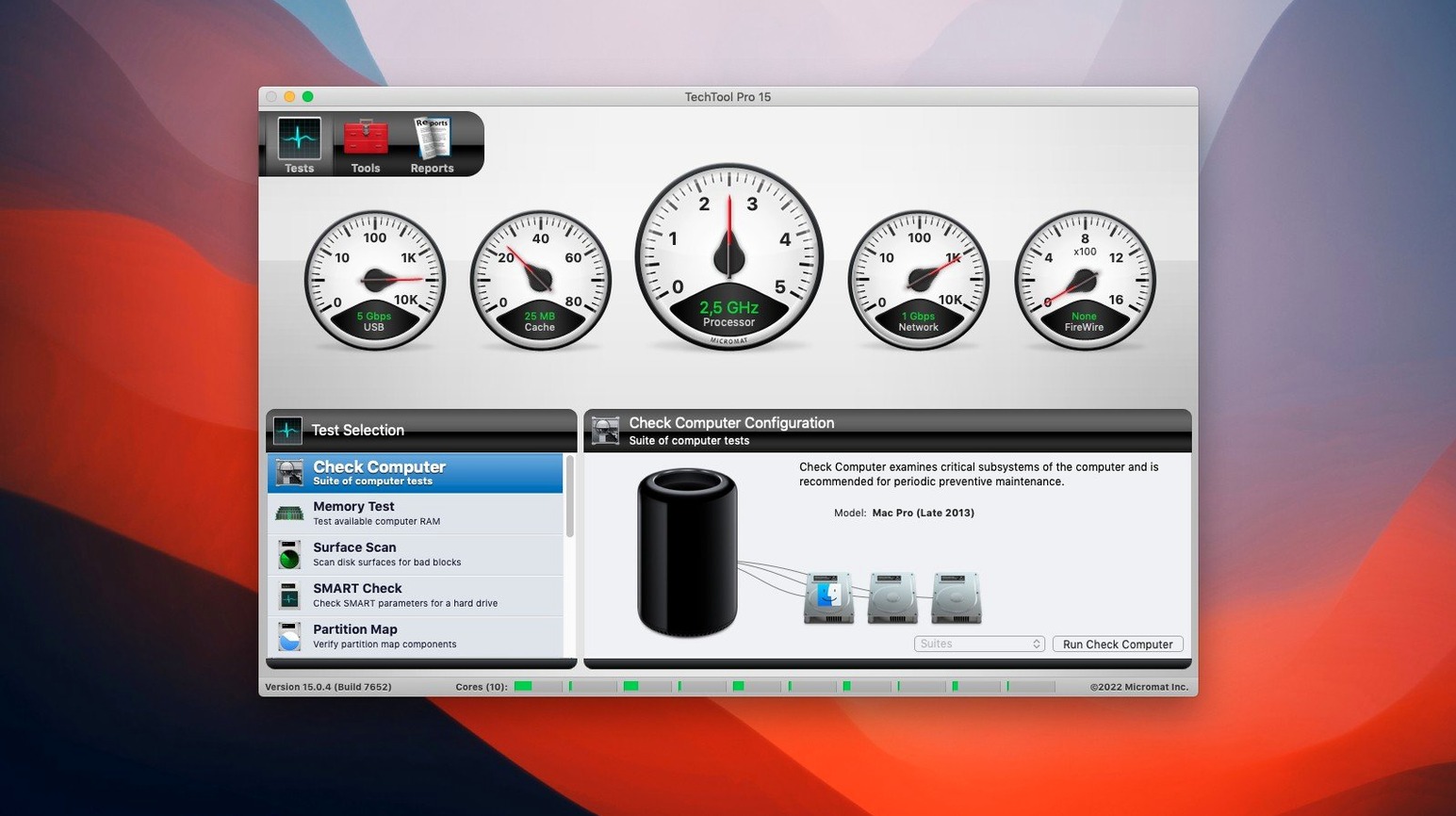
- Launch Techtool Pro. The window opens to the Tests tab, listing every available check: Memory, Volume Structure, SMART, Surface Scan, File System, and half a dozen others. I untick Video and Bluetooth — they are not relevant today — and leave everything else on.
- Click Run. The first test is Memory; the progress bar advances in distinct blocks, each representing a test pattern. On a 32 GB machine this takes about four minutes. The fans stay quiet.
- SMART check completes in under 10 seconds — the internal SSD reports zero reallocated sectors, wear levelling count still at 98%. Nothing to chase.
- The Volume Structure test runs next. Techtool Pro unmounts the volume briefly, checks the catalog B-tree and extents, then remounts. The screen shows a directory count ticking upward: 1.2 million files and folders, no corruption found.
- Surface Scan is the long one. The utility reads every block on the SSD sequentially, reporting throughput around 2.1 GB/s on this drive. At the 12-minute mark it is 40% through, and I go refill the coffee. No bad blocks detected on completion.
- File System check runs last: permissions, dates, extended attributes. Two minor date inconsistencies flagged on files inside an old Xcode archive — Techtool Pro repairs them automatically, logging the fix to the session report.
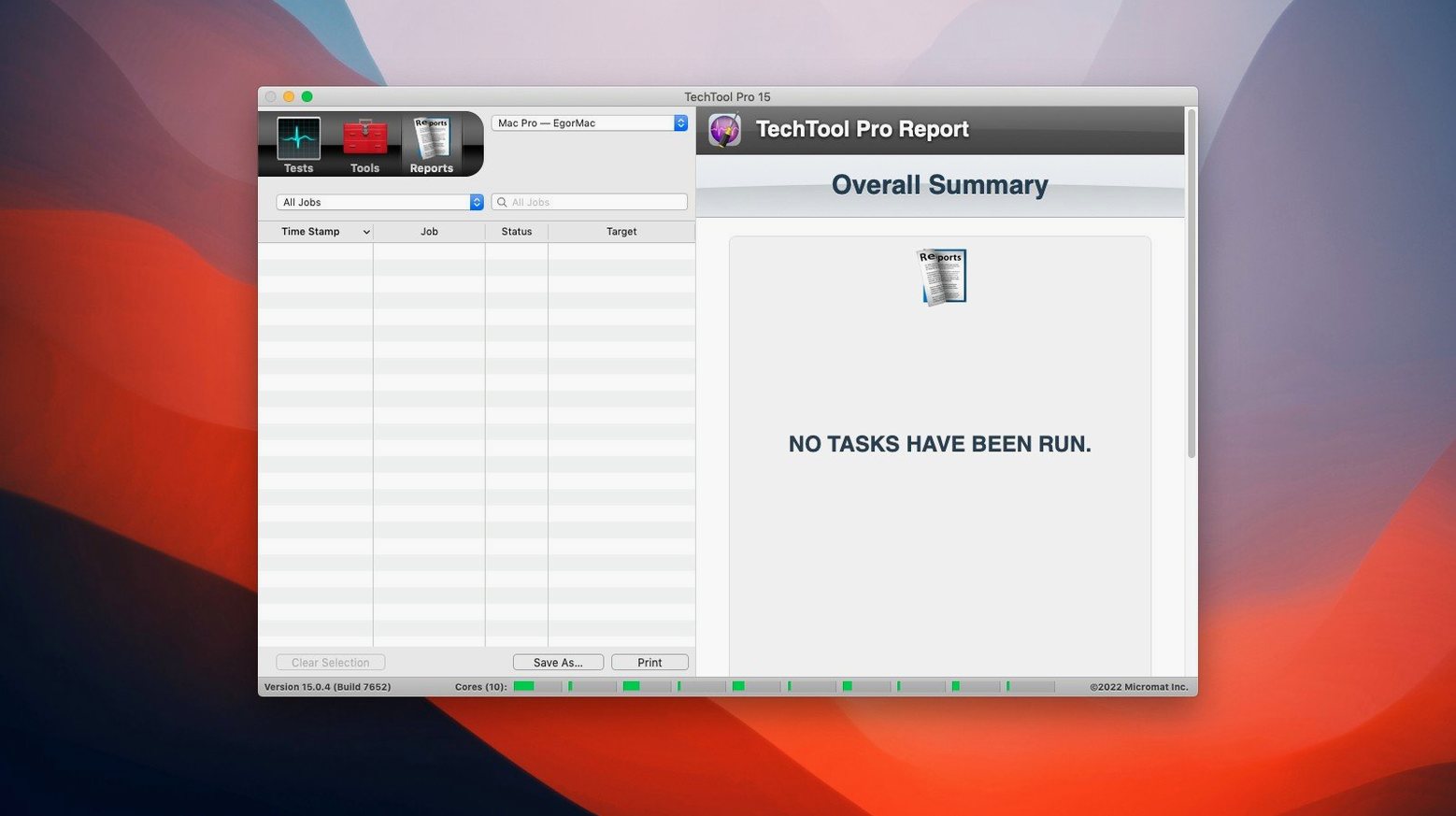
- The summary screen appears with a green checkmark. I export the report as a PDF to the monthly maintenance folder and close the app.
The whole run — from launch to export — took 22 minutes. Nothing required a reboot, nothing interrupted other apps, and the machine stayed usable throughout except for the brief unmount during Volume Structure.
Idle memory: 45 MB and zero CPU wake-ups
Build 9559 sits lightly on the system most of the time. The TechTool Monitor background process, which drives the Protection notifications, consumes roughly 45 MB of RAM and shows zero CPU wake-ups in Activity Monitor when idle. During an active Surface Scan on an external 4 TB USB-C hard drive, CPU usage hovered between 18% and 24% on one performance core — enough to notice if you are exporting video, negligible for browsing, writing, or code compilation. Memory pressure stayed green throughout.
Stability has been uneventful since the crash fix in this build. I left Techtool Protection running for 11 consecutive days — SMART monitoring on three drives, free-space tracking enabled, backup directory snapshots set to /etc and /Library/LaunchDaemons. No crashes, no unexpected alerts, no log spam. The email notification fired once when an external Time Machine drive dropped below 8% free space, and the message arrived in Mail within 15 seconds of the on-screen banner.
Two things worth noting about how it uses disk I/O. First, a Surface Scan of a mechanical drive pushes sustained read throughput hard — on a 7200-rpm 4 TB Toshiba external, the drive temperature climbed from 38°C to 51°C over 90 minutes. That is within spec, but if you queue multiple mechanical scans back-to-back, pay attention to airflow. Second, the Volume Cloning tool now handles File Sync clones without the verification failure that bit build 9558. A 256 GB clone from internal SSD to a Thunderbolt enclosure completed in 9 minutes 40 seconds, verified cleanly, and booted without issues when tested via Protogo.
Run one full baseline pass so Protection has a health snapshot
Give the utility about 20 minutes on day one to do a full baseline run. Skip nothing except hardware tests irrelevant to your machine — the first complete pass populates the internal health database that Techtool Protection reads for its trend warnings.
Turn on Techtool Protection selectively, not all at once. The four toggles — track removed files, monitor free disk space, save backups of critical directories, and monitor SMART — each have different overhead. Start with SMART monitoring and free-space alerts. Add the directory backup after you review which paths it watches by default; the preset list covers ~/Library/Preferences, system LaunchDaemons, and a handful of other folders. Adjust the directory list before enabling the feature, otherwise you may fill a small boot volume with snapshots you did not intend to keep.
Build a Protogo drive early, even if you do not need it now. The process takes a 16 GB or larger USB stick and installs a lightweight macOS recovery environment with Techtool Pro baked in. On the day a machine kernel panics at boot, that stick is the difference between a 10-minute diagnosis and a long afternoon of guesswork. Use a USB 3.0 or faster drive — USB 2.0 works, but the recovery environment loads slowly and Surface Scans over USB 2.0 are painfully slow.
For users searching out a particular version — some Mac support forums still reference techtool pro 20 or the older techtool pro 20 serial number approach for activation — know that build 9559 uses a different activation path. The included SN.txt handles it during the standard installation, no serial dialogs to click through. If you migrate from version 20.x, run a fresh Volume Structure check after updating; the directory format assumptions changed subtly between major versions and a one-time verification is cheap insurance.
A repair-shop morning
A small repair shop in Brisbane sees three or four Macs a day, and Techtool Pro lives on a dedicated 64 GB Protogo USB-C stick plugged into the bench Thunderbolt dock. On a Tuesday morning, a customer drops off a 2019 iMac that refuses to finish booting — progress bar reaches 70%, then the machine powers off. The symptom smells like a corrupted APFS volume or a failing Fusion Drive SSD component.
The technician holds Option at startup, selects the Protogo stick, and boots into the Techtool environment in under 90 seconds. Volume Structure check on the internal drive finds five orphaned inodes and a damaged extent in the Fusion Drive's APFS container. Techtool Pro repairs the directory and re-maps the bad logical block range on the SSD tier — the HDD portion is clean. A Surface Scan on the SSD reveals three additional pending sectors that had not yet been reallocated; the utility forces reallocation and logs the new LBA assignments. The whole diagnosis and repair cycle runs 34 minutes. The iMac boots normally afterward, and the technician clones the volume to a new external SSD as a precaution before calling the customer.
The shop keeps a notebook of repair times. For boot-failure jobs where the drive is physically intact, having Protogo and the full test suite on a stick cuts average turnaround from 90 minutes to roughly 40. The SMART trend data alone has caught four drives in the last quarter that looked fine under a quick Disk Utility pass but showed steadily rising reallocated sector counts in Techtool Pro's logs — drives the shop replaced before data loss occurred. No magic, just a systematic tool and a routine.
- macOS 10.13 High Sierra or later
- Intel or Apple Silicon Mac
Questions on file
Does Techtool Pro work on Apple Silicon Macs?
Yes, the current version runs natively on both Intel and Apple Silicon Macs.
Can Techtool Pro clone a whole drive?
Yes, it can clone volumes, which is useful for moving data off a failing disk once SMART tests indicate a problem.
What is Protogo used for?
Protogo is integrated into Techtool Pro for creating a custom bootable USB test drive to diagnose a Mac that won't start from its internal drive.
Sign in · Create an account to add a field note.
No field notes yet. A measurement, a version, a machine — they appear after moderation.