
Mac Apps
TabTab 2.2.2
Mac AppsUpdated
| Requirement | On file |
|---|---|
| macOS | macOS 14 or later |
| CPU | Apple Silicon, Intel 64-bit |
| Download | 66 MB |
TabTab is a native macOS utility for switching and searching across open windows and tabs via a keyboard-driven overlay.
Which apps does it actually work with?
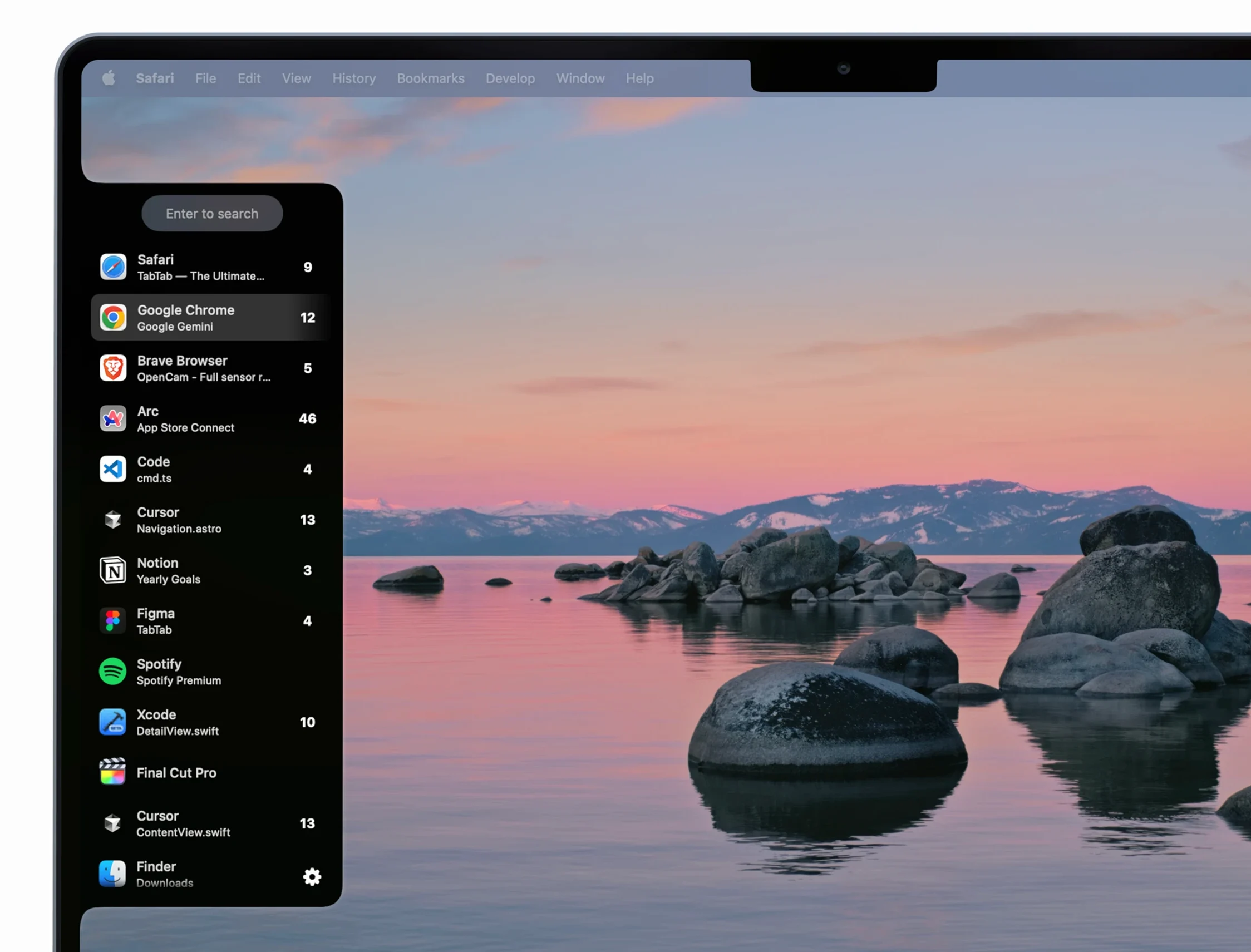
The developer lists Google Chrome, Safari, Visual Studio Code and Finder as supported applications. It uses Apple’s Accessibility framework to track window and tab titles, so coverage depends on how an app exposes that data. Many standard Mac apps respond well, but Electron-based or custom-drawn interfaces may give mixed results.
What can you search for?
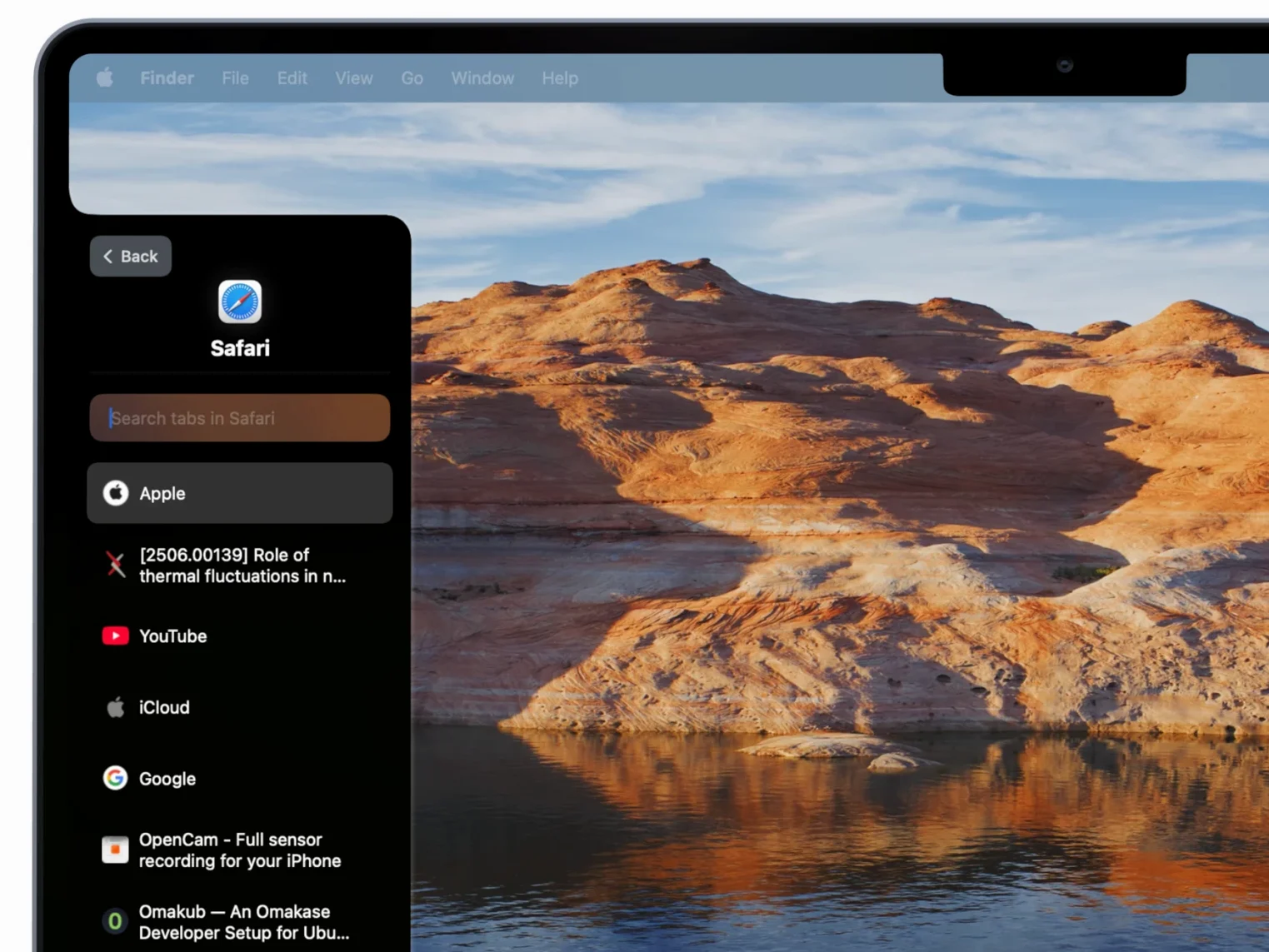
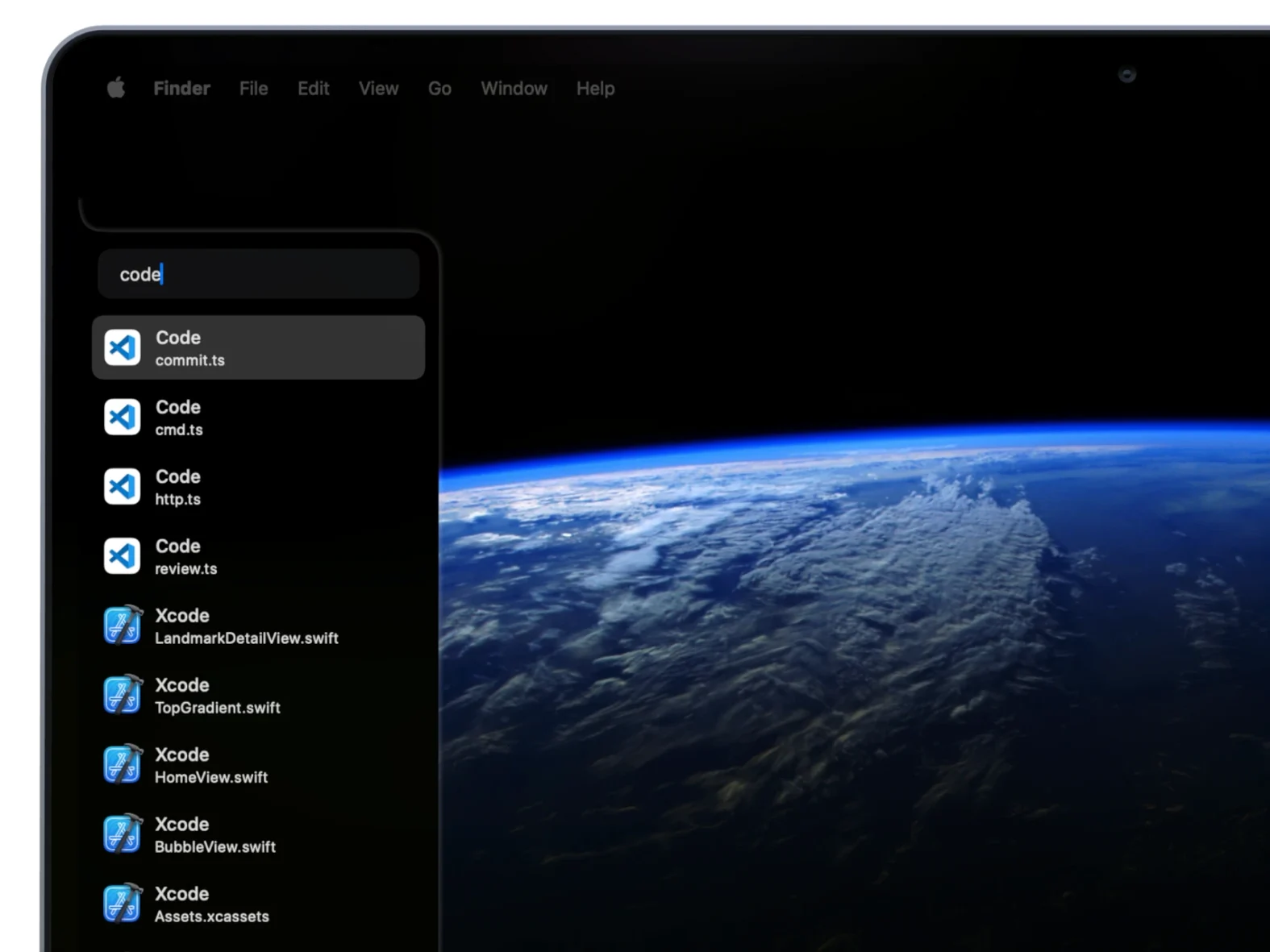
The search field accepts the application name, the window title and the tab title. You can type part of a page heading in Safari, a file path in VS Code or just "Finder" to narrow the list quickly. This makes it practical to jump straight to a specific browser tab without hunting through a crowded window list.
Flatten Every Window and Tab Into One Palette
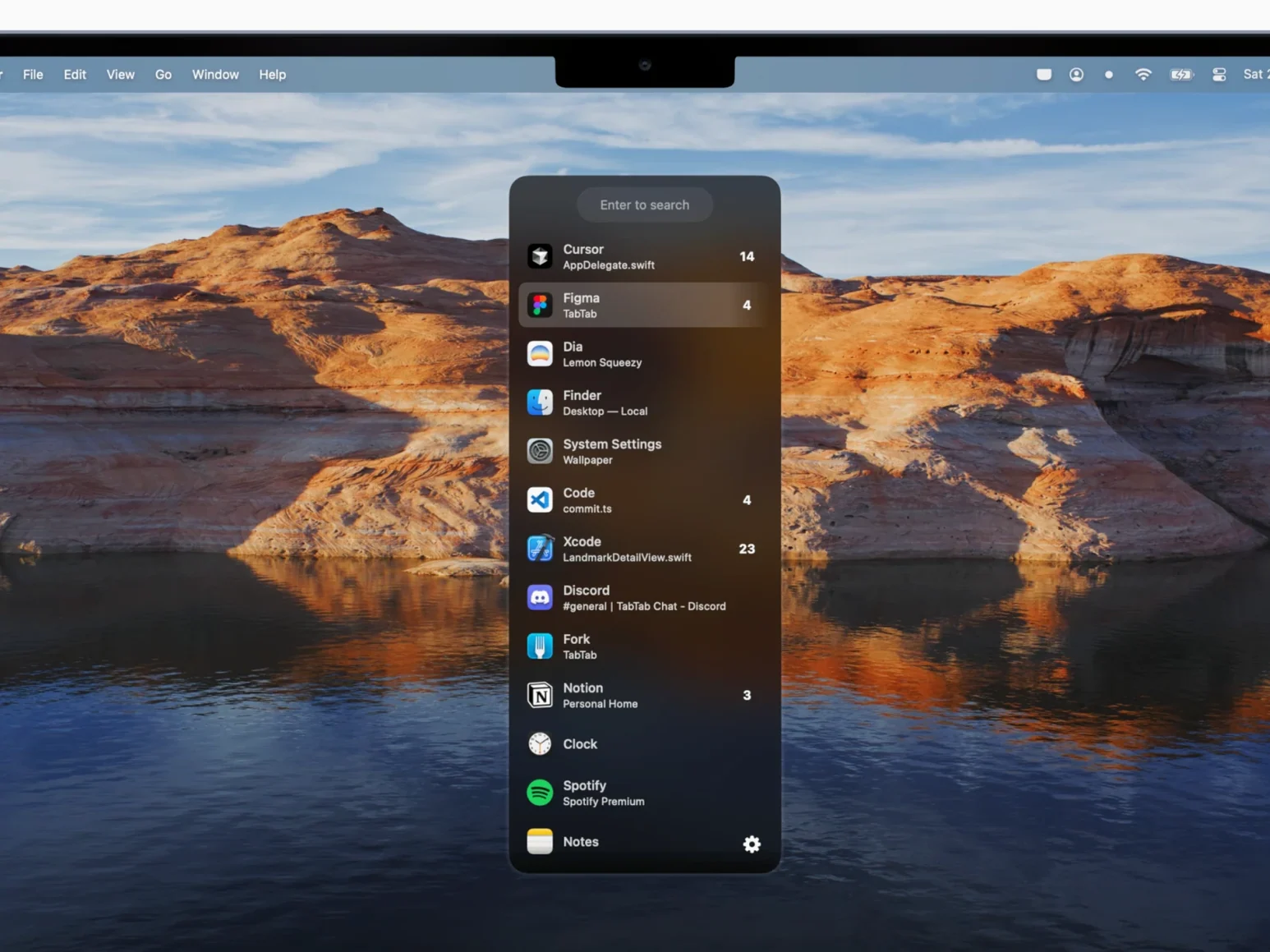
Apple’s Command-Tab switcher only cycles through applications, not individual tabs or child windows. TabTab flattens every window and tab into one searchable palette, so you can move from a Chrome tab to a specific Finder window in a single step. The trade-off is that it requires Accessibility permissions and runs as a background process, which some users prefer to avoid.
AppKit and SwiftUI, Native on Apple Silicon and Intel
TabTab needs macOS 14.0 or later and runs natively on both Apple Silicon and Intel Macs. The interface is built with AppKit and SwiftUI, and the app is available in English.
Rebind the Hotkey to Escape the Option-Space Conflict
The default hotkey, Option-Space, collides with Alfred or Raycast on many Macs. Open TabTab’s preferences and rebind the main palette shortcut to something free — Control-Tab often works without conflict. If you rely on Spotlight, avoid Command-Space variants entirely.
Two other preferences deserve immediate attention. Raise the Search threshold from its default of zero if you find the list too noisy; a setting of 1 or 2 characters means typing a single letter no longer floods the overlay with every window whose name contains it. Also enable Launch at login — TabTab is useless if it is not running, and the background process sips resources once the Accessibility scan completes.
If you use multiple Spaces heavily, toggle the Show windows from all Spaces option. With it on, a single palette covers everything. With it off, the list stays scoped to your current Space, which can feel cleaner when you run a strict three-desktop setup.
Layers Over Mission Control for Name-Driven Switching
TabTab does not replace Stage Manager, Mission Control or Command-Tab — it layers on top of them. Mission Control remains the best way to arrange windows spatially; TabTab is better when you know the name of what you want and just need to get there. Together they cover both spatial and textual navigation.
The app coexists with launchers like Alfred and Raycast so long as hotkeys do not overlap. A common pattern: use your launcher to open applications and files, then use TabTab to move inside already-open sessions. It also pairs well with window managers like Rectangle or Magnet — snap a window into place, then use TabTab to pull a specific tab from another application alongside it.
Because TabTab relies on the Accessibility API, it gains new app support automatically when an application exposes proper window and tab metadata. After a browser or text editor update, run a quick search to see if tab titles now appear. Safari profiles in macOS Sequoia, for example, show up as distinct window titles and can be targeted individually.
Jumping from VS Code Tabs to Figma in One Step
A front-end developer has VS Code open with App.tsx and styles.css in separate tabs, a Chrome window with the dev-tools console on one tab and the staging site on another, Safari open to the design mockups in Figma, and four Finder windows pointing at src/components, public/assets, the build output and the style guide PDF.
She hits Control-Tab, types css and selects styles.css — VS Code. Two seconds later she searches staging and lands on the Chrome tab showing the live preview. When a Slack message asks for a screenshot of the build output, she types build and hits Return on the Finder window already open to that folder. She never touches the trackpad and never loses visual context hunting through overlapping windows — the palette appears, she types, she lands.
- macOS 14 (Sonoma) or later
- Apple Silicon or Intel 64-bit processor
Sign in · Create an account to add a field note.
No field notes yet. A measurement, a version, a machine — they appear after moderation.