
Mac Apps
Taphouse Pro 1.5.8.5
Mac AppsUpdated
| Requirement | On file |
|---|---|
| macOS | macOS 14 or later |
| CPU | Apple Silicon, Intel 64-bit |
| Download | 19 MB |
Requires macOS 14+ and Homebrew Preinstalled
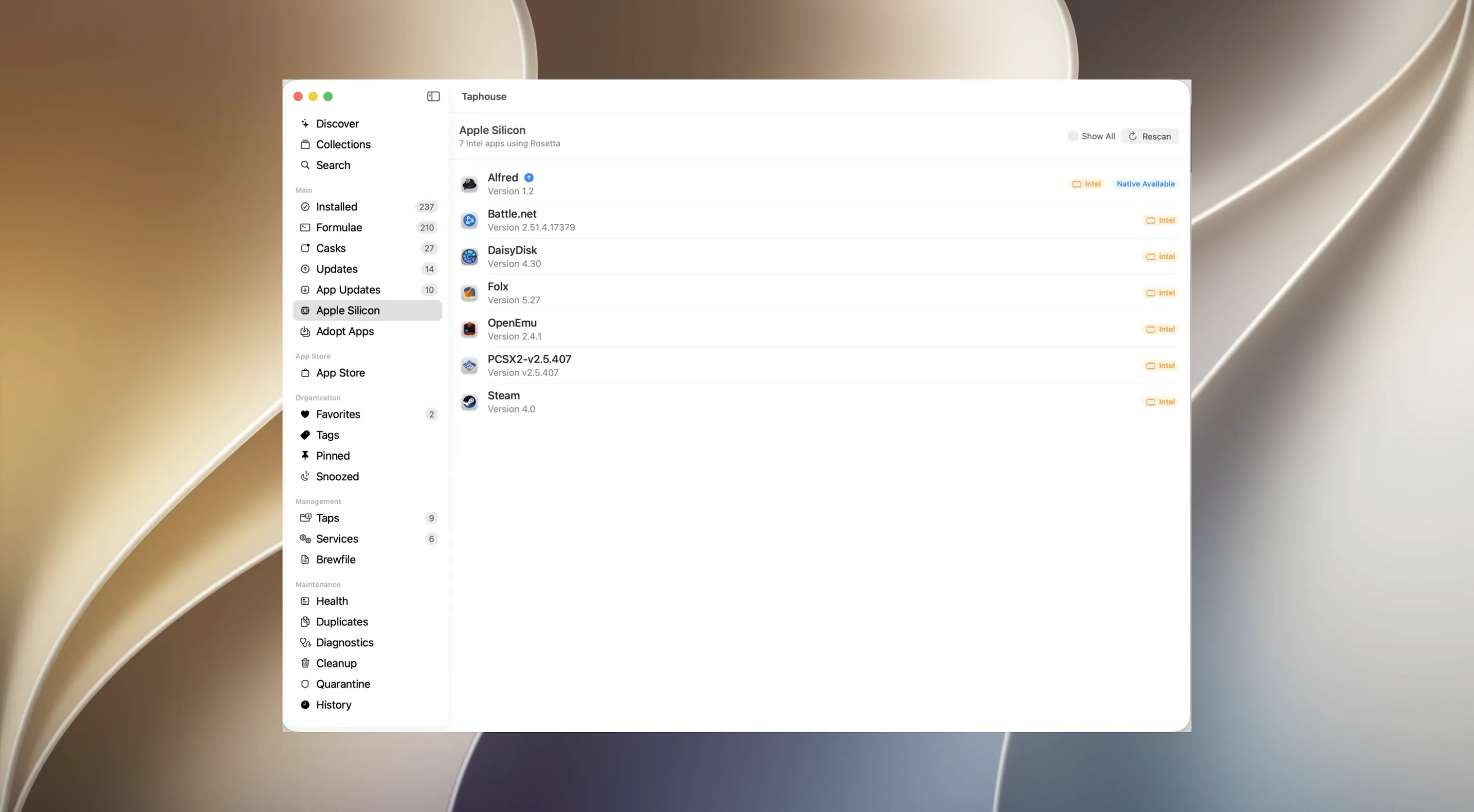
Version 1.5.8.5 asks for two things: macOS 14 (Sonoma) or newer, and an existing Homebrew installation on your Mac. It runs natively on both Intel and Apple Silicon hardware, so architecture isn't a sticking point. If Homebrew isn't present yet, the app simply won't function — it's a front end, not a standalone package manager.
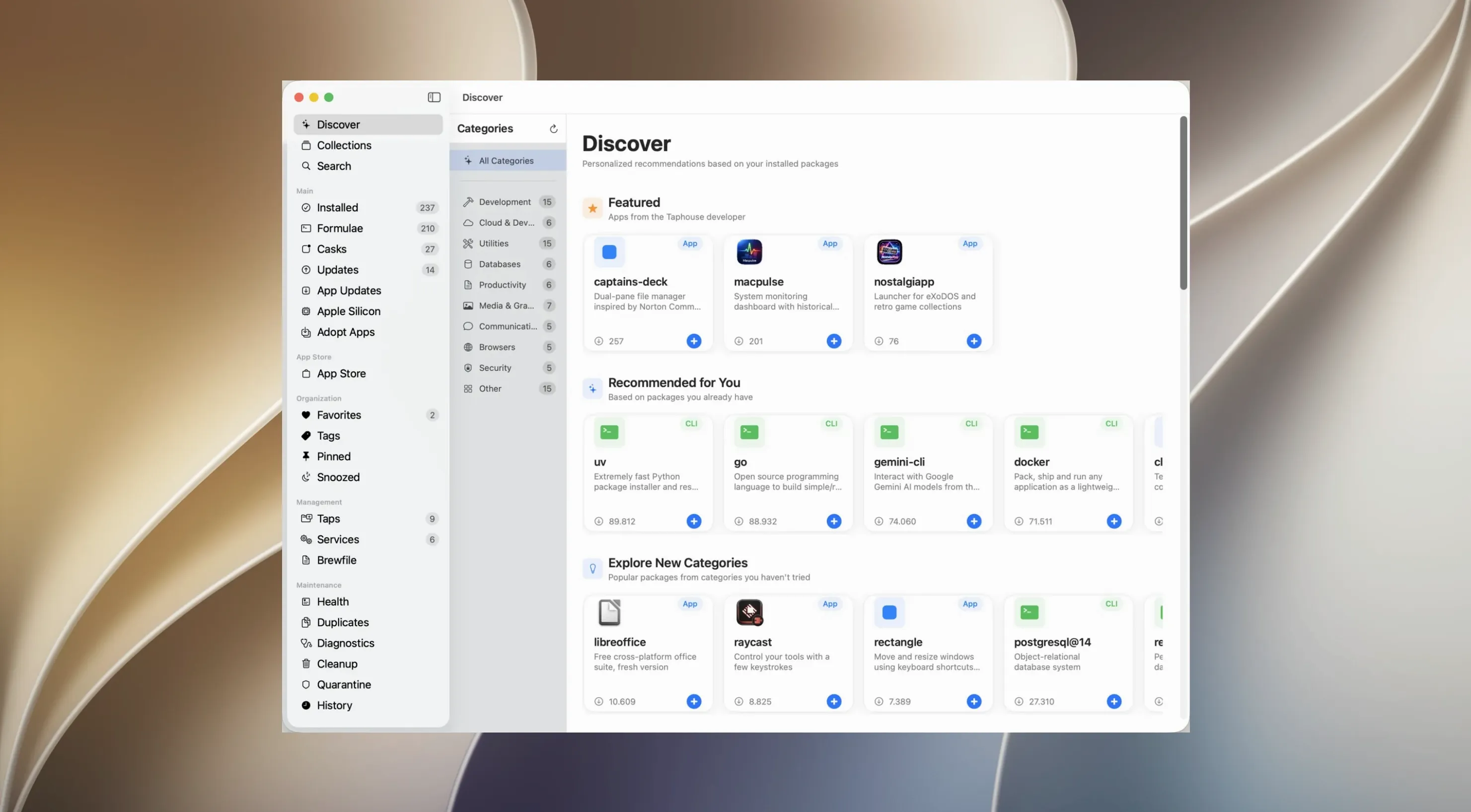
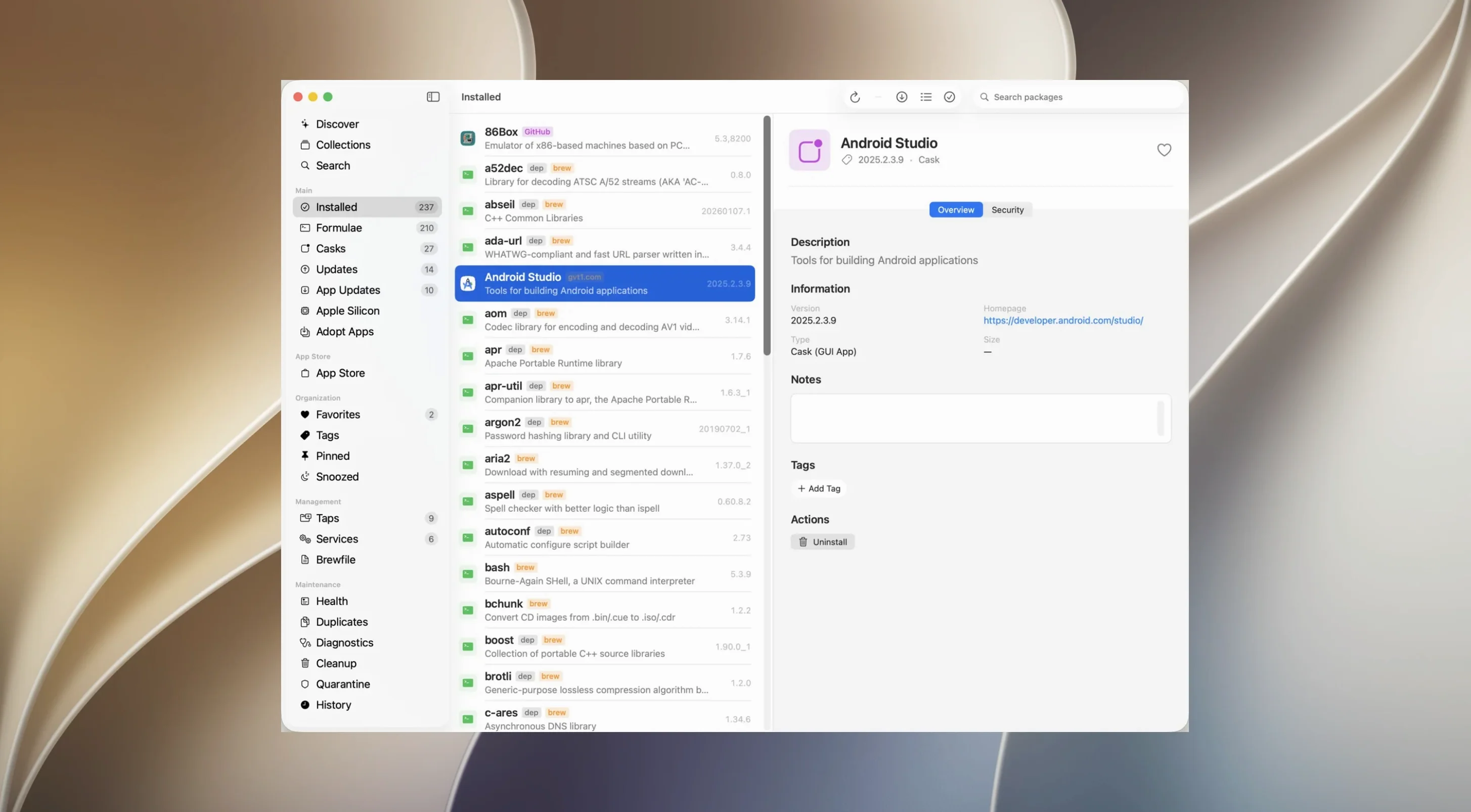
Manage packages visually
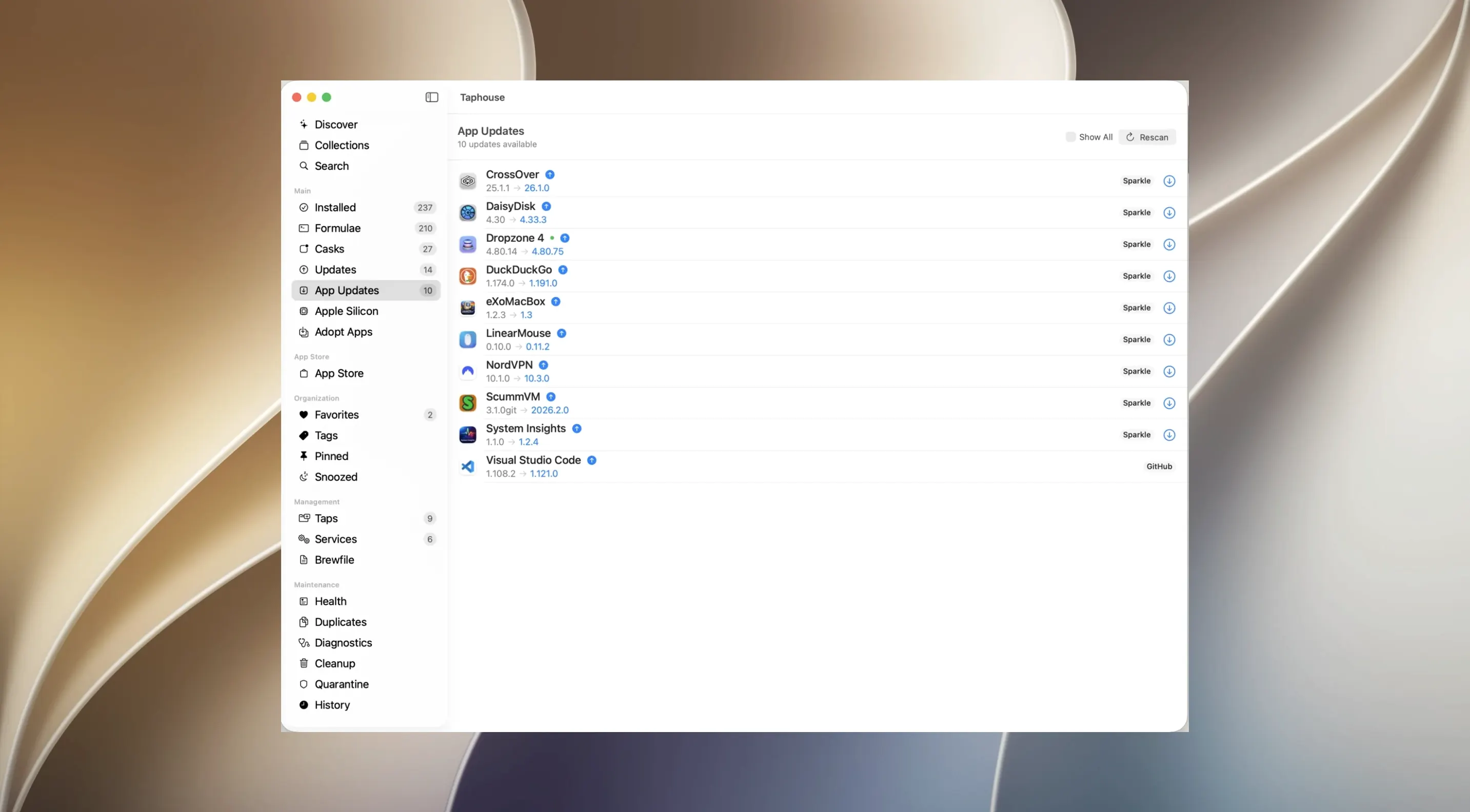
The interface replaces Terminal commands with single-click installs, updates and removals. Colour indicators show service status at a glance, while real-time progress and log output let you follow what Homebrew is doing without switching to a terminal window. You can start, stop and restart services directly from the app, and adopt apps you already have into Homebrew's tracking.
Handle your Brewfile
Import and export of Brewfiles is built in, so replicating your setup on another Mac is straightforward. Security insights give you a quick read on package provenance before you commit to an install, and a menu bar mode keeps the tool accessible without occupying screen space.
GUI Reads and Writes to Your Existing Homebrew Prefix
Taphouse Pro doesn't replace Homebrew — it depends on it. Think of it as an alternate control panel that reads from and writes to the same Homebrew prefix your Terminal sessions use. Any package you install through the GUI shows up in brew list, and anything you install on the command line appears inside the app after a refresh. There's no separate database to reconcile. This means you can switch between GUI and Terminal freely; the app simply reads the same cellar, caskroom and services definitions.
On macOS 14 and later, the app integrates with Notification Centre for background update alerts, and its menu bar mode plays nicely with Bartender and Hidden Bar for those who keep a tidy menu bar. The services panel reads from ~/Library/LaunchAgents — the same location Homebrew uses — so stopping a service here is identical to running brew services stop. If you use tools like Hazel or Keyboard Maestro, you can trigger Brewfile imports through the app's URL scheme, though that's niche territory.
For developers working with language managers like asdf, rbenv or nvm: Taphouse Pro handles the Homebrew layer (the runtime itself, plus system-level dependencies) while leaving version managers untouched. It won't interfere with your .zshrc paths or shell-based toolchains.
Launching Before Homebrew Shows an Empty State
The most common slip is installing Taphouse Pro before Homebrew itself. The app launches, shows an empty or broken state, and the user assumes it's defective. The fix is five minutes in Terminal running the Homebrew install script first. Another frequent misstep: treating the "Adopt" feature as an installer. Adoption registers an existing app with Homebrew's cask tracking so updates flow through the GUI — it doesn't fetch a fresh copy, and it won't work if the app is sandboxed or from the App Store.
Beginners sometimes defer a problematic package update for a month, then forget about it. A deferred package sits in a holding list; it won't update until the deferral expires or you manually clear it. If you defer five packages and three are security-sensitive, you've created a gap that the security insights panel would have flagged. Check the deferred list weekly.
Another pattern: running bulk operations on 40 packages, watching the log scroll, then force-quitting because it "looks stuck." Homebrew resolves dependency trees sequentially, and a pause at a large compile (like gcc or llvm) is normal. The real-time log shows the current formula name — if it's changing, work is happening. Killing the process mid-operation can leave partial installs that the cleanup tool can handle, but it's avoidable with patience.
Reclaim 2–5 GB with the Disk Space Scanner First
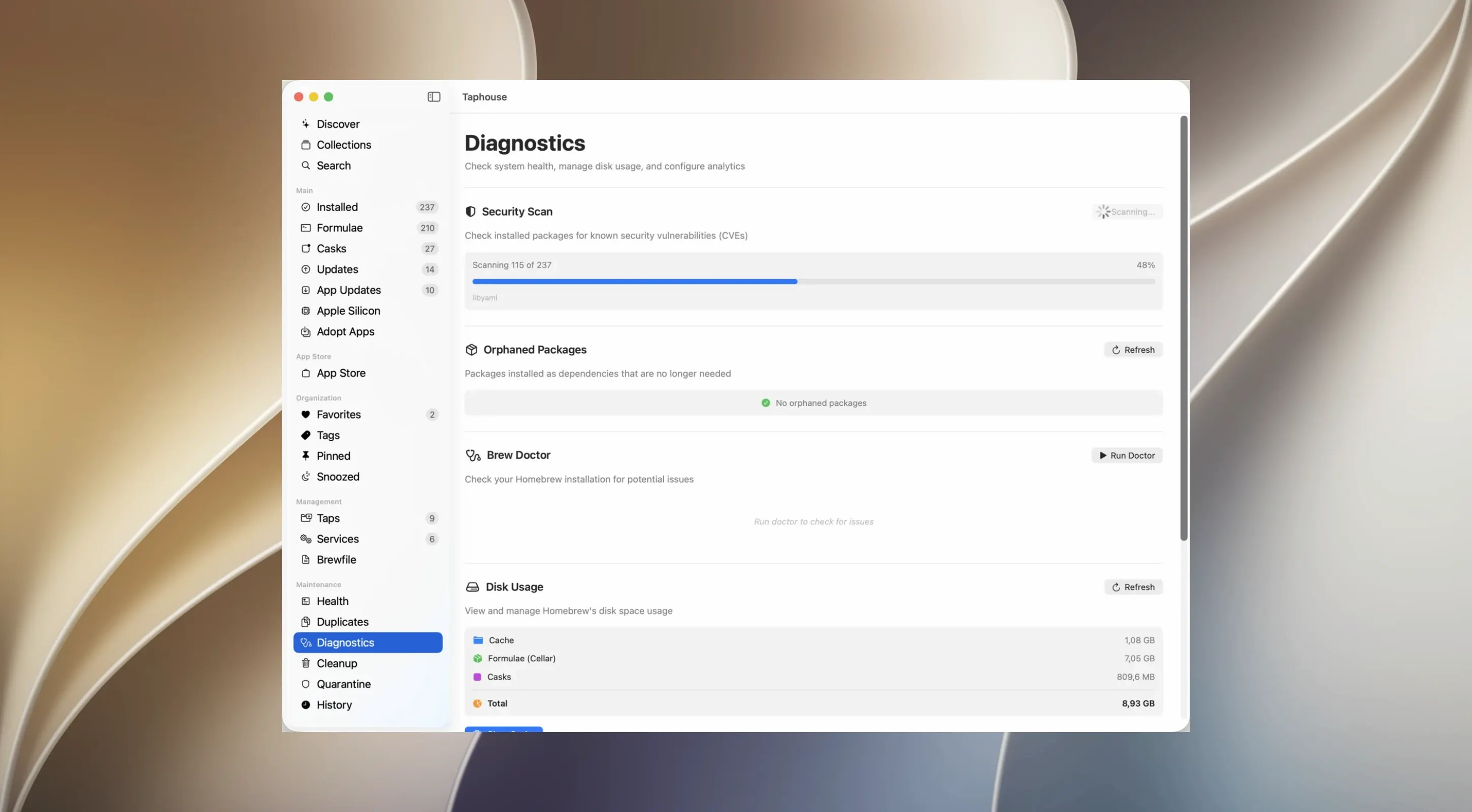
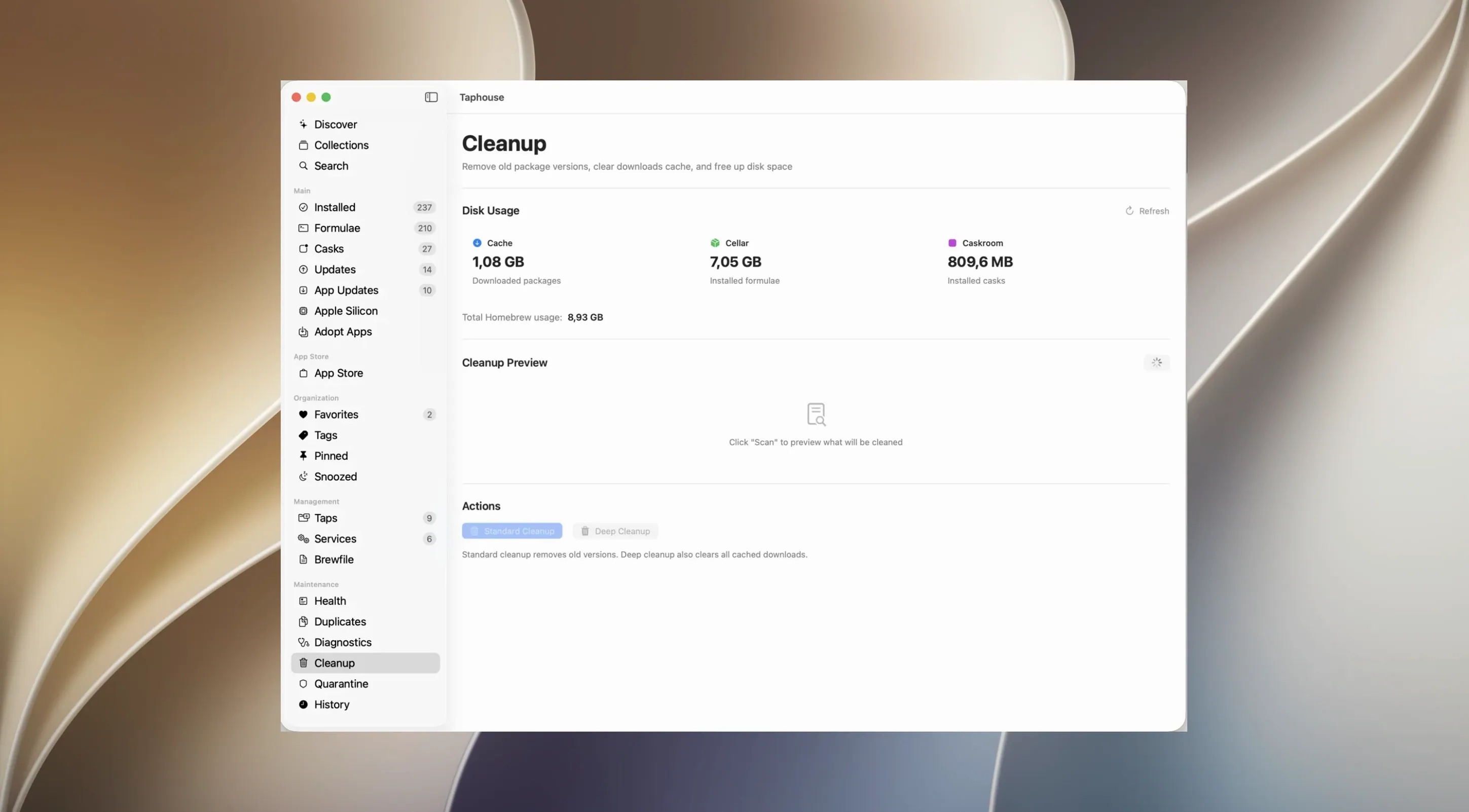
Start with the cleanup tools before installing anything new. Open the disk space section and let it scan. On a Mac that's run Homebrew for a year or more, the cache and old versions often reclaim 2–5 GB. Removing unused dependencies afterward tidies the tree without touching packages you actively use.
Next, export a Brewfile — even if you don't plan to migrate machines soon. The menu bar option takes under ten seconds and gives you a dated snapshot of everything installed. Save it outside /usr/local or /opt/homebrew so it survives a Homebrew reinstall. If your setup includes casks with complex preferences (browsers, IDEs), the Brewfile captures the cask name, not the preference files, but it's still the fastest path to rebuilding a working environment.
Set the auto-update schedule early. Background updates run silently, but you'll want to pair them with the notification setting that alerts you when a service needs restarting after an update — otherwise you might update postgresql and not realise the running process is still the old version. For packages that have broken on you before, use the deferral feature preemptively on a short window (a day or a week) so you can check release notes before the next attempt.
Finally, mark your daily-driver packages as favourites. The favourites tab becomes a quick health dashboard: green indicators for running services, update badges when new versions land, and one-click access to the half-dozen formulae you actually care about among the thousands available.
- macOS 14 or later
- Apple Silicon or Intel Mac
- Homebrew must already be installed on the system
Questions on file
Does Taphouse Pro replace the Homebrew command-line tool?
No, it's a graphical interface that requires a working Homebrew installation on your Mac — it does not include its own package manager.
Sign in · Create an account to add a field note.
No field notes yet. A measurement, a version, a machine — they appear after moderation.