Mac Apps
Swish 1.13.3
Mac AppsUpdated
| Requirement | On file |
|---|---|
| macOS | macOS 12 or later |
| CPU | Apple Silicon, Intel 64-bit |
| Download | 10 MB |
Swish 1.13.3 runs on any Mac with Apple Silicon or an Intel 64-bit processor, provided macOS 12 or later is installed. That puts it within reach of most machines currently running a supported system, including those already prepared for macOS 27.
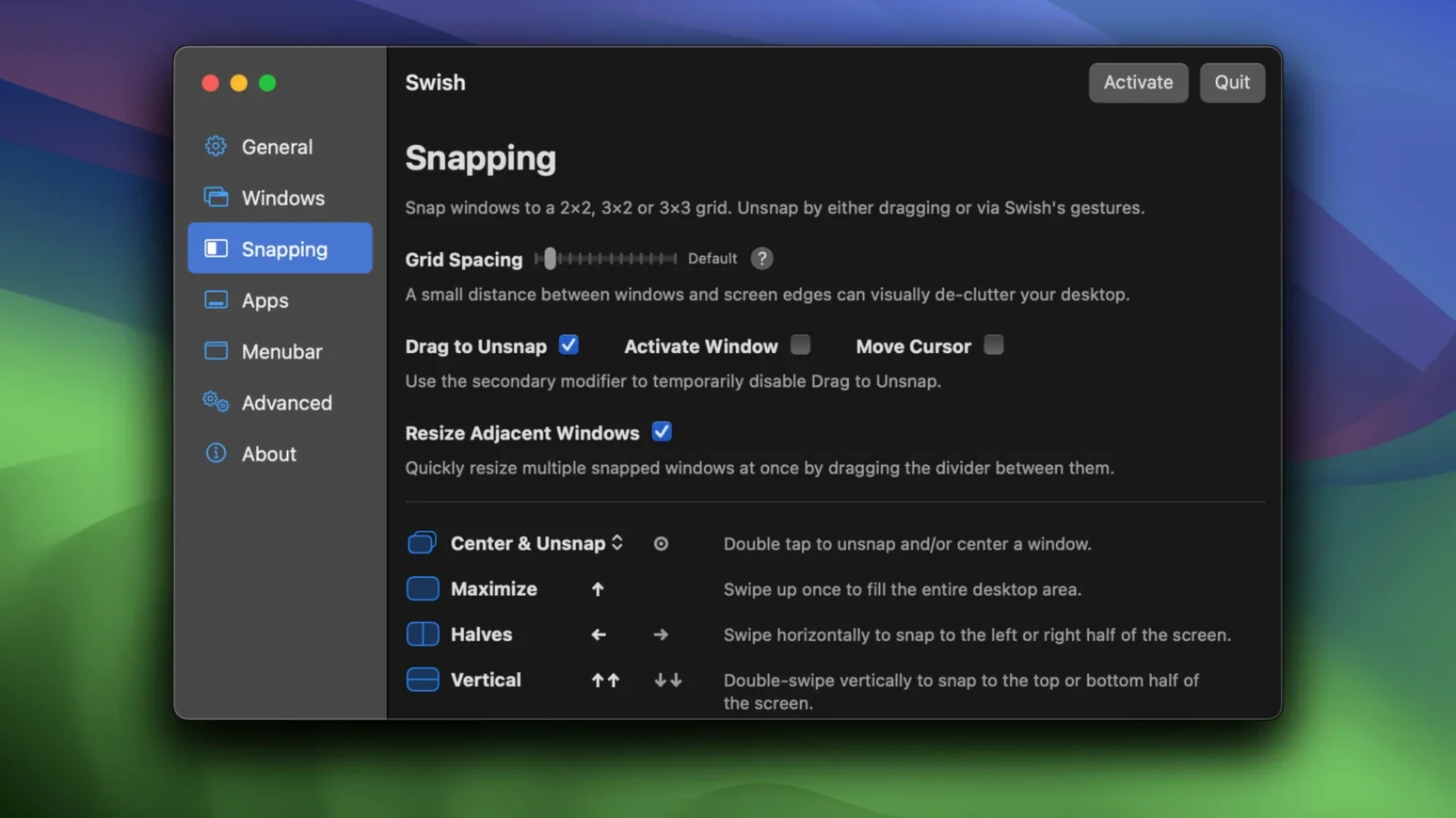
- Start with the default snapping gestures. A 2×2 grid covers the common halves and quarters without any configuration.
- Hold a modifier key when a layout needs more precision. This unlocks a 2×3 grid for six placement zones across the display.
- Work through the quick start guide once. It introduces the window, dock, and menubar gestures before you commit them to muscle memory.
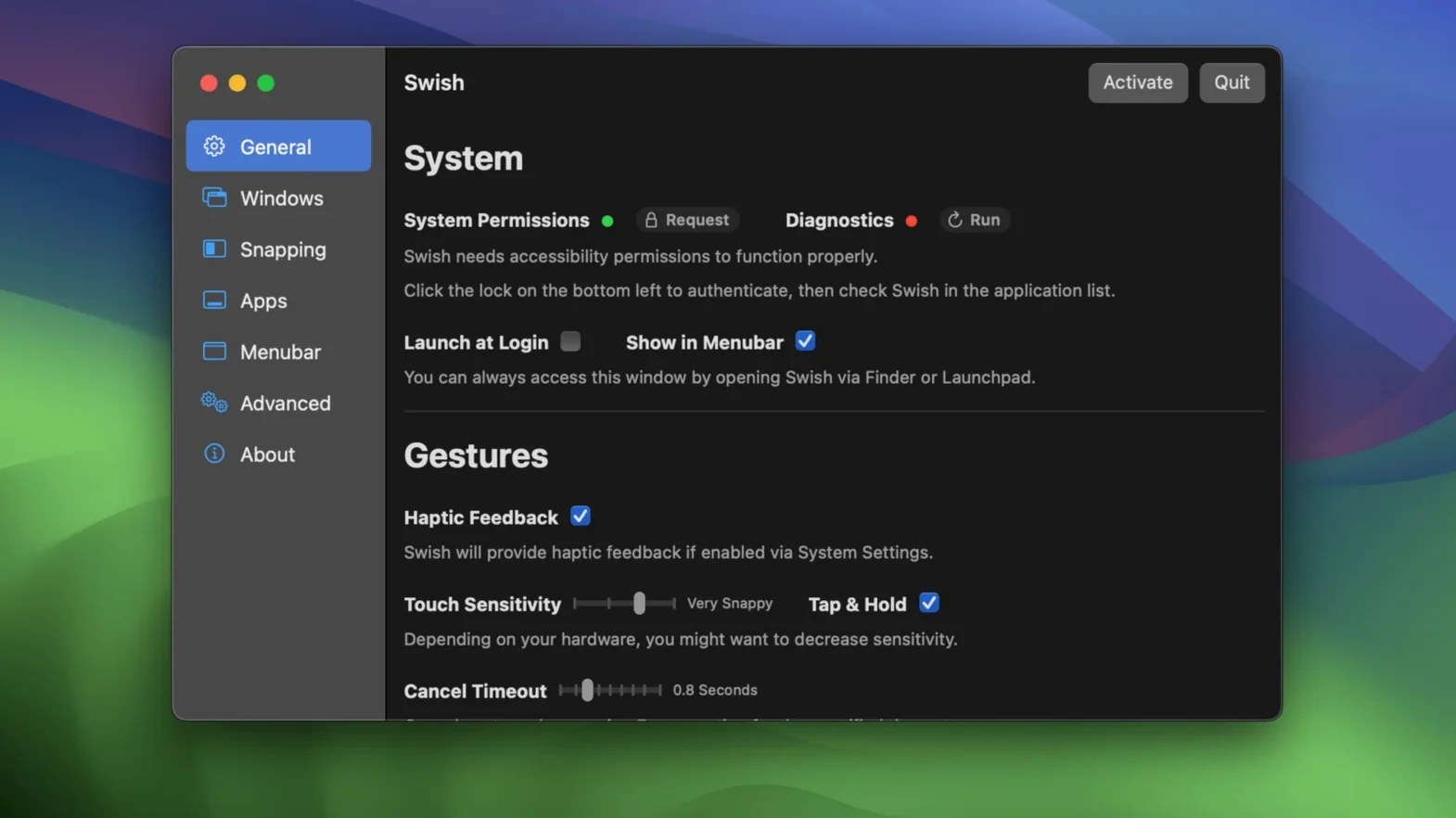
- Switch off gestures that conflict with tools you already use. Each one can be enabled or disabled individually, so Swish sits alongside existing shortcuts rather than overriding them.
The per-gesture toggles matter most on a Mac that already runs other utilities. A trackpad habit from another app or a system shortcut you rely on does not have to be sacrificed; the overlapping gesture simply stays off while the rest remain active.
Gestures on the Title Bar, Dock, and Menu Bar
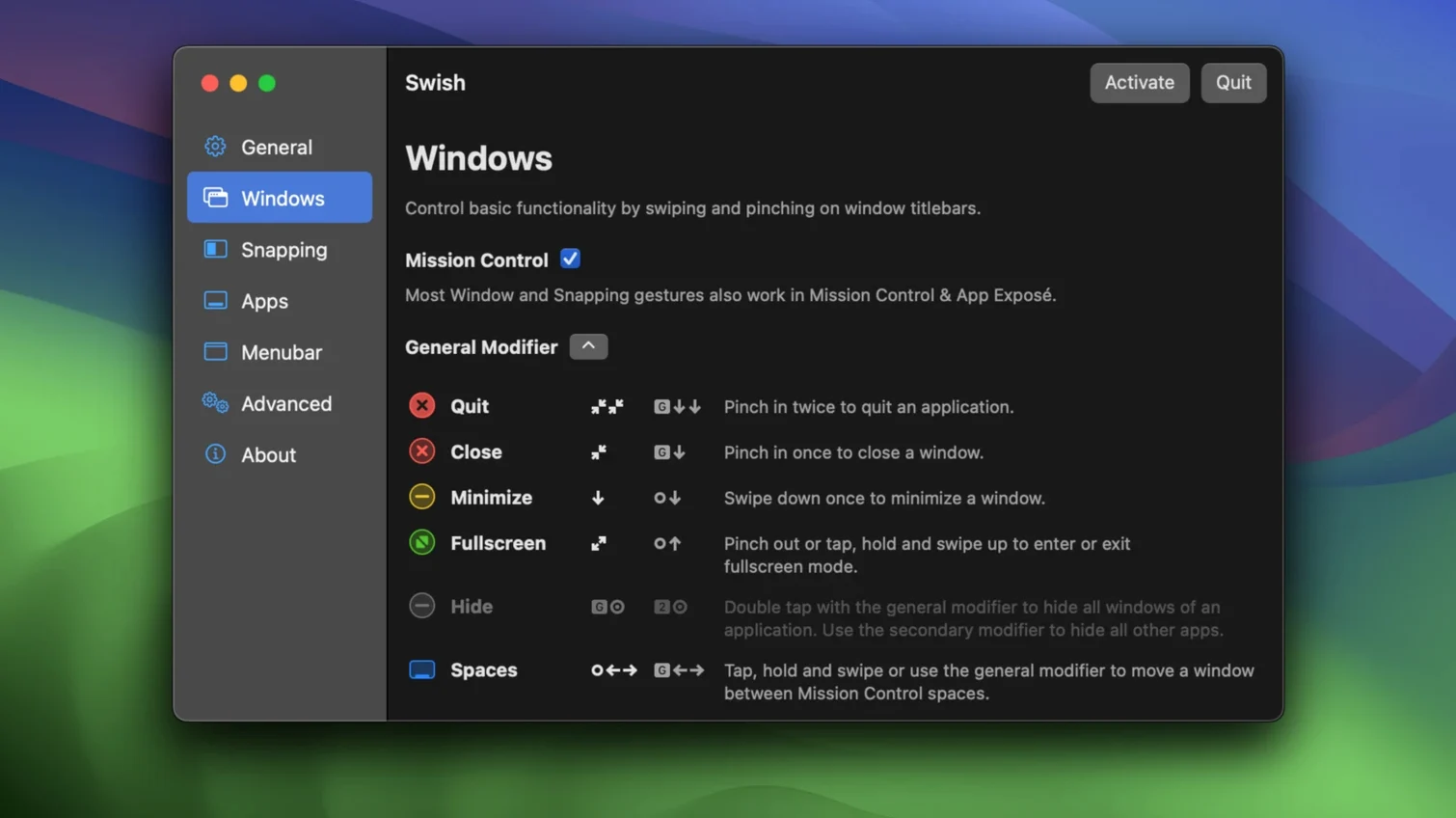
Trackpad-heavy users notice the difference within a few minutes. The gestures live where your fingers already rest — the title bar, dock, and menu bar — so there is no extra reach. If you spend most of the day on a MacBook without an external mouse, the 28 gestures collapse actions that would otherwise need a keyboard shortcut or a trip to the green traffic-light button.
Multi-monitor setups benefit almost as much. Moving a window between screens with a swipe instead of dragging it across a bezel saves a small but repeated interruption. The 2×3 grid, unlocked with a modifier key, gives six placement zones per display, which suits ultrawide monitors and side-by-side arrangements where a simple half split is too coarse.
Keyboard-first users are not left out. Swish exposes shortcuts for the same window operations, so a gesture is never mandatory. Someone who prefers keystrokes to trackpad swipes can still snap, move between spaces, and control applications without touching the trackpad. The shortcut layer covers the full feature set, not a trimmed subset.
Idles Below 60 MB of RAM on Apple Silicon
Swish loads as a lightweight background agent. On an Apple Silicon Mac it settles around 40–60 MB of RAM during normal use, with essentially zero CPU time between gestures. There is no menu bar animation, no redrawing of window previews, and no background polling that would wake the processor unnecessarily. The app hands off most of its work to macOS accessibility and window server APIs, which keeps its own footprint small.
Gesture recognition feels immediate. A two-finger swipe on the title bar snaps the window before the finger lifts off the trackpad surface. The same holds for pinch-to-resize and tap-to-maximise — there is no perceptible lag between the gesture and the window moving. This matters when you chain operations: snap right, then pinch to quarter-height, then hold the modifier and nudge to a grid corner. Each step completes without the previous one needing to settle first.
Stability across macOS versions is a known strength. The developer has maintained compatibility through several major system releases, and version 1.13.3 already declares readiness for macOS 27. Crashes are rare in daily use; the most common friction point is a conflict with another gesture utility, and the per-gesture toggles handle that without requiring either app to be removed.
Managing a Browser, Editor, Terminal, and Figma Across Displays
Consider a front-end developer working on a 14-inch MacBook Pro connected to a 27-inch external display. The laptop screen holds a browser with dev tools open; the external monitor carries a code editor, a terminal, and a Figma window.
In the morning, she arranges the external display into a 2×2 grid: editor top-left, browser top-right, terminal bottom-left, Figma bottom-right. Each snap is a two-finger swipe down from the title bar, dragging toward the target quadrant. No modifier needed — the default grid handles it.
After lunch, she switches to a single-monitor setup in a meeting room. The smaller screen forces tighter layouts. She holds the modifier and uses the 2×3 grid to stack three windows vertically: documentation at the top third, a macos swish command reference in the middle, and a note-taking app filling the bottom third. The layout would be awkward with halves or quarters alone, but the extra row makes it usable on a 14-inch panel.
Between tasks, she minimises the current app with a pinch on the dock icon and calls up a different Space with a three-finger swipe on the menu bar. Both gestures are muscle memory within a week, replacing the keyboard shortcuts she previously used for Mission Control and app switching. By the end of the day, she has moved windows between the laptop and external display a dozen times with a single swipe, each one saving the drag-and-drop motion she used to repeat.
- macOS 12 or later
- Apple Silicon or Intel 64-bit Mac
Questions on file
Which macOS versions does Swish support?
Swish requires macOS 12 or later, and it is ready for macOS 27.
Can I use Swish on an Intel Mac?
Yes. Swish supports both Apple Silicon and Intel 64-bit Macs.
Can I disable individual gestures?
Yes. Each gesture can be enabled or disabled individually, so you can keep only the ones that fit your workflow.
Sign in · Create an account to add a field note.
No field notes yet. A measurement, a version, a machine — they appear after moderation.