Design
Blocs 6.3.3
DesignUpdated
| Requirement | On file |
|---|---|
| macOS | macOS 11 or later |
| CPU | Apple Silicon, Intel 64-bit |
| Download | 90 MB |
Blocs 6.3.3 runs on any Mac with macOS 11 (Big Sur) or later, with native support for both Intel and Apple Silicon processors.
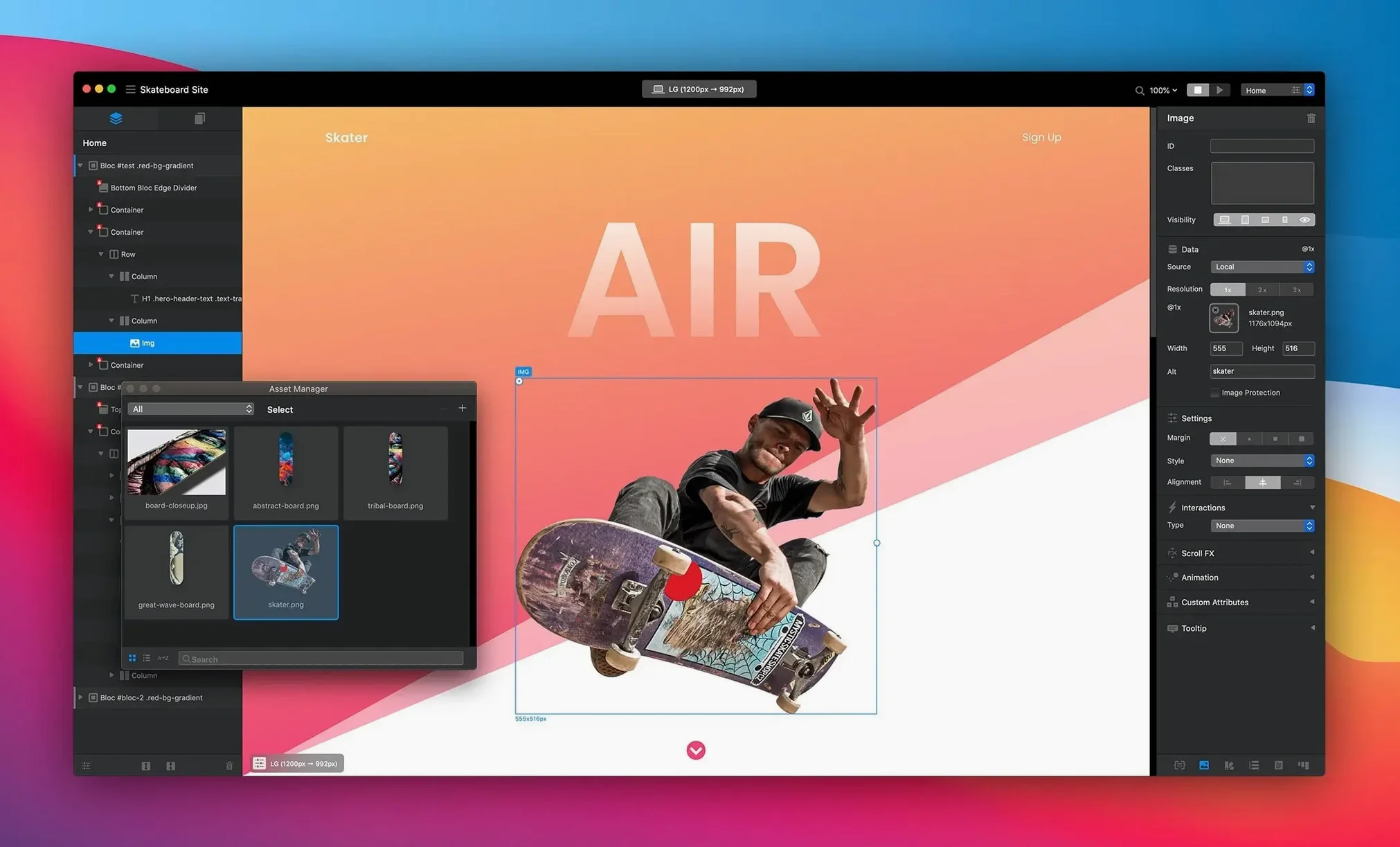
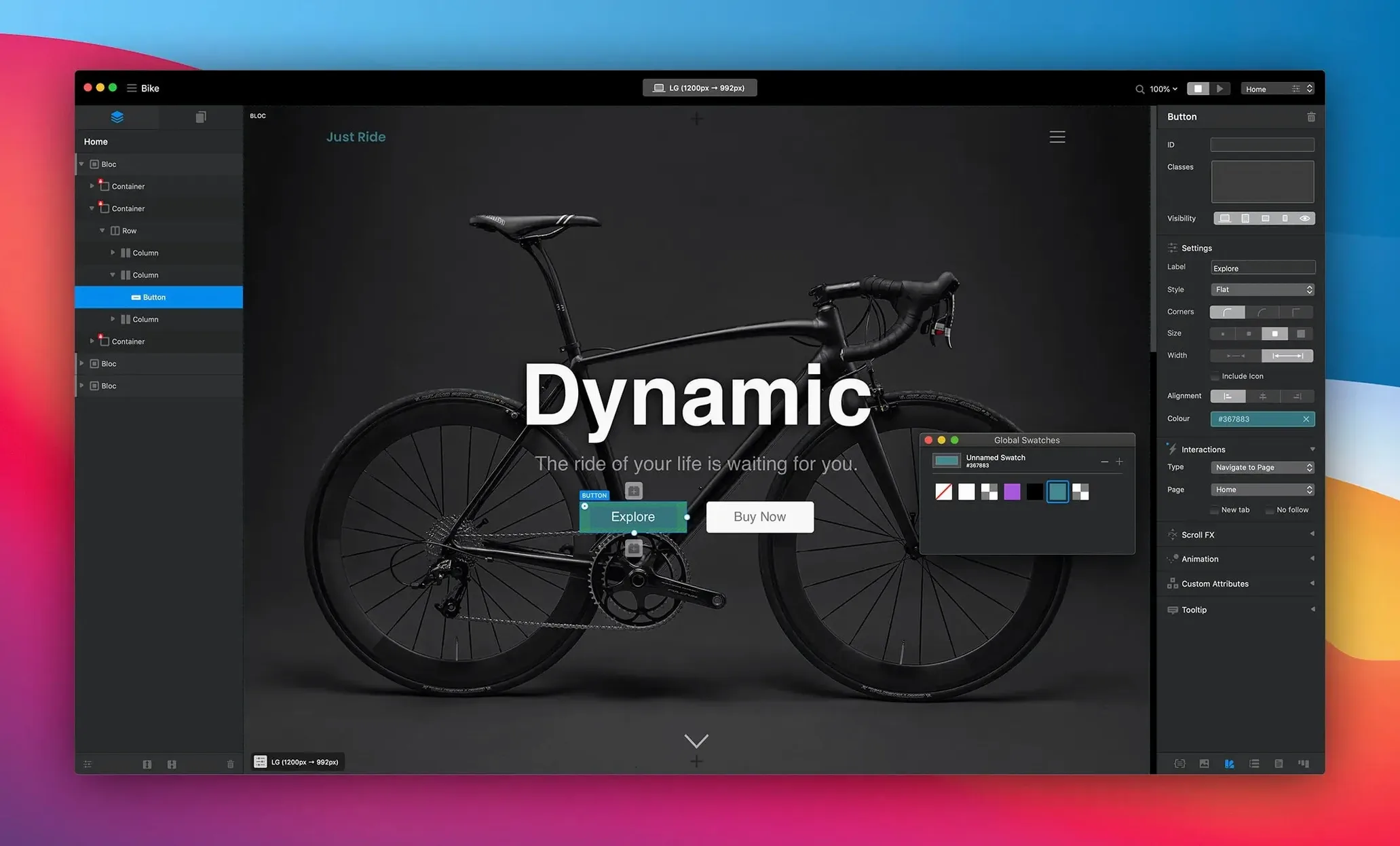
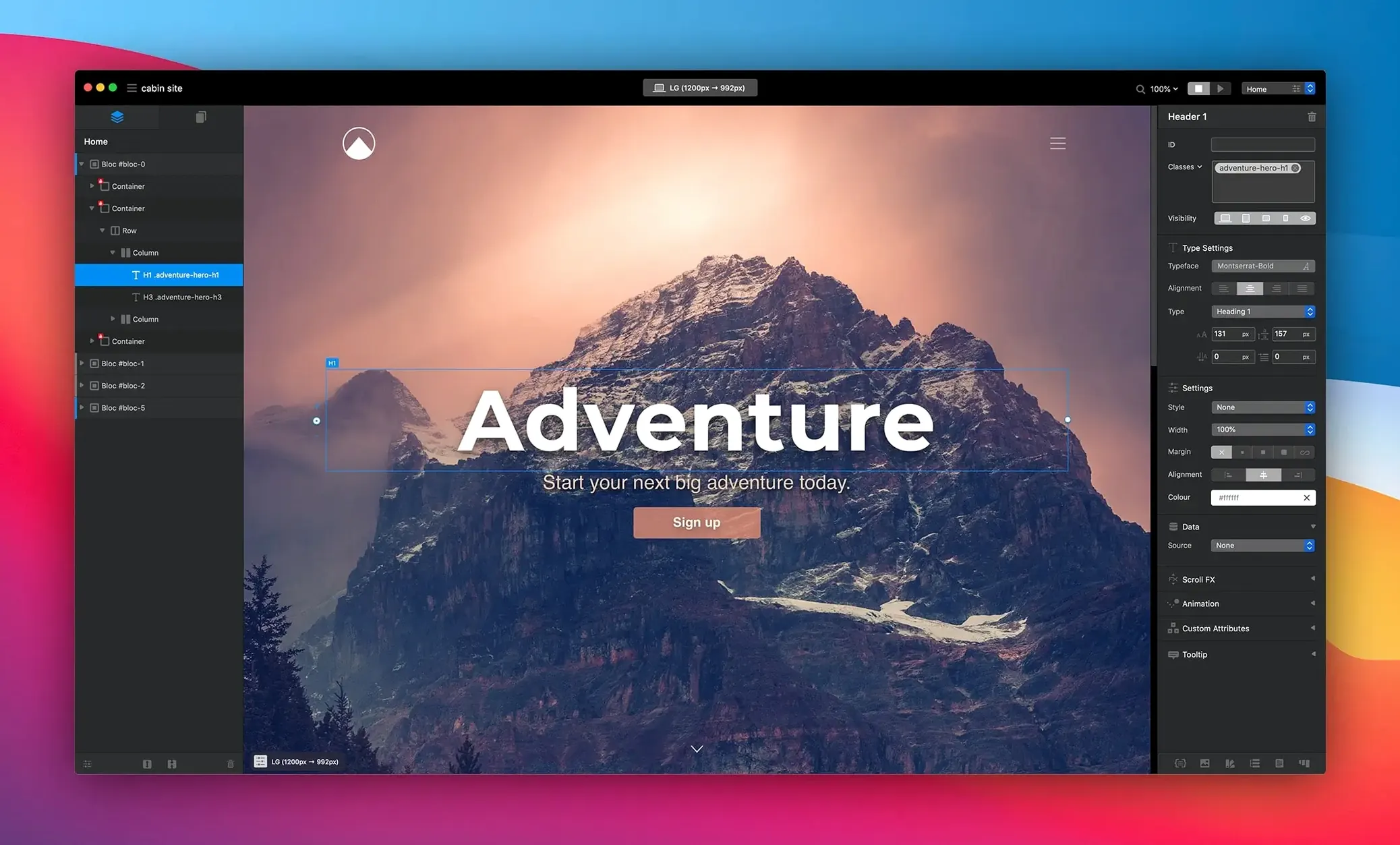
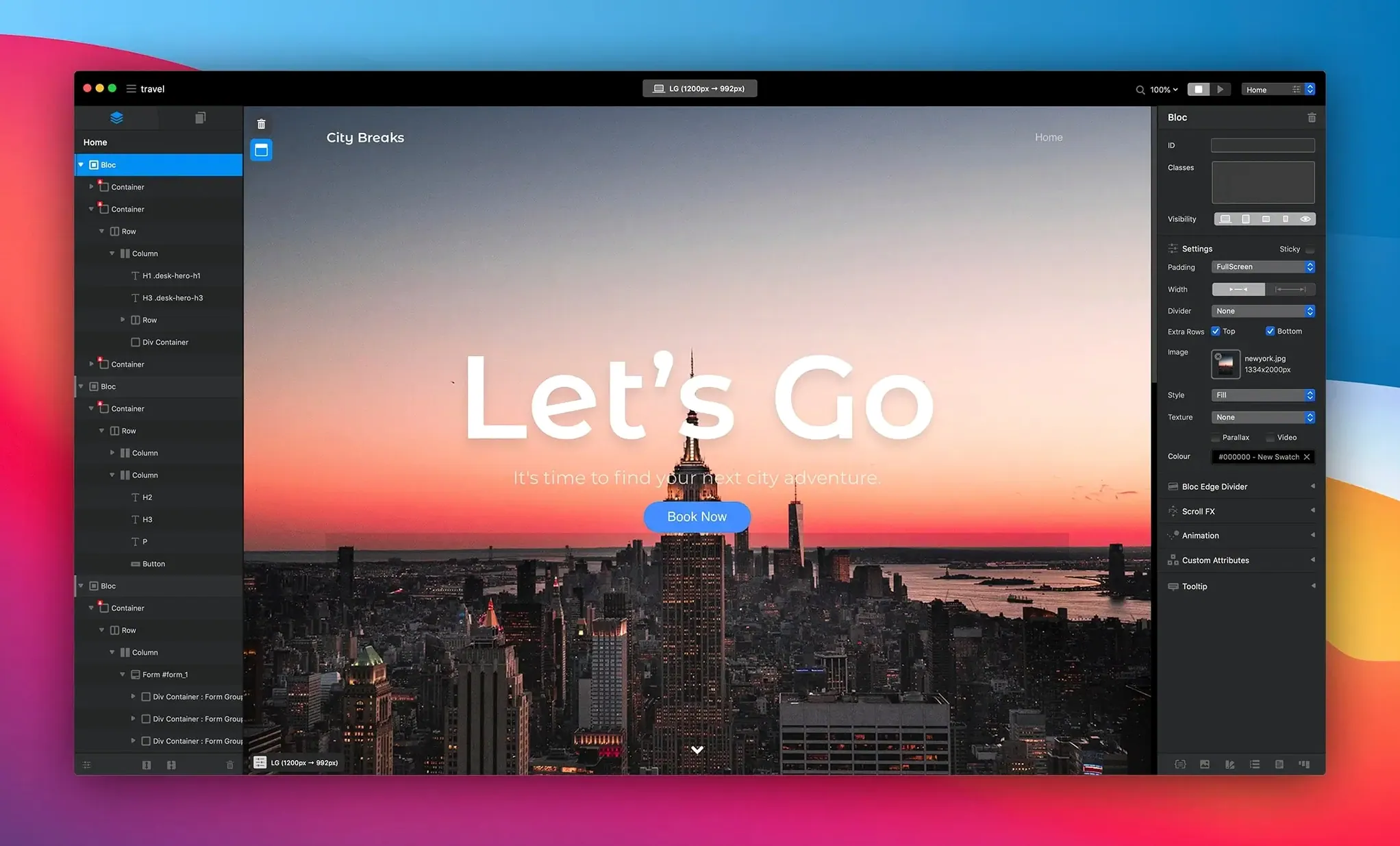
The app builds websites through a block-based workflow. You assemble pages from pre-built sections called Blocs, then customise typography, imagery and interactions inside each one. The editing surface hides the complexity of CSS and HTML while keeping advanced controls accessible through contextual inspector panels. Code output is deliberately lean — no extra markup or embedded inline styles that need cleaning up later.
Visual design with a CMS backend and custom-code escape hatches
- Designers who want visual control without touching code, but need the option to add custom classes or scripts when a project demands it.
- Projects that require a CMS backend. Blocs integrates with both paid and open-source content management systems, so you can build the front end visually and connect it to a database-driven workflow.
- Anyone frustrated by bloated page output. The generator produces structured code without leftover styling, which keeps sites light and easier to maintain.
Mac-only canvas that rewards web-concept familiarity
- The interface assumes some familiarity with web concepts. Panels for class management, interaction triggers and breakpoint controls sit behind the visual canvas, and first-time users may need time to locate them.
- Version 6.3.3 is Mac-only. There is no iPad or Windows counterpart, so collaborative teams on mixed platforms will need a different workflow.
Blocs 6 compared with other Mac site builders
Three apps tend to come up when designers evaluate visual website tools for Mac. Each occupies a different philosophy, and the choice usually comes down to how much code you want to see.
RapidWeaver shares the most territory with Blocs. Both are Mac-native, both generate static HTML, and both lean on third-party CMS integrations rather than locking you into a proprietary hosting setup. The practical difference is in the page assembly model. RapidWeaver works through themes and plugin stacks — you pick a theme, then layer content add-ons on top. Blocs reverses that with its block-first approach: you start with layout sections, then style them directly. For a designer who thinks in grid rows and flex containers, Blocs feels closer to how the browser actually renders the page. The code output from Blocs tends to be tighter too, since it does not inherit a theme framework's base styles that you then need to override.
Sparkle is the other Mac-only contender. It is more freeform — you place elements anywhere on a canvas, like a desktop publishing tool. That freedom suits single-page designs or highly visual landing pages, but it can produce absolute-positioned layouts that behave unpredictably across screen sizes. Blocs enforces a box-model structure that maps more reliably to responsive breakpoints. If you need a proper mobile-first site that reflows at defined widths, Blocs gives you clearer guardrails.
Pinegrow sits at the code-aware end of the spectrum. It is a visual editor, but it exposes the full HTML and CSS source in live split views and lets you edit either side. Pinegrow supports WordPress templates and Tailwind CSS natively — things Blocs does not attempt. The trade-off is complexity: Pinegrow assumes you are comfortable reading markup. Blocs hides that layer until you choose to reveal a custom class field or a code injection point. For a designer who wants fast visual prototyping with the option to add snippets later, Blocs is the less intimidating tool.
How Blocs fits a Mac workflow
Blocs behaves like a proper macOS application, not a ported web service wrapped in Electron. It uses native file dialogues, so you can save .blocs project files directly into iCloud Drive or a local folder that syncs through a third-party cloud service. That matters when you switch between a desktop Mac and a MacBook — the project opens exactly as you left it, assets and all.
For asset management, Blocs pulls images and fonts straight from Finder. Dragging a folder of optimised PNGs or SVGs onto the canvas imports them into the project library, and the app retains the original file references. This pairs well with design tools that export to a watch folder: you can adjust a graphic in Sketch or Affinity Designer, export over the old file, and see the change reflected in Blocs without re-importing.
The CMS integration side works with systems that expose a content API or a theme structure Blocs understands. A common setup is to design the front end in Blocs, export the static HTML, and then hand the output to a developer who wires it into a CMS like Kirby or Statamic. Because the generated code is free of embedded style blocks, the handoff is cleaner — less time stripping out redundant class chains or inline declarations that the CMS templating engine would need to work around.
macOS features like Dark Mode apply to the Blocs interface itself, and the app respects system-wide colour profiles, which helps when previewing on a calibrated display. Quick Look integration means you can select a .blocs file in Finder and press the space bar to see a project thumbnail without opening the full application.
Common questions before installing
Does Blocs lock me into a particular hosting provider or platform?
No. Blocs exports flat HTML, CSS and JavaScript files that you can upload to any web server. There is no proprietary runtime, no mandatory cloud service, and no vendor lock-in. The CMS integrations work with third-party systems, both paid and open-source, so you control where the site lives and how it is served.
Can I add my own code when I need to?
Yes. Each Bric and page has slots for custom classes, data attributes, and head or body code injection. You can write raw HTML, CSS or JavaScript snippets directly into these fields, and they survive subsequent visual edits. It is not a code editor — you will not get syntax highlighting or autocomplete — but the hooks are there when a design calls for something beyond the visual toolset.
How does Blocs handle responsive design across different screen sizes?
The app provides breakpoint controls that let you adjust layouts at defined widths. You can rearrange, hide or resize elements per breakpoint, and the visual canvas updates to show how the page reflows. Because the underlying structure uses modern box-model positioning rather than fixed coordinates, the responsive behaviour tends to be predictable without manual media-query tweaking.
Build a small test site to evaluate block workflow and code output
The standard download from the developer gives you access to the full application, and many designers run a small test site — a three-page portfolio or a landing page — to evaluate the block workflow and code output quality before migrating larger projects. The .blocs project format is self-contained, so a test project does not interfere with production work.
- Navigation — fixed a hamburger menu display issue after toggling the Bric option off and on
- Forms — fixed checkbox selected-state display and inspector options for radio items
- Layout — fixed multiple alerts when setting padding to fill inside a Bloc group
- macOS 11 or later
- Intel or Apple Silicon Mac
Sign in · Create an account to add a field note.
No field notes yet. A measurement, a version, a machine — they appear after moderation.