Design
Bootstrap Studio 6.7.3
DesignUpdated
| Requirement | On file |
|---|---|
| macOS | macOS 10.13 or later |
| CPU | Apple Silicon, Intel 64-bit |
| Download | 159 MB |
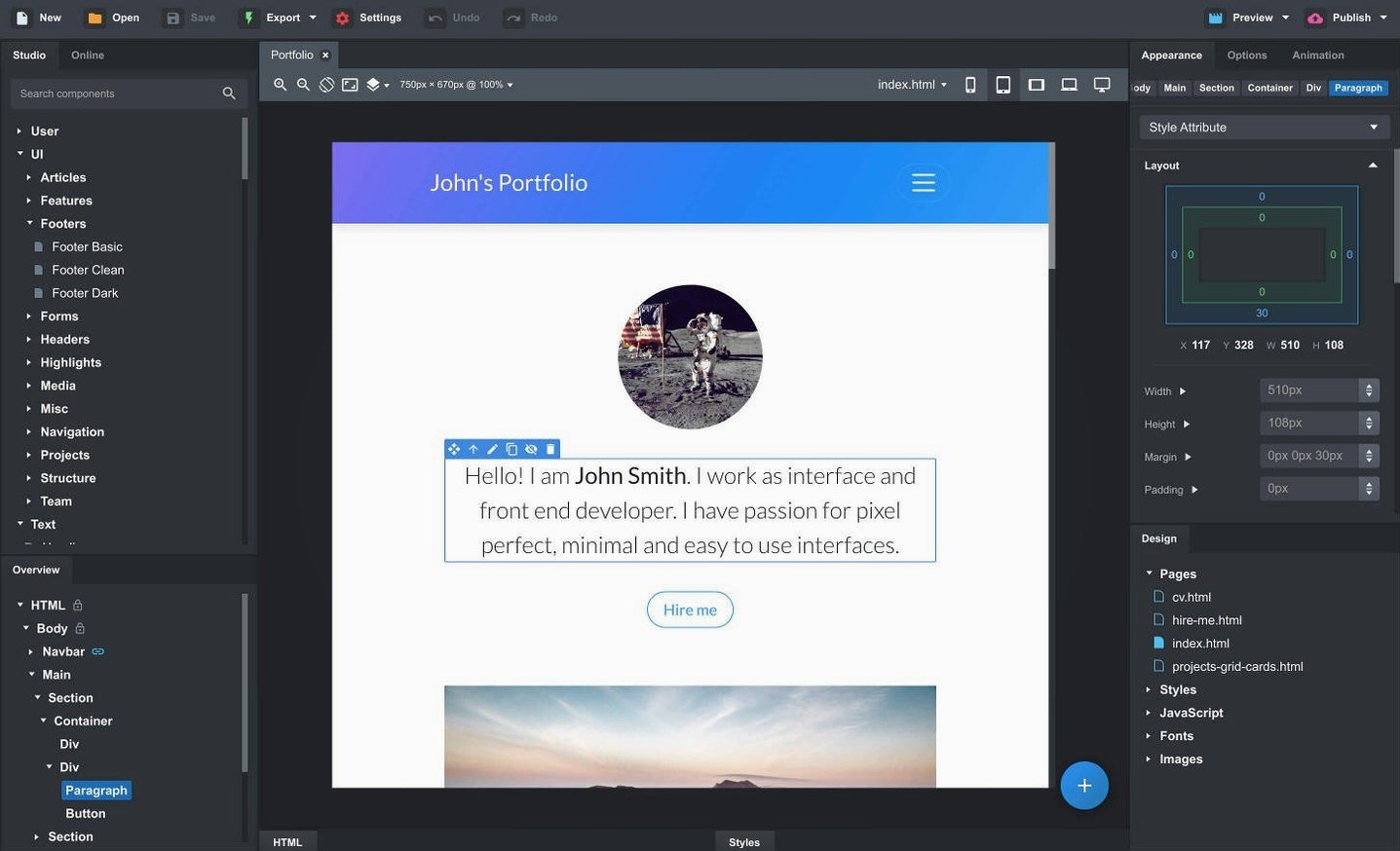
Three versions of Bootstrap live side by side in this app — 3.4, 4.6 and 5.3 — and you can pick the one that suits your project without touching a package manager. Bootstrap Studio is a desktop website builder that turns the Bootstrap framework into a visual workspace. You drag headers, footers, galleries, slideshows and basic elements like divs and spacers onto a canvas, then adjust them with property panels rather than memorising class names.
| Detail | Note |
|---|---|
| Current version | 6.7.3 |
| macOS requirement | 10.13 or later |
| Architecture | Intel and Apple Silicon |
| Bootstrap versions | 3.4, 4.6, 5.3 |
| File support | HTML, CSS, JavaScript, SCSS |
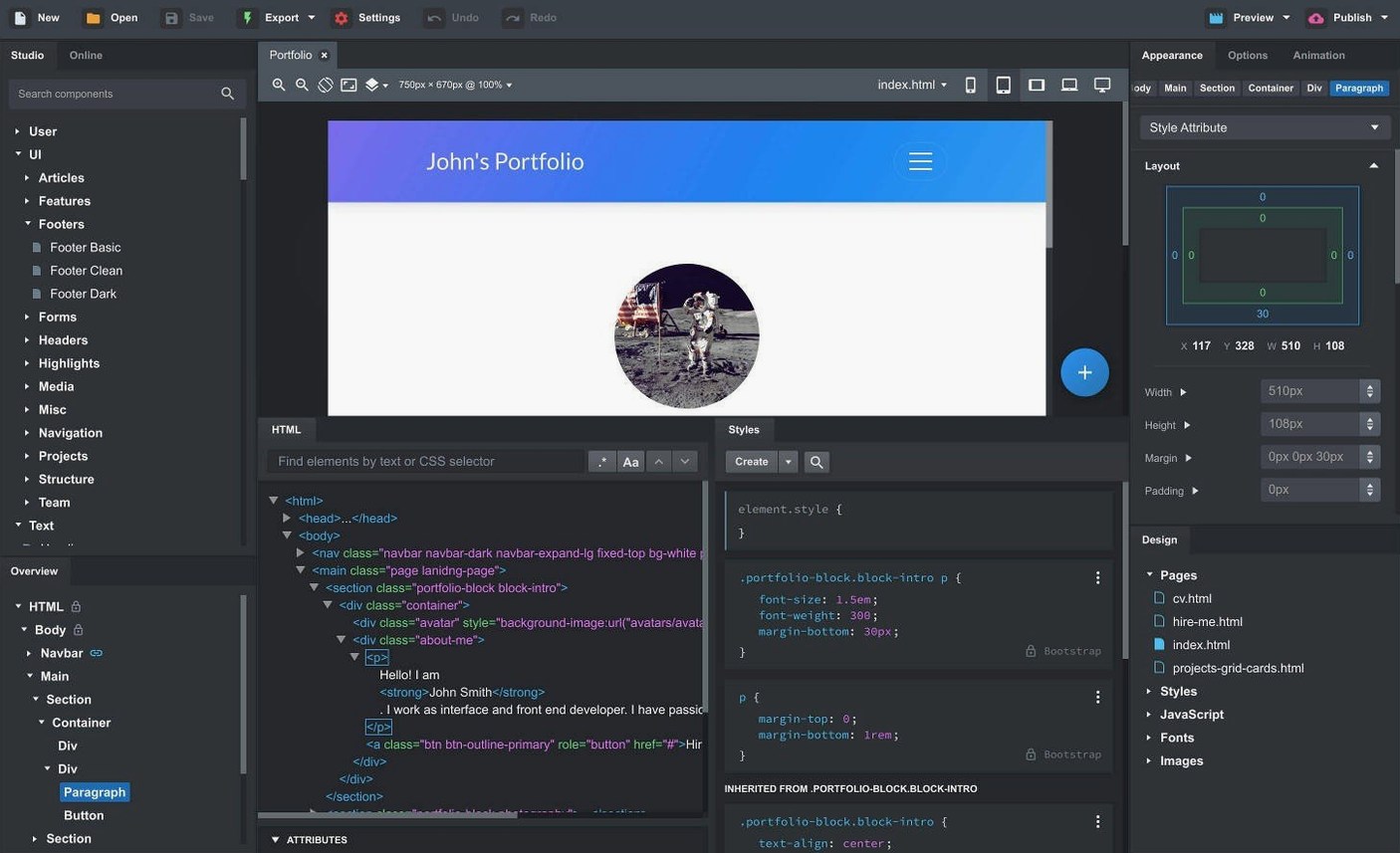
The app is built for people who know their way around Bootstrap but want less boilerplate. You get full SCSS editing, so customising the framework's variables and mixins happens inside the same tool. Linked components keep headers and footers synchronised across pages — change one instance and the rest follow. A built-in online library supplies community-created components, and you can save parts of your own design as custom components for reuse. The AI Assistant recently gained access to gpt-4o-mini and gpt-4o models, which sits alongside the import tools for existing CSS, JavaScript and HTML files.
Scenario: A Freelance Designer Rebuilding a Client's Landing Page
A freelance designer picks up a two-week contract to refresh a dental clinic's site. The old pages are a mix of inline styles and table-based layouts, and the clinic wants a responsive landing page with a booking form, an image gallery of the practice, and a nav that stays visible on mobile. Nothing exotic — but the deadline means hand-coding every media query is not on the table. The designer drags a Bootstrap 5.3 navbar onto the canvas, enables the new Sticky On option added in 6.7.3, and sets it to activate only past the hero section. The gallery component takes six photos without a single line of jQuery. The form is assembled from input groups and validation states, then connected to a mail handler the clinic already uses. By the end of the first day, the page is previewing in three browsers and on an iPhone viewport from the same application window.
The part that saves real time is the export. The designer sends clean semantic HTML to the clinic's hosting provider, and the SCSS file is ready for the developer who maintains the site afterwards. Nothing about the workflow forces a rebuild later.
Comparison: Where It Sits Among Mac Site Builders
Bootstrap Studio occupies a narrow band between pure code editors and template-based site builders. It is not the only tool in that band, but the differences matter once you look past the drag-and-drop surface.
Bootstrap Studio vs. Pinegrow
Pinegrow is the closest relative: both are desktop apps, both edit Bootstrap visually, and both let you work with the underlying code. Pinegrow leans harder on the code side. Its panels expose the HTML and CSS more directly, and it supports WordPress themes as a target. Bootstrap Studio keeps more of the markup behind the component model — you adjust properties, not raw tags, unless you deliberately open the code editor. For a designer who wants the framework handled for them, Bootstrap Studio is the more structured environment. For someone who wants a visual editor with one hand still on the text file, Pinegrow feels closer to a code tool.
Bootstrap Studio vs. Blocs
Blocs takes the opposite approach. It uses its own layout engine and does not require any knowledge of Bootstrap — or HTML — at all. That makes Blocs friendlier for complete beginners, but it also means the output is tied to Blocs' own component stack. Bootstrap Studio assumes you know what a container, a row, and a column are. The reward is that your exported files are standard Bootstrap, readable by any developer, and extendable in SCSS without leaving the app.
Bootstrap Studio vs. Webflow
Webflow is a browser-based platform with hosting, CMS and e-commerce built in. Bootstrap Studio is a desktop app that leaves hosting to you. The difference shapes the workflow: Webflow locks you into its publishing pipeline for the full feature set; Bootstrap Studio exports files you can host anywhere. Searching for bootstrap studio mac will surface both types of tool, but they are answering different questions. One is a platform, the other is a workshop.
Workflow: Building a Documentation Page from a Spec Sheet
Start with the content. Open a new design and choose Bootstrap 5.3 from the project settings. Drop a container onto the canvas, then a row with two columns — a narrow left column for navigation and a wider right column for the documentation text. Drag a scrollspy nav into the left column and set its targets to the headings in the main column. You can rename headings in the component tree to keep the scrollspy links readable.
- Place the page title and an intro paragraph in the right column using standard text components.
- Add sections with
h2headings for each topic: Requirements, Installation, Configuration, Troubleshooting. - Use the built-in table component for the requirements list — rows for macOS version, memory, and disk space.
- Add a code block component for each terminal command. Paste the command text and set the language to Bash.
- Enable the sticky option on the left nav so it stays visible while scrolling.
- Open the SCSS editor and set the primary colour variable to match the product's brand colour.
- Preview in two browsers from the toolbar, then export.
The export produces an index.html file, a css folder, and a js folder. The HTML references local Bootstrap files, so the page works without a CDN. Upload the folder to any static host and the documentation is live.
Expecting an Artboard Instead of a Grid
The most common mistake is treating the canvas like a free-form artboard. Bootstrap is a grid system, and components dropped anywhere will snap into rows and columns in ways that look wrong until you understand the hierarchy. Beginners should watch the component tree panel — it shows the nesting structure that the canvas sometimes hides. A button that looks misaligned is usually a button placed outside the column it was meant to sit in, not a CSS problem.
Another frequent error is mixing Bootstrap versions within a single project. The app supports 3.4, 4.6 and 5.3, but changing a project's Bootstrap version after adding components can break class names and component behaviour. Decide the version before you build, not halfway through. Importing an existing site with HTML, CSS and JS files is possible, but the imported markup may need cleanup — the importer does not rewrite old class names for you.
Beginners also overlook the custom component feature. Building the same footer across ten pages manually is exactly what linked components exist to prevent. Save the footer as a component once, place it on every page, and edit it from a single location. The same applies to card layouts and form sections that repeat. Finally, the AI Assistant's model selection — gpt-4o-mini and gpt-4o are both available in 6.7.3 — is worth adjusting based on the task: the smaller model handles naming and placeholder text quickly, while the larger one is better for generating longer content blocks or explaining a layout problem.
- AI Assistant — added gpt-4o-mini and gpt-4o models
- OpenAI API key dialog — fixed an issue where some keys were not accepted
- Icon Dialog — now lists the icon count and type for each icon set
- Sticky navbars — added a Sticky On option
- Bootstrap modals — added a Click Outside to Close option
- macOS 10.13 or later
- Intel or Apple Silicon Mac
Questions on file
Which versions of Bootstrap does it support?
It supports Bootstrap 3.4, 4.6 and 5.3, and you choose the version per project.
Can I edit SCSS files directly in the app?
Yes, it has full support for creating and editing SCSS files, including variables and mixins.
Does it include any pre-made components?
It ships with built-in components like headers, footers, galleries and slideshows, plus an online library of community-created components.
Sign in · Create an account to add a field note.
No field notes yet. A measurement, a version, a machine — they appear after moderation.