Design
Logoist 5 5.2.2
DesignUpdated



| Requirement | On file |
|---|---|
| macOS | macOS 15 or later |
| CPU | Apple Silicon, Intel 64-bit |
| Download | 250 MB |
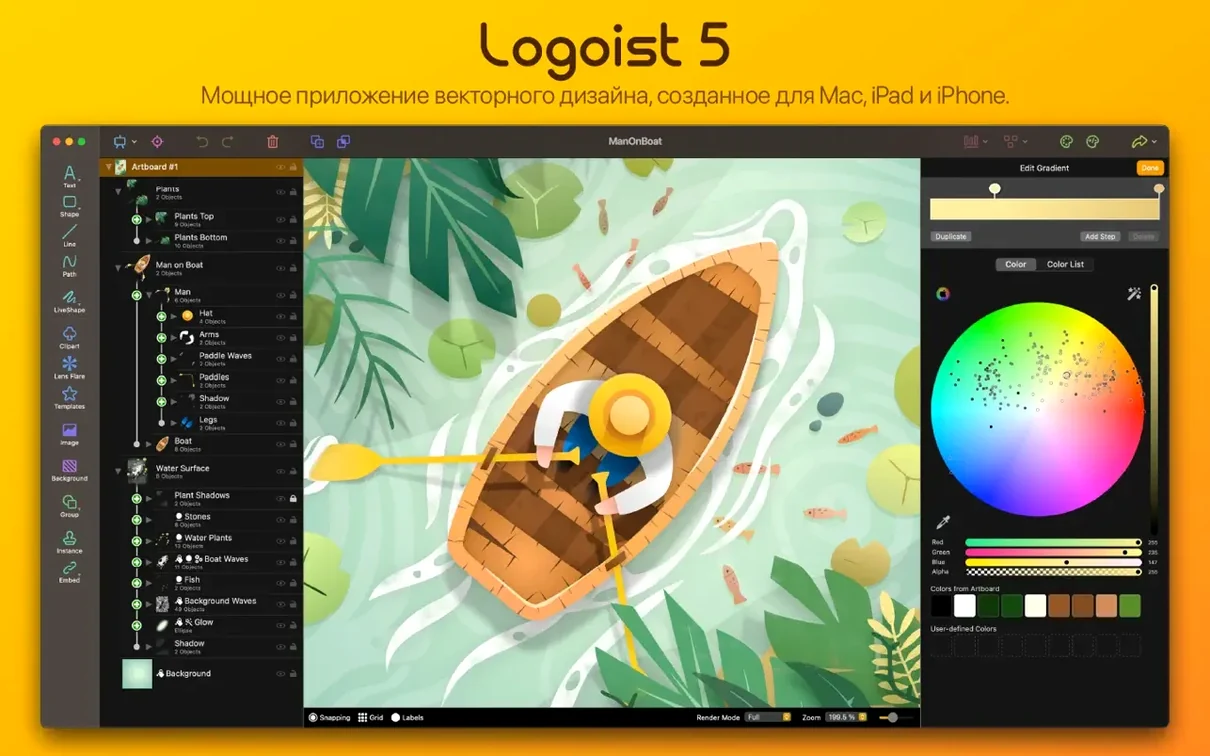
If you have used basic Mac drawing tools, the jump to Logoist 5 feels like moving from graph paper to a proper drafting table. The app gives you precision vector tools without burying them under interface chrome, which makes the first hour surprisingly productive.
Shape Sets and the Path Editor
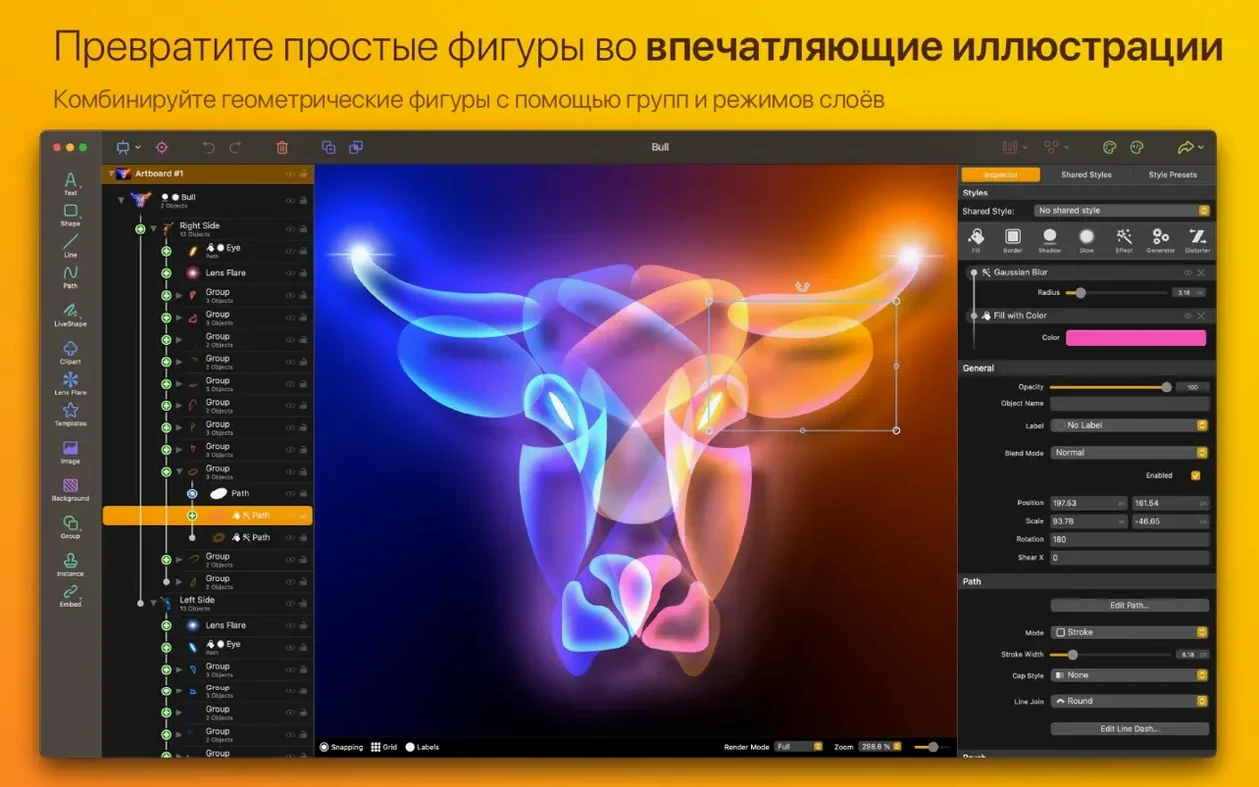
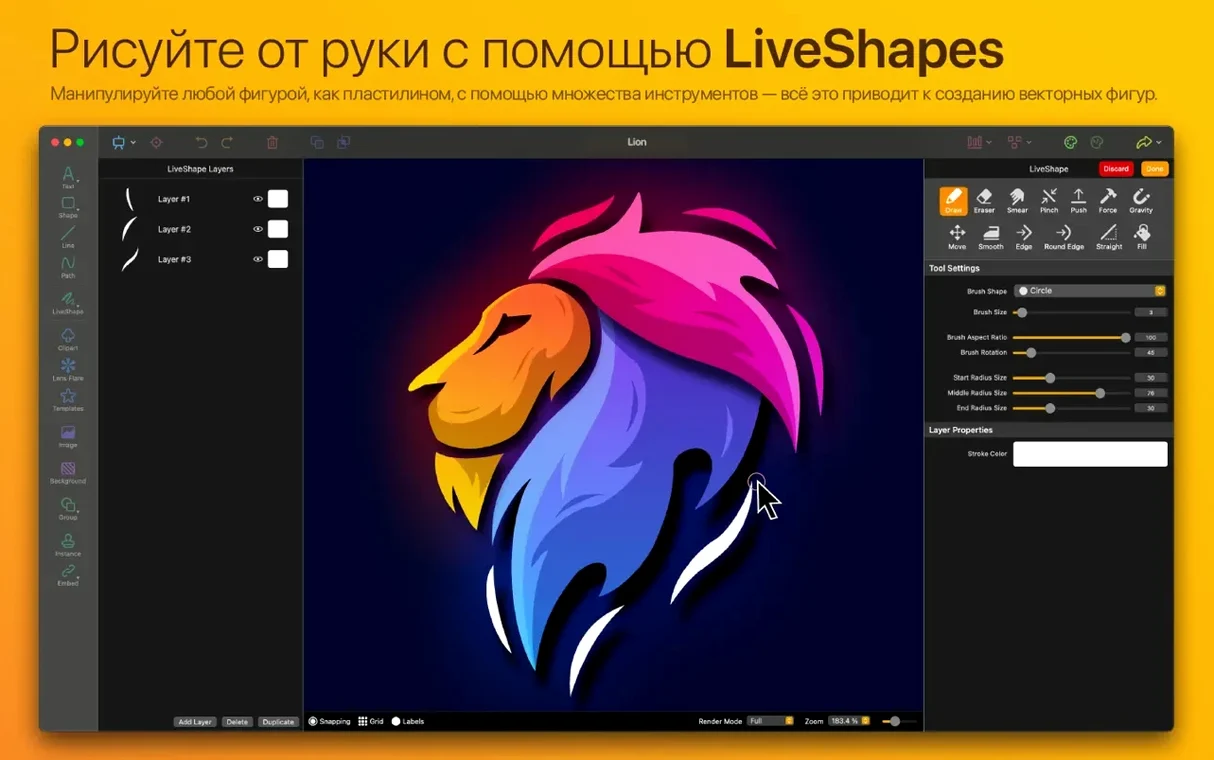
Skip the blank canvas. Open the shapes gallery and drag a preset onto the page — a shield, a gear, a ribbon. Then switch to the path editor. Each shape arrives with editable control points, so you can pull a curve tighter or flatten a corner within seconds. The path tools support multiple shape types, meaning you can mix Bézier curves with simpler primitives in the same object. For a newcomer, this is the fastest way to understand how the app builds complexity: start with a stock shape, reshape it, then layer a second one behind it.
Style Galleries and Effects
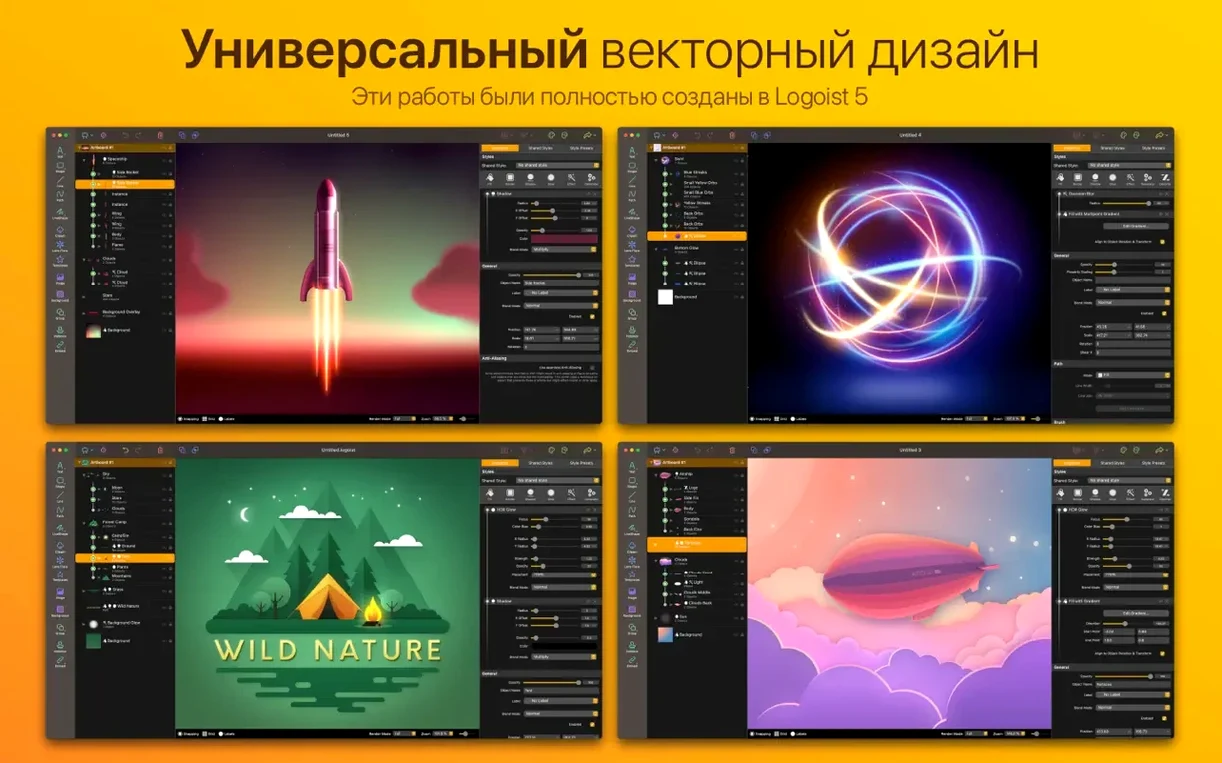
After the path editor, the style and effects galleries show what the engine can do. Apply a metallic gradient from the style presets, then stack a drop shadow and a subtle inner glow. The feedback is instant, and every effect remains editable in the inspector. Logoist 5 ships with a large set of clips and style sets, so you can prototype a badge or a wordmark without drawing anything from scratch. The real lesson for a new user is that the galleries are not just decoration — they are a shortcut to understanding the layer-based compositing that sits under the hood.
Building a Monogram from Scratch: A 20‑Minute Walkthrough
The quickest way to learn the tool chain is a bounded task. Here is a monogram — two overlapping letters inside a circular lock‑up — built with nothing but a blank canvas.
- Open Logoist 5 and choose File → New. Set the canvas to 1024 × 1024 px, transparent background.
- Press T for the Type tool. Type a single capital letter, pick a heavy sans‑serif (Avenir Black sits cleanly), and set the size to roughly 600 pt. Convert it to a path via Type → Convert to Path.
- Repeat for the second letter, but reduce its size slightly and offset it to the right so the two shapes overlap by about 20 %.
- Select both letter paths, open the Path panel, and choose Unite. The letters fuse into one compound shape. Use the path editor to manually adjust any clumsy intersections — the node handles give you millimetre‑level control over the join curves.
- Draw a circle from the shapes gallery that encloses the monogram with a 40 px margin. Send it to the back, then select both the circle and the fused letters and run Subtract from the boolean set. The letters now cut cleanly through the circle.
- Open the style gallery and drag Brushed Titanium onto the cut‑out shape. Add a drop shadow (Angle 135°, Distance 8 px, Blur 12 px) and a subtle inner shadow for depth.
- Export via File → Export as SVG with the Flatten Transparencies checkbox off, so the vector data stays editable in other apps.
The whole sequence takes under twenty minutes once you know the boolean operations. The big time‑saver is converting type to paths early — it turns text into native geometry that responds to every path tool the app offers.
Three Snags That Trip People Up (and the Fixes)
Logoist 5 is direct, but a handful of friction points show up repeatedly in user forums and feedback threads. Most stem from assumptions carried over from pixel‑based editors.
- Exported SVG looks nothing like the canvas. This almost always traces back to layer effects — drop shadows, glows, and blurs — that rely on rasterisation. The cure: duplicate the finished artwork, flatten one copy, and export that for previews while keeping the raw vector copy for final delivery. Alternatively, export as PDF (which preserves more of the compositing pipeline) and convert downstream.
- Boolean operations produce empty results. Selecting two shapes that sit on different layers, or one shape that is not a closed path, causes boolean commands to fail silently. Check the layer list before you run Combine or Subtract. Every shape must be on the same layer and must display a filled preview in the inspector.
- The path editor lags on complex shapes. A compound path with hundreds of control nodes can slow the renderer on older Apple Silicon machines. The workaround is to break the shape into smaller pieces, edit each section, then re‑combine. Turning off real‑time effects preview (the eye icon next to the effects stack) also frees up GPU cycles during node editing.
From Brief to Retro‑Sci‑Fi Lock‑Up in One Morning
Wednesday morning, coffee in hand, the brief asks for a podcast cover with a retro‑sci‑fi lock‑up. The session unfolds roughly like this.
9:15 – Setting the stage. Launch the app, create a 3000 × 3000 px canvas. Drop a radial gradient background from the style presets — deep indigo to near‑black. The gradient editor shows precise colour stops; tweak the centre point by dragging the on‑canvas handle rather than typing hex codes.
9:25 – Building the central mark. Drag a hexagon preset from the shapes gallery, duplicate it, scale the duplicate to 70 %, and rotate it 30° with the numeric input in the inspector (no guess‑dragging). Subtract the inner hexagon from the outer to create a thick hexagonal ring. Apply a neon‑blue style preset and increase the glow radius to 18 px.
9:40 – Type lock‑up. Type the show title across the centre, convert to paths, and nudge individual characters vertically so the baseline follows the hexagon edge. This is where the path editor earns its keep — select a group of nodes
Logoist Showroom — added in 5.2. Canvas selection — fixed for image exports in 5.2.1.
- macOS 15 or later
- Apple Silicon or Intel 64-bit processor
Sign in · Create an account to add a field note.
No field notes yet. A measurement, a version, a machine — they appear after moderation.