
Design
MAXON Cinema 2024.2.0
DesignUpdated
| Requirement | On file |
|---|---|
| macOS | macOS 11 or later |
| CPU | Apple Silicon, Intel 64-bit |
| Download | 721 MB |
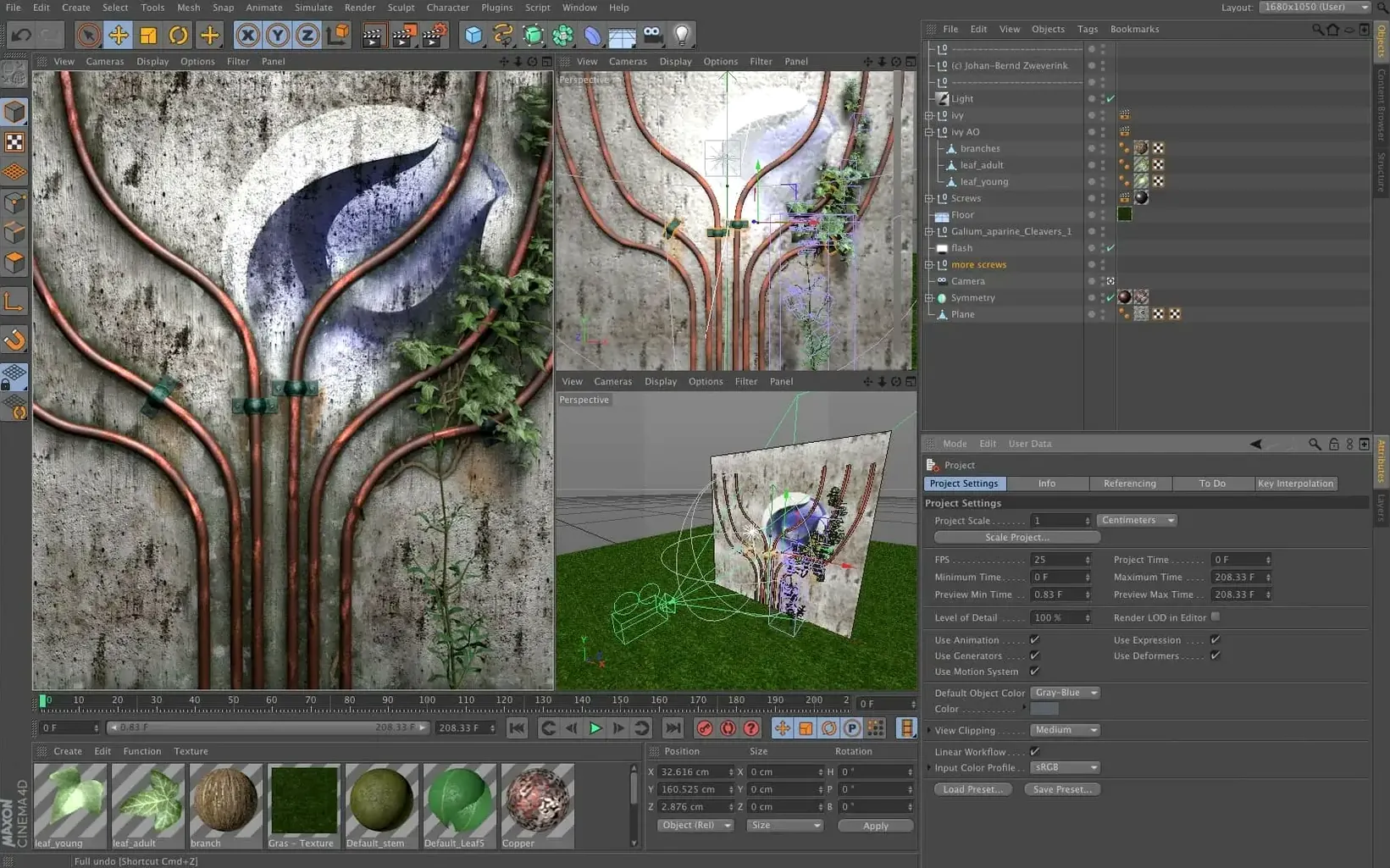
Upgrading the node editor with a single right-click is where Capsules quietly change a Cinema 4D scene. Instead of keeping the node system walled off from the stack you already know, Maxon made asset capsules that drop straight into the classic Object Manager. It means a procedural generator built with nodes behaves like a native object, ready to sit beside the parametric primitives and deformers a Mac motion-graphics setup relies on every day.
- Direct scene-node integration. Capsules take a node-based setup and package it so the Object Manager can read it without converting or baking geometry.
- Universal architecture binary. The app ships for both ARM and 64-bit Intel, so it loads natively across the whole Mac line without Rosetta translation latency.
- Eleven interface languages. English, German, Arabic, Spanish, Italian, Simplified Chinese, Korean, Polish, French, Czech, and Japanese are built in — useful when a studio pipeline crosses language boundaries.
- Lean install. Redshift is a separate package, so the Cinema 4D install stays lean and a production render engine can be added later.
- macOS 11 baseline. The floor is macOS 11 Big Sur or later.
Because the toolset stretches from hard-surface modelling and simulation through to AR and game-development exports, a Mac user can keep the round-trip short: model in Cinema 4D, hand off to a real-time engine, or pull a node capsule into a broadcast graphics scene without leaving the Object Manager hierarchy that the rest of the pipeline expects.
Capsules Bring Scene Nodes into the Object Manager
The shift that matters day to day landed quietly in late 2023. Scene nodes moved from a separate sandbox into the Object Manager via Capsules, which means the parametric stack you already navigate now reads node graphs as first-class objects. No baking, no export step, no switching contexts. A capsule sits in the hierarchy like a primitive, and double-clicking it opens the node editor with the full graph intact.
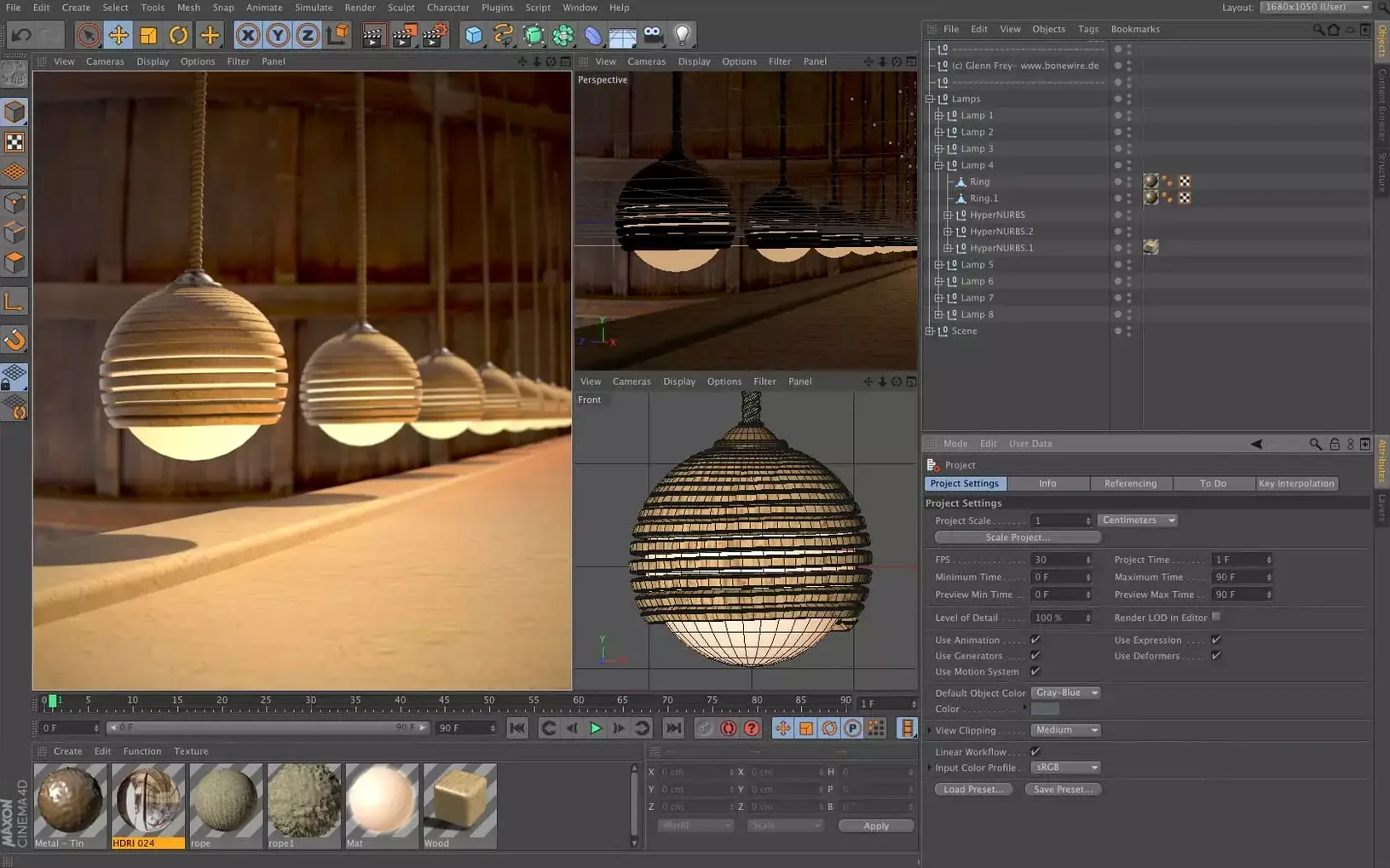
Alongside that, the Object Manager itself got a rework. Grouping behaviour is tighter — dragging one object onto another nests it without the old habit of accidentally parenting it to the wrong null. Selection highlighting in the viewport tracks the manager selection more reliably, which cuts down the small frictions that pile up during a long modelling session. The interface scaling also received attention: on a Retina display the icon set and type sizes hold their proportions better when you jump between a MacBook panel and an external 4K monitor.
Under the hood, the unified simulation framework that Maxon has been iterating on now shares solver data between cloth, soft bodies, and rigid bodies with fewer manual workarounds. That means a single object can carry multiple simulation tags and the solvers talk to each other without the old priority conflicts that forced artists to cache sims in a specific order. The practical result is shorter iteration when you are dialling in a cloth drape that interacts with a rigid-body collision surface.
Ctrl-Drag for Finer Attribute Manager Stepping
A few shortcuts sit just below the surface. In the Attribute Manager, holding Ctrl while dragging a numeric field switches it to a finer step — useful when the default increment jumps too far on a small-scale asset. The same modifier works inside the node editor when you scrub a port value.
The new pose-morph tag respects selection sets, so you can isolate a limb or a mechanical joint without painting vertex maps first. Right-click a selection tag and choose Add Pose Morph — the morph targets inherit the selection boundary automatically. For anyone doing facial rigs or product-vis turntables, that removes a repetitive setup step.
Scene nodes introduced a Geometry Switch node that toggles between branches based on a condition. Tucked away in the node menu under Logic, it lets you build a single capsule that outputs different geometry for low-poly viewport previews versus final renders, all driven by a render-state flag. The same capsule can then be dropped into any project without rebuilding the switch logic each time.
Hollow Extrudes From Open Spline Paths
Text splines that refuse to extrude. After importing an SVG or typing a MoText object, the extrude sometimes produces a hollow shell instead of a solid. The culprit is nearly always an open path or overlapping points in the spline. Select the spline, switch to point mode, and run Mesh > Spline > Join Segments with a small tolerance value. If the text came from an external file, check for double points along straight sections — the Optimize command cleans them in one pass.
Redshift materials rendering black in the viewport. When the interactive preview goes dark, the most common fix is to confirm the material has a valid shader graph path. Open the material in the node editor, locate the output node, and make sure it connects to the Surface input. A disconnected output node is easy to miss when you build a shader from scratch. Also check that the material's preview scene has a light source — the default scene sometimes ships without one after a preference reset.
Slow viewport with many Capsules. A scene with dozens of capsules can bog down because each capsule evaluates its node graph on every frame change. The remedy is selective caching. Enable Cache on capsules whose output geometry is stable — background props, fixed set pieces — and leave it off for objects still in active iteration. The cache toggle lives on the capsule's Object tab, and clearing it takes a single click when you need to tweak the graph again.
Simulation cache refusing to overwrite. If a cloth or rigid-body sim refuses to bake a new cache, the old cache folder may have locked permissions. Navigate to the project directory, find the simcache subfolder, and delete it entirely before re-baking. On macOS the folder occasionally inherits read-only flags when pulled from a network drive or version-control system. A fresh cache bake creates the folder with correct permissions automatically.
- Capsules — node-based asset capsules usable directly in the Object Manager in the 2024.2 release
- macOS 11 (Big Sur) or later
- Apple Silicon or 64-bit Intel processor
Sign in · Create an account to add a field note.
No field notes yet. A measurement, a version, a machine — they appear after moderation.