Design
OmniGraffle Pro 7.26
DesignUpdated
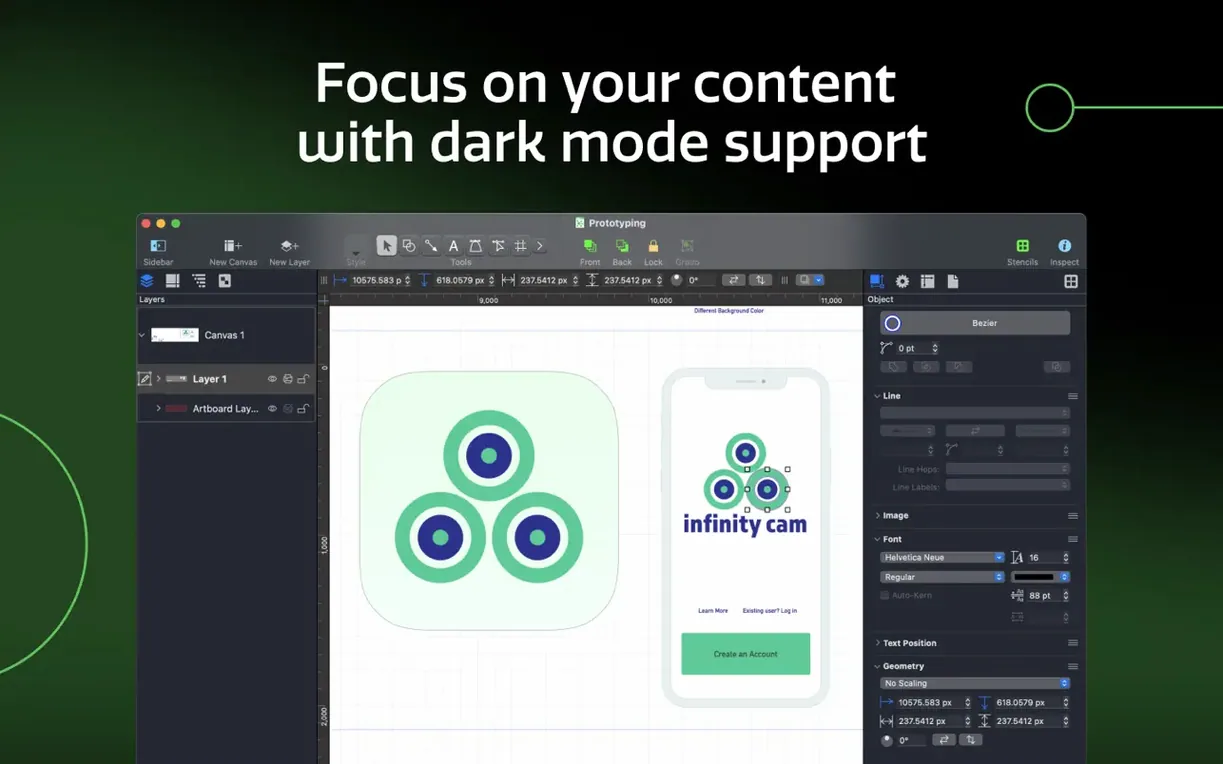
| Requirement | On file |
|---|---|
| macOS | macOS 11 or later |
| CPU | Apple Silicon, Intel 64-bit |
| Download | 73 MB |
A UX designer opens a VSD file from a client, pulls it into a shared layer structure, and maps out a multi-screen wireframe flow before lunch. That’s the kind of work OmniGraffle Pro is built to handle — quick imports, layered construction, and output that moves straight into a Photoshop comp without rework.
Features built around specific jobs
- Visio round-tripping. Import VSD, VDX, VSS stencils and VST templates directly. No conversion tools, no redrawing from scratch.
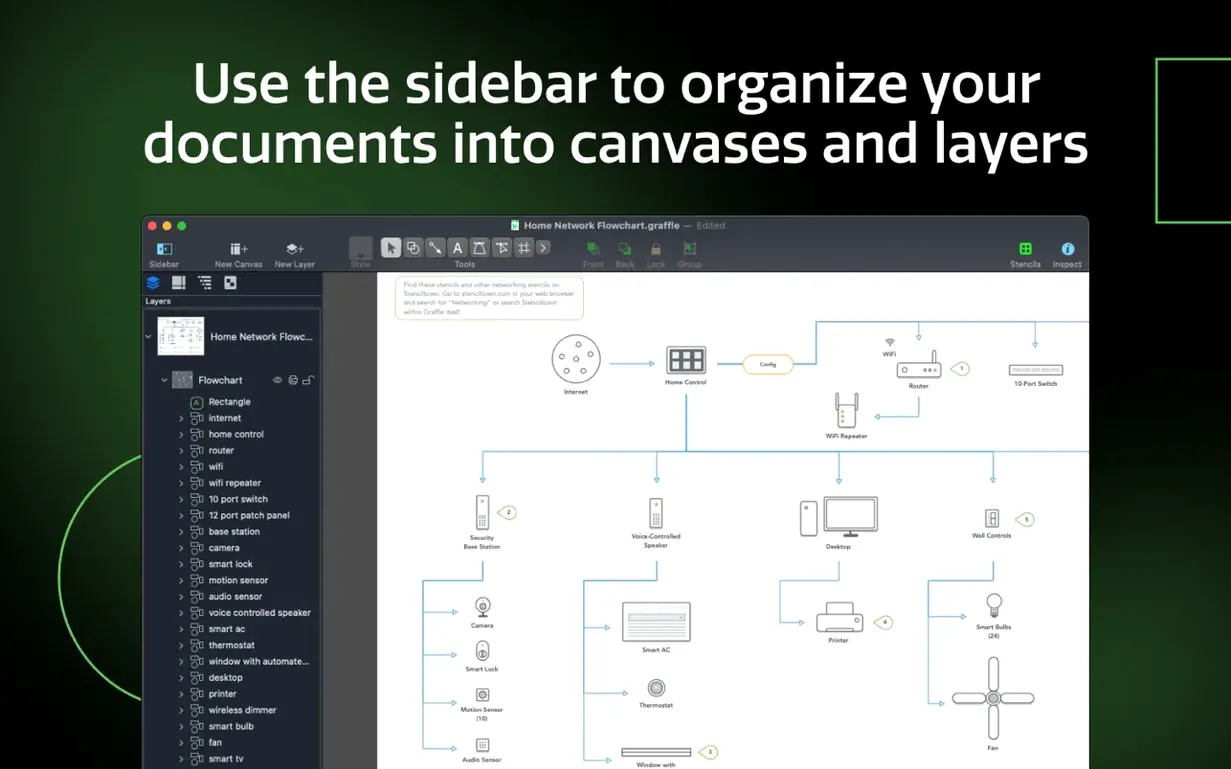
- Shared layers. Keep headers, backgrounds and navigation chrome on one layer, then toggle visibility across every canvas in a project. One edit updates the lot.
- Tables for grouped shapes. Build a grid, add rows and columns, and lock related objects together. Useful for sitemaps, spec sheets and device matrix diagrams.
- Lines to shapes. Convert a stroke into a filled contour in one step. Handy when a flowchart connector needs to become a containing region.
- Photoshop layer export. Send OmniGraffle layers straight to PSD layers. A designer can pick up where the diagram ends without flattening anything.
- Shared keyboard shortcut sets. Export and share key bindings across a team so everyone works with the same muscle memory.
Native Silicon Binaries and Golden Gate Fixes
Version 7.26 runs natively on Apple Silicon and Intel Macs, requires macOS 14 or later, and brings compatibility fixes for macOS Golden Gate 27. The interface ships in eleven languages including German, Japanese and Simplified Chinese. It’s a precision tool — no templates that guess what you want, just a deep object model and a canvas that stays out of your way.
60 fps Canvas Redraw During Zoom and Pan
OmniGraffle Pro launches in under three seconds on an Apple Silicon Mac, even with a library of custom stencils installed. The canvas redraws at 60 fps during zoom and pan operations — something that matters more than it sounds when you are nudging a dozen connected shapes into alignment across a 4000 × 3000 pt artboard. Memory pressure stays low. A project with fifteen canvases, shared layers and embedded tables typically sits under 300 MB of RAM, which leaves plenty of headroom for the Adobe suite running alongside.
Stability has been uneventful in the best sense. Crashes are rare enough that an autosave backup feels like an insurance policy you never claim. The one weak point in older builds — SVG import choking on complex gradient meshes — is largely resolved in 7.26. Undo history is deep, accurate and canvas-specific, so rolling back a change on one artboard does not ripple through the rest of the document.
Disk I/O is predictable. A 40-canvas project file with embedded images weighs around 12–18 MB and saves in under a second on internal SSD storage. Auto-save writes are non-blocking; you can keep dragging a bezier handle while the spinner never appears. The app plays well with iCloud Drive and versioning, though deep folder hierarchies inside the OmniGraffle package are best left untouched unless you enjoy reading XML diffs.
Faster AppleScript After Legacy Code Removal
The jump to macOS 14 as a minimum requirement trimmed a lot of legacy compatibility code. For everyday work, that means fewer permission prompts and faster AppleScript execution — scripts that used to pause while the system resolved security scopes now run in a single pass. The macOS Golden Gate 27 compatibility fixes in 7.26 are mostly under the hood: window restoration after display sleep, correct colour space mapping on XDR displays, and proper handling of ProMotion refresh rates so the canvas does not stutter when the display switches from 120 Hz to 60 Hz.
Earlier 7.x releases brought artboard presets that match common device viewports — 390 × 844 for iPhone 14, 744 × 1133 for iPad mini — which cuts the setup time for wireframing. The stencil search field got fuzzy matching, so typing "card" finds "Product Card", "Card Modal" and "Gift Card" without exact spelling. None of these are headline features, but they accumulate into fewer trips to the menu bar.
High-Fidelity Visio VSD/VDX Import for UX Teams
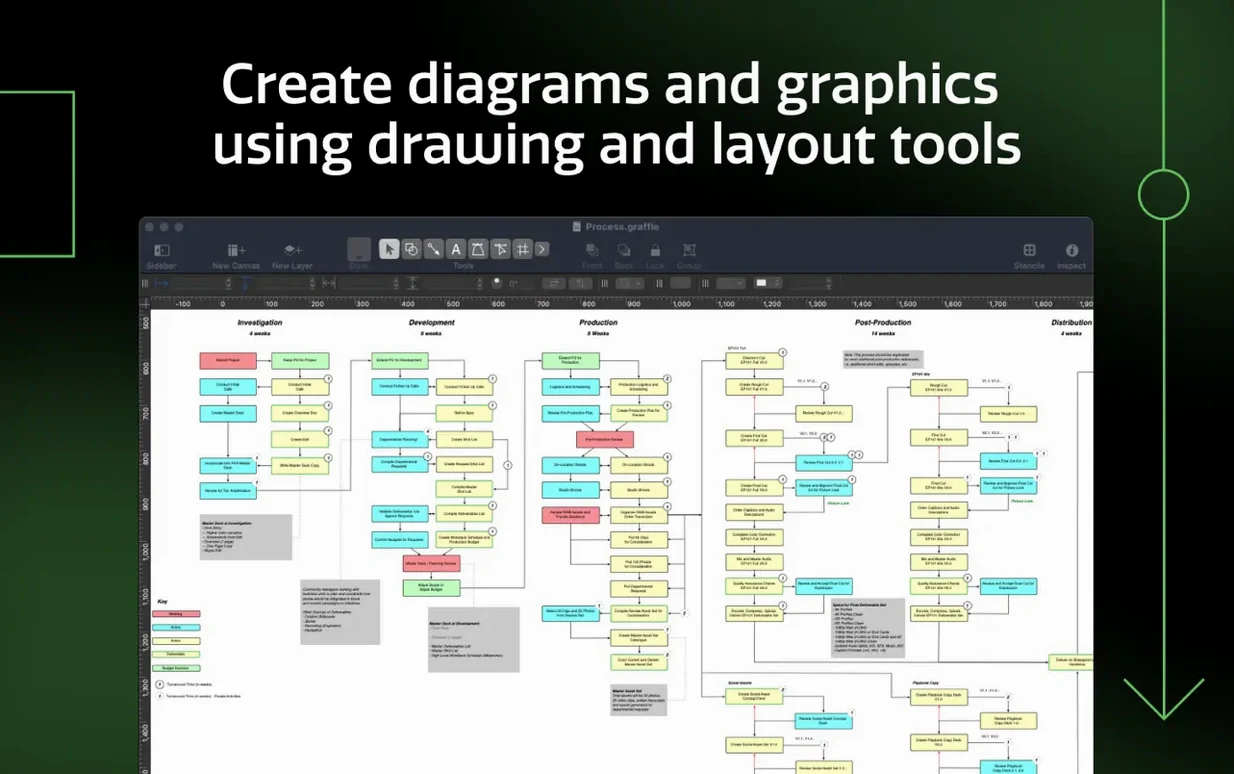
Three groups stand out. First, UX designers who inherit Visio workflows from enterprise clients. The import fidelity on VSD and VDX files is high enough that shapes, connectors and text blocks land in the right z-order, and VSS stencils convert into reusable OmniGraffle objects — not flattened bitmaps. Second, technical illustrators building multi-page documentation. Shared layers and the table tool mean a change to a legend or a pinout diagram propagates across fifty canvases without manual copying. Third, small product teams who cannot afford a dedicated diagramming seat per person. One person who knows the shortcut set can produce everything from sitemaps to database schemas and export layered PSDs for a designer to skin, which collapses a two-tool handoff into one.
The app is less suited to quick sketch-and-share jobs. If all you need is a box-and-arrow diagram with three shapes that goes straight to Slack, the precision tooling is overkill. But for structured, layered, export-ready visual documentation, the depth is exactly the point.
Prevent Stroke Distortion When Resizing Shapes
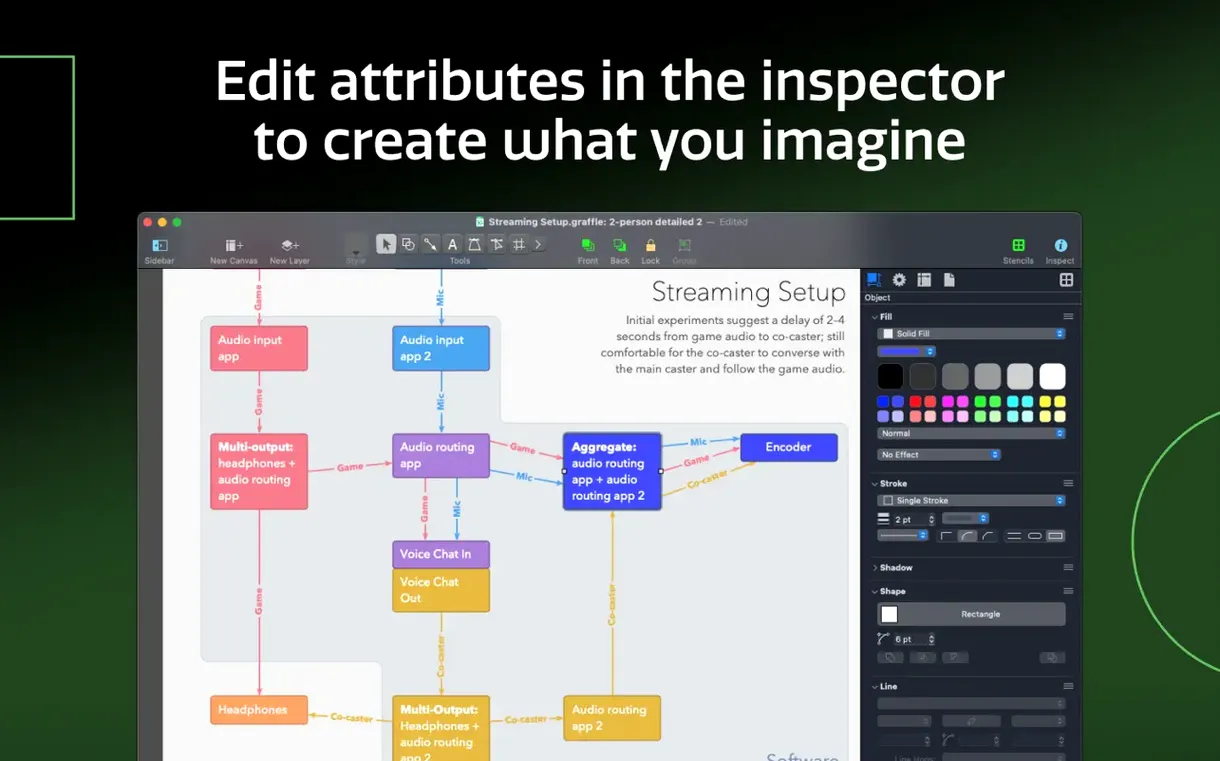
- Turn on “Scale strokes and effects” in the Canvas inspector. Without it, resizing a grouped shape leaves stroke widths unchanged, so a 2 pt border on a 100 pt box becomes an ugly 2 pt border on a 300 pt box. This one checkbox prevents a lot of manual cleanup.
- Set the grid spacing to 8 pt and subdivisions to 4. This aligns with the 8-point grid system that most UI designers use. Snapping feels more predictable than the default 10 pt grid, especially when you are placing text labels next to icons.
- Map “Send to Back” and “Bring to Front” to single-key shortcuts. The default shortcuts are multi-key combos, and z-order wrestling is half the work in a dense diagram. Assigning
Shift—]andShift—[cuts object reordering time noticeably. - Switch the colour palette to sRGB IEC61966-2.1 in the Colour panel. The default display profile can cause slight shifts when a PSD export lands in a different colour-managed app. Locking to sRGB keeps the hex values you picked intact all the way through the round-trip.
If you rely on shared stencils across a team, export your keyboard shortcut set and stencil library to a shared folder on the first day. The time saved by having everyone use identical key bindings for the Line tool, the Text tool and the Boolean operations compounds quickly. A team of three designers who share shortcut sets will collectively save dozens of small context-switching moments per week — the kind that break flow and send someone hunting through menus instead of drawing.
- macOS 27 Golden Gate — compatibility improvements
- System requirement — now requires macOS 14 or newer
- macOS 14 or newer
- Apple Silicon or Intel Mac
Questions on file
Can OmniGraffle Pro open Microsoft Visio files?
Yes. It imports VSD and VDX documents, plus VSS stencils and VST templates.
Does OmniGraffle Pro run on Apple Silicon Macs?
Yes. Version 7.26 is a universal binary that runs natively on both Apple Silicon and Intel Macs.
What macOS version does OmniGraffle 7.26 require?
It requires macOS 14 or newer.
Sign in · Create an account to add a field note.
No field notes yet. A measurement, a version, a machine — they appear after moderation.