Design
Glyphs 4.2
DesignUpdated
| Requirement | On file |
|---|---|
| macOS | macOS 12 or later |
| CPU | Apple Silicon, Intel 64-bit |
| Download | 35 MB |
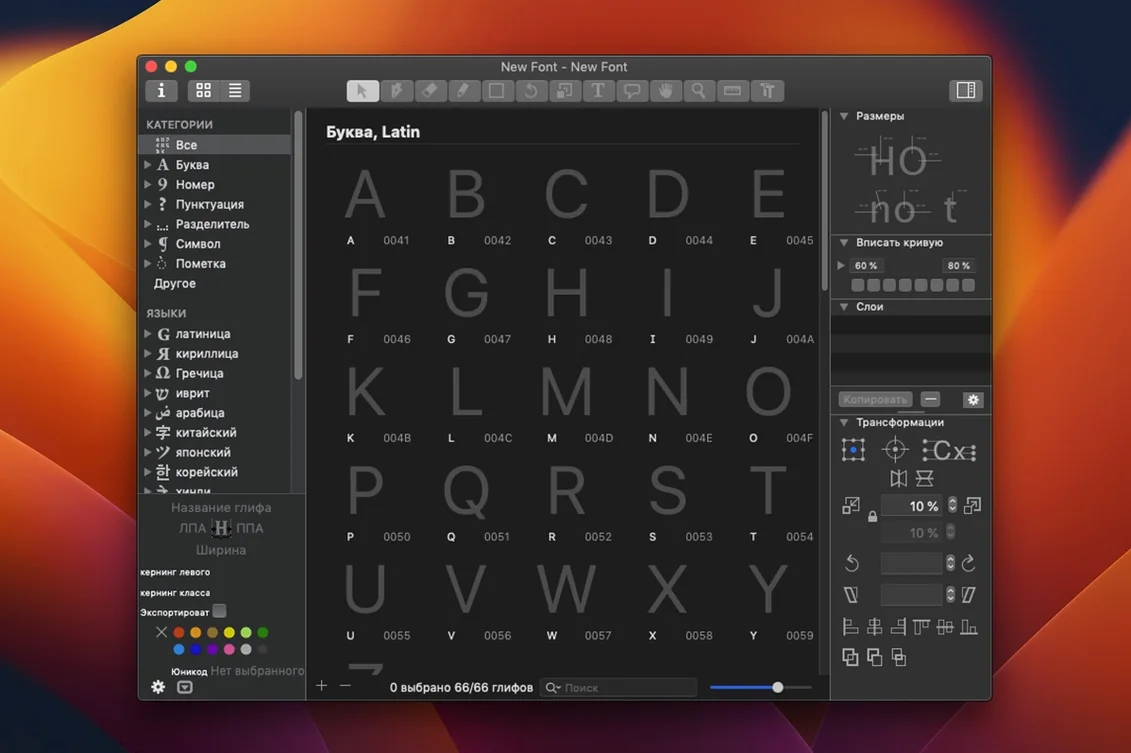
Build 4.1.1 (4108) refines the smart glyph placement and variable-font workflows that experienced designers rely on. The interface recedes, exposing only the panels and numeric controls relevant to the current drawing or spacing task. The focus is on control, not decoration.
Good for
- Drawing and editing OpenType fonts with a toolset that stays out of your way until you need it
- Extending the editor through its own interface module — useful for custom Python scripts that handle repetitive kerning or glyph generation tasks
- Exporting production-ready assets: the app writes PNG, SVG, PDF and SFSymbols directly, so icon families for Apple platforms stay in one source file
- Working across scripts, with shaping support that goes well beyond the Latin alphabet
Keep in mind
- Requires macOS 12 or later; you cannot run it on older Macs without a supported operating system
- The depth of the scripting module means a learning curve — it rewards users who are comfortable writing or adapting their own tools
Who gets the most from Glyphs
Type designers drawing retail or custom type families find the most value here. The workflow bends toward people who juggle multiple masters, axis values and glyph sets that number in the hundreds or thousands. You open the same file whether you are adjusting a hairline weight or the blackest instance, and the interpolation previews update fast enough that you trust what you see.
Icon designers building SFSymbols families also extract a lot from it. One source file can export the entire set in the required sizes and formats, and the SVG and PDF pipelines are clean enough that asset managers rarely send files back. Type foundries and in-house design teams tend to run Glyphs alongside their version control — the file format is human‑readable, which makes diff‑based reviews possible.
Students and self‑taught designers who are comfortable reading Python snippets get a gentler ramp than they might expect. The scripting community is active, and many routines for kerning pairs, accent building and batch export are available to adapt. If you spend more time drawing than coding, you can still benefit from scripts others have shared. The app does not penalise you for not writing your own, though it quietly rewards those who do.
Speed, stability and system footprint
On an Apple Silicon Mac, launch is around two seconds, and a full project with 800 glyphs opens in under four. Scrolling through the glyph list during a redraw pass feels immediate; there is no perceptible lag switching between the Edit and Preview tabs, even with multiple masters active. The interface draws with Core Animation, and the rendering pipeline leans on Metal where it helps. Memory use sits around 300–400 MB for a medium‑sized family, rising to roughly 1 GB when you open several heavy variable‑font projects at once. That is modest for the category.
Stability in daily use is high. Autosave backs you up every few minutes, and the recovery behaviour after a rare crash brings back the last saved state without drama. The app keeps a local backup folder separate from your working files, so rescue is straightforward. Long editing sessions — six hours or more — do not degrade performance; the undo stack stays responsive, and the redraw does not slow as the history grows.
On Intel Macs, the same projects open a half‑beat slower, but the editing experience remains fluid. The main difference shows during heavy export batches, where Apple Silicon finishes a 60‑style family export noticeably faster. Either architecture is fully supported, and the binary includes native code for both.
A typical session, step by step
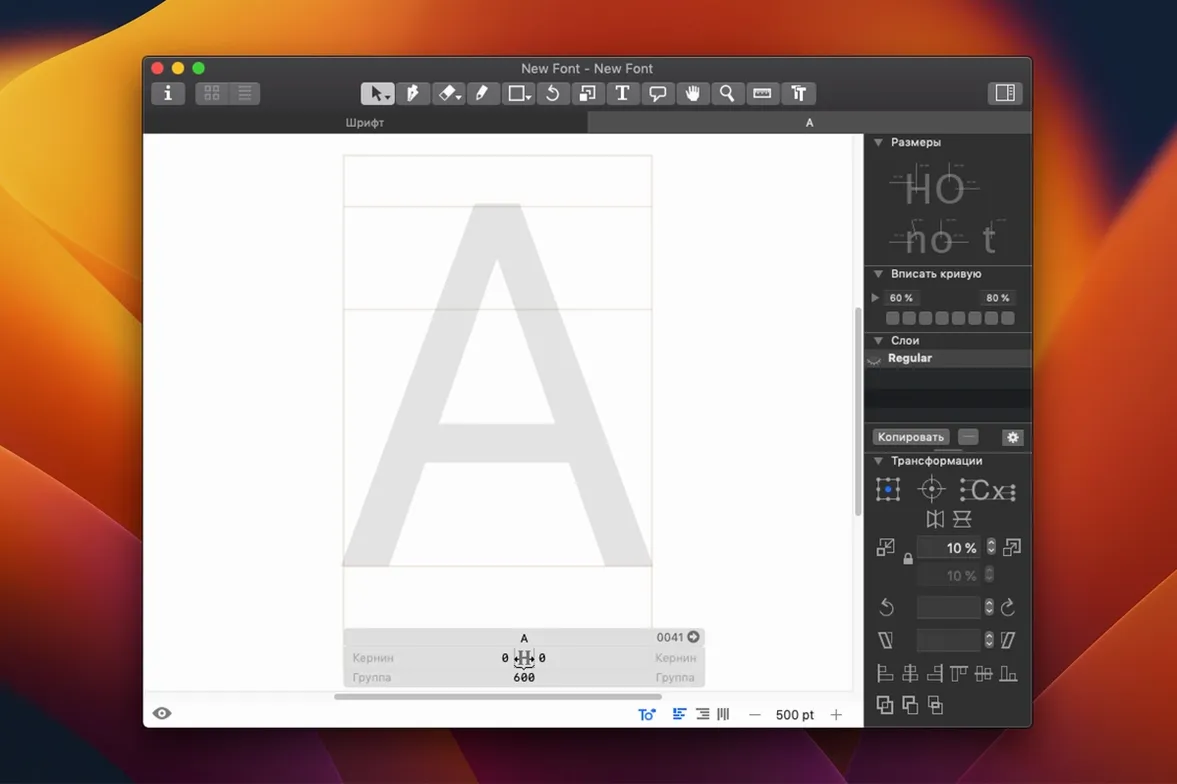
You start by opening the project file for a sans‑serif family. The sidebar lists masters — Thin, Regular, Bold — and below them, the glyph cells that need attention. You double‑click the lowercase a in the Regular master. The Edit view fills the window. The drawing is a set of cubic Bézier contours with stem values visible in the grey info bar at the top.
You select the inner counter node and nudge it three units to the right with the arrow keys. As you do, the preview panel on the other monitor updates the interpolated Bold and Thin instances. You switch to the spacing tab, adjust the left sidebearing by 10 units, and watch the metrics window reflow the word “Hamburgefontsiv” in real time. The change propagates across masters because you have linked metrics, so you only need to fine‑tune the Bold instance afterward.
Next, you need a new glyph — an alternate ampersand. You right‑click an empty cell, choose New Glyph, and name it ampersand.alt. A blank canvas appears. You paste the outline from a sketch you built in another app, clean up the node count to 24 points, and assign it to the appropriate OpenType feature via the sidebar panel. The feature code preview at the bottom of the window shows the substitution rule as you build it.
Before lunch, you run a Python script from the Script menu that checks for duplicate anchors across the entire glyph set. It lists three conflicts in the diacritic block. You fix them, hit Save, and export a quick variable‑font test to the desktop. The whole session — from opening the file to exporting a functional TTF — takes about forty minutes, and most of that is spent drawing and deciding, not waiting.
Questions that come up before installing
Does it handle large character sets without choking? Yes. Projects with 2 000 glyphs and six masters are common in retail foundry work. The glyph list stays scrollable, and the search field finds any glyph by name or Unicode value in fewer keystrokes than you would spend scanning. Memory climbs but rarely becomes the bottleneck before your own patience does.
What if I already use another font editor? Glyphs reads and writes UFO files, so moving projects between tools is straightforward. You can import existing UFO sources and keep working without rebuilding metrics or anchors from scratch. The transition typically costs a day or two of re‑learning keyboard shortcuts and panel locations rather than any loss of data.
Can I try the scripting module without being a developer? The Macro panel lets you run one‑line Python commands directly, and the community wiki documents dozens of ready‑made scripts. You do not need to set up a development environment; you paste a script into a folder and it appears in the Script menu. Many designers start by tweaking a kerning script and gradually learn more from there.
Is the companion viewer necessary for testing? Glyphs Viewer is a convenience, not a requirement. You can preview fonts directly in any macOS app by installing the exported file and typing in Pages or TextEdit. The viewer simply adds a live‑reload mechanism that updates as you draw, which is helpful when you are tuning spacing on a second screen.
People searching for a glyphs app free download or glyphs free download mac often ask whether the application imposes artificial limits. It does not — the same binary handles everything from a single‑weight display face to a full variable family. The tool does not hold back features behind tiers. What you download is the complete editor.
Glyphs has been updated to build 4.2 (4202). A complete list of changes is published on the developer's site.
- macOS 12 or later
- Apple Silicon or Intel 64-bit processor
Questions on file
What can Glyphs export besides standard font files?
The app can export PNG, SVG, PDF and SFSymbols, which is handy for icon designers targeting Apple platforms.
Which macOS version does Glyphs require?
It requires macOS 12 or later, and it runs on both Apple Silicon and Intel Macs.
Can I extend Glyphs with my own tools?
Yes, it includes an interface module designed for extending functionality, and many designers use Python scripts to automate repetitive tasks.
Sign in · Create an account to add a field note.
No field notes yet. A measurement, a version, a machine — they appear after moderation.