Design
Drama 2.1.4
DesignUpdated
| Requirement | On file |
|---|---|
| macOS | macOS 11.5 or later |
| CPU | Intel 64-bit |
| Download | 8 MB |
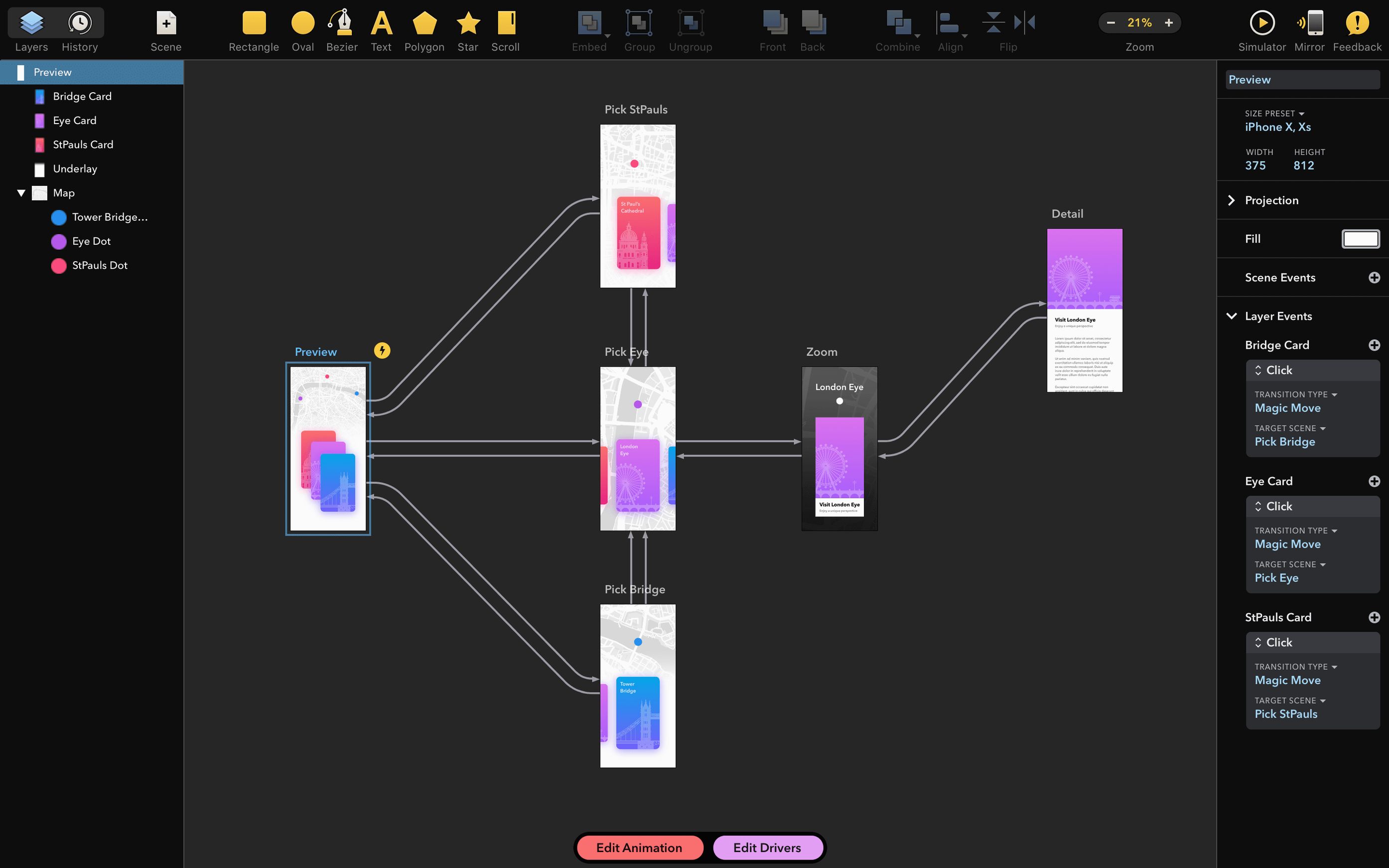
Drama 2.1.4 is a 3-in-1 Mac app for prototyping, animation, and interface design from PixelCut.
Intel Binary Runs Under Rosetta 2 Only
Compatibility is narrow. Drama is an Intel 64-bit binary and needs macOS 11.5 or later. Owners of Apple Silicon Macs should note it runs via Rosetta 2 — there is no native ARM build in version 2.1.4.
Hit the Ground Animating Without Installation Friction
- Animation creation and lightweight prototyping in a single tool.
- Getting started immediately — the app is ready to use after dragging it to the Applications folder.
Intel-Only Code, Gatekeeper Hurdle, and a Font Crash Fix
- Intel-only binary. No native Apple Silicon support.
- Requires a manual Gatekeeper bypass during installation.
- Interface available in English only.
- A crash on start tied to specific installed fonts was patched in this release.
How Drama Sits Alongside Other Apps and macOS Features
Drama does not try to replace Sketch, Figma or Adobe XD. It occupies a narrower lane — quick animation and prototyping of a single screen or flow, without the weight of a full design system behind it. The typical workflow pairs Drama with a vector drawing tool. A designer builds static UI components in Sketch or PixelCut’s own PaintCode, exports assets as PNG or SVG, then assembles and animates them inside Drama.
The app integrates loosely with macOS via standard file dialogs and drag-and-drop. You can pull images straight from Finder into the canvas. Copy and paste of bitmap data between Drama and apps like Preview or Pixelmator Pro works reliably, though vector paste is not supported — paths need to arrive as imported SVG files rather than clipboard vectors. Drama does not register as a URL handler or system service, so you cannot send content to it through the Services menu or system share sheets.
Quick Look works on .drama project files once saved, but the preview thumbnail shows only the first frame of a scene — enough to recognise the file, not enough to gauge animation timing at a glance. Spotlight finds Drama documents by filename, and the app honours standard macOS window behaviour: tabs, full-screen mode and Split View all function correctly, which means you can park a reference image or a design spec on one half of the display and animate on the other without third-party window managers.
One quiet strength is how Drama handles the menu bar. The app exposes almost every command through standard menus — Undo, Redo, Group, Arrange, Play — and these map to predictable keyboard shortcuts. Macros and Automator workflows can trigger menu items if you need to batch-process scene exports, though few users push it that far.
Three-Second Launch Doubles Under Rosetta 2
Drama launches in roughly three seconds on an Intel Mac with an SSD. On Apple Silicon running Rosetta 2, the cold start adds an extra two to three seconds while the translation layer initialises. Once open, the animation preview runs at a solid 60 fps for scenes under thirty elements. Beyond that count, especially with multiple simultaneous opacity and scale transitions, the timeline playback can dip into the 40–50 fps range and the fans on smaller MacBooks become audible.
Memory use is modest for a design tool. A project with six artboards and a dozen animated layers typically sits around 180–220 MB of RAM. The app releases memory cleanly when you close a document — no creeping background allocations over a long session. The undo stack is capped at roughly 200 steps, which keeps memory predictable but means you cannot walk back an entire afternoon of changes.
Stability improved measurably with version 2.1.4. The prior release had a reproducible crash during startup when specific third-party fonts resided in ~/Library/Fonts — typically decorative typefaces with non-standard glyph tables. That bug is now fixed. During normal use, crashes are rare. The most reliable way to trigger one is to import a malformed SVG exported from an older version of Adobe Illustrator; Drama’s parser can choke on <use> tags that reference external symbol definitions. Saving before importing unknown assets is a sensible habit.
Autosave follows Apple’s document model — changes write to a hidden .drama-autosave folder inside the project bundle — and recovery works as expected after a force-quit. The app does not generate enormous temp files or flood the system log with warnings under normal conditions.
Bypass the Quarantine Flag With the Included Helper Script
Gatekeeper blocks the app after dragging it to Applications. The disk image includes a helper called Open Gatekeeper friendly. Double-click it, allow the Terminal prompt, and press Enter. The script strips the quarantine flag without disabling System Integrity Protection. If you skip this step and try to launch the app directly, macOS refuses with the standard “can’t be opened because it is from an unidentified developer” message. Right-clicking and selecting Open does not work in this case — the helper script is the intended path.
The timeline scrubber lags on long scenes. This is most noticeable when dragging the playhead across sixty or more keyframes. Reducing the preview quality in the View menu from “High” to “Medium” cuts rendering overhead roughly in half and makes scrubbing responsive again. The export quality is unaffected — the setting governs only the canvas preview.
Imported SVGs lose their colours. Drama expects fill and stroke attributes in hex notation with a leading #. SVG files that use rgb() or named colours like cornflowerblue render as black outlines. Opening the SVG in a text editor and running a find-and-replace on colour definitions before importing solves this.
Animations export with unexpected pauses at the end. The default ease-out curve adds a tail beyond the last keyframe. Check the easing panel on the final transition and set it to linear if you need an abrupt stop. Many users discover this only after sending a prototype for review and hearing that “the screen hangs for a moment” before looping.
Rosetta 2 performance quirks. On M-series chips, the first animation playback after launch stutters while Rosetta compiles the hot paths. Running through the scene once or twice before a demo smooths this out. The compiled translation persists until the app quits, so subsequent plays run cleanly.
No Pen Tool or Boolean Operations Await You Here
Treating Drama as a full design tool is the most common early misstep. There are no vector-drawing primitives beyond rectangles and ellipses — no pen tool, no boolean path operations, no text-on-a-path. Beginners who open the app expecting to design a screen from scratch hit a wall within ten minutes. The app works best when you bring finished assets and use it purely for motion, interaction states and click-through flows.
Another pattern: new users place every element on a single artboard and animate them all simultaneously. Drama’s timeline scales poorly with flat, ungrouped layers. Grouping related elements — a button’s background, label and icon, for instance — into a single layer stack before animating keeps the timeline navigable and makes it far easier to adjust timing later. Without grouping, a simple login screen can sprawl into forty individually keyframed layers, which is a chore to maintain.
Forgetting to set the initial state is a subtle trap. Drama records only keyframes explicitly placed on the timeline. If you do not insert a keyframe at frame zero for every property you plan to change later — position, opacity, scale — the app uses whatever value is present on the canvas at the start of playback. Dragging an element to its starting spot without locking it in means the first run of the animation often looks correct, but subsequent loops drift because the end state from the previous cycle becomes the new starting point.
Over-reliance on the default preview window size is worth flagging. The canvas defaults to a fixed pixel width and height set when the project is created. Designers who build at a desktop resolution then export a prototype intended for a phone screen end up with tiny, unscaled output. Setting the canvas size to match the target device before importing assets saves a tedious rework session later.
Finally, some users download the drama mac full version and ignore the bundled Gatekeeper helper entirely, then assume the download is broken when macOS refuses to open it. The helper is not optional — it performs a single, reversible quarantine-flag removal that the standard security dialogue cannot override for unsigned Intel binaries on recent macOS releases.
- Stability — Fixed a crash on launch triggered by specific installed fonts.
- macOS 11.5 or later
- Intel 64-bit processor (Apple Silicon via Rosetta 2)
Questions on file
Does Drama 2.1.4 run natively on Apple Silicon?
No, it is an x86 64-bit application and runs on Apple Silicon Macs through Rosetta 2 only.
What was fixed in version 2.1.4?
A crash that occurred on launch for users with certain fonts installed was resolved.
Is Drama ready to use right after installation?
Yes, once you complete the Gatekeeper bypass step and drag the app to your Applications folder, it is ready to open.
Sign in · Create an account to add a field note.
No field notes yet. A measurement, a version, a machine — they appear after moderation.