Games
TRYP FPV : The Drone Racer Simulator 0.4.11214
GamesUpdated
| Requirement | On file |
|---|---|
| macOS | See the sheet |
| CPU | Apple Silicon, Intel 64-bit |
| Download | 18 GB |
| Tested on | macOS Tahoe, Mac mini 2024 M4 |
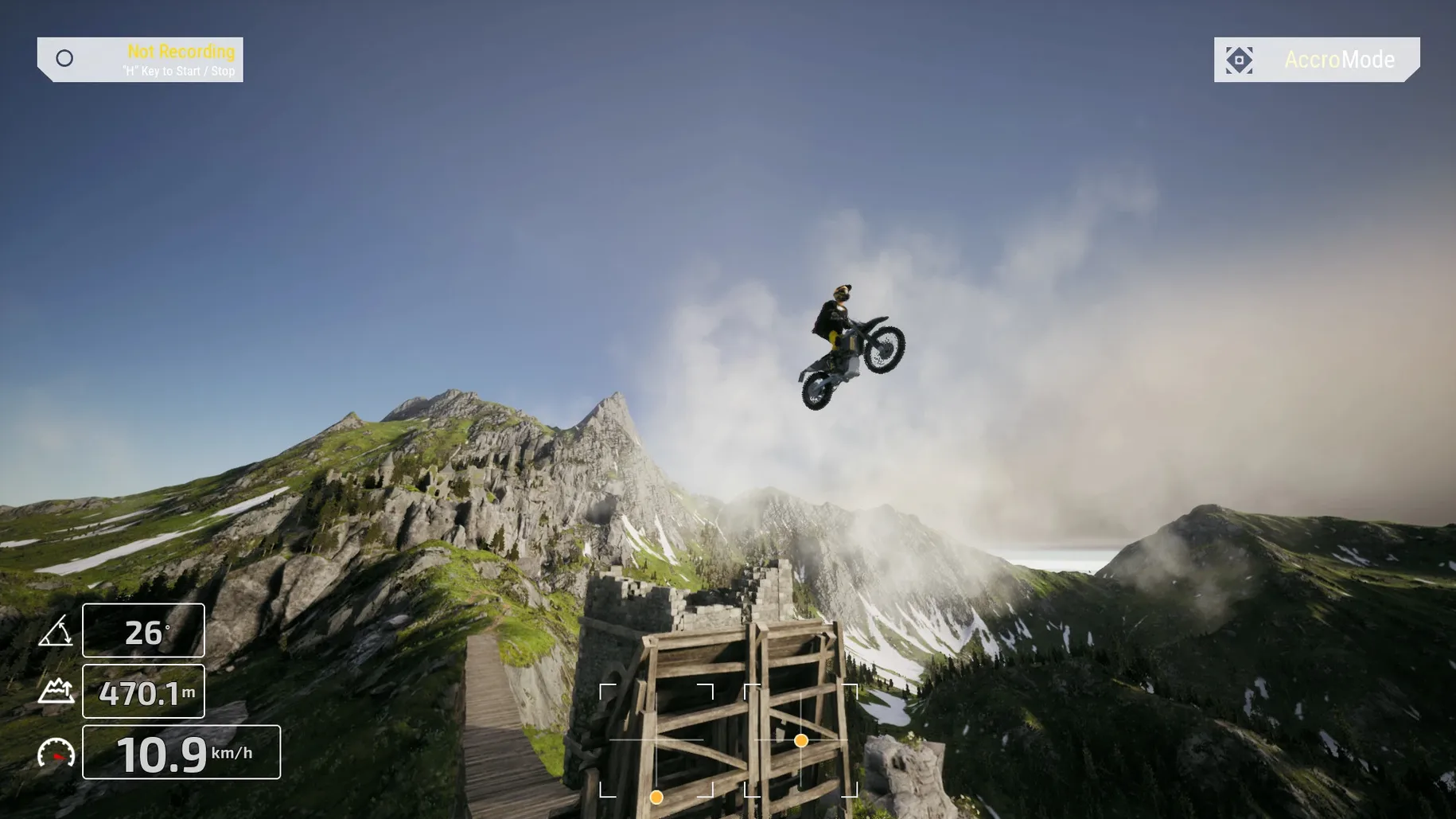
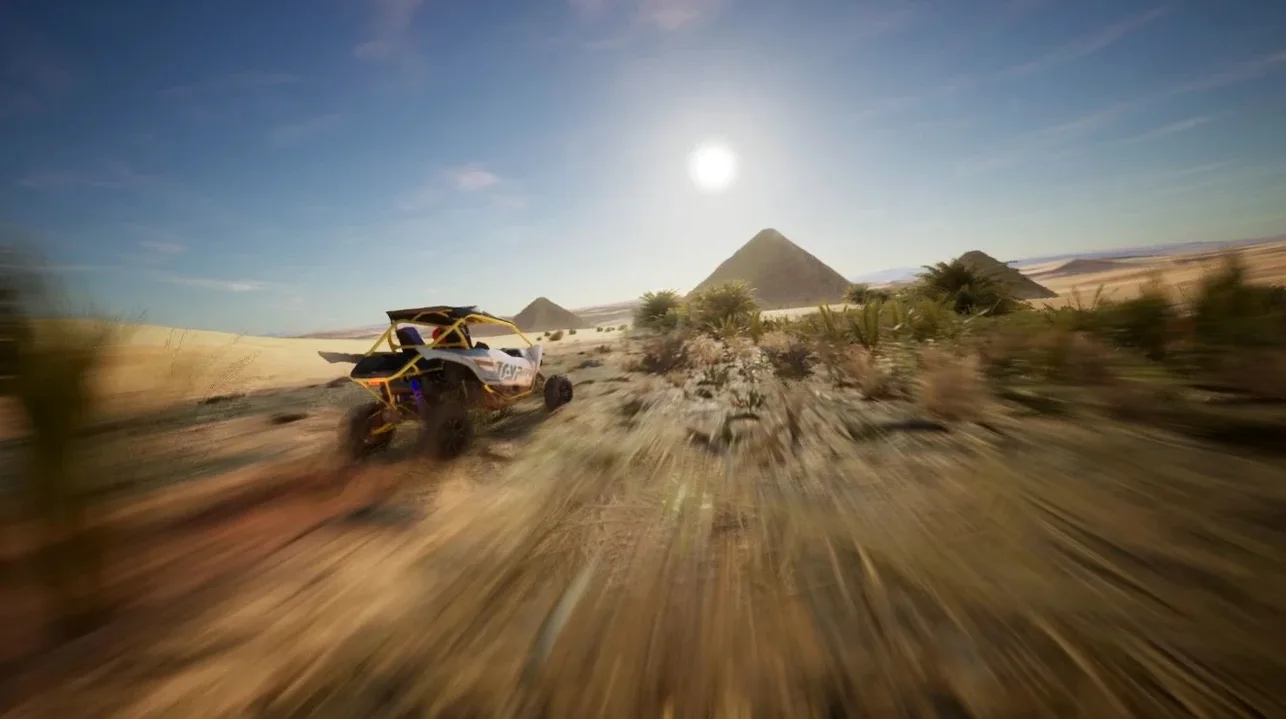
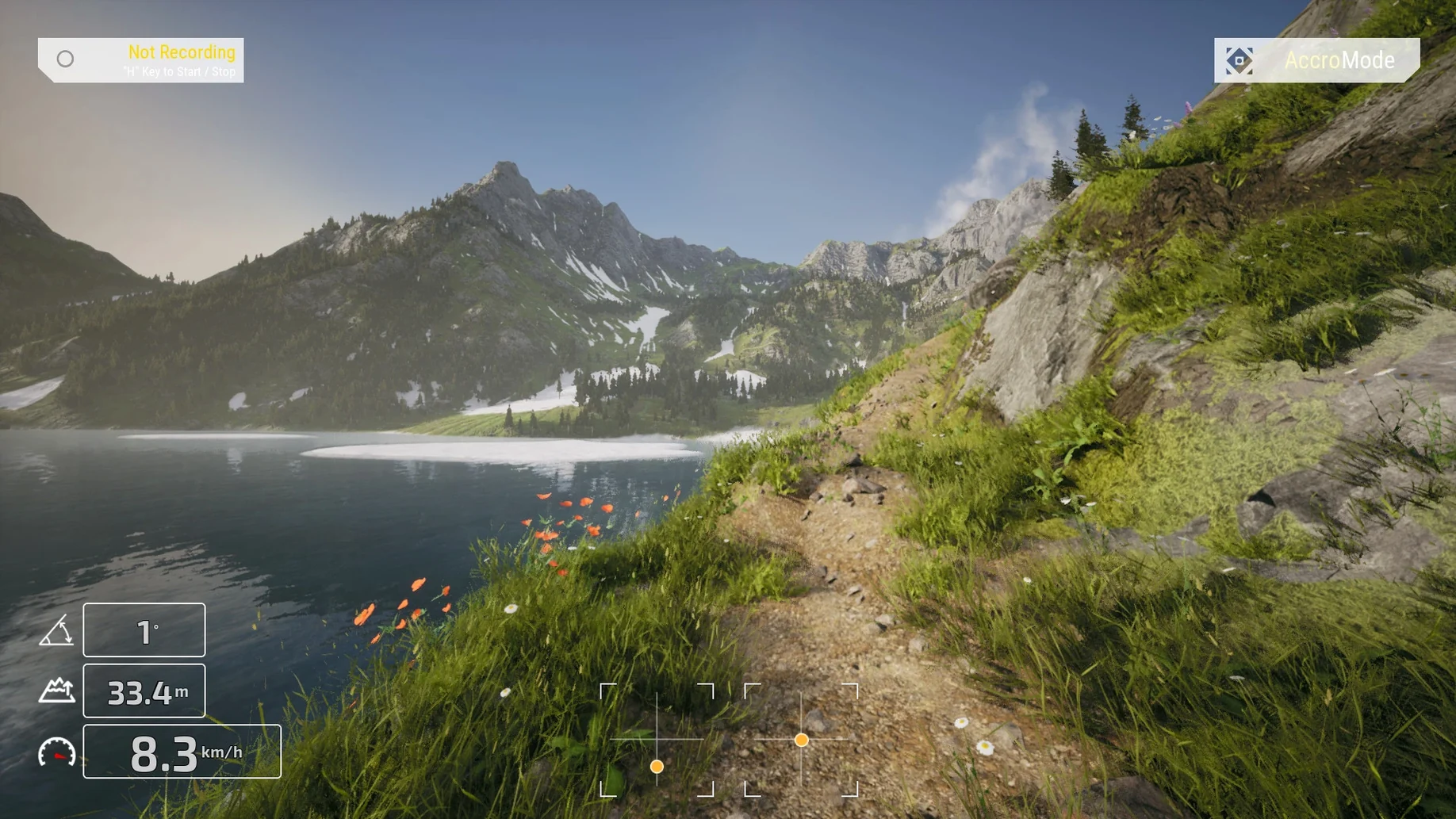
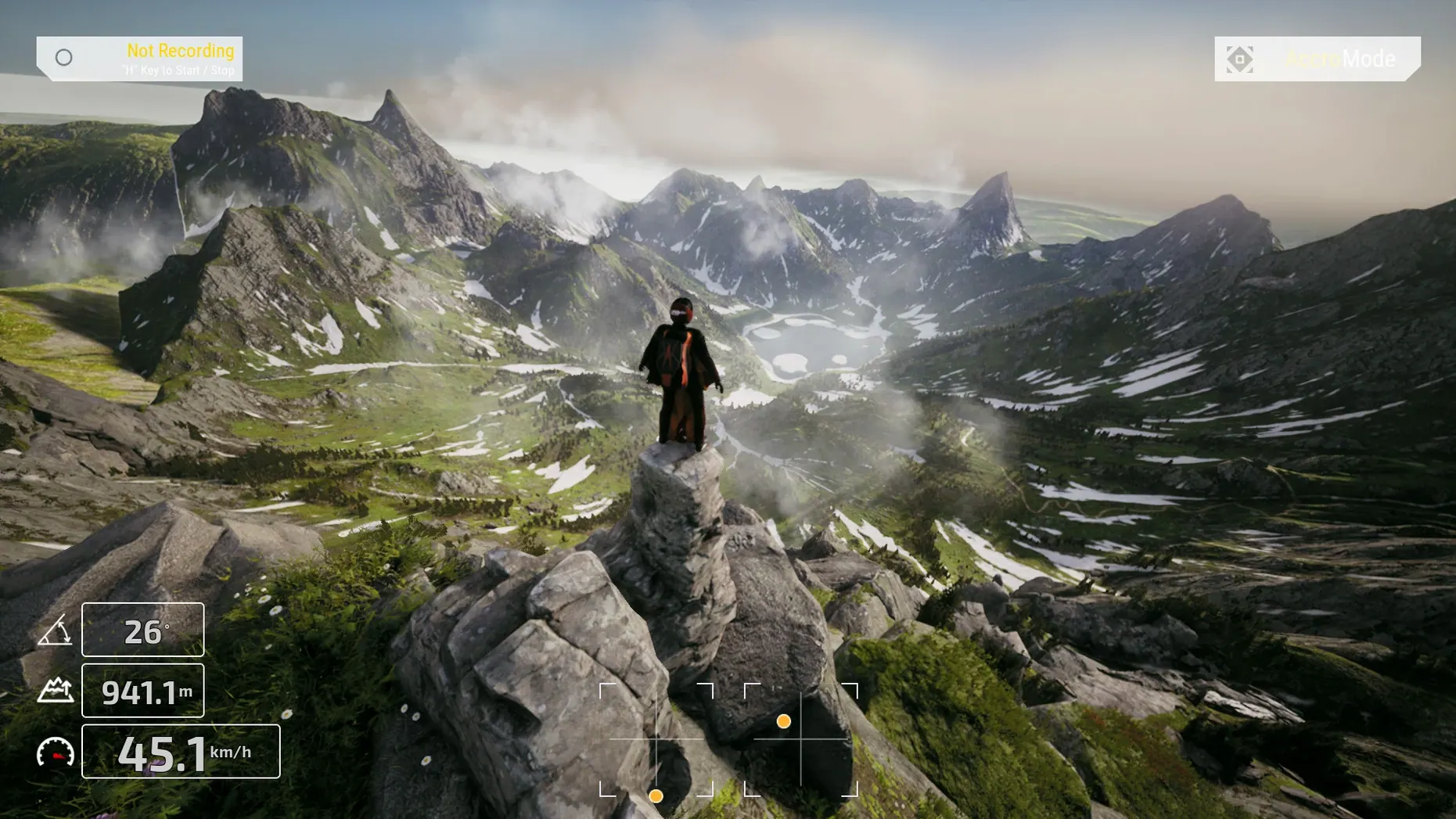
Version 0.4.11214 ships with five distinct flight modes that cover the spectrum from raw freestyle to structured racing. TRYP MODE stands out as a dedicated cinematic training environment, forcing smooth, deliberate lines rather than all-out speed. A minimap keeps you oriented during timed races, and the included drone presets let you skip the build phase and fly immediately.
Cinematic practice, pre-tuned presets, and trick-line freestyle
- Pilots who want a structured space for cinematic practice without setting up custom tracks
- Beginners starting with pre-tuned drone presets instead of tweaking PIDs
- Freestyle sessions that reward technical trick lines over checkpoint chasing
- Racers using the minimap to track position on unfamiliar layouts
macOS Tahoe M4 testing and English-default community content
- Tested specifically on macOS Tahoe with an M4 Mac mini; performance on older Metal GPUs is not documented
- Menu and HUD localisation extends to seven languages, but community-created content may default to English
- The simulation targets both beginners and professionals, meaning default rates may feel sluggish for experienced pilots until adjusted
Stuttery first-launch feed from mismatched display settings
First-launch jitter is the one that catches most pilots off guard. On a fresh install the sim sometimes defaults to a display resolution or refresh rate that does not match the connected monitor, and the result is a stuttery feed that feels like dropped frames. The fix is almost always in the graphics settings: match the resolution to the native panel spec and set the frame rate cap to 60 or 120 Hz explicitly rather than leaving it on auto. After that, restart the sim. The difference is immediate and obvious.
Another recurring point of friction is controller mapping. TRYP FPV expects an RC-style input device, and plugging in a standard gamepad before first launch can produce an unusable throttle curve where the left stick centres at 50% instead of zero. The quickest route out of that mess is to close the sim, disconnect the gamepad, launch with only the radio connected, and then run through the calibration wizard under Settings → Controls → Calibrate. If you must use a gamepad, set the throttle axis to non-centring behaviour in the sim's axis response panel and pull the minimum endpoint down to 1000 µs manually.
Audio panics occasionally surface when an external audio interface is active. The engine may fail to pick up the output device and launch silent. Switching the macOS output device in System Settings while the sim is running usually forces a re-init; if that does not work, toggling the in-game master volume slider down to zero and back up triggers an audio refresh that restores the soundtrack.
Camera angle tweaks before your first takeoff
The first 20 minutes after installing are best spent in the settings screens, not in the air. Start with the camera angle on your chosen drone preset. The defaults sit around 25°, which is conservative for racing. Crank it to 35–40° if you plan to push pace on a race map; leave it lower for slow, precise cinematic passes in TRYP MODE. The difference in how the quad handles forward pitch at speed is dramatic.
Next, head into the physics tweaks. The simulation models thrust, air resistance and basic aerodynamics, and the default rates are deliberately mild. Raise the RC rate to at least 0.90 and the super rate to 0.70 if you are used to a responsive freestyle quad. Beginners should leave the rates alone for the first few sessions and instead focus on the throttle mid-point and expo, which shape how the quad hovers. A slight expo of 0.15 on the throttle axis makes altitude control far less twitchy during slow manoeuvres.
Map a quick-reset button early. The sim supports binding a "reset position" command, and having it on a shoulder button saves endless frustration when you clip a tree during a low gap attempt and end up upside down 200 metres from the course. The option lives under Settings → Controls → Bindings, listed as Reset Drone Position.
Instant repositioning with a minimap double-click
The minimap is not just an orientation aid. A double-click on any point in the minimap view warps the drone to that location instantly, which cuts repositioning time to zero during freestyle practice. It works in TRYP MODE as well, letting you restart a cinematic line from the exact entry point without flying back.
Holding the Shift key while adjusting any slider in the drone tuning panel switches to fine-adjust mode, moving values in increments of 0.01 instead of the default step. This is never mentioned in the on-screen hints and makes a real difference when dialling in PID values or rate profiles.
The drone preset selector has a hidden compare function. Right-click a preset name and the HUD overlays the current quad's key specs — mass, thrust-to-weight, camera angle — next to the preset's stats, so you can evaluate a switch before committing. This is especially useful when you have built up muscle memory for one setup and want to see what a different frame actually changes.
For pilots experimenting with tryp fpv the drone racer simulator crack mac, the same physics and calibration notes apply regardless of how the sim was obtained. The build tested here runs natively on both ARM and x86_64 Macs, and the disk image install path — drag to Applications, launch from Launchpad — is identical across architectures.
- macOS Tahoe (tested on Mac mini 2024 with M4)
- Apple Silicon and Intel Macs
Questions on file
Does TRYP FPV include a mode for cinematic flying?
Yes, the simulator includes TRYP MODE, which is designed specifically for practising cinematic flight scenarios and smooth line work.
Sign in · Create an account to add a field note.
No field notes yet. A measurement, a version, a machine — they appear after moderation.