Photo
ACDSee Photo Studio 26.0.3
PhotoUpdated
| Requirement | On file |
|---|---|
| macOS | macOS 14 or later |
| CPU | Apple Silicon, Intel 64-bit |
| Download | 441 MB |
Version 26.0.3.3479 landed with a handful of fixes that make the library steadier for new users. The app no longer crashes when adding a keyword in a particular sequence, clicking away from a new category now correctly stops editing, iCloud integration behaves as expected, and RAW file ratings read accurately where they previously misread in some scenarios. If you are opening the app for the first time, start with the following sequence to learn the core tools without getting lost in menus.
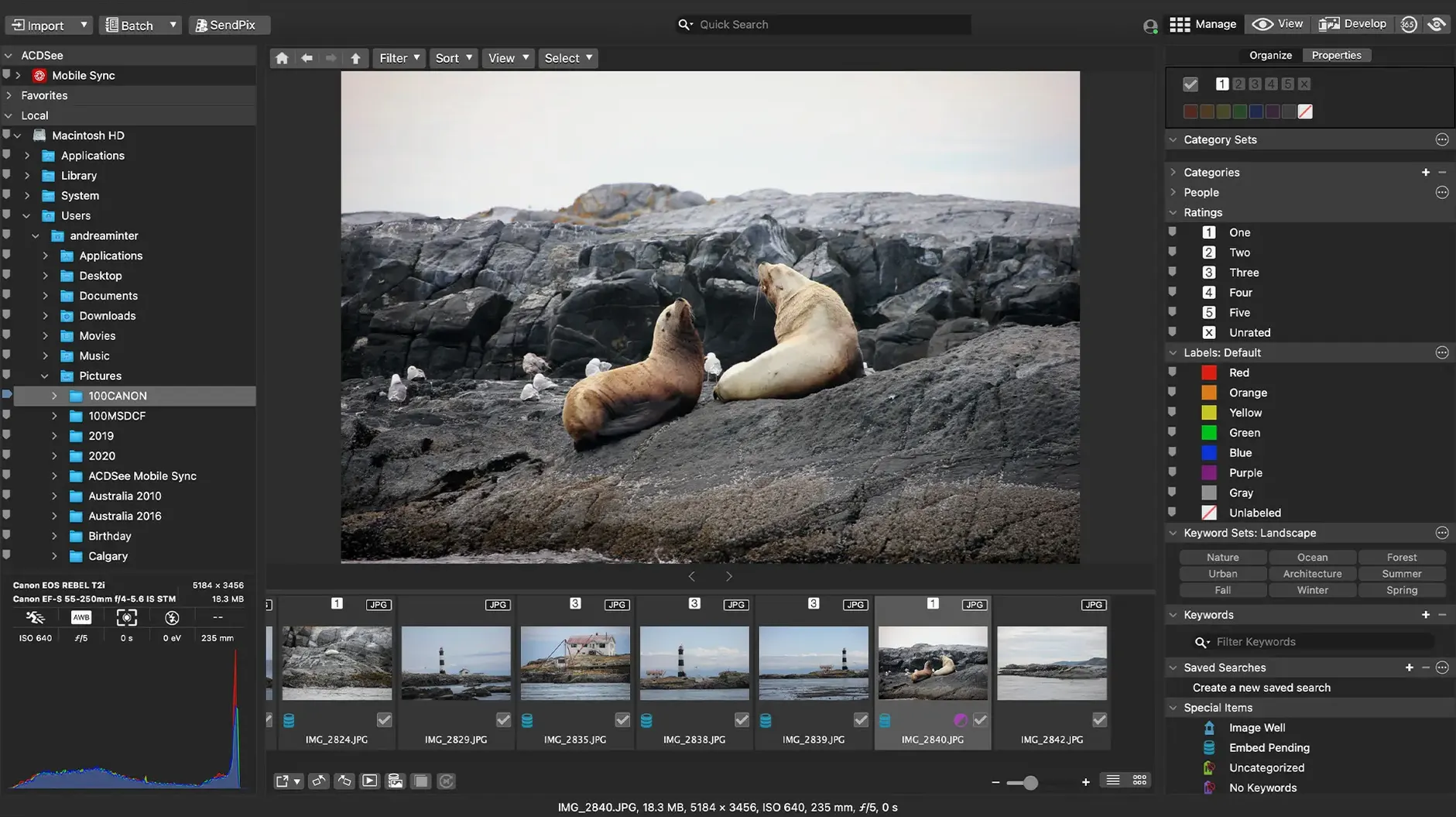
- Build a catalogue first. Point ACDSee at a folder of images and let it index them. The real speed later comes from the catalogue, not from browsing the file system.
- Assign ratings and colour labels. Use the 1–5 star system on twenty or thirty shots. This teaches the culling rhythm you will use every session.
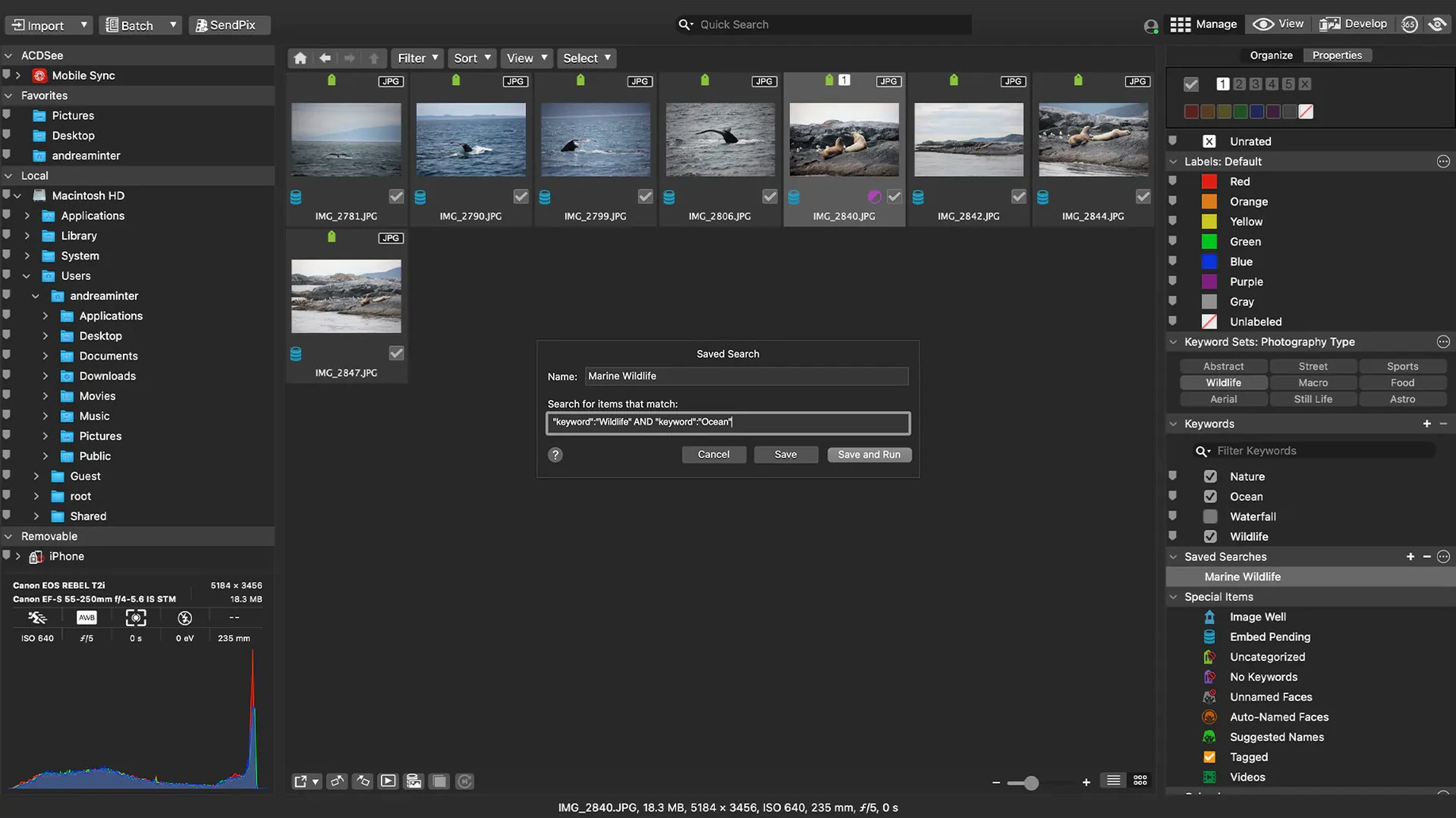
- Apply categories and keywords. Create two or three categories (e.g., "Project X", "Portfolio") and drag images onto them. Add a keyword or two per image. Drag-and-drop search becomes useful only after this metadata exists.
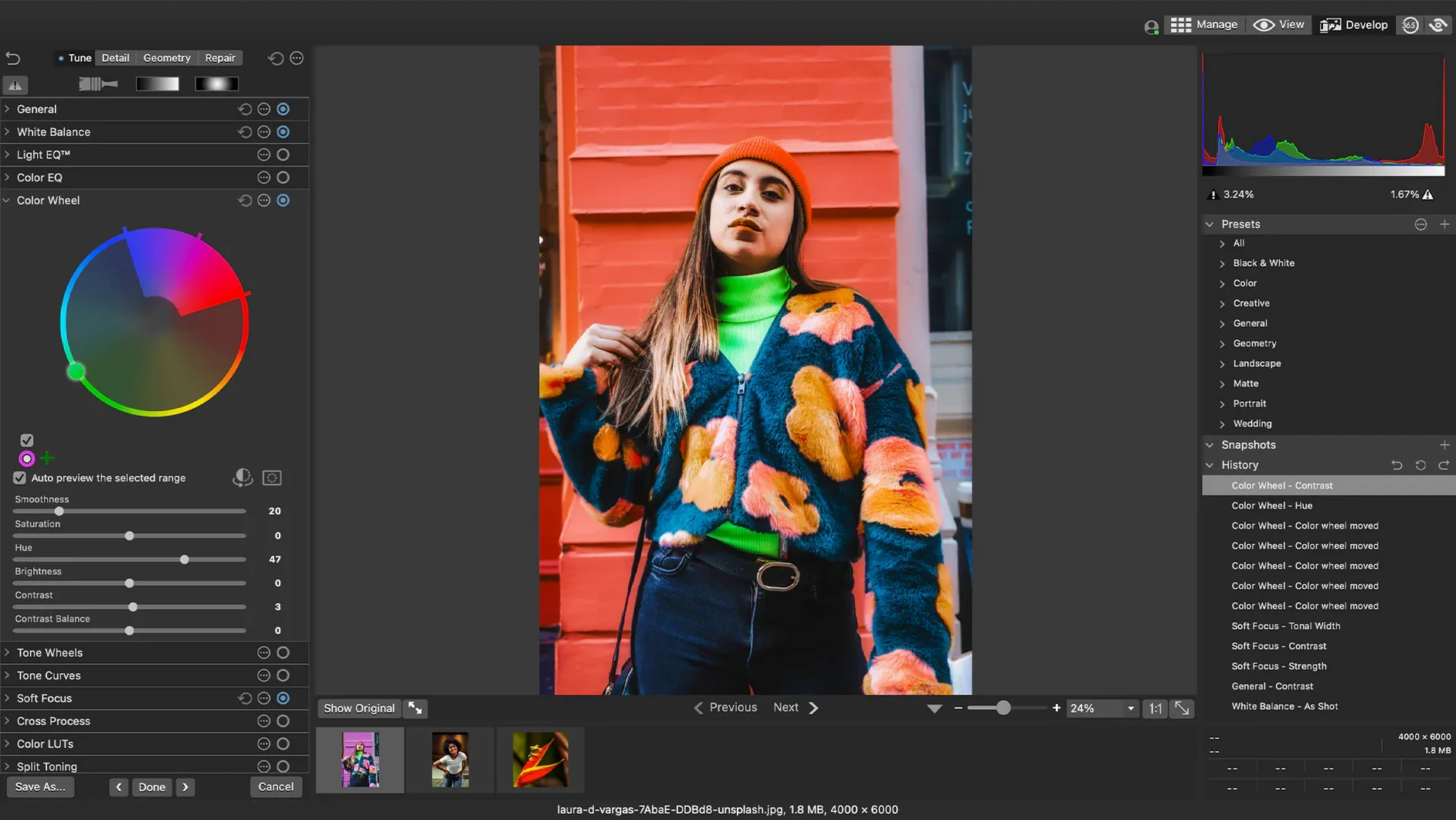
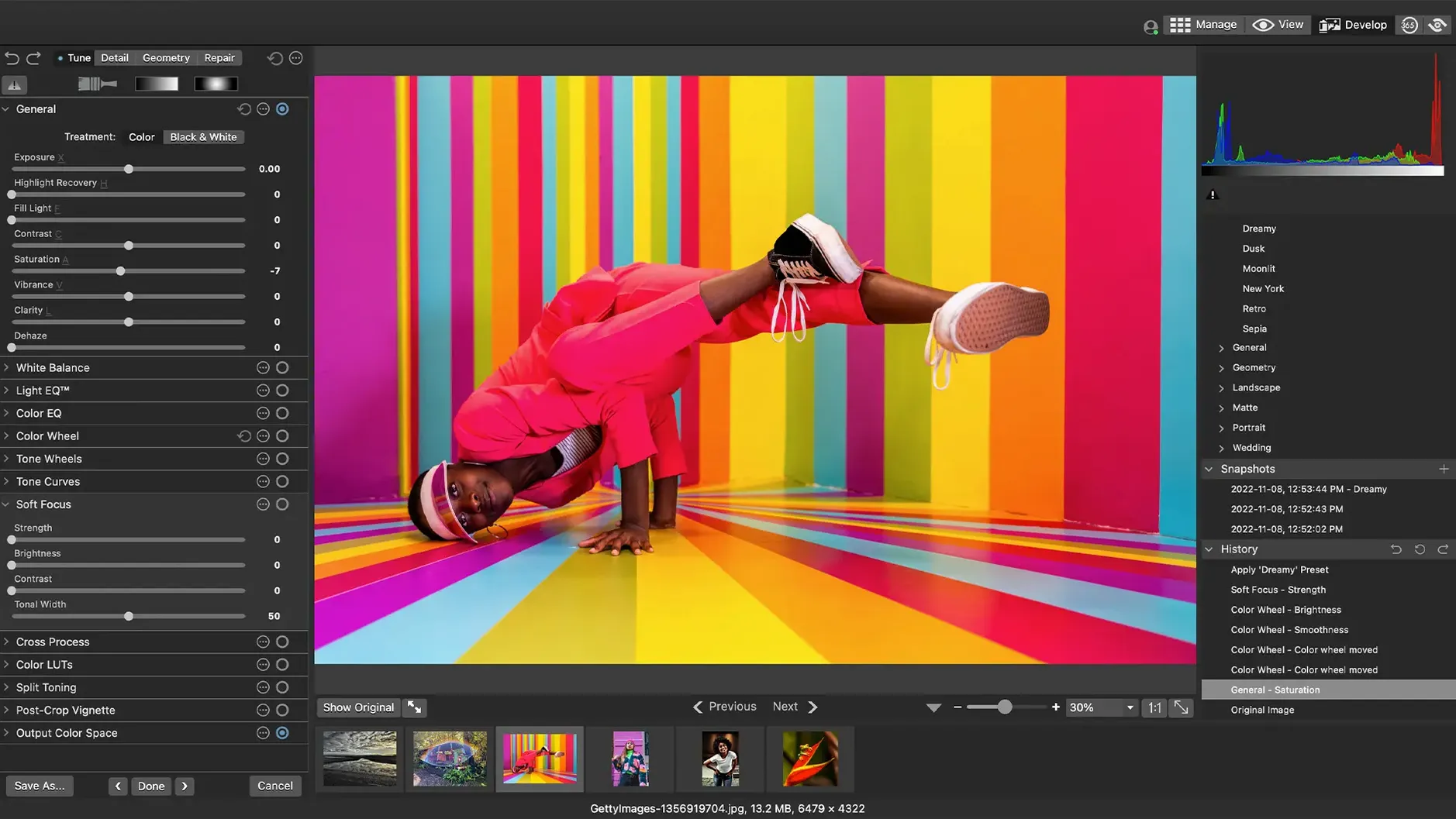
- Edit a RAW file non-destructively. Open a RAW from one of the 450+ supported camera models. Adjust exposure, clarity, and sharpness in the Develop mode. Every change is saved as a sidecar instruction; the original file is never touched.
- Check and edit metadata. Select an image and inspect its EXIF and IPTC information. Edit the caption and copyright fields directly in the Metadata panel to see how the app handles IPTC writes.
- Run a batch preset. Select ten images, open the Batch tool, and apply a built-in preset (a long-edge resize, for example). Then customise one preset slightly and save it. This shows how far the batch engine reaches before you need it for a real job.
These six steps cover the catalogue, non-destructive RAW development, metadata, and batch processing. Once they feel natural, the rest of the toolset slots into place around them.
Index 80k photos without beachballing
Can it handle a large library without slowing to a crawl? The catalogue engine in version 26.0.3 reads from an SQLite database, and indexing 50 000 to 80 000 images on an Apple Silicon Mac typically finishes without beachballing the interface. The first import is the slowest; subsequent browsing pulls thumbnails and previews from the catalogue, not from the raw files. If your library lives on an external SSD, keep the catalogue file on the same volume to avoid Spotlight and file-system overhead.
Does it write sidecar XMP files, or does it lock edits inside a proprietary database? RAW adjustments are non-destructive and stored as XMP sidecars by default. You can open the same RAW in another XMP-aware app and the edits will carry over. For JPEG and TIFF, ACDSee embeds the metadata directly. If you prefer everything in sidecars, check the Metadata preferences before your first edit.
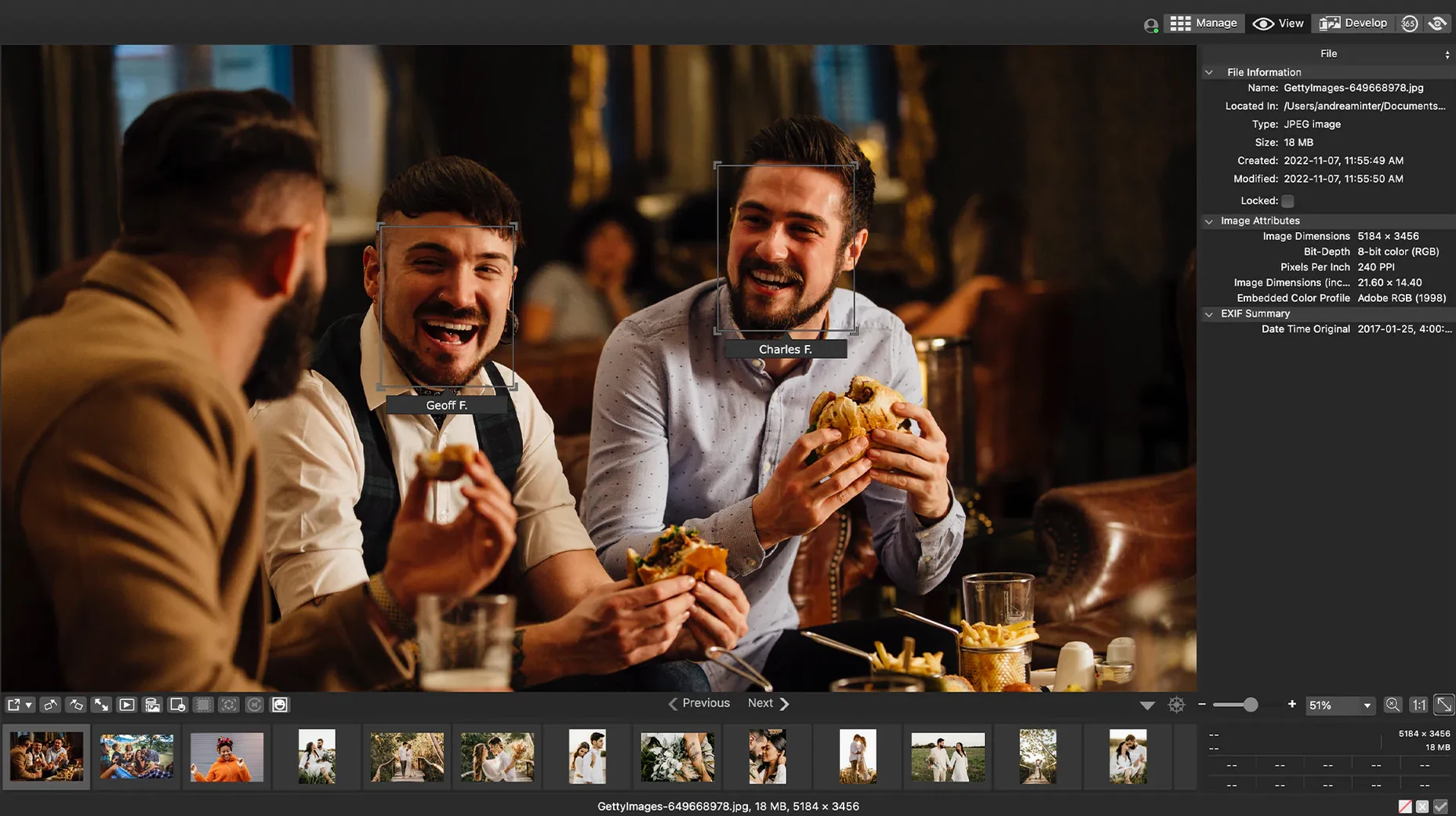
Is the Mac version behind the Windows one? The two codebases share the RAW engine and much of the library logic, but the Mac interface is built on AppKit. Features like face recognition and some advanced layer editors that exist on Windows are absent here. The Mac app focuses on catalogue management, non-destructive RAW development, batch processing, and metadata — and does those cleanly.
iCloud-synced folders — safe or not? The 26.0.3 update specifically patched an iCloud integration issue. ACDSee now handles iCloud Drive folders that are set to “keep downloaded.” Avoid pointing the catalogue at a folder where files frequently evict to cloud-only, because the database will record broken paths and the thumbnail cache will miss.
Drop a keyword onto the search bar
- Drag-and-drop search from the Organize pane. Drag a category, keyword, or colour label onto the search bar. ACDSee builds a compound query instantly. Stack two categories, then add a rating filter by dropping a star label on top — the search runs without a single mouse click in a dialog.
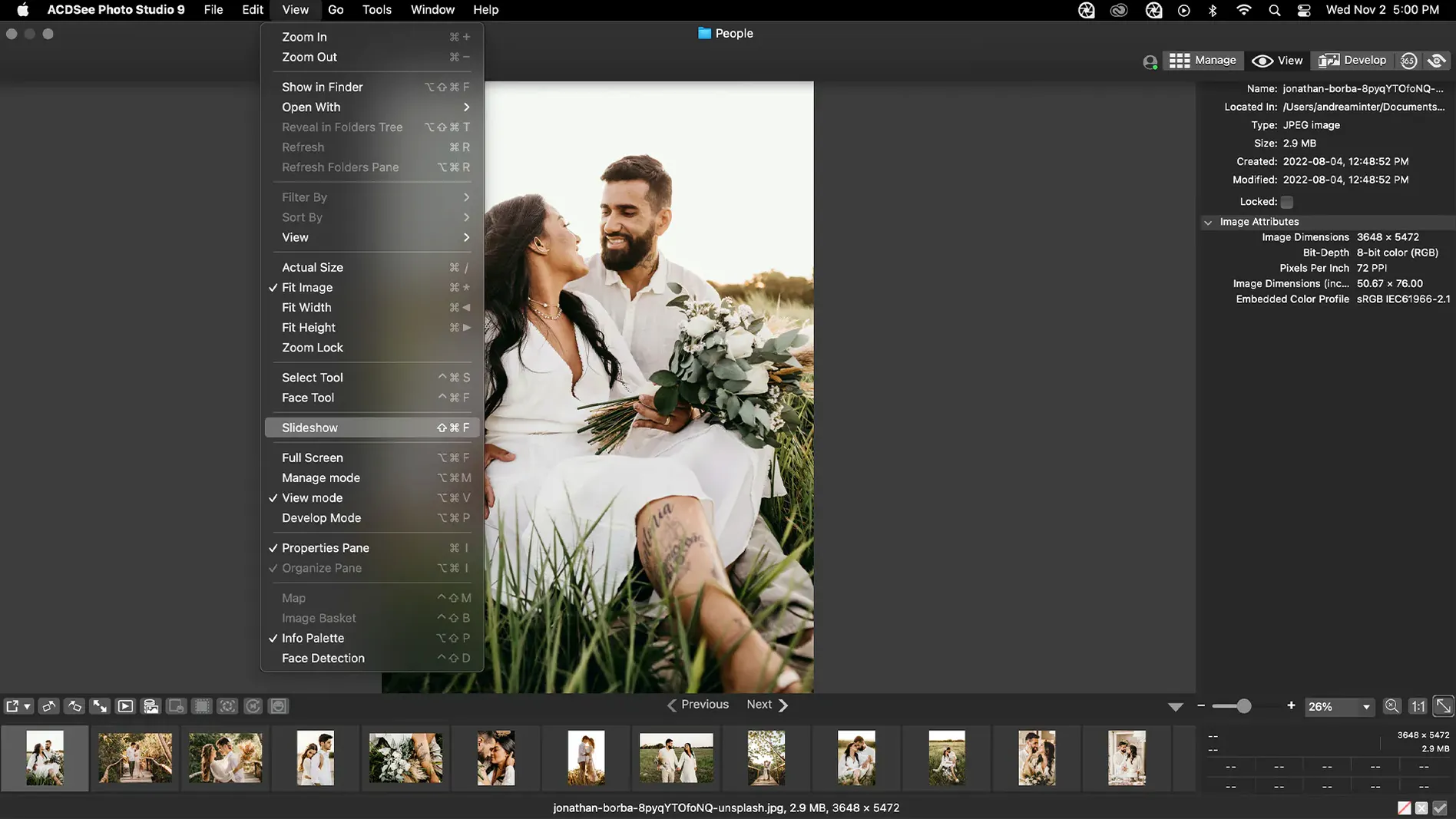
- Quick EXIF read-out in full screen. Press
Cmd-Iwhile in full-screen view. A floating info panel appears showing focal length, aperture, ISO, and shutter speed. It updates as you arrow through images. Useful for culling a burst without leaving the dark background. - Hold Option while dragging a slider. In Develop mode, holding the Option key on exposure, highlights, or blacks shows a clipping preview — blown areas appear white or coloured, crushed shadows show as black. This works the same way Lightroom users expect, but ACDSee does not advertise it.
- Custom batch preset chaining. The batch tool allows you to stack multiple operations in a single preset: resize to 2048 px long edge, apply a watermark, convert colour space to sRGB, and rename with a sequence number. Save that stack once, then assign a keyboard shortcut under System Settings > Keyboard > App Shortcuts. The menu item is exactly “Batch Preset > [Your Preset Name].”
- Duplicate finder with visual confirmation. The duplicate tool does not just list filenames. It shows thumbnails side-by-side and flags exact byte matches versus visual matches. You can set a tolerance for “near duplicates” — useful for finding bracketed exposures or burst sequences shot seconds apart.
Develop mode skips AI masks and HDR merge
Adobe Lightroom Classic. Lightroom offers a broader editing toolset — gradient masks, AI-based subject selection, HDR merge — and a larger ecosystem of presets and tutorials. ACDSee’s Develop mode covers the core controls well but does not attempt to match Lightroom’s masking sophistication. Where ACDSee pulls ahead is the one-time purchase model and the absence of a mandatory catalogue import step; you can browse a folder directly, edit, and move on. Lightroom requires an import before you can do anything.
Photomator (formerly Pixelmator Photo). Photomator is a Mac-native editor built on Core ML, with fast machine-learning adjustments and tight iCloud Photos integration. Its library features are minimal — it edits what you open, but it does not manage a catalogue of 60 000 images with keywords, categories, and saved searches. ACDSee is the tool for someone who needs that management layer. Photomator is the tool for someone who lives in Apple Photos and wants better editing brushes.
RawTherapee. Free and open-source, RawTherapee gives extremely fine-grained RAW demosaicing controls — more than ACDSee exposes — but the interface is dense, and it lacks catalogue features, duplicate finding, and IPTC batch editing. ACDSee trades RawTherapee’s pixel-level tweakability for a smoother workflow from ingest to export. If you need to deliver 300 edited JPEGs with metadata by the end of the day, ACDSee saves hours of context-switching.
Relocate a moved folder to fix missing thumbnails
Catalogue suddenly shows missing thumbnails. This usually happens when the source folder was moved or renamed outside ACDSee. Open the catalogue in Manage mode, right-click the affected folder, and choose “Relocate.” Point it at the new location. The database updates the paths and thumbnails repopulate. If the folder was deleted entirely, the catalogue entries remain but show a broken-link icon; you can remove them with “Delete from Database” without touching any files on disk.
RAW files open with a flat, washed-out look. ACDSee applies its own default tone curve on import. If your camera’s embedded JPEG preview looks punchier, go to Develop mode and open the “Base Characteristics” panel. Switch the default curve from “ACDSee Standard” to “Camera Default” or import a custom profile you have saved. The difference is most noticeable with Sony and Fujifilm RAWs, where the camera profile often bakes in a stronger contrast curve than the generic default.
Batch rename skips some files. Check the bottom-left filter bar in the batch tool. If a filter like “RAW only” or “rated 3 stars and above” is active, unrated or JPEG files will be silently excluded. Clear all active filters, select the files again, and re-run the rename.
iCloud files show a lock badge and cannot be edited. The file has evicted to cloud-only storage. Right-click the file in Finder, choose “Download Now,” then refresh the folder view in ACDSee with Cmd-R. The lock badge disappears and the file opens for editing. This is the behaviour the 26.0.3 iCloud fix addressed — earlier versions sometimes refused to recognise the file even after downloading.
Keyword editing stays in an uncommitted state. Prior to the 26.0.3 patch, clicking away from a new keyword field sometimes left it in edit mode, and the entry would vanish on the next refresh. If
- Keywords and categories — fixed a crash when adding a new keyword or category in a specific scenario. Fixed an issue where clicking away from a new keyword or category did not stop editing.
- RAW files — fixed inaccurate reading of RAW file ratings in certain scenarios.
- iCloud — fixed an issue with iCloud integration.
- macOS 14 or later
- Apple Silicon and Intel Macs
- Interface languages: English
Sign in · Create an account to add a field note.
No field notes yet. A measurement, a version, a machine — they appear after moderation.