Mac Apps
CloudMounter 4.18
Mac AppsUpdated
| Requirement | On file |
|---|---|
| macOS | macOS 10.14 or later |
| CPU | Intel 64-bit |
| Download | 68 MB |
People who keep work spread across Google Drive, Dropbox, and a couple of SFTP servers know the routine: one tab per service, constant downloading and re-uploading. CloudMounter cuts that out by making each account behave like a local disk. It shows up in Finder, it reads and writes as if the files were already on your Mac, and it does not force you to sync gigabytes you do not need right now.
Connect your first account
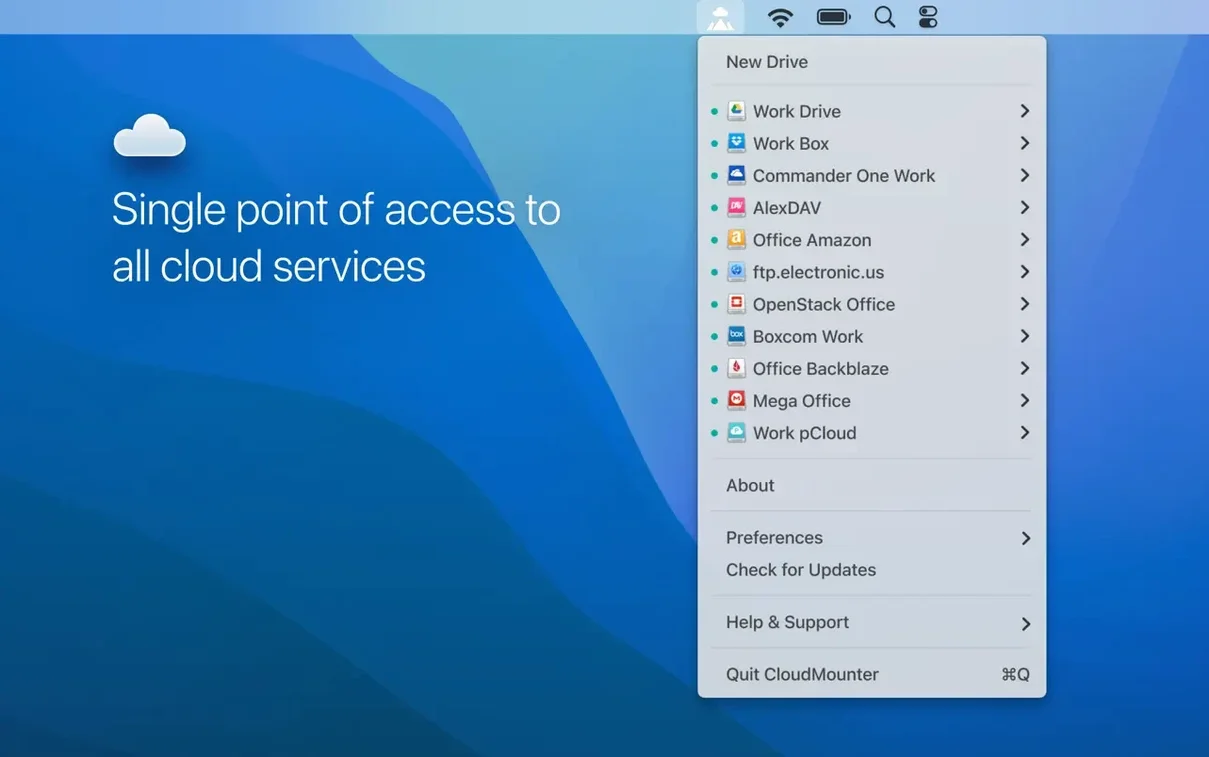
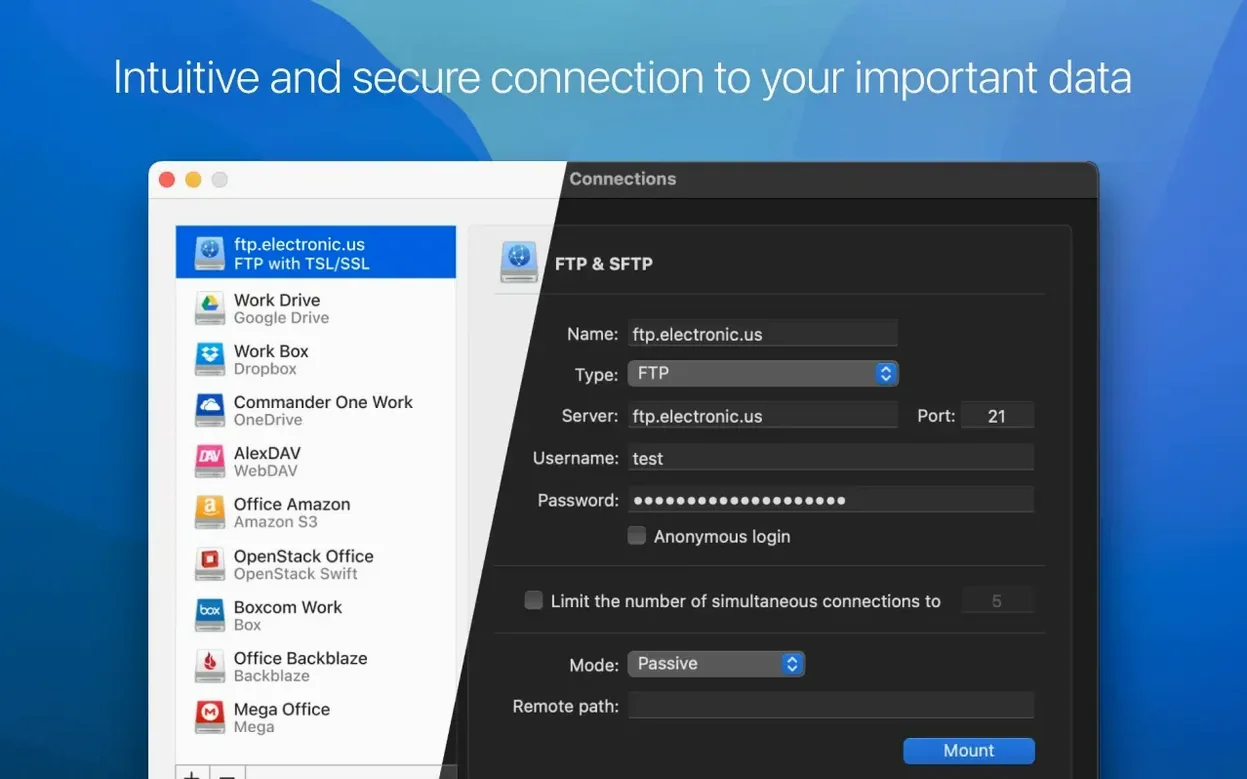
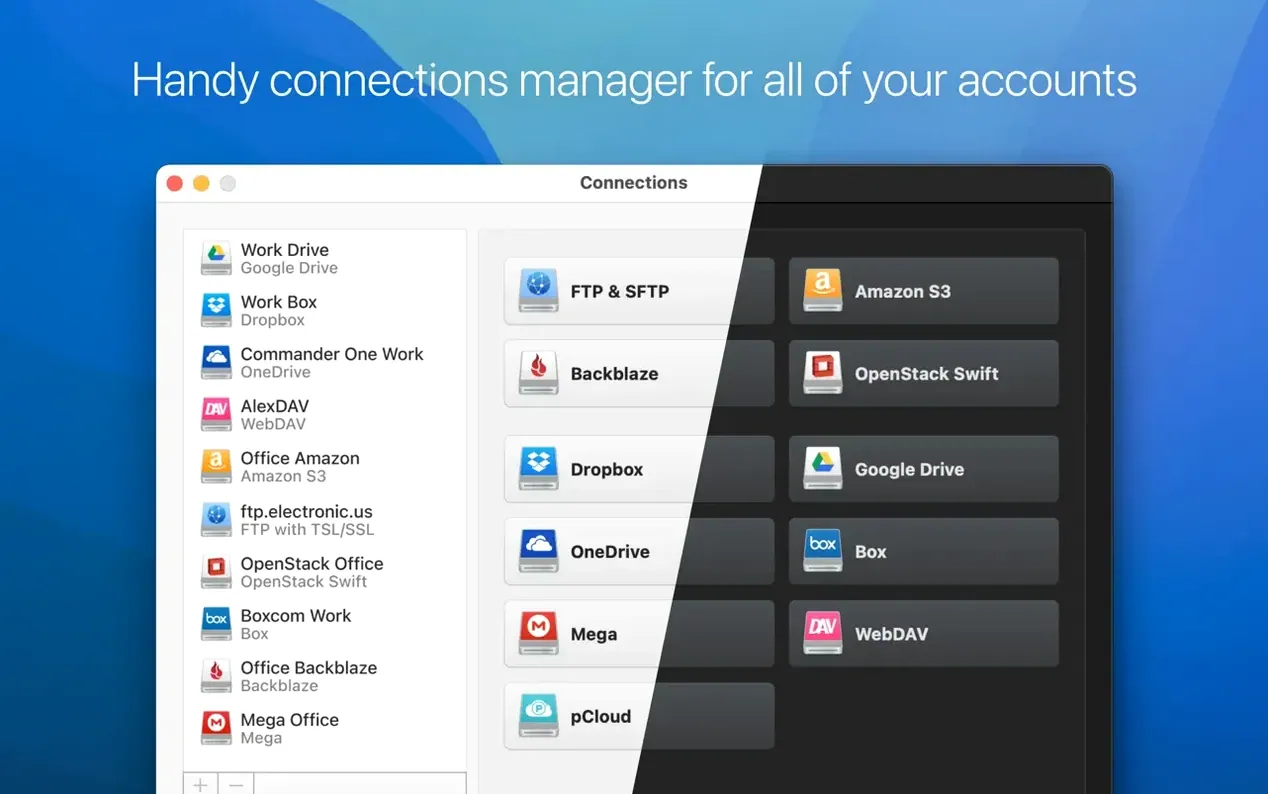
After launching version 4.18, the connection panel lists every supported backend: Google Drive, OneDrive, Dropbox, Box, Amazon S3, Backblaze B2, OpenStack Swift, and WebDAV, plus FTP, SFTP, and FTPS. Pick one, authenticate through the built-in browser window, and a new volume appears on the desktop within seconds. The drive letter is fake, but the access is real — you can open a Word document straight from OneDrive, edit it, and save it back without touching a web interface.
Try the encryption layer
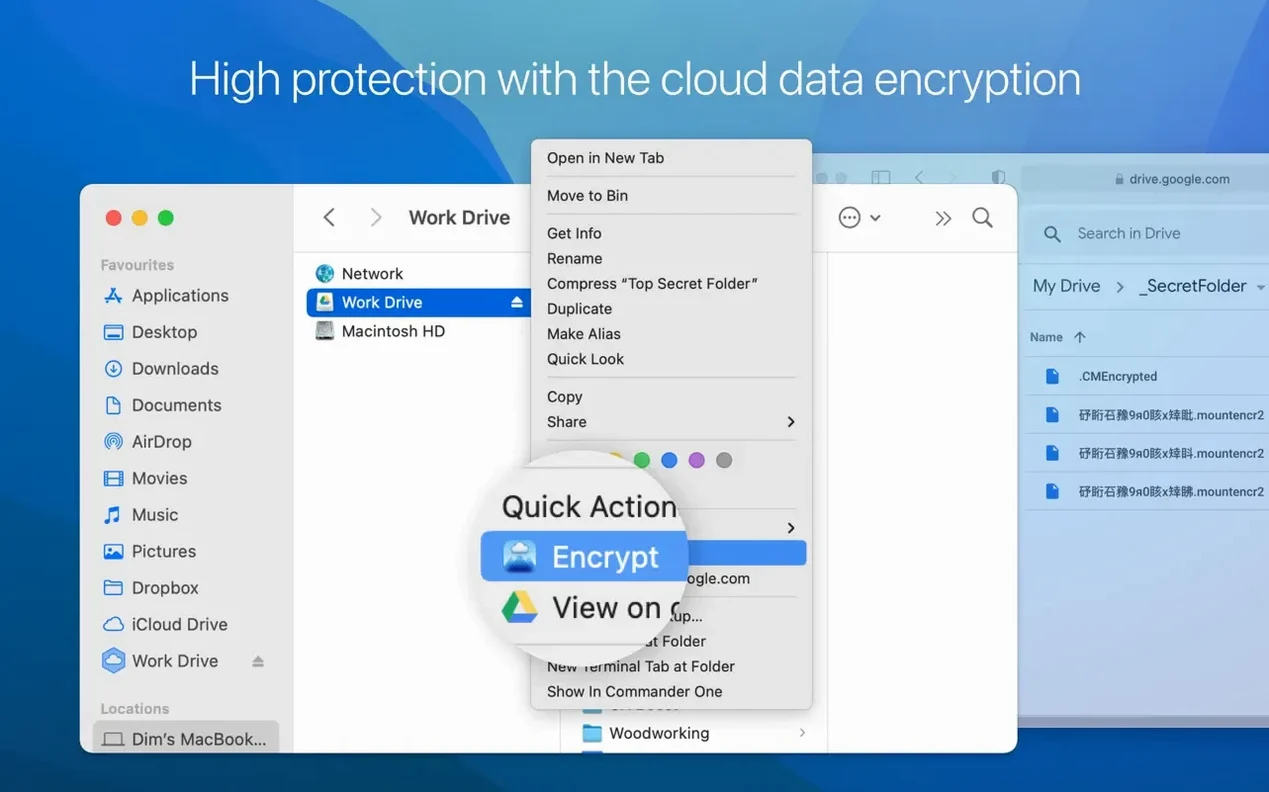
Before you pile sensitive work onto a cloud mount, flip the AES-256 encryption switch in the connection settings. CloudMounter encrypts file names and contents before they leave your machine, so the data sitting on the provider's server is unreadable without your password. It is worth testing this early with a single folder to get a feel for the slight overhead and to confirm your password recovery routine works. Once you trust the flow, you can apply it to entire volumes.
First days with CloudMounter
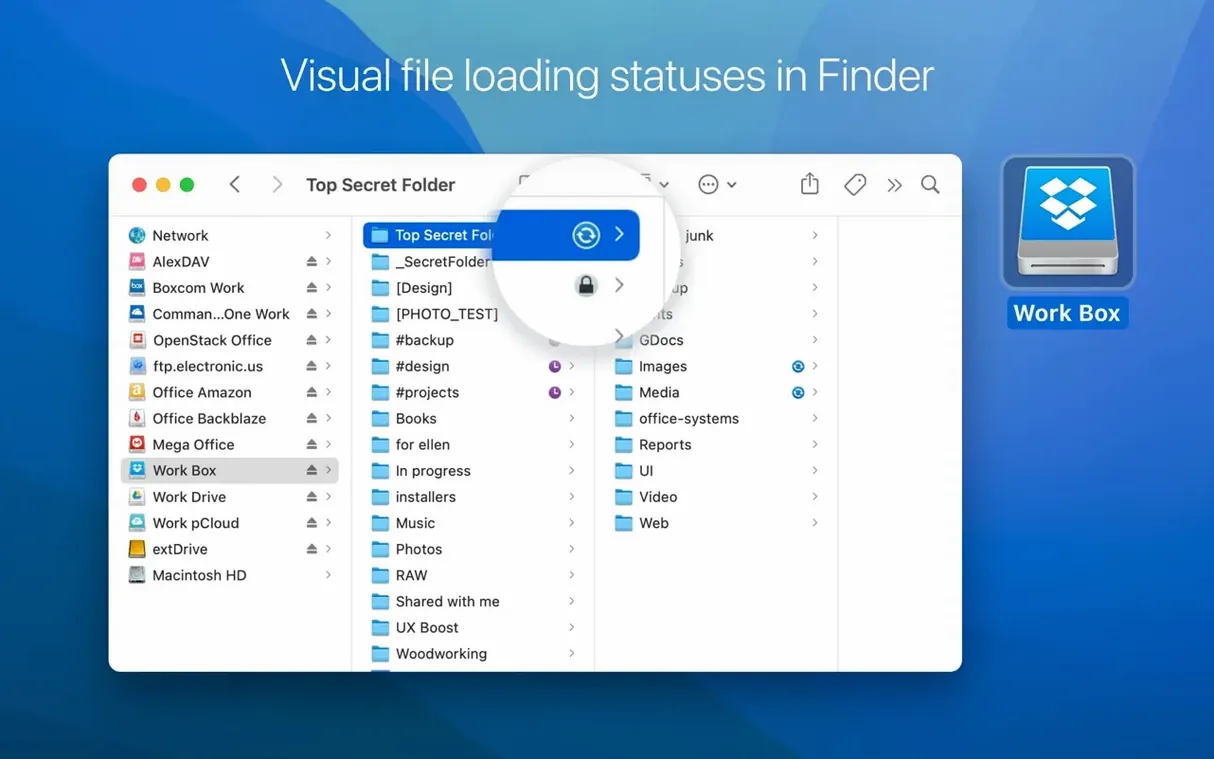
Give Finder a few minutes to index the new volumes after the initial connection. On the first mount CloudMounter pulls the remote folder tree and caches the metadata, so a large Dropbox with 200 000 files will feel sluggish until the listing completes. You can keep working — the app streams directory contents in the background — but if Finder seems stuck on a folder, check the CloudMounter menu bar icon. A spinning gear there means it is still building the local index. Let it finish before you start bulk copying.
Set the cache location early. The default path lives inside ~/Library/Application Support/CloudMounter, but you can point it to an external SSD in the app preferences under the Cache tab. This matters if you open large media files from an S3 bucket: CloudMounter stages them locally before handing them to QuickTime or Preview, and a cramped internal drive fills up fast. Version 4.18 handles cache-volume changes more cleanly than earlier builds — the fix for download issues when switching volumes was one of the quieter but useful corrections in this release.
One habit that pays off: rename your connections with short, descriptive labels. "Work Google Drive" and "Personal Google Drive" instead of two entries both reading "Google Drive". The connection list does not show the account email at a glance, and when you mount four or five services the desktop icons all look similar. Naming them in the connection settings avoids dragging the wrong file into the wrong volume.
Upload failures and connection drops—quick fixes
SFTP connections drop during large transfers
Version 4.18 fixed a bug where cancelling an SFTP download could leave the connection in a half-open state, but timeouts on slow links still happen. If an SFTP mount unmounts itself mid-copy, check the server's idle-timeout setting first — many shared hosts kill sessions after 300 seconds of inactivity. CloudMounter does not send keepalive packets by default, so a long pause while you review a file can trigger the disconnect. The workaround is to enable Keep connection alive in the advanced settings for that mount (it sends a no-op command every 60 seconds) and to avoid transferring files larger than 4 GB over Wi-Fi with a weak signal.
Finder shows stale file listings
Because CloudMounter does not sync files to the local disk, Finder caches what it saw on the last directory read. If a colleague adds files to a shared OneDrive folder while your mount is active, those new items may not appear until you force a refresh. The quickest method: right-click the volume in Finder and select Eject, then remount it from the CloudMounter menu. The app re-reads the remote directory on every mount. For a less disruptive approach, open Terminal and run killall Finder — it restarts the Finder process and often flushes the stale cache without disconnecting the volume.
MEGA connections behave oddly
The 4.18 release notes mention improved work with MEGA connections. If you upgraded from an older build and a MEGA mount refuses to authenticate, delete the saved connection and create it fresh rather than editing the existing one. The authentication token format changed between some provider API revisions, and a stale token stored in the keychain will produce cryptic "access denied" errors. A clean re-authentication through the built-in browser usually resolves it in under a minute.
Large-file uploads and progress bars that actually finish
The improvements in 4.18 are incremental, but two of them affect daily workflows directly. Large-file uploading was reworked — files over 2 GB that previously triggered timeouts on certain backends now chunk more reliably. The upload progress bar no longer jumps from 40 % to "complete" without warning. For people who push video rushes or disk images to Backblaze B2 or S3, the upload pipeline feels steadier, with fewer silent retries.
Folder listing speed got a measurable bump. Opening a WebDAV directory with 5 000 items in 4.17 could take 8–10 seconds on a typical broadband connection; in 4.18 the same listing populates in 4–5 seconds. The difference comes from smarter batching of metadata requests — the app now asks for more entries per API call where the provider supports it. Storage-usage display was also patched: the capacity bar beneath each mounted volume in the CloudMounter window no longer shows "0 bytes of 0 bytes" for connections that previously misreported quota data.
Persistent local cache versus pure streaming mounts
Expandrive takes a similar approach — mount cloud storage as Finder volumes — but it leans harder on background sync. Expandrive keeps a local cache that persists after unmounting, which means offline access to recently used files comes built in. CloudMounter skips the persistent sync layer entirely. That choice keeps the local footprint tiny, but if you regularly work on a laptop without internet, Expandrive's offline cache is the more practical option. CloudMounter counters with its AES-256 encryption, which Expandrive does not offer as a built-in feature.
Mountain Duck is closer in philosophy: it also mounts remote storage without syncing everything locally. Mountain Duck supports a longer list of server protocols (it adds SMB shares, for instance) and integrates with third-party encryption tools like Cryptomator. CloudMounter keeps encryption inside the app and wraps the experience in a simpler, single-window connection manager. The trade-off is protocol coverage versus interface polish — Mountain Duck's settings panels can feel scattered across macOS system preferences and its own menu, while CloudMounter centralises everything in one place.
Cyberduck is the odd comparison because it is a standalone file browser rather than a mount utility. Cyberduck excels at one-off transfers and quick edits on remote servers, but it does not integrate with Finder. Anything you want to edit from Cyberduck must be downloaded to a temporary folder, opened, and re-uploaded. CloudMounter removes that step — you double-click a file on the mounted volume and the app it belongs to opens it directly. For server administrators who need Finder-level access to a remote SFTP directory tree, Cyberduck feels like a detour while CloudMounter feels like an extension of the desktop.
Uploads — improved handling of large files.
Connections — improved work with MEGA.
Downloads — fixed cancellation for files on SFTP.
Cache — fixed file downloading issues when cache volume is changed.
Interface — fixed displaying of storage usage information for online connections.
- macOS 10.14 or later
- 64-bit Intel processor
Questions on file
Which cloud services does CloudMounter support?
It supports Google Drive, Dropbox, OneDrive, Amazon S3, Box, Backblaze B2, OpenStack Swift, WebDAV, and FTP, SFTP, and FTPS servers.
Sign in · Create an account to add a field note.
No field notes yet. A measurement, a version, a machine — they appear after moderation.