Mac Apps
Cocktail Sequoia Edition 18.7.1
Mac AppsUpdated
| Requirement | On file |
|---|---|
| macOS | macOS 15 or later |
| CPU | Intel 64-bit |
| Download | 3 MB |
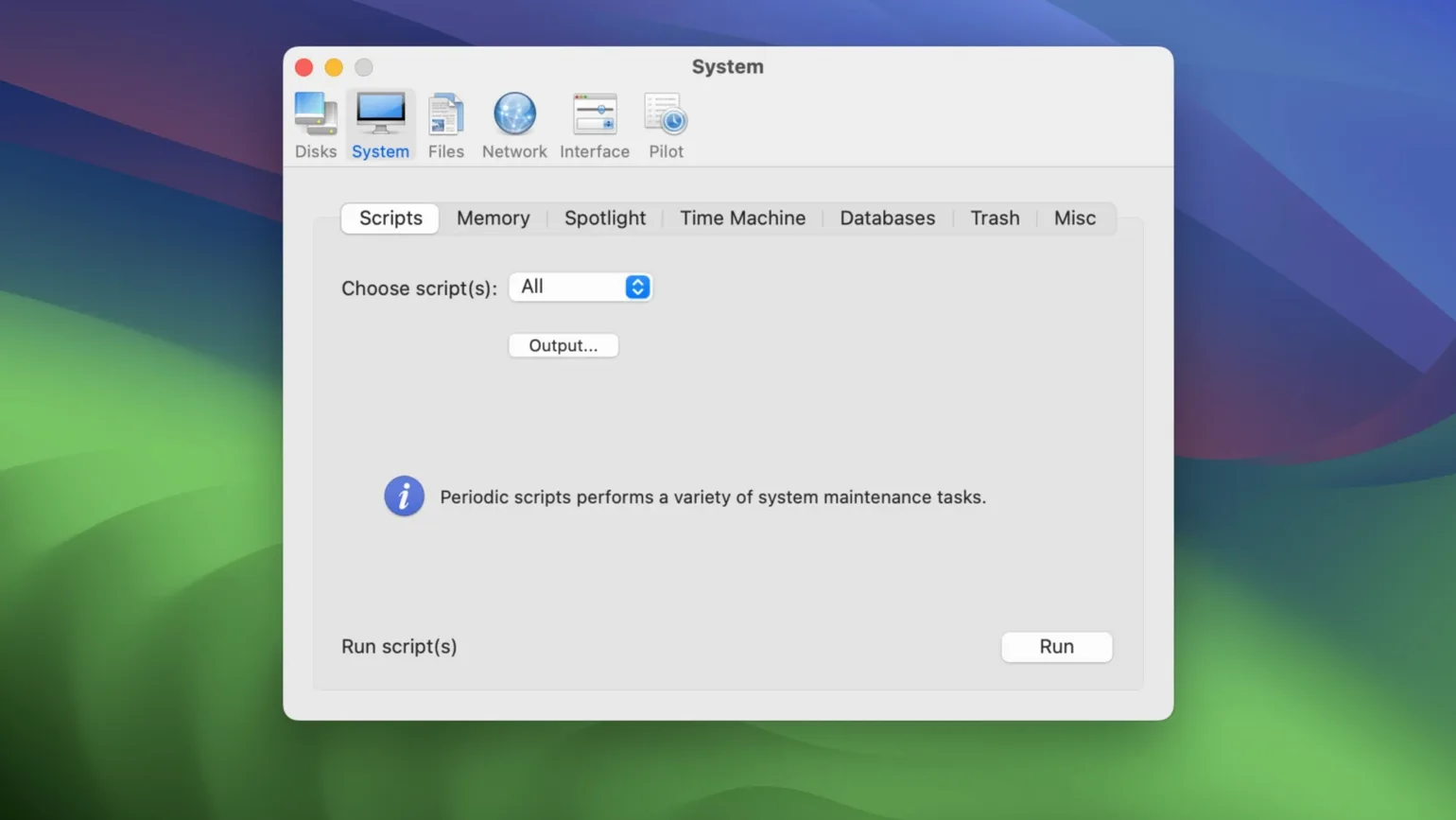
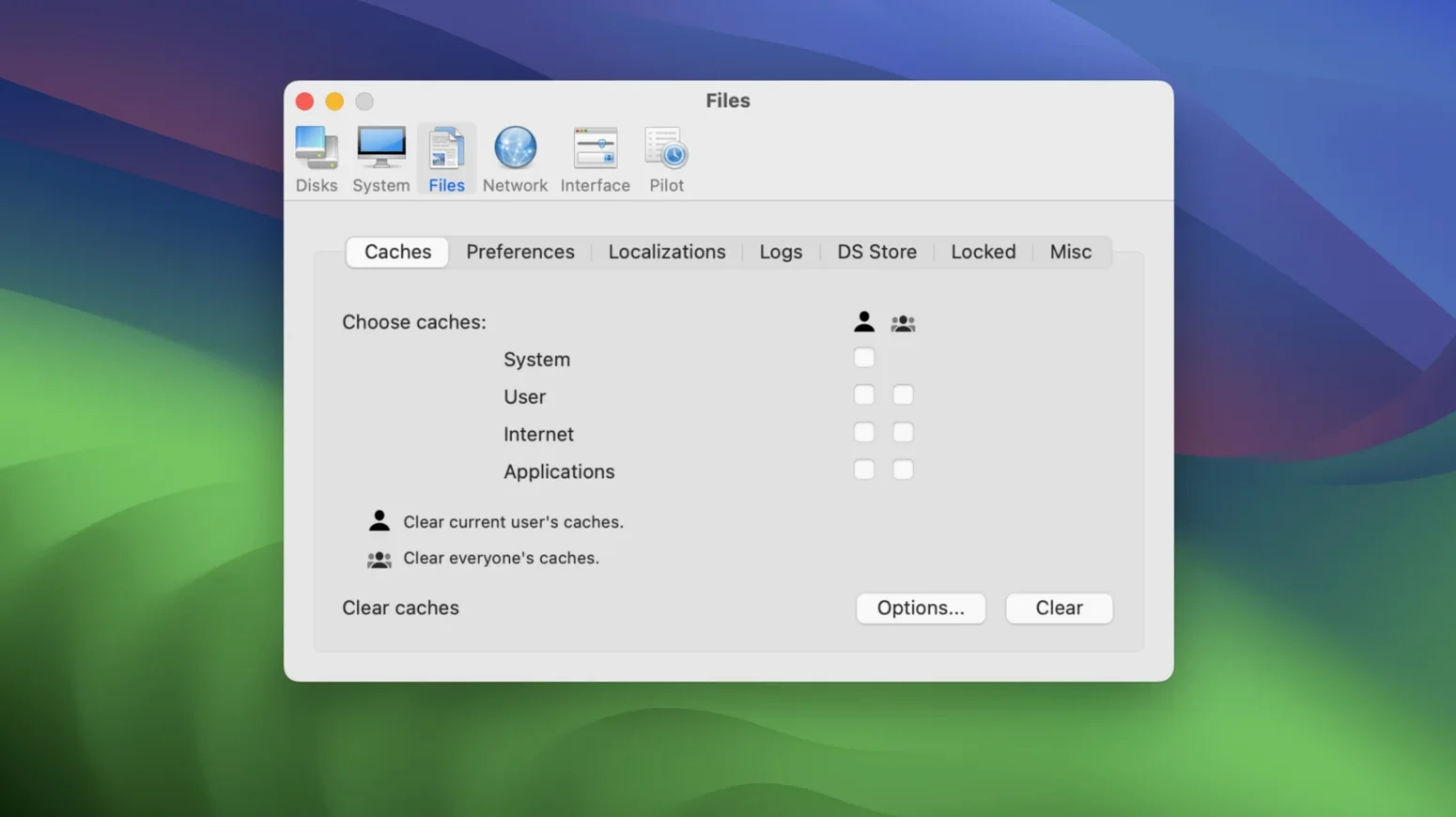
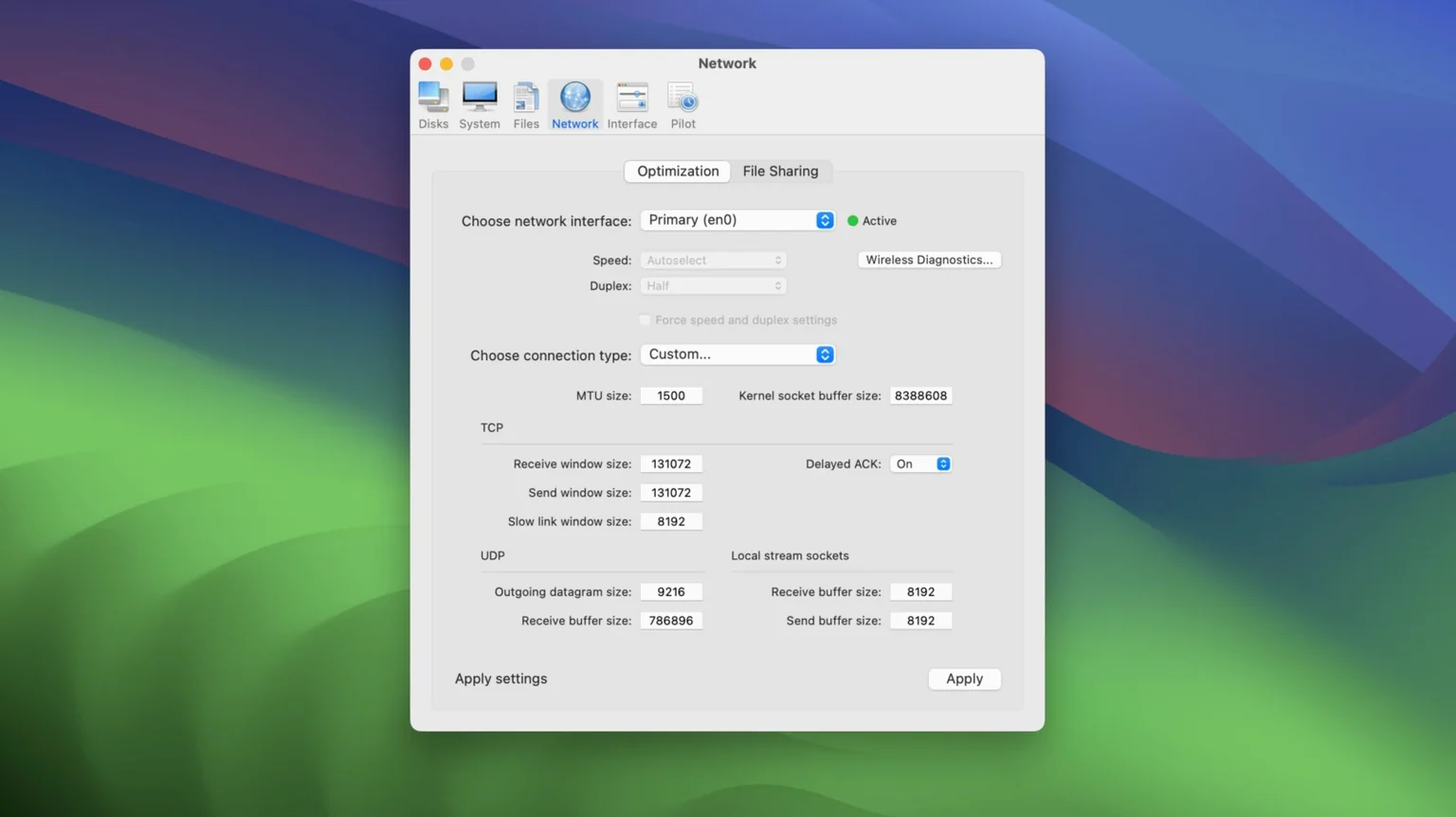
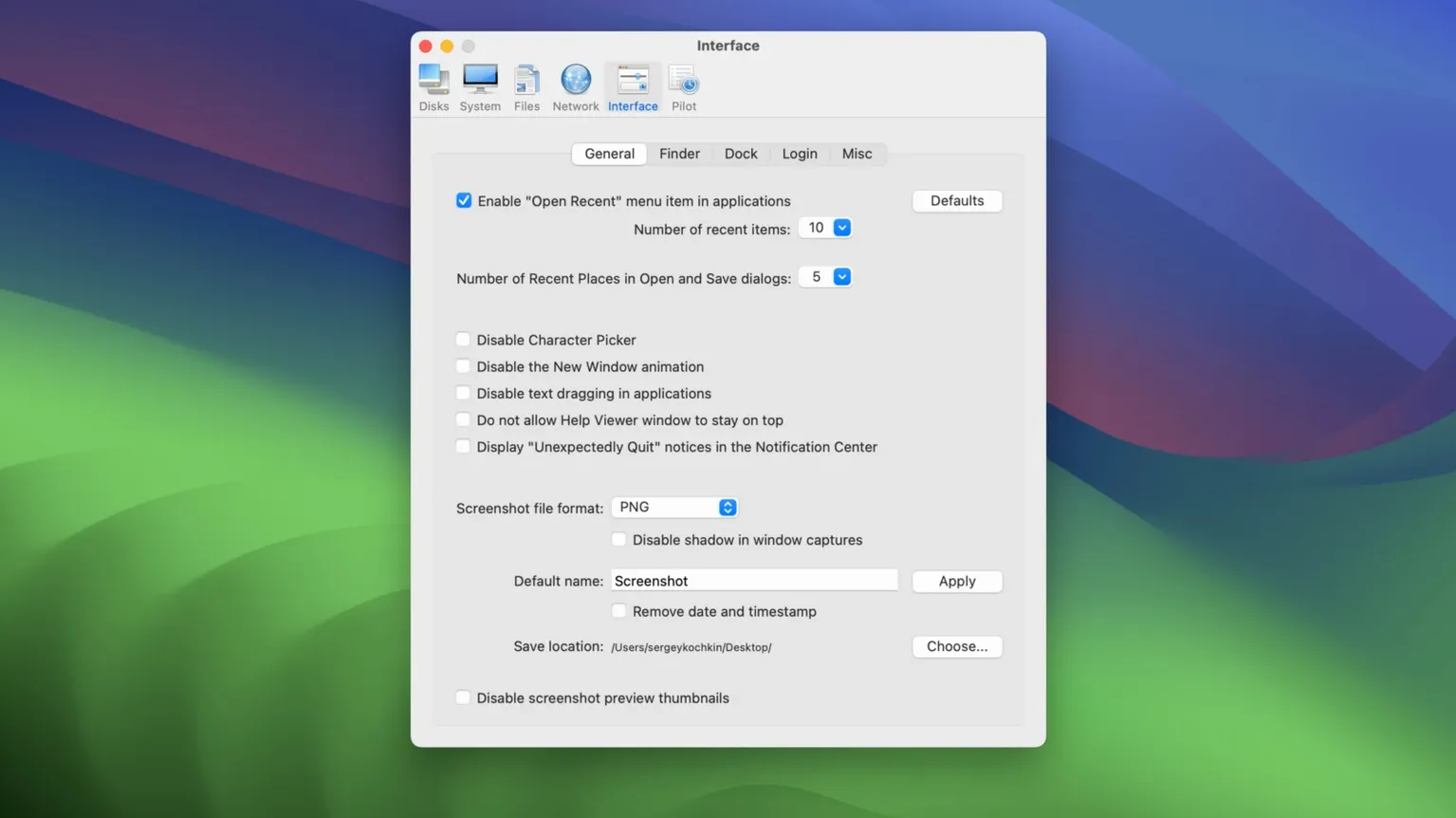
A system drive with less than 12 GB free triggers a slowdown across Adobe apps. After wrestling with scratch disk errors, I opened Cocktail Sequoia Edition to run a structured cleanup without hunting through half a dozen Library folders. The utility groups its functions into five categories—Disks, System, Files, Network, and Interface—so I queued a cache purge and a permissions check, then let it work.
- Select the Disks category and tick Clear User Cache and Clear System Cache to reclaim space from temporary Adobe and system files.
- Run Repair Permissions under the System category to correct ownership on home folder items that can block preference writes.
- Use the Files section to locate and delete large orphaned files, such as leftover render temp folders.
- Toggle the Pilot mode to execute a pre-configured bundle of checks with a single click—useful for monthly maintenance.
- Schedule a weekly script via the Interface pane to rotate logs and purge inactive memory without manual intervention.
The tool requires macOS 15 and runs on Intel 64-bit Macs. Earlier Cocktail editions exist for older operating systems, but this build targets Sequoia specifically. After the 90-second run, the disk regained 8 GB and Adobe apps stopped hitting scratch warnings.
A workflow: reclaiming space before a large render
Creative work tends to fill a drive quietly. One week there is 40 GB free; the next, Final Cut or After Effects refuses to export because the scratch volume has 6 GB left. A maintenance pass with Cocktail Sequoia Edition takes less than five minutes when you know the order to follow.
- Open Cocktail and select the Disks category. Tick Clear User Cache, Clear System Cache, and Clear Obsolete Data. These three remove files that macOS will rebuild on demand, so nothing of value is lost.
- Move to the Files category. Enable the search for orphaned items and large files. Sort the results by size and review anything over 1 GB. Render temp folders and old disk images tend to surface here.
- Switch to the System category and run Repair Permissions. On Intel Macs under Sequoia, home folder permission drift can cause apps to stall when writing preferences or autosave files.
- Open the Network category and clear cached DNS entries. A corrupted DNS cache occasionally makes uploads to cloud render farms time out.
- Finish with Pilot. A single click runs the default maintenance bundle—log rotation, memory purge, cache clearing—and leaves a short report of what was removed.
After this sequence on a MacBook Pro with a 512 GB drive, the cleanup reclaimed 11 GB, most of it from old user caches and an orphaned 6 GB capture scratch folder. The next export ran without a disk-space warning.
Background Tasks Won't Force You to Quit Apps
Will it interfere with apps I keep running? No. Cocktail schedules its tasks through standard macOS maintenance mechanisms. Most operations run in the background and do not require quitting open applications. The exceptions are tasks that touch system caches; those may ask for a logout or restart to finish.
Does it change how macOS looks or behaves? Only if you use the Interface category. The cleaning and repair functions leave System Settings, the Dock, and Finder preferences untouched unless you explicitly modify them. If you never open the Interface pane, the Mac looks identical after a run.
Is it safe to clear caches? Yes, with the usual caveat that the first launch of some apps after a cache purge takes a few seconds longer while files rebuild. System caches and user caches are regenerated automatically. Cocktail does not remove documents, photos, or application support files that hold data.
Does it run continuously in the background? No. Cocktail is an on-demand utility. It starts when you open it, performs the selected tasks, and quits. The optional scheduling feature uses launchd to run a script at the interval you choose, but that is opt-in.
What if I am new to macOS maintenance? The Pilot mode exists for exactly this case. It runs a sensible default set of tasks without asking you to understand each one. After a few Pilot runs, most people recognise which individual tasks they want to schedule or skip.
Large-File Workflows Reclaim Gigabytes Weekly
Mac users who produce large files see the fastest returns. Photographers with 50 MB RAW captures, video editors juggling ProRes intermediates, and motion designers working with cached frames all accumulate temporary data at rates that surprise them. A weekly Pilot run keeps the working drive from slipping into scratch-disk territory.
People who keep a Mac for several years benefit most from the System and Files categories. Preference corruption and permission drift build up slowly; fixing them before symptoms appear is less disruptive than troubleshooting a misbehaving app at deadline. Users who have felt the need to search for a cocktail torrent or sequoia torrent often find that a dependable maintenance pass from the full edition runs smoothly, especially when the download is verified and system permissions are set correctly.
Those who dislike System Settings menus also find value here. The Interface category exposes options that Apple has buried or removed—menu bar behaviour, Dock timing, and window animations—in one organised list. Small adjustments, but they add up over daily use.
Least benefit goes to users who rarely write large files, restart often, and keep a nearly empty drive. The cleaning functions still work, but there is less to clean, and the difference is harder to notice.
When a Task Stalls During Cache Clearing
A task appears stuck at “Running”. This usually means the operation is waiting for a background process to finish. Cache clearing, in particular, can pause while an app flushes its own files. Wait two or three minutes. If the task still has not completed, quit Cocktail, restart the Mac, and run the task again before opening other apps.
The Mac asks for a restart after a cleanup. Normal. Some system cache and log rotation tasks require a restart to fully apply. Cocktail tells you when this is needed; there is no harm in delaying the restart until you have saved your work.
A specific app feels slower after clearing caches. Expected for the first launch. The app rebuilds its cache on startup, which takes a little longer once. Subsequent launches return to normal speed, and the cache is now smaller and uncorrupted.
Scheduled tasks do not run at the expected time. Check that the Mac is awake at the scheduled time. launchd does not retroactively run missed tasks when the Mac was asleep. If the schedule matters, set it for a time when the Mac is usually plugged in and awake, or run Pilot manually after long sleep periods.
“Cocktail was blocked” message on first launch. This is a Gatekeeper prompt, common for utilities that need deep system access. Follow the activation and installation notes included with the download. Once approved, the prompt does not return.
- Operating system: macOS 15
- Architecture: Intel 64-bit
Questions on file
Does Cocktail work on Apple Silicon Macs?
The current version lists Intel 64-bit architecture as a requirement; check the developer’s site for any native Apple Silicon builds or Rosetta compatibility notes.
What does the Pilot mode actually do?
Pilot mode runs a pre-selected set of maintenance tasks—such as cache clearing, log rotation, and permission repairs—automatically with a single click.
Can I use the same Cocktail edition on older macOS versions?
No. The developer provides separate Cocktail editions matched to specific macOS releases, so the Sequoia Edition requires macOS 15.
Sign in · Create an account to add a field note.
No field notes yet. A measurement, a version, a machine — they appear after moderation.