
Mac Apps
Compressor 5.3
Mac AppsUpdated
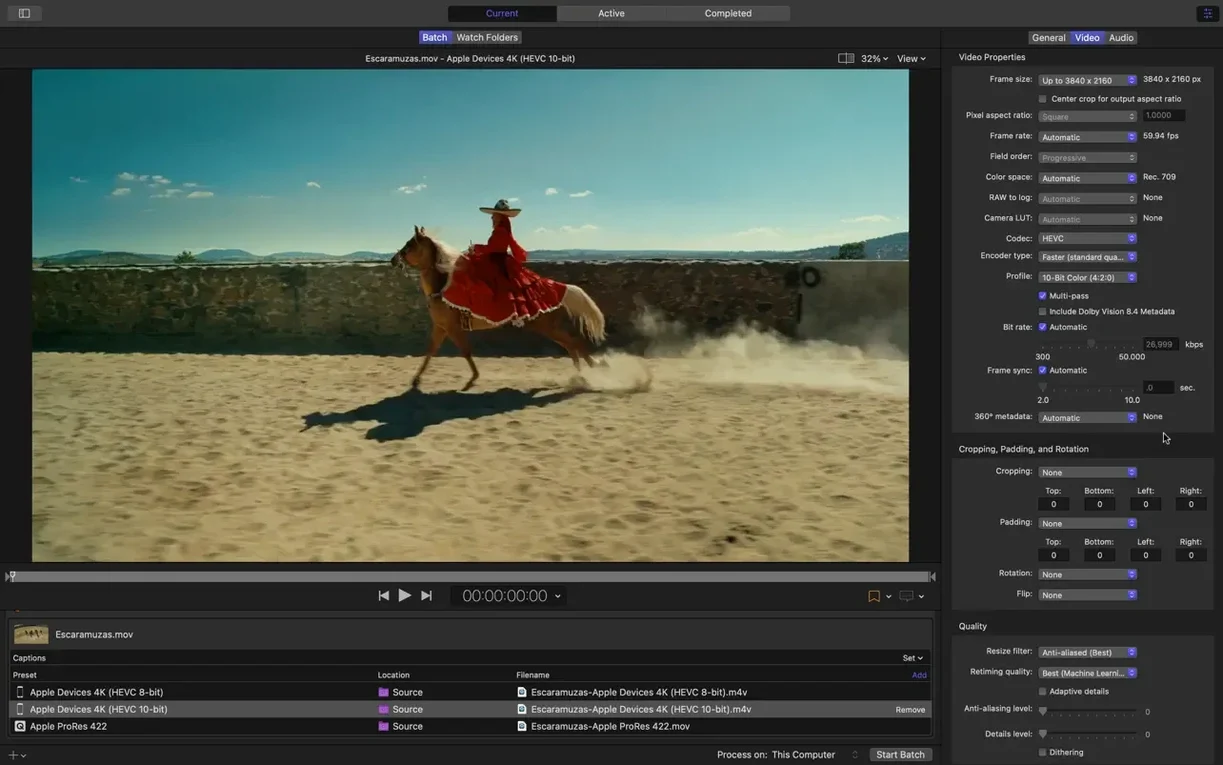
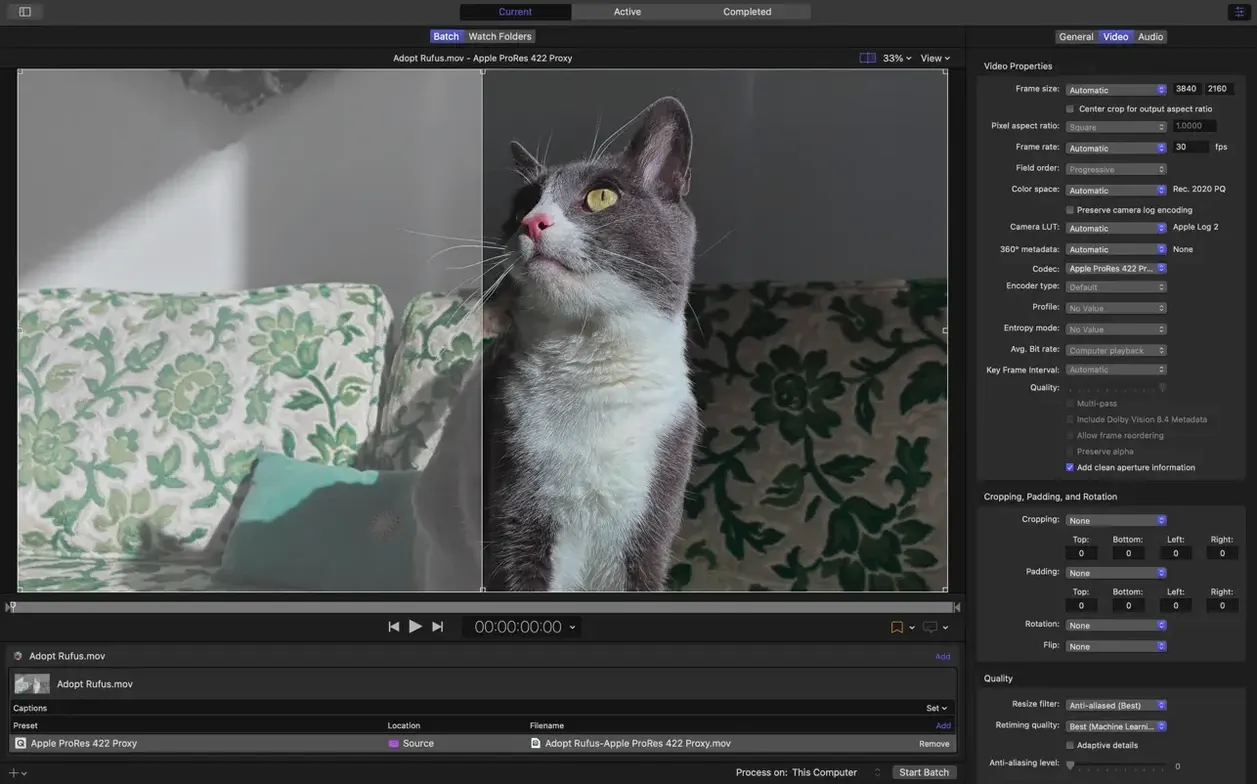
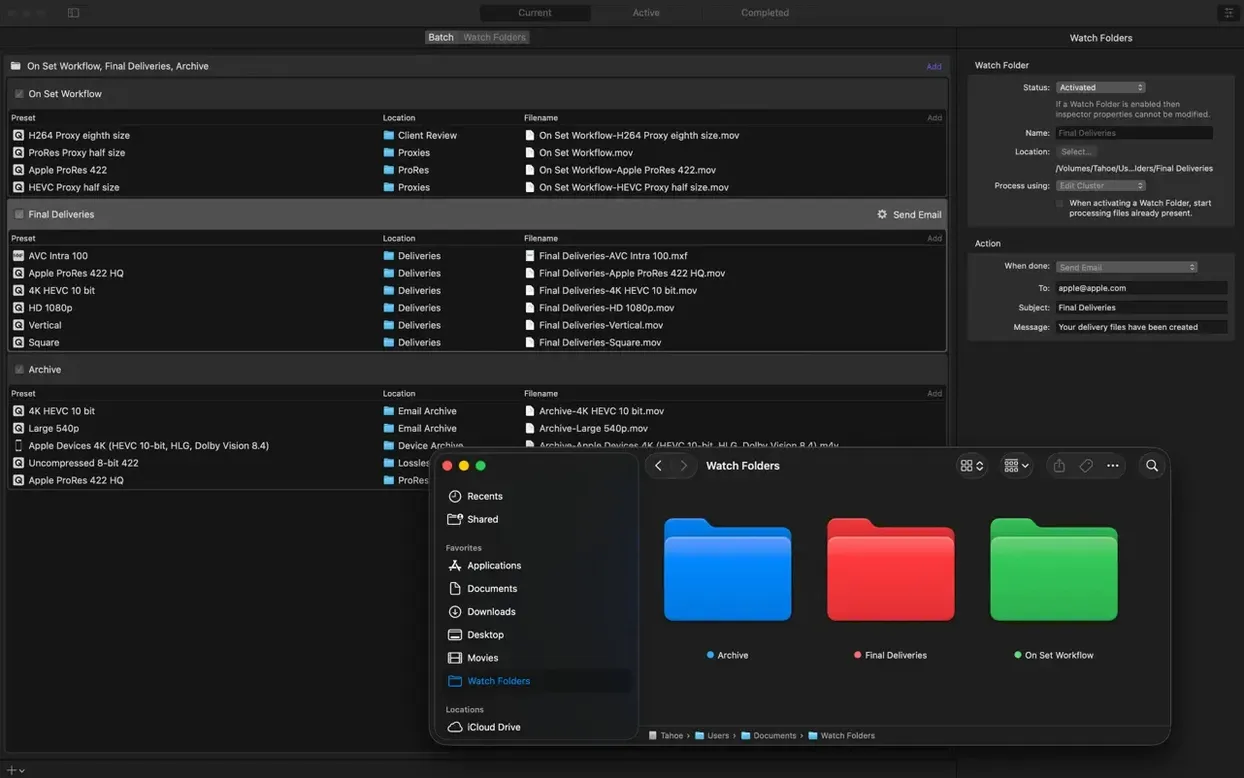
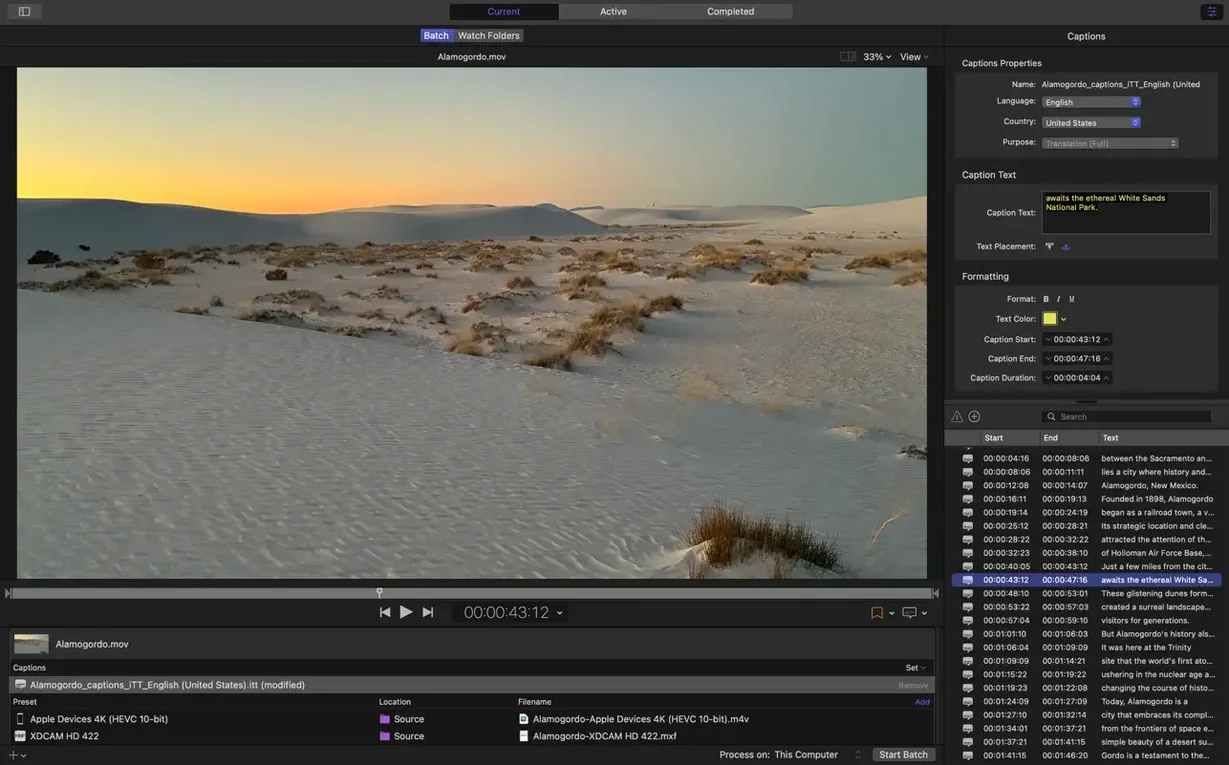
| Requirement | On file |
|---|---|
| macOS | macOS 15.6 or later |
| CPU | Apple Silicon, Intel 64-bit |
| Download | 122 MB |
Compressor is built for video editors who deliver finished timelines from Final Cut Pro, and for post-production teams who need to transcode large batches of camera originals into edit-friendly formats. It shares the same rendering engine as Final Cut Pro and Motion, so an export preset you build here behaves identically when sent straight from the timeline.
| Detail | Spec |
|---|---|
| Current version | 5.3 |
| macOS required | 15.6 or later |
| Architecture | Apple silicon & 64‑bit Intel |
| Memory | 8 GB |
| Disk space | 1.2 GB available |
Open the Settings side panel first. That is where you pick an output format — H.264, HEVC, MXF, or a custom 360° profile — and see exactly which encoder will be used. On Apple silicon Macs, the hardware encoders for H.264 and HEVC handle most jobs without touching the CPU cores. Switch to the Inspector and you can set data rate limits, tweak multi-channel audio down to a 5.1 AAC track, or chain a post-encode action: copy the file to a watch folder, email it, or fire off a script. The real time-saver comes when you add a batch of sources and let Compressor spread them across every available core. For stereoscopic work, the new anaglyph preview and immersive metadata viewer let you check depth and spatial framing before you commit to a long encode.
A Worked Example: Preparing 360° Footage for Apple Vision Pro
A common task with version 5.3 is taking an immersive source shot on a stereo 180° camera and transcoding it into an Apple Projected Media Profile suitable for spatial playback. Here is the full path, assuming you already have the source clips in a folder.
- Drop the folder of 180° MV‑HEVC sources onto the Compressor window. Each clip appears as a separate job. Do not rush to the Settings panel yet.
- Select one job and open the Immersive metadata viewer — new in 5.3. Check that the stereo field of view reads as 180° and that the left‑eye/right‑eye assignment matches the camera. If the metadata is missing or wrong, correct it now; an incorrect FOV tag will produce a warped output.
- Still in the viewer, toggle the anaglyph preview on. Wear a pair of red‑cyan glasses and scrub through a few seconds of motion. Look for objects that push too close to the viewer or edges where the stereo overlap breaks. Flag any clip that needs a depth‑offset adjustment later.
- Now go to the Settings side panel. Under 360° Output, choose Apple Projected Media Profile 180°. The Inspector reveals the exact encode parameters: MV‑HEVC at a base data rate of 50 Mbps, 8 192 × 4 096 per eye, 10‑bit colour. If the source was shot in low light, consider raising the data rate limit — the HEVC data rate limit control on Apple silicon lets you cap or raise it without guessing what the hardware will do.
- For audio, expand the Audio tab. If your source carries ambisonic audio, set it to pass through. If it is a stereo WAV, map it to AAC 5.1 using the new 5.1 AAC option under Apple Device settings; spatial audio services expect at least 5.1 channels.
- Apply the setting to all jobs. Before you hit Start, open the Post‑encode Actions pop‑up. Choose Copy to and point it to the folder where your Motion templates live. That way the transcoded clips are ready for titling or compositing as soon as the batch finishes.
- Start the batch. On a Mac with an M3 Max, a 2‑minute clip encodes in roughly real time using the hardware HEVC encoder. The distributed encoding spreads the six clips across all performance cores, so the whole folder finishes in under 12 minutes.
What you have at the end is a set of correctly tagged immersive files with no extra WAV‑handling step. The 5.3 update removed the earlier requirement to split WAV audio into a separate track before encoding, so the workflow is one step shorter than it was in 5.2.
A Colourist’s Daily Batch
A freelance colourist receives a drive with 84 ARRIRAW clips from a short film shoot. The editorial team cut in Final Cut Pro but the colourist works in DaVinci Resolve, which wants ProRes 4444 XQ at the timeline resolution. The colourist does not open Final Cut Pro at all.
They launch Compressor, drag the entire folder into the batch area, and select the ProRes 4444 XQ setting from the QuickTime group. Because the source is 4.6K Open Gate, they open the Inspector and set the geometry to Scale to 4096 × 2304 — the delivery resolution agreed with the DIT. The frame rate stays at 24.000 fps, matched to the camera original.
With 84 clips and a tight turnaround, the distributed encoding is the reason they use Compressor instead of a command‑line tool. All 16 performance cores on an M2 Ultra Mac Pro engage, and the hardware encoders stay idle because ProRes encoding runs on the CPU. The colourist adds a Post‑encode Action to run a short shell script that renames each output file to match the scene‑shot‑take convention the post house uses. By the time they finish a coffee, the batch is done and the files are sitting in the Resolve media pool folder, correctly named.
Duplicate a Job for Instant Dual‑Format Output
Right‑click any job in the batch list and choose Duplicate Job. Drag a different setting onto the copy. Now you have two outputs from one source — an H.264 review proxy and an MXF master — without adding the source twice. The duplicate remembers the source file path, so it still picks up any metadata changes you made in the Inspector.
Hold the Option key while opening the Settings side panel. Every built‑in preset expands to show its exact codec, colour space, and bit depth in the tooltip. This is the fastest way to check whether a preset uses 8‑bit or 10‑bit encoding without opening the Inspector.
If you regularly create the same kind of output — say, a 25 MB video compressor for client approvals — build it once as a custom setting, then drag it to the Favourites section at the top of the Settings panel. Favourites sync back to Final Cut Pro automatically; the next time you use the Share menu, your “Client review 25 Mbps” preset appears right there in the destination list.
When you need a specific character from a hardware compressor — an 1176 style compressor or an 1176ln compressor emulation does not exist in Compressor, but the audio filters panel includes a dynamics processor with adjustable threshold, ratio, attack, and release. Dial in a 4:1 ratio, fast attack, and program‑dependent release, and you get a reasonable approximation of an 1176‑style squash for voice‑over tracks before they hit the AAC encoder. Save it as a named audio effect preset and apply it to any job with commentary audio.
For users who manage media libraries, the accessit compressor workflow is worth knowing: if your facility uses Accessit for asset management, Compressor’s post‑encode script action can trigger an Accessit ingest watch folder. Drop a shell script that runs curl with the Accessit API endpoint and the new file path, and every transcoded asset registers in the MAM without manual entry.
Metadata Viewer Catches Stereo Errors Before Encoding
The immersive metadata viewer is the most visible change. Before 5.3, you encoded a 180° stereo clip and only discovered a metadata error when playback showed a flat or misaligned image. Now you catch the problem in the viewer before encoding starts. The viewer reads the embedded spatial metadata directly from the MV‑HEVC container and overlays the stereo field of view, so a clip tagged as 360° when it is really 180° is instantly obvious.
The removal of the WAV‑file requirement for immersive sources is a quiet but significant time‑saver. Older versions refused to transcode an immersive source unless the audio was split into a separate WAV file alongside the video. 5.3 reads the audio track directly from the MV‑HEVC source, so a folder of camera originals can go straight into Compressor without a pre‑processing step in another tool.
On Apple silicon Macs, the new HEVC data rate limit controls give you a hard ceiling on bitrate. Previously, the hardware encoder could spike above the target data rate on complex frames, causing problems for streaming delivery where a strict cap is required. Now you set the limit in the Inspector and the encoder respects it exactly.
The 5.1 AAC option under Apple Device settings means you no longer need a separate audio preset for spatial audio deliverables. A single Apple Device setting can now carry 5.1 channels into an MP4 container, which matches what Apple TV and Vision Pro expect for surround playback.
One MXF Preset Appears in Every Final Cut Share Menu
Final Cut Pro editors who deliver to broadcast. The direct integration means you build an MXF preset with the exact EBU R128 loudness spec once, and it appears in the Share menu for every project. No round‑tripping through another transcoder. The distributed encoding also takes the export load off Final Cut Pro, so you can keep editing while a batch encodes in the background.
Post‑production facilities with shared storage. A facility with an Xsan or a fast NAS can install Compressor on a dedicated Mac mini or Mac Studio and use the post‑encode actions to move transcoded files into department watch folders. Editors drop source files into a hot folder, Compressor picks them up, and the colourist sees the transcoded files appear without anyone sending an email.
Motion graphics artists working with immersive video. The new 180° Apple Projected Media Profile output and anaglyph preview make Compressor the sensible bridge between a stereo camera rig and Motion’s 360° titling tools. An artist can transcode, verify depth, and open the result in Motion without leaving the Apple pro video ecosystem.
Anyone who needs a reliable 25 MB video compressor for review copies. Building a custom H.264 setting with a 25 Mbps data rate cap and a 1080p frame size takes under a minute. Saved as a favourite, it becomes a one‑click export from Final Cut Pro or a drag‑and‑drop batch operation for a folder of rushes. The hardware encoder on Apple silicon handles it fast enough that a 10‑minute timeline finishes in under two minutes.
- Immersive metadata viewer — inspect spatial metadata before encoding.
- 180° output — added Apple Projected Media Profile support.
- Stereoscopic preview — new anaglyph option for depth checks.
- Apple Device audio — 5.1 AAC option now available in export settings.
- HEVC data rate — rate limits supported on Apple silicon devices.
- Immersive sources — transcode without WAV files to Apple Immersive outputs.
- macOS 15.6 or later
- Apple silicon or 64‑bit Intel processor
- 8 GB memory
- 1.2 GB available disk space
Questions on file
Can Compressor use my Mac's hardware encoders?
Yes. On Apple silicon and compatible Intel Macs it taps dedicated hardware encoders for H.264 and HEVC, which keeps the CPU free during common exports.
Does it handle 360° and stereoscopic video?
It includes custom output settings for 360° video, an anaglyph preview option for stereoscopic footage, and support for 180° Apple Projected Media Profile output.
Sign in · Create an account to add a field note.
No field notes yet. A measurement, a version, a machine — they appear after moderation.