Mac Apps
Cursor Pro 2.4
Mac AppsUpdated
| Requirement | On file |
|---|---|
| macOS | macOS 11 or later |
| CPU | Apple Silicon, Intel 64-bit |
| Download | 30 MB |
If you have ever relied on the built-in cursor-shake-to-locate feature and found it too brief for a room full of people, Cursor Pro takes that idea and builds a proper toolkit around it. The app keeps your pointer visible during presentations, remote teaching sessions, or when you are simply wrangling a high-resolution display, by adding a persistent highlight and an on-demand magnifier.
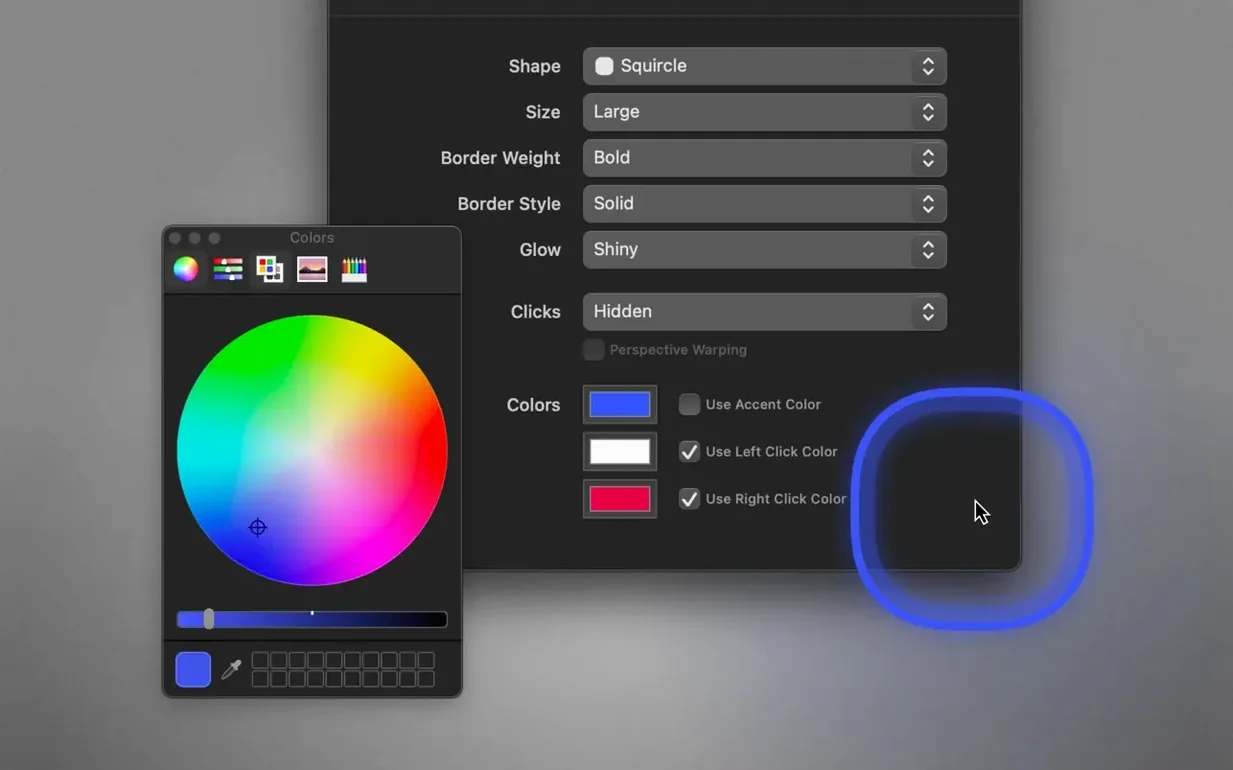
Tune the Glow Radius and Colour for Your Desktop
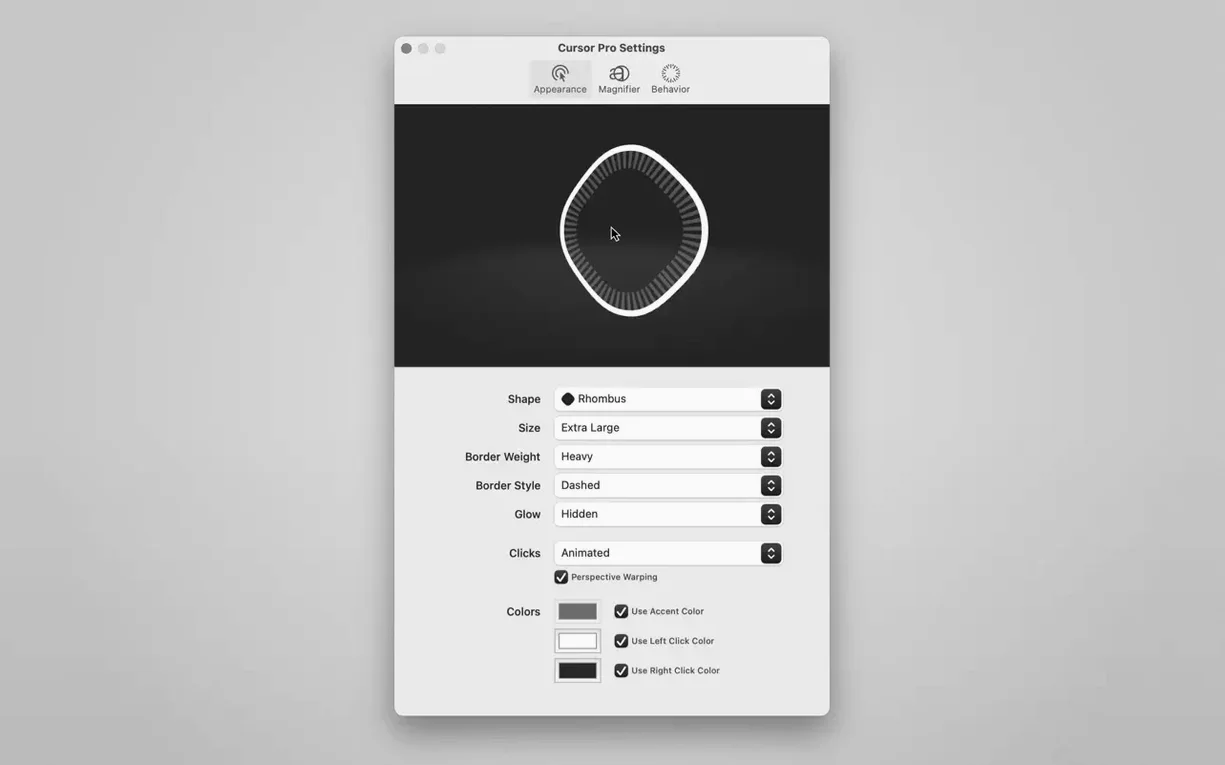
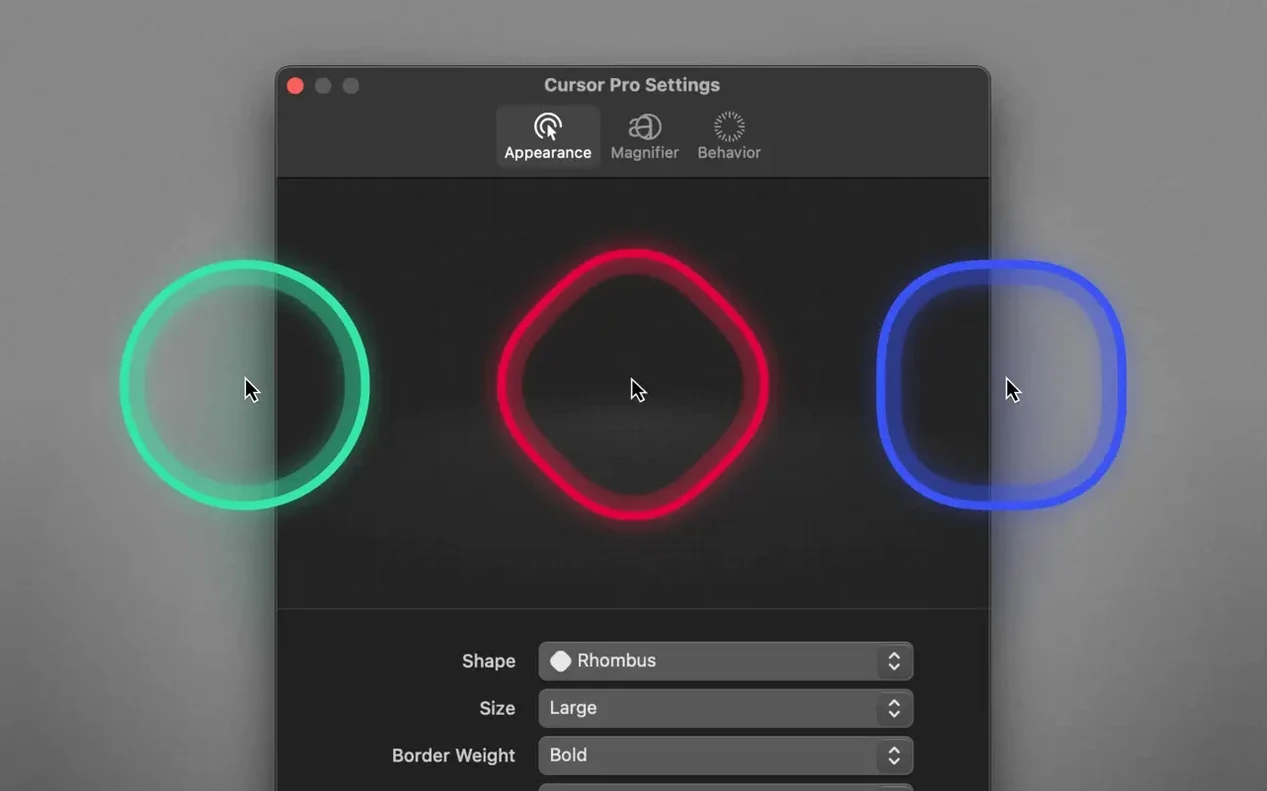
- Set a glow that suits your desktop. Open the Pointer Highlight pane and pick a shape. The glow radius and colour can be tuned so the cursor stands out against a busy IDE or a dark slide deck without looking garish.
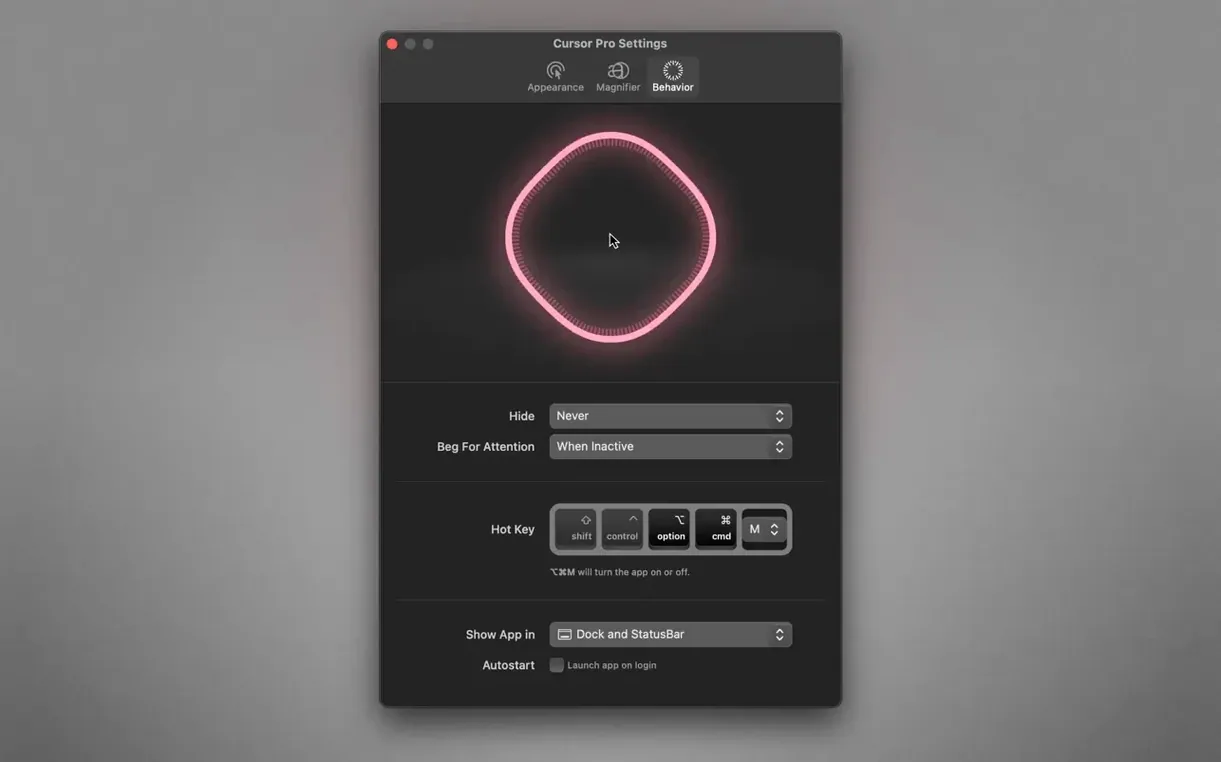
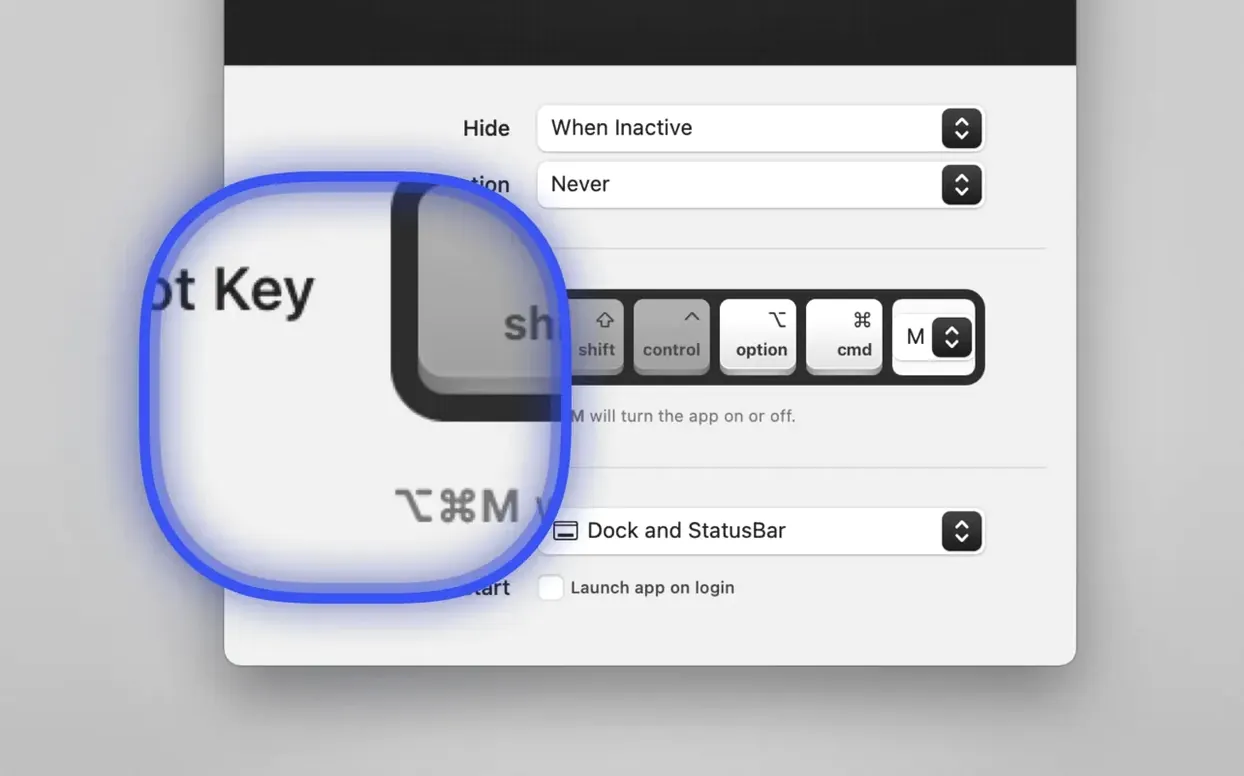
- Assign a global hotkey. Go to the Shortcuts tab and record a key combination you will remember. This lets you toggle the highlight or magnifier without ever leaving your active app.
- Enable auto-hide behaviour. In the General settings, tell the app to hide the highlight when you are typing. It keeps the effect out of your way during focused work and brings it back the moment you reach for the pointer.
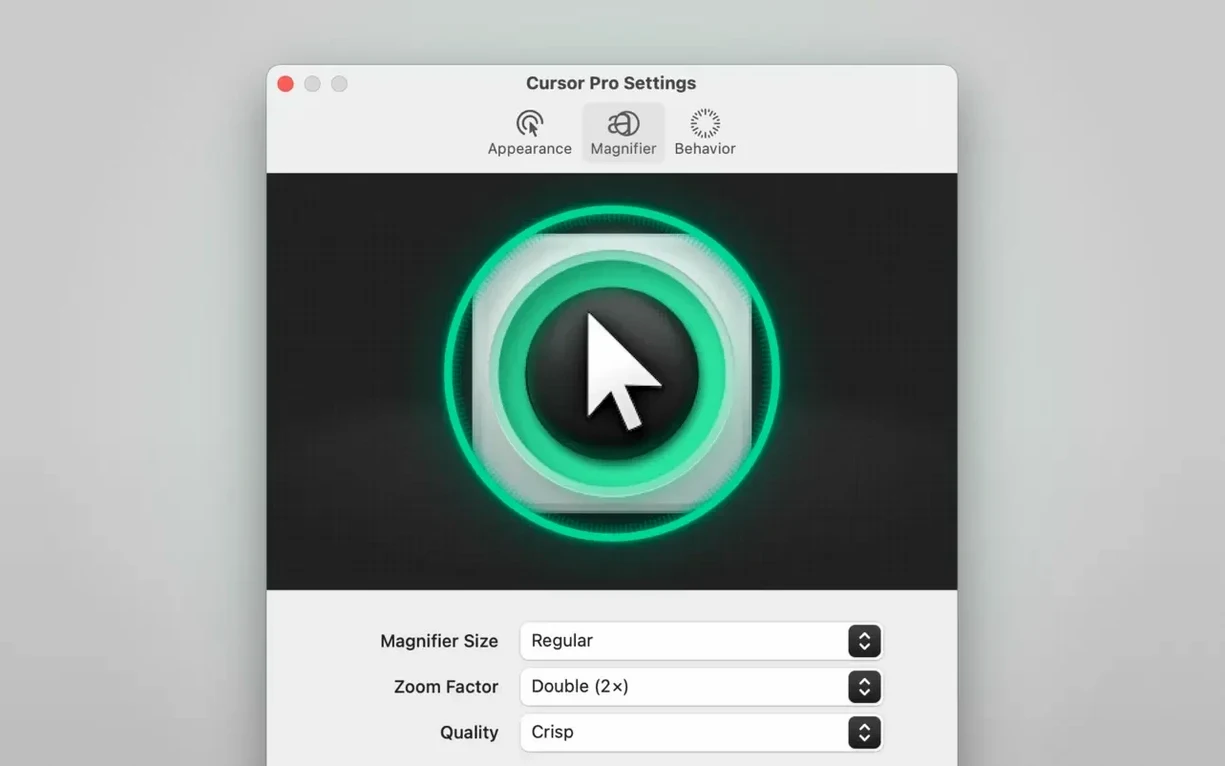
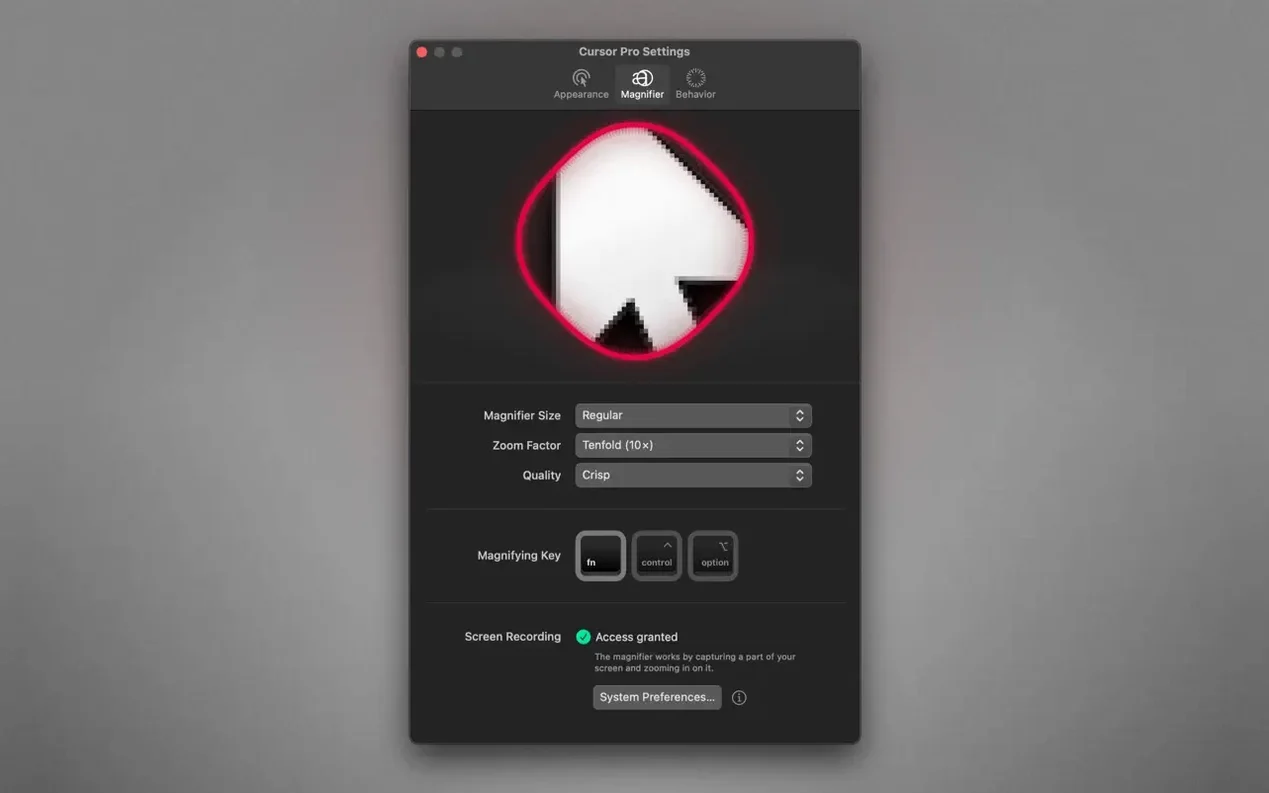
- Configure the magnifier zoom. Drag the zoom slider to a factor that lets you read small UI labels or code during a screen share, then test it with the hotkey. A factor around 2× tends to be useful without disorienting viewers.
- Try the pulse effect. When a single glow is not enough to direct attention, a brief pulse on click acts like a visual tap on the shoulder—practical for live demos where you need eyes on a specific button.
Once these five pieces are in place, the app tends to fade into the background. It reacts to your input, stays quiet during typing sessions, and surfaces only when an audience needs to follow your cursor.
How the Highlight Layer Works with Screen Recorders
One question we see often is whether Cursor Pro interferes with screen-recording tools. The highlight layer and magnifier render on top of the macOS compositor, so any app that captures the whole display—OBS, Zoom screen share, QuickTime—picks them up without extra configuration. The exception is window-level sharing: if you share only a single app window instead of the full desktop, the overlay normally sits outside the capture bounds. For meetings and tutorials, set your sharing tool to full-screen or desktop mode.
People also ask about performance on older Intel machines. The drawing path uses Metal, which keeps GPU usage low even when the magnifier tracks rapid cursor movements across a 4K display. On a 2018 MacBook Pro with integrated graphics, the magnifier at 2× adds roughly 3–5% GPU load. Apple Silicon Macs handle it without a measurable bump in activity monitor.
Another recurring point: does the app need Accessibility permissions? Yes—the highlight and magnifier rely on the Accessibility API to read cursor position and draw over system-level elements. On first launch the app walks you through System Settings > Privacy & Security > Accessibility. Granting the permission once is enough; the app does not request screen recording or input monitoring access.
Sample Any Pixel with Drag-and-Drop Colour Matching
- Drag-and-drop colour sampling. In the Pointer Highlight colour well you can drag the eyedropper outside the preferences window and sample any pixel on screen. Match the glow to a brand colour in a slide deck or tone it down with a neutral grey from your desktop wallpaper.
- Status-bar-only mode. In General settings, uncheck "Show in Dock" and leave only the menu bar icon active. The app occupies no Dock space, and a single click on the bar icon opens the full preference panel without pulling focus from a presentation.
- Right-click the menu bar icon. A context menu offers quick toggles for the highlight, magnifier, and pulse effect. During a live demo you can switch the magnifier on or off in under a second with no keyboard shortcut to recall.
- Shape-specific behaviour with the diamond. The diamond highlight rotates its orientation to match cursor movement direction during fast swipes, which makes it easier to trace a path across a diagram or spreadsheet when the circle shape would blend into grid lines.
- Zoom follows the cursor, not the click target. The magnifier lens tracks pointer position continuously, not just when you click. That means you can hover over a tiny interface element, read its label through the lens, and then click without repositioning.
Prepping a Remote Database Workshop with Menu-Bar-Only Mode
Imagine a trainer preparing for a remote workshop on database queries. The session starts ten minutes before attendees join. They open Cursor Pro from the menu bar—no Dock icon, nothing to minimise accidentally later. The highlight is already configured: a soft orange circle with a 12-pixel glow radius, visible against the dark theme of their SQL editor and the white background of their slide notes.
They open System Settings quickly to confirm the Accessibility permission is still active; it is, so no interruption mid-session. A global hotkey, Control-Option-H, toggles the highlight. Another, Control-Option-M, fires up the magnifier at 2.5×. Both shortcuts are chosen to avoid conflicts with the IDE's own key bindings.
The workshop begins with a slide deck in full screen. Cursor Pro's auto-hide is off for this part—slides have no text fields, so the highlight stays visible the whole time. The trainer points to a query structure on slide four, and the orange circle stays put around the pointer without a jittery shake gesture. Attendees on low-bandwidth connections, where video compression can smear fine details, later mention they could follow the pointer clearly throughout.
Twenty minutes in, the trainer switches to a live coding environment. The moment they click into a query editor, auto-hide kicks in: the highlight disappears while typing, reappearing as soon as the pointer moves. When explaining a nested subquery with small font, they hit Control-Option-M. The magnifier opens centred on the cursor, large enough that the Zoom chat window on the second monitor still shows the enlarged text legibly. They drag the lens a few pixels left to reveal a column name cut off by the editor's sidebar, then dismiss it with the same hotkey.
During Q&A an attendee asks about a specific button in the toolbar. The trainer clicks it, and the pulse effect fires—a quick radial expansion from the click point that draws the eye exactly where it is needed. No verbal description required. After the session ends, they right-click the menu bar icon and toggle everything off. The app sits idle, using less than 40 MB of memory until the next workshop.
Designed to Stay Out of the Way Until You Need an Audience
Cursor Pro is not a general-purpose utility in the sense that every Mac user will open it daily. Its design gets out of the way for solo work, which means the people who extract real value from it tend to fall into a few distinct groups.
Presenters and trainers are the most obvious fit. Whether you run in-person workshops with a projector or remote sessions over Zoom, the combination of a persistent glow and a click pulse removes the need to narrate cursor position. The magnifier also reduces the temptation to bump up the system-wide display scaling before a talk; you can keep your native resolution and zoom only the parts an audience needs to read.
Screen-recording creators—people who produce software walkthroughs, tutorial videos, or UI reviews—get a post-production advantage. Instead of adding cursor effects in an editor, they bake the highlight into the recording live. The colour and shape customisation means they can maintain a consistent visual style across a video series without re-rendering a single frame.
Users of large or multi-monitor setups often lose track of the default macOS pointer. On a 5K or 6K display the standard cursor is tiny. A subtle glow reduces the time spent wiggling the mouse to find it. If you work with a 32-inch 4K monitor placed at arm's length, the magnifier also doubles as a quick reading aid for interface text that macOS scaling does not enlarge.
Accessibility-conscious users who need more than the system cursor enlargement will find the combination of highlight, pulse, and magnifier useful for reducing eye strain during long screen-sharing days. The auto-hide behaviour respects typing flow and avoids visual noise when the pointer is not the focus of attention.
- macOS 11 or later
- Apple Silicon or Intel 64-bit processor
Questions on file
Which macOS versions does Cursor Pro support?
It runs on macOS 11 (Big Sur) and later, on both Intel and Apple Silicon Macs.
Can I change the look of the pointer highlight?
Yes, the highlight shape and glow are customisable. You can adjust colour, radius, and style to match your desktop or presentation theme.
Does the magnifier stay on screen all the time?
It can, but the intended workflow is to toggle it with a global hotkey. The zoom factor is configurable so you can set a default that works for your screen size.
Sign in · Create an account to add a field note.
No field notes yet. A measurement, a version, a machine — they appear after moderation.