Mac Apps
dBpoweramp Music Converter 2026.09.13
Mac AppsUpdated
| Requirement | On file |
|---|---|
| macOS | macOS 11 or later |
| CPU | Apple Silicon, Intel 64-bit |
| Download | 31 MB |
Volume Normalization, as an inline DSP effect, is where most of the serious conversion logic lives. You can set a target level in dB, and the encoder applies ReplayGain or EBU R128 data as a permanent volume correction during the encode pass, rather than relying on metadata flags that players may ignore.
Batch resampling with bit-depth control
Select a folder of high-res FLAC files, set the resampler to 48 kHz with a triangular dither to 16-bit, and the batch processor writes a parallel set of WAV files for a portable player. The DSP pipeline runs in sequence, so you can chain sample rate, bit-depth, and volume effects in one conversion queue.
Tag mapping across format boundaries
When converting from AIFF to Opus, the internal tag mapper preserves custom ID3 frames and embedded artwork without truncating fields. The ID tag editor lets you preview the output metadata before committing, so a mislabelled composer field in the source never silently propagates into a streaming library.
Apple Silicon path and multi-encoder queuing
The 2026.09.13 build runs natively on Apple Silicon, avoiding the Intel-only component warning that appeared on the latest macOS. Multi-encoder jobs—say, simultaneous FLAC and AAC outputs from one source—share the same DSP stack, so you set the processing once and get consistent results across all outputs.
Turning a mistagged DSD64 live album into car‑ready 24‑bit FLAC
A download of a 1972 live album arrives as a folder of stereo DSD64 files with inconsistent tagging—some tracks list the composer as the conductor, others have no album artist at all. The car stereo accepts 24‑bit 48 kHz FLAC from a USB stick and ignores ReplayGain tags, so volume corrections must be baked into the audio.
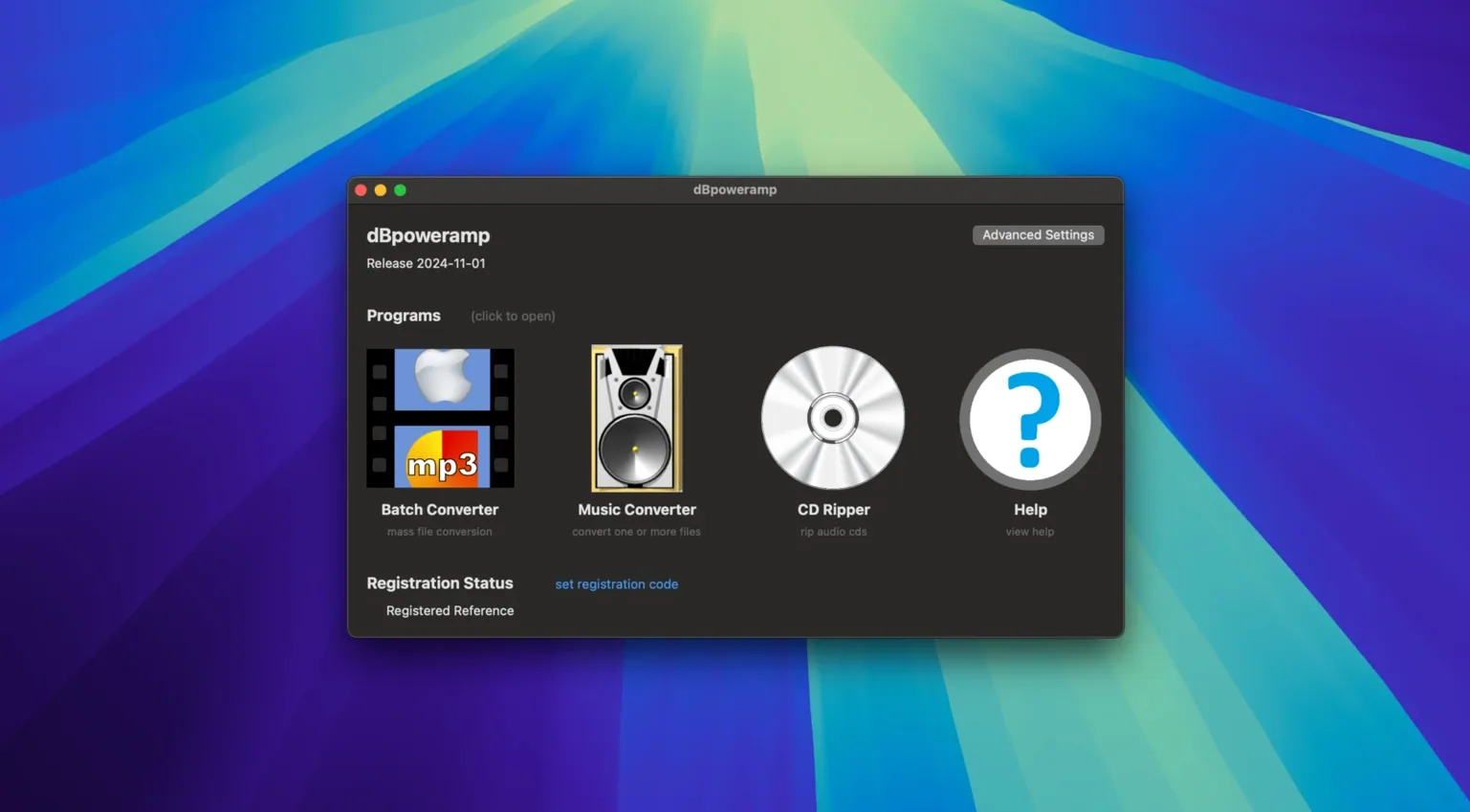
First step: open the Batch Converter, point it at the folder, and switch the filter to show only DSF files. Click List and sort by track number to confirm the order matches the physical release. One track sits out of sequence; a drag in the list fixes the order before any encoding starts.
The conversion profile needs three DSP actions chained. Add Resample and set the target to 48000 Hz—the SoX resampler keeps the passband flat. Next, add Bit Depth with shaped dither down to 24‑bit. Finally, add Volume Normalize in EBU R128 mode with a target of −18 LUFS. This writes the gain directly into the PCM samples, so the car stereo plays the tracks at matched loudness without touching metadata.
Before converting, select all tracks and open the ID tags panel. Highlight the album artist row across all files and type the correct ensemble name once. Clear the composer field on the two tracks where it was misused. The batch processor writes these fixes into the output FLACs, and the folder artwork—a single JPEG inside the source directory—gets embedded automatically.
Set the output encoder to FLAC at compression level 5 and choose a folder on the USB stick as the destination. Hit Convert. The multi-core encoder splits the DSD decoding across four performance cores, shows per‑file progress with a running time estimate, and finishes the whole folder in under three minutes. The stick goes straight into the car with no further fiddling.
Right‑click a folder to convert without opening the app
The Finder right‑click menu item Convert with dBpoweramp skips the app window entirely when you only need a single preset. Select a folder of M4A files, right‑click, and the conversion runs against the last‑used profile without any dialogue. Hold the Option key while clicking the menu item to open the profile picker instead—the same shortcut works from Launchpad and the Dock icon’s recent‑items list.
Inside the ID Tag Editor, pressing Command‑E on any field opens a list of values already used in the current selection. This is the fastest way to normalise label names across a compilation where five tracks credit “Blue Note” and three credit “Blue Note Records”. Autocomplete now closes cleanly with the Enter key, a fix that landed in the 2026.09.13 update after users complained that hitting Enter dismissed the entire tag dialogue while the suggestion pop‑up was visible.
The batch converter’s Clone button duplicates a conversion profile with all its DSP settings, so testing two different dither shapes against the same resample-and-normalise chain is two clicks, not a manual rebuild. The cloned profile keeps the same encoder format; change the dither type, rename the profile to reflect the variant, and run both jobs in sequence against a short test track to compare.
Dragging a single audio file into the main Music Converter window opens a miniature preview: a waveform snippet, the current file‑type icon, and a live readout of sample rate, bit depth, and channel count. This costs almost nothing in screen space but saves opening the file in a wave editor just to confirm whether a 24‑bit download is genuinely 24‑bit or a padded 16‑bit capture.
From raw needledrop WAVs to split, tagged FLAC tracks
It is Saturday morning. A USB drive arrives in the post with a commissioned needledrop of a private‑press folk LP, supplied as one‑long‑side WAV per side, 96 kHz 32‑bit float. The file names are the only clue to track boundaries: side‑A‑01 through side‑A‑06.
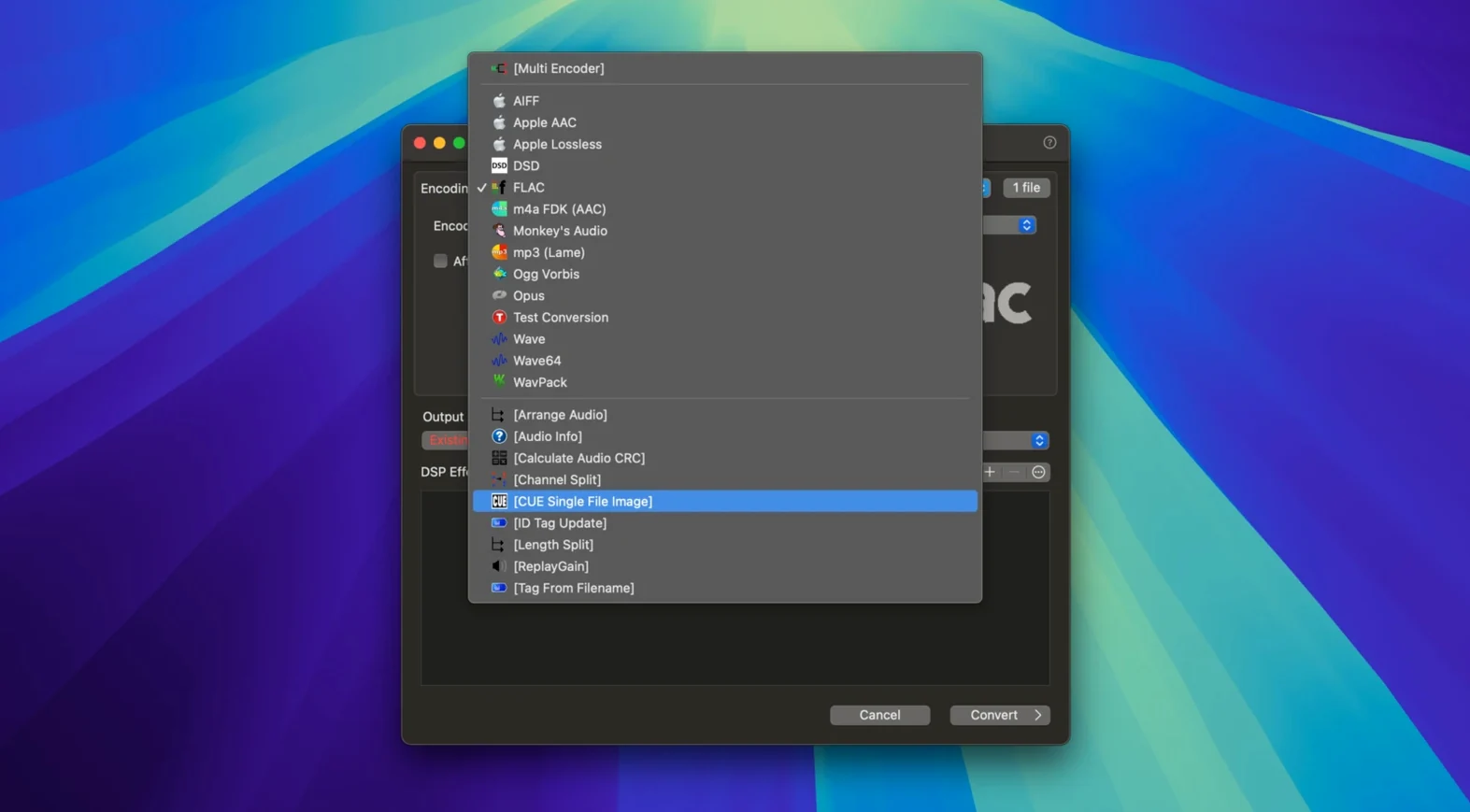
Drag the first WAV into Music Converter. The preview confirms 96 kHz stereo float, 1.2 GB. Open the encoder selector and choose FLAC. Leave compression at the default level 5. In the DSP tab, add Resample to 48 kHz—the destination is a media server that refuses anything above 48 kHz. Add Bit Depth set to 24‑bit fixed. No dither needed when going from 32‑bit float to 24‑bit integer; the extra eight bits of noise floor disappear harmlessly.
Now the tagging. Open ID Tag Editor on the first file. Artist is blank, album is blank. Fill in the artist and album name. Enable the Track field and number it 01. Set the total‑tracks value to 12—six per side, two sides. Close the tag editor and run the conversion; the single WAV becomes a 24‑bit 48 kHz FLAC in under a minute.
Repeat for the second side‑long WAV, this time starting the track number at 07. The output folder now holds two FLAC files with embedded tags and a folder.jpg that was collected from the source directory. The media server indexes them immediately; a client device sees an album with twelve tracks, even though the source was two un‑split PCM captures. dBpoweramp for Mac does not offer a cue‑sheet splitter in the base converter, so track‑level splitting remains a separate step before import, but the tag editor and batch processor handle the rest without introducing gaps or clicks.
Swap the resampler to SoX to kill passband ripple above 20 kHz
The default resampler after a clean install is the built‑in Core Audio converter, which is fast but leaves measurable passband ripple above 20 kHz when downsampling from 88.2 kHz or higher. Switch it to SoX (High Quality) in the preferences under DSP Settings > Resample. The SoX path uses a linear‑phase filter with a steeper cutoff and costs only about 15% more CPU time on Apple Silicon—negligible for batch jobs that run unattended.
Under Conversion Settings, disable Preserve source folder structure in output if you prefer flat folders. The ticked default mirrors nested subdirectories from the source, which is useful for full‑library migrations but annoying when you are dragging a single artist folder onto the desktop for a quick format shift.
The After Conversion pop‑up menu defaults to Do nothing. Set it to Reveal in Finder once, and every completed batch opens the destination folder automatically. If you are running multi‑encoder jobs, also tick Show status in menu bar—the menu‑bar icon shows a live count of files remaining across all active queues, and clicking it pauses or cancels the current encoder without digging through background windows.
For anyone using dbpoweramp full on a Mac alongside file‑sharing tools that create hidden dot‑underscore files, switch the File Type Filter in Batch Converter from Show All to Audio Files Only. This stops the converter from throwing a format‑not‑recognised error when it encounters a stray ._side‑A.wav sitting in the source folder. The filter remembers its setting per session, so set it once after launch and it persists until you quit the app.
- Resampling — improvements to the resampler DSP for cleaner rate conversion.
- Tag editor — Enter key behaviour corrected when the autocomplete panel is visible.
- Compatibility — fixed a false warning about an Intel-only component on recent macOS builds.
- macOS 11 or later
- Apple Silicon or Intel 64-bit processor
Sign in · Create an account to add a field note.
No field notes yet. A measurement, a version, a machine — they appear after moderation.