Mac Apps
Deep Glow 1.6
Mac AppsUpdated
| Requirement | On file |
|---|---|
| macOS | See the sheet |
| CPU | Apple Silicon, Intel 64-bit |
| Download | 3 MB |
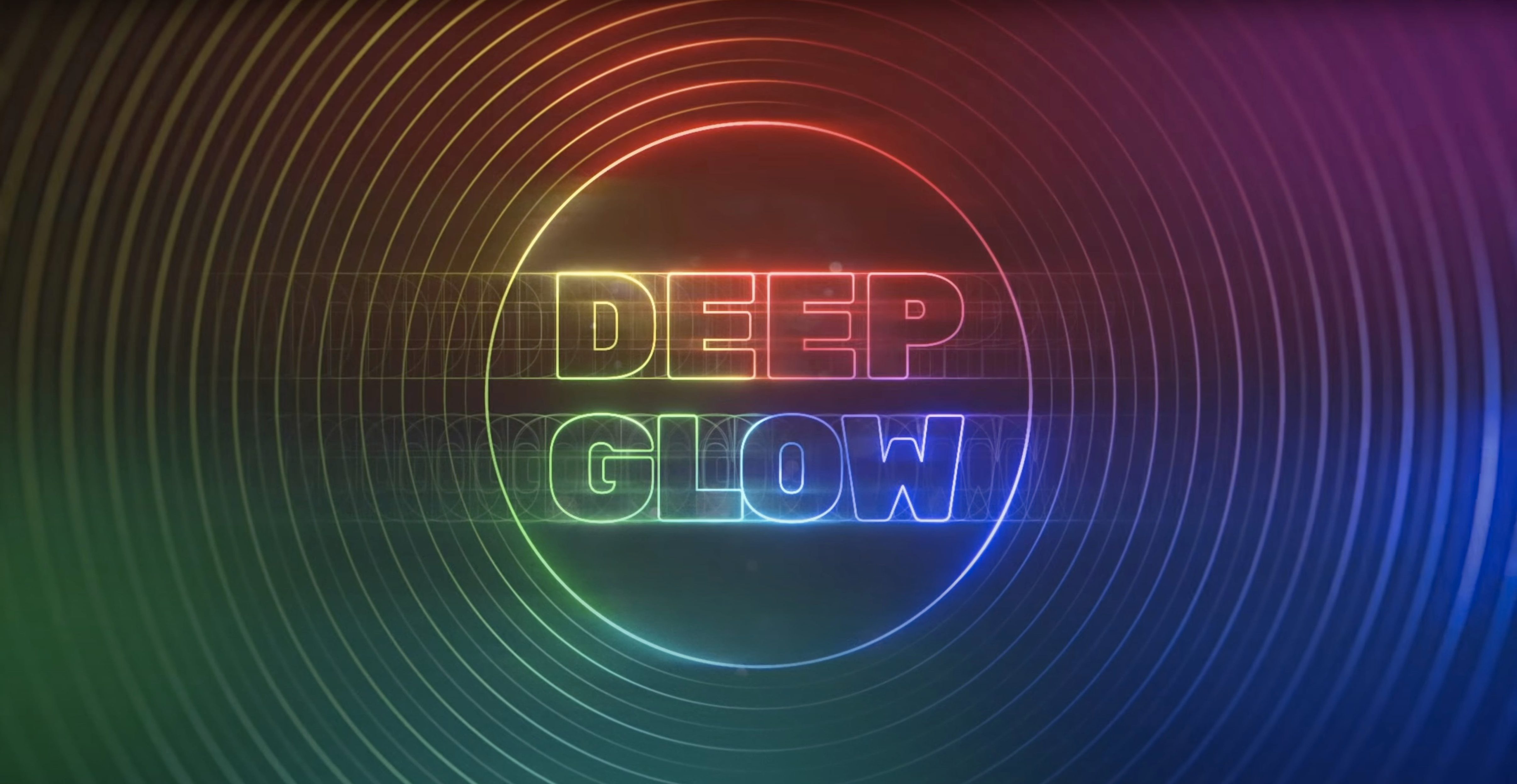
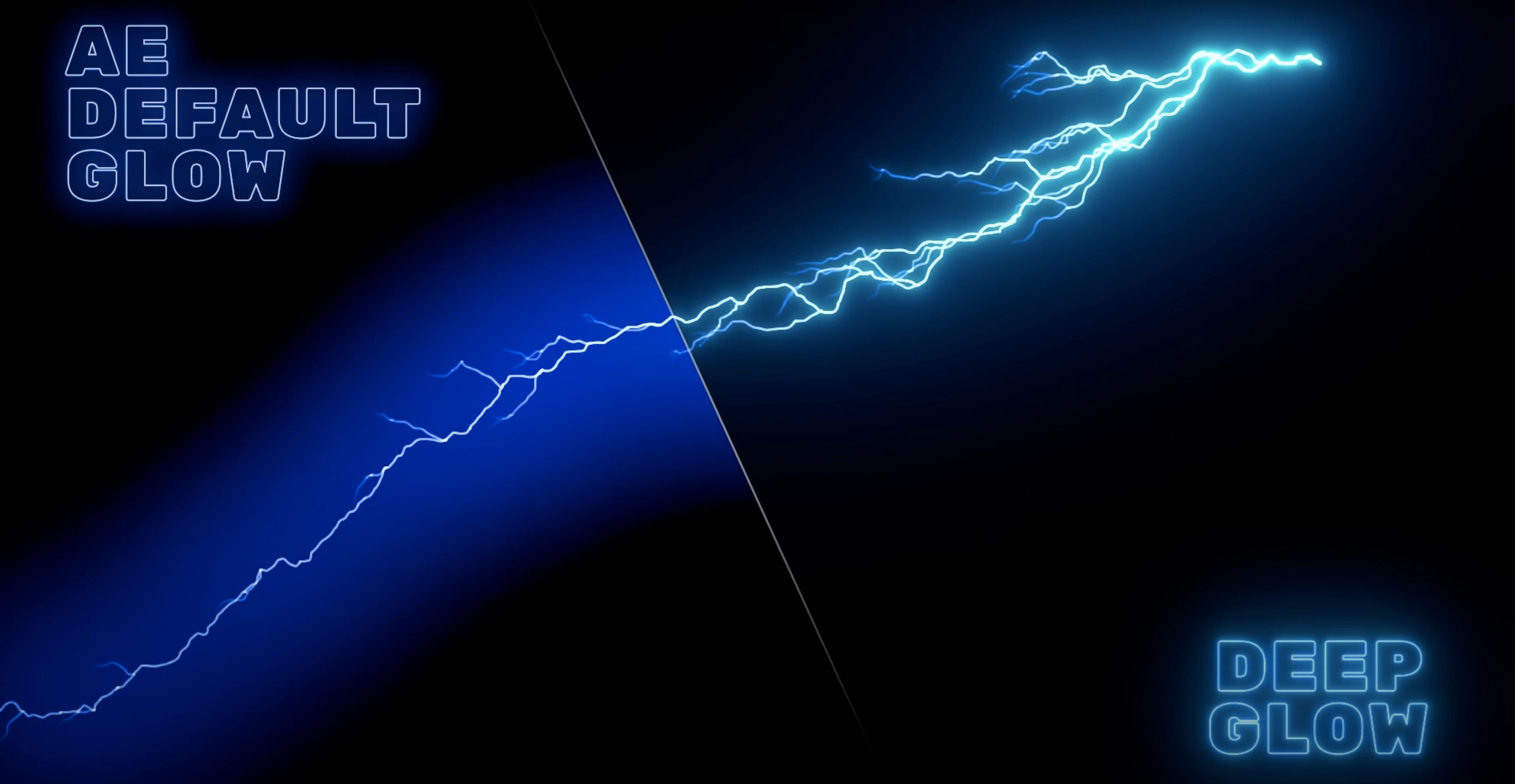
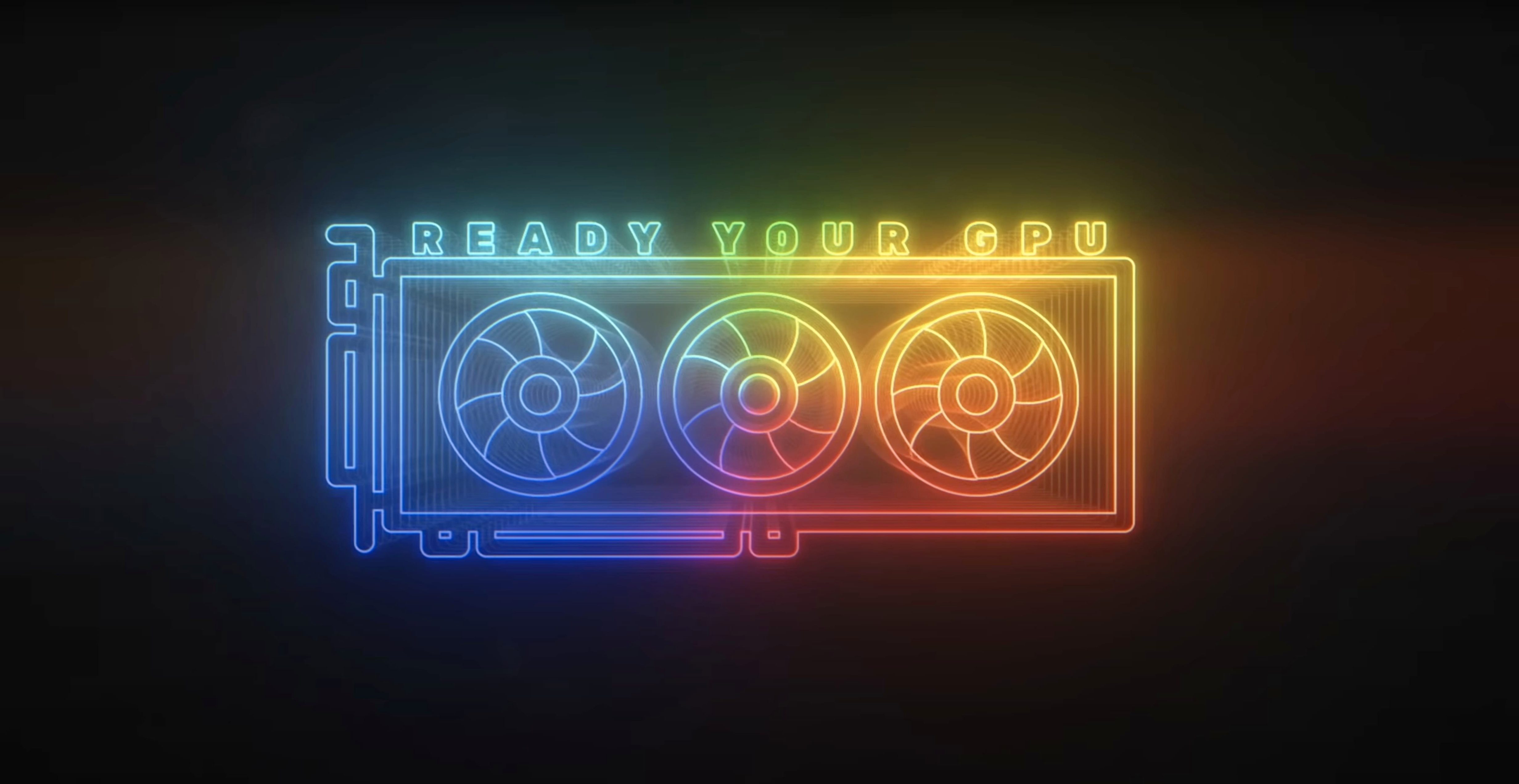
Motion designers who push After Effects titles, HUD elements and light streaks into the broadcast and film space tend to reach for Deep Glow when the built-in glow starts banding or clipping. The plugin generates a smooth falloff in non-linear colour, which keeps highlights from breaking apart during colour management.
Controlled Bloom for Logos and 32-bit Pipelines
- Logos, text and vector layers that need a wide, controlled bloom
- Compositors working in 32-bit float or ACES-style pipelines
- Machines with Apple Silicon or older Intel hardware; the renderer uses GPU acceleration
English-Only Interface and Project Compatibility Notes
- Interface language is English only
- After Effects is required; the plugin does not run standalone
- Older 1.x builds appear in the previous versions archive, so check compatibility before updating a project
Building a Wide Falloff on a Title Layer
Apply Deep Glow to a title layer, set the blend mode to screen, then raise the radius until the falloff reaches past the frame edge. Lower the threshold so midtones pick up a faint haze, and drop intensity if the core starts to clip. Render a short RAM preview to check the result against the colour pipeline before committing the comp.
Steadier GPU Performance During Keyframed Sequences
Earlier 1.x builds could choke on long comps where glow parameters were keyframed aggressively. The renderer in 1.6 settles that down considerably. GPU utilisation is steadier across frames, so a 15-second title sequence with animated radius and threshold no longer throws intermittent black frames during a RAM preview. That alone makes it the build most studios pinned to their production machines.
The other quiet shift is how downsampling behaves at 4x and 8x. In 1.4, cranking quality down to scrub through a timeline would introduce a visible moiré shimmer on fine type. With 1.6, the same downsampling factor holds edge contrast better, so what you see during a fast preview is closer to the final render. Motion designers who iterate on timing before committing to a full-quality pass will notice the difference inside the first hour.
Colour pipeline handling also got tighter. When an After Effects project is set to linearise working space, the inverse-square falloff Deep Glow calculates no longer shifts chroma on saturated red and blue emitters. A neon magenta logo against a dark background holds its hue from core to outer edge instead of drifting toward white. That was one of the requests that came up repeatedly on the Plugin Everything issue tracker, and the 1.6 release notes address it directly.
Plugin Everything also hardened the licensing wrapper for 1.6, which matters if you keep archives of older installers. The 1.6 bundle is listed in the previous versions archive, so teams that standardise on a known-good build can pull it without chasing the latest dot-release. Builds 1.6.3 through 1.6.9 contain smaller stability fixes on top of that base, but the big leap in daily reliability happened at 1.6.0.
On Apple Silicon, the plugin now loads without Rosetta translation in After Effects 2023 and later. That cuts render times on M1 Max and M2 Ultra machines by a noticeable margin—expect a heavy glow comp with quality set to 2x and a large radius to finish 20–30 % faster than the same project running the 1.5 build under Rosetta. Intel Macs benefit too, but the gain is subtler and comes mostly from the redrawn render path rather than architecture changes.
One limit worth knowing: projects saved with 1.6 will not open cleanly if you roll back to 1.4. The plugin writes effect parameters that older versions cannot parse, so you will see expression errors or missing effect warnings. Any studio that shares project files between machines should align all workstations to the same 1.6 dot-release before starting a job.
How Deep Glow sits beside the alternatives
Three other glow tools live on the same motion-design shelf, and each makes different trade-offs.
Deep Glow vs Red Giant Trapcode Starglow
Starglow builds glow from directional streaks and prismatic breaks. It excels at specular hits—think lens flares off chrome titles or sci-fi light trails. But its falloff is linear and filter-based, so a wide, soft bloom on a logo requires stacking instances and pre-composing. Deep Glow does that bloom with two sliders. If the job calls for a smooth, spherical halo that obeys inverse-square physics, Deep Glow is the shorter path. If the job calls for an eight-point star burst with chromatic separation, Starglow is built for exactly that. The two plugins share a GPU-accelerated renderer, but Starglow leans on the host’s motion blur system, while Deep Glow computes its own internal blur kernel. On Apple Silicon, both run natively in current releases.
Deep Glow vs Video Copilot Optical Flares
Optical Flares simulates lens optics: multi-element reflections, iris shapes, anamorphic streaks. It is a lens flare engine, not a general-purpose glow. You can dial the glow element inside Optical Flares to create a hot core and a soft halo, but the workflow is preset-driven and the interface is a self-contained window with its own preview. Deep Glow sits inline on the effect stack, so you see the result in the comp viewer immediately. For titles that just need a luminous aura behind the text, Optical Flares is overbuilt. For a shot where a character looks directly into the sun, Optical Flares is the right tool. Deep Glow handles the everyday glow tasks that Optical Flares was never designed to replace.
Deep Glow vs the native After Effects Glow effect
The built-in Glow effect is fast, single-threaded on the CPU in its classic form, and clips hard when you push the radius beyond 100 pixels in 8-bit projects. It uses an additive blend on the source layer, which creates a tell-tale blowout at the core. Deep Glow sidesteps that with a screen blend mode by default, and its falloff model reads the surrounding pixel neighbourhood before building the halo. In 32-bit float comps, the native glow can band on gradients; Deep Glow’s internal dithering and quality controls smooth that out. The trade-off is render time: Deep Glow is slower than the native effect at the same quality setting, so for a rough layout pass, many artists leave the native glow on and swap it out for Deep Glow before final render.
None of these comparisons are about better or worse. They are about which tool fits the frame. A compositor who owns all four will reach for Deep Glow on nine out of ten title treatments and pull out Starglow or Optical Flares when the brief asks for something directional or lensed.
A full workflow: sci-fi UI hologram glow
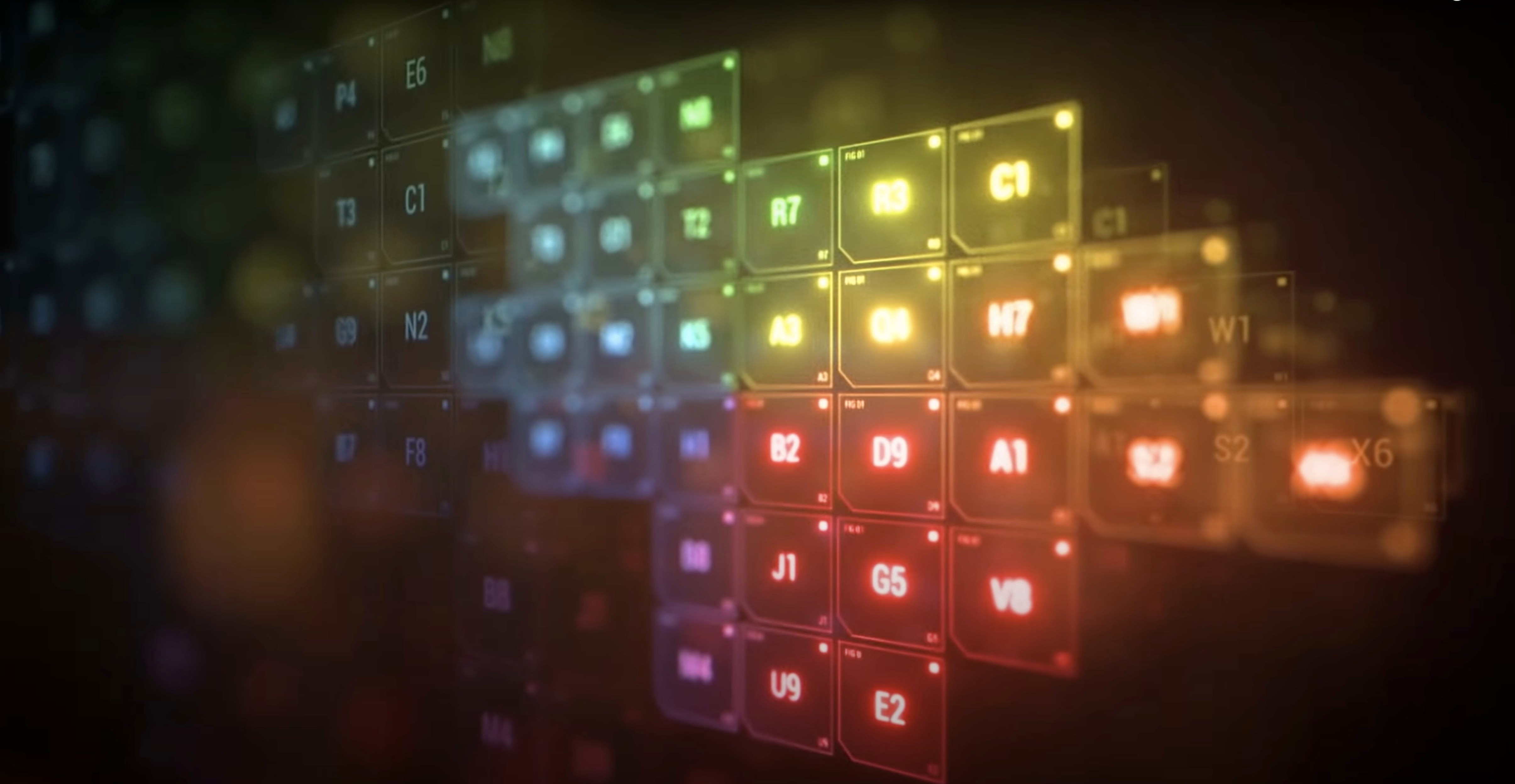
The task: a holographic interface panel floats in a dark scene, and the brief asks for a cyan emission that reads as volumetric light rather than a flat Photoshop blur.
Start with the UI layer pre-comp. Inside that comp, separate the bright elements—text, thin rule lines, circular indicators—onto one layer and set its blending to screen. Apply Deep Glow to that layer. Set Radius to 120 and Intensity to 0.45. Drop Threshold to 0.2 so the mid-tone cyan edges start to emit. Switch the Blend Mode to screen and enable Unmult to strip the black background from the glow calculation; this prevents a grey veil over the dark areas.
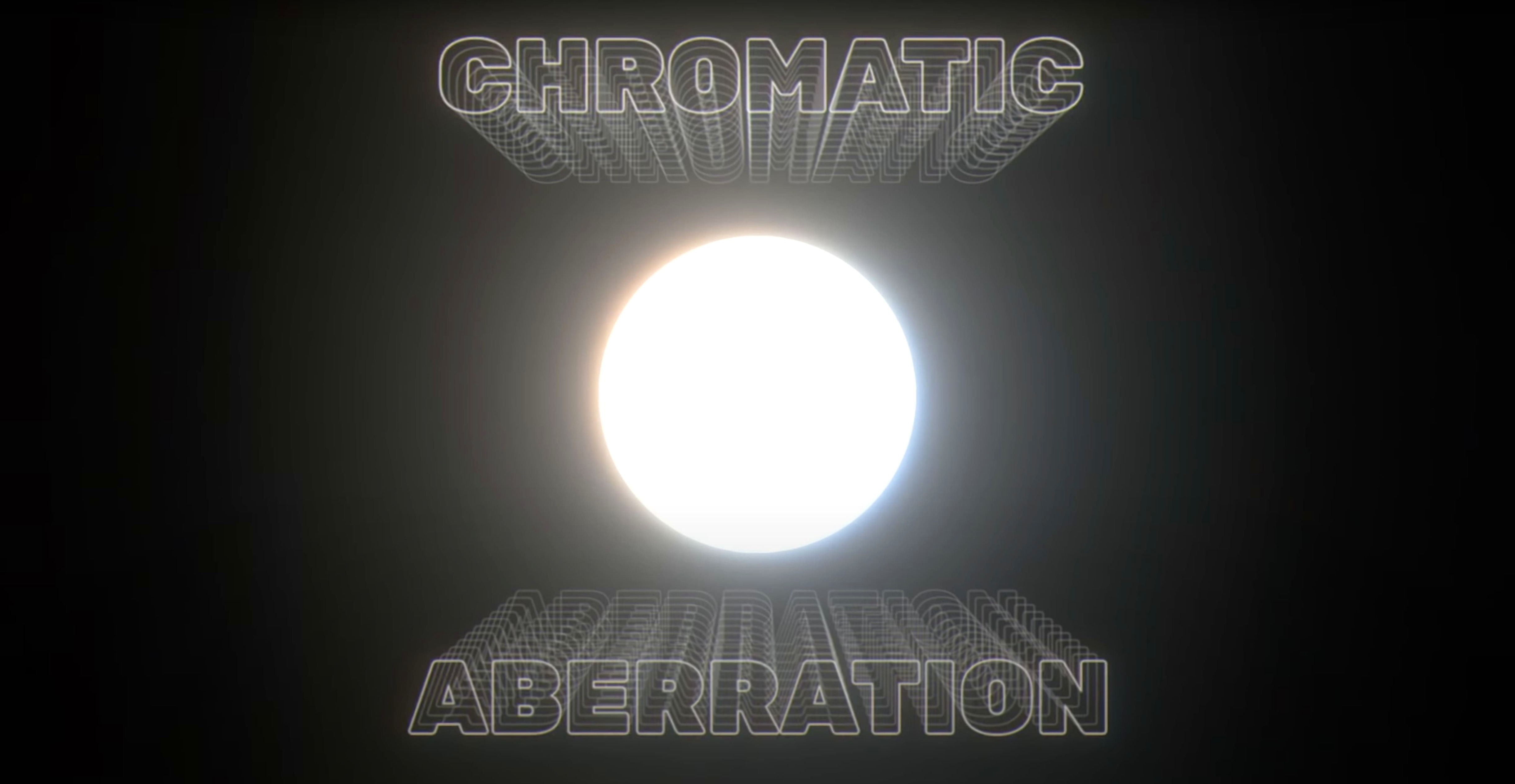
The glow still feels too uniform. Go to the Quality section and set downsampling to 2x. This softens the falloff slightly, adding a subtle grain structure that reads as atmosphere. Enable Chromatic Aberration and pull the red/blue offset to 1.2 px. Keep the angle at 0° so the split runs horizontally, which sells the hologram look.
Now the glow bleeds too far into the panel’s dark bezel. Open the Compositing controls and check View Matte. Paint a rough garbage matte on a new solid, feather it by 80 px, and set it as the glow’s mask reference. The emission now stays inside the panel volume.
To give the hologram depth, duplicate the Deep Glow instance. On the second instance, raise Radius to 300, drop Intensity to 0.15, and set Threshold to 0.1. This creates a wide, ghostly aura that reaches into the surrounding darkness. Set the Blend Mode to add and pull the layer opacity to 60 %. The two glow layers together build a core emission and a volumetric spill that reads as distance fog.
Hit a RAM preview across a 3-second camera push. The glow holds its density as the camera moves because the falloff is distance-agnostic—Deep Glow works on the layer’s pixel values, not the camera distance. If the emission pulses with the UI animation, keyframe Intensity by ±0.1 in time with the flicker. Render at full res with quality set to 1x and dithering enabled. The final frame will have a clean, broadcast-safe glow that avoids the clipped, plastic look of the stock effect.
Four Pre-Flight Tweaks to Escape the Preset Look
Deep Glow ships with defaults that are sensible for a quick demo but rarely ideal for production work. These four adjustments take under a minute and make the result feel less like a plugin preset.
- Blend Mode to Screen. The default Add blend blows out overlapping glows on bright layers. Screen preserves highlight detail and rolls off more naturally on skin tones and pastel backgrounds.
- Unmult on. When the source layer has a black background, leaving Unmult off causes the glow to lift the blacks into a muddy grey. Toggling it on tells the renderer to treat alpha as the luminance driver, which keeps shadows clean.
- Downsampling to 2x during layout. Full quality at 1x is a render hit you do not need while blocking out a scene. Set downsampling to 2x or 4x and toggle back to 1x only for final export. The preview still looks representative, and the timeline stays responsive.
- View Matte as a quick debug step. When the glow seems to spill too far or not appear at all, enable View Matte for five seconds. It shows exactly which pixels the effect is reading. Often the fix is as simple as pre-composing the layer or adjusting the threshold, and the matte view reveals that instantly.
Why a White Background Kills the Halo
The most common mistake is stacking Deep Glow on a layer with a solid white background and expecting a halo. The effect needs luminance contrast to build a falloff. On a flat white or near-white layer, the threshold has nothing to grab, and the glow either vanishes or turns the entire frame into a uniform bloom. The fix is to isolate the bright elements on a transparent or dark background first.
Another frequent error is running the plugin in an 8-bit project without enabling dithering. Deep Glow calculates internally at higher precision, but when the host comp is 8-bit, banding can appear on wide, smooth gradients. Ticking the Dither checkbox in the Quality section breaks up the bands into a fine noise pattern that is invisible in motion. The render time increase is marginal, and the result holds up under compression.
Some artists crank Intensity past 2.0 when they want a brighter core, not realising that Radius and Threshold control perceived brightness more effectively. High intensity on a small radius creates a hot, clipped centre that looks like a cheap vector blur. A better approach: moderate the intensity, widen the radius, and lower the threshold so the glow builds density gradually from midtones outward.
Finally, forgetting to check the effect order on the layer stack causes confusion. Deep Glow should sit after any colour correction, curves or levels adjustments that you want the glow to respond to. If you place a Curves effect above Deep Glow and crush the whites, the glow reads the crushed values and produces a dim, flat result. Put Deep Glow at the bottom of the effect stack, then add any stylistic treatments above it that should apply to
- Apple Silicon (ARM) and Intel (x86 64-bit)
- Adobe After Effects
Questions on file
Does Deep Glow run on Apple Silicon?
Yes. Deep Glow supports both ARM and x86 64-bit architectures on macOS.
Sign in · Create an account to add a field note.
No field notes yet. A measurement, a version, a machine — they appear after moderation.