Mac Apps
DaisyDisk 4.34.2 admin
Mac AppsUpdated
| Requirement | On file |
|---|---|
| macOS | macOS 10.13 or later |
| CPU | Apple Silicon, Intel 64-bit |
| Download | 9 MB |
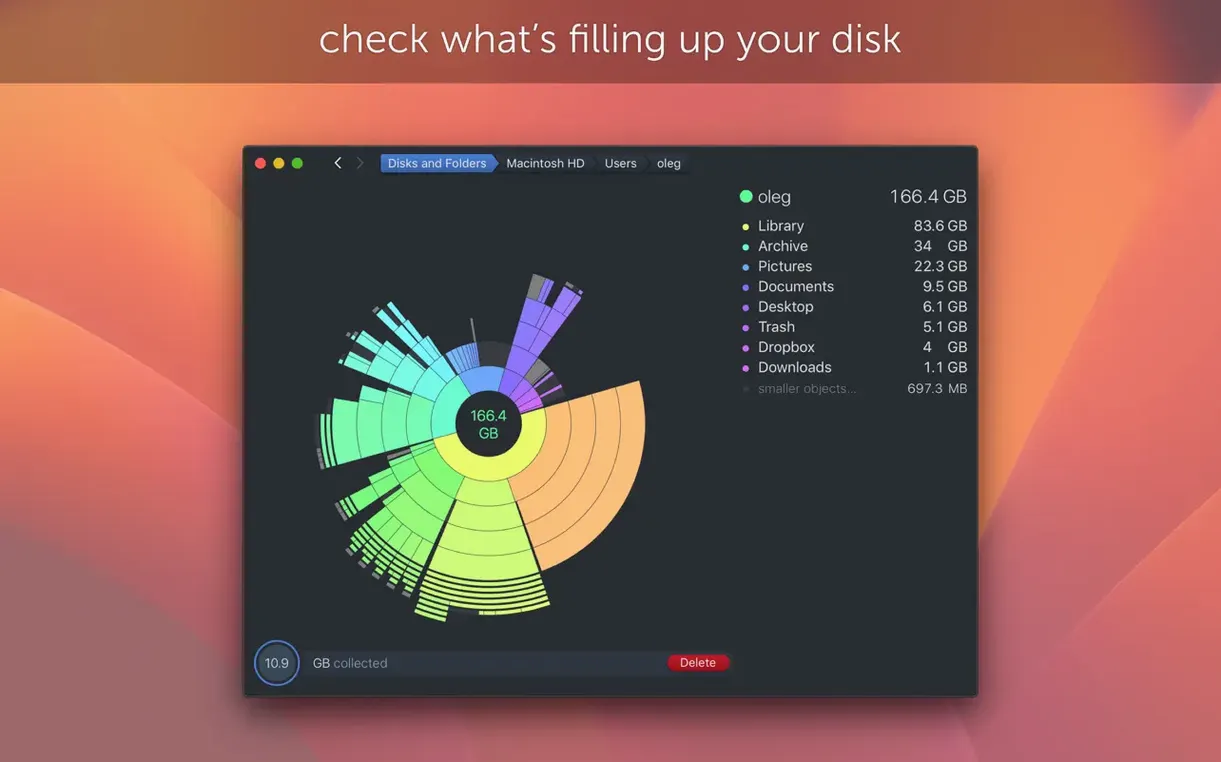
The Scan Results panel now counts only the first occurrence of an APFS clone in its space calculations. A file duplicated by the file system in multiple places no longer inflates the perceived usage, which is a sensible correction if you have been chasing phantom data across snapshots. The visual map itself, the core of DaisyDisk, remains unchanged in its interactive sunburst layout, letting you click through concentric arcs to drill into directories and find exactly what is taking up room.
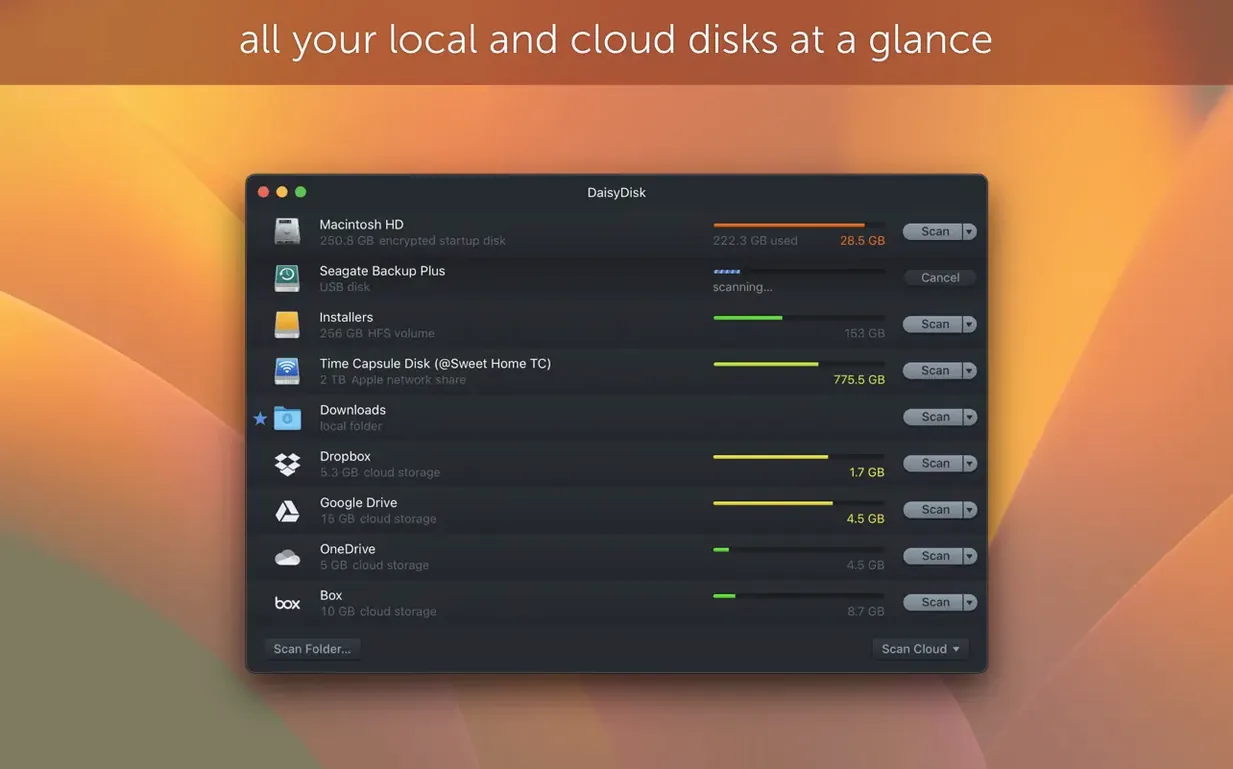
- Open the app and select the disk you want to examine. You can scan multiple mounted disks in parallel if you need a quick overview of several volumes.
- The scan builds a segmented map. A large arc represents a big file or folder. Hover to see the name and size, and click to zoom into it.
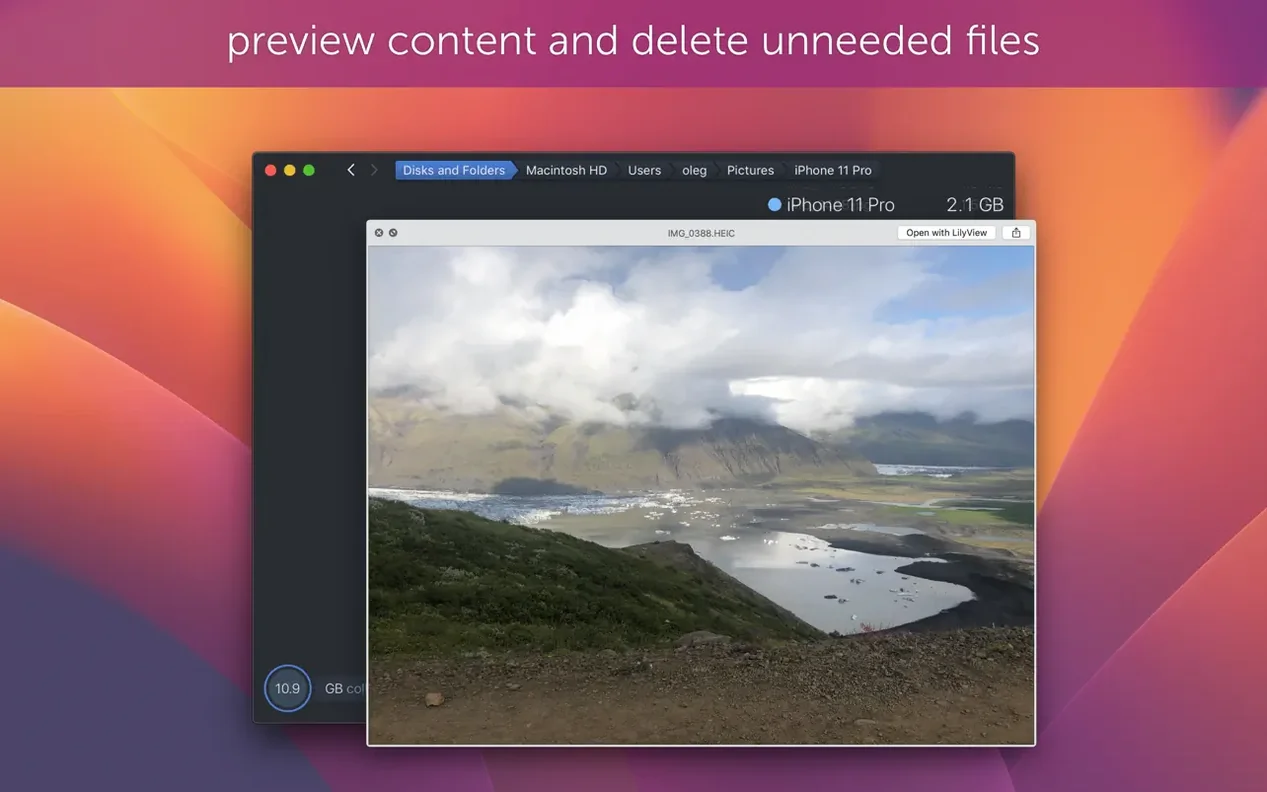
- Use Quick Look directly from the map to preview file contents without opening another application. This helps confirm whether a vague system file is safe to remove.
- Drill down into the opaque 'Other' category in macOS storage reports. DaisyDisk reveals the actual files inside it, surfacing old caches, log files, and forgotten downloads.
- Sweep files you no longer want to the collector, then delete them in one batch.
The scan engine supports APFS clones and runs natively on both Apple Silicon and 64-bit Intel Macs. The interface is available in eleven languages, including Russian, German, Simplified Chinese, and Japanese.
Full Disk Access Is a macOS Requirement, Not a DaisyDisk Choice
Does it need full disk access to work? Yes, and that is a macOS constraint, not a DaisyDisk quirk. Without it, the app cannot read sizes inside protected directories like Mail, Messages, or certain system containers. You are prompted during the first scan; granting access is a one-time step in System Settings > Privacy & Security > Full Disk Access.
Will it delete something important on its own? DaisyDisk never removes files without your explicit action. Everything sits in a collector tray until you drag items there and confirm deletion. The map shows you what exists — you decide what goes. System files that are genuinely required are not flagged or marked as safe in a blanket way, so you stay in control, which means you should preview anything unfamiliar before dragging it out.
Is the scan slow on large drives? The first pass across a 1 TB SSD on Apple Silicon finishes in under a minute. Spinning drives take longer, especially over USB, but parallel scanning of multiple volumes does not double the wait — each disk is processed independently. The map renders incrementally, so you can start exploring the largest arcs before the full scan completes.
Can it clean up the "Other" storage that macOS reports? That is the reason many people reach for it. The Other category in System Settings is a black box. DaisyDisk breaks it open into actual folders: caches, logs, iOS backups, old Time Machine snapshots that never cleared, and Library detritus. You see real names and real sizes, not a vague grey bar.
Does it work with external drives and network volumes? Any mounted volume that appears in Finder can be scanned. FAT32, exFAT, and APFS volumes are all supported. The version 4.33.2 update fixed incorrect size reporting on FAT32 and exFAT, so those formats now show accurate figures. Network shares mounted via SMB appear as well, though scan speed depends on your connection.
Scanning a 28 GB Free Drive in 23 Seconds to Find Scratch Space
A freelance editor wrapping a documentary project notices Final Cut Pro complaining about scratch space. The internal SSD shows 28 GB free, which should be enough for proxy renders, but the warnings persist. DaisyDisk scans the drive in 23 seconds and the map tells the story immediately: a 312 GB arc labelled "FCPX Backups" sits in a Library folder she had not checked in months. Inside, auto-saved project backups from two finished films are still sitting there. Another arc, 87 GB, is a single Motion template cache.
She uses Quick Look on the template cache to confirm the content, then drags both items to the collector. A final sweep reclaims just under 400 GB. The scratch warnings stop. She did not need to move project files to an external drive or uninstall anything — the space was already occupied by forgotten artefacts that macOS would never flag on its own.
Visual Drill-Down Into Multi-Gigabyte RAW, Proxy, and Sample Libraries
Mac users who work with large media files see the fastest payoff. Photographers with multi-gigabyte RAW libraries, video editors juggling proxy files, and music producers with sample libraries spread across folders all benefit from the visual drill-down. A folder that looks modest in Finder can dominate a sunburst arc once DaisyDisk measures it.
Developers also find it useful, particularly for surfacing build artefacts, old Xcode simulator data, and Docker images that have accumulated across macOS updates. The map reveals nested caches inside ~/Library that command-line tools like ncdu can list but not visualise with the same immediacy. System administrators managing shared Macs use parallel scanning to compare several machines in one sitting, spotting oversized user profiles or misdirected backups quickly.
Users who simply want to understand where their storage goes — people staring at a "Storage Almost Full" notification without a clear culprit — get a concrete answer. The map replaces vague anxiety with a list of specific, sortable items. You stop guessing and start acting.
Preview Before Deleting—That Cache Arc May Hold an Active Workspace
Deleting without previewing. An arc labelled "Cache" could be a browser cache you can safely clear, or it could be a project cache an application needs to open a current workspace. Quick Look exists for a reason. Spend three seconds checking before dragging anything to the collector.
Scanning only the main drive. External drives gather cruft too. A backup drive that mirrors your internal volume might hold snapshots you forgot about, and a USB stick used for transfers can accumulate hidden temporary folders. Scan every mounted volume at least once.
Ignoring APFS clone sizes. Before version 4.34, the same file duplicated by the file system appeared to occupy space multiple times. Some users wasted effort trying to delete "duplicates" that were not actually consuming extra room. With the clone-aware calculation now present, trust the numbers and avoid chasing phantom data.
Skipping the collector. Dragging files directly to Trash from the map bypasses the built-in safety net. The collector lets you review everything in one list before acting, which catches accidental drags and gives you a final sanity check. Use it as the last step every time.
Assuming system files are untouchable. Not everything in /System or /Library is sacred. Old kernel extension caches, leftover printer drivers, and language resources for apps you do not use can be removed. The risk is removing something you do not recognise. If the name is opaque, leave it alone or research it first. A quick web search on a folder name often reveals whether it is critical or disposable.
- Bug fix — a scanning issue present in earlier releases has been resolved.
- APFS clone support — the file system’s copy-on-write duplicates are now recognised during scans.
- Space calculation — only the first occurrence of an APFS clone is counted against used space, preventing double-counting of cloned data.
- macOS 10.13 or later
- Apple Silicon or 64-bit Intel processor
Sign in · Create an account to add a field note.
No field notes yet. A measurement, a version, a machine — they appear after moderation.