Mac Apps
DCommander 3.10.0
Mac AppsUpdated
| Requirement | On file |
|---|---|
| macOS | macOS 11.5 or later |
| CPU | Apple Silicon, Intel 64-bit |
| Download | 10 MB |
Version 3.10.0 arrives as a maintenance release with no new feature bulletins from Devstorm. The move keeps the app aligned with current macOS tooling while the existing feature set remains the draw.
Check pre-install compatibility
What kind of file manager is this?
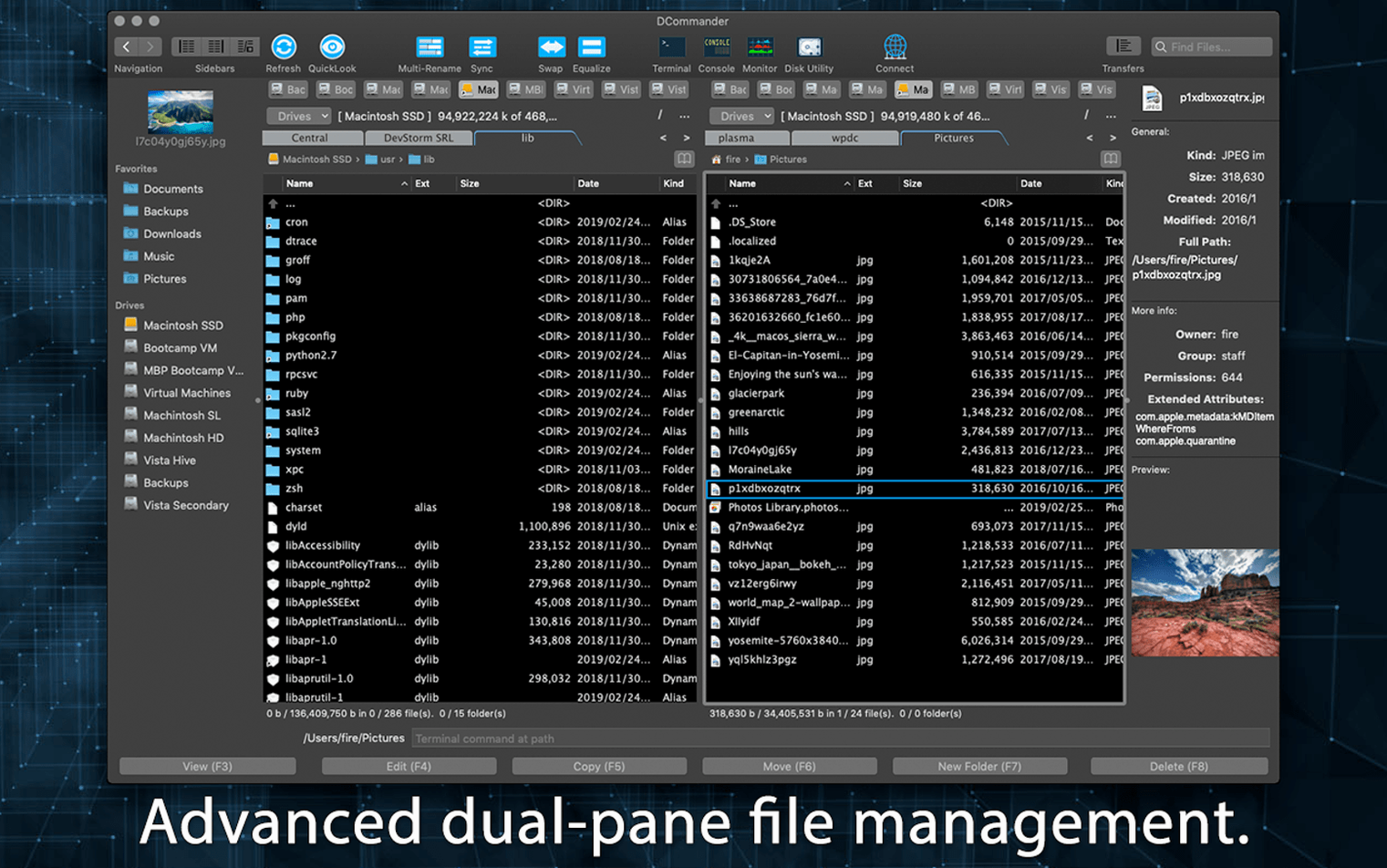
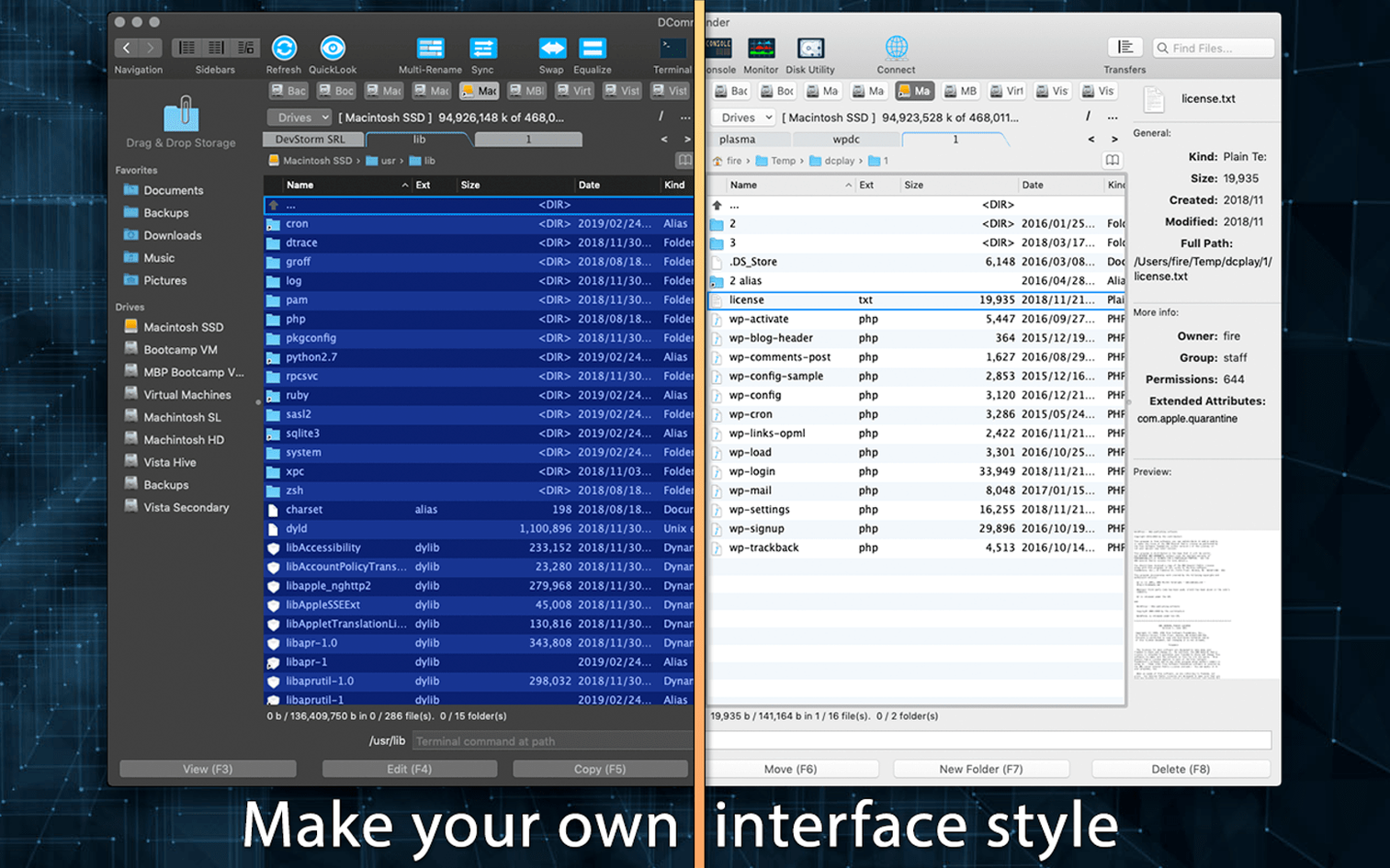
DCommander follows the orthodox two-pane layout: two independent directory panels side by side. You see source and destination at once, which speeds up copy, move, and visual comparison tasks compared to a single-window Finder workflow.
Which macOS versions does it need?
The developer states macOS 11.5 or later. The build runs natively on both Intel and Apple Silicon Macs.
Does it handle remote connections?
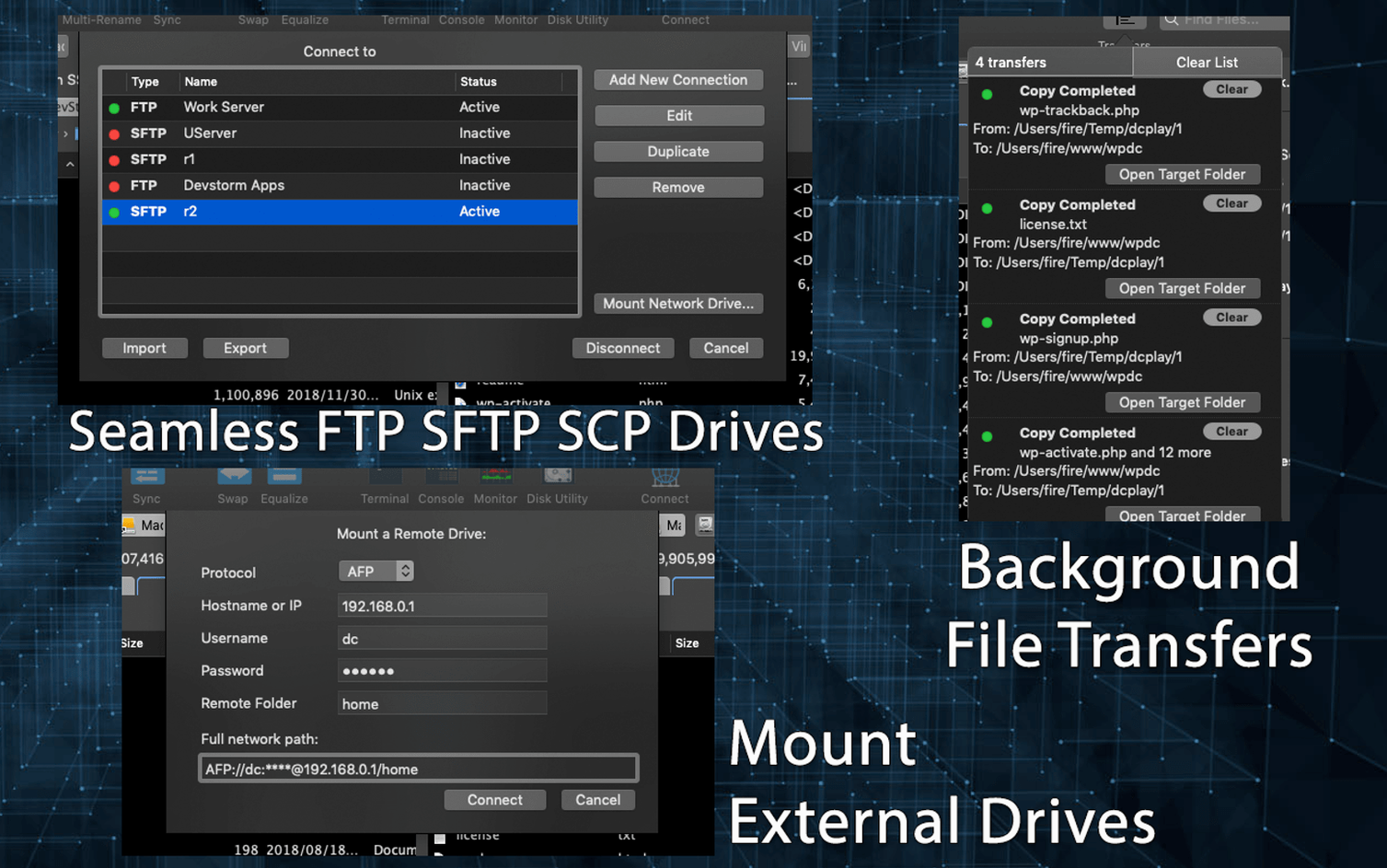
Yes. The connection panel lists support for FTP, SFTP, and SCP. You can browse a remote server in one pane and a local folder in the other, then transfer files between them.
What extras set it apart from the Finder?
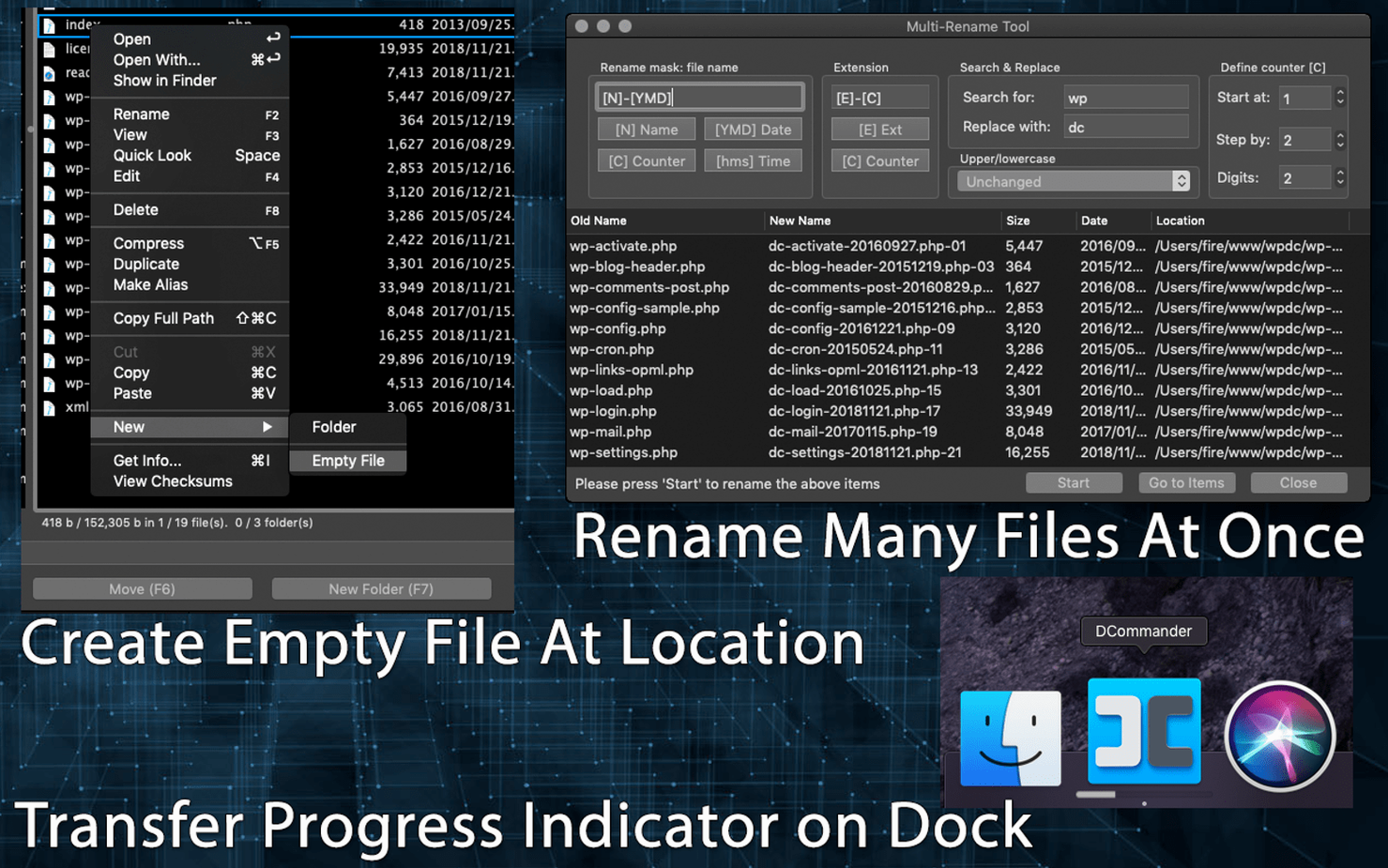
Beyond the dual-pane view, the app includes a background transfer manager for queuing large copy jobs and a built-in HEX editor for inspecting raw file data. Batch rename and batch file operations are also built in, and the app can browse inside ZIP archives directly.
Where DCommander fits in your Mac workflow
A two-pane manager never replaces the Finder, and DCommander does not try to. The two coexist well. Keep the Finder for Spotlight searches, iCloud Drive browsing, and quick previews through Quick Look. Reach for DCommander when a task involves two locations at once — a local folder against an SFTP mount, an archive against a staging directory, or a NAS share against a USB drive. The orthodox layout makes that comparison visual rather than a sequence of separate windows.
DCommander reads from the same underlying filesystem, so files moved or renamed inside the app appear immediately in Finder, Terminal, and any other application watching those paths. Tags applied in Finder remain visible in DCommander's file detail columns. Conversely, files copied from an SCP session in DCommander land on the local disk exactly as Finder expects them — extended attributes included, because the transfer goes through the same macOS file APIs rather than a private abstraction layer.
On the automation side, the app cooperates with macOS conventions. You can drag a file from DCommander into a Terminal window to insert its full path. Dragging into a text editor drops a file reference. The background transfer manager, once a queue is running, behaves like any macOS process — it pauses with App Nap when the app is hidden, and resumes when you bring the window back to the front. That is worth knowing before you queue a large SFTP sync and minimise the window.
Sync firmware by checksum before upload
A realistic example: you maintain a local folder of firmware images and a remote SCP directory that a lab device polls. You want to push three updated files, but only after comparing their checksums against the remote versions.
Open DCommander. The left pane already shows ~/Firmware from the previous session. In the right pane, open the connection panel and select the saved SCP profile for the lab server — host, user, and key are stored, so the directory listing appears within a second or two. Both panes now show their own tab bars, and the right tab is labelled with the server name.
Select the three updated images in the left pane. Press the shortcut for checksum generation and choose SHA-256 from the list. The app computes hashes for the local files. Now switch to the right pane, select the same three filenames, and run the same checksum command. DCommander presents two hash lists; a quick visual scan confirms two files differ and one matches. You drop the matching file from the selection.
With two files selected locally, press the copy key. The transfer manager opens at the bottom of the window, showing both files queued with destination paths on the server. You can watch the progress bars, pause the queue, or leave it running while you open a third tab in the left pane to browse /Volumes/Archive and pull an older firmware revision for comparison.
When the queue finishes, the right pane refreshes to show the new file sizes and timestamps. The whole session — checksums, remote browse, queued copy, archive lookup — happens without leaving one window.
Middle-click folders into new tabs
A few details in the dcommander mac full version interface are easy to miss on first use:
- Tab middle-click. Clicking a folder with the middle mouse button opens it in a new tab within the same pane. This keeps a working directory pinned while you branch off into subfolders.
- Archive browsing. Selecting a ZIP file and pressing Enter opens the archive as if it were a folder. You can copy individual files out without extracting the whole archive first.
- File detail columns. The column set is configurable. Add a checksum column or an owner column when you need them; the extra columns persist per tab.
- Dark theme toggle. The switch is in the preferences, not the toolbar. It follows the system appearance by default but can be overridden for long file-listing sessions.
- Batch rename preview. Before applying a rename pattern, the batch tool shows a preview of the resulting names. Patterns support counters and find-and-replace tokens — useful for timestamped log rotations.
None of these are headline features, but they compound once the two-pane workflow becomes routine. The dcommander mac full version build includes them without any configuration beyond the initial column setup.
- macOS 11.5 or later
- Intel or Apple Silicon Mac
Sign in · Create an account to add a field note.
No field notes yet. A measurement, a version, a machine — they appear after moderation.