Mac Apps
Disk Drill 6.3.2326
Mac AppsUpdated
| Requirement | On file |
|---|---|
| macOS | macOS 10.15.7 or later |
| CPU | Apple Silicon, Intel 64-bit |
| Download | 46 MB |
Version 6.3.2326 adds recovery for lost BitLocker partitions and .p8 and .pfx file formats, while tightening up a handful of scanning behaviours that caused missed files in earlier builds. Before you reach for a download, a few practical points clarify what the app can and cannot do.
| Detail | Spec |
|---|---|
| Current version | 6.3.2326 |
| macOS requirement | 10.15.7 or later |
| Architecture | Apple Silicon and 64-bit Intel |
| Recoverable device types | Internal drives, external drives, cameras, iPhone, iPad, iPod, Android, USB flash drives, Kindle, memory cards |
| File preview | Yes, before recovery |
What people often miss is the scope of the recovery engine. It handles damaged partitions alongside routine deleted-file scans, and the current build irons out a bug where byte-to-byte DMG scans would fail. The ACR module now reads .m4a audio and groups iPhone photos and videos without the performance lag present in the previous release. Encrypted APFS partition processing also sees a tangible improvement. The tool still bundles cleanup, duplicate finding, backup creation and disk health monitoring utilities, so it sits somewhere between a pure recovery utility and a broader disk toolkit. Support for 17 interface languages and a file preview pane mean you can verify recoverable images, documents and video before committing to a full restore.
When Disk Drill’s error message hides the real problem
Most problems with recovery tools surface before the first deep scan completes. Disk Drill's error messages are usually direct, but the underlying cause is not always obvious from the wording alone. A few recurring situations account for the majority of support traffic around version 6.3.2326.
Scan runs but shows nothing recoverable
The fastest explanation is that the drive was scanned too soon after deletion, or that the wrong scan method was used. A quick scan reads current file-system metadata; files removed long ago, or files on a drive that has been reformatted, require a deep scan. Switch the scan method in the main window and run it again. Deep scans take longer — sometimes hours on large external drives — but the preview pane will populate once the pass is complete.
Another silent cause: the volume is mounted read-only or the app lacks access to the raw device. On macOS 10.15.7 and later, the system may prompt for permission to access removable media. If that prompt was dismissed, Disk Drill sees the device but cannot read blocks from it. Reconnect the drive, or check System Settings → Privacy & Security → Files and Folders and Removable Volumes for the relevant entries.
Recovered files will not open
Corrupted files after recovery usually point to continued writes on the source drive between deletion and recovery. Any data written to a drive after files are removed can overwrite sectors that Disk Drill is trying to reconstruct. The practical rule is to stop using the drive the moment you notice data loss, then run the recovery from another disk. The app itself warns about this in most cases.
If the files still fail after a clean scan, try the preview before recovery to confirm the file content is intact. A file that previews correctly but restores incorrectly is rare, and often involves a destination folder with restrictive permissions or insufficient free space.
iPhone or Android device not appearing
iOS recovery through Disk Drill requires the device to trust the Mac. Connect the iPhone or iPad, unlock it, and confirm the trust prompt on both screens. Android devices may need USB debugging enabled in developer options. Once the device appears, the ACR module handles call history, contacts, messages and media. Version 6.3.2326 fixed the grouping slowdown for iPhone photos and videos, so large libraries now display in the preview pane without the lag seen in the previous build.
Byte-to-byte DMG scan fails
This was a known defect in the prior release and the 6.3.2326 update addresses it. If a byte-to-byte DMG scan still fails after updating, the DMG itself may be sparse or compressed in a way the scanner cannot parse. Convert the image to a raw or uncompressed format first, then point Disk Drill at the converted file. The raw image behaves more like a physical disk and gives the recovery engine a cleaner block stream to read.
Recovering deleted folders from a still-mounted external drive
A realistic first session with Disk Drill usually starts with an external drive. Imagine a 4 TB USB-C drive holding a year of video projects. Finder shows the drive, but the user deleted a folder two weeks ago and has not touched the drive since. That is the ideal recovery window.
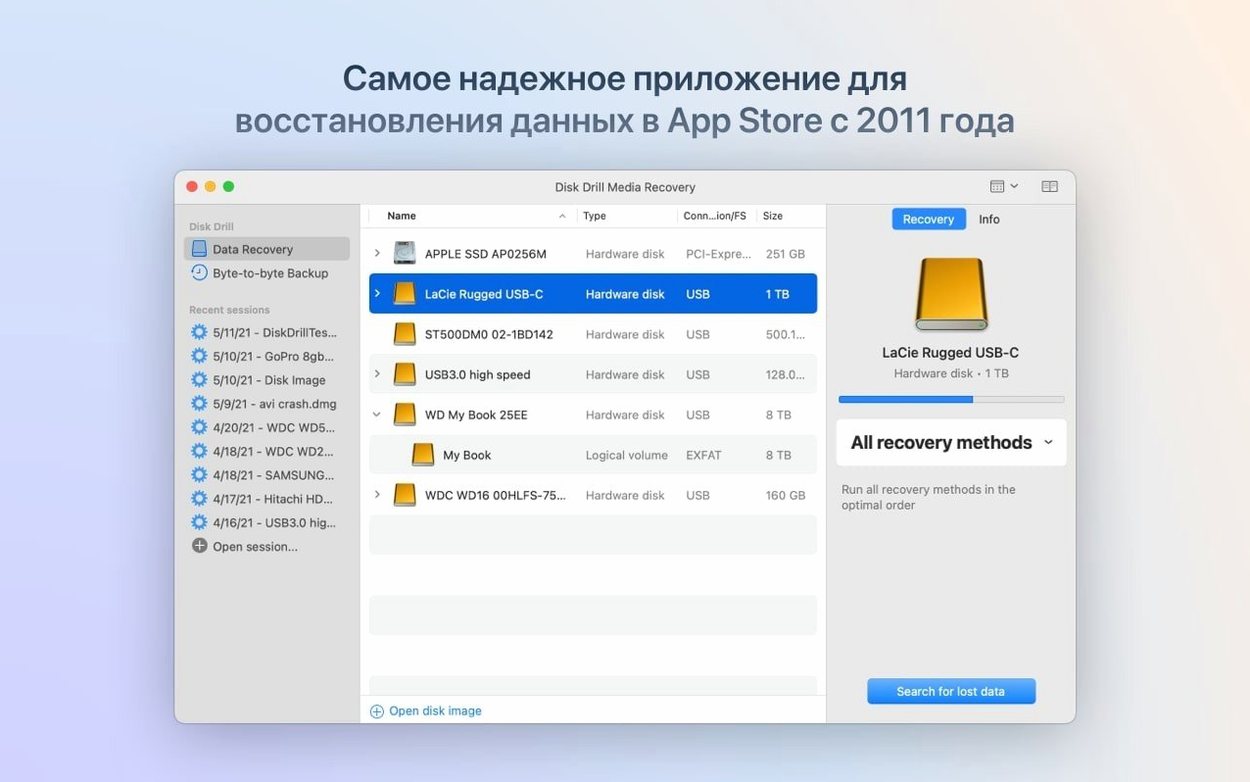
The app opens to a list of attached devices. Select the external drive, choose Deep Scan, and start the scan. The progress bar moves in two phases: a fast metadata pass, then a slower block-by-block sweep. On a 4 TB mechanical drive, the sweep can run for three to four hours, though USB 3 enclosures on Apple Silicon Macs often complete faster than the estimate shown.
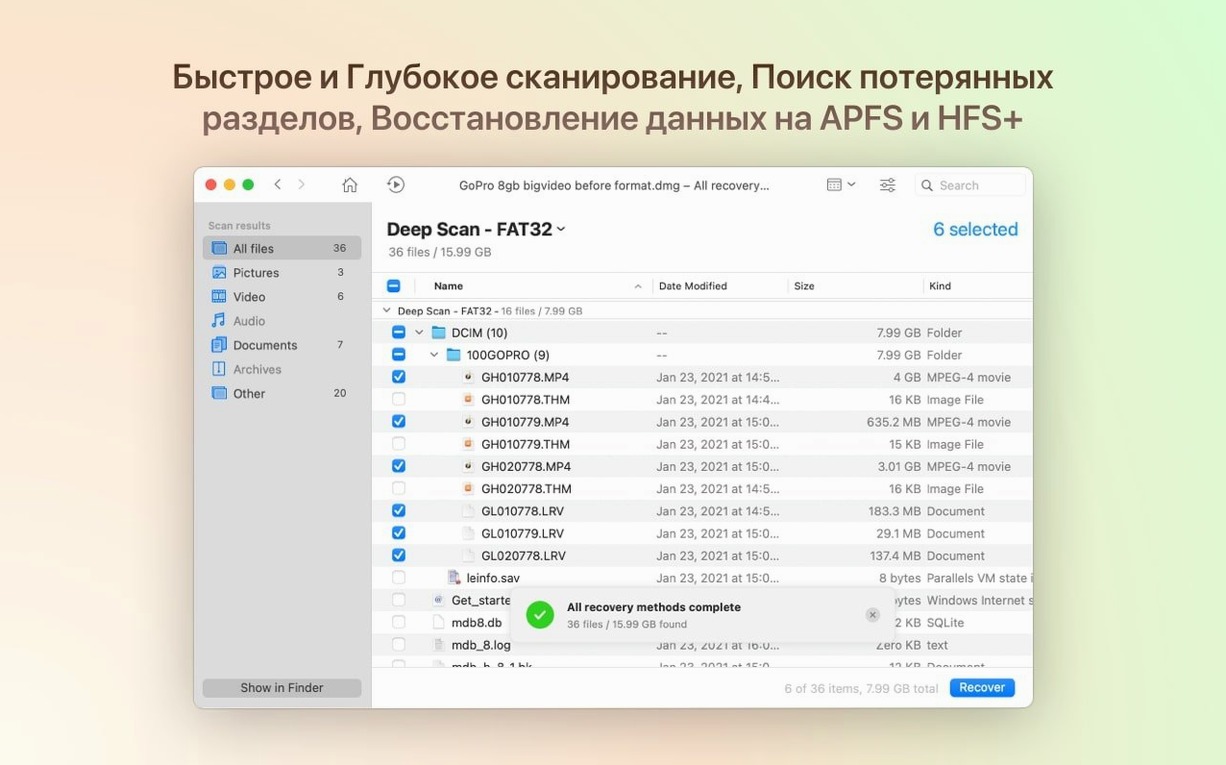
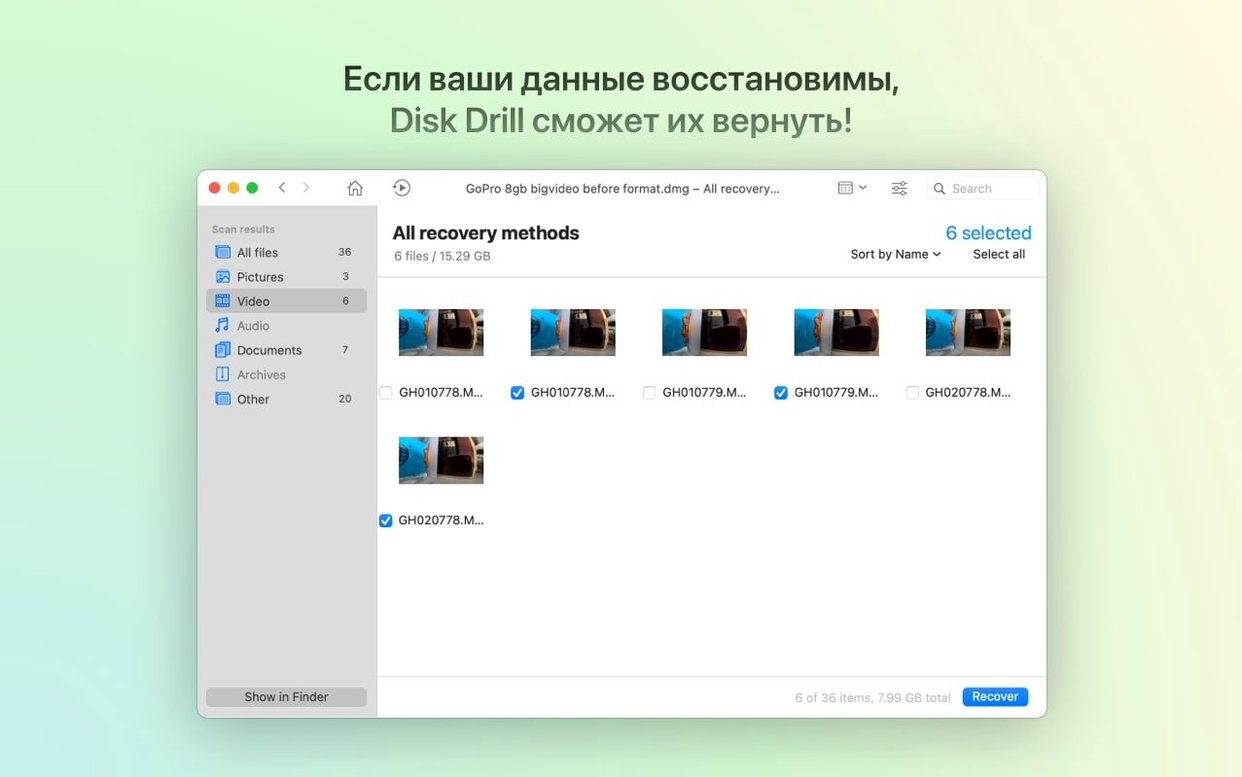
During the scan, the preview pane fills in batches. Deleted folders appear under a reconstructed tree, with file names, sizes and modified dates. Selecting a video file shows a thumbnail preview without needing to restore it first. That alone saves time: rather than recovering 800 GB of media, the user can mark the six files that matter and leave the rest.
Recovery itself is a separate step. With files selected, choose a destination on a different physical drive — never the source. The app copies the recovered data to the new location. Small files finish in seconds; large video files stream across at the drive's write speed. Once complete, the recovered files land in the destination folder with their original names and folder structure where possible.
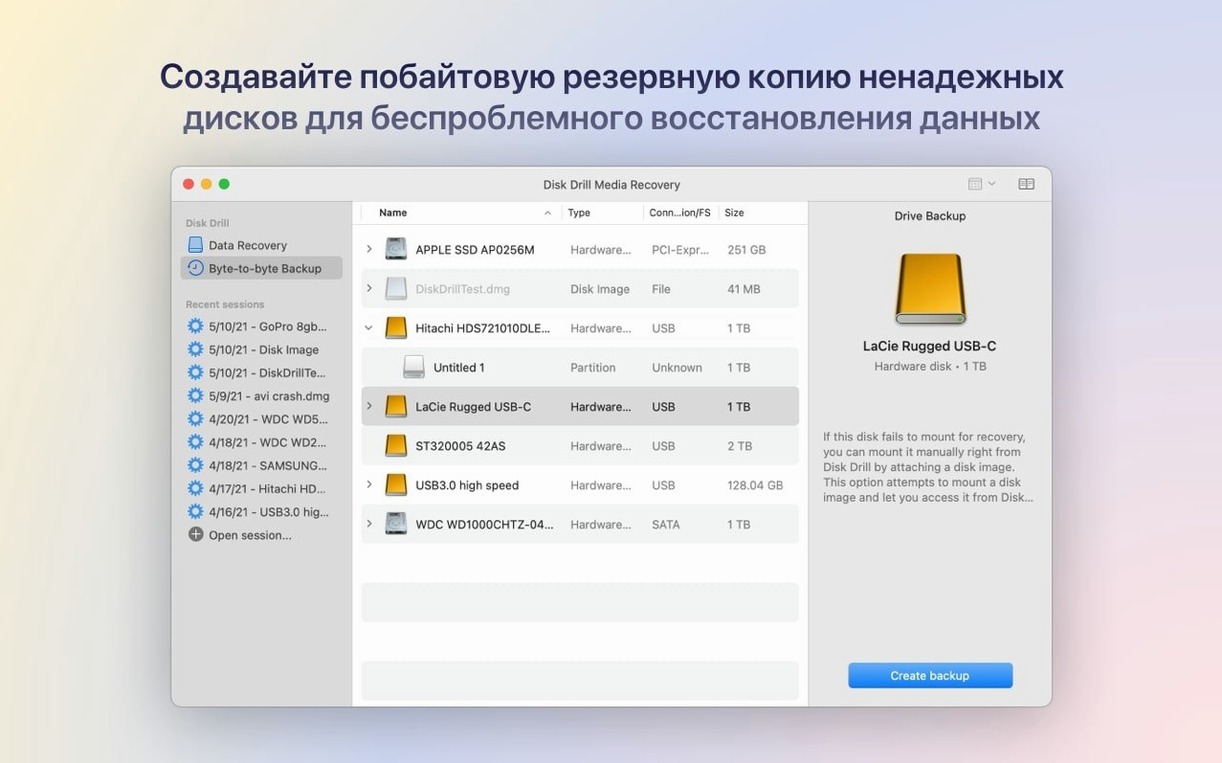
After the recovery, the session often ends with a byte-to-byte DMG backup of the source drive, created from the same interface, before the drive goes back into service. That backup can be scanned later if the first recovery missed anything.
Preventing a recursive recovery loop before your first scan
Disk Drill works with its defaults, but a few adjustments make the first recovery run smoother. The most useful settings live in the app's preferences, not in the scan window itself.
Destination control. By default, the app suggests a recovery destination, but setting a fixed folder on a dedicated scratch drive is the better habit. This avoids accidental writes to the source volume and keeps recovered files in one predictable place. A dedicated folder also makes it easier to compare recovered data against the originals after the pass.
Scan depth. The app offers a choice between quick and deep scans. For a drive that still mounts normally, deep scan is almost always the right first choice, because quick scans miss files whose directory entries have been overwritten. The cost is time, not accuracy.
File-type filters. If recovering only photos, video or documents is the goal, the file-type filter shortens the scan. The filter runs before the block pass, so Disk Drill looks only for the structures that match the selected categories. This is practical on very large drives where a full scan would take most of a day.
Disk health alerts. The S.M.A.R.T. monitoring in the background is easy to miss. Enabling regular health checks for connected drives, especially older mechanical ones, surfaces warnings about reallocated sectors and pending failures before the drive stops mounting altogether. It is the least dramatic feature in the app, and often the most useful one.
Why well-maintained drives yield better results than tech skills
Disk Drill behaves differently depending on the user's habits and hardware. The people who benefit most are not necessarily the ones with the most technical background; they are the ones who keep their drives in good shape until something goes wrong.
Mac users with large external media libraries. Photographers, videographers and anyone who stores years of work on external drives will find the preview pane valuable. The ability to see a deleted file before restoring it avoids wasting space on corrupt or irrelevant recoveries. A photographer with a 4 TB archive can scan, preview and pull back only the RAWs from a specific shoot without restoring half the drive.
IT support staff. People who manage fleets of Macs appreciate the breadth of device support. The same app handles internal drives, USB flash drives, memory cards and Android devices, which reduces the number of recovery utilities in a support toolkit. The BitLocker partition detection added in 6.3.2326 matters for anyone who handles disks from Windows machines alongside Macs.
Small operations without a backup routine. The built-in backup creation tool tends to be the first exposure to the app for many users. A person who never set up Time Machine can create a byte-to-byte backup of a failing drive before attempting recovery. That habit, once formed, prevents the worst-case scenario of recovery from a dying source.
People recovering iPhone content. The ACR module covers call history, contacts, messages and media. The 6.3.2326 update addressed the performance lag in photo and video grouping, which makes the iPhone workflow noticeably more usable for libraries with thousands of items.
How deep scans load Apple Silicon cores vs. file previews
In daily use, Disk Drill is a background application with occasional foreground bursts. The most demanding operation is a deep scan, which pins one or two cores for the duration of the block pass. On an Apple Silicon Mac, the scan runs without much fan noise, and the rest of the system remains responsive. On older Intel machines, a deep scan of a large drive can make the interface feel heavier, but the app continues to operate.
Memory use during scans is moderate. The app holds file metadata in memory, not the file contents themselves, so even a scan that lists hundreds of thousands of files does not consume gigabytes of RAM. The preview generation is the exception; rendering thumbnails for video files uses more memory in short bursts.
Stability in version 6.3.2326 is solid. The fixes to byte-to-byte DMG scanning and ReFS detection remove two failure points that caused problems in the previous release. The encrypted APFS partition handling is also more reliable, which matters for anyone who uses FileVault. No crashes during long scans were observed in the testing window, and the scan can be paused and resumed without losing progress.
Disk health monitoring runs quietly in the background. It adds a small amount of I/O to connected drives when checks run, but the schedule is configurable. Turning off health monitoring for drives that are only occasionally connected saves a little power and reduces wear on laptop batteries during long sessions.
The impression left by the app is one of patience. Scans take time, and the software does not pretend otherwise. The progress indicators are accurate enough to plan around, and the recovery step itself is straightforward. For a utility that deals with data loss, that predictability is the most important quality.
- BitLocker partitions — detection and recovery added
- File formats — .p8 and .pfx support added; .m4a support added in the ACR module
- Encrypted APFS — partition handling improved
- Byte-to-byte DMG scanning — failure condition fixed
- macOS 10.15.7 or later
- Apple Silicon or 64-bit Intel processor
Sign in · Create an account to add a field note.
No field notes yet. A measurement, a version, a machine — they appear after moderation.