Mac Apps
Dropover 5.3.0
Mac AppsUpdated
| Requirement | On file |
|---|---|
| macOS | macOS 12 or later |
| CPU | Apple Silicon, Intel 64-bit |
| Download | 33 MB |
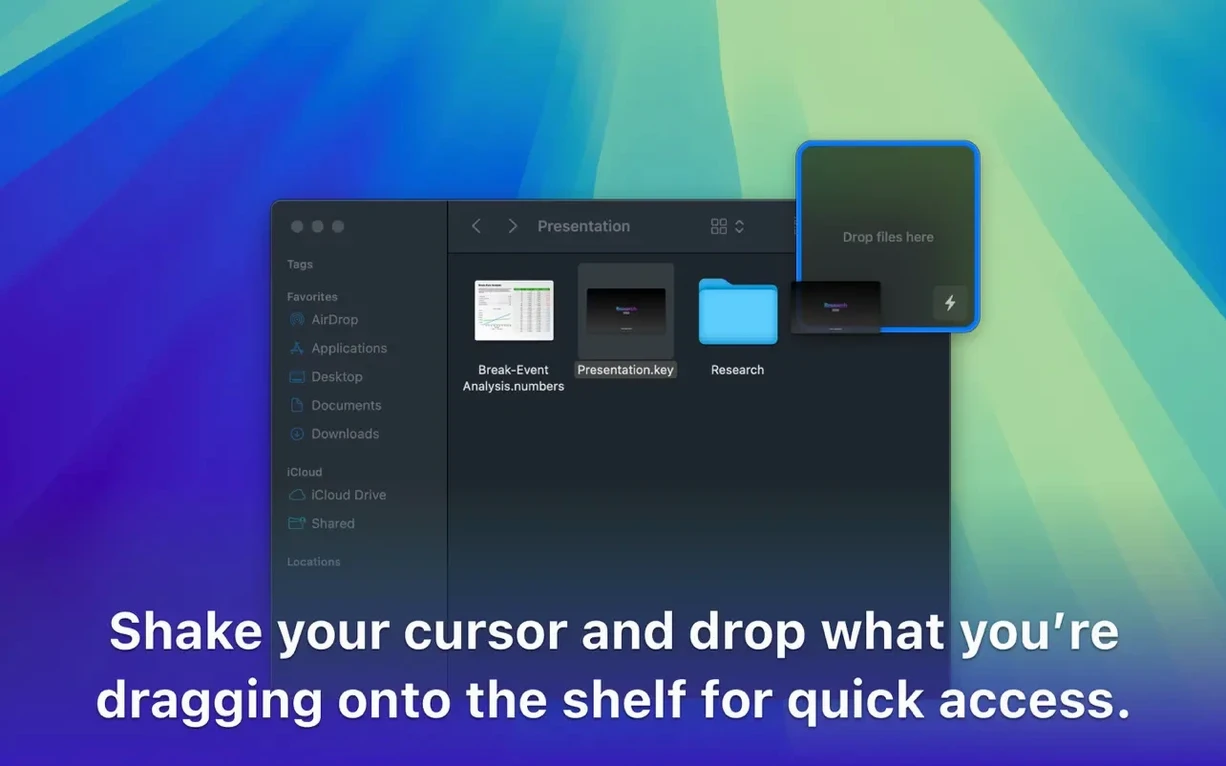
If you have ever used the spring-loaded folder trick in the Finder—hovering a dragged file over a folder until it opens, then navigating deeper while still holding the mouse button—you know how fragile that chain can be. One twitch and the whole operation collapses. Dropover replaces that tension with a temporary shelf that appears whenever you shake your cursor with a file in hand.
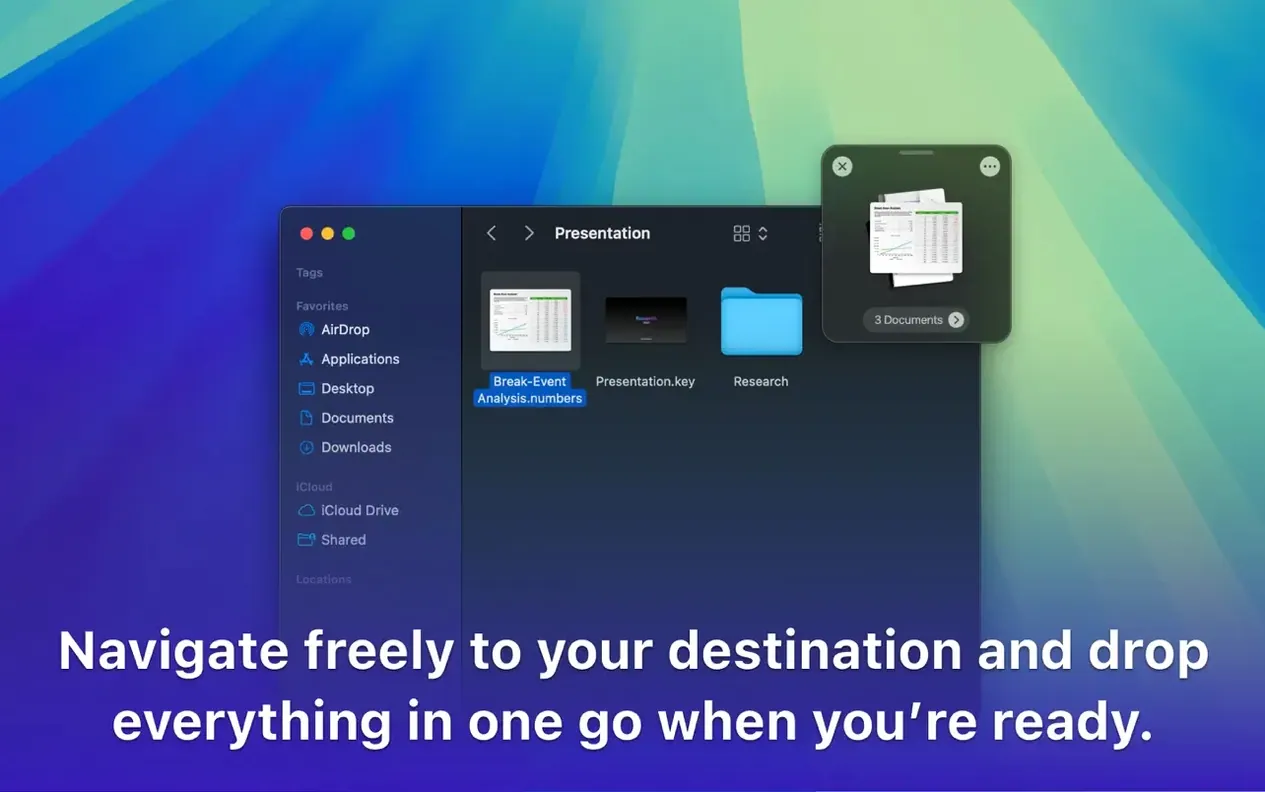
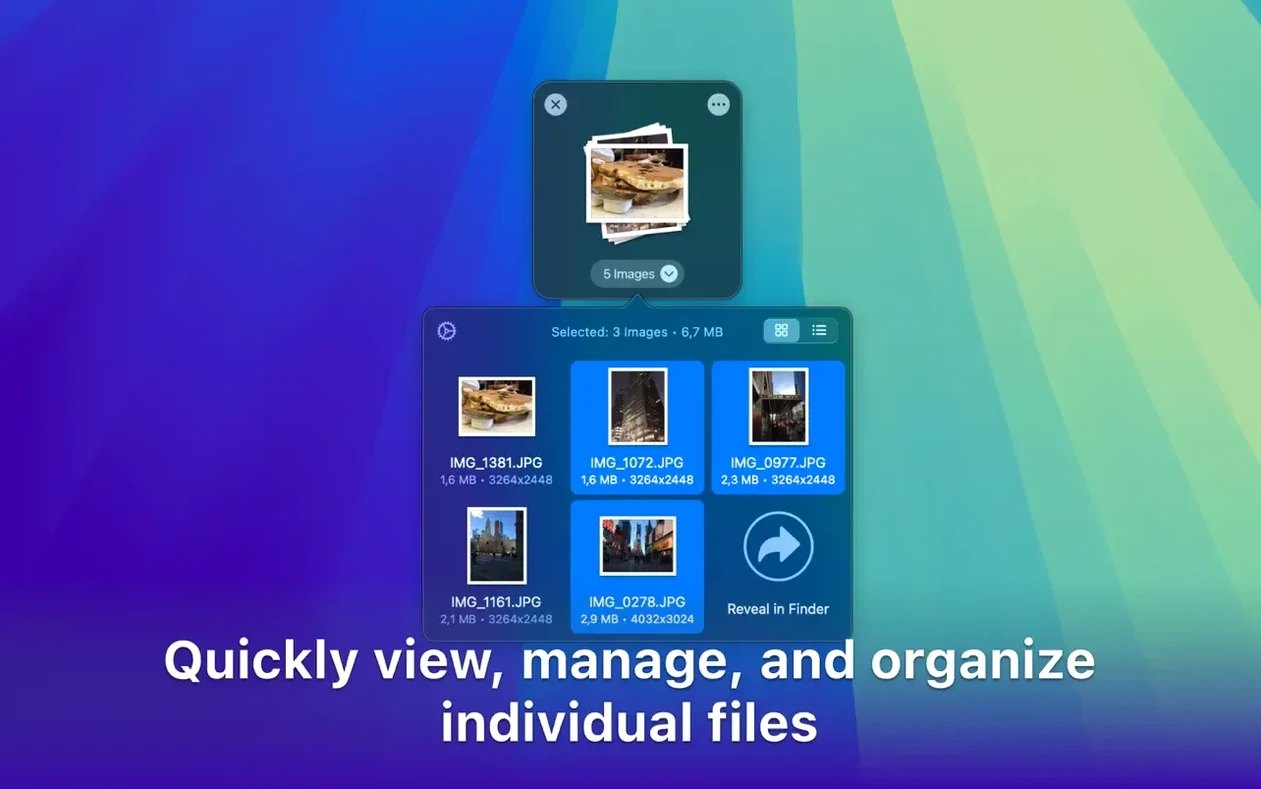
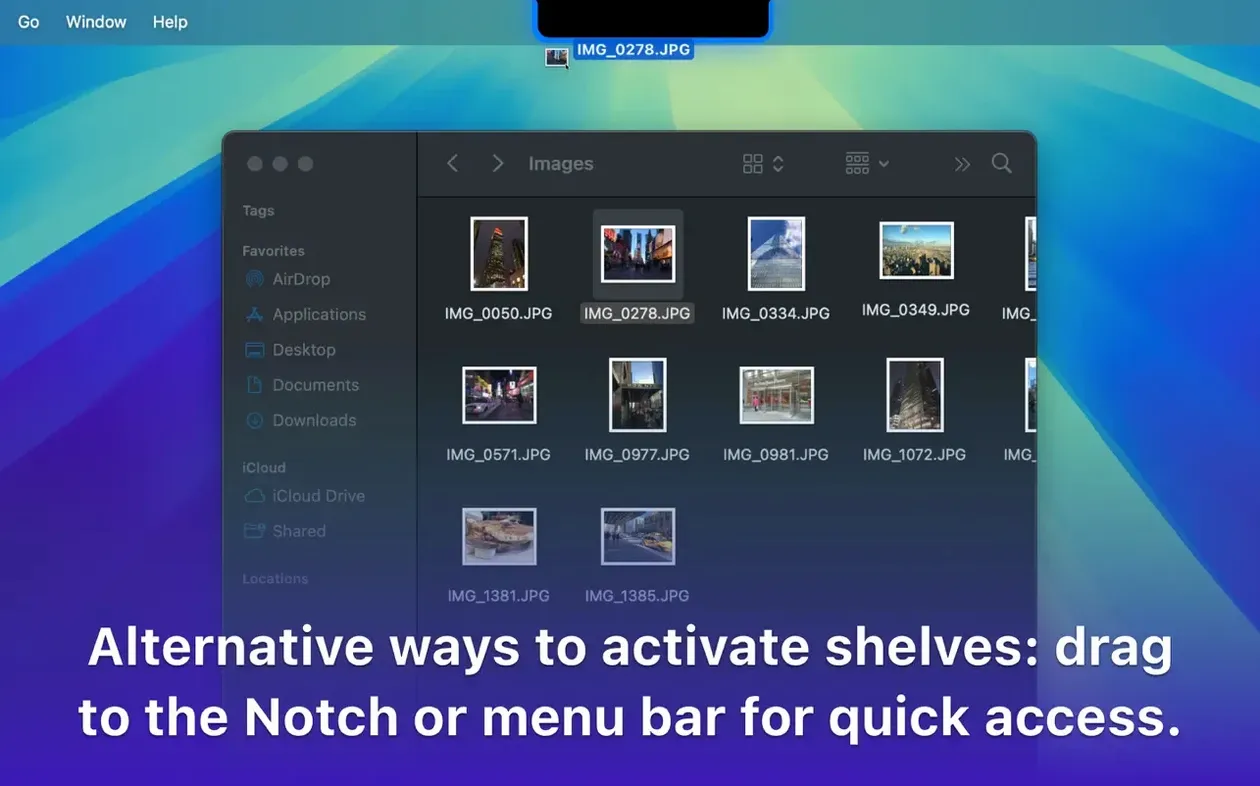
Grab a handful of images from a Finder window, give them a little shake, and a translucent panel appears under your pointer. Drop them there. Switch to a Slack thread, pick up a PDF from the Desktop, shake again and add it to the same shelf. The panel floats above every workspace, keeping all your gathered items visible while you hunt through nested folders or flip between Spaces. When the collection is complete, click the shelf and drag the whole batch straight into the destination—an email draft, a Final Cut Pro timeline, or an upload field in a browser.
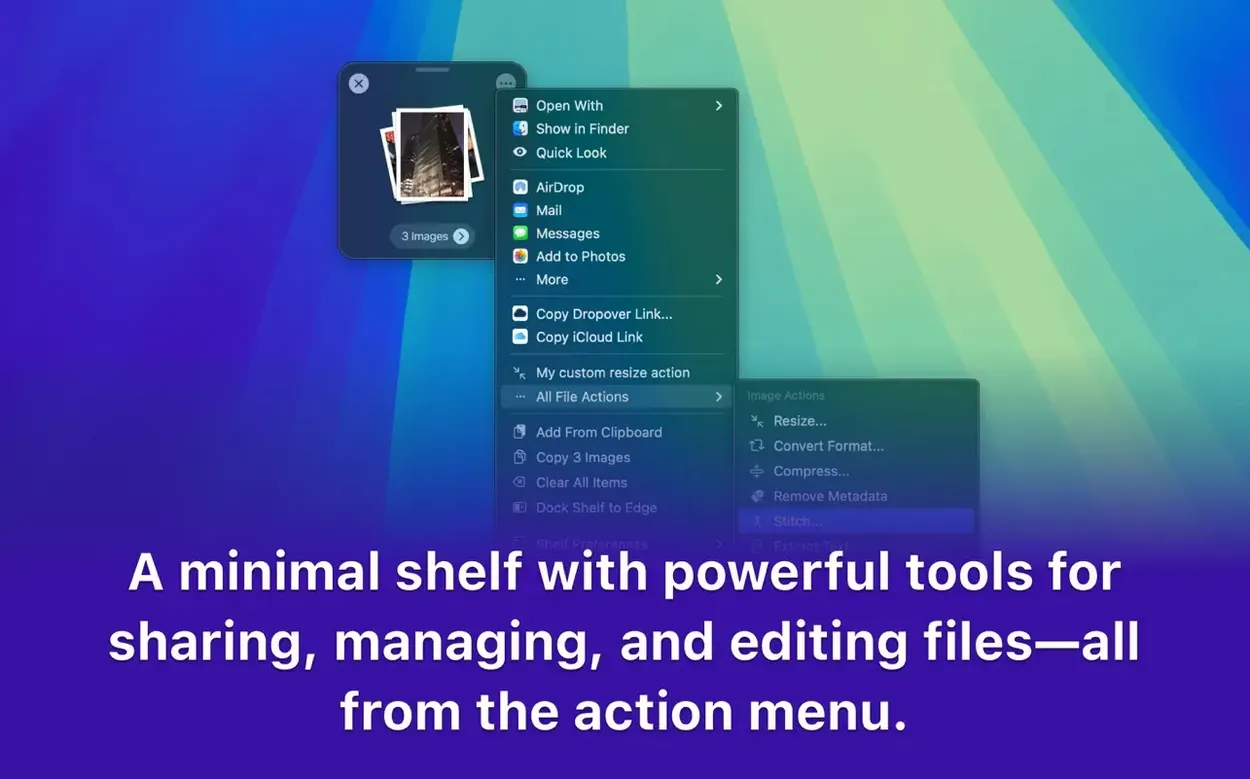
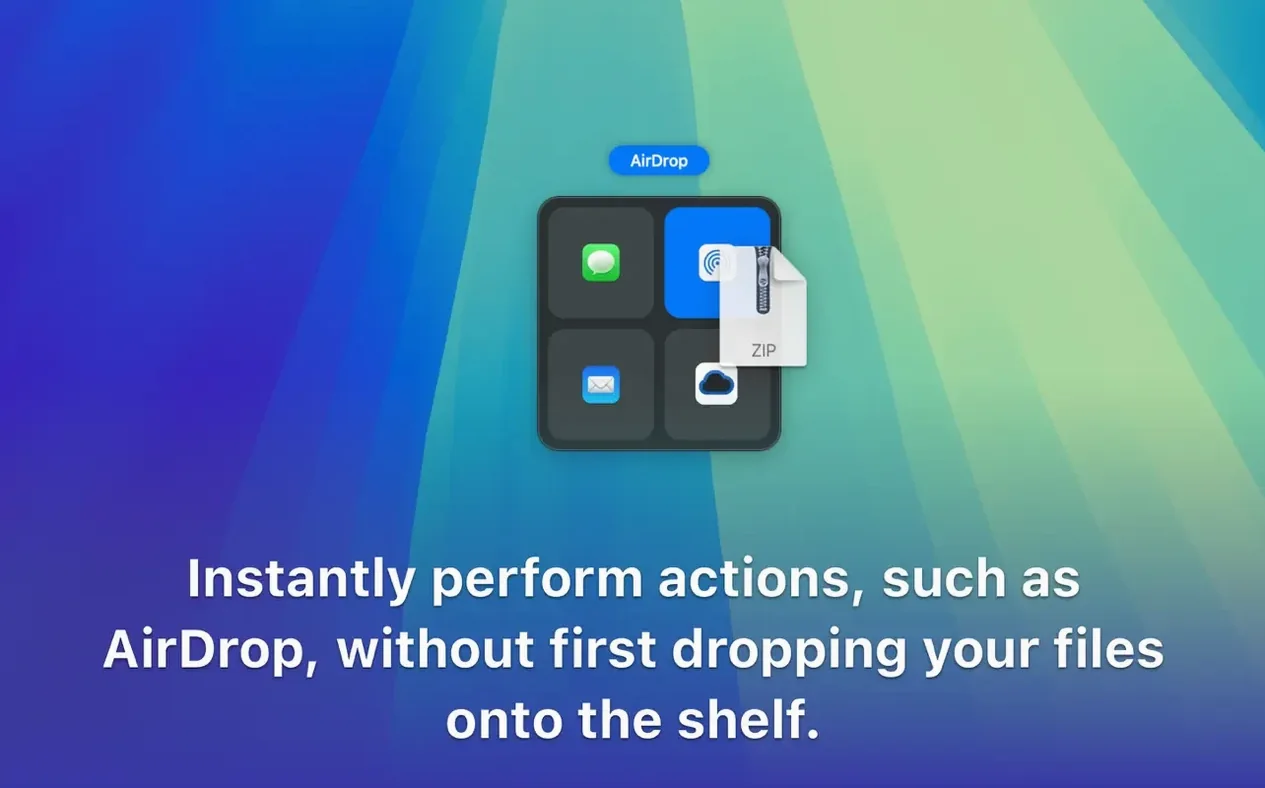
The shelf itself is adjustable. You can set its size, opacity and screen position so it sits where your workflow needs it. From the shelf, actions like archiving to ZIP, batch renaming or sharing to Google Drive or Dropbox are a right-click away. A configurable hotkey summons the shelf without shaking, and Shortcuts support lets you route gathered files into automations without touching the mouse.
When the Shelf Becomes Muscle Memory
After a few hours with the shelf always available, you stop thinking about it as a separate application. It becomes part of the drag gesture itself—lift, shake, drop—and the mental friction of holding a file while navigating disappears. On an M1 MacBook Air with 16 GB of RAM, the shelf stays responsive even with forty or fifty assorted items queued up: PNGs, a 400 MB video clip, half a dozen URLs, a folder of RAW photos. The panel draws with no perceptible lag, and dropping the batch into a target app delivers the payload in a single smooth motion.
Memory use sits around 95–110 MB during ordinary work, climbing modestly when the shelf holds large files because Dropover references paths rather than copying data into its own memory space. CPU time is negligible; the process idles at zero percent and spikes to perhaps two percent only when generating previews for newly added images. The floating panel uses a translucent material that respects macOS appearance settings—dark or light—and the transparency slider in preferences lets you dial down the opacity if the shelf competes too much with underlying content.
Stability over a week of constant use proved solid. Version 5.3.0 on macOS Sonoma 14.2 never crashed during testing, and the shelf survived rapid-fire additions, deletions and drag-outs without losing items or becoming unresponsive. The only quirk worth noting: if you put the Mac to sleep while items sit on the shelf, they reappear afterwards exactly as they were, but the shelf takes two or three seconds to re-render its previews. No data loss, just a brief visual rebuild.
Asset Collectors Without a Clipboard Manager
Dropover fits a specific gap in the Mac interaction model—the lack of a staging area between source and destination. Three groups of users feel that gap most acutely.
Designers and media editors who collect assets from scattered folders, web downloads and network shares before placing them into a layout or timeline. Instead of dropping files one by one into Photoshop or After Effects, they gather a dozen assets on the shelf, switch to the target app and place everything in sequence. The right-click option to compress a shelf full of images straight to a ZIP also cuts out the Finder step when sending proofs to a client.
Researchers and writers assembling references, PDFs, screenshots and text clippings benefit from the shelf’s ability to hold URLs and selected text alongside files. Dragging a highlighted paragraph from Safari onto the shelf stores it as a clipping with the page title, and the whole collection can be dragged into a note in Obsidian or a Scrivener research folder. The Shortcuts integration lets them build a one-click action that saves a filled shelf into a dated project folder—no manual dragging required for repeat workflows.
Folder organisers tackling messy directories, duplicate clean-ups or archive shuffles use the shelf as a sorting table. Gather files from several locations, park them on the shelf, then open the target directory and distribute the items deliberately. The batch-rename action accessible from the shelf’s context menu handles sequential numbering and text replacement without opening a separate utility.
Shake Sensitivity Finally Gets a Slider
Release notes for 5.3.0 are thin in the available sources, but the feature set visible in the current build reflects steady accumulation over the 5.x cycle. Earlier updates in the 5.x line added the shake-sensitivity slider—so you can tune how vigorous a cursor shake needs to be before the shelf appears—and refined the shelf’s behaviour across multiple Spaces. Previously, the shelf could get stranded on a different desktop; now it follows focus reliably.
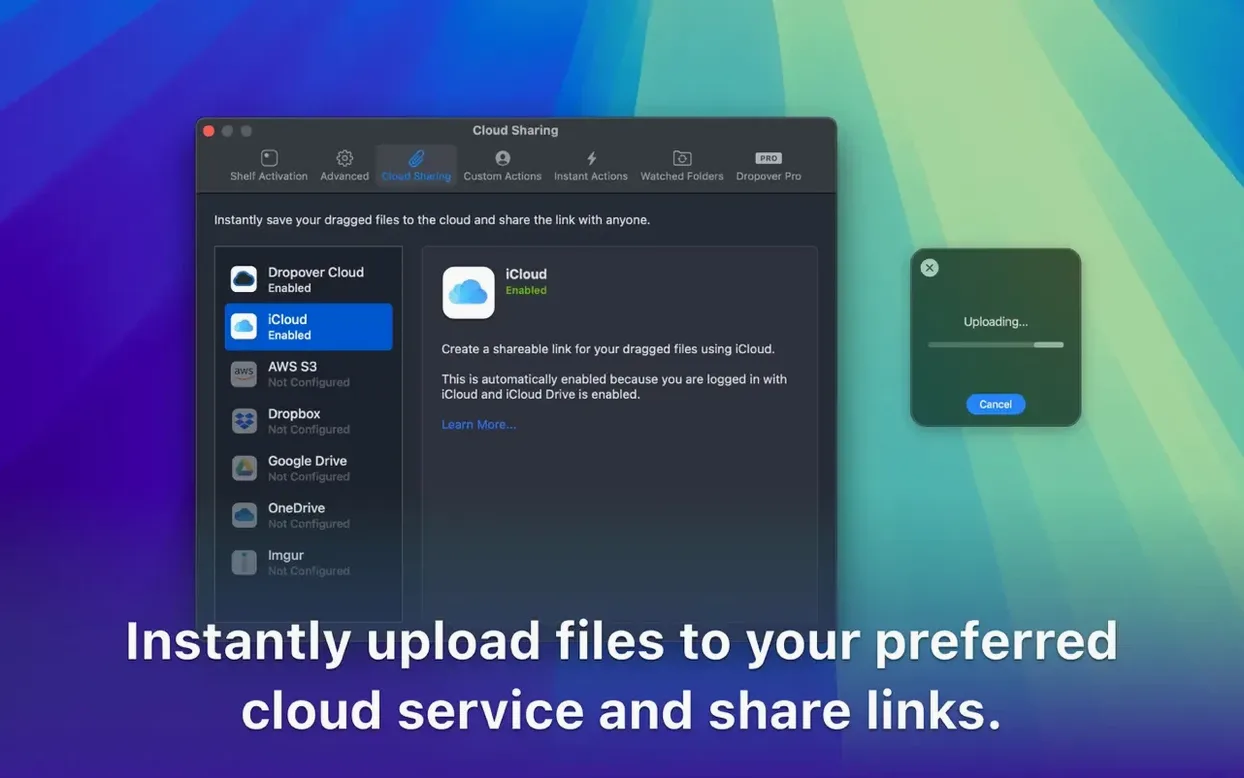
Cloud service integration matured during the 5.x releases. The right-click menu gained direct upload options for Google Drive and Dropbox, which send the selected items to the service without an intermediate Finder copy. The upload progress appears as a circular indicator on the shelf item itself, so you can watch several uploads complete while continuing other work. Shortcuts support also broadened: the “Get Items from Dropover Shelf” action lets automations pull the current shelf contents into a shortcut, making the shelf an input source for larger workflows.
Performance improvements in the 5.x line reduced the preview-generation time for large batches of images. Where version 4.x sometimes showed placeholder icons for several seconds when adding twenty or more photos, version 5.3.0 renders thumbnails almost immediately on Apple Silicon machines. Users running older Intel hardware will still see a brief delay with very large batches—the preview pipeline is GPU-accelerated primarily via Metal on Apple Silicon.
Tuning Shake Sensitivity Before It Drives You Crazy
A few adjustments in the first hour prevent small frustrations later. Start with these.
- Calibrate the shake gesture. Open Preferences → General and find the shake sensitivity slider. The default is fine for a trackpad, but mouse users—especially those with high-DPI gaming mice—often need to reduce sensitivity to avoid accidental shelf summons during normal pointer movements. Test it with a light flick; you want the shelf only when you intend it.
- Set a keyboard shortcut. Under Preferences → Shortcuts, assign a hotkey for “Show Dropover Shelf.” Cmd-Shift-D is available and easy to remember. This becomes essential when you are dragging with the trackpad button held and cannot perform a shake without risking a dropped file.
- Decide on shelf position and opacity early. In Preferences → Appearance, choose a corner—bottom-right works for most right-handed users—and drop the opacity to roughly 70 percent. The shelf stays visible but doesn’t obscure Finder column views or code editors when it overlaps them.
- Enable the Finder extension. System Settings → Extensions → Finder Extensions, then check Dropover. This adds “Add to Dropover Shelf” to the Finder’s right-click context menu and the Share menu, giving you a non-drag method to queue items. Useful when selecting files across non-contiguous list entries where a drag would collapse the selection.
- Test the “Share” path for cloud uploads. Drag a small file onto the shelf, right-click it and choose your preferred cloud service. Confirm the authentication prompt once—future uploads use the stored token. This is faster than dragging to a browser tab with the service open.
Once these are dialled in, the muscle memory builds quickly. A shake becomes as automatic as Cmd-Tab, and the shelf fades into the background of every drag operation.
- macOS 12 or later
- Apple Silicon or Intel Mac
Questions on file
Does Dropover work on Apple Silicon Macs?
Yes, the app runs natively on both Apple Silicon and Intel-based Macs.
Can I send files from the shelf directly to cloud storage?
Yes, right-clicking items on the shelf gives you options to upload to integrated services like Google Drive and Dropbox.
Sign in · Create an account to add a field note.
No field notes yet. A measurement, a version, a machine — they appear after moderation.