Mac Apps
DVDFab 12.0.8.2
Mac AppsUpdated
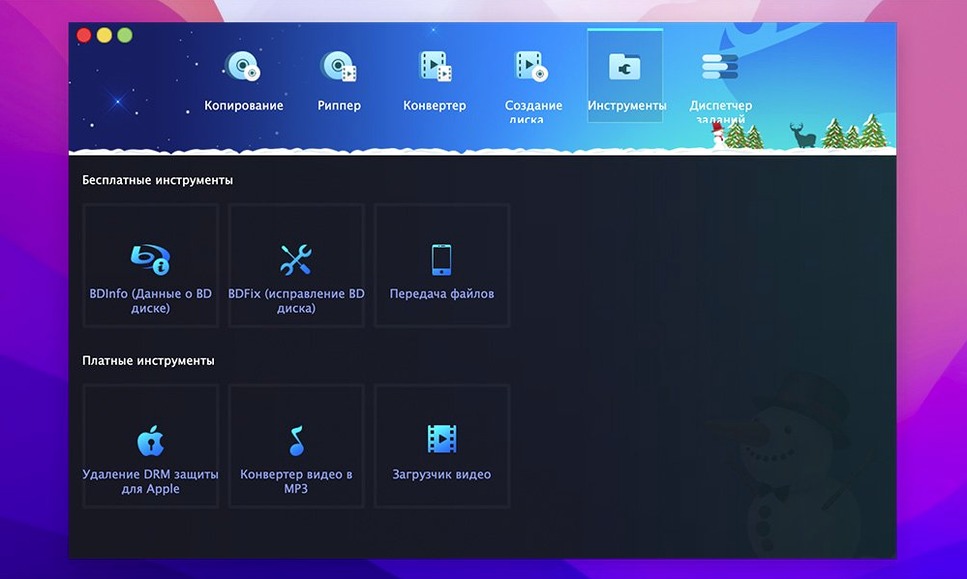
| Requirement | On file |
|---|---|
| macOS | OS X 10.10 or later |
| CPU | Apple Silicon, Intel 64-bit |
| Download | 413 MB |
A family member hands you a homemade DVD from a 2007 camcorder. The disc is a single-layer DVD-5, but you want a safety copy and a smaller digital file for a tablet. DVDFab 12.0.8.2 handles both tasks from the same clean source.
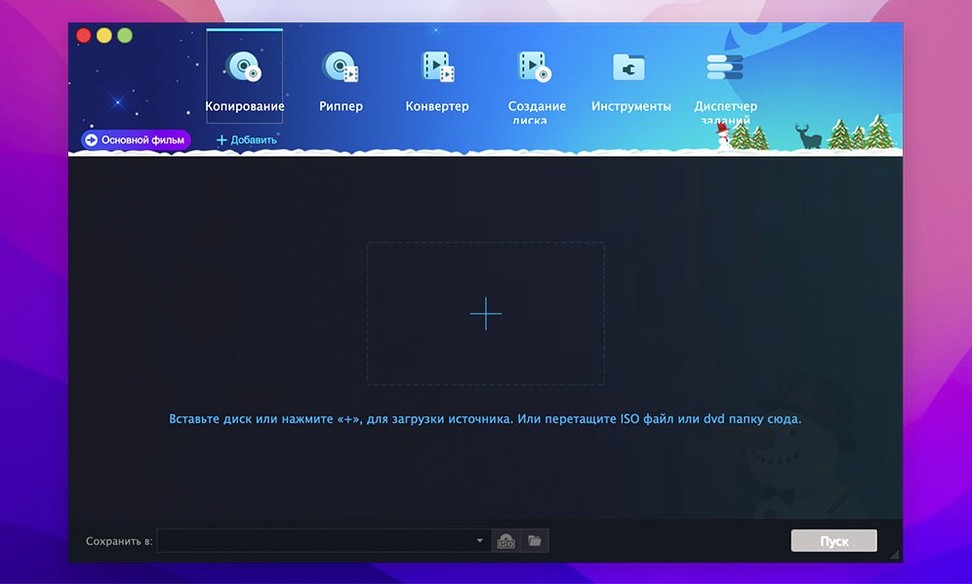
- Load the disc. Insert the DVD. DVDFab opens to its Copy module and reads the IFO structure. If the IFO is unreadable, the software attempts to reconstruct the navigation data itself.
- Choose a copy method. Under DVD Copy, select Full Disc. This preserves every menu and trailer in an identical clone. The interface shows the source size and your blank target capacity.
- Set the output. Insert a blank DVD-R. For a dual-layer project, the app writes directly to a DVD-9 disc. For this task, a standard single-layer disc suffices.
- Start the copy. Click Start. The progress bar tracks each stage of reading and writing. When it finishes, you have a verified backup.
- Switch to Converter. With the disc still in the drive, move to the Converter module. Select a device profile—iPod or PSP, for instance. The software applies the correct resolution and codec.
- Convert and save. Choose a destination folder and run the conversion. The resulting file is ready for the iPad.
If the original disc were a DVD-9 too large for a single blank, the Split method would divide the content across two DVD-5 discs without losing menus. The Merge method works in the opposite direction, combining titles from several sources onto one disc. Eight copy methods sit alongside ripping and authoring tools, making the suite a practical bench for rescuing old optical media.
Day-to-Day Behaviour on a Mac
DVDFab is not a lightweight background utility. When it reads a dual-layer disc at full speed, the optical drive spins audibly and the CPU graph in Activity Monitor shows a sustained climb. On an Apple Silicon MacBook Air, the fanless design means the chassis warms up after twenty minutes of continuous ripping—nothing alarming, but noticeable. Memory use stays modest: a full-disc copy of a DVD-9 rarely pushes the app beyond 600 MB of RAM, leaving plenty of room for a browser and email client.
Stability depends heavily on the source disc. With a clean, unscratched commercial DVD, the read-and-write pipeline runs without interruption. A disc with deep circular scratches triggers the error-correction routines, and the progress bar may stall for 30 to 40 seconds while the drive retries a sector. DVDFab rarely crashes outright in these situations; it either finishes the job with a log entry about the bad sector or abandons the read and offers a partial output. The application’s autosave of project settings survives a forced quit, so a mid-session restart picks up where you left off.
Burn speeds are conservative by default. The software queries the drive’s firmware for its supported write strategies and picks a rate one step below the maximum rated speed. This choice reduces buffer underruns on cheaper media. Users who rely on dvdfab macos on older Intel Macs with a SuperDrive will notice that the app respects the drive’s age: it never pushes a 2008-era burner to 16x just because a modern blank claims that rating.
Full Disc Rebuild vs. Clone Sector-by-Sector Copy
New users often overlook the difference between Full Disc and Clone. Full Disc rebuilds the DVD structure and removes certain protections like CSS and UOPs along the way; Clone performs a sector-by-sector copy and keeps every byte, including the original copy-protection flags. Someone who intends to play the backup on a region-locked player should pick Full Disc. Choosing Clone and then wondering why the backup still refuses to play on a North American player is a frequent source of confusion.
Another early mistake involves the Split mode. Beginners sometimes insert a single blank disc, start a Split job, and expect the software to pause and prompt for the second disc. DVDFab writes the first half and then waits. If no second disc is inserted within a few minutes, the job times out and leaves a half-finished disc that cannot be read by most players. Keeping two fresh blanks on the desk avoids this.
People who find a DVDFab torrent or DVDFab Mac torrent often grab a version that predates the current 12.x branch and discover that it lacks the updated decryption keys for recently pressed discs. An old build will spin the disc, fail to open it, and produce a generic “read error” dialog. That same disc works immediately in 12.0.8.2 because the decryption library is current.
Eight Copy Methods vs. MakeMKV’s Single Extraction Job
Next to MakeMKV, the philosophical split is clear. MakeMKV focuses on extracting video into Matroska containers and does one job with minimal interface. DVDFab 12.0.8.2 offers eight copy methods plus conversion and authoring, so the user trades MakeMKV’s spartan speed for a broader toolkit. Someone who only wants an MKV of the main feature will find MakeMKV faster to launch and configure; someone who needs a disc-for-disc backup with menus intact stays with DVDFab.
MacX DVD Ripper Pro handles ripping and conversion well but stops short of burning. Its interface is simpler, and it converts to device profiles quickly, yet it cannot burn a DVD folder to a blank disc or merge titles from three source discs into one compilation. DVDFab covers both ends of the pipeline—ripping from disc and writing back to disc—so the user does not need a second burning utility.
HandBrake, often mentioned in the same breath as a dvd fab torrent search, is a capable video transcoder that reads unprotected DVD folders. It has no decryption of its own, no burn engine, and no disc-copy modes. Pairing HandBrake with a separate decryption tool can approximate DVDFab’s ripping workflow, but the integration cost is extra steps and an extra tool to maintain. DVDFab wraps decryption, analysis, encoding, and burning into one application, which matters when you are processing a stack of discs in an afternoon.
Point the Temp Directory at 20 GB of Free Space
Install and immediately open Preferences. Under the General tab, set the temporary directory to a location with at least 20 GB of free space. The default is the system drive, and a full DVD-9 temporary image will choke a 128 GB MacBook if it is already tight. Pointing the temp folder to an external SSD keeps the internal drive healthy and speeds up the write-back phase when burning.
Test the drive recognition before committing to a long job. Insert a known-good pressed DVD—not a burned one—and watch the source info panel. If the region code, layer count, and title structure appear within ten seconds, the drive and disc are communicating properly. A blank source panel on a commercial disc usually means the optical drive’s region has not been set or the disc has a protection scheme that needs the latest decryption update.
For anyone testing a build obtained via a DVDFab Mac crack, the first practical step is to run the simplest possible job: a Main Movie copy of a short title to a hard-drive folder, no burning. This isolates the ripping engine from the burner and confirms the core decryption works before you waste a blank disc on a failed attempt.
Finally, label blanks with a fine-tip marker before inserting them. The Write Data mode can burn an ISO or DVD folder at any time, and a stack of unlabelled DVD+R DL discs quickly becomes a puzzle. A date and a short title written on the inner hub save you from playing “guess the disc” a month later.
- Requires OS X 10.10 or later
- Supports Intel and Apple Silicon Macs
Questions on file
Can DVDFab copy a commercial DVD that my Mac's Finder cannot read?
Yes, the software can restore readable content even when the IFO file is damaged, and it includes a Clone mode for a direct sector-by-sector copy.
Sign in · Create an account to add a field note.
No field notes yet. A measurement, a version, a machine — they appear after moderation.