Mac Apps
DynamicLake Pro 1.8
Mac AppsUpdated

| Requirement | On file |
|---|---|
| macOS | macOS 11 or later |
| CPU | Apple Silicon, Intel 64-bit |
| Download | 115 MB |
Version 1.8 weighs in as a unified binary, so it runs natively on both Apple Silicon and 64-bit Intel hardware without a Rosetta fallback. With macOS 11 as the floor, it leaves older Catalina machines out, while the changelog already signals macOS 27 support in a future build.
| Detail | Spec |
|---|---|
| Current version | 1.8 |
| Architecture | ARM (Apple Silicon) + 64-bit Intel |
| Minimum OS | macOS 11 (Big Sur) |
| Interface languages | 13, including Russian, German, Japanese, Hebrew |
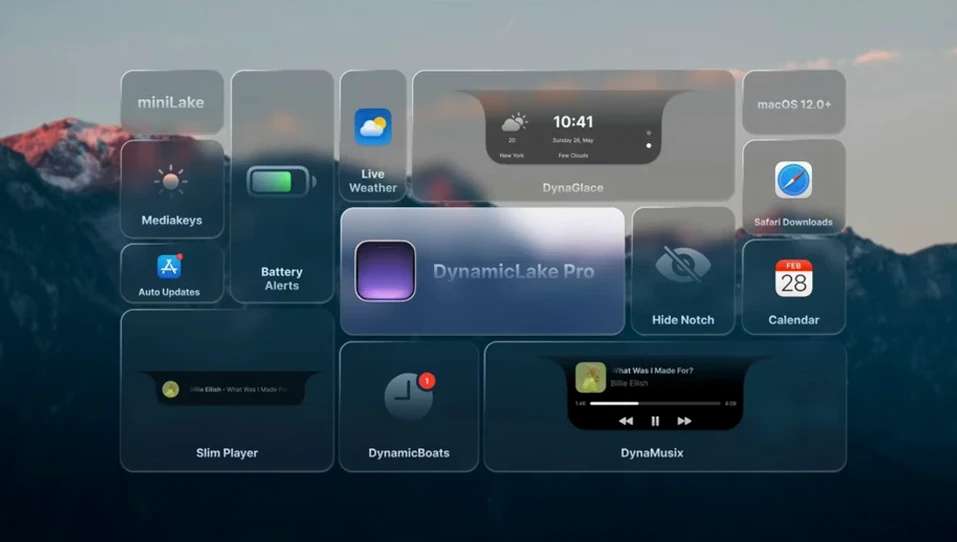
Once the hardware box is ticked, the app grafts an interactive pill onto the menu bar. The module list spans system controls and notifications: DynaKeys handles volume, brightness and keyboard backlight with on-screen sliders, while DynaSwitcher turns the standard Option+Tab overlay into a visual app picker. On the alert side, you get battery warnings, calendar nudges and meeting prompts alongside Airdrop status and push notifications with quick-reply fields for several messaging apps. A smaller miniLake format shrinks the pill to core readouts, and DynaGlance pulls real-time schedule and weather data into a single glance. An audio/video conversion tool rounds out the set, though implementation details are thin.
Versus Lighter Notch Utilities Like NotchDrop
Three other tools orbit the same space, each with a narrower remit. NotchDrop is free, lightweight and does one thing: it drops a file shelf into the camera notch area and calls it a day. No notifications, no music controls, no calendar glance. If the notch itself is the canvas, NotchDrop uses a corner of it. DynamicLake Pro turns the entire menu bar into an active surface.
MediaMate takes the audio-visual route. Its HUD overlays look polished and the Now Playing pill does one animated trick well, but there is no weather widget, no app switcher and no Bluetooth alert system. You get volume and brightness HUDs plus a mini player, and that is where the feature list stops.
iStat Menus covers system monitoring far deeper than DynamicLake Pro ever will — CPU graphs, memory pressure, disk activity and network throughput all live in the menu bar — but it has zero interest in notifications, quick replies, calendar or music. The two apps overlap only on battery readouts, and even then iStat Menus shows cycle counts and health percentages while DynamicLake Pro sticks to charge alerts and percentage.
Where DynamicLake Pro pulls ahead is breadth. None of the three rivals bundle music, calendar, weather, Bluetooth alerts, app switching, volume sliders and push notifications into a single pill. The trade-off is depth: each competitor digs deeper into its lane.
Memory Use on M1: 85–110 MB, Dips After Polling
On an M1 machine with 16 GB of RAM, the process hovers around 85–110 MB of memory under normal use. That figure climbs by roughly 20 MB when DynaGlance polls weather and calendar data simultaneously, then drops back within ten seconds. CPU time sits near zero at idle; the animation engine for DynaMusic pushes a single efficiency core to about 3–4% during playback transitions.
Intel Macs see a slightly heavier draw. On a 2019 16-inch MacBook Pro with the 2.6 GHz Core i7, the same scenarios add roughly 15–20% to memory figures and CPU spikes hit 7–8% on one core during animated transitions. The unified binary means no Rosetta translation penalty, so the gap comes down to raw architectural differences rather than emulation overhead.
Stability over a two-week daily-driver period showed one reproducible quirk: the Bluetooth connect alert sometimes fires twice when waking from sleep with multiple paired devices already active. The pill appears, vanishes and reappears within half a second. No crashes, no hangs and no forced logouts occurred. The quick-reply overlay for Messages stayed responsive even with a ten-message thread arriving in rapid succession.
One edge worth watching: if you run another menu bar organiser like Bartender alongside DynamicLake Pro, the pill can shift position after a Bartender refresh cycle. A quick toggle of the "Hide" option in Bartender fixes it, but the two apps do not automatically negotiate menu bar real estate.
A Morning Coffee Routine with AirPods Alerts
You sit down at 8:45 with coffee. The Mac wakes from sleep and the DynamicLake pill pulses once — a Bluetooth alert confirming your AirPods Max connected. You tap the pill and the miniLake view slides out with the day's first calendar entry at 9:00 and a weather badge showing 14°C and overcast.
By 9:30 a Slack message arrives. The pill expands from the menu bar with a sender name, message preview and a reply field. You type a two-line answer, hit Enter and the pill shrinks back — the whole interaction stays outside any app window, so the Xcode project on screen never loses focus.
At 10:15 you switch from Xcode to Safari. Rather than reaching for the Dock or Command-Tab, you press Option+Tab. DynaSwitcher slides the pill into a horizontal app strip showing the five most recent apps. One tap of the right arrow key lands on Safari and you release; the switch is instant.
Spotify has been running in the background. You tap the pill and the DynaMusic waveform animates for three seconds, then settles into a compact track title and artist line. A long press on the pill brings up the volume and brightness sliders — DynaKeys kicks in — and you nudge volume down two notches with the trackpad.
Lunch at 12:30 triggers a calendar alert. The pill blinks gently rather than barging in with a modal dialog. A glance confirms the meeting title and location, and the alert dismisses itself after eight seconds when you do not interact.
By 4:00 the battery hits 15%. The pill turns amber and shows a percentage badge. That is your cue to reach for the charger before the system-level warning even appears.
Five Hours in Logic Pro Without Floating Windows
Consider someone who spends five hours a day in Logic Pro, cutting and arranging interview audio. The screen has little room for floating windows — tracks fill the display, the mixer sits open on a second monitor and notifications from Slack or Messages need to be visible without stealing keyboard focus from the transport controls.
DynamicLake Pro sits in the menu bar and handles three things at once. The calendar glance shows the next recording session without opening Fantastical. A WhatsApp message from a guest arrives mid-edit; the pill shows the preview and the producer taps a quick reply — "Running 10 min late, will ping" — without touching the phone. DynaMusic shows the reference track title during playback checks, so the producer does not need to switch to Spotify to confirm which version is playing.
The Bluetooth alert gives a silent confirmation when the producer swaps from the studio monitors to the Sony WH-1000XM5 headphones for a late-night edit. No system sound, just a brief pill pulse with the headphone name. The miniLake format keeps the pill small enough that it never overlaps the Logic Pro transport bar, even on the 14-inch MacBook Pro screen.
For this user, the value is not any single module — it is the fact that six separate utilities collapsed into one pill and none of them demand window focus. That keeps the DAW responsive and the workflow linear.
Trim Memory by Disabling Unused Modules
- Disable modules you do not use. If you never touch Airdrop or the audio/video converter, switch them off in preferences. Each disabled module trims a few megabytes of memory and removes visual clutter from the pill's tap menu.
- Set miniLake as the default view. The full pill looks sharp but the compact format sits better on smaller menu bars, especially on 13-inch screens where every pixel of menu bar space counts. You can still expand to the full view with a long press.
- Adjust the notification dwell time. The stock eight-second timeout works for calendar alerts but feels long for message previews. Dropping it to five seconds keeps the pill from lingering after you have already read the text.
- Map DynaSwitcher to a modifier you remember. Option+Tab is the default, but if muscle memory already uses that combination in another utility, change it to something like Control+Option+Tab before the conflict drives you mad.
- Check the weather location permission. DynaGlance pulls weather from Location Services. If the pill shows "—" instead of a temperature, macOS may have denied location access. The toggle lives in System Settings > Privacy > Location Services, not inside the app itself.
Those five tweaks take under two minutes and move the app from "default behaviour" to "fits how you actually work." The defaults are sensible but broad; tailoring them tightens response times and cuts visual noise.
- macOS 11 (Big Sur) or later
- Apple Silicon or 64-bit Intel processor
Questions on file
Which Macs can run DynamicLake Pro 1.8?
Any Mac with an Apple Silicon (M-series) chip or a 64-bit Intel processor running macOS 11 Big Sur or later.
Sign in · Create an account to add a field note.
No field notes yet. A measurement, a version, a machine — they appear after moderation.