Mac Apps
Dropzone 5 5.1.4
Mac AppsUpdated
| Requirement | On file |
|---|---|
| macOS | macOS 13 or later |
| CPU | Apple Silicon, Intel 64-bit |
| Download | 69 MB |
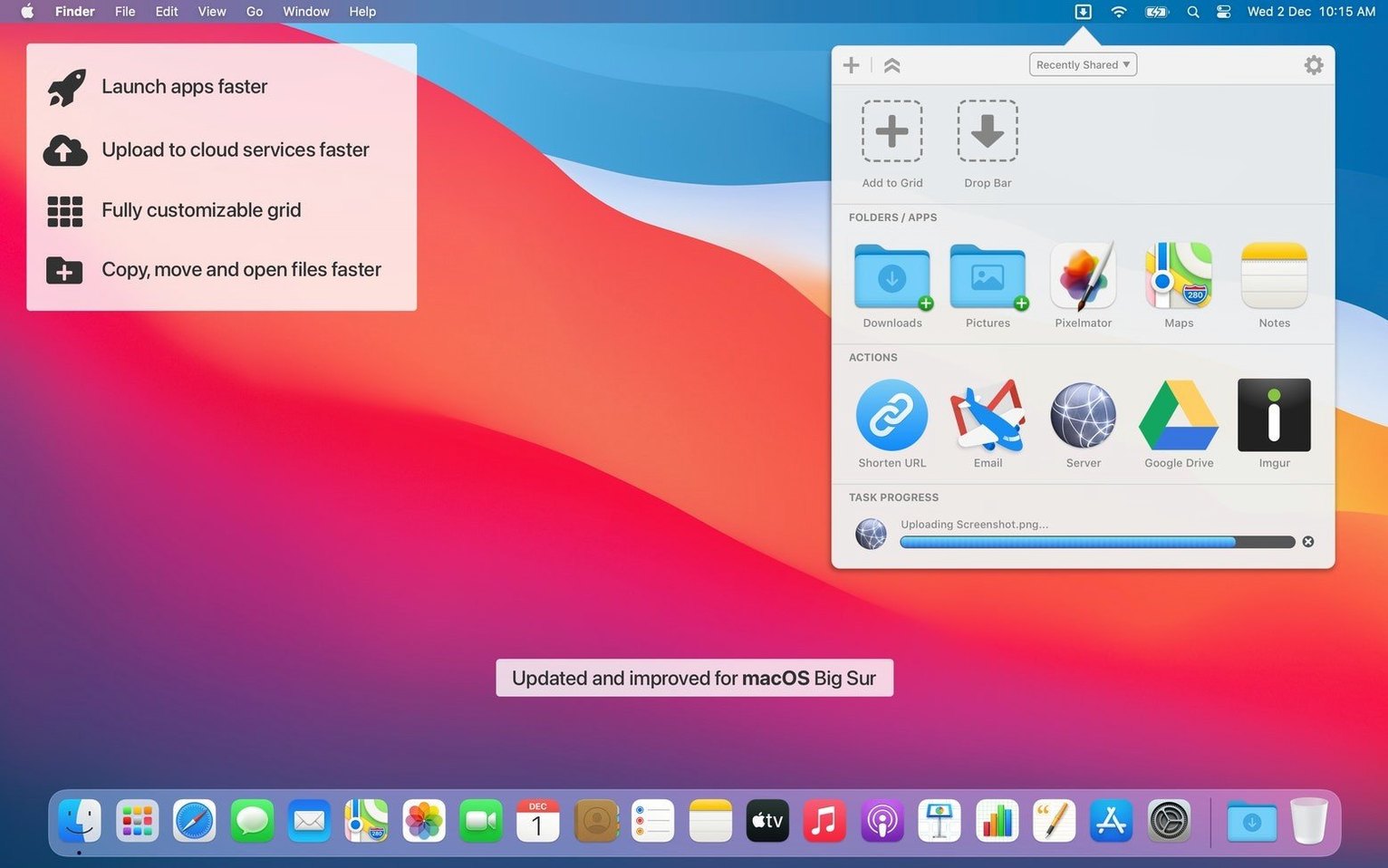
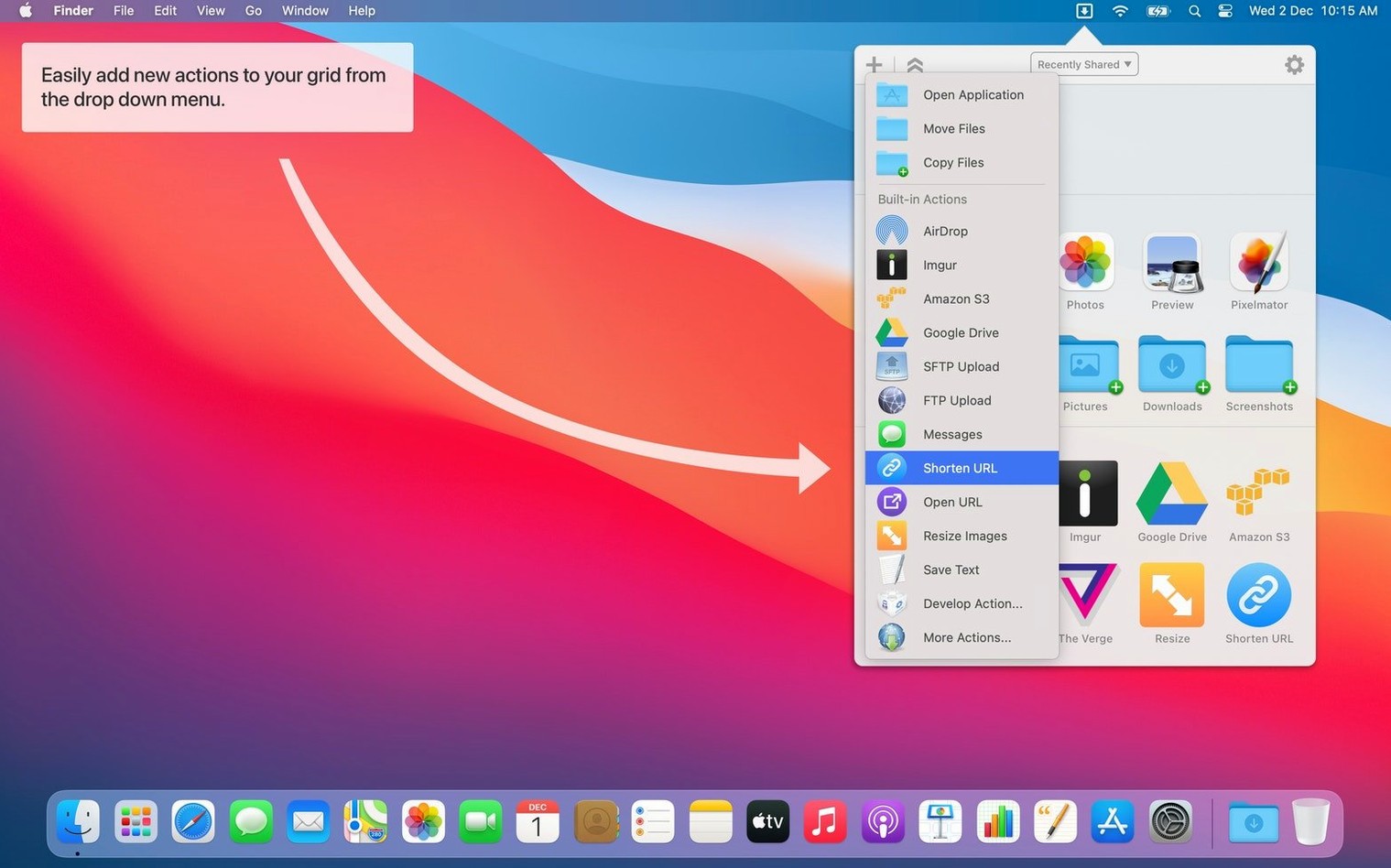
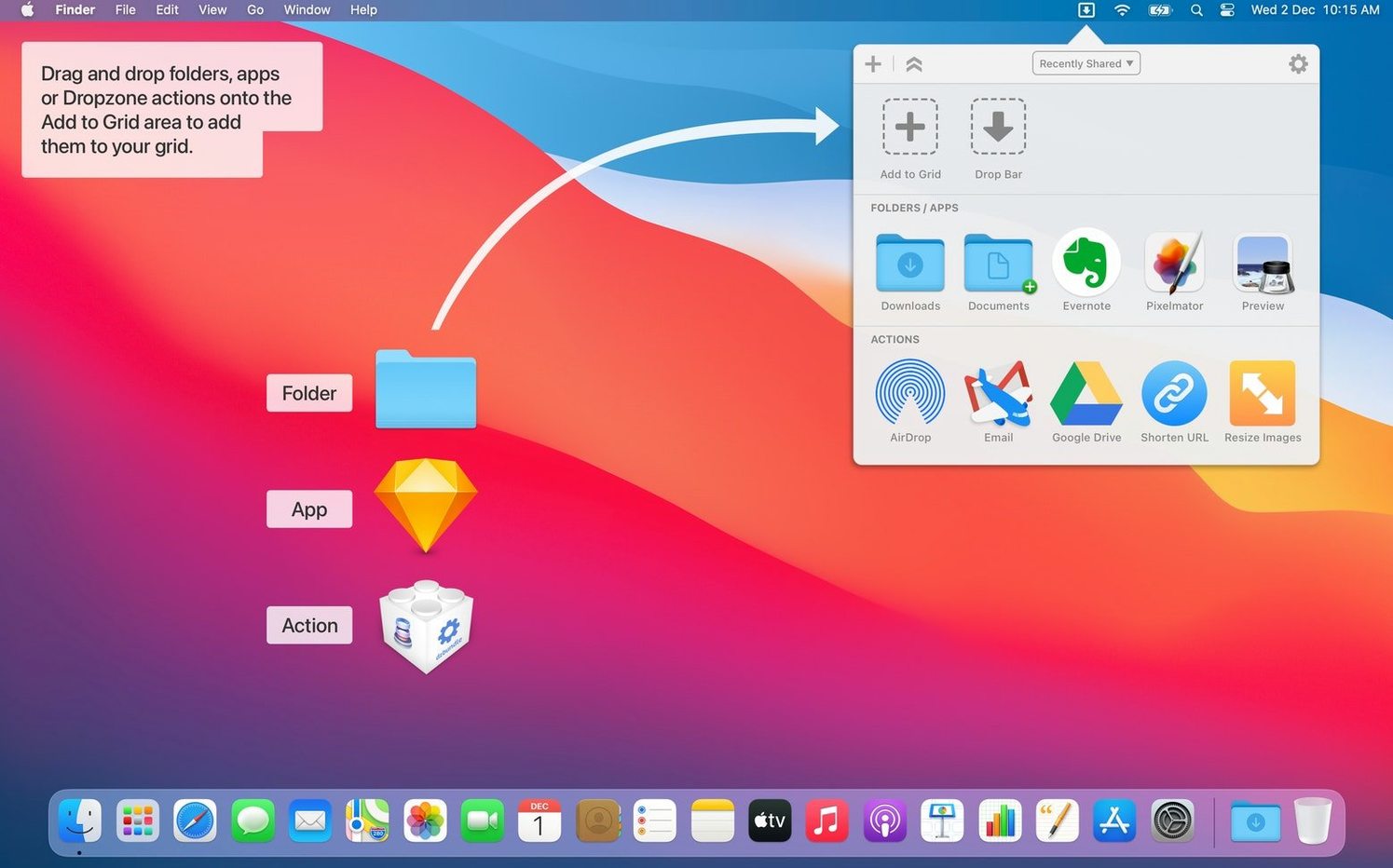
“Run with Clipboard” – a right-click option that feeds whatever you’ve copied straight into an action – is the kind of detail that defines this release. Dropzone 5 sits in the menu bar as an extension of macOS drag-and-drop, turning repetitive file moves, uploads and app launches into single-swipe shortcuts. The interface is a grid of zones you populate with apps, folders or custom scripts, and version 5 brought a redesigned grid with updated animations that responds the moment a file hits the menu bar.
FTP uploads & sharing shortcuts from the grid
- FTP uploads without opening a dedicated client – drag a file onto an FTP action and progress appears in Notification Centre.
- Sharing files via a saved shortcut instead of hunting through share menus.
- Running custom scripts for daily chores by dropping files onto a script action.
- Organising actions across multiple grids, so one set handles image processing while another covers deployment tasks.
- Adding text or URLs to Dropzone directly from the Share menu, a new path that arrived in version 5.1.3.
Menu bar real estate & the command-line tool
- The grid relies on the menu bar; if your bar is already crowded with status icons, fitting Dropzone into the workflow takes some rearranging.
- A command-line tool (dz) is included, but its utility depends on whether you work in Terminal.
- Action configuration is straightforward for built-in types, yet scripting custom actions assumes you are comfortable writing and maintaining those scripts.
Login launch, sticky grid & custom keyboard shortcuts
The defaults are sensible, but three changes make a difference in the first ten minutes. Open Preferences and head to the Grid tab. Tick Start at login — there is no reason to launch Dropzone manually every session. Next, check Show status item in menu bar; if the grid icon alone is enough, unchecking it reclaims a slot on a busy bar. The status item can live in Bartender or Hidden Bar without losing its click target.
Switch to the Drop Bar tab. Enable Show Drop Bar on screen edge and pick a side. A narrow translucent strip appears when you start dragging a file, giving you a second drop target that does not require aiming at the menu bar. Set its position to the right edge if you work with Finder windows snapped to the left half of the screen — your drag distance shrinks noticeably. While you are here, bump the Recent items count to 15 or 20. The default five clips are fine for a quick staging area, but a longer history turns the Drop Bar into a short-term clipboard for files.
Spot repeats and pin your top action first
Spend an afternoon watching which actions you repeat, then drag those apps or folders into the grid. A few patterns emerge quickly.
- If you send screenshots to Slack or a design folder ten times a day, make that your first custom action. Drag the target folder onto the grid, rename the tile, and assign a hotkey like
⌃⌥⌘S. Dragging a file becomes optional — a keystroke opens the destination directly. - Group related actions into a second grid. Keep a default grid for everyday moves and launches, then create one called Deploy for FTP, S3 uploads and archive tasks. Switching grids takes a single click in the menu bar header.
- Enable the Run with Clipboard option on any action that accepts text. Copy a YouTube URL, right-click the download action tile, choose Run with Clipboard, and the video queues without pasting. The same trick works for shortened URLs and text snippets headed for a script.
- Pin the Drop Bar to the left edge for the first week and note how often you drop files onto it as a temporary shelf. Many users discover the holding area replaces a messy Desktop folder within days.
Collect screenshots into the Drop Bar and dispatch
It is mid-afternoon and a handful of screenshots need to land in a shared review folder. The Drop Bar is set to the right edge. Select five PNGs in Finder and begin dragging — the translucent strip appears along the side of the screen. Drop the files there. They sit in the holding area, visible as small thumbnails, while you switch to the project’s Slack channel.
Click the Dropzone menu bar icon. The grid opens. Drag the first screenshot from the Drop Bar onto the Review folder tile. It copies instantly and a notification confirms the path. Repeat for the remaining four files in quick succession; each progress ring spins for a fraction of a second. The Drop Bar empties as you work, so by the last file there is nothing left to clear.
Next, a colleague asks for the raw .sketch file. It sits in a project folder three levels deep. Open Finder, locate the file, and start dragging upward toward the menu bar. The grid drops down automatically — no need to click first. Drop the file onto the AirDrop action tile. The standard AirDrop sheet appears with the file preloaded. Select the colleague’s Mac and hit send.
Before wrapping up, copy a YouTube link from the browser. Right-click the YouTube Download action in the grid, pick Run with Clipboard, and the download begins. Notification Centre shows the progress bar. The MP4 lands in the default downloads folder two minutes later while you are already in the next task.
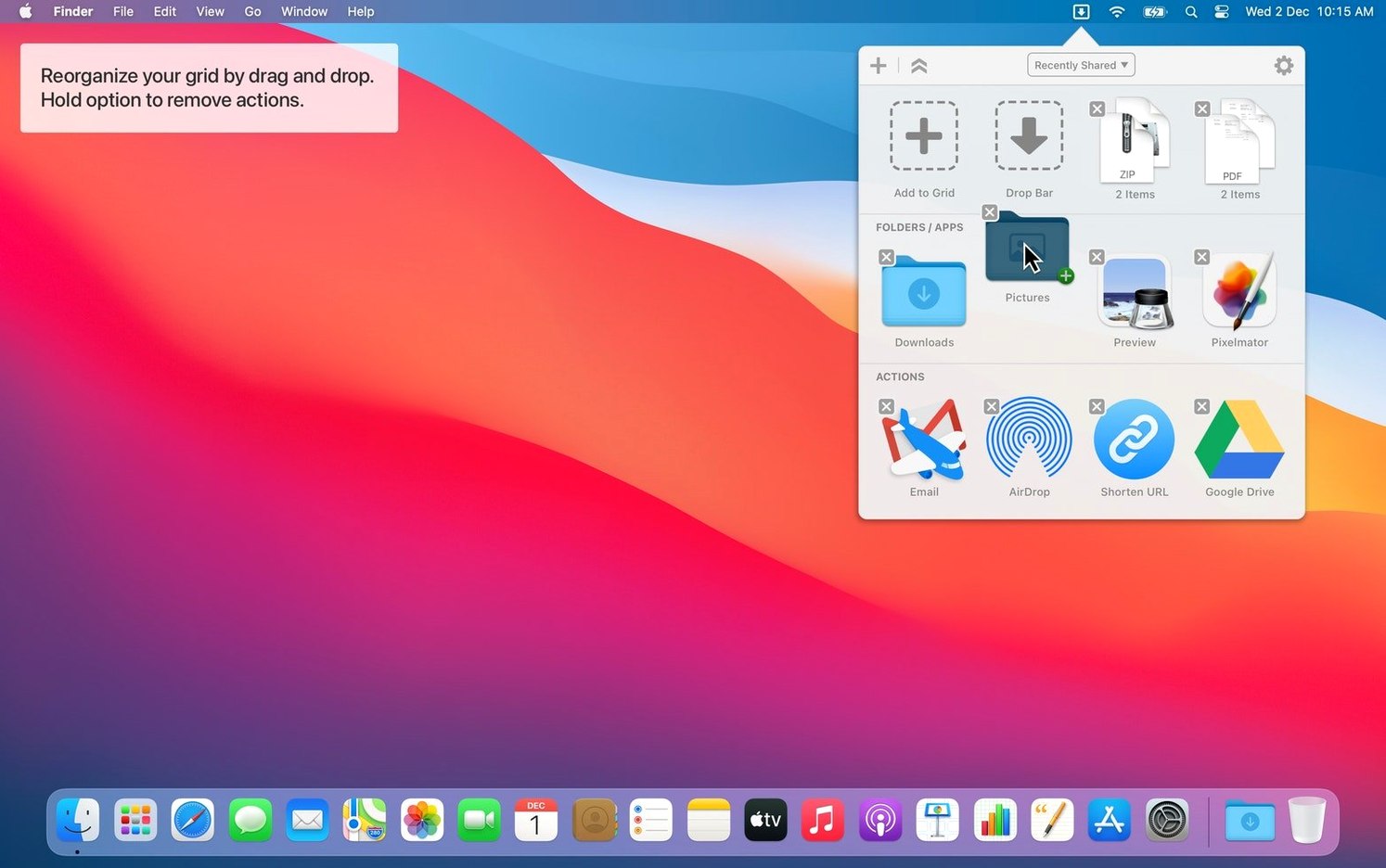
- Drop Bar stacks — Items now use popover panels, letting you preview contents and drag out single files before acting on the whole stack.
- Grid editing — Apps and folders can be placed into grid slots by dropping them straight into the gaps between existing tiles.
- Appearance — Grid glass effects refined for macOS 27.
- Fix — Shadow rendering no longer breaks when dragging items out of the Drop Bar.
- macOS 13 or later
- Apple Silicon and Intel 64‑bit
Questions on file
What are the system requirements for Dropzone 5?
Dropzone 5 requires macOS 13 or later and runs natively on both Intel and Apple Silicon Macs.
Sign in · Create an account to add a field note.
No field notes yet. A measurement, a version, a machine — they appear after moderation.