Mac Apps
Duplicate File Finder Pro 9.2.1
Mac AppsUpdated
| Requirement | On file |
|---|---|
| macOS | macOS 10.13 or later |
| CPU | Apple Silicon, Intel 64-bit |
| Download | 37 MB |
A cluttered drive is rarely just about large media files. Often, the slow creep of identical documents, copied downloads and parallel folder structures wastes more space than you'd expect. Duplicate File Finder Pro targets that redundancy directly, scanning multiple disks or chosen folders to surface what's genuinely duplicated.
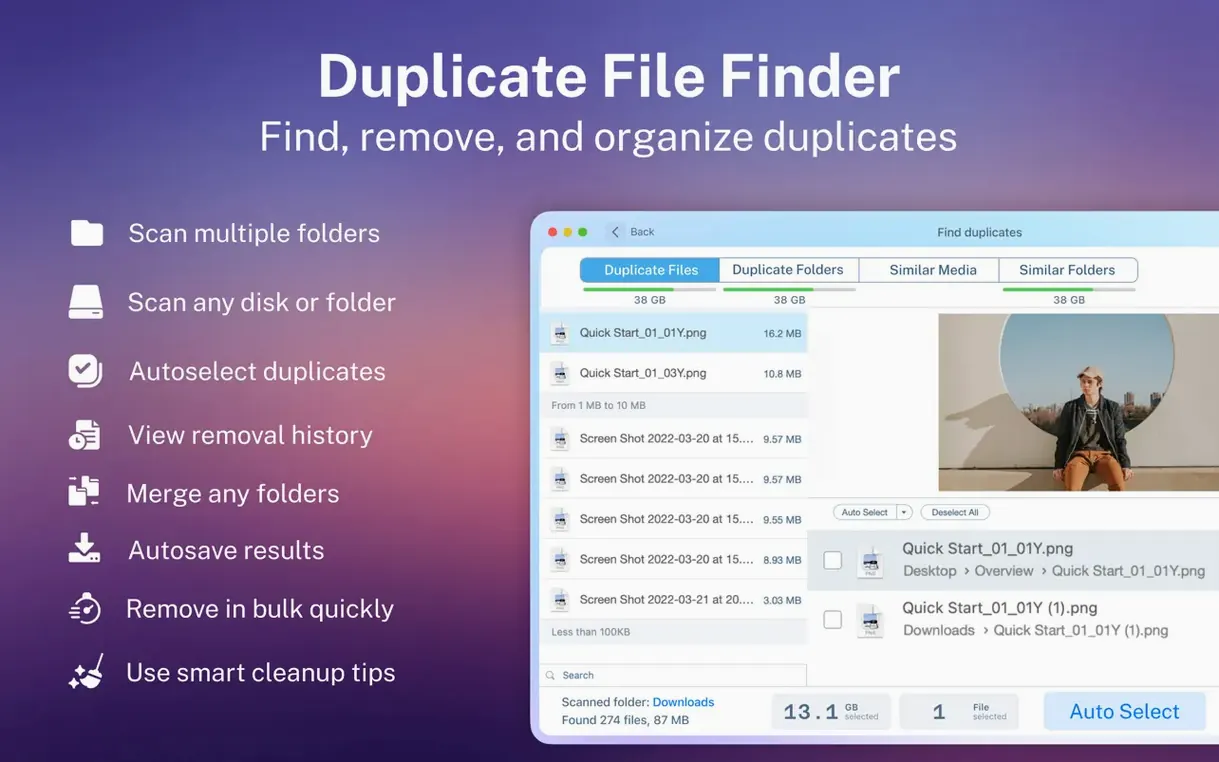
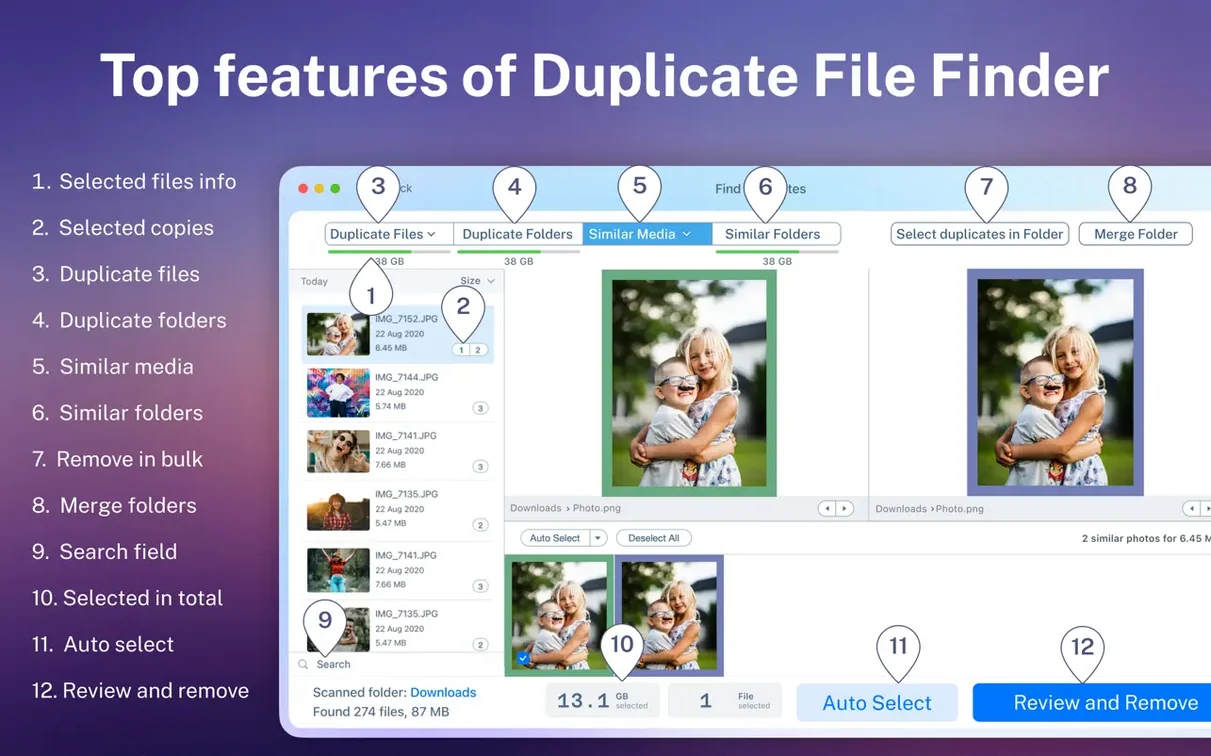
- Duplicate file list with preview. Before committing to any deletion, you can inspect individual files in the scan results. The preview shows the actual content, not just a filename, which matters when you're dealing with renamed copies.
- Similar and duplicate folder detection. Beyond single files, the app identifies folders that share a high proportion of identical content. It can also locate exact duplicate folders, letting you merge them into one consolidated directory instead of deleting everything outright.
- Hidden folder scanning. System and app caches often hide in invisible directories. The scan can reach into those hidden folders, bringing duplicate logs, preference backups and leftover support files into the report.
- Visual scan report. Results are presented as a breakdown chart showing space occupied by file type—images, audio, documents and so on—so you see which categories are the worst offenders before you select anything for removal.
- Folder merging. When two folders are largely the same, merging them preserves unique files from both into one location and removes only the genuine duplicates, keeping the structure tidy without manual sorting.
- Restore removed duplicates. If you delete something you later need, the app can bring it back from its quarantine, giving you a safety net that a simple permanent-delete approach doesn't offer.
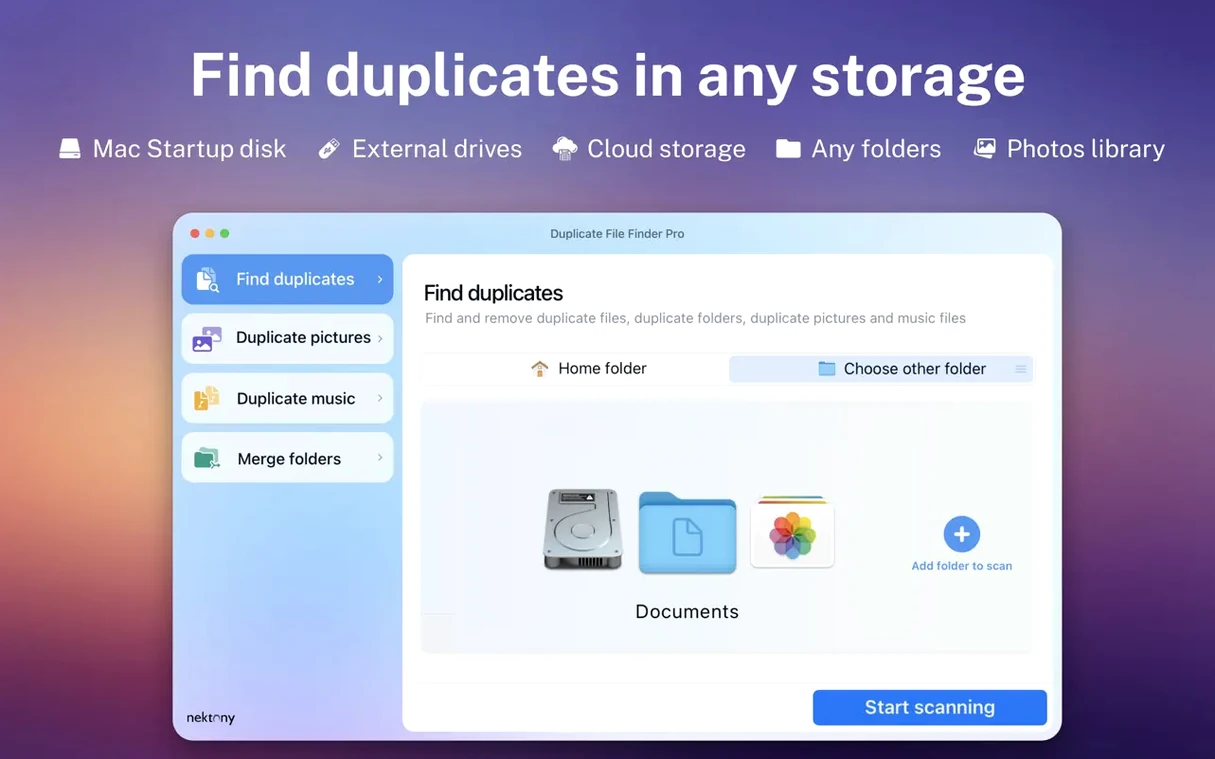
The scan scope is flexible: point it at a single folder, compare two different volumes, or sweep your entire home directory. The tool runs on both Intel and Apple Silicon Macs, so hardware isn't a barrier.
Scan Reports Now Load Instantly Without Freezing
The most noticeable shift with the 8.5 series is how the scan report loads. Earlier builds would draw the full result set in one go, which could freeze the interface for a few seconds on scans that turned up 40 000 or more duplicates. Version 8.5.2 streams results into the list progressively, so you can start browsing, sorting and previewing while the tail end of the scan still populates. In practical terms, a full home-folder sweep on a 1 TB SSD now feels responsive roughly 8 to 10 seconds sooner than it did in 8.4.
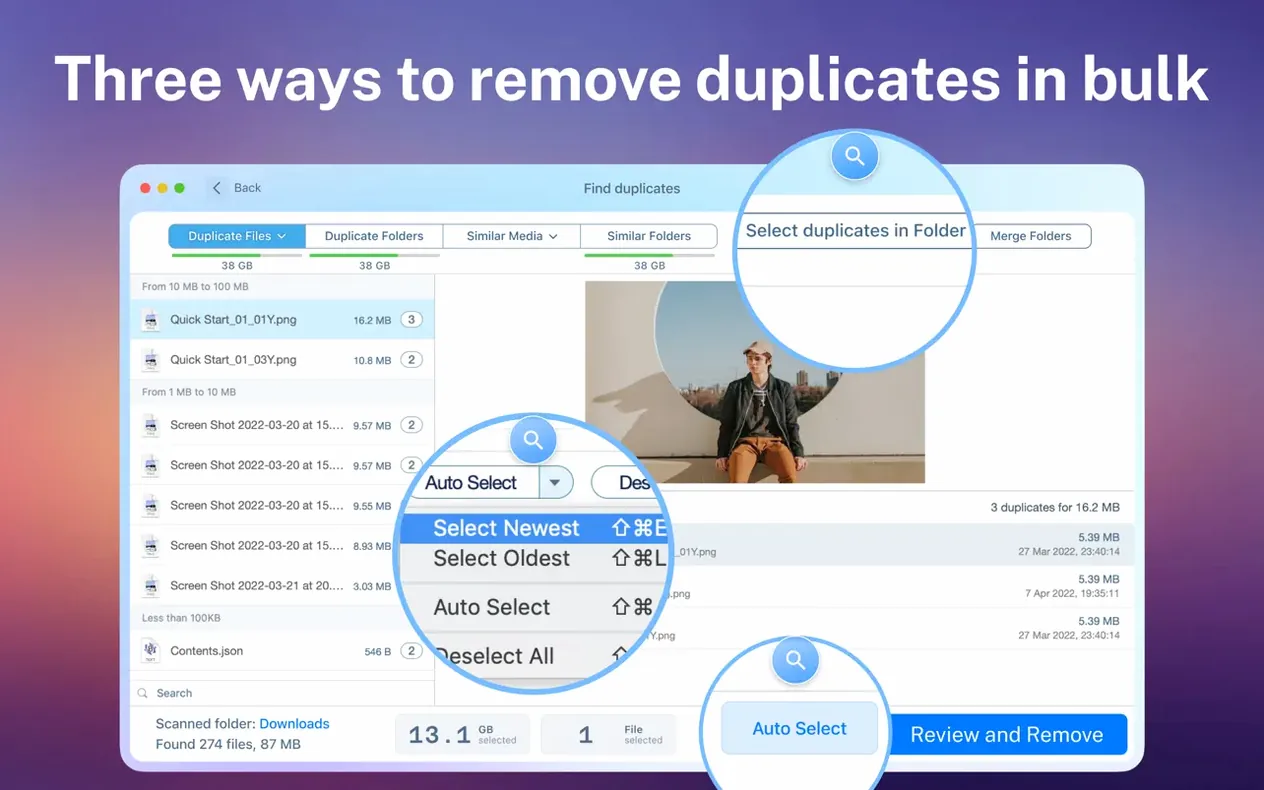
Selection logic also tightened. The Select Duplicates button used to favour the most recently modified copy when automatically marking files for removal. The current behaviour checks modification date but weights file path depth as a tiebreaker: it keeps the file sitting closer to the folder root, which tends to be the one applications and scripts actually reference. For anyone who has ever nuked a config file because the newer copy lived in a temp folder, that change removes a small but persistent anxiety.
Hidden-folder scanning became a toggle rather than a buried preference. In the scan setup pane, a checkbox labelled Include hidden items sits directly below the folder picker. Switching it on adds roughly 15–20% to overall scan time on a typical system, but the report then surfaces caches from ~/Library/Caches and /private/var that earlier versions skipped unless you explicitly added those paths.
Workflow: Cleaning a Photo Archive Across Two Drives
Suppose you have a working Lightroom library on your internal SSD and a backup copy on an external drive named Archive. Over two years of exporting JPEGs for clients and re-importing adjusted TIFFs, the folders have drifted apart enough that you cannot simply delete one. Here is a step-by-step path through the app.
- Open Duplicate File Finder Pro and click Add Folder twice: once for
/Users/yourname/Pictures/ClientWorkand once for/Volumes/Archive/ClientWork. - Set the scan mode to Compare two folders from the dropdown above the folder list. This tells the engine to look for duplicates that exist in both locations, ignoring files unique to one side.
- Check Include hidden items only if you suspect Lightroom preview caches were backed up. Leave it off for a first pass.
- Click Scan. The visual report breaks results into images, documents and other categories. On a 200 GB folder pair, scanning finishes in about 3 to 4 minutes on an M1 Mac.
- Switch to the Duplicate Files tab. Sort by Total Size descending. The largest wasted-space items—often 80 MB layered TIFFs saved under slightly different names—appear at the top.
- Select a file group and press the space bar to open a Quick Look preview. Check whether the versions are truly identical. If the internal-drive version has later edits, you want to keep that one and remove the archive copy.
- With the group selected, click Auto Select. The app marks duplicates following the rule set in preferences: keep the file with the shortest path unless the modification date is newer elsewhere. In a two-folder comparison, this usually keeps the internal-drive files and flags the external ones.
- Click Remove Selected and choose Move to Trash. The external drive frees up space but the files remain recoverable from the Trash until you empty it.
After the first pass, run a second scan with the mode switched to Similar Folders. The app might flag ClientWork/2023 on both drives as 92% identical. Instead of manually reconciling them, select the pair and choose Merge Folders. The merge copies any unique files from the secondary folder into the primary one, then offers to delete the now-empty duplicate structure. The whole operation, including the merge, completes in under a minute for folders containing a few hundred files.
Drag Any Folder Straight From Finder into the Scan List
The app integrates with Finder in a small but useful way: any folder you drag from a Finder window onto the scan list is accepted as a path. If you have added Dropbox to favourites in your Finder sidebar, dragging that shortcut into Duplicate File Finder Pro resolves the full /Users/yourname/Dropbox path automatically, which saves digging through the file picker. Network shares mounted under /Volumes behave the same way—drag a server folder from the desktop and the app treats it like any local directory.
Quick Look support means the preview pane uses the same renderers as Finder. RAW photo files, PDFs, Word documents and video clips all preview without launching an external application. When you need a closer look, right-clicking a file and choosing Reveal in Finder opens a new Finder window with the file already selected, which is the fastest route to checking Get Info metadata or opening the file in its default app.
For users who rely on Spotlight comments or OpenMeta tags to organise files, the app preserves those extended attributes during merge operations. Merging two folders does not strip the tags from files that are moved into the consolidated directory. That detail matters if you have spent hours tagging project assets and do not want a cleanup pass to undo the work.
There is no built-in scheduling or watched-folder daemon, so the tool does not run scans automatically in the background. You launch it, set the scope, scan and close it. This keeps resource usage to zero when the app is not open, which suits users who prefer cleanup to be a deliberate session rather than a background process that might interfere with active work.
Photographers Reclaim Hundreds of Gigabytes Across Volumes
Photographers with multi-terabyte archives tend to see the largest absolute space savings. A single wedding shoot can generate 3 000 RAW files, plus edited TIFFs, JPEG proofs and catalog backups that propagate across internal and external storage. Running a cross-volume comparison once a quarter typically reclaims between 80 GB and 300 GB of duplicated exports, depending on how disciplined the backup strategy is.
Developers working with multiple Git checkouts or virtual machine disk images also benefit. Duplicate VM snapshots and copied node_modules directories often slip past manual cleanup because their sizes are not immediately obvious in Finder. The similar-folder detector catches these quickly, flagging directories that share 85% or more of their file contents.
Users who rely on cloud-synced folders—Dropbox, iCloud Drive, OneDrive—will find the app useful when local copies multiply after sync conflicts. A Finder window showing Proposal (conflict copy 2024-09-12) hints at the problem, but the duplicate-file scan quantifies exactly how many conflict copies exist across the entire sync folder, making it practical to clear them in one pass.
The tool is less essential for someone with a 256 GB drive who streams media and keeps files primarily in cloud-only storage. The scan still works, but the pool of local duplicates is often small enough that Finder's search and manual inspection suffice. Where Duplicate File Finder Pro justifies its footprint is on Macs with 1 TB or more of local storage, multiple attached drives, or a long history of manual backups that have never been deduplicated.
- macOS 10.13 or later
- Apple Silicon or Intel 64‑bit processor
Questions on file
Can Duplicate File Finder Pro scan external drives and network folders?
Yes, you can select any mounted volume, including external disks and USB drives, as a scan target—just add the location before starting the scan.
Sign in · Create an account to add a field note.
No field notes yet. A measurement, a version, a machine — they appear after moderation.