
Mac Apps
Find Any File 2.6.1
Mac AppsUpdated
| Requirement | On file |
|---|---|
| macOS | OS X 10.11 or later |
| CPU | Apple Silicon, Intel 64-bit |
| Download | 14 MB |
When Spotlight finds the content but not the container, or you need to search a server volume Apple’s index ignores, you need a tool that looks at the file system directly.
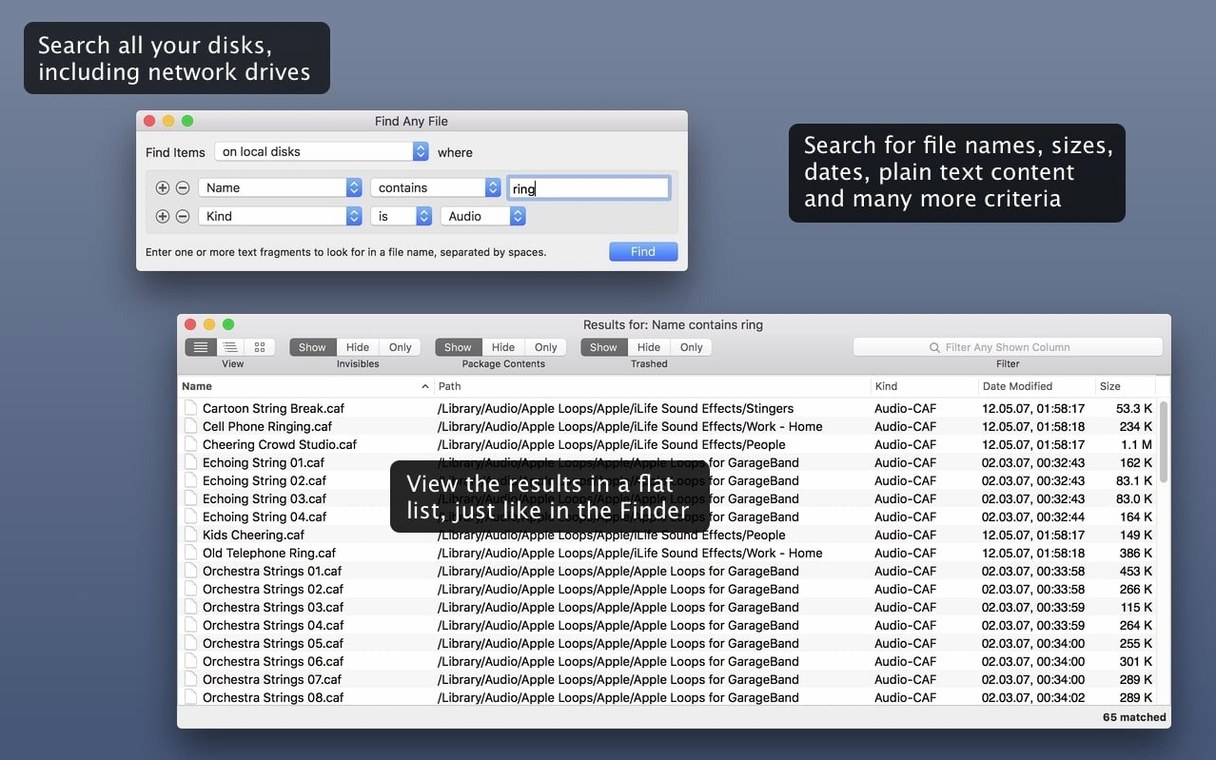
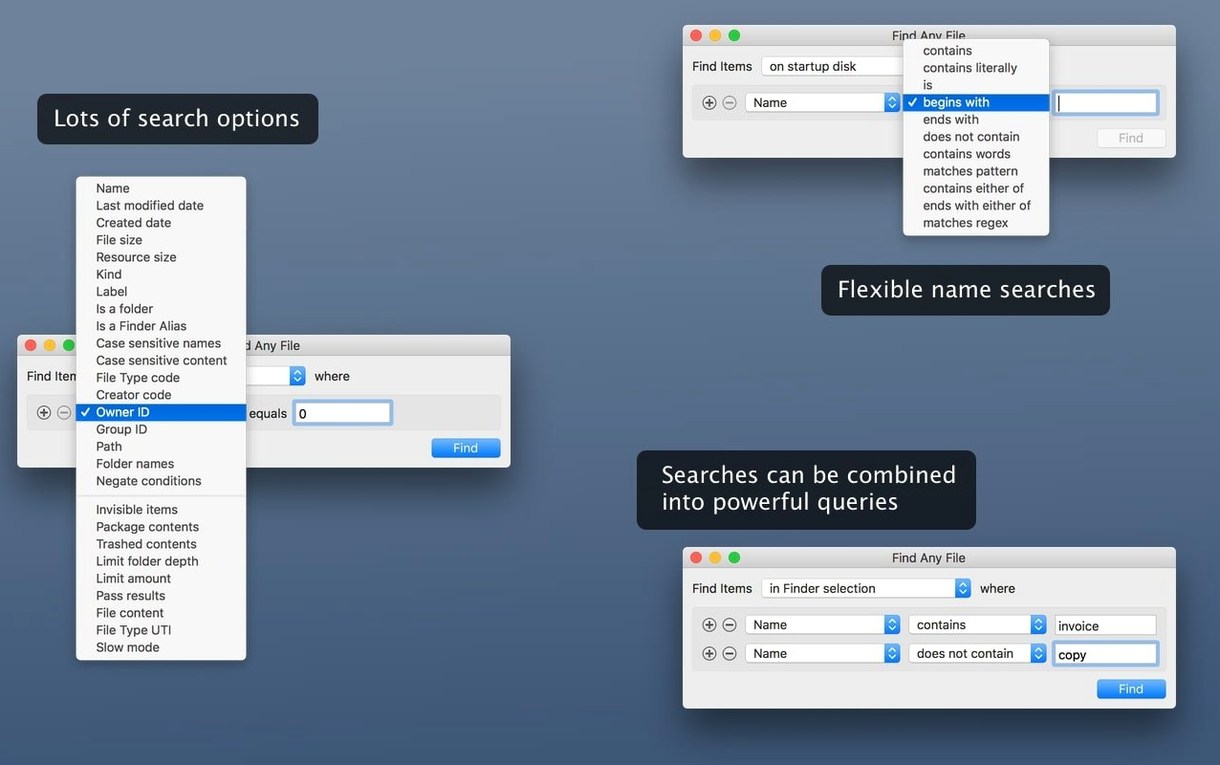
Find Any File — searches by name, date, size, and plain text.
Spotlight companion — does not replace Spotlight for email, Word, or PDF content; works alongside it.
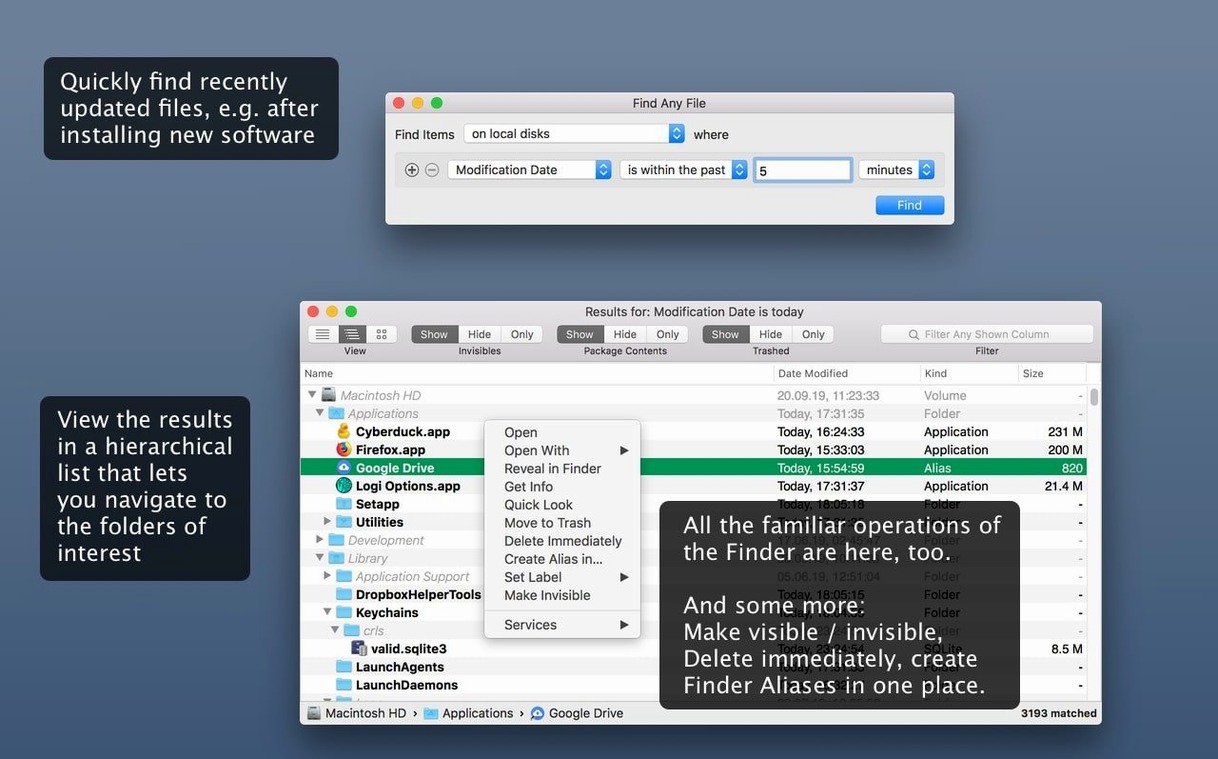
Hierarchical view — results appear in a folder tree, not a flat list.
Unindexed volumes — searches server volumes and other disks Spotlight skips.
Version 2.6.1 — current release, runs on macOS 10.11 and later, native on Intel and Apple Silicon.
The 2.6 cycle brought AppleScript support, new result columns for Comments, Trashed, and Hidden, plus more reliable comment finding. The core behaviour stayed the same: a fast, name-and-attribute search that reads the directory structure as it exists, not as Spotlight remembers it.
Drag a Folder to the Search Field to Set Scope Instantly
Several behaviours sit under the interface without a toolbar button or menu highlight. Knowing them saves time on the first few searches.
- Drag a folder to the search field. Instead of clicking the “in” pop-up and navigating, drop any folder from Finder straight onto the window. Find Any File sets it as the search location instantly.
- Right-click a result row. The contextual menu offers Reveal in Finder, Get Info, and — for packages — Show Package Contents. The last one opens the bundle directly, which avoids hunting for it in Finder.
- Press
⌘Ron a selected result. It reveals the item in Finder without moving your hands off the keyboard. The same shortcut works on multiple selections. - Hold Option while opening the hierarchical result view. All subfolders expand fully. Without the key, you expand one level at a time.
- Column sorting with a secondary sort. Click a column header to sort by that attribute, then Shift-click another column. Results stay ordered by the first criterion and break ties with the second — useful when sorting by Kind then by Size, or by Date Modified then by Name.
Settings Worth Adjusting Early
The preferences window is modest, but three defaults change how the app behaves on day one. Opening it before a long search session avoids false negatives and interface friction.
Search > “Search package contents”
Off by default. Turn it on if you ever need to find a file buried inside an .app bundle, a Photos library, or a Logic Pro project. Without it, those containers appear as single opaque items. With it, every file inside them shows up.
Search > “Search invisible files and folders”
Also off by default. If you are looking for a .plist, a .gitignore, or anything in /usr/local, this setting must be on. The app respects the Unix convention: invisible items start with a dot or carry the Finder invisible flag. Without the switch, they simply do not exist to the search.
Results > “Alternating row colours”
Purely visual, but the hierarchical view gets dense when you search from the root of the drive. Alternating rows make it easier to track a path across columns. The checkbox is in the Appearance section.
A Real-World Session: Audio Archivist
Consider someone who manages a large collection of field recordings spread across a local drive and a NAS volume. The files are WAV, named by date and location: 2024-11-03_bristol-harbour_WAV. Spotlight indexes the local drive but not the NAS. The archivist needs to collect all recordings from November 2024 that contain the word “harbour” and are larger than 50 MB — the smaller files are likely test tones or short ambience.
They open Find Any File, drag the NAS volume into the search field, and set the first criterion: Name contains “harbour”. A second criterion goes below it: Kind is “WAV”. A third: Size > 50 MB. The date field narrows to Modified between 1 November 2024 and 30 November 2024. The search runs in about nine seconds across 4 TB of audio. Results appear in a tree; the archivist collapses folders that contain test recordings and drags the relevant batch straight into a Finder window for copying. Spotlight never saw these files. The hierarchical view lets them verify the folder structure before moving anything — a flat list would have required constant “Reveal in Finder” round-trips.
One-Step Fixes for the Most Frequent Points of Friction
A few points of friction come up repeatedly. Most have a one-step answer.
“It doesn’t find text inside my PDFs or Word files”
Find Any File searches plain, unformatted text. A PDF is structured binary data; a .docx is a ZIP of XML. The app reads the raw bytes, not the rendered text. Use Spotlight for document content. Use Find Any File when you know the filename, the extension, or a string that appears in a plain-text file such as a log, a script, or a CSV.
“The search on my server volume is slow”
It is a direct file-system walk, not a database lookup. Speed depends on network latency and the number of directory entries. On a busy gigabit network, searching a million files can take minutes. Narrow the location to a subfolder rather than the volume root, and add as many criteria as you can — each one filters results before the next directory is scanned. Disabling “Search package contents” and “Search invisible files” also reduces the number of items that must be checked.
“I can’t see results for files I know exist”
Check the two switches first: “Search package contents” and “Search invisible files and folders.” Together they control access to a large chunk of the file system that is hidden by default. After that, verify the search location. If you dragged a folder in, it might be a parent folder of the one you thought you selected. The “in” pop-up shows the exact path.
“The Any Video Converter torrent claim confused me”
Find Any File has no connection to video conversion. The confusion arises because people looking for any video converter torrent or any video converter ultimate torrent sometimes land on pages about this utility by mistake. Find Any File is a file-search tool for macOS, not a media transcoder. It does not open, convert, or play video.
“My saved search criteria disappeared after an update”
Saved criteria files live in ~/Library/Application Support/Find Any File/. The 2.6.1 update does not remove them, but if you moved the app from a different user account or a different machine, that folder may not have come across. Copy it manually from a backup to restore previous searches.
AppleScript support — added in version 2.6
Result columns — Comments, Trashed, and Hidden columns added in 2.6
Comment search — reliability improved in 2.6
- macOS 10.11 or later
- Intel and Apple Silicon Macs
Questions on file
Can Find Any File search inside Word or PDF documents?
No. It searches plain text content and file attributes. For full-text search of Word, PDF, and email, use Spotlight or a tool like Tembo.
Does Find Any File replace Spotlight?
It is a companion to Spotlight. Use it when you need to search by exact name, date, or size, or when you need to search disks that Spotlight does not index.
Sign in · Create an account to add a field note.
No field notes yet. A measurement, a version, a machine — they appear after moderation.