
Mac Apps
Folder Preview Pro 3.1
Mac AppsUpdated
| Requirement | On file |
|---|---|
| macOS | macOS 13 or later |
| CPU | Apple Silicon, Intel 64-bit |
| Download | 9 MB |
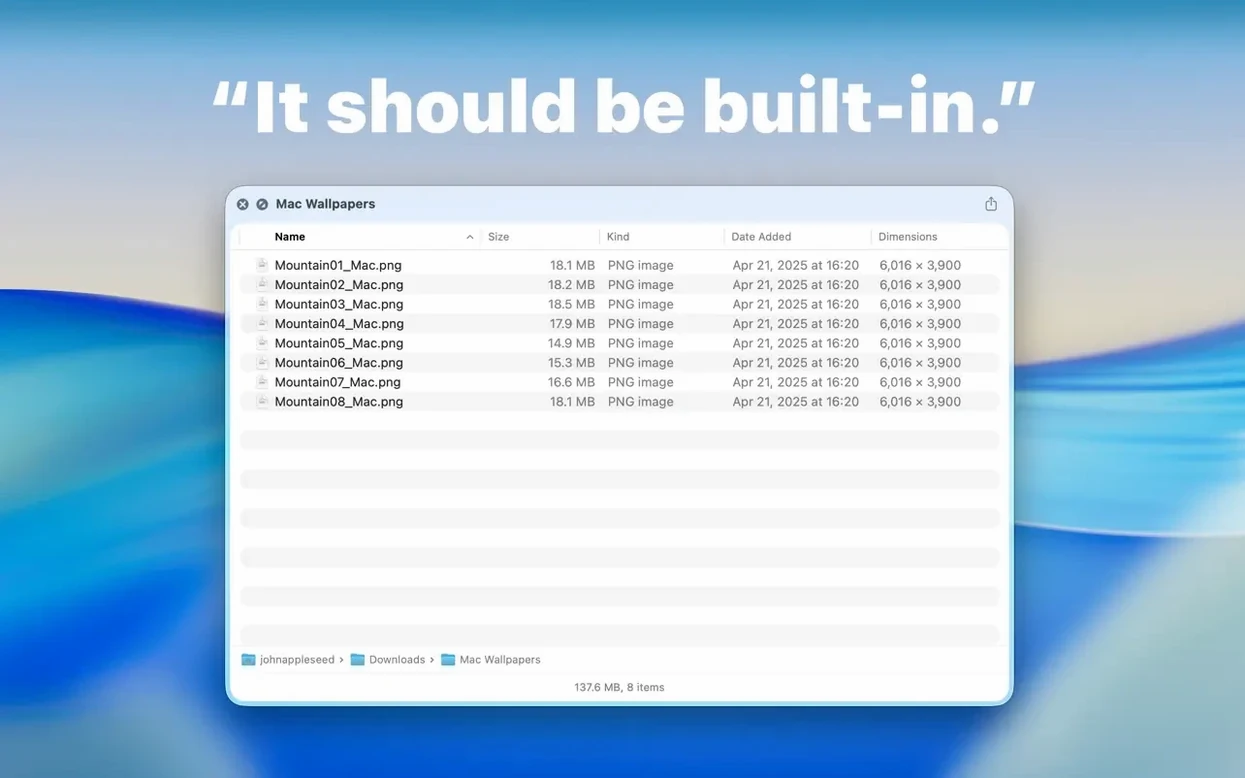
Graphic designers sifting through asset folders, developers checking project structures, and anyone who manages deep directory trees will recognise the friction: you press Space on a folder in Finder and get nothing but a generic icon and a size. Folder Preview Pro replaces that blank stare with an actual content listing, right inside the Quick Look panel.
Sitting alongside built-in Quick Look
macOS already previews images, PDFs and text files with a tap of the Space bar. Folder Preview Pro extends that same gesture to directories. Once the extension is enabled in System Settings, selecting a folder and pressing Space shows file names, modification dates, sizes and kind labels in a sortable list. Version 3.1 introduces a Dual Columns view for side-by-side browsing and a Contents drill-down item that lets you step through folder levels without leaving the preview. Items can also be dragged straight out of list and icon views onto the Desktop or into another app, so a quick preview can turn into an immediate action.
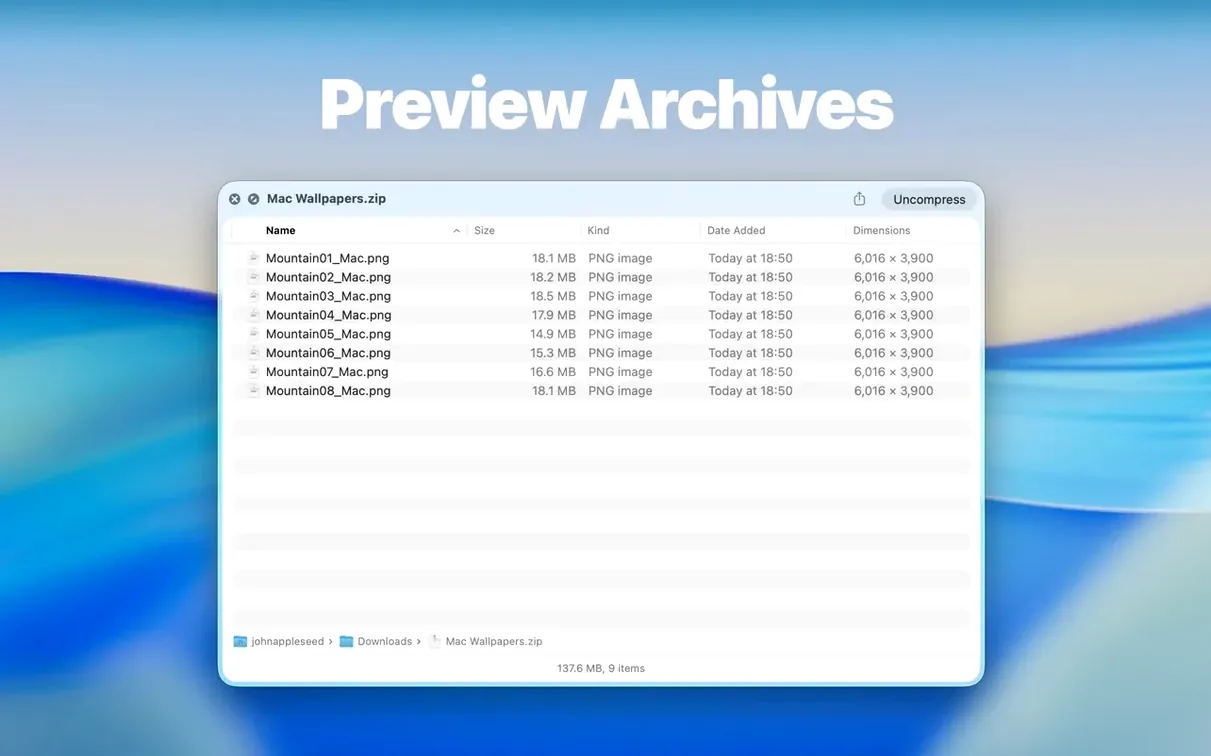
Archive preview without extraction
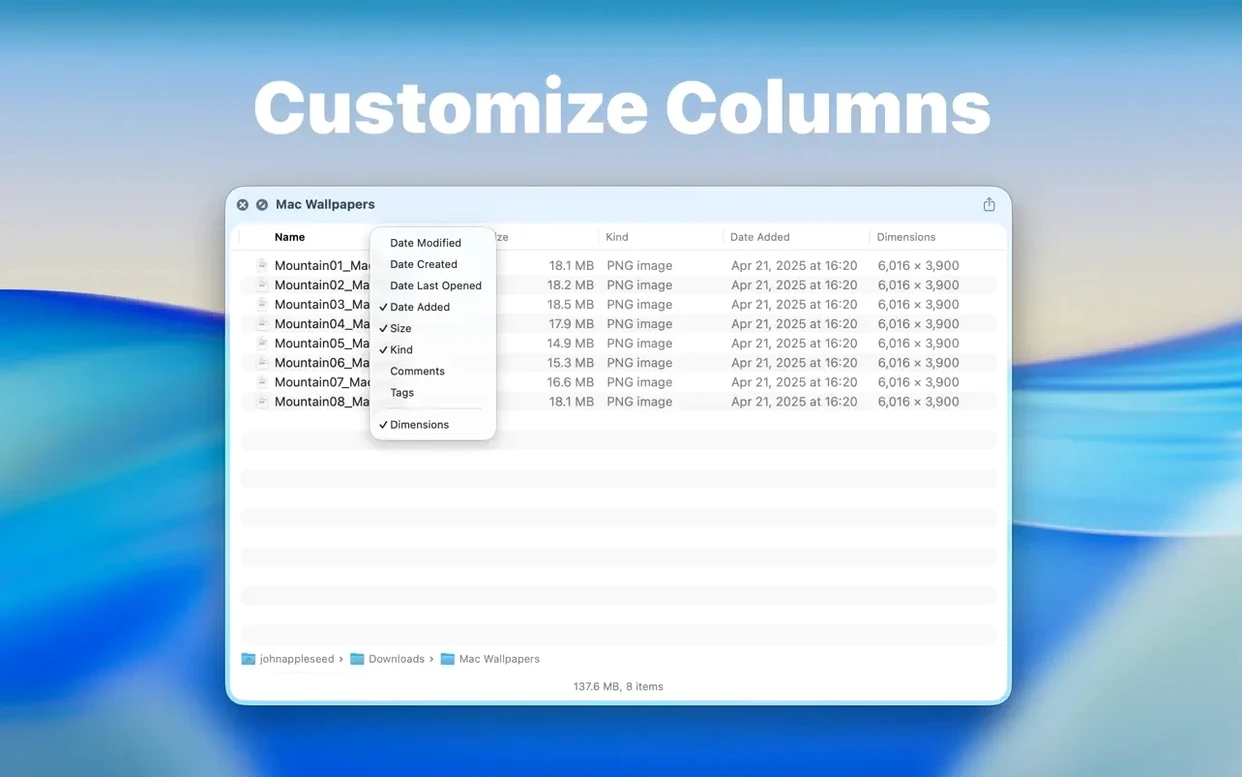
The app reads ZIP, TAR, GZ, 7Z and RAR archives the same way it reads folders. Rather than unpacking everything just to check what is inside, you can preview the file list directly. Archive size limits are configurable, with new 5 GB and 10 GB options added in 3.1 to keep large archives from hogging resources. Column visibility is adjustable too — a right-click on any column header lets you show or hide fields so the preview panel shows exactly the metadata you need.
Layers onto Finder’s Quick Look
Folder Preview Pro is an extension, not a standalone file browser. It layers directly onto Finder’s existing Quick Look mechanism, so any keyboard shortcut or gesture that triggers Quick Look—Space, Command-Y, or a three-finger tap on a trackpad—now produces a folder listing instead of an empty panel. That means it inherits Quick Look’s behaviours: the preview floats above other windows, closes with another tap of Space, and works inside Open and Save dialogs. The app also respects system-level privacy settings. If a folder sits inside a protected location like Desktop or Documents and Terminal hasn’t been granted access, the preview simply shows what permissions allow.
The Dual Columns view added in 3.1 brings structure comparisons within reach. Two folders can be inspected side by side in the same panel, which helps when reconciling backup directories or checking which version of a project tree has the newer files. The Contents item in the context menu goes a step further: it treats a folder like a breadcrumb trail, letting you descend level by level and track where you are without spawning new Finder windows. Dragging files out of the preview, now supported from both list and icon views, ties the extension into drag-and-drop workflows with Mail, Messages, Xcode, or any app that accepts file drops.
Assembling an archive delivery, step by step
Scenario: a motion designer needs to send a client a ZIP containing project files, reference stills, and a font folder, but the working drive has several versions of the project. They want to confirm the contents before uploading.
- In Finder, navigate to the folder that holds the candidate project files. Press Space. Folder Preview Pro shows the file list with modification dates. A quick sort by date confirms the most recent renders are present.
- Switch to Dual Columns view. Navigate the second pane to the font folder on an external drive. Visually cross-check font names against the client’s style guide without opening Font Book.
- Select the three folders to be archived—Project, Stills, Fonts—and use Finder’s Compress command. A ZIP file appears in the same directory.
- Press Space on the new ZIP. The app reads the archive structure instantly. Spot-checks show all three top-level folders and the expected file counts inside each. No extraction needed.
- Right-click a column header and disable Kind to reduce clutter, leaving only Name, Date Modified, and Size visible. The 10 GB archive size limit is already set in preferences, well above the 2.3 GB ZIP, so the preview loads without truncation.
- Drag a reference still directly from the ZIP preview into a new Mail message to include it in the delivery email. The file copies out as a temporary extraction without touching the original archive.
The whole check and send sequence runs inside Finder and Quick Look, with no third-party archive utility opened.
A photographer’s field-library sort
An event photographer returns from a weekend shoot with three SD cards, each dumped into its own dated folder on a portable SSD. The folders hold mixed RAW and JPEG pairs, plus subfolders for different venues. Back at the desk, they need to cull duplicates and pool selects before importing into Lightroom.
They select the first two date folders in Finder and press Space. Dual Columns view places the card dumps side by side. Sort-by-name reveals matching file stems instantly—IMG_4273.CR3 in one folder, IMG_4273.JPG in the other—and a quick glance at the Size column distinguishes the RAW from the JPEG without opening either. The third folder is checked by switching one column using the Contents drill-down: a single click steps into the subfolder layer, keeping the other column fixed for reference. Duplicate JPEGs spotted in two folders get dragged from the preview straight to the Trash icon in the Dock, all without a single Finder window cluttering the workspace. The culled set is then selected and imported, and the remaining folder structure stays intact because Folder Preview Pro never moved or altered files during the review.
Grant Full Disk Access for Blank Panels
Preview shows a blank panel or a permissions error. On macOS 13 and later, certain folders—including those inside other users’ home directories or system locations—require explicit Full Disk Access for the calling app. Granting Terminal or Finder that access in System Settings > Privacy & Security usually resolves it. If the issue persists, check that Folder Preview Pro’s extension is enabled under System Settings > Privacy & Security > Extensions > Quick Look.
Large archives won’t load. The archive size limit setting defaults to a conservative value. Version 3.1 added 5 GB and 10 GB options. When a RAR or 7Z file seems incomplete in preview, open the app’s preferences and raise the ceiling. Note that very deeply nested archives can still take a few seconds to parse—this is the compression format, not the extension.
Dragging out of preview doesn’t work. Drag-and-drop from list and icon views was added in 3.1. If nothing happens when dragging a file, confirm the version number in the app’s About window. The feature requires the extension to be active; a restart of Finder (Control-Option-click the Finder icon in the Dock and choose Relaunch) often restores the drag behaviour after an update.
Column customisation resets between sessions. Right-clicking column headers to show or hide fields is session-scoped in the current release. Settings like hidden columns are not persisted after the Quick Look panel closes. A workaround is to leave the preview open while working across multiple folders, but expect to reapply column preferences each time you invoke Quick Look fresh.
Dual Columns view shows the same folder twice. When first activated, both columns default to the current selection. Navigate one side independently by clicking into its pane and then selecting a different folder with the Contents drill-down or by dragging a folder from Finder onto that side of the panel.
Those who find themselves previewing archives repeatedly often set Folder Preview Pro’s preferences early: bump the archive size limit to 10 GB, disable columns they rarely read, and pin the Dual Columns shortcut to muscle memory. The extension rewards that small up-front tune-up with a Finder that finally treats folders like the containers of content they are, rather than opaque icons that need to be opened just to see what is inside. People hunting for a folder preview pro mac solution that stays out of the way will find the extension sits quietly until Space is pressed, then delivers exactly the listing the moment demands. For those searching folder preview pro, the Dual Columns and drag-out features in 3.1 push it beyond passive browsing into active file triage. The occasional search for folder preview mac crack or folder preview pro mac crack misses the point: the extension slots into macOS so cleanly that its value is in the integration, not in working around it. Similarly, a folder preview torrent or folder preview mac torrent route skips the development cadence that brought the 5
View — Adds a Dual Columns view for side-by-side folder browsing.
Navigation — Adds a Contents item for stepping through folder levels inside the preview.
Interaction — Files can now be dragged out of the preview from list and icon views.
Limits — Archive size limit options of 5 GB and 10 GB added.
- macOS 13 or later
- Apple Silicon and Intel Macs
Questions on file
Why doesn't Quick Look show folder contents after installing?
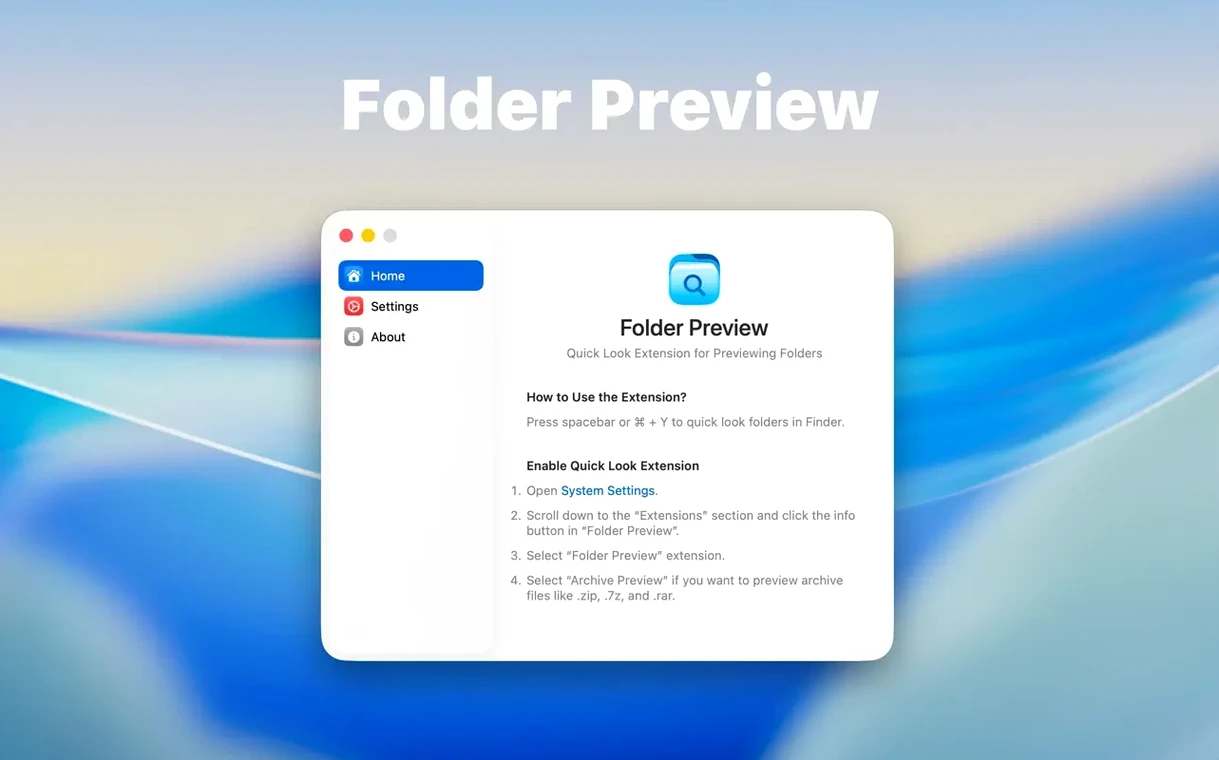
The extension needs to be enabled manually in System Settings under the Quick Look or Extensions section before folder previews appear.
Sign in · Create an account to add a field note.
No field notes yet. A measurement, a version, a machine — they appear after moderation.