Mac Apps
ForkLift 4.7.7
Mac AppsUpdated
| Requirement | On file |
|---|---|
| macOS | macOS 12 or later |
| CPU | Intel 64-bit |
| Download | 19 MB |
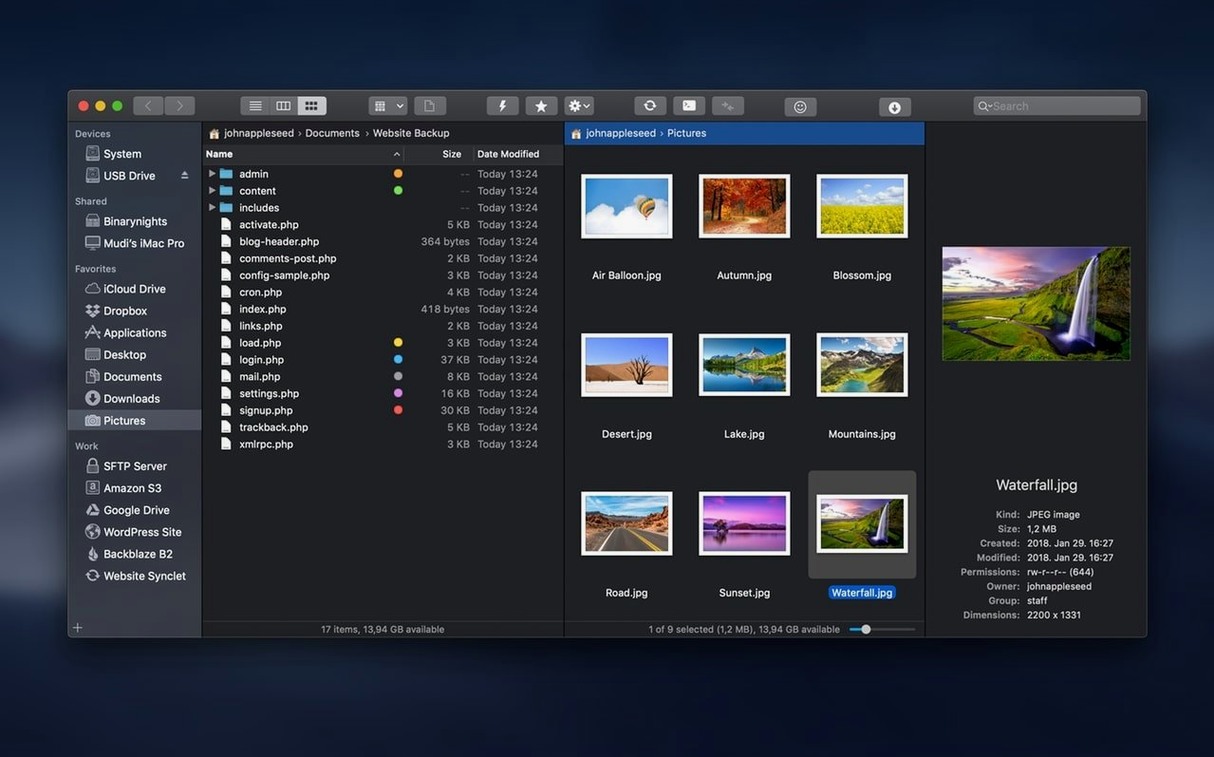
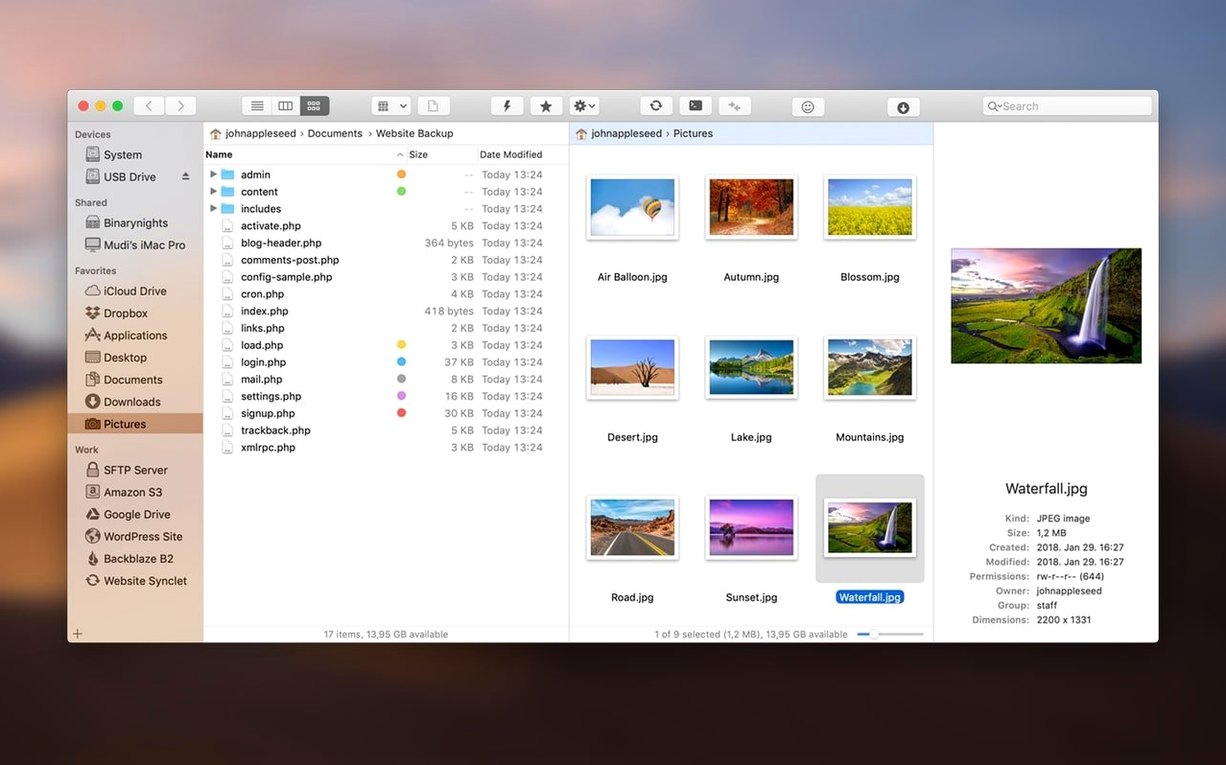
If you’ve ever hit the limits of the Finder when juggling remote servers, archives, or simply too many folders, ForkLift 4.7.6 steps in as a direct alternative. Built by BinaryNights, it keeps the familiar two-column layout but adds a set of tools that the stock Mac file browser was never designed to include. The current release concentrates on user experience improvements when interacting with files, tidying up rough edges rather than chasing headline features.
| Detail | Spec |
|---|---|
| Version | 4.7.6 |
| Developer | BinaryNights LLC |
| macOS | 12 or later (Intel) |
| Languages | English, German, Hungarian |
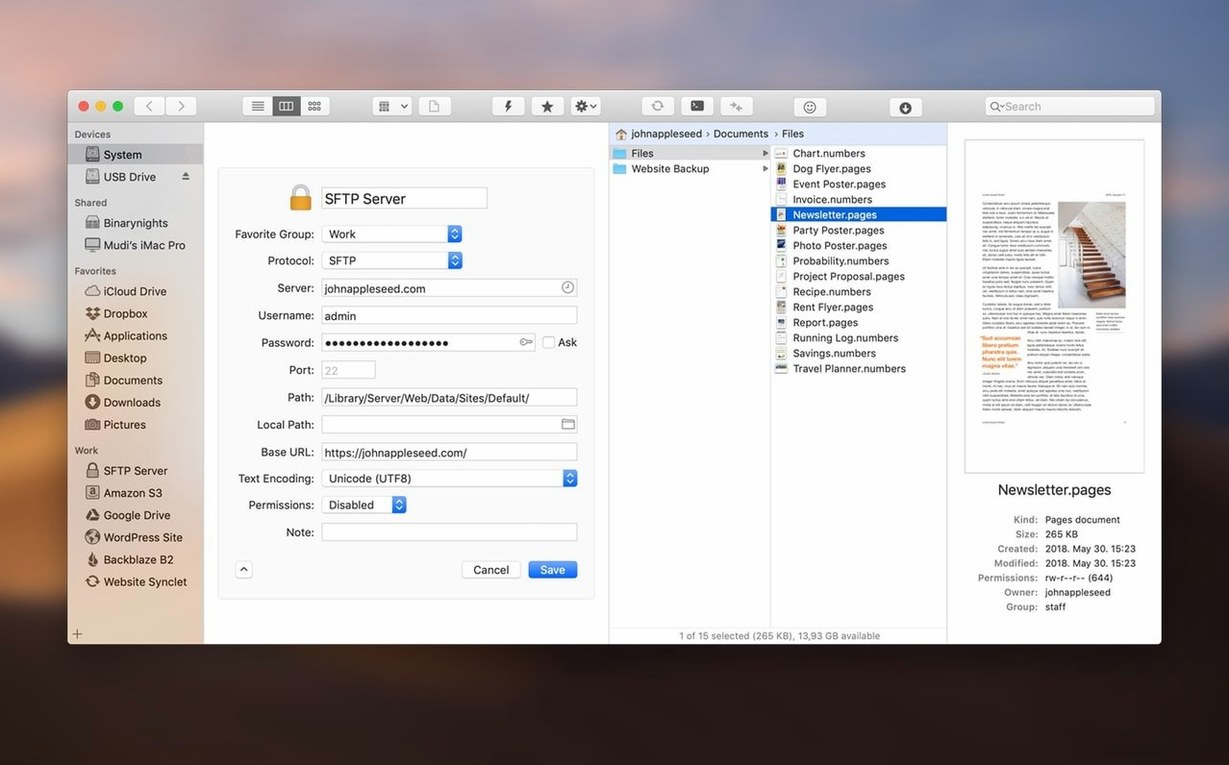
At its core, the app gives you dual panes for dragging files between local folders and remote servers via FTP. A built-in preview pane handles photos, PDFs, and other common formats without launching a separate application. Archives behave like regular directories, so you can browse inside a zip or tarball before deciding what to extract. ForkLift can also compare a local folder against a remote source to highlight differences, and it lets you open a session in Terminal, iTerm, or Hyper directly from the current directory. The 4.7.6 update also includes fixes for two specific issues that appeared on macOS 27 Golden Gate.
Can ForkLift Fully Replace Finder?
One of the first things people ask is whether ForkLift can replace Finder entirely. The honest answer is that it can handle most day-to-day file work — moving, renaming, previewing, and remote transfers — but macOS still routes certain system tasks through Finder. You will not break anything by using ForkLift as your primary file manager, and many users keep it running alongside Finder rather than trying to retire the stock app completely.
Another frequent question concerns remote protocols. ForkLift 4.7.6 connects to FTP, SFTP, Amazon S3, AFP, WebDAV, SMB, and NFS volumes. That means a single app covers everything from a local NAS share to an S3 bucket, with the same two-pane layout in each case. If you already have credentials for several servers, you can open connections to more than one at the same time and drag files between them without intermediate downloads to your Mac.
People also ask about the Gatekeeper step during installation. The disk image includes an Open Gatekeeper friendly component that asks you to press Enter in Terminal to bypass Gatekeeper. This is a normal part of the install flow for this build, not an error. After that, you drag the app into the Applications folder. On some configurations, disabling SIP is mentioned as a requirement, though it is not needed on every Mac running macOS 12 or later.
File searching comes up often as well. ForkLift can search by name, extension, text, or tags across both local and remote sources. If you maintain a large media folder or a server full of client documents, the text search alone saves a lot of tab-switching compared with Finder’s local-only Spotlight approach.
Archive Browsing and File Comparison Beyond Transmit
Transmit focuses on transfers and does them well, but its file management duties stop short of ForkLift’s. Where Transmit gives you a clean way to move files to and from servers, ForkLift adds archive browsing, file comparison, and local file management in the same window. If your work is mostly uploading and downloading, either works. If you also need to organise folders, preview files, and sync directories, ForkLift covers more ground without launching other tools.
Commander One is closer in spirit, with a dual-pane layout and archive support. The difference is often in how the two apps handle remote volumes and search. ForkLift supports a broader set of protocols out of the box, and its search reaches into remote servers the same way it does local folders. Commander One’s search is capable but feels more local-first in daily use. Both support FTP and SFTP, but S3, WebDAV, and AFP support are where ForkLift pulls ahead for mixed environments.
Path Finder is the other Finder replacement people tend to compare. It is strong on local file management, with more customisation and view options than ForkLift. Where ForkLift answers back is on remote connections and synchronisation. Path Finder can connect to some remote volumes, but ForkLift treats servers as first-class citizens, letting you compare local and remote sources and run one-way or two-way syncs without extra setup. Choose Path Finder if local browsing is all you need; choose ForkLift if servers are part of your routine.
Those searching for forklift mac alternatives usually land on these three names. The choice comes down to whether remote work is a daily requirement or an occasional task.
A Tuesday Morning Workflow with SFTP and Dual Panes
Imagine a Tuesday morning where a client has sent new product photos and updated copy for a website. The files sit in a zip archive on an SFTP server. You open ForkLift 4.7.6 and connect to the server using a saved favourite. The left pane shows the server’s directory tree; the right pane shows your local project folder.
On the server, you navigate to the uploads directory and find site_update.zip. Instead of downloading and extracting first, you select the archive and browse into it like a folder. Inside, there are two subfolders: images and copy. You select both and drag them from the archive to the local pane. ForkLift extracts and transfers in one step.
With the files now local, you select one of the new product photos and glance at the preview pane. It shows the image at full size without opening Preview. You check three or four shots, then highlight the copy folder and search for the word “shipping” across all text files. One file needs a small edit, so you open it in ForkLift’s text editor, make the change, and save it back to the local folder.
Next, you want to push the updated files to the production server, which is a different S3 bucket. You open a second connection in the right pane, keeping the local folder in the left. You select the modified files and drag them across. Before you finish, you run a two-way sync between the local folder and the S3 bucket to catch any files that were updated on either side overnight. ForkLift compares the two locations and shows what would change before you confirm.
Finally, you open Terminal from the current directory to run a quick script that regenerates the sitemap. ForkLift passes the correct path to Terminal automatically, so there is no cd command to type. You close the session and move on.
Leaving the Second Pane Unused
The most common mistake is treating ForkLift like Finder and ignoring the second pane. New users often leave one pane unused and end up with a slower version of what they already had. The two-pane layout is the point: keep a local folder on one side and a remote connection on the other, or two local folders, and drag between them instead of using the sidebar for everything.
Another mistake is forgetting that archive browsing is bidirectional. You can drag files into an archive just as easily as you can drag them out. Beginners often extract the whole archive, edit one file, and recompress it, when they could simply open the archive in one pane and drop the edited file inside.
Some users ignore the search scope. ForkLift searches the active pane, and that can be either local or remote. If you are looking for a file on a server but have a local folder selected, the search returns nothing. Switching the active pane before searching is a small habit that prevents a lot of confusion.
Finally, there is the sync confirmation step. One-way and two-way syncs show a preview of changes before anything is applied. Beginners sometimes click through this too quickly and overwrite newer files with older ones. Reading the direction of each sync entry — which file is being replaced, which is being kept — takes a few seconds and avoids messy recoveries later. Those who search for ForkLift torrent or ForkLift crack often work with builds where these safeguards are especially valuable, so taking time with the confirmation step ensures everything stays properly synced.
Release notes for version 4.7.7 are available on the Binary Nights blog. This update delivers the developer's latest fixes and improvements.
- macOS: 12 or later
- Architecture: Intel 64-bit
Questions on file
Can ForkLift replace the Finder completely?
It is presented as a Finder replacement with extra capabilities like dual-pane browsing and remote connections, but it runs alongside the Finder rather than removing it.
What file types can ForkLift preview?
The preview pane can display photos, PDFs, and several other common file formats directly inside the app.
Sign in · Create an account to add a field note.
No field notes yet. A measurement, a version, a machine — they appear after moderation.