
Mac Apps
Folx Pro 5.34
Mac AppsUpdated
| Requirement | On file |
|---|---|
| macOS | macOS 10.13 or later |
| CPU | Apple Silicon, Intel 64-bit |
| Download | 30 MB |
Version 5.34, released 3 June 2026, tightens up the torrent engine and proxy handling. Magnet-link crashes that appeared in the previous build are gone, selective file downloading inside torrents behaves more predictably, and the minimum macOS requirement now sits at 10.13. If you hit the torrent search crash on the last release, that is fixed too.
Splits Files Into Multiple Threads and Tags Finished Items
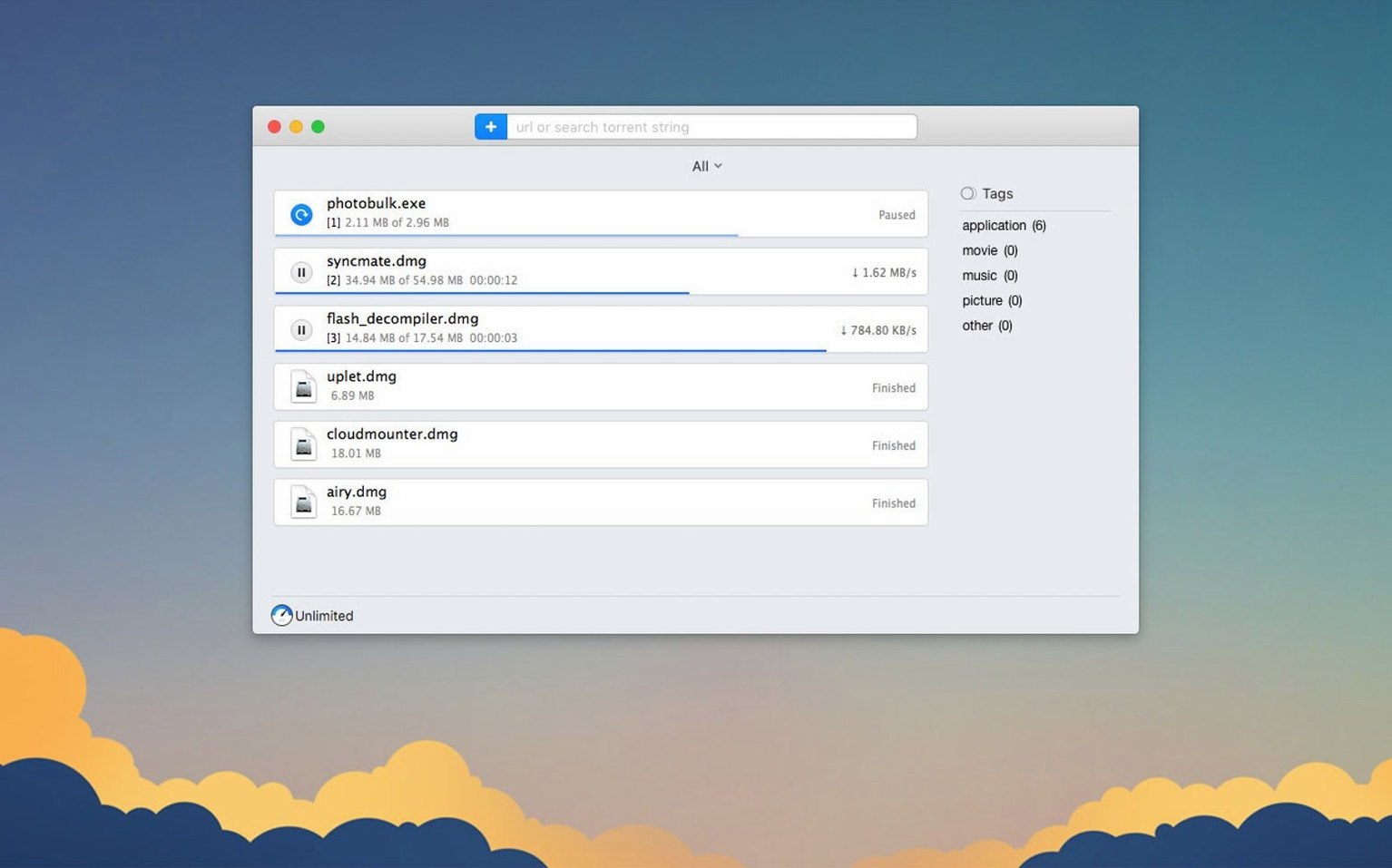
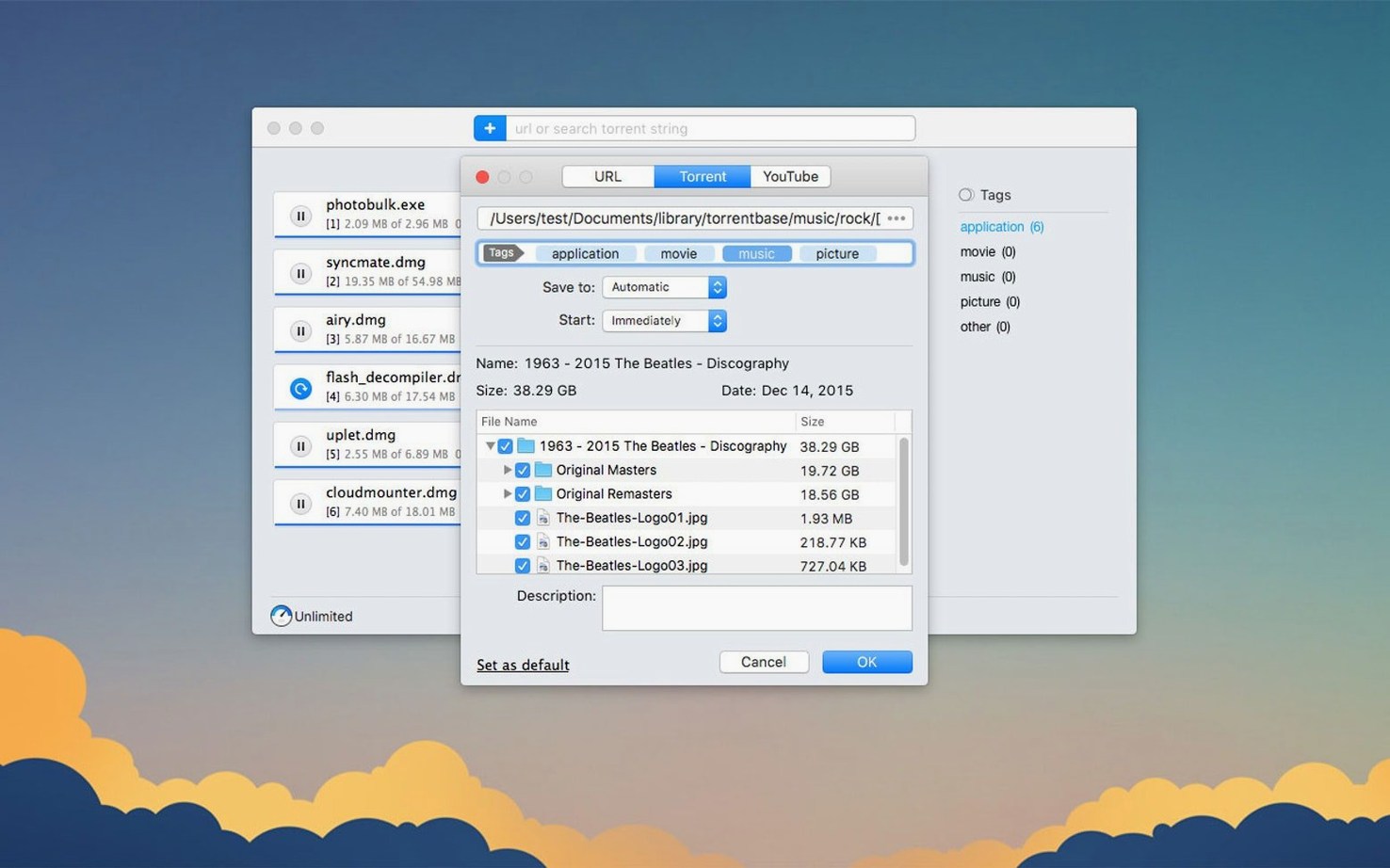
Folx Pro is a download manager that also handles torrents and magnet links, running natively on Apple Silicon and Intel. For direct downloads, the app splits files into multiple threads and can tag and sort finished items automatically. When a YouTube link is pasted in, Folx lets you pick the save quality where the source provides multiple streams. The built-in torrent search queries several trackers from one field, and you can choose which files to pull from a torrent before the download begins. Everything lives in a single window with a reasonably flat tagging system, so there is no need to juggle a separate BitTorrent client.
Handy for Large ISOs, Video Assets and Research Datasets
People who grab large ISOs, video assets or research datasets and occasionally grab a legal torrent will find the combined approach practical. The ten interface languages—including German, Japanese, Simplified Chinese and Vietnamese—make it usable for distributed teams. It is less of a fit for power users who need RSS automation, sequential downloading rules or a scheduler with per-timer bandwidth caps. The proxy improvements in 5.34 help when traffic has to go through a SOCKS5 or HTTP intermediary, though the feature set remains straightforward rather than deep.
Workflow: Grabbing a YouTube Series and a Companion Torrent
Suppose you need a set of tutorial videos from a channel plus a large dataset shared as a legal torrent. Folx lets you run both tasks side by side without switching tools.
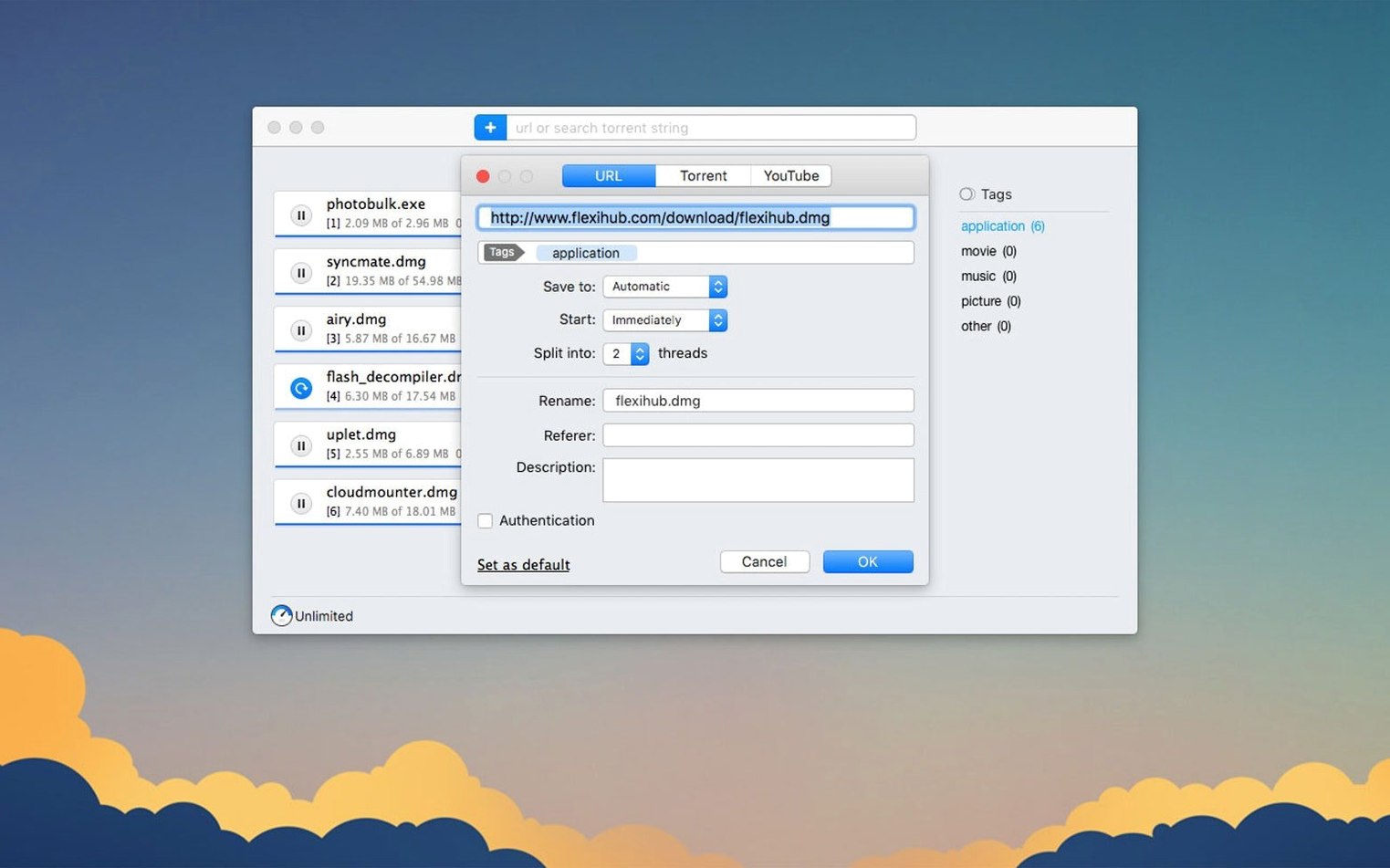
Start with the direct downloads. Copy the URL of the first YouTube video. In Folx, click the plus button in the toolbar or press ⌘N. The app parses the link within a couple of seconds and shows a dropdown of available resolutions and codecs—typically 360p through 1080p H.264, sometimes 4K if the uploader provided it. Pick the quality you want for the whole series. Tick the “Apply to all” checkbox if it appears for a playlist, or simply repeat the paste step for each URL. Before you confirm the first download, open Preferences and set a destination folder under the General tab. The app will remember that location for the session.
Rename the output file directly in the task list. Click the filename once, pause briefly, click again to edit. This is useful when the source title is a string of gibberish or a date stamp you do not need later.
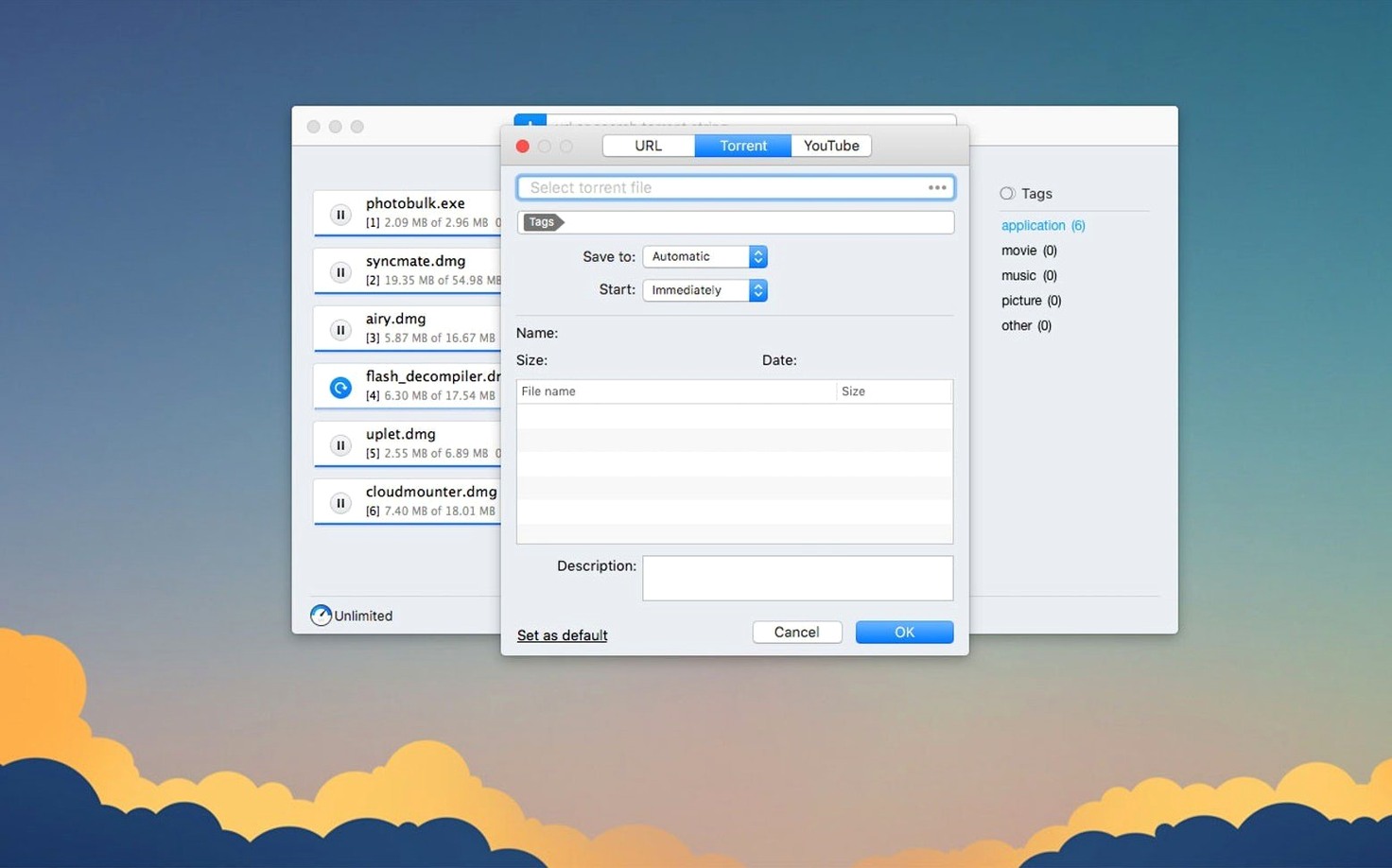
Now drop the magnet link for the dataset torrent. Folx opens a torrent properties sheet where you can deselect files you do not want—documentation PDFs, readme files, sample clips. In version 5.34, the sheet loads faster and selections stick after a restart, which was not always the case in earlier builds. Confirm the selection and the torrent joins the download queue. By default, Folx places torrent downloads in a separate subfolder under your main download directory; you can change that per-task from the right-click menu.
Both tasks run simultaneously. The YouTube files come down with the full thread count you set (up to 20), while the torrent piece selection follows the swarm. The unified list lets you pause, resume or reorder everything from one view.
Stalled ‘Fetching Metadata’ on Magnet Links Points to DHT Blocks
Magnet links that stall at “fetching metadata” usually point to a tracker that needs a working DHT node. Folx ships with DHT enabled, but a restrictive firewall or a proxy that blocks UDP can kill the handshake. If the magnet does not resolve within 30 seconds, check that the proxy settings under Preferences → Network match what your connection actually uses—SOCKS5 with authentication, for instance, or an HTTP proxy on a specific port. Version 5.34 improved proxy stability, but the app still expects a clean, low-latency path to the tracker.
Torrent search returns no results sometimes because the built-in query hits trackers that block or rate-limit automated requests. Narrow the search term and sort by seeds; if the list stays empty, try pasting a magnet link from a browser instead. If you're working with a Folx Pro crack or patched build, make sure the search plugin isn't being sandboxed by macOS Gatekeeper, as a blank result panel is typically a tracker-side or permissions issue, not a bug.
YouTube downloads that default to a low resolution happen when the link is copied from an embedded player rather than from the address bar. Embedded players often serve only 360p to the clipboard. Paste the full watch URL (the one with youtube.com/watch?v=) and Folx will detect the higher streams. If a video is geo-blocked, the app cannot bypass that; it will report a generic network error after a short timeout.
Selective file downloading within torrents can occasionally show a “file not found in metadata” warning when the torrent was created with a non-standard piece size. Pause the task, remove it, re-add the magnet link and wait for the metadata to fully populate before opening the file selection sheet. The 5.34 metadata caching improvements make this rare, but large torrents with thousands of files still need a few seconds to enumerate everything—this applies equally whether you grabbed the official installer or a Folx Pro torrent for Mac.
Sits at 180–350 MB of RAM With Five Active Direct Downloads
Folx Pro is built on Cocoa and keeps a low profile on the system. On an Apple Silicon Mac with 16 GB of RAM, the process typically sits between 180 MB and 350 MB when handling five simultaneous direct downloads and two active torrents. CPU usage spikes during the initial thread split for direct links—briefly 15–25% on a single performance core—then drops to single digits once the transfer stabilises. The 20-thread ceiling is generous, and real-world gains taper off after about 8–12 threads on a typical residential connection, but the overhead from the extra threads is negligible.
Torrent seeding behaviour is conservative by default. The app seeds to a ratio of 1.0 or until you stop the task manually. Disk I/O during seeding is sequential and does not thrash the drive. If you leave ten torrents seeding overnight, memory pressure stays low; the app does not leak noticeably over a 24-hour run. The one area where responsiveness dips is when adding a torrent with several thousand small files—the metadata parser holds the main thread for a second or two. The interface does not beachball, but the progress indicator freezes momentarily.
Proxy routing in 5.34 is noticeably more reliable than in the 5.3x series. Where earlier builds would drop the proxy connection after a DHCP lease renewal or a Wi-Fi roam, Folx now re-establishes the tunnel without user intervention. The proxy applies to both direct downloads and torrent tracker communication; peer-to-peer data still goes outside the proxy unless you route the whole system through a VPN. That is standard behaviour for most torrent clients and not a shortcoming of Folx specifically.
Raise the Thread Count From 4 to 10 or 12 Before Your First Download
Open Preferences before the first real download. The defaults are safe, but a few adjustments pay off quickly.
Thread count. Under the Downloads tab, raise the maximum from the default of 4 to something closer to 10 or 12. Servers that support range requests will saturate your connection faster. Keep it below 20 unless you have a very fast line and a server that does not throttle concurrent connections.
Torrent port. Folx picks a random port on first launch. Go to Preferences → Torrents and note the port number. If you are behind a NAT, forward that port in your router. Without an open port, you can still download, but upload speeds and peer discovery suffer.
Post-download tagging. In the Tags section, create a few labels that match your typical downloads—say “Video,” “ISO,” “Work.” Assign a destination folder to each tag. When a download finishes, you can tag it and have Folx move the file automatically. This keeps the default download directory clean without any manual sorting.
Bandwidth scheduling. Folx offers a simple scheduler. Set a speed limit for daytime hours if you share the connection. The scheduler does not support per-timer profiles, but a single cap during working hours prevents the app from hogging the line while you are on calls.
Smart Tagging rules. The app can auto-tag by file extension. Create a rule that assigns the “Video” tag to .mp4, .mkv and .mov files, and a “Music” rule for .flac and .mp3. Combined with tag-based destination folders, this means most downloads land in the right place without any extra clicks.
- Torrent downloading — improved handling and storage of completed tasks
- Proxy — improved functionality when a proxy is enabled
- Selective downloading — improved behaviour when choosing files inside a torrent
- Crash fix — magnet links that previously caused a crash now add correctly
- Crash fix — torrent search no longer triggers a crash
- System — minimum macOS requirement raised to 10.13 or later
- macOS 10.13 or later
- Apple Silicon or 64-bit Intel processor
Questions on file
Does Folx Pro support magnet links?
Yes. Version 5.34 fixed a crash that occurred when adding some magnet links, so they resolve reliably now.
What macOS versions does Folx 5.34 require?
The minimum requirement is macOS 10.13, and the app runs on both Apple Silicon and 64-bit Intel Macs.
Sign in · Create an account to add a field note.
No field notes yet. A measurement, a version, a machine — they appear after moderation.