
Mac Apps
Folder Quick Look 1.5
Mac AppsUpdated
| Requirement | On file |
|---|---|
| macOS | macOS 15.6 or later |
| CPU | Apple Silicon, Intel 64-bit |
| Download | 15 MB |
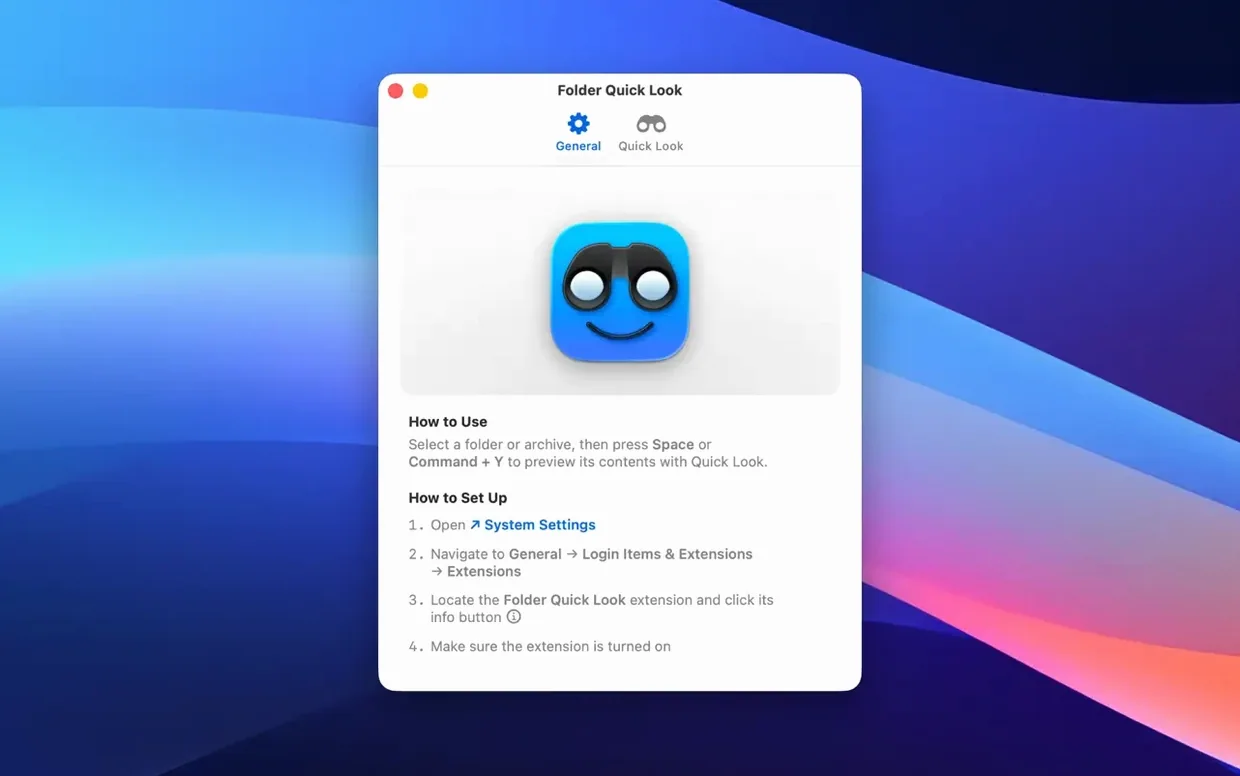
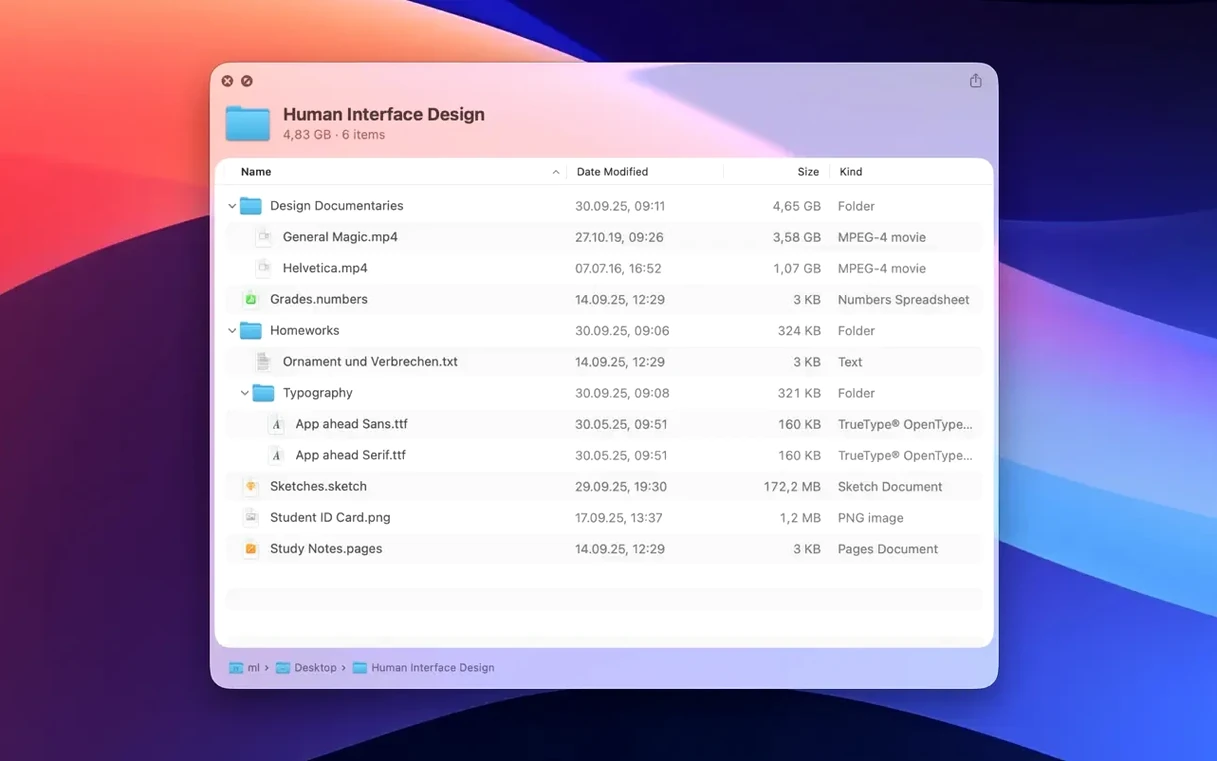
Finder’s Quick Look is great for files — tap the Space bar and you see an image, a PDF, a document. But select a folder and press Space, and all you get is a generic icon and a file count. That gap is exactly what Folder Quick Look fills.
View Contents Without Opening the Folder
- Select a folder in Finder and press Space. Instead of the default folder icon, you immediately see a scrollable list of every item inside — file names, sizes and modification dates.
- Use the arrow keys. With the preview open, tap Down or Up to move through the list. Folder Quick Look keeps the preview visible as you browse other folders in the same directory, so you can quickly scan several folders without ever opening one.
- Toggle the new grid view. Version 1.5 adds a grid layout for previews. Click the grid button inside the Quick Look panel to switch from a list to a visual grid of thumbnails — helpful when you are hunting for an image or a document by sight rather than by name.
- Preview an archive. Select a .zip or .rar file and hit Space. The contents are shown just like a folder, without extraction.
Grid view makes the utility noticeably more practical for media-heavy folders, while the list remains the faster option when you are checking dates or file sizes. Together they turn Quick Look into a lightweight file browser that skips the Finder window entirely.
Peek Inside a 2.3 GB Archive Before Unzipping
Imagine a folder called Client_Assets_2025 that arrived as a 2.3 GB zip. You have not extracted it yet, but you need three specific photos for a layout draft — and you need them now.
You select the archive in Finder and press Space. Folder Quick Look opens a list of the top-level contents: two subfolders and a loose PDF. You arrow down to Photography, tap the Right arrow to expand it inline, and the file list for that folder slides into view. Names, sizes and modification dates appear exactly as they would inside a Finder window, only you never left the preview panel.
You realise the folder holds around 200 raw files mixed with edited JPEGs, so you click the grid view button. Thumbnails fill the panel in a clean three-column layout. You spot the three hero shots by their colour profile — one glance, no scrolling — and make a mental note of the file names.
You close the preview, right-click the archive, and choose Open With > Archive Utility to extract only the files you need. Total time: under 40 seconds. No Finder window opened, no decompressing the entire archive just to peek inside.
The same session plays out with ordinary folders too. A downloads directory with 400 loose items, a project folder with versioned exports, a backup drive you want to check without mounting subvolumes — select, Space, scan, done. The utility removes the friction of opening and closing windows when all you want is a quick look at what is actually in there.
Switch to Grid View for Image-Heavy Folders
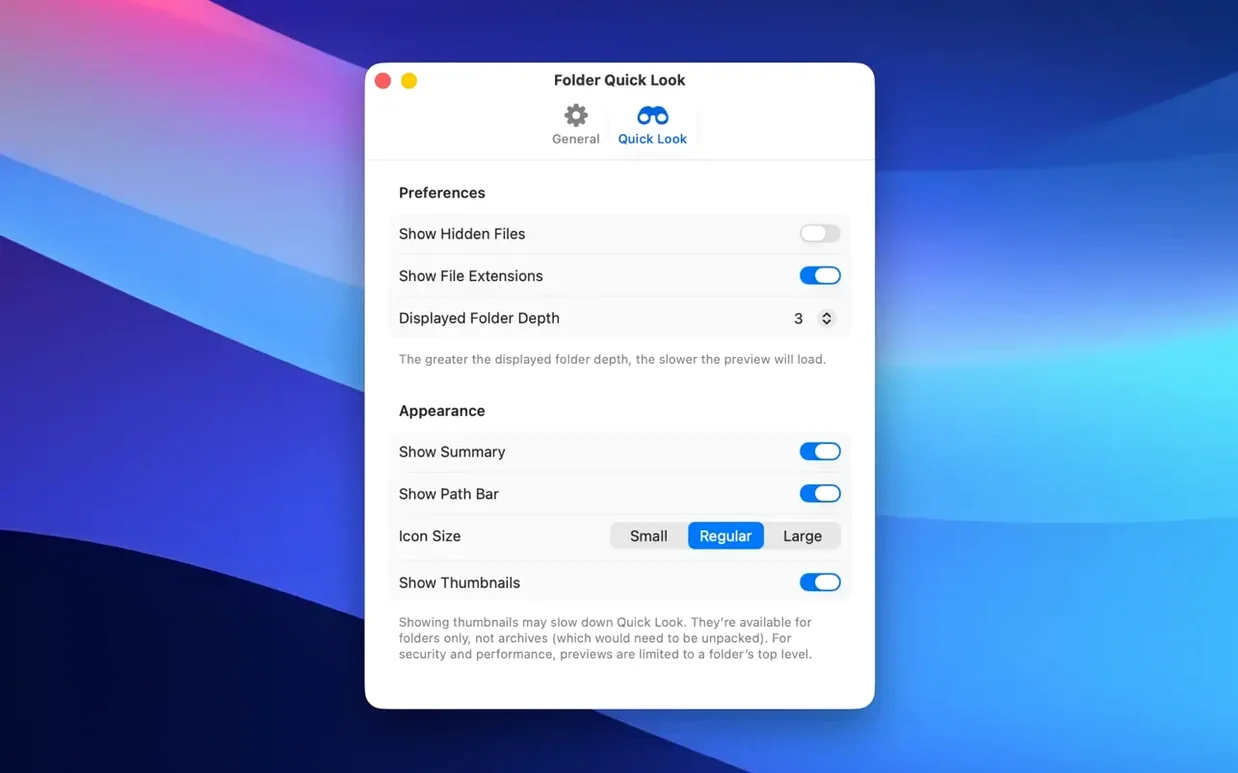
Folder Quick Look keeps its preferences minimal, but two adjustments make a noticeable difference.
Default preview mode. After installing, the app defaults to list view for all previews. If your work involves a lot of image folders — photo selects, asset libraries, mood boards — switch the default to grid view. The setting sticks across sessions, so every Space-bar tap shows thumbnails without an extra click. You can still toggle back to list when you need dates and sizes.
Archive depth. Nested archives (a zip inside a zip) can slow down preview generation if the utility tries to resolve everything. The preference pane lets you limit preview depth to one or two levels. Setting it to 1 level keeps things snappy on large compressed bundles while still showing you the immediate folder structure. You can always expand deeper levels manually with the arrow keys when a specific nested folder matters.
Both settings are set-and-forget — change them once and the behaviour follows you through every Quick Look invocation afterwards.
Skip Extraction When Browsing Compressed Deliveries
Three groups of Mac users benefit disproportionately from Folder Quick Look.
Archive-heavy workers. Anyone who regularly receives zip or RAR deliveries — print designers, video editors pulling footage from cloud archives, researchers downloading compressed data sets — saves extraction time daily. The utility turns archives into browsable objects long before you commit to decompressing them. If your workflow involves selecting a subset of files from large compressed bundles, this alone justifies the install.
People with deep, flat folder structures. A single directory with 200 subfolders is tedious to browse in Finder because every open-close cycle costs attention. Folder Quick Look collapses that into a keyboard-driven scan: select the parent, Space, and arrow through the children without taking your hands off the keys. Photographers culling shoots and sysadmins checking log directories are two obvious examples.
Anyone who already lives in Quick Look. Some Mac users never quite adopted the Space bar habit. Others have it wired into muscle memory — they preview everything before opening. For the second group, Folder Quick Look removes the last blind spot in the Quick Look workflow. Folders and archives stop being opaque containers and become first-class previewable objects, consistent with every other file on the system.
If you rarely touch compressed files and your folders are shallow and well-organised, the utility is pleasant but not transformative. For the three groups above, it removes a small daily friction point that adds up fast.
- Quick Look previews — now available in a grid view alongside the existing list view.
- macOS 15.6 or later
- Intel or Apple Silicon Mac
Questions on file
Does Folder Quick Look require any activation or licence key?
No, activation is not required. The app runs straight after installation.
Can I use Folder Quick Look on both Intel and Apple Silicon Macs?
Yes, the app supports both Intel and Apple Silicon Macs running macOS 15.6 or later.
Sign in · Create an account to add a field note.
No field notes yet. A measurement, a version, a machine — they appear after moderation.