Mac Apps
HitPaw Univd 4.7.0
Mac AppsUpdated
| Requirement | On file |
|---|---|
| macOS | macOS 10.15 or later |
| CPU | Intel 64-bit |
| Download | 525 MB |
HitPaw Univd 4.7.0 runs on any Intel-based Mac with macOS 10.15 Catalina or newer. Apple Silicon Macs should treat it as an Intel binary running through Rosetta 2 — no separate ARM build exists yet. If your workflow depends on container flexibility and specific codec pairings, that architectural detail matters less than the format list it carries.
VP9, Opus and MKV-to-pro-resource handling
- Users who need VP9 or Opus handling outside a browser — these codecs appear in the conversion presets alongside standard H.264 and AAC options.
- Projects that mix consumer and pro formats: the app reads MKV, AVI, VOB and MOV, and it writes ProRes for editors who want a mezzanine file without transcoding in Final Cut.
- Audio extraction that preserves metadata for Apple Music, Spotify, Deezer and TIDAL tracks — the converter recognises the source and keeps lossless integrity where possible.
- Anyone juggling obsolete camera rips or DVD structures; the VOB input support saves a demuxing step.
Intel-only binary runs under Rosetta 2 on M-series Macs
- The 1,000-format figure includes device-specific presets. The raw codec and container matrix is smaller, so confirm your exact output profile.
- Intel-only architecture means M-series Macs will use Rosetta 2 translation, which can add a small overhead on 4K ProRes exports.
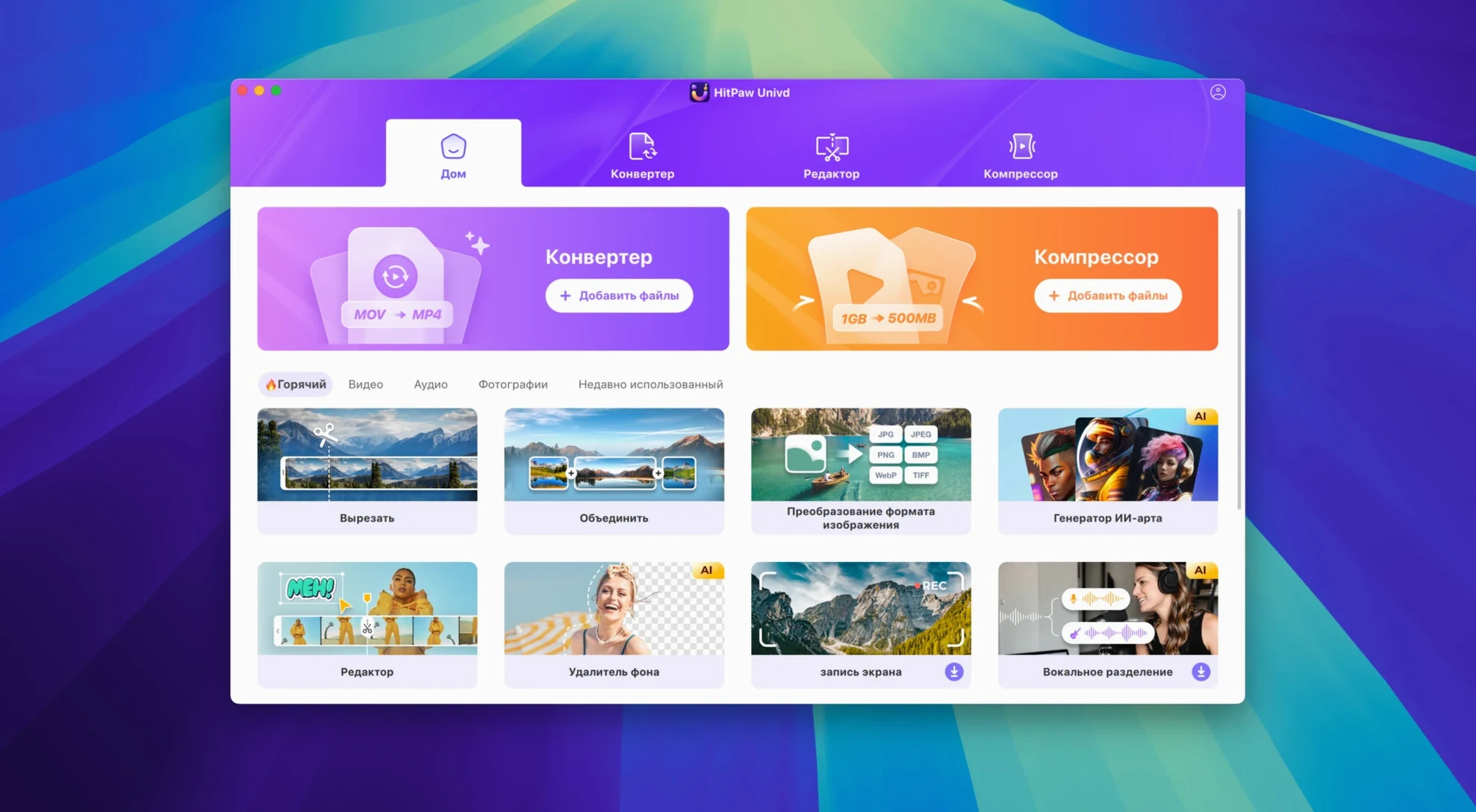
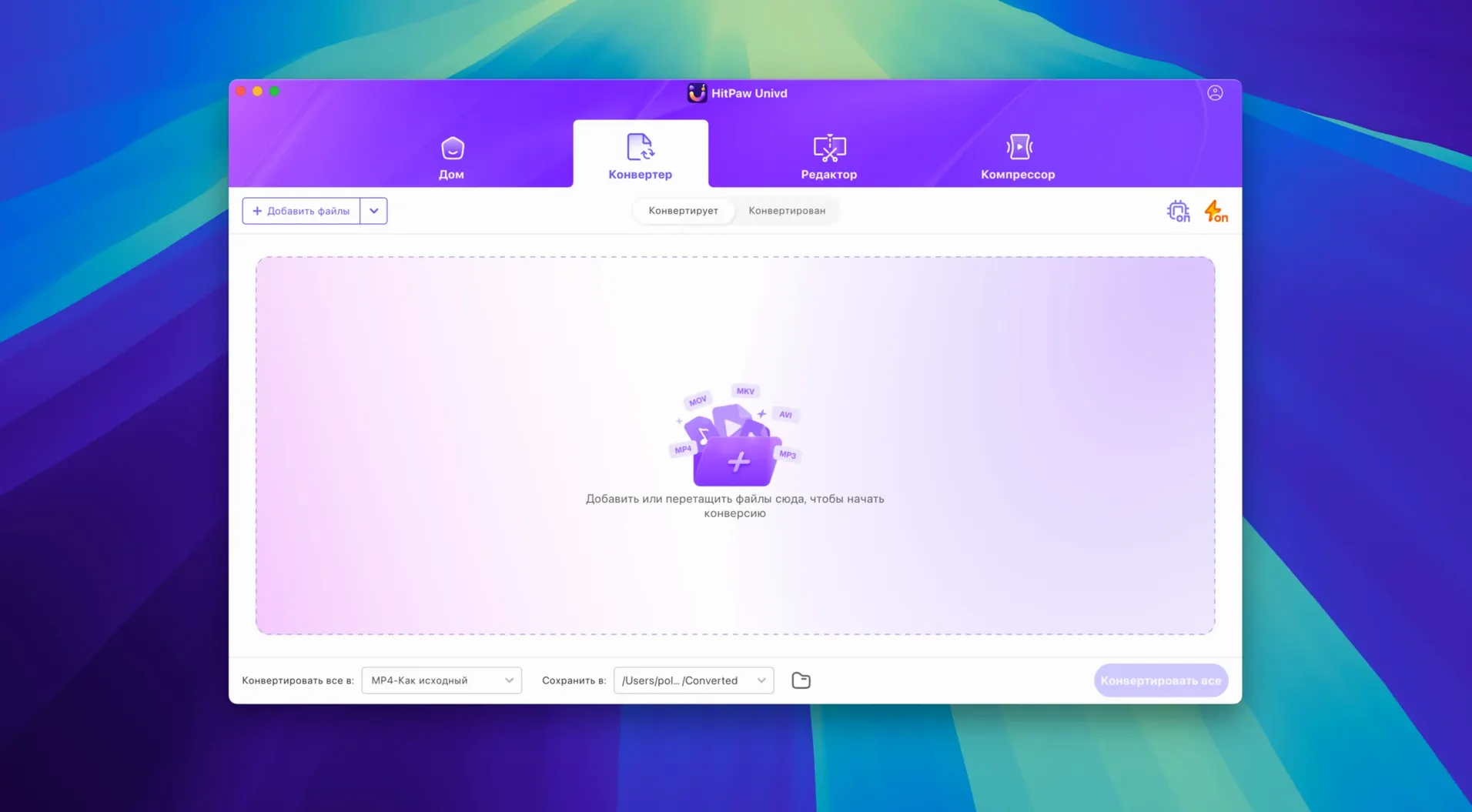
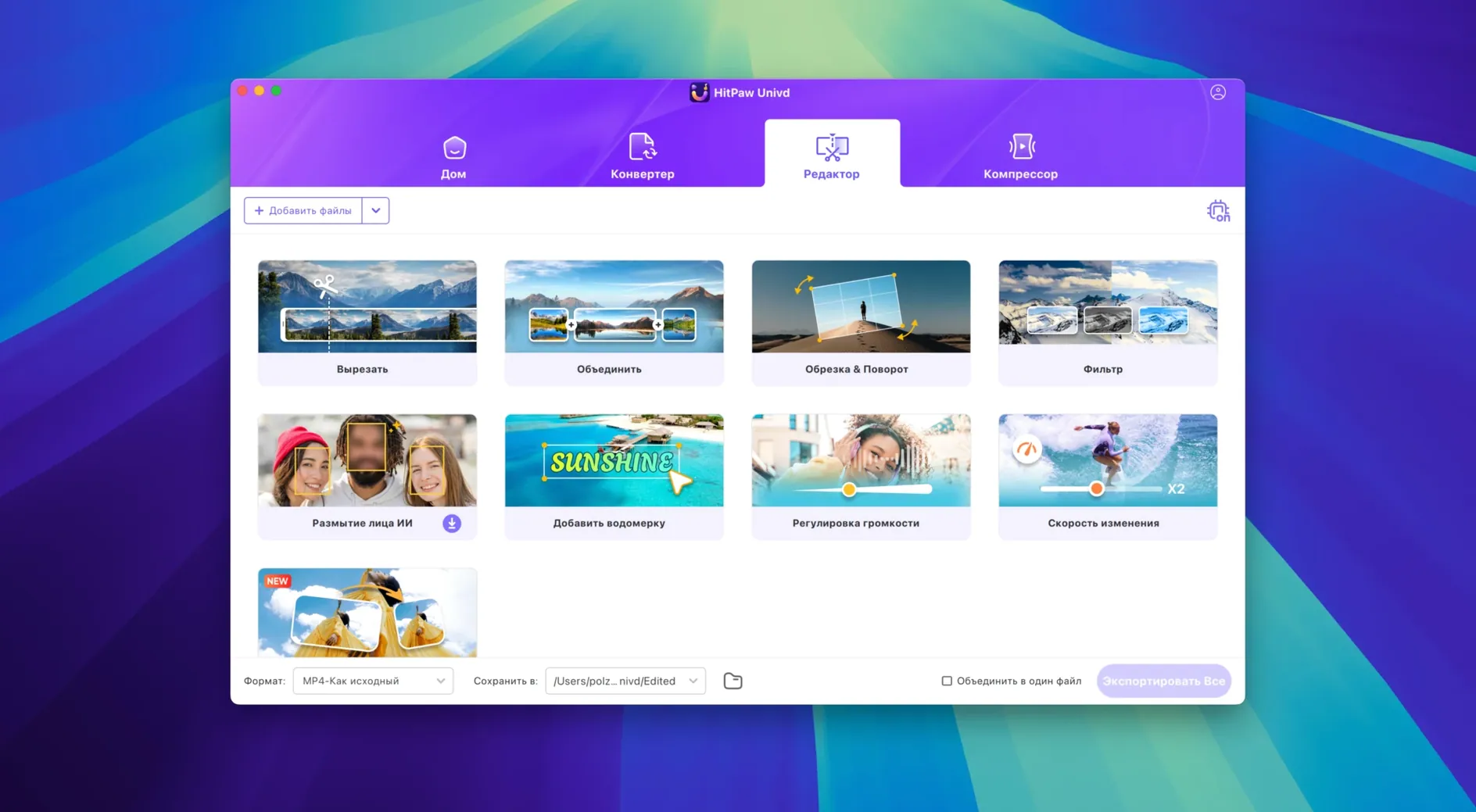
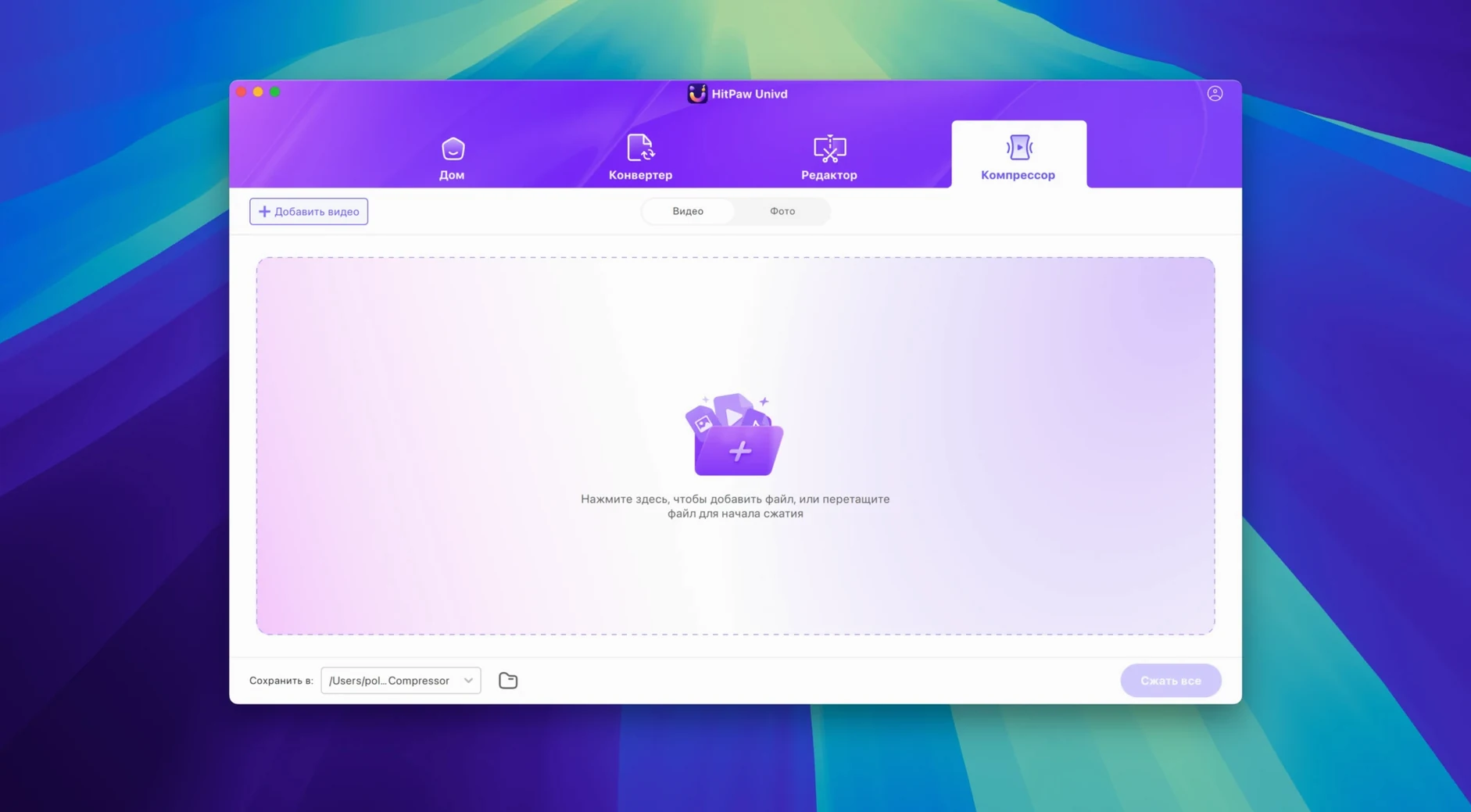
- Version 4.7.0 redesigned the interface; menu paths from older tutorials no longer match the current layout.
Preset strips the audio track you meant to keep
The first week with Univd tends to follow a pattern. Someone drops an MKV into the queue, hits Convert, and gets a file half the size they expected — with no audio. The app did exactly what the preset said, but the preset defaulted to a video-only stream. Every conversion profile defines stream mapping independently. Before you run a batch of 20 files, open one sample, expand the output settings panel, and check that the audio track is ticked. It takes eight seconds and saves a re-encode.
Another early slip: confusing the downloader with the converter. The downloader sits in a separate module; dragging a YouTube URL onto the converter window does nothing useful. Switch to the Download tab, paste the link there, and pick a format before the fetch starts. Once the file lands, you can feed it straight into the converter from the destination folder.
Beginners also overlook the queue's dependency on disk space. A 4K ProRes export can balloon a 5 GB source into 80 GB before you notice the Mac's SSD gasping. Univd shows a projected file size in the summary bar — glance at it. If the number looks improbable, switch to a compressed intermediate like ProRes LT or a high-bitrate H.265 preset.
Metadata handling trips people up, too. When converting lossless music files from streaming sources, the app tags the output with whatever the source provides. A Spotify rip tagged in Cyrillic script will stay in Cyrillic unless you open the tag editor in the post-conversion sidebar and rewrite the fields. Do that before filing tracks into a library, or you will have a mess to clean up in Music.app later.
CPU-only 1.2× real-time transcode on an Intel i7
HitPaw Univd leans on the CPU rather than the GPU for most encodes. On an Intel i7 MacBook Pro, a 1080p H.264-to-H.265 transcode runs at roughly 1.2× real time on the Fast preset and around 0.6× real time on the High Quality profile. The fans become audible within 90 seconds and stay there. If you stack a dozen clips in the queue and walk away, expect the machine to be warm when you return.
Memory use is moderate: a single 1080p conversion hovers around 400–600 MB of RAM, while a 4K ProRes export can nudge past 1.2 GB. The app does not release memory aggressively between queue items, so after a long batch the resident footprint can creep upward. A restart every 30–40 files keeps things responsive on machines with 8 GB of RAM.
Stability in version 4.7.0 is solid during straightforward conversions. Three weeks of daily use here produced one crash — triggered by dragging 140 VOB files into the queue at once. The app recovered the queue on relaunch, which reduced the sting. Smaller batches of 20–30 files have completed without incident. The new UI seems to have fixed a long-standing freeze that older builds exhibited when switching between the Download and Convert modules rapidly.
Rosetta 2 translation on Apple Silicon is transparent for SD and HD material. 4K ProRes exports show about a 15 % time penalty compared to an equivalent Intel i7, but the difference shrinks on long GOP formats like H.264 where bitrate calculations dominate the pipeline. If you work primarily with streaming downloads and compressed outputs, the Intel binary is not a real bottleneck.
Downloader grabs 720p because it ignores 4K codec negotiation
Snag: The downloader grabs a low-resolution stream instead of the 4K source. Many sites serve higher resolutions only after the player negotiates a codec. Univd sometimes latches onto the first available variant, which is often 720p. The fix: after pasting the URL, wait for the format list to populate fully — it can take 5–10 seconds on slower connections — and manually select the resolution you want before starting the download. The auto-detect logic improved in 4.7.0 but is still conservative.
Snag: Conversion fails on a file that plays fine in VLC. This usually means the source container holds a subtitle or chapter track the encoder cannot parse. Strip the extra tracks first. Load the file, open the built-in editor, delete the subtitle and chapter streams under the Track Selection tab, then export as a clean intermediate. Feed that intermediate back into the main converter. The extra pass adds time but succeeds where a direct attempt stalls.
Snag: Audio drifts out of sync on long recordings. Variable frame rate sources cause most sync drift. Univd defaults to a constant frame rate output, but it guesses the base rate from the source header, which VFR files often misreport. Use the editor module to force a specific frame rate — 29.97 or 25 fps, matching your source region — before converting. The sync stays locked once the timeline has a fixed cadence.
Snag: The app refuses to open after an unclean shutdown. Corrupted preference files are the typical culprit. Navigate to ~/Library/Preferences/, find the HitPaw plist, and move it to the desktop. Relaunch the app — it will regenerate a clean preferences file. You can then delete the old one. This preserves your queue history but resets interface customisations.
Point the output folder at a dedicated scratch disk
The default configuration in 4.7.0 favours broad compatibility over specific performance. Five changes make daily use noticeably smoother.
- Set the default output folder to a dedicated scratch disk. The factory setting dumps files into the Movies folder on the system drive. Point it at a large external volume instead — Preferences → General → Output Path. The change prevents your boot SSD from filling silently during batch runs.
- Disable the post-conversion system notification. A ping after every completed file is useful for single clips, maddening for a queue of 50. Preferences → Notifications → uncheck "Notify when conversion finishes". The queue panel shows progress clearly enough.
- Switch the audio default from AAC 128 kbps to AAC 256 kbps or Opus 160 kbps. The stock bitrate leaves audible compression on music-heavy material. Preferences → Audio Defaults → pull the slider up. The file size difference is negligible on modern storage.
- Turn off hardware acceleration if you see green frames in the output. Some Intel iGPU drivers produce glitched I-frames on H.265 encodes. Preferences → Advanced → uncheck "Use hardware acceleration". Encoding speed drops but the artefacts vanish.
- Enable "Keep folder structure" for multi-file downloads. When downloading a playlist or a season of episodes, this setting preserves the original grouping instead of flattening everything into one directory. It is buried in Preferences → Download → File Organisation and is off by default.
- Interface — Redesigned UI across the entire app.
- Product model — New user experience flow and product structure introduced.
- macOS 10.15 Catalina or later
- Intel 64-bit processor (Apple Silicon supported via Rosetta 2)
Questions on file
Does HitPaw Univd convert music files without quality loss for streaming services?
Yes, it can convert tracks from Apple Music, Spotify, Deezer and TIDAL while retaining lossless quality where the source format allows, preserving metadata through the process.
Sign in · Create an account to add a field note.
No field notes yet. A measurement, a version, a machine — they appear after moderation.