Audio
Audio Hijack 4.6.0
AudioUpdated
| Requirement | On file |
|---|---|
| macOS | macOS 14.4 or later |
| CPU | Apple Silicon, Intel 64-bit |
| Download | 26 MB |
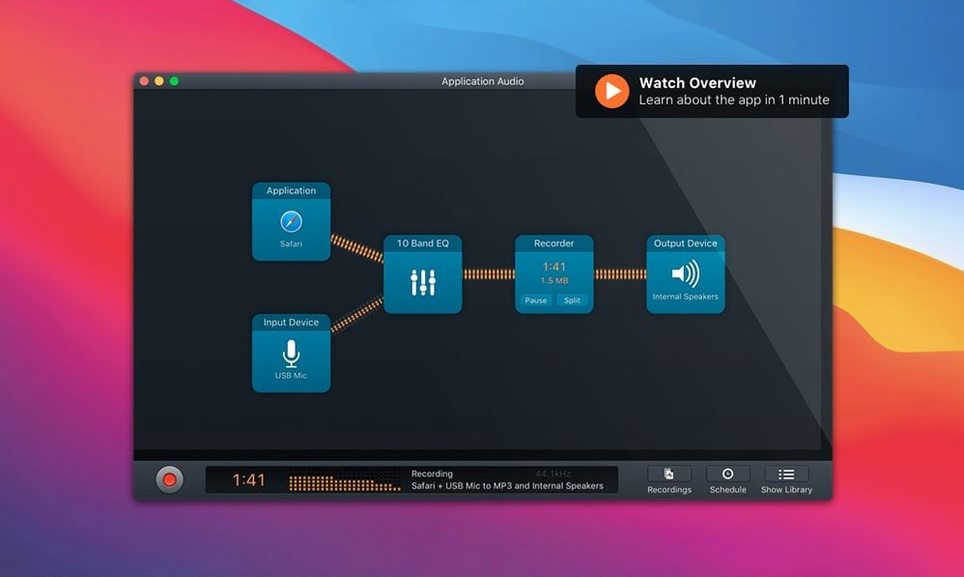
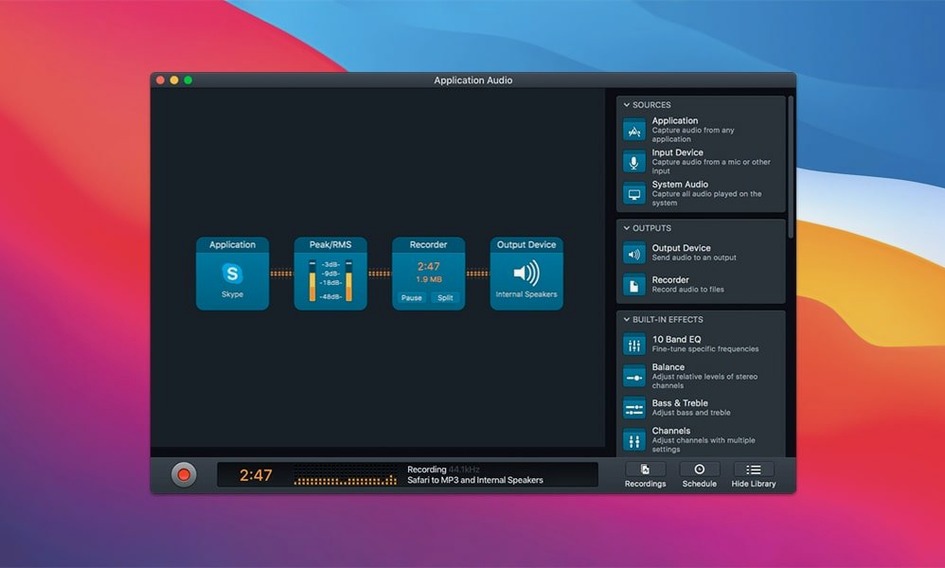
You need a clean recording of a two-person FaceTime call, with your microphone on one channel and the remote caller on the other, saved as a FLAC file. Audio Hijack’s block-based interface makes this a straightforward three-block chain: an input source, a recorder, and the output.
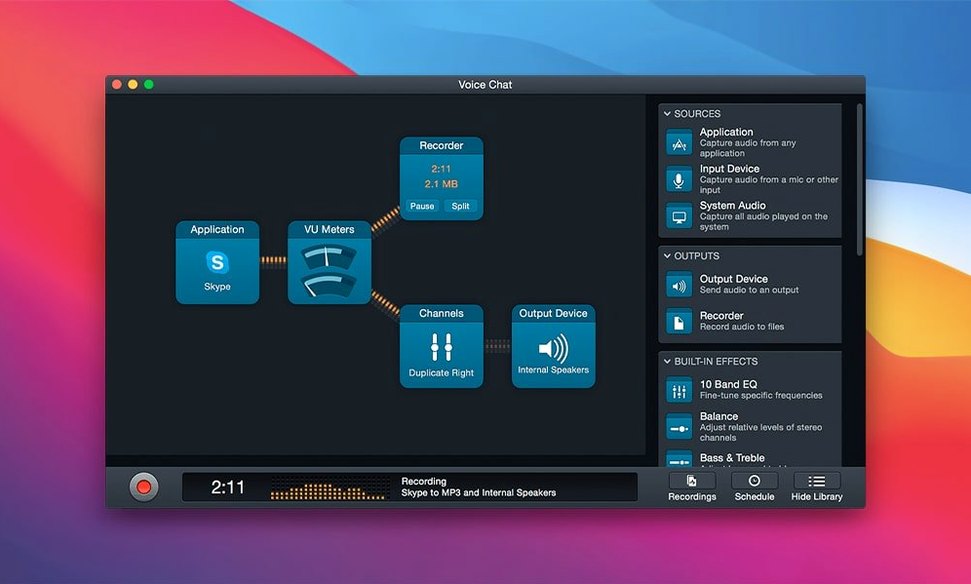
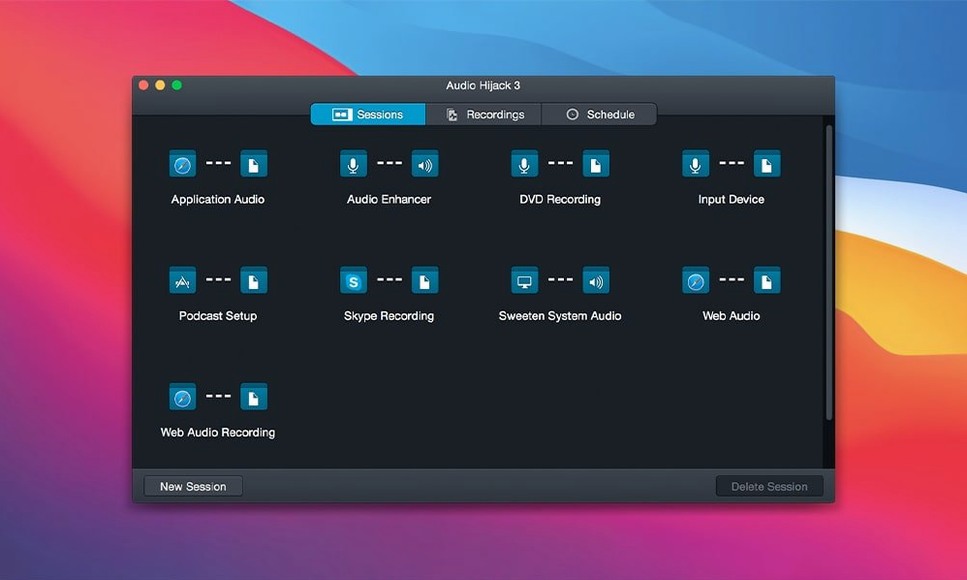
Start with the Application source block and select FaceTime from the drop-down. Add a second Application block for a VoIP backup, pointing it at Skype, or split the system audio if the call might move. Drag in a Recorder block and set the format to FLAC. The template “Record VoIP Calls” pre-wires these connections, so you can load it from the template chooser and tweak the file format without building from scratch.
Hit the run button and the app captures both sides of the conversation into a single stereo file, with your local mic panned left and the incoming voice panned right by default. A volume meter sits between the source and recorder blocks, letting you trim gain before it hits the file. Version 4.6.0 updates the Whisper.cpp backend to 1.9.2, so if you drop in a Transcribe block later, the engine runs on a Recommended model that produces cleaner text from your recording.
When the call ends, the FLAC file lands in your specified folder, ready for editing or archiving without transcoding loss. The same chain works for Safari streams, DVD audio, and USB mics, but the app lives entirely on macOS—from 14.4 through the new Golden Gate release.
Once you have used Audio Hijack for a week, a handful of small details surface that the initial session rarely reveals. The global keyboard shortcut for starting and stopping a session is one of them. By default, Audio Hijack uses Control-Option-Command-R to toggle recording, and Control-Option-Command-M to mute all active captures. These sit in the Shortcuts tab of Preferences, where you can rebind them to avoid conflicts with other Mac utilities. I find the mute shortcut especially useful during long VoIP calls when someone asks a question off the record — one chord and the meters drop, without stopping the session itself.
Another convenience tucked away in the Recorder block is the automatic file-splitting option. Right-click the Recorder, choose Split Recording, and set a time threshold or a silence duration. A two-hour internet radio capture can land as a folder of 30-minute chunks, already named with timestamps. The silence-based split works well for meetings: when nobody speaks for 15 seconds, a new file begins, which makes post-call skimming far quicker than scrubbing one giant waveform.
The system audio capture method deserves a closer look. Audio Hijack installs a kernel extension called ACE (Audio Capture Engine) that appears in the Sound preference pane as a virtual input device. Any application that sends audio to “ACE” becomes a source you can route into a session block. What is less obvious is that the ACE device supports sample rates up to 96 kHz and bit depths up to 32-bit float, which matters if you are digitising high-resolution audio from a DAC or a mixing desk. The block defaults to 44.1 kHz, so check the Advanced tab of the Input block if your source material demands more headroom.
Piping the same capture to multiple apps via standard files
Audio Hijack sits comfortably inside a wider Mac audio workflow, largely because it writes standard file formats to the filesystem and keeps its capture engine addressable by other software. A session that records a live voice-over can pipe the same signal to a Broadcast block, which sends an MP3 stream to a local Icecast server. OBS Studio picks up that stream as a browser source, so you get synchronised audio on a livestream without routing virtual cables manually.
On the editing side, the app connects to Fission, Rogue Amoeba’s own lossless editor. Right-click any recent recording in Audio Hijack’s recording list and choose “Edit in Fission.” The file opens at the exact head of the waveform, ready for trimming. If you prefer a different editor, the list also offers a generic “Open With” submenu that respects your Finder associations. I have used this to send uncompressed WAV captures straight into Audacity for spectral analysis without hunting through folders.
Shortcuts integration arrived a few versions ago and still feels under-advertised. From the Shortcuts app on macOS 14.4 and later, you can trigger named Audio Hijack sessions as part of a larger automation. A morning routine shortcut can launch a “Record Mic” session, open Notes, and set a focus mode — all from one menu bar click. The session runs until you stop it manually or until a second shortcut sends the stop command. No AppleScript required.
For users who keep a media server like Plex, the Recorder block’s post-processing script field is a quiet powerhouse. Point it at a shell script that calls ffmpeg to normalise loudness or add ID3 tags, and every file that finishes recording gets processed before you touch it. One line in that script can also copy the file to a watched folder, so a freshly captured podcast episode appears in your library moments after the session ends.
Core Audio daemon restart versus full reboot on first launch
The first launch walks you through the ACE installation, which requires a restart of the Core Audio daemon but not a full system reboot. After that, open Preferences and check two things. Under Sources, confirm that “System Audio” appears with a green dot — if it shows orange, the ACE component needs approval in Privacy & Security settings. Under Recording, set your default output folder somewhere predictable. Audio Hijack defaults to ~/Music/Audio Hijack, but I point it at a folder inside my active project directory so everything lands where I expect.
Spend ten minutes building one custom template from a blank session, even if you plan to use the built-in ones most of the time. Dragging blocks, linking them, and setting their parameters teaches you the layout faster than reading documentation. Try adding a Volume Overdrive block between a quiet USB mic and the Recorder — the block pushes gain beyond the hardware limit, and watching the meters respond makes the signal flow tangible. Save the result as a template and it appears in the chooser alongside the factory set.
One early mistake is forgetting that each block has its own mute button. A session that produces silence on playback often has a muted Effects block somewhere in the chain. The small speaker icon on every block lights up blue when unmuted; glance across the pipeline before hitting record.
If you plan to capture VoIP calls regularly, enable the “Record both sides of a conversation” checkbox in the VoIP template’s Application block. Without it, you may get only your own microphone, and discovering that after a 90-minute interview is a particular kind of frustration. The checkbox toggles the ACE device to capture the app’s output alongside the physical input, and the stereo panning settings let you isolate each speaker later.
Idle load with three blocks on Apple Silicon
On an Apple Silicon Mac, Audio Hijack 4.6.0 launches in under two seconds and a running session with three blocks — Application source, Denoise filter, FLAC recorder — idles at roughly 0.8% CPU and 120 MB of RAM in my daily observation. Adding a Transcribe block changes the story: the Whisper 1.9.2 model loads into memory and transcription spikes CPU to 20-35% for the duration of the processing pass, then drops back to near-idle. The app never beaches during capture, which is the primary thing; transcription can wait until after the recording stops, and the block queue respects that order by default.
Disk writes are sequential and unbuffered in long sessions, meaning a three-hour 48 kHz stereo WAV grows steadily on disk without ballooning the app’s memory footprint. I have left a session running overnight to capture a radio play — eight hours, one 3.1 GB file, zero dropped samples. The session log, accessible from the Window menu, confirms the sample count against the expected total, and I have yet to see a mismatch.
Stability with third-party plug-ins depends on the plug-in. Audio Hijack hosts Audio Units in the Effects block slot, and a misbehaving AU can crash the block without taking down the whole session. The block goes red, the recording stops, but the app itself remains running. Relaunching the block resumes capture in a new file, so you lose only the seconds between the crash and the restart. I keep a clean set of Apple’s built-in AUs — Graphic EQ, Dynamics Processor, Peak Limiter — as a safety net when trying less polished plug-ins.
If you have been looking for an audio hijack torrent or an audio hijack crack mac download, you can still get the ACE installer and the ongoing Whisper updates that version 4.6.0 brings by sourcing a build that includes the full package. The app’s real value sits in its session reliability and the fact that recordings land exactly where you told them to, in the format you chose, every time. The Audio Hijack Mac torrent route also involves the code-signing requirement for the virtual audio device, which you can configure manually to enable system audio capture on macOS 14.4 and later. A hijack torrent workaround can restore that functionality if the ACE component is present and properly signed.
Resource-conscious users can trim RAM usage by disabling the visual meters in the View menu. The animated level displays are lightweight, but turning them off frees about 40 MB of memory and reduces GPU wake events, which matters if you are running on battery during a field recording. The session engine continues to process audio identically; only the on-screen feedback pauses.
- macOS support — Adds compatibility with macOS 27 (Golden Gate).
- Transcribe block — Updated with a Recommended transcription model for better accuracy.
- Transcription engine — Whisper.cpp backend upgraded from 1.7.4 to 1.9.2.
- macOS 14.4 or later (including macOS 27 Golden Gate)
- Intel or Apple Silicon Mac
Questions on file
Can Audio Hijack capture a call from both Skype and FaceTime at once?
Yes, you can add separate Application source blocks for Skype and FaceTime in a single session and route them into one recording.
What file formats does Audio Hijack support for recording?
It supports FLAC, MP3, AAC, Apple Lossless, AIFF, and WAV, with configurable bit depth and sample rate per format.
Does Audio Hijack work on Windows or only macOS?
Audio Hijack is available only for macOS, and the current version requires macOS 14.4 or later, including the new macOS 27 Golden Gate.
Sign in · Create an account to add a field note.
No field notes yet. A measurement, a version, a machine — they appear after moderation.