Audio
Audiobook Builder 2.2.9
AudioUpdated
| Requirement | On file |
|---|---|
| macOS | OS X 10.11 or later |
| CPU | Apple Silicon, Intel 64-bit |
| Download | 25 MB |
People with long commutes and narrators checking their own work both end up in the same place: staring at a folder of audio files that needs a proper structure. Audiobook Builder turns that folder into a single m4b book with chapter stops, cover art, and a table of contents that Books and the Music app understand.
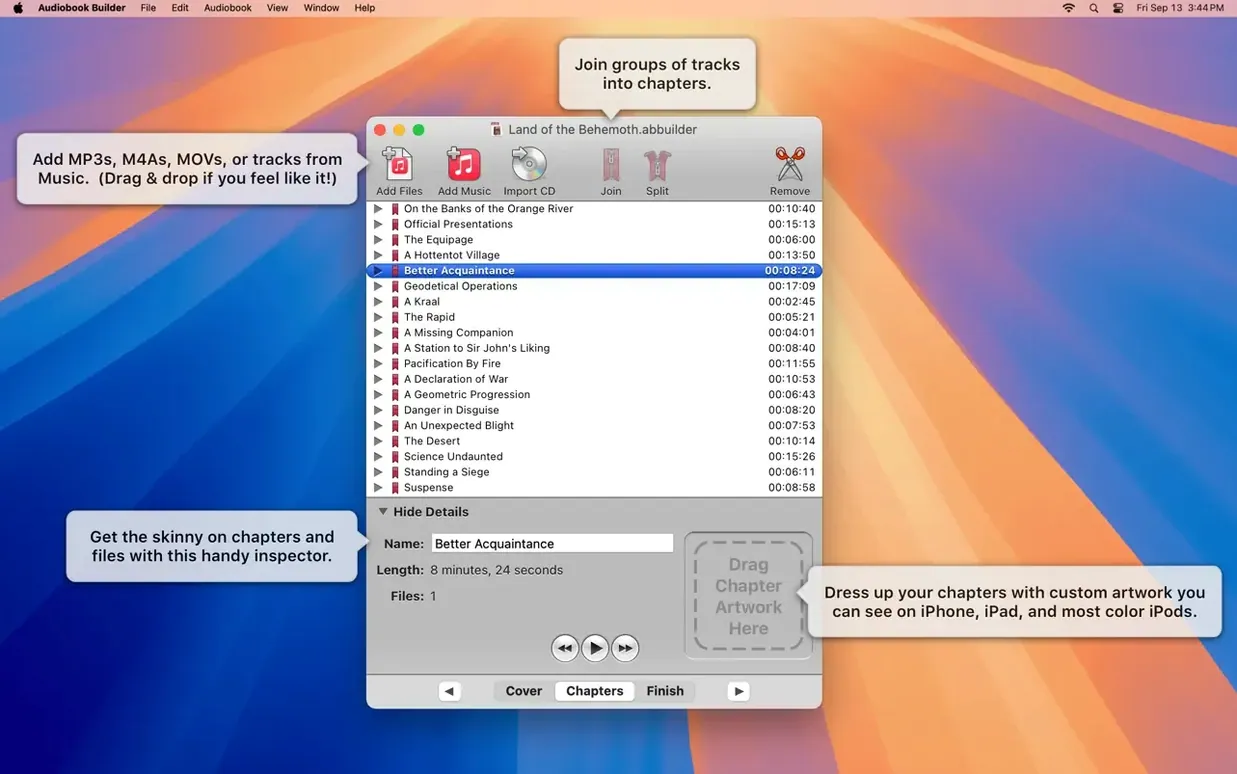
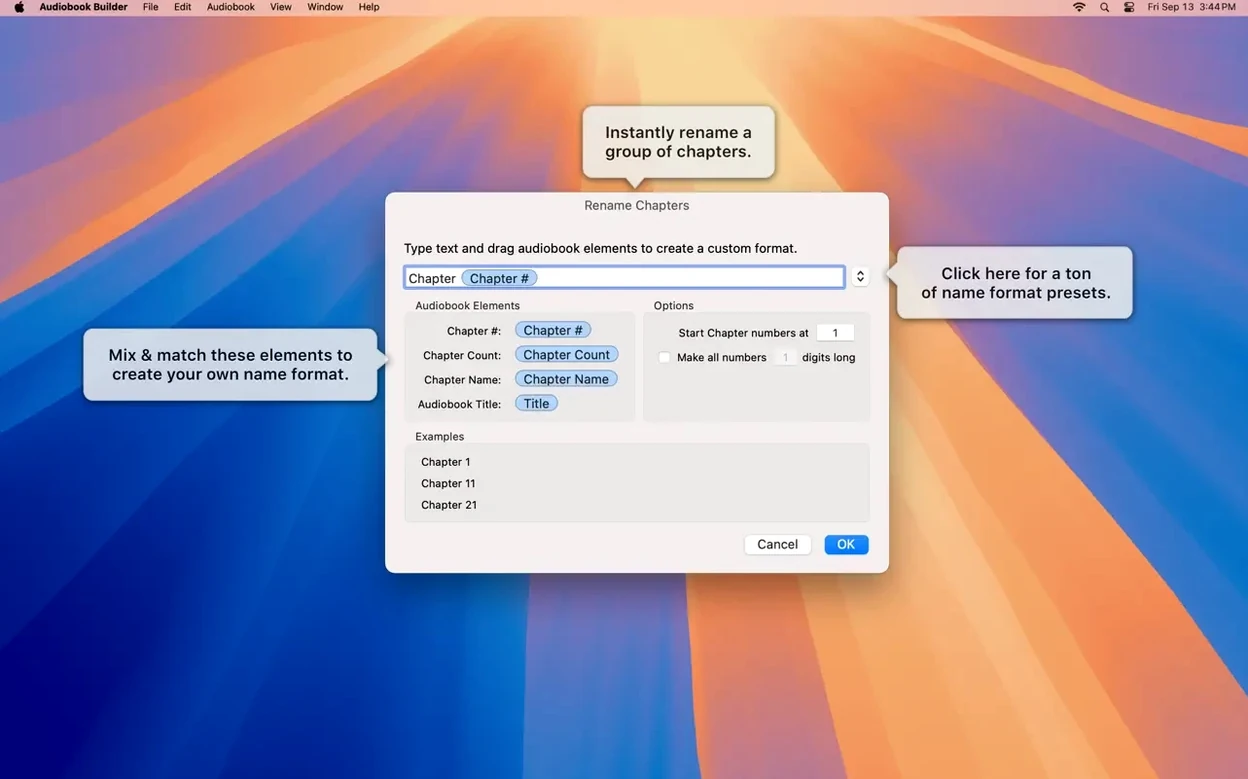
The chapter tools do the heavy lifting. You can merge files into a sensible sequence or split a long recording at silence points. Each stop gets a custom title and its own artwork, so a listener sees chapter names and images as they move through the book on an iPhone or iPad.
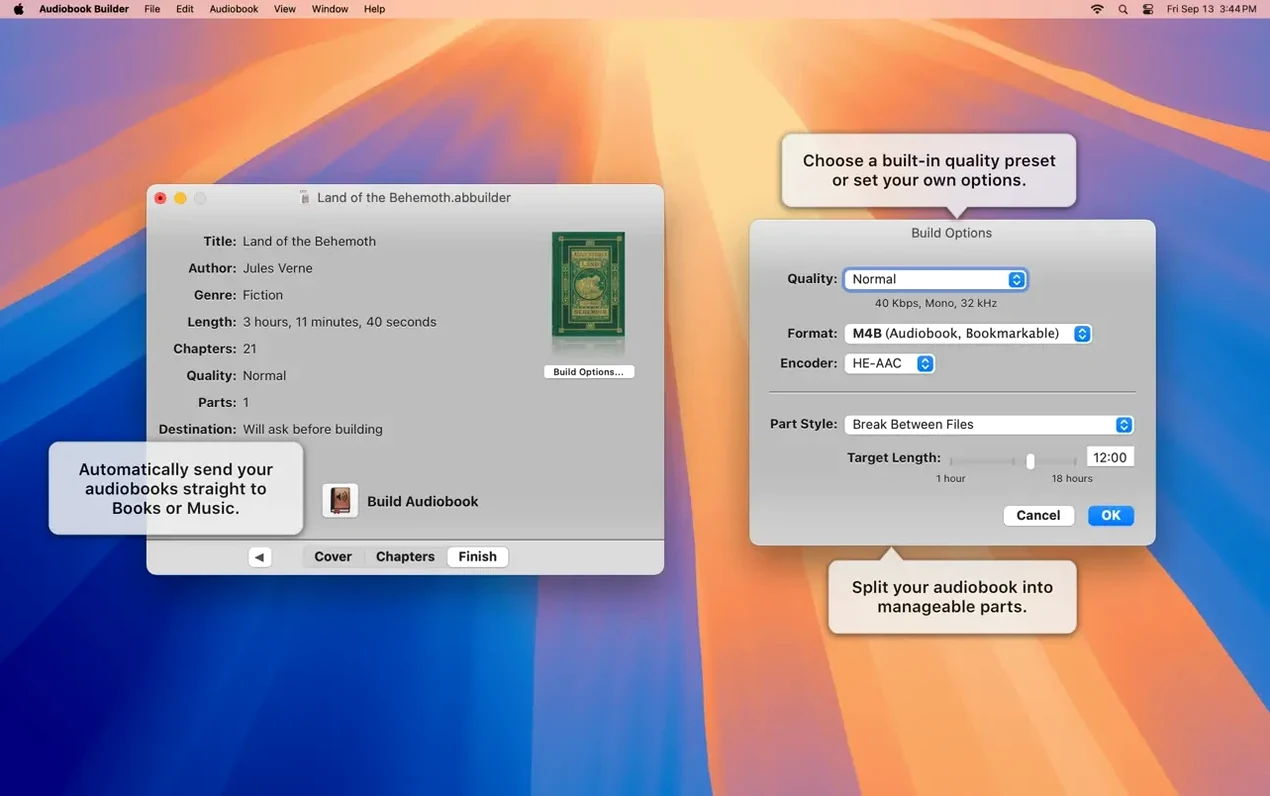
Audio parameters are fully exposed. Bit rate, sample rate, and quality settings are yours to adjust before the build runs. When it finishes, the app hands the completed audiobook straight to iTunes, Music, or the Books app without extra import steps.
Compatibility is broad enough to keep old and new Macs in the loop. Version 2.2.9 runs on OS X 10.11 El Capitan or later, including macOS 15 Sequoia, on both Intel and Apple Silicon, and the interface speaks Russian, English, German, Spanish, Portuguese, and Swedish.
WAVE Files with MP3 Data No Longer Block Builds
Version 2.2.9 tidied up a few rough edges that affected real workflows. The most practical fix addresses WAVE files carrying MP3 audio data — earlier builds would throw a “no audio in file” error and block the project. That error is gone, so a batch of mixed-format source files no longer needs manual format checks before import.
Cover and chapter artwork behaviour stabilised for anyone running macOS 13 Ventura. In previous versions the artwork pipeline could glitch on that OS, leaving chapter images blank in the final m4b. The 2.2.9 build restores reliable image embedding, which matters for listeners who flick through chapters by cover thumbnail on an iPhone or CarPlay screen.
An error-reporting glitch on Macs older than macOS 11.3 was corrected — the app would occasionally mislabel a valid build as failed, causing users to re-encode unnecessarily. That false alarm no longer appears.
The Description tag made a quiet return for owners of classic iPods still syncing through Finder or iTunes. For anyone maintaining a library on an old iPod classic or nano, that metadata field is visible again after a build.
The Sequoia readiness note is mostly a promise of no breakage: the app launches and builds without sandbox permission prompts or audio encoding stalls under macOS 15. No interface changes came with it.
Dragging a Folder Without Checking Sort Order
Most first-time trouble traces back to three habits. The first is dragging a folder of tracks into the project pane and hitting Build without checking the sort order. Audiobook Builder uses the order files appear in the list, not filename numbering or metadata track numbers. A book that should start with Chapter 01 ends up playing Chapter 12 first because Finder sorted them by date modified. The fix is simple: sort and reorder the list before opening the Build panel.
The second mistake is leaving the quality preset on “Spoken Word – Normal” for a project that includes musical interludes or high-frequency effects. That preset applies a lower bit rate suited to voice, and the roll-off around 16 kHz can dull background music. Switching to “Custom” and raising the bit rate to at least 96 kbps preserves the full range for productions that mix speech and music.
The third is building with no chapter artwork at all, then discovering that the Books app displays a grey placeholder for every chapter. Adding even a small 400×400 JPEG per chapter stop makes browsing a finished book feel complete on Apple devices. The artwork doesn't need to change per chapter — a repeat of the cover image works as a fallback for listeners who skip through the table of contents.
Requirements
Audiobook Builder vs Audiobook Binder
Audiobook Binder handles the same core task — joining audio files into an m4b — but takes a simpler approach. It doesn't offer chapter artwork, custom audio parameters, or CD import. The interface is a single window with a drag-and-drop list, a metadata panel, and a single quality dropdown. For a straight voice-only book with no chapters beyond file boundaries, that's enough. Audiobook Builder pulls ahead when the project requires chapter splitting, silence-based stop placement, or fine control over the AAC encoder settings. The file-import tolerance also differs: Audiobook Binder tends to reject files with non-standard headers that version 2.2.9 now accepts without complaint.
Audiobook Builder vs GarageBand
GarageBand can export a project as an m4b with chapter markers, but the workflow is built for recording and editing, not for assembling a finished book from existing files. Placing chapter stops means dragging the playhead and adding markers one at a time in the Arrangement Track, then exporting through Share > Export Song to Disk with the Audiobook option. The export dialogue gives no control over bit rate or sample rate beyond the preset AAC quality tiers. Audiobook Builder reverses the priorities: assembly and metadata are the main interface, audio editing is left to external tools, and the encoder settings are fully adjustable. For narrators who record and master in a DAW anyway, running the final WAV files through Audiobook Builder saves thirty minutes of marker-placement per project.
Audiobook Builder vs Chapter and Verse
Chapter and Verse is a free tool focused exclusively on chapter marker insertion into existing m4b files. It does not encode audio or build a book from separate tracks — it edits chapter data inside a file that already exists. The two apps complement each other: build the book in Audiobook Builder, then fine-tune chapter timings or rename stops afterward with Chapter and Verse. The overlap is small, but users who need only to fix chapter markers on a downloaded m4b will find Chapter and Verse lighter to open. Anyone starting from raw audio files still needs a builder first.
Test a Short Book Before Committing to a 20-Hour Project
Start with a short project — a single-CD audiobook or a five-chapter recording — before committing a 20-hour book. This reveals whether your quality settings produce acceptable file sizes and whether the Books app displays your chapter artwork correctly on your specific iPhone model. A five-minute test build costs nothing and surfaces mistakes while they're still cheap to fix.
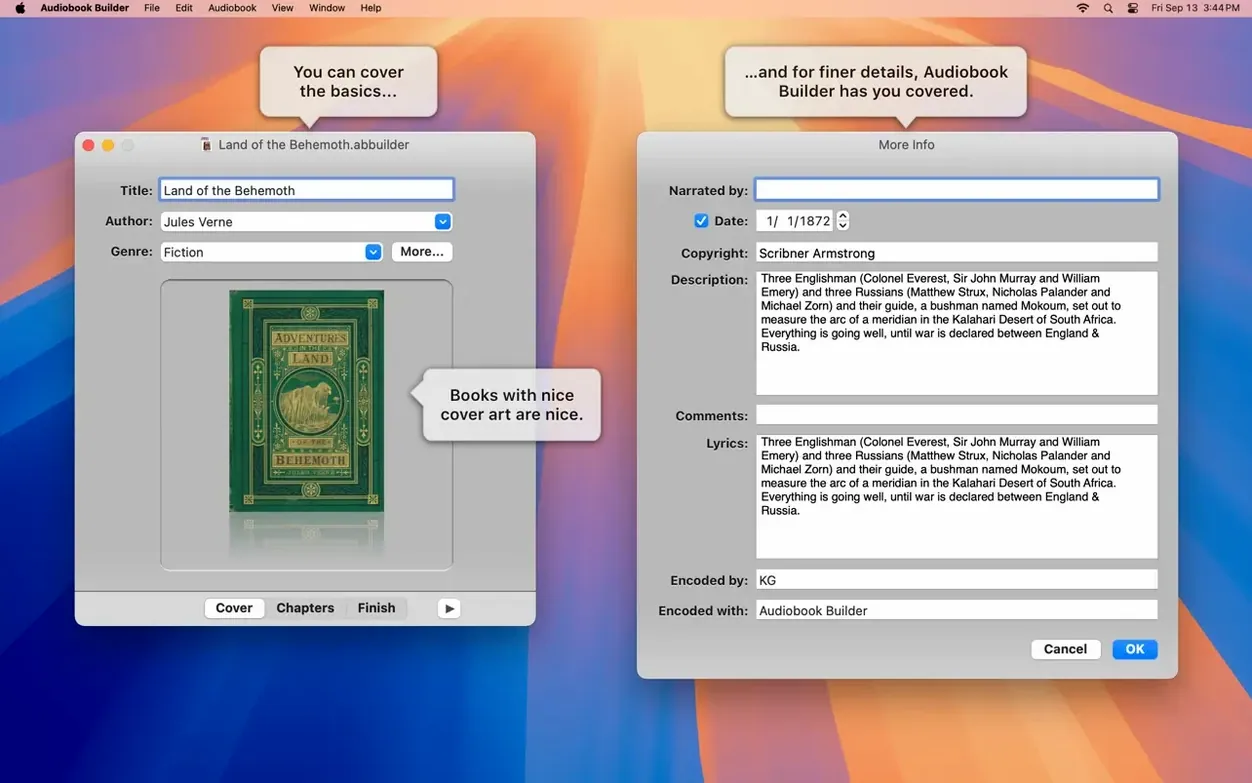
Set the cover artwork early and use the same image dimensions across all chapter art. A 1400×1400 JPEG at 300 DPI works reliably across every Apple device from an iPod touch to a 6th-generation iPad. Avoid PNG for cover art: the Books app sometimes strips transparency channels and leaves a black background. The app embeds whatever you give it, so getting the format right at the source saves a rebuild.
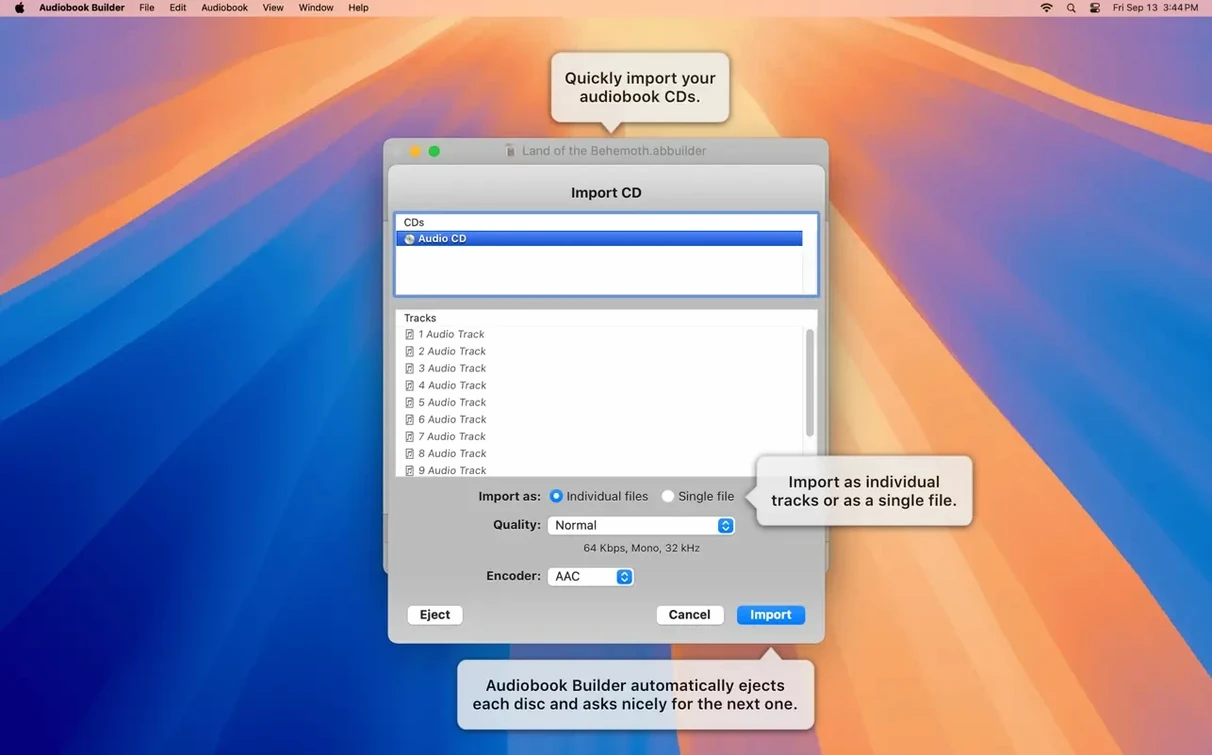
When importing from audio CDs, let the app fetch track names from Gracenote before dragging the disc contents into the project. Skipping that step leaves tracks labelled “Track 01” through “Track 12,” and renaming them inside Audiobook Builder before building takes longer than waiting for the lookup. The CD import dialogue shows the Gracenote results as soon as the disc is recognised — confirm the title match, then proceed.
Keep source files in a dedicated folder per project until the build finishes and the m4b is confirmed working in the Books app. Moving or renaming source WAV or MP3 files while a project is open breaks the internal references, and the build will fail with a missing-file error that doesn't always name the exact path. A flat folder structure — ProjectName/Source/ — avoids this entirely.
- macOS 15 Sequoia — ready for the release.
- Cover & chapter artwork — works on macOS 13 Ventura.
- WAVE files — no longer reports “no audio in file” for WAVs containing MP3 data.
- Error reporting — corrected a glitch on Macs running pre-11.3 systems.
- Classic iPods — restored the Description tag.
- macOS 10.11 El Capitan or later
- 64-bit Intel or Apple Silicon Mac
Questions on file
Can Audiobook Builder handle chapters with custom artwork?
Yes, it creates chapter stops with custom titles and images, and cover and chapter artwork function on macOS 13 Ventura and later.
Sign in · Create an account to add a field note.
No field notes yet. A measurement, a version, a machine — they appear after moderation.