Audio
Boom 3D 2.2.6
AudioUpdated
| Requirement | On file |
|---|---|
| macOS | macOS 10.14 or later |
| CPU | Apple Silicon, Intel 64-bit |
Boom 3D runs on any Mac with macOS 10.14 or later, on Intel and Apple Silicon hardware. The older 10.10–10.13 download is a legacy build, but current version 2.2.6 targets modern systems.
Boost system volume
A system-wide amplifier lifts the output of everything playing on your Mac, well past the standard maximum. It works across apps, browsers and media players, with headphones or built-in speakers.
Shape the sound
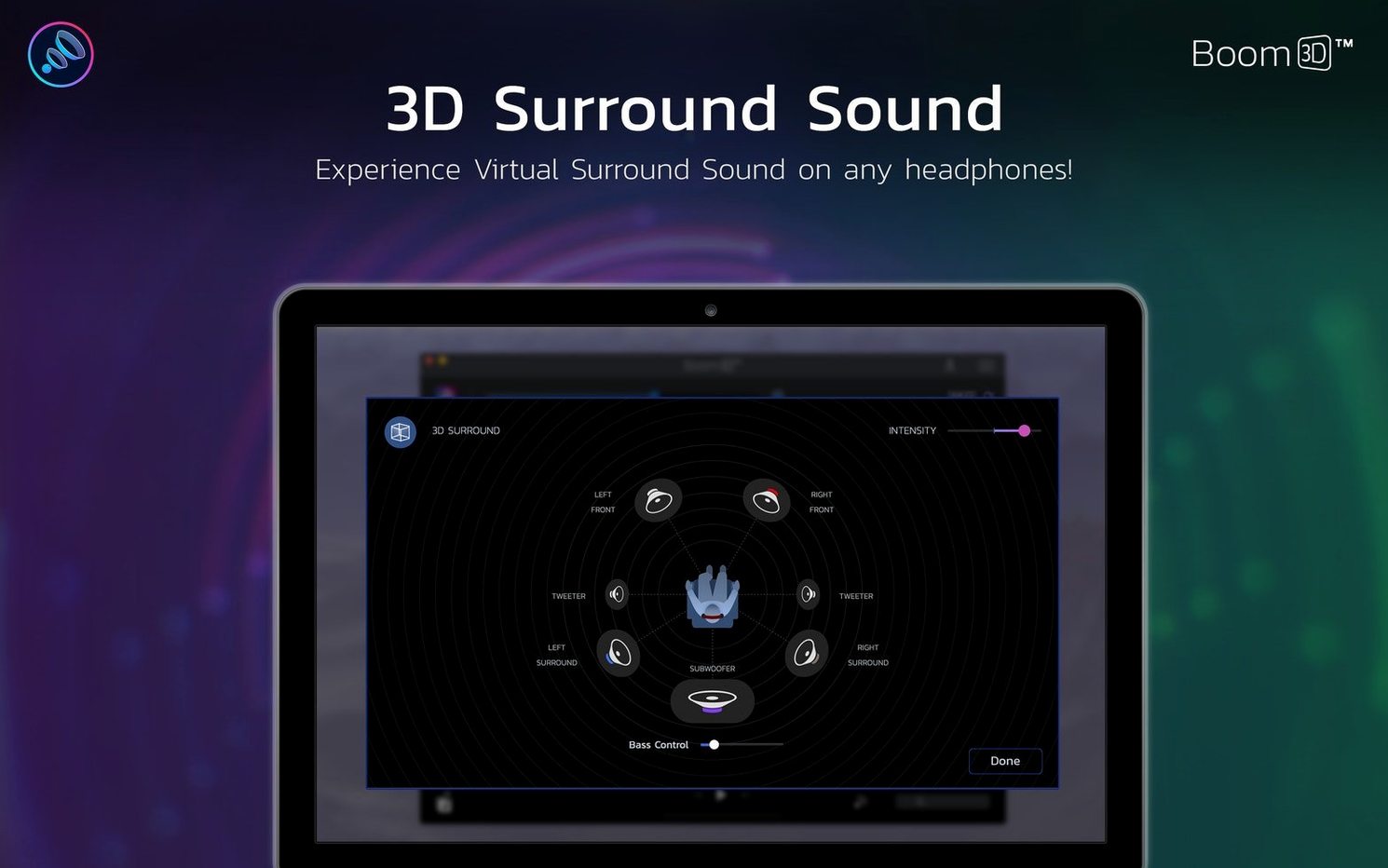
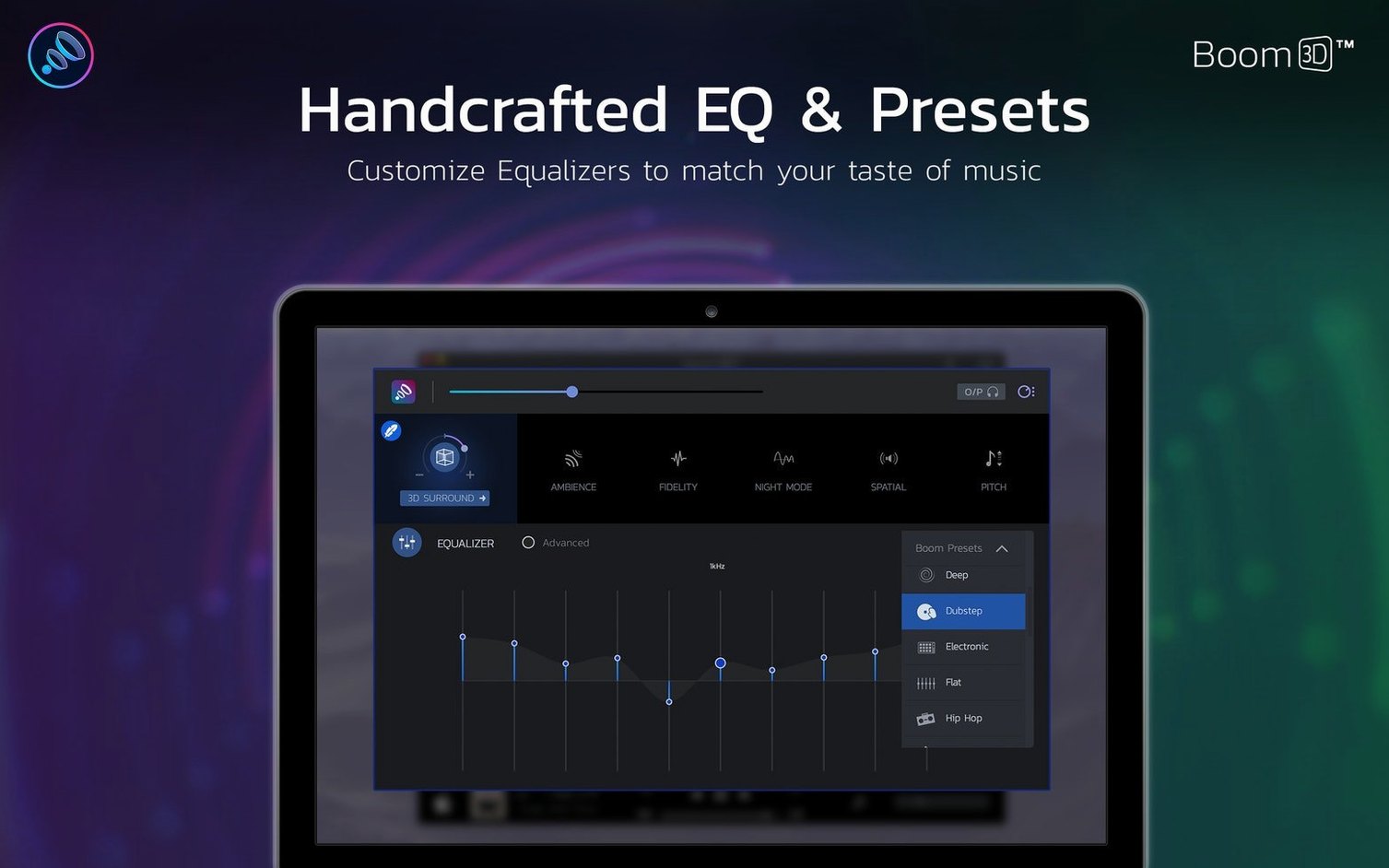
An adjustable equaliser lets you tune frequencies to taste, and the 3D surround engine adds spatial width that simulates a wider soundstage on ordinary stereo headphones.
Switch the presentation
Workflow: building a headphone calibration preset from scratch
Boom 3D ships with a handful of factory presets, but the real value for critical listening comes from a preset tuned to your own ears and your own headphones. The process takes about ten minutes the first time, and half that once you know the steps.
Start with a reference track you know intimately — something you have heard on multiple systems and in different rooms. Pick a lossless file, not a streaming source with variable loudness normalisation. Open Boom 3D from the menu bar, click the Equaliser tab and select the Flat preset to zero out any existing curve.
Set the Volume Boost slider to zero and switch off 3D Surround entirely. You want the unprocessed baseline first. Play the reference track and focus on three things: low-end extension, vocal clarity around 1–4 kHz, and treble texture above 8 kHz. Make mental notes — or actual notes — about what feels recessed or exaggerated on your particular headphones.
Now raise the boost gradually to your comfortable listening level. With headphones that have a weak low end — many open-back models, for instance — start by pulling the 62 Hz and 125 Hz bands up by 1.5–2 dB. Listen for muddiness; if the bass masks the kick drum transient, back off 250 Hz by a decibel. For brighter headphones that fatigue after twenty minutes, a 0.5–1 dB cut at 8 kHz and 16 kHz often fixes the problem without dulling cymbal detail.
Once the EQ curve feels right in stereo, switch on 3D Surround and set its intensity to about 30 percent. The spatial engine widens the image, but too much can smear the centre channel. Toggle it off and on during a vocal passage — the voice should stay anchored, not wander. Save the preset with a descriptive name that includes the headphone model and date, like “HD600 warm Jan 2025”.
The last step is per-app verification. Open the Apps Volume pane and check that your music player, browser and video conferencing tool each sit at sensible relative levels. A common oversight is leaving a VoIP app at 100 percent while the music player runs at 40 percent, which makes the preset sound thin when you switch tasks. Set the balances once, and Boom 3D remembers them.
Skipping calibration and judging by distortion
New users tend to treat Boom 3D as a single-knob solution and skip the calibration stage entirely. The most frequent error is maxing out the volume boost on first launch and judging the app by the distortion that follows. The amplifier is potent, but any system-wide gain stage pushed past roughly 80 percent will clip on source material that was already mastered hot. If you hear crackling, pull the boost back before touching anything else.
Another classic misstep is layering Boom 3D’s processing on top of other audio utilities. Running the app alongside SoundSource, eqMac or the built-in Music equaliser creates a chain of conflicting gain stages. Pick one system-wide processor and disable the rest. If you forget, the symptoms are a hollow midrange, erratic stereo imaging and occasional dropouts — and none of them are Boom 3D’s fault.
Beginners also overlook the per-app volume panel for weeks. Without it, system sounds and notification pings get amplified along with music, and the first unexpected alert at high volume sends people reaching for the uninstaller. Spend two minutes assigning sensible levels to each app in the first session.
Finally, the 3D Surround effect is often set too high for spoken-word content. At intensities above 50 percent, podcasts and audiobooks develop an unnatural reverb tail that makes narrators sound as if they are in a tiled bathroom. Keep it at 10–20 percent for speech, or switch it off entirely.
Build two presets on a quiet first evening
On day one, resist the urge to tweak everything at once. The fastest path to a reliable setup is a quiet evening with a handful of familiar tracks and a notebook.
- Create two presets immediately. One for daytime listening on your primary headphones, another for late-night low-volume use where the Fletcher-Munson curve leaves bass and treble perceptually recessed. The night preset wants a gentle loudness contour — +2 dB at 62 Hz and +1 dB at 16 kHz — with boost capped at 30 percent.
- Check the audio device assignment. Boom 3D installs its own virtual driver, and macOS can silently switch output devices after a reboot. If sound suddenly vanishes, open System Settings > Sound and confirm “BoomAudio” is selected as the output device.
- Test the boost ceiling with a loud track. Pick something with a dense, compressed master — modern pop or metal works — and raise the boost until you hear the first signs of strain. Back it off by 5 percent and treat that as your hard limit for that headphone.
- Disable the menu bar animation if you prefer a static interface. The animated equaliser preview in the menu bar consumes a trivial amount of GPU resource, but on older Intel Macs it can contribute to occasional UI stutter.
- Bind a keyboard shortcut to toggle the 3D effect. You will switch it on and off frequently as you move between music, calls and video, and the menu bar click adds friction. The shortcut lives in Boom 3D’s Preferences under the General tab.
Digital distortion versus physical speaker damage
Will Boom 3D damage my Mac’s speakers? The app does not bypass the hardware protection circuits in modern Macs, so it cannot physically overpower the drivers. What it can do is push the digital signal into audible distortion, which sounds unpleasant but is not mechanically harmful. If you hear rattling or buzzing at high boost levels, you are hearing the limits of the speaker, not imminent failure. Still, sustained clipping over hours will fatigue any driver — use common sense and back off when the sound hardens.
Does it work with Bluetooth headphones? Yes, with a caveat. The virtual audio device routes processed sound to any output macOS recognises, including Bluetooth. However, some Bluetooth codecs — particularly AAC on older Macs — introduce their own latency and compression, and the 3D Surround effect can accentuate the artefacts. The equaliser and volume boost work transparently regardless of codec. For the best result, use wired headphones or a low-latency aptX connection.
Will it conflict with my DAW or audio interface? Boom 3D is a consumer-level system processor, not an ASIO or Core Audio studio tool. It sits between applications and the output device, so DAWs that request exclusive hardware access — Logic Pro, Ableton Live — will bypass it or produce errors. For casual listening it is fine; for production work, disable it during sessions. Some users keep it installed and toggle it off from the main switch when the DAW is open.
Is it lighter on resources than the older Boom 2? Version 2.2.6 runs a leaner audio pipeline than the Boom 2 codebase, with lower idle CPU draw on Apple Silicon Macs. On an M1 or M2 machine, background usage hovers around 1–2 percent. Intel Macs see slightly higher figures — typically 3–5 percent — because the processing runs on the CPU rather than dedicated DSP blocks. RAM usage is negligible at roughly 60–80 MB.
How Boom 3D compares with similar Mac apps
Three alternatives come up in any discussion of Mac audio enhancement: eqMac, SoundSource and Audio Hijack. Each occupies a different niche, and Boom 3D’s position depends on what you value most.
eqMac is the closest direct competitor. It offers system-wide equalisation and a volume booster, and the free tier covers basic EQ needs. Boom 3D adds the 3D Surround engine and per-app volume control as built-in features, where eqMac gates per-app routing behind its paid tier. The interface design splits opinion: eqMac leans toward a utilitarian, slider-heavy panel, while Boom 3D uses a more polished, single-window layout with larger touch targets. For users who only want EQ and nothing spatial, eqMac’s free version is hard to ignore. For those who want the spatialiser and a more curated preset library, Boom 3D justifies the difference.
SoundSource from Rogue Amoeba takes a different approach. It is an audio routing hub first and a processor second. You can apply Audio Unit plugins per app, chain effects, and redirect audio to multiple outputs — things Boom 3D cannot do. However, SoundSource has no built-in 3D engine and no volume booster with the same raw gain range. It expects you to bring your own plugins. The two tools complement each other more than they compete; some users run SoundSource for routing and Boom 3D for the spatial and boost processing, though the dual-driver setup requires careful gain staging.
Audio Hijack, also from Rogue Amoeba, is a recording and processing workbench. It can capture, process and broadcast audio from any app, and its block-based workflow is powerful for podcasters and streamers. It is not a system-wide enhancer in the sense Boom 3D is — there is no persistent menu bar controller that colours all output. You build a session, run it, and tear it down. Boom 3D is the tool you install and forget; Audio Hijack is the tool you open with a specific task in mind. Most users will not cross-shop them unless they confuse “audio enhancement” with “audio capture”.
Some people searching for alternatives come across terms like boom library torrent or boom 3d torrent while looking for evaluation copies. The actual Boom 3D package from Global Delight installs in under a minute and does not bundle the advertising or helper tools that sometimes accompany repackaged downloads. A clean installation from the original build lets you verify driver signatures and avoid the version mismatches reported on forums by users who tried a boom 3d mac torrent or a boom 3d crack mac patch. The audio driver is the most sensitive component in the chain, and a modified kext or unsigned system extension is the fastest way to break sound on a modern Mac. For a tool that sits this deep in the audio stack, the integrity of the driver matters more than any other factor.
The interface is available in Russian, English, German, Spanish, Italian, Chinese (Traditional and Simplified), Korean, Dutch, Portuguese, French and Japanese.
- macOS 10.14 or later
- Intel or Apple Silicon Mac
Questions on file
Which macOS versions does Boom 3D support?
Version 2.2.6 requires macOS 10.14 or later. A legacy build exists for 10.10 through 10.13.
Does Boom 3D work with headphones?
Yes. The 3D surround and volume boost are designed to work with any Mac audio output, including headphones and internal speakers.
What audio tools are built into Boom 3D?
It bundles a system-wide volume booster, a precision equaliser and a 3D surround sound engine.
Sign in · Create an account to add a field note.
No field notes yet. A measurement, a version, a machine — they appear after moderation.