Audio
Logic Pro 12.3.1
AudioUpdated
| Requirement | On file |
|---|---|
| macOS | macOS 15.6 or later |
| CPU | Apple Silicon, Intel 64-bit |
| Download | 1.5 GB |
From composers scoring to picture and electronic producers building layered arrangements to guitarists tracking song ideas, Logic Pro attracts a broad range of users who need a deep set of instruments, effects, and editing tools inside one application. The current version 12.3.1 continues that role, and the practical questions are what it needs to run and what it can open.
Opening Logic 5 Projects on macOS 15.6
Compatibility reaches far back. Logic Pro can open projects created in Logic 5 or later, so sessions from older Macs and earlier OS versions aren’t necessarily lost. On the hardware side, the minimum macOS requirement sits at 15.6. A clean install needs 6 GB of free disk space; pulling down the full Sound Library pushes that to 63 GB. The app runs on both Intel and Apple Silicon machines with at least 4 GB of RAM and a display of 1280 × 768 or higher. Third-party plug-ins must be 64-bit Audio Unit format. Interface languages cover English, German, Spanish, Simplified Chinese, French, and Japanese.
What’s built in for making sounds and fixing timing?
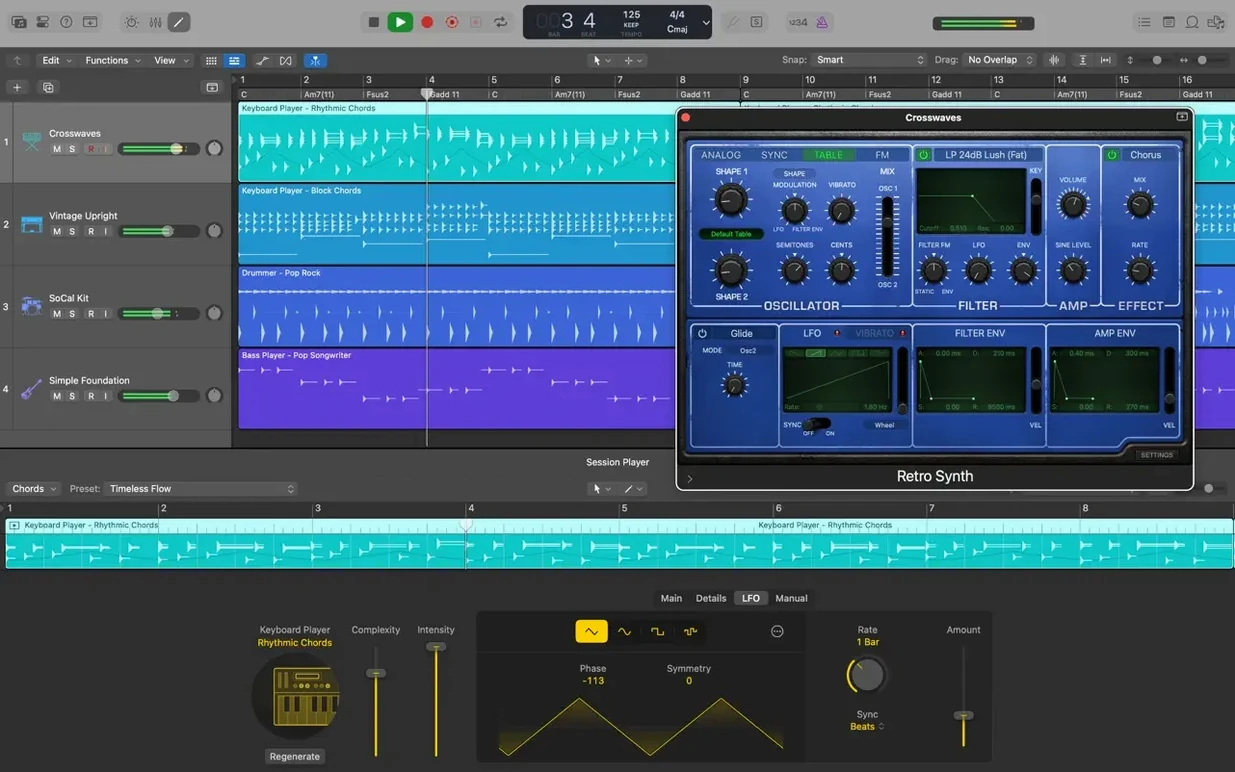
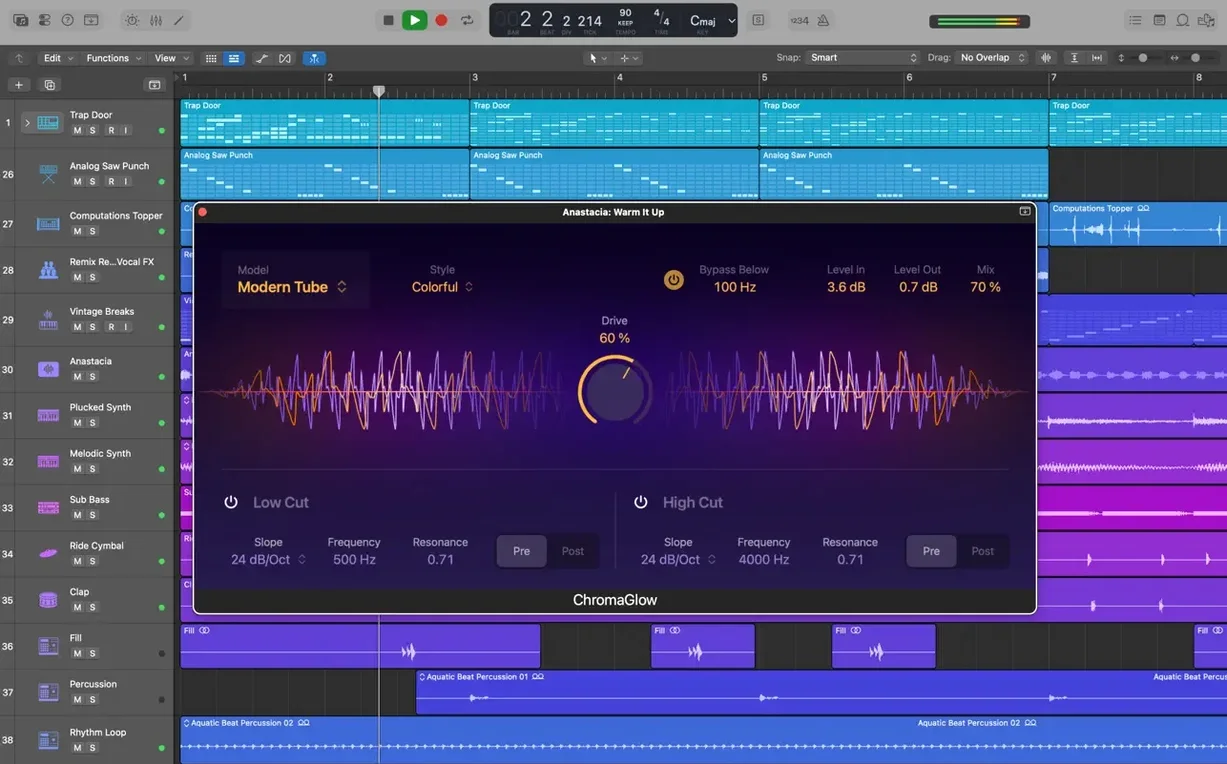
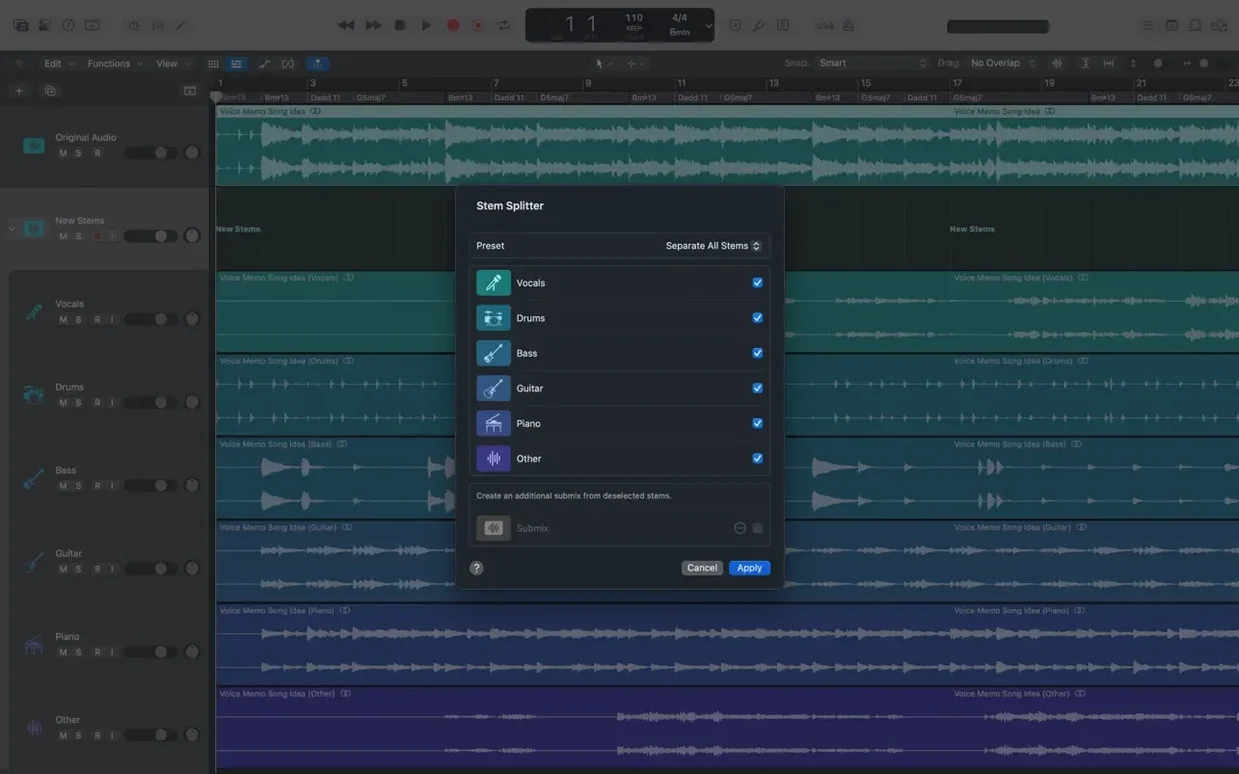
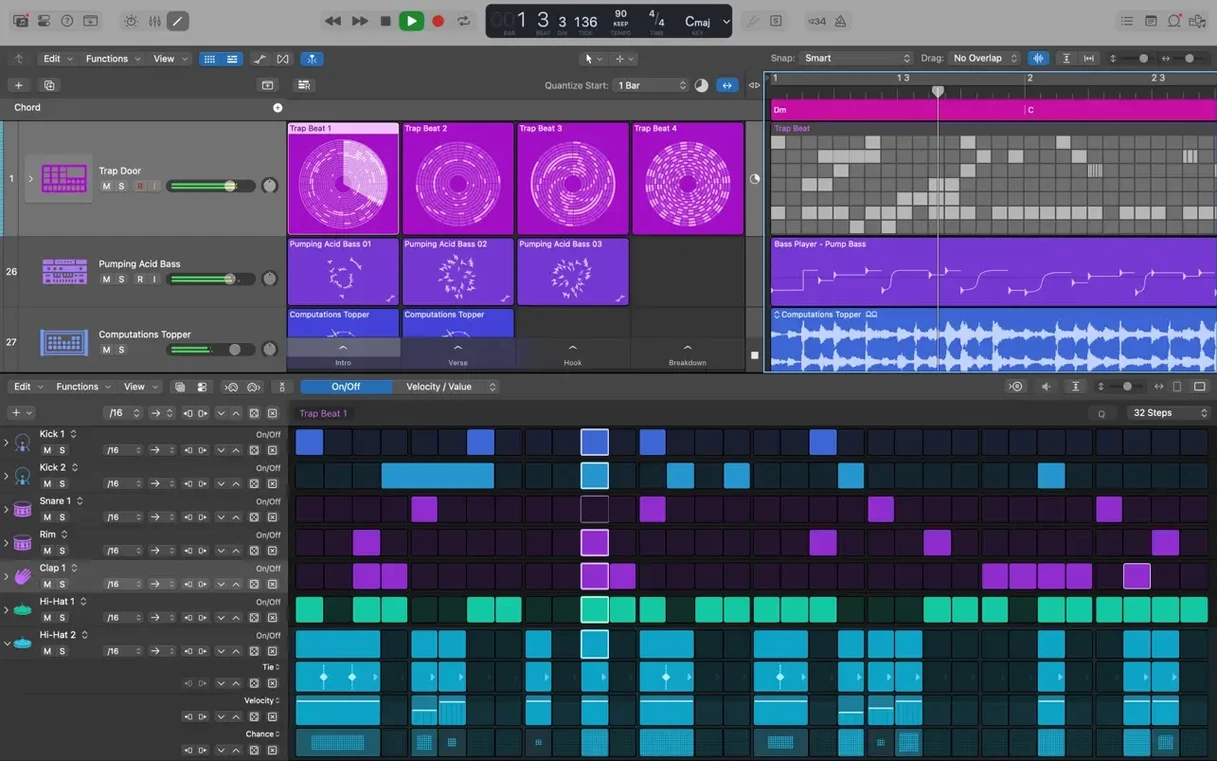
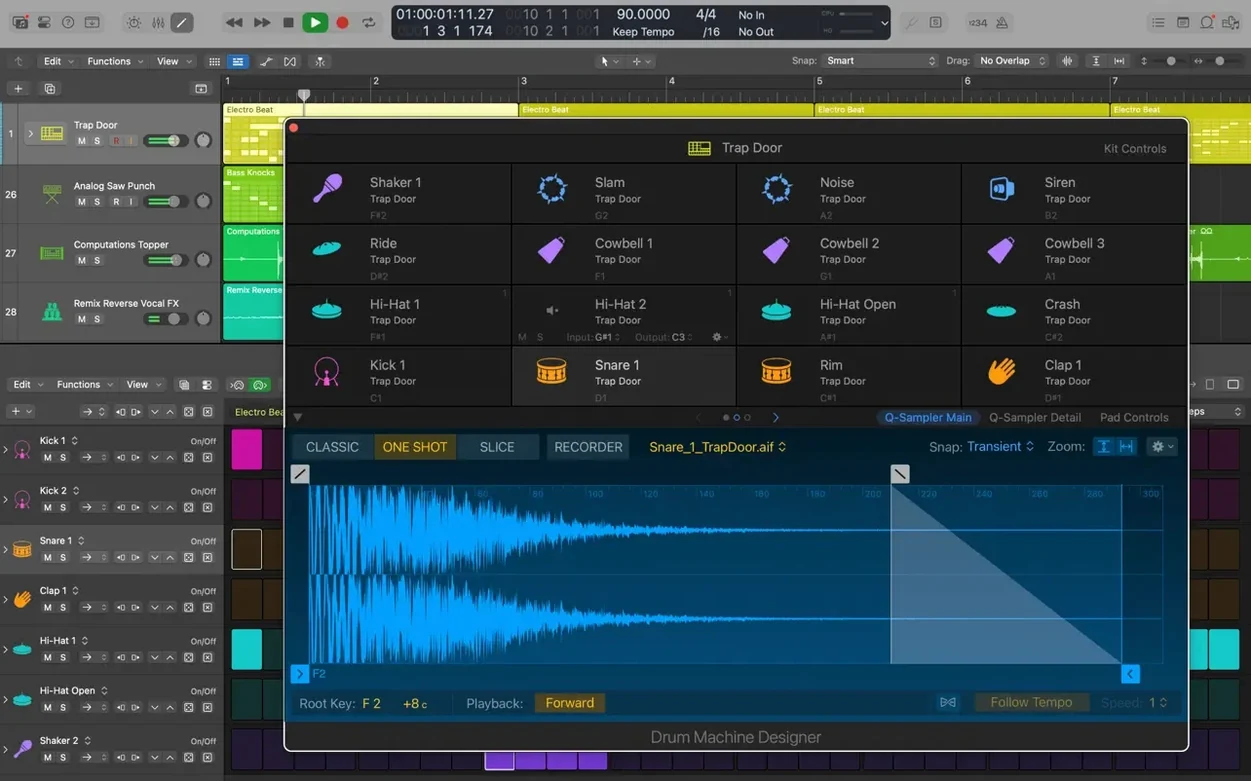
The included toolkit is substantial. There are 28 virtual drummers via the Drummer feature, and Drum Kit Designer lets you shape kits from sampled drums. Flex Time handles tempo and timing adjustments on audio recordings, while Selection-based Processing renders chains of effects directly onto selected audio files. Quick Swipe Comping organises multiple takes into a single comp track. Projects can also gain new tracks from an iPhone or iPad through iCloud, using GarageBand export, which ties into the Logic Pro for iPad workflow.
Ten-Minute Preference Tweak Before Recording
A fresh install of Logic Pro ships with defaults that suit a broad audience but rarely match any one person's exact workflow. Spending ten minutes in preferences before the first recording session saves more time later than most people expect.
Recording file type and bit depth. Navigate to Logic Pro > Settings > Recording. The factory default records 24-bit WAV files, which is sensible, but check the file type dropdown if your collaborators expect AIFF stems. Unchecking "Auto-colorize takes" keeps the workspace legible when you stack multiple passes—rainbow-coloured regions look cheerful but add visual noise during editing.
Nudge values and snapping behaviour. Open Edit > Nudge Value and set it to a division that matches your working style. A bar nudge suits song arrangers; a sample nudge suits post-production editors. Then open the Snap menu in the Tracks area toolbar and switch from "Smart" to "Beat" or "Division" if the automatic snapping feels unpredictable. Smart mode guesses your intent based on zoom level, which works for many but annoys anyone doing precise region placement.
Project backup frequency. Under Logic Pro > Settings > General > Project Handling, the auto-backup interval defaults to zero. Set it to 5 or 10 minutes and pick a reasonable cap on saved versions—40 backups per project eats disk space fast on large sessions. The recovery files sit inside each project bundle, so you can pull an earlier arrangement without hunting through system temp folders.
Audio input monitoring. If you track through outboard hardware or an interface with direct monitoring, disable software monitoring at Logic Pro > Settings > Audio > General. Leaving it on when you already hear the direct signal creates a phase-cancelled mess. The checkbox is small; the sonic effect is not.
Plugin organisation. Open the Plugin Manager from Logic Pro > Settings > Plug-in Manager. Group your go-to EQs, compressors, and reverbs into custom folders before they pile up. A "bread and butter" folder with five tools beats scrolling past 200 entries every time you want a channel EQ.
Downloading the 63 GB Sound Library First
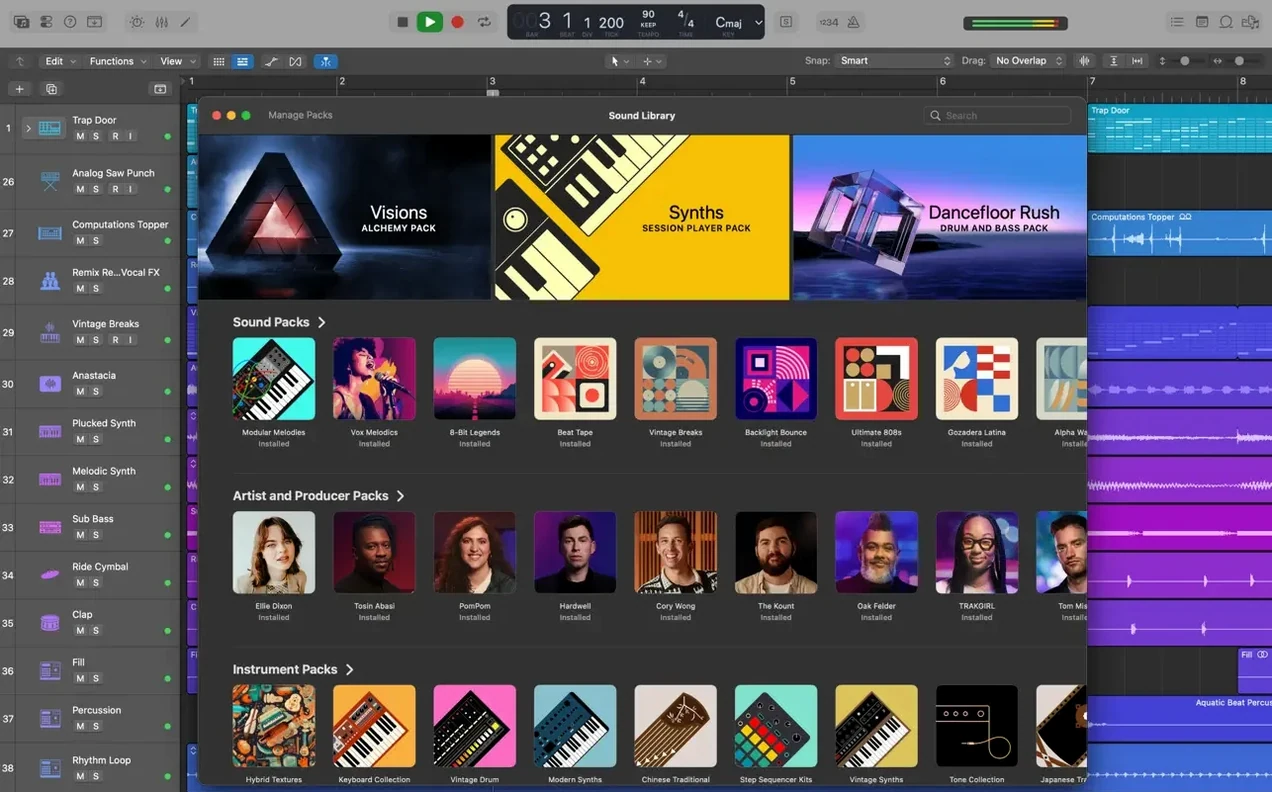
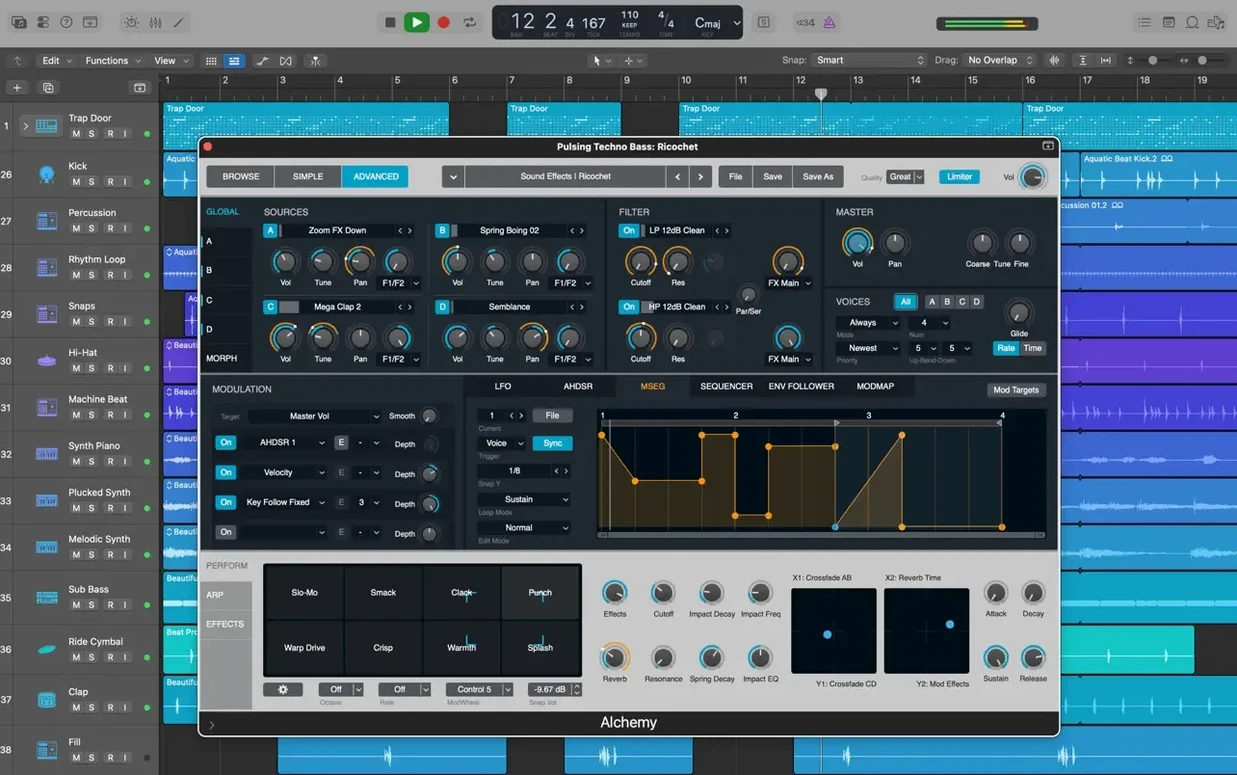
After installing the full Sound Library—which takes roughly 63 GB and a patient hour on a fast connection—the instinct is to load Alchemy and start playing. That is fine, but a few housekeeping moves make the next weeks smoother.
Index the Apple Loops library immediately. Launch the Loop Browser and wait while Logic scans the 7,000-plus loops. Dragging a loop onto a track before the index finishes can produce stutters, and the beach ball that follows is not a crash—just an interrupted scan. Let it complete once, and subsequent sessions open quickly.
Save a blank template with your routing. Set up buses for reverb and delay, create a few audio tracks with your typical input labels, add a limiter on the stereo output set to 0 dB ceiling with no gain reduction, and save it as "Startup" in File > Save as Template. Opening that template instead of the default empty project removes repetitive setup from every session.
Test Flex Time on a short recording early. Pick any vocal or guitar snippet and switch the track to Flex Time mode, cycling through the algorithms—Monophonic, Polyphonic, Slicing, Rhythmic, Speed, and Tempophone. Each algorithm leaves different artefacts depending on the source material. Knowing which one suits a picked acoustic guitar versus a distorted power chord saves guesswork when a deadline is close.
Use Track Alternatives for arrangement experiments. Rather than duplicating a project to try a different chorus structure, click the Alternative menu on the track header and create a new Track Alternative. You can switch playlists without losing the original region layout, and the feature supports up to 100 alternatives per track. This alone prevents the desktop clutter of "Song_idea_7_final_REAL" project files.
Map a few essential key commands. Open Logic Pro > Key Commands > Edit and assign shortcuts for "Toggle Automation Lanes," "Create Marker," and "Split Regions by Playhead." The default US keyboard layout leaves several useful combinations unbound. Three custom assignments will be used daily within a week.
Choosing by What You Produce, Not a Universal Best
Logic Pro sits in a category that includes a few serious alternatives, each with a different emphasis. No single app wins across every workflow, and the choice depends more on what you produce than on any universal "best."
Compared with Ableton Live. Live's Session View remains its defining advantage for electronic producers who launch clips and build arrangements non-linearly. Logic's linear timeline is more traditional, and while the Live Loops grid introduced a similar concept, it lacks the deep MIDI mapping and performance-oriented routing that Live users rely on. However, Logic ships with a far larger stock sound library—28 Drummers, the full Alchemy engine, Drum Kit Designer, and over 2,800 patches—where Live's core library depends heavily on the edition. For scoring to picture, Logic's tempo mapping, beat mapping transients, and XML export to Final Cut Pro give it a structural edge that Live does not attempt to match.
Compared with Cubase. Cubase and Logic share a linear DAW heritage, and both offer comping, track versions, and comprehensive MIDI editing. Cubase has historically held a lead in MIDI expression mapping and advanced scoring features for orchestral composers, while Logic counters with Drummer, Flex Pitch integrated directly into the track display, and a convolution reverb—Space Designer—that is hard to fault as a stock plug-in. Cubase runs on both macOS and Windows; Logic is Mac-only, which decides the question for anyone working cross-platform.
Compared with Reaper. Reaper is notably lighter on system resources and installs in seconds from a tiny download. Its routing matrix and parameter modulation are unusually flexible, appealing to users who enjoy building their own workflows. Logic offers more curated instruments and sounds out of the box—Reaper includes no drum libraries or synthesizers on the scale of Alchemy or Drum Machine Designer. Reaper's UI customisability surpasses Logic's, but Logic's factory content means a new user can start making music within minutes of installation without hunting for third-party instruments.
Fixing an Interface That Still Uses Built-In Speakers
New users tend to hit the same handful of issues. Most have straightforward fixes.
Audio interface not recognised. After plugging in an interface, Logic may continue using the built-in Mac speakers or microphone. Go to Logic Pro > Settings > Audio > Devices and select the interface from the Output and Input dropdowns. If it does not appear, check that the interface is powered on before launching Logic—hot-plugging after launch sometimes confuses the Core Audio driver. A relaunch of Logic usually resolves it.
System overload and playback stops. The "System Overload" message appears when the processing buffer runs dry. Increase the I/O buffer size under Logic Pro > Settings > Audio > Devices to 256 or 512 samples while mixing. Reduce it to 64 or 128 for tracking, where low latency matters more than plug-in headroom. Freezing tracks—via the snowflake icon in the track header—bounces them temporarily to audio, freeing CPU cycles for other processing.
Missing Sound Library content after installation. If patches appear greyed out or download prompts persist, open Logic Pro > Sound Library > Relocate Sound Library to check the current path. The full library requires 63 GB of contiguous free space. An interrupted download sometimes leaves a partial package that blocks further attempts; deleting the partially downloaded folder from /Library/Application Support/Logic and triggering a fresh download often clears the blockage.
Regions snap to unexpected positions. When dragging a region feels sticky or jumps to weird subdivisions, the Snap mode is set to Smart or Absolute. Switch it to Beat or Division in the Tracks area toolbar. Holding Control while dragging temporarily overrides the snap setting, which helps for fine adjustments without changing the global preference.
Plug-in windows disappear when switching tracks. The link button—a small chain icon in the top-left corner of any plug-in window—controls whether the window updates to show the newly selected track's insert. Click it to toggle between linked view (which changes) and unlinked view (which stays on the original plug-in). This is not a bug, but a design choice that catches many new users off guard.
Launching in Seconds on Apple Silicon
On Apple Silicon machines, the app launches in a few seconds and loads projects noticeably faster than on equivalent Intel hardware. Version 12.3.1 addresses a specific performance problem with tracks containing many regions, and the improvement is tangible when navigating dense arrangements with hundreds of small audio snippets—scrolling and zooming feel smoother than in the previous build.
Memory usage sits around 1.2–1.8 GB for moderate sessions with a dozen tracks and stock plug-ins. Loading large sampled instruments in Alchemy or multiple instances of Drum Kit Designer pushes that figure upward, but the 4 GB minimum requirement leaves headroom for lighter projects even on 8 GB machines. The full Sound Library resides on disk rather than in RAM, so patch browsing does not inflate memory use beyond the currently loaded instruments.
Stability in daily work is generally solid on version 12.3.1, particularly after the fix that eliminated an unexpected quit when playing MIDI in projects containing video. The Cursor Tool modes now activate immediately without requiring pointer movement, a small polish point that removes a subtle lag that some users had grown accustomed to working around. Crossfade editing is fully functional again after the previous version's regression on the right side of fades, so comping workflows feel complete.
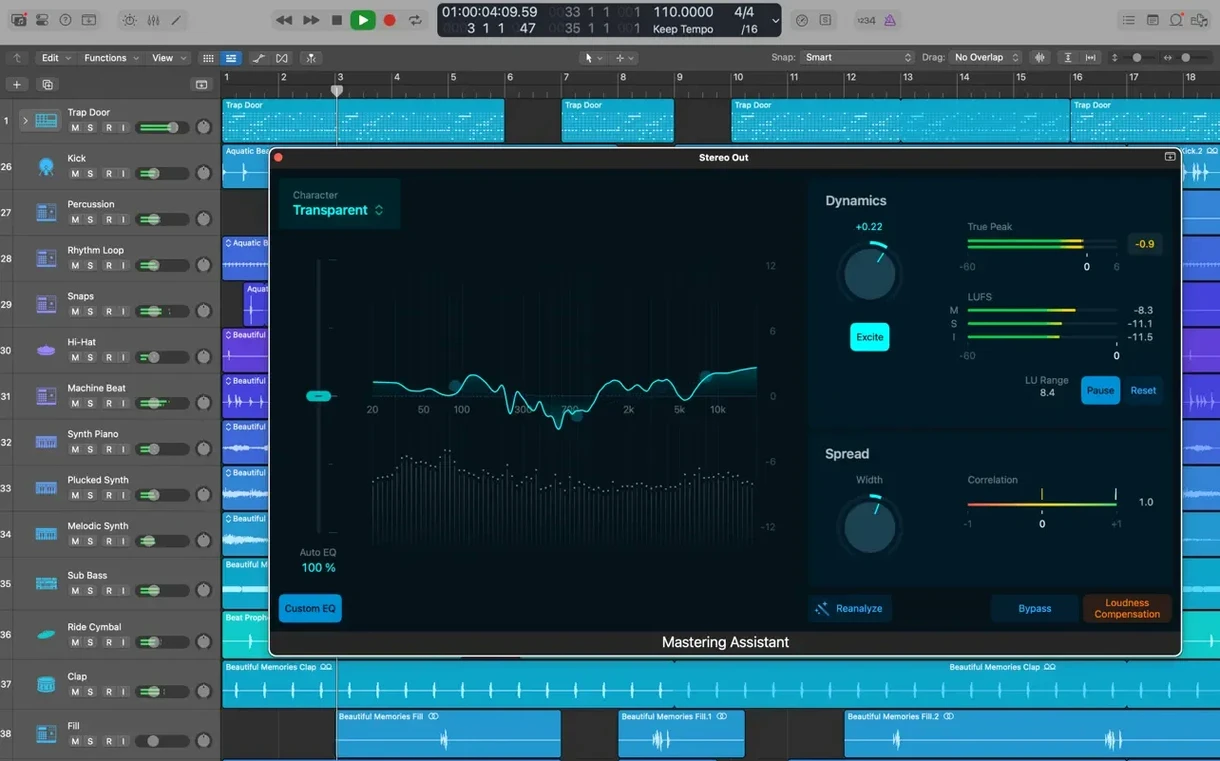
CPU load scales with plug-in choice. Stock Logic plug-ins are well-optimised for Apple Silicon; third-party Audio Units vary in efficiency. A session with 30 tracks of Sculpture, Space Designer convolution, and a mastering chain will push any machine, but track freeze and bounce-in-place options keep playback smooth. Background indexing of the loop library can briefly spike CPU usage after installation, which subsides once the scan finishes.
Disk activity is heaviest during the initial Sound Library download and when recording multitrack sessions at high sample rates. Recording 16 tracks simultaneously at 96 kHz to the internal SSD on recent Mac hardware runs without dropouts; recording the same project to a slow external USB drive can produce I/O errors, so
- Beat mapping — Restores the ability to relocate beat mapping transients.
- Score editor — The Score now responds correctly to Staff Style changes in the Inspector.
- Crossfade editing — The right side of a crossfade can be dragged and extended again.
- Stability — No longer unexpectedly quits when playing MIDI in a project with video.
- Performance — Improves when working with tracks that contain many regions.
- macOS 15.6 or later
- Intel or Apple Silicon Mac
- 4 GB RAM
- 1280 × 768 display or higher
- 6 GB free disk space for minimum installation; 63 GB for full Sound Library
- 64-bit Audio Unit plug-ins required
Questions on file
Can I transfer tracks from an iPad or iPhone into a Logic project?
Yes, you can add new tracks to a Logic project from an iPhone or iPad through iCloud using GarageBand export.
How many virtual drummers does Logic Pro include?
Logic Pro includes 28 virtual drummers through the Drummer feature for creating drum tracks.
Sign in · Create an account to add a field note.
No field notes yet. A measurement, a version, a machine — they appear after moderation.