Audio
MainStage 4.3.1
AudioUpdated
| Requirement | On file |
|---|---|
| macOS | macOS 15.6 or later |
| CPU | Apple Silicon |
| Download | 1 GB |
MainStage runs on any Mac with Apple Silicon and macOS 15.6 or later. A minimum install asks for 6 GB of free disk space; the full Sound Library, with its 1,800-plus instrument and effects patches, needs 57 GB. It expects 64-bit Audio Unit plug-ins throughout, and on a MacBook Pro the Touch Bar lights up with editing shortcuts and workspace controls.
Version 4.3.1 fixes a handful of things that broke in earlier builds. Incoming MIDI SysEx messages are no longer blocked, Sampler instruments load the correct sounds on the first attempt, and the Add Channel Strip window once again accepts typed numbers instead of forcing click-drag entry. None of this changes the core feature set — it just restores behaviour that working musicians rely on during a set.
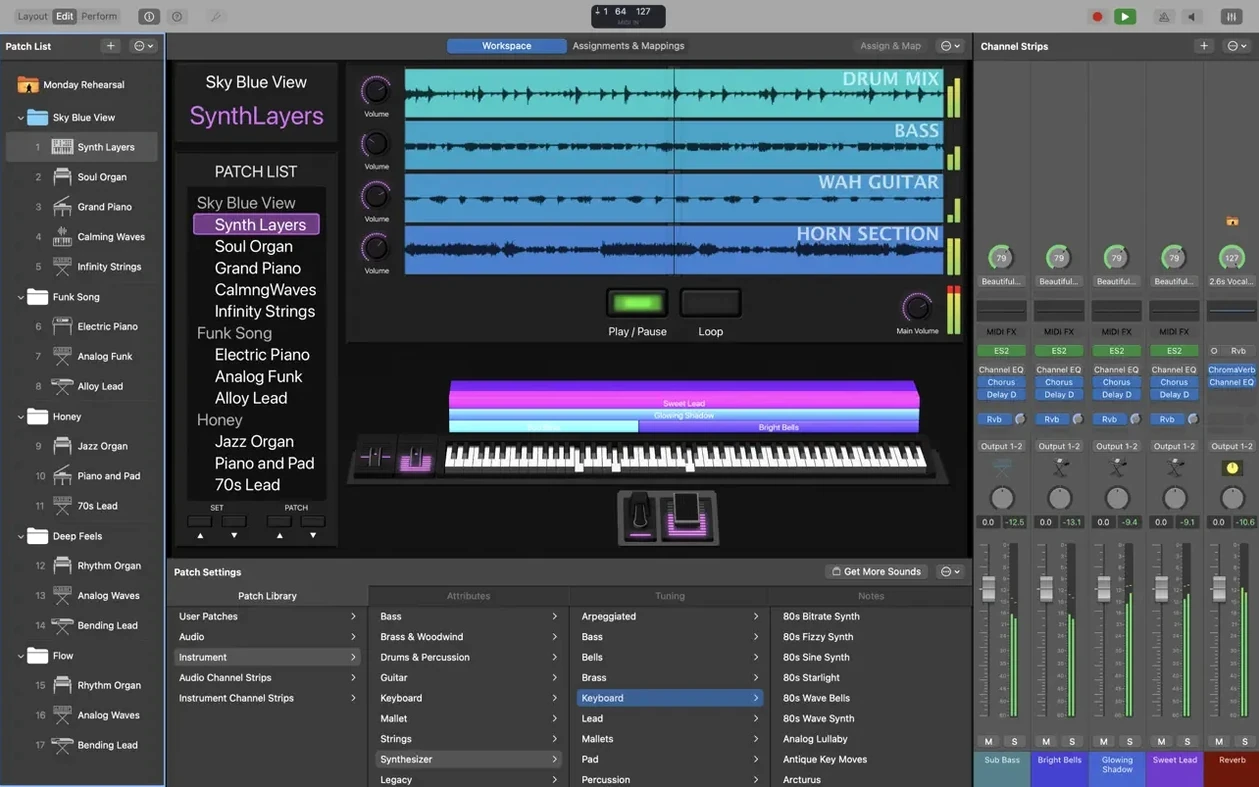
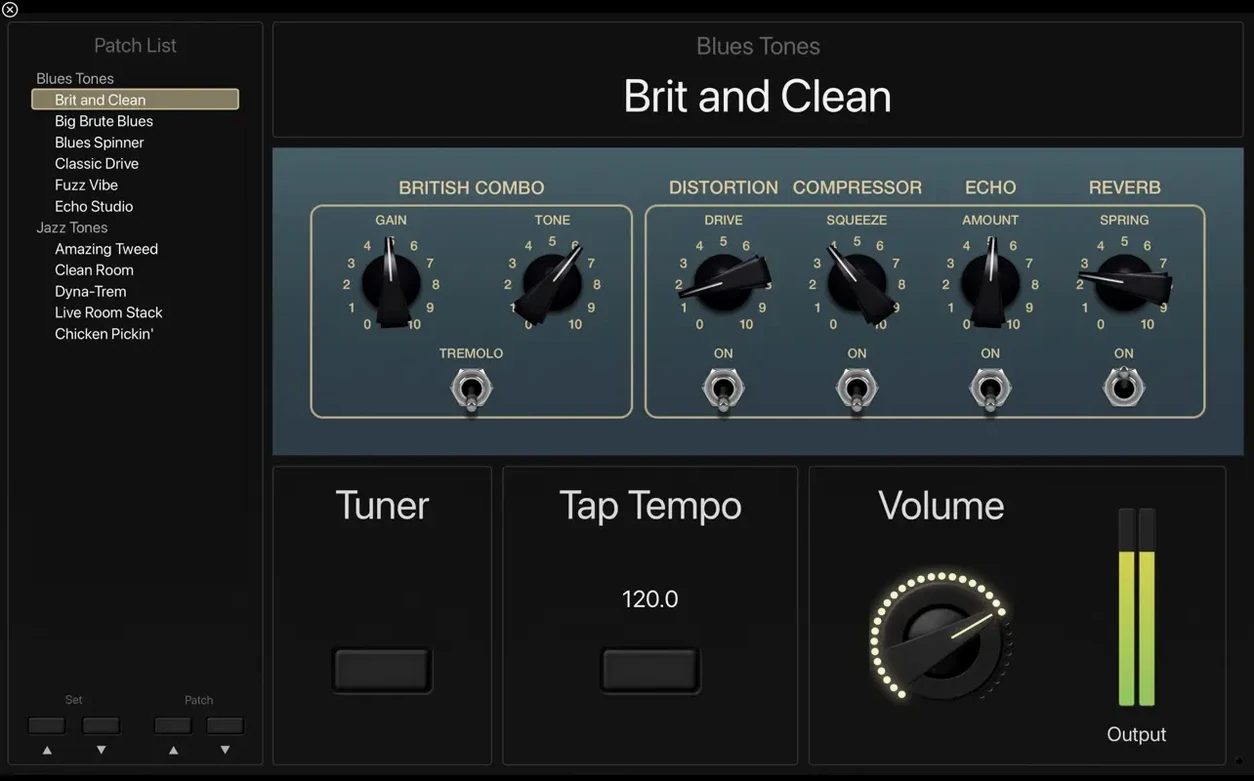
What has not changed is the sheer volume of sound. The Sound Library still holds more than 750 sampled instruments and 4,600 Apple Loops weighted toward dance and electronic genres. Guitarists and bassists get Amp Designer, Pedalboard and a full-screen tuner that stays legible from a metre away. Anyone who owns Logic Pro or GarageBand can pull those sounds into MainStage too, which turns the app into a shared front end for an entire production library. Flexible hardware control means you can map faders, knobs and buttons from whatever controller you already use, without coding a single MIDI CC assignment by hand.
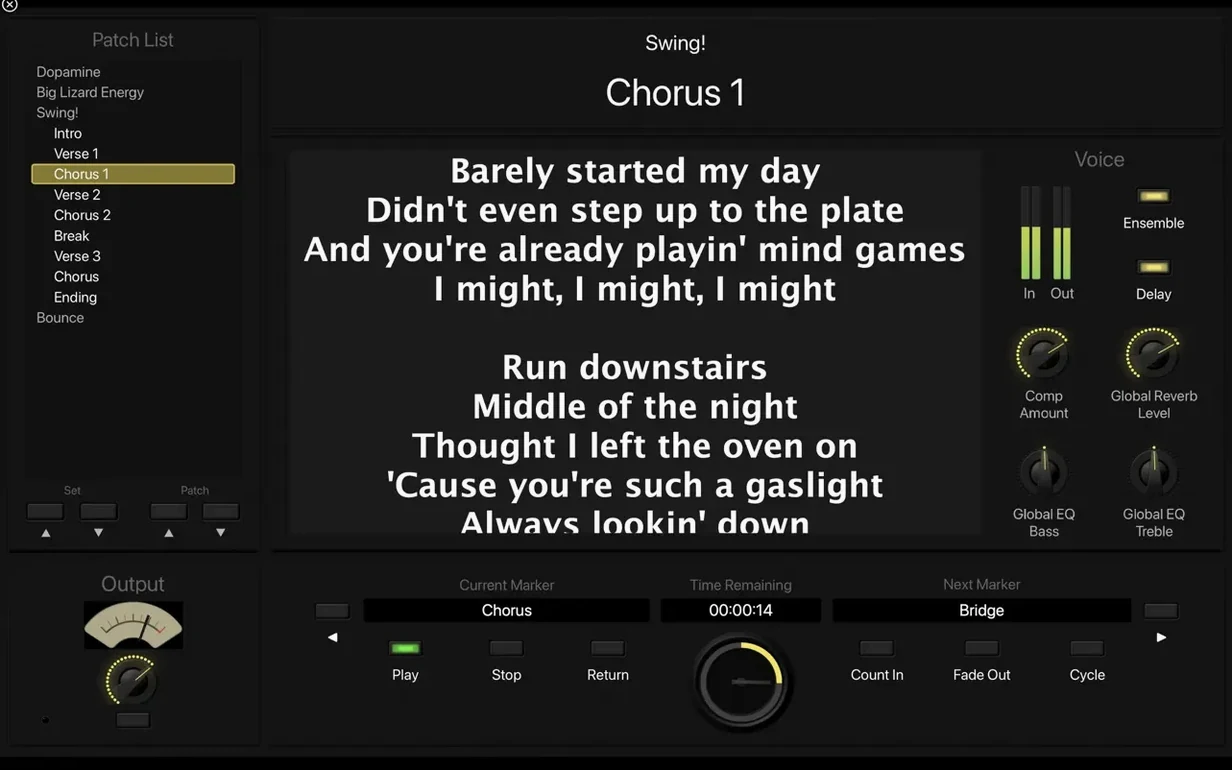
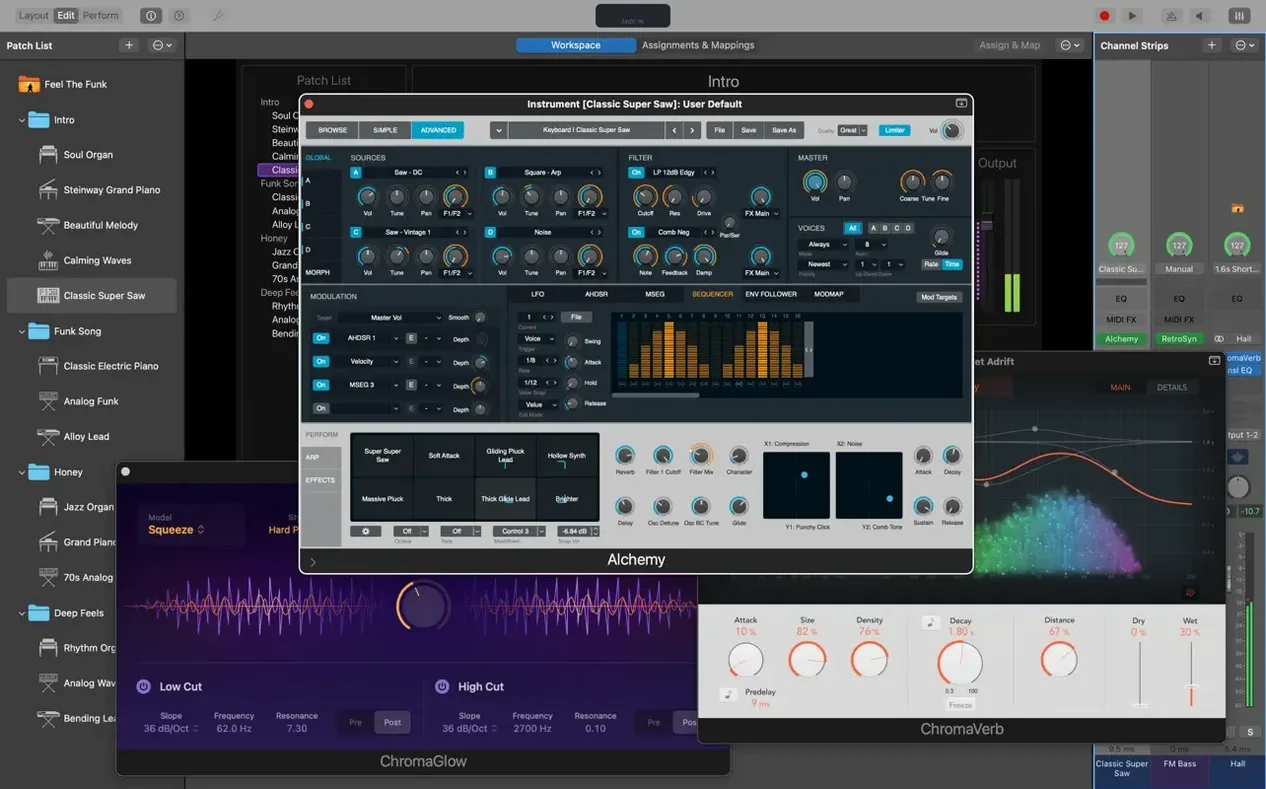
The plug-in count sits above 80 — a mix of instruments, effects and MIDI processors — and every one of them runs inside a full-screen performance view designed for low light and fast glances. That single-window focus matters more than any bullet-pointed feature: it is the reason keyboardists open MainStage instead of a DAW when the house lights go down.
Where MainStage fits in a working setup
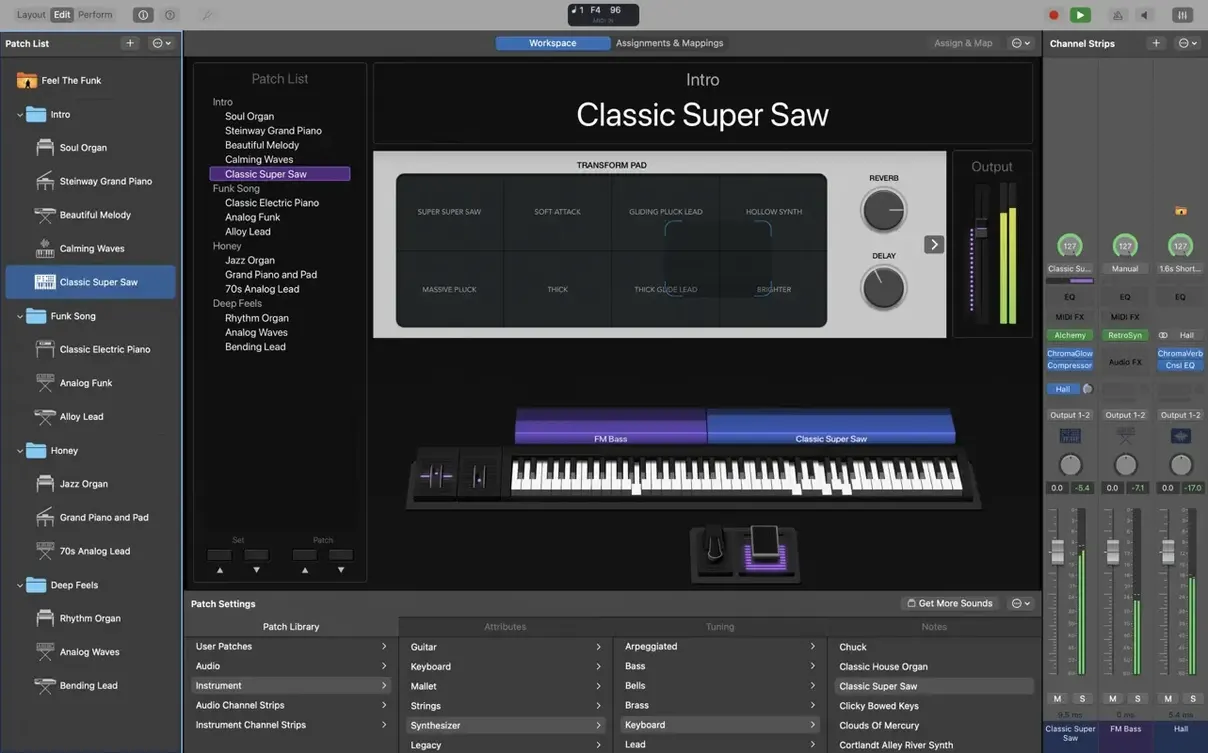
MainStage does not replace a DAW — it borrows from one and then strips away everything that gets in the way of a live show. The engine underneath is Logic Pro’s, but the interface is a single window with no timeline, no arrange area, and no transport bar blinking at you while an audience waits. That matters when the goal is to trigger patches, blend instrument layers, and keep a backing track in sync without ever touching a mouse.
The tightest relationship is with Logic Pro itself. Any channel strip setting saved in Logic appears in MainStage’s library, and every Alchemy, Sculpture, or Retro Synth sound you have tweaked in the studio travels across intact. GarageBand sounds appear too, though fewer parameters are exposed. Third‑party Audio Unit plug‑ins — Kontakt, Omnisphere, Valhalla, Soundtoys — load as they would in any host, provided they are 64‑bit. The one thing MainStage does not wrap its arms around is AAX or VST; this is an Audio Unit world, and the requirement is baked into every patch and concert file.
macOS integration runs deeper than most performers realise. The app speaks to any class‑compliant MIDI controller plugged in over USB, and it recognises Bluetooth MIDI devices paired through Audio MIDI Setup. On a MacBook Pro, the Touch Bar switches context per patch — faders for a synth one moment, a tuner readout the next — and that alone can replace a small external controller on cramped stages. The Playback plug‑in routes stereo or multichannel backing tracks through the same output matrix as live inputs, so front‑of‑house gets one coherent mix. If you use the Mac’s headphone output as a click track and a USB interface for the main mix, MainStage handles the routing inside a single concert without needing an aggregate device.
For keyboard players who grew up with hardware workstations, the closest analogue is a rack full of modules controlled by a master keyboard — except the rack is software, the patch changes are instant, and the total weight is whatever a MacBook Air tips the scales at. A guitarist running Amp Designer and Pedalboard inside MainStage can leave a 20 kg tube amp at home and still get feedback‑style sustain through a wedge monitor, because the signal path from DI box to PA is shorter than any analogue rig.
SysEx Messages No Longer Blocked Mid-Performance
Version 4.3.1 arrived as a maintenance release, but the fixes touch on moments that can derail a performance. Before the update, incoming MIDI SysEx messages were blocked outright — fine for most patch changes, but a problem for anyone using older Roland or Yamaha hardware that sends bulk dumps on power‑up. The block is now lifted, so those controllers handshake properly and do not leave a concert waiting for a message that never arrives.
Two other fixes matter during the frantic minutes before a show. The Add Channel Strip window had lost the ability to accept typed numbers, forcing musicians to click‑drag values or use the arrow keys — slow and imprecise when you are building a patch in a green room with ten minutes to spare. That input method is restored. A related bug let the keyboard unexpectedly switch patches in the Patch List while you were typing a value into a field; MainStage interpreted the keystrokes as a search command and jumped to the wrong patch. That no longer happens.
The Scripter plug‑in got a quiet but significant change: MIDI messages now reach Scripter on patch change. For anyone who writes custom JavaScript to remap controllers, generate arpeggios, or filter note data, this means initialisation logic fires reliably when you step on a footswitch. Before the fix, a Scripter instance could miss the first few MIDI bytes after a patch load, which led to stuck notes or missing controller values in the opening bar of a song.
Sampler instruments loading incorrect sounds was the kind of bug that erodes trust in a live rig. A patch recalled from a setlist might pull up the wrong sample map — right note, wrong timbre — and the only fix was to reload the concert. With 4.3.1, the mapping is stable, and the 750 sampled instruments in the Sound Library behave as they do in Logic.
Earlier releases, going back to version 3.4, introduced the Playback plug‑in and Smart Controls that now feel like part of the furniture. A mainstage 3.4 4 download from that era would lack the Scripter‑on‑patch‑change behaviour and the SysEx fix, but the core performance model — concerts, patches, channel strips — was already mature. Performers who keep a mainstage old version download on a backup machine often compare patch‑loading speed across versions, and the consensus among touring keyboardists is that the Apple Silicon build of 4.3.1 loads sampled instruments about 30 % faster than the Intel‑era 3.x releases on equivalent hardware. Apple has not published benchmarks, but the difference is audible in the gap between a patch button press and the first note.
Left-Hand Bass and Right-Hand Piano in One Patch
Start with a blank concert. The workspace shows a single patch called “Default” with one electric piano channel strip. Rename the patch “Verse Split” — this is going to be a left‑hand bass and right‑hand piano setup with a pad layer across the whole keyboard.
Duplicate the existing channel strip twice so you have three strips. Strip one becomes the bass: change the instrument to Retro Synth, set the oscillator to a square wave, and pull the cutoff down to around 200 Hz. Click the “Learn” button next to the key range in the Layer Editor, then play the lowest C on the controller and the B below middle C — that locks the bass to the left hand.
Strip two stays as the electric piano, but set its key range from middle C upward. Strip three gets the Vintage B3 instrument with a slow rotary speaker, and its key range spans the full 88 keys — this is the pad layer. Pull its volume fader down to –8 dB so it sits behind the piano.
Now map a hardware fader to the pad volume. Click the pad strip’s volume knob, tap “Assign & Map” in the workspace toolbar, then wiggle the first fader on the MIDI controller. MainStage learns the assignment instantly. Repeat for the rotary speed toggle: map a footswitch to the Vintage B3’s rotor speed parameter so the pad can go from shimmer to spin with a stomp.
Add a Playback plug‑in on a fourth strip. Drop a stereo backing track — a drum loop and a few synth stabs — onto the waveform display. Set the output routing so the click track panned hard left goes to the Mac’s headphone jack while the main mix goes to outputs 1–2 on the audio interface. In the Performance workspace, drag a Play button onto the screen so the track starts with a tap rather than a mouse click.
Save the concert, then open Layout mode. Arrange the on‑screen controls — a volume fader for the pad, a button for the rotary speed, the Playback transport button — into a single row along the bottom of the screen. Set each control’s colour to something readable under red stage light: amber or white works better than blue.
Switch back to Edit mode, select the patch, and assign it to a button on the MIDI controller using the Patch List’s “Assign” column. Create a second patch called “Chorus Split” with a different bass sound and a brighter piano, then assign it to the next button. Switching between the two patches while holding a chord — the sound does not cut out, because MainStage sustains the tail of the previous patch until the new one is fully loaded.
The whole build takes about fifteen minutes. After a soundcheck, tweak the pad volume fader range so it never exceeds –3 dB even at the top of its throw — that way a careless push during a chorus does not swamp the front‑of‑house mix.
Offline Mode Guarantees No Mid-Set Dropouts
Does MainStage work without an internet connection? Yes. Once the Sound Library is downloaded, the app runs entirely offline. There is no licence check phoning home mid‑set, and no cloud‑based content that suddenly goes missing when the venue’s Wi‑Fi drops.
Can it replace a hardware keyboard workstation? For many players, it already has. The trade‑off is that a Mac plus a controller plus an audio interface is three devices to cable up, whereas a Nord Stage is one. The upside is that a MainStage rig can hold every sound from Logic Pro, every third‑party Audio Unit plug‑in you own, and a custom layout of on‑screen controls that a hardware screen cannot match. Keyboardists on fly‑date tours often carry a MacBook and a small controller rather than check a 25 kg workstation in a flight case.
Does a minimal install still include the core instruments? A 6 GB install gives you the app, the essential plug‑ins (Retro Synth, Vintage B3, Vintage Electric Piano, Vintage Clav, Amp Designer, Pedalboard), and a subset of the Sound Library. The full 57 GB install adds the 1,800 patches, 750 sampled instruments, and 4,600 Apple Loops. You can add or remove content later through the Sound Library Manager, so a touring machine might keep only the patches used in the current setlist.
Will third‑party Audio Units load reliably? The app requires 64‑bit Audio Unit plug‑ins, which has been the standard since macOS Catalina. Most current plug‑ins from major developers work without issue. The SysEx fix in 4.3.1 also improves compatibility with older MIDI hardware that sends bulk data, which indirectly helps plug‑ins that rely on accurate MIDI clock or machine control messages.
Can I use a mainstage 3 free download for mac to try it out? MainStage has been a paid app since its introduction in 2007, and there is no free or trial version. A mainstage 2 download would run on much older hardware and macOS versions, but it lacks the Playback plug‑in, Smart Controls, and the current Sound Library. Version 4.3.1 on Apple Silicon is a different experience — faster patch loading, better CPU headroom, and the full set of Logic‑derived instruments.
Two-Hour Soundcheck with MacBook Air and One Pedal
Emma plays keys and sings. Her rig is a MacBook Air with an eight‑channel USB interface, a 49‑key controller, a condenser mic, and a single sustain pedal. She has two hours to set up, soundcheck, and run through the set before the café fills up.
Her MainStage concert has twelve patches, one per song. The first is a Rhodes and voice patch, dead simple — one channel strip for the electric piano, one for the vocal input with a light compressor and a short plate reverb from Space Designer. The vocal strip routes to output 3 on the interface so the sound engineer can blend it independently of the keys. She mapped the pedal to a Smart Control that raises the reverb mix by 12 % for the chorus, and that is the only on‑stage adjustment she needs to think about.
The fifth song calls for a string quartet backing. Her patch loads an Alchemy string pad layered under the piano, and a Playback instance streams a cello and viola part she recorded in Logic the week before. The Playback plug‑in sends a stereo mix to outputs 1–2 and a click track to output 4, which feeds her in‑ear monitors only. The audience hears just the strings and piano, perfectly in time, while Emma hears the click counting her in.
During soundcheck, the engineer asks for less low end on the piano. Emma opens the patch, selects the electric piano channel strip, and pulls 180 Hz down by 4 dB on the built‑in channel EQ. The change is saved instantly, and every time she calls that patch for the rest of the night, the EQ is exactly as the room needs it.
Halfway through the set, a cable snags and the sustain pedal unplugs. The piano goes dry for a verse, but MainStage does not panic — it simply sees the MIDI connection drop and carries on with the last‑known value. Emma plugs the pedal back in during the bridge, and by the chorus the reverb swell is back under her foot. The audience notices none of it, which is the point of the whole setup.
- MIDI input — incoming SysEx messages are no longer blocked.
- Channel strip setup — typing numbers directly into the Add Channel Strip window works again.
- Sampler instruments — sampler patches now load the correct sounds on recall.
- macOS 15.6 or later
- Apple Silicon Mac
- 64-bit Audio Unit plug-ins required
- 6 GB free disk space (minimum install)
- 57 GB free disk space (full Sound Library)
Questions on file
Can I use Logic Pro or GarageBand sounds inside MainStage?
Yes. MainStage reads the same patch and instrument libraries as Logic Pro and GarageBand, so any sounds you have installed for those apps appear automatically in MainStage.
How much disk space does the full Sound Library need?
The complete Sound Library — with over 1,800 patches, 750 sampled instruments and 4,600 Apple Loops — requires 57 GB of free space. A minimal installation needs 6 GB.
Sign in · Create an account to add a field note.
No field notes yet. A measurement, a version, a machine — they appear after moderation.