Audio
Loopback 2.5.0
AudioUpdated
| Requirement | On file |
|---|---|
| macOS | macOS 11 or later |
| CPU | Apple Silicon, Intel 64-bit |
| Download | 33 MB |
The new ARK plugin lands at version 13.5, bringing the low-level audio handling that lets you pipe a podcast guest’s voice through a compressor in Logic, or capture a guitar amp sim and a YouTube backing track into a single screen recording. Loopback remains the same virtual-audio patch panel it has always been: you pull in sources from running applications and physical input devices, then expose the mix as a selectable output anywhere on the system.
- macOS 27 support landed, and the launch warning that appeared on that release is gone.
- ARK 13.5 updates the audio capture engine that Rogue Amoeba’s apps share.
- Multi-source virtual devices still combine a mic, an app, and a system alert into one input.
- The Audio Hijack pairing works unchanged — Loopback appears as an output block in a chain.
- Voice-chat setups that merge a USB microphone with application audio remain intact.
This release is a compatibility update. The routing model, the device aggregation logic, and the integration with the rest of Rogue Amoeba’s line stay as they were. If you already route application audio between Logic, Zoom, OBS, and QuickTime, version 2.5.0 slots in without changing a single connection.
Building a Screen Capture with App Audio in One Virtual Device
You sit down to record a demo for a colleague — screen capture with voiceover plus the app’s own sounds. Loopback is already running in the menu bar. You open its main window and see a single virtual device called “Demo Mix” from last week. No need to rebuild it.
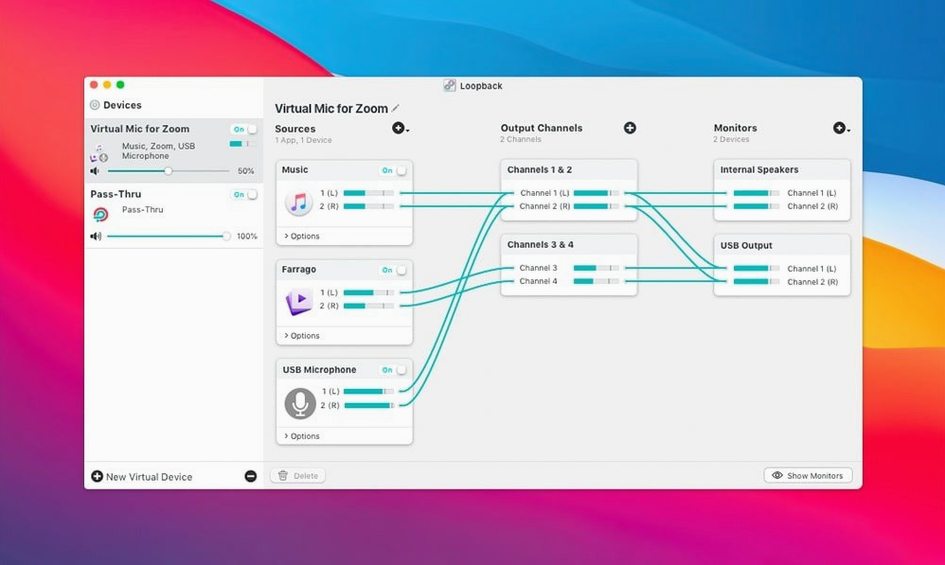
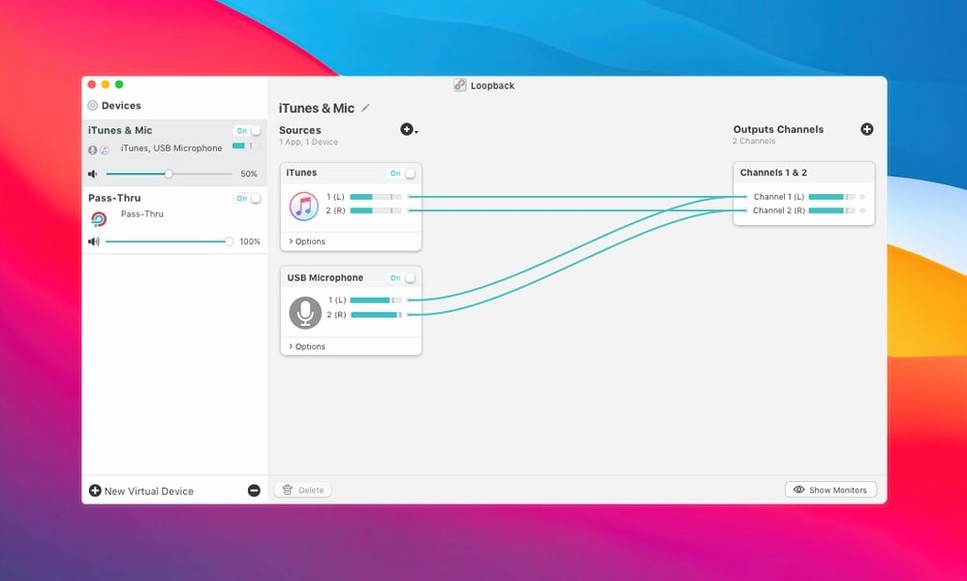
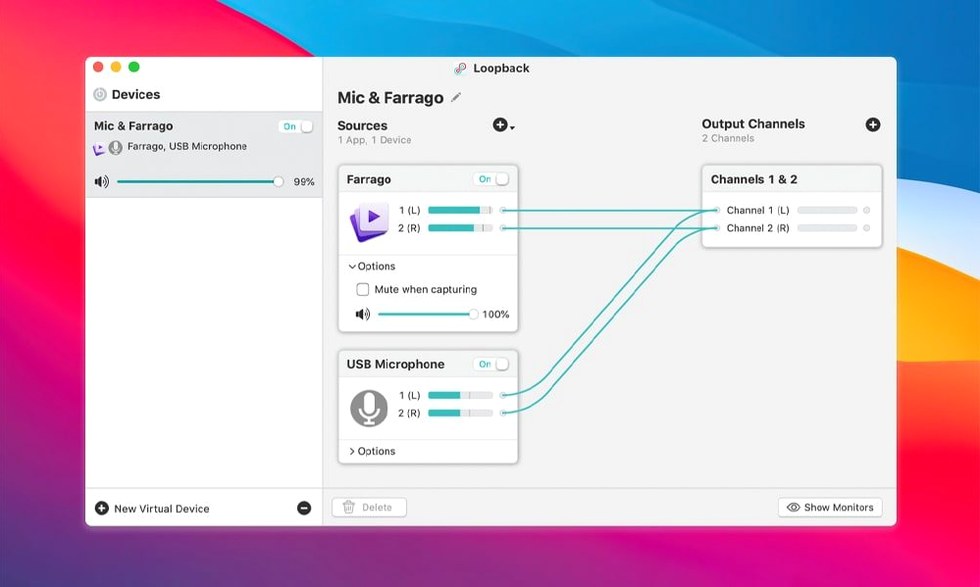
You click the device to open its wiring panel. Three sources sit in the left column: Yeti Stereo Microphone, QuickTime Player, and Safari. The microphone feeds directly from your USB input — the gain knob in the source tile sits at 80%, just where you left it. QuickTime Player is greyed out because it isn’t running yet, but Safari shows a live level meter flickering as a reference track plays from a private SoundCloud tab. The routing column in the centre shows both application sources merged into a single stereo stream, panned centre, with no per-source volume offsets applied. The mic channel runs a separate mono-to-stereo pathway. All three streams hit the master output block on the right, labelled “Demo Mix” — the virtual device macOS sees as an available input.
- You launch QuickTime Player and open the screen recording mode. In the recording options, you select Demo Mix as the microphone source instead of the built-in mic. QuickTime now hears your voice and Safari’s audio as one combined signal.
- You tap the monitor button — a small headphone icon on the device tile — to enable local monitoring through your headphones. The reference track and your voice come through with roughly 30 ms of latency, just enough to feel in sync.
- You start the recording. Safari’s meter dances in the Loopback window; QuickTime’s recording bar rolls. You talk through the interface changes, and the app audio from the browser plays back live. No ducking is active, so you manually dip Safari’s volume slider by 6 dB so your voice sits above the music.
- Halfway through, you realise the system alert sounds — incoming Slack notifications — are bleeding into the recording. They aren’t patched into Demo Mix, but you check anyway. The sources list shows only what you intentionally added. The alerts play through your default output speakers as normal, not through the virtual device. No bleed.
- You finish the take, stop QuickTime, and close the Loopback device. The menu bar icon still runs, but the virtual device disappears from the system’s audio inputs the moment you close its configuration panel. No lingering phantom devices.
Later that day, a different scenario: a Zoom call where you need the caller to hear a client’s audio file playing in VLC. You open a fresh Loopback device, add VLC and your USB headset mic as sources, name the device “Zoom Feed,” and switch Zoom’s microphone input to that virtual device. The caller hears your voice and the file, exactly as mixed. You mute VLC from its own transport controls when the playback finishes. No cable replugging, no aggregate device fiddling in Audio MIDI Setup.
Where Loopback Parts Ways with BlackHole and Soundflower
Three other Mac apps sit in roughly the same space, and they solve different parts of the routing problem.
BlackHole (Existential Audio) is a free, open-source virtual audio driver. It creates a loopback device — a single stereo pipe that passes audio from one app to another. You set BlackHole as an output in one app and as an input in another. That is the whole feature set. No mixing, no level control, no multi-source aggregation. For combining a mic with application audio, BlackHole alone cannot do it — you pair it with Audio MIDI Setup’s aggregate device feature or a DAW. That works, but you carry the latency penalty of an aggregate device and the fragility of a multi-kext setup. Loopback handles the same task with in-app mixing and a single virtual device that doesn’t touch Core Audio’s aggregate logic.
Soundflower (also free, but largely unmaintained since the Catalina-era kext changes) used to provide similar virtual audio channels. Its last stable build requires signed-kext workarounds on modern macOS, and the developer stopped updating it years ago. People still search for a loopback mac torrent or a way to get Soundflower running on Apple Silicon, and the project sits in abandonware territory. Loopback’s ARK 13.5 plugin runs natively on ARM and Intel, and the app’s wiring panel makes Soundflower’s single-channel model feel like a sketch next to a finished schematic.
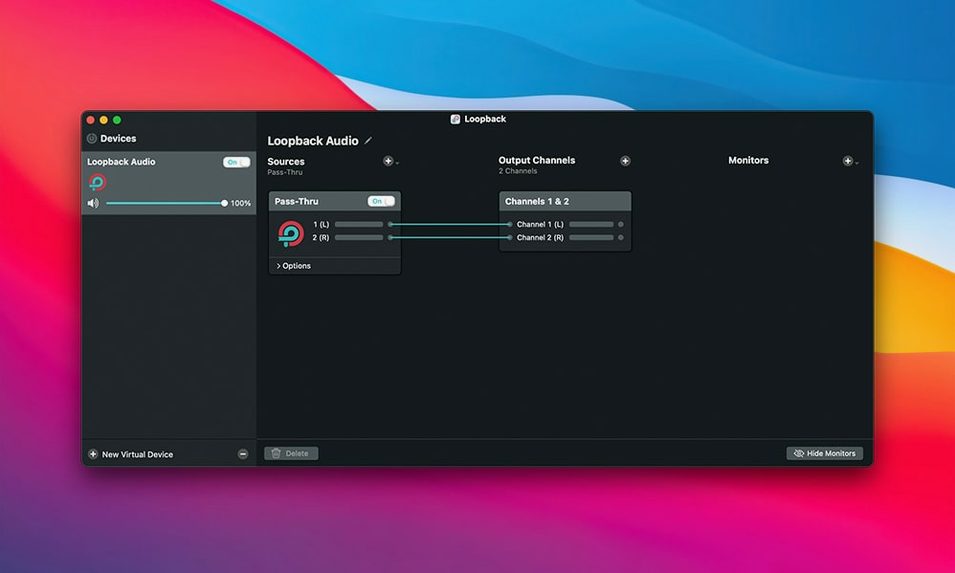
Rogue Amoeba’s own Audio Hijack overlaps in the specific case of application-to-file recording. Audio Hijack uses a flowchart metaphor: blocks for sources, effects, and recorders. It can capture any app’s audio and write it to disk. What it cannot do is expose a live mix as a system-wide input. You cannot point Zoom at an Audio Hijack session. This is where the pair shines: Audio Hijack records; Loopback routes alive. You set Audio Hijack’s output block to a Loopback virtual device, and suddenly the processed audio stream is available to anything that wants a microphone. They are complementary, not competitors.
Zero-Latency Monitoring and Two Other Essential Adjustments
The defaults are sensible, but three tweaks make the tool fit tighter.
Monitoring passthrough. By default, Loopback does not route monitor audio back to your ears — the monitor button on each device tile is off. If you need zero-latency mic monitoring (for voiceover work or live streaming), toggle it on per device. The audio reaches your headphones directly through Loopback’s output path, not through a round-trip into your DAW. Latency drops to the buffer size set in the app’s preferences — 128 samples at 44.1 kHz is the factory setting, and you can push it to 64 on a fast machine. Lower values reduce delay but increase CPU load on the real-time audio thread. If you hear pops, back off to 256.
Per-source mute and solo. Every source tile in the wiring panel has a small mute button (a speaker icon) and a solo button (headphones icon) tucked into its top-right corner. The solo button is easy to miss because it appears only on hover in some macOS versions. When you are debugging a routing — “is Safari’s audio actually reaching the virtual device?” — solo the source. The master output plays only that stream. It is faster than pulling cables from the wiring view.
Device naming and icon assignment. Loopback shows a default icon for every virtual device you create — a generic speaker glyph. Right-click the device in the sidebar and choose a custom icon from a small built-in library (mic, headphones, game controller, broadcast tower, and a dozen others). It makes no functional difference, but in apps like OBS or Zoom where the audio input list shows a long scroll of hardware and virtual devices, the icon and a clear name like “Podcast Mix” stand out. Rename devices from the same right-click menu or by double-clicking the title text.
Hidden Adjustment: Passthrough Source
In the master output block of each virtual device, there is a small dropdown labelled “Passthrough Source.” It defaults to None. If you set it to a specific source — say, your USB microphone — that source’s audio passes directly to the hardware output you select in the monitoring section, bypassing the virtual device’s mix bus. This is useful when you want the mic in your headphones for monitoring but not in the stream that Zoom or OBS receives. The virtual device carries only application audio; the mic feeds your ears only. It is a split-monitoring trick that takes three cables in a hardware mixer.
No Kernel Extension: The ARK Plugin Architecture Explained
Does Loopback install a kernel extension? No. Since Rogue Amoeba moved to their Audio Capture Engine (ACE) and then to the ARK plugin architecture, Loopback uses a combination of a user-space plugin and a System Extension approved through Apple’s standard process. No kext, no reduced security mode required. The installer places the ARK plugin in /Library/Audio/Plug-Ins/HAL, and macOS prompts you once to allow it in Security & Privacy preferences.
Will it break after a macOS update? Rogue Amoeba ships compatibility updates within days of major macOS releases. Version 2.5.0 specifically added support for macOS 27 and removed the launch warning that appeared on that OS. If you delay upgrading macOS until a Loopback update is confirmed, you will avoid downtime. The company runs a status page tracking OS compatibility for every product.
Can it route audio between two physical interfaces? No. Loopback creates virtual devices from application sources and physical inputs. It does not patch physical output to physical input. For routing between hardware interfaces — say, taking output from a USB audio interface and feeding it into an HDMI capture card — you need physical cables or a DAW with flexible I/O routing. Loopback’s domain is software-to-software and hardware-input-to-software. The moment audio leaves a physical output jack, Loopback is no longer in the chain.
Does it introduce noticeable latency? The processing path through ARK adds a buffer-size-dependent delay. At 128 samples and 44.1 kHz, that is roughly 2.9 ms. Monitoring latency through the app is usually imperceptible for voice and most instruments. If you monitor through a DAW that also uses the virtual device as an input, the round-trip doubles — Loopback buffer plus DAW buffer. Musicians tracking live instruments should test the total latency chain before committing to a session setup.
What happens if I download a loopback crack or a loopback torrent? Rogue Amoeba’s ARK plugin checks integrity at load time, so to get a loopback torrent running reliably, verify that the ARK component is intact and matches the host app version. The genuine download from the developer ships with ARK 13.5, which is notarised and passes Gatekeeper checks on macOS 11 and later. A misconfigured HAL plug-in can affect other Core Audio clients on the system, so checking the plug-in directory structure after setup helps keep everything stable.
Drag-to-Reorder Sources and Other Daily Time-Savers
These are the details that do not appear in a feature list but shape daily use.
Drag-and-drop source reordering. In the wiring panel, you can drag source tiles vertically to change their order. The order affects nothing about the mix — all sources sum to the master output equally — but it keeps the panel organised. Put your microphone at the top, media apps below, and system-capture sources at the bottom. In a 12-source device, visual scanning speed matters.
Option-click a mute button to mute every other source. It is a quick solo-by-exclusion gesture. Option-click again to restore all mutes to their previous state. The same shortcut works in Audio Hijack’s block interface if you use both apps.
Command-R to rename a source tile. By default, source tiles show the application’s process name or the hardware device’s Core Audio label. “Google Chrome” tells you less than “SFX Browser” when you have three Chrome windows open. Renaming does not change the underlying source — it is a label in the Loopback document only.
Recording a routing for later. Every virtual device configuration is a document — you can save it as a .loopback file to any folder. Double-click the file to load that device set. If you switch between a podcasting setup, a streaming setup, and a screen-recording setup, keep three .loopback files and open the one you need. No rebuilding, no half-remembered level settings.
Volume offsets in 0.5 dB increments. Each source tile has a volume slider. Drag it, and the readout jumps in whole decibels
- macOS support — Added compatibility with macOS 27 and removed the launch warning that previously appeared on that version.
- Audio engine — ARK plugin updated to version 13.5.
- macOS 11 or later
- Apple Silicon and Intel Macs
Questions on file
Can Loopback combine multiple input devices into one virtual device?
Yes. You can add several physical microphones or audio interfaces to a single virtual device and it will appear to other apps as one selectable input.
Does Loopback work together with Audio Hijack?
It does. Loopback can act as an output source inside an Audio Hijack session, letting you route captured audio through that app’s effects chain.
What changed in the current version?
Version 2.5.0 added full support for macOS 27, removed a spurious launch warning on that system, and updated the ARK audio plugin to version 13.5.
Sign in · Create an account to add a field note.
No field notes yet. A measurement, a version, a machine — they appear after moderation.