
Office
BatchOutput PDF 3.1.8
OfficeUpdated
| Requirement | On file |
|---|---|
| macOS | macOS 10.13 or later |
| CPU | Apple Silicon, Intel 64-bit |
| Download | 15 MB |
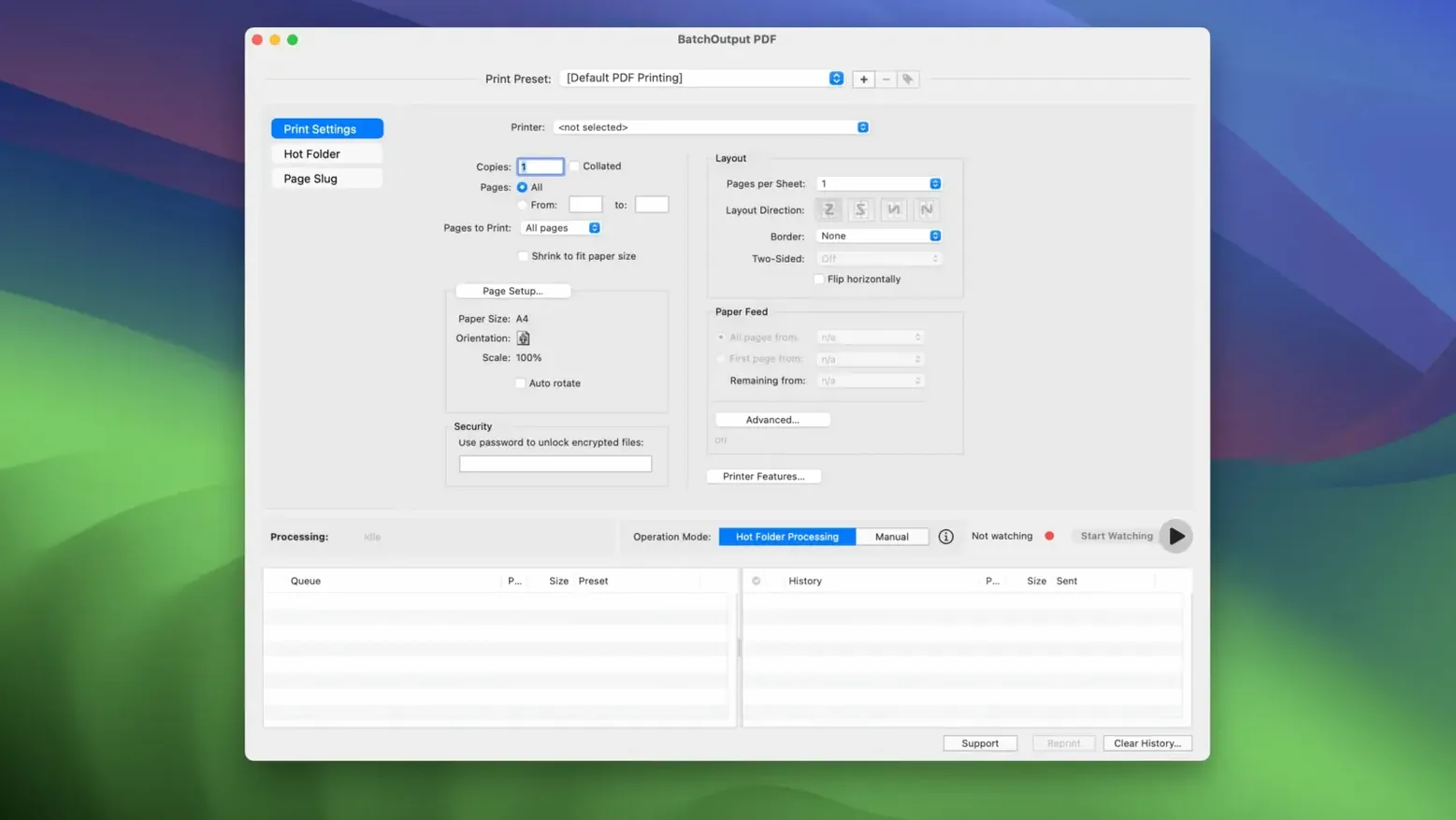
BatchOutput PDF 3.1.8 prints PDFs automatically from watched hot folders. You set up a folder, assign a printer and print settings, and drop in files. The app processes them — sorted by name, with custom page slugs if you need variable text on each output.
Setting up hot folders
Each hot folder can use a different printer and different settings. You can also send successful output and error files to separate locations, keeping your workflow organised.
Handling encrypted PDFs
If you regularly print password-protected PDFs, BatchOutput PDF can save the password and open them automatically. No need to re-enter credentials each time.
System and compatibility
Three alternatives take different approaches
Three other Mac utilities handle batch PDF tasks, though each takes a different approach from BatchOutput PDF.
PDFPenPro
PDFPenPro is primarily a PDF editor. Its batch processing is a secondary feature tucked inside a larger suite of page-manipulation tools. You can apply watermarks, resize pages, or merge documents across multiple files. But PDFPenPro does not watch folders. You must manually select source files each time, then choose an action. For users who drop a dozen PDFs into a folder and expect them to print without further clicks, PDFPenPro adds extra steps that BatchOutput PDF eliminates.
Enfocus PitStop Pro (with Action Lists)
PitStop Pro runs inside Adobe Acrobat and is aimed at pre-press professionals. Its Action Lists can apply corrections, colour adjustments, and even print commands. However, PitStop Pro requires Acrobat as a host and a significant investment in learning its rule-based system. Watched folders are possible through a separate server product. For straightforward print automation — drop in a PDF, get paper out — BatchOutput PDF is simpler to set up and does not require Acrobat at all.
macOS built-in Hot Folders (via printer presets)
Some users try to replicate hot-folder printing by assigning a printer preset in macOS and using a folder with an Automator action. This works for basic cases but breaks down quickly: you get no sorting by name, no per-folder print settings, no error handling, and no password support. BatchOutput PDF fills these gaps with a purpose-built interface that remembers settings between sessions.
Architecture firm prints drawing sets daily
A small architecture firm in Fitzroy prints drawing sets every afternoon. Each job arrives as a set of PDFs — floor plans, sections, elevations — named like 2403_GFP_01.pdf, 2403_GFP_02.pdf. The office has three printers: an A3 colour laser for presentation sheets, an A4 monochrome for correspondence, and a plan plotter for large-format drawings.
Before BatchOutput PDF, someone manually opened each PDF, selected the correct printer, checked page size, and hit print.
Now they have three hot folders: one labelled A3-colour, one labelled A4-mono, one labelled Plotter. Each folder has its own printer and default settings. They drop the PDFs into the right folder, and the app works through the queue, printing sheets sorted by filename. The custom slug feature adds a job number and date stamp to each page so the team can see at a glance which set a sheet belongs to. Errors — a corrupt PDF or an empty paper tray — trigger a notification, and the file goes to a separate error folder for later inspection. The afternoon run now takes about three minutes of actual work.
Hot folder stops responding fix
- Hot folder stops responding. This usually happens when the folder path was changed or the drive was unmounted. Fix: restart the app, then re-select the hot folder path in Preferences. BatchOutput PDF will pick up any queued files that remained unprocessed.
- Encrypted PDFs fail silently. The password must be saved before the file lands in the hot folder. Open a single encrypted PDF through the app once, enter its password, and check the box to store it. After that, any file with the same password processes automatically.
- Output prints on the wrong paper size. The app uses the printer's default page size unless you override it per hot folder. Go into that hot folder's print presets and set the paper size explicitly. The app will send the command regardless of what the PDF's page dimensions say.
- Slugs appear on pages where they should not. Slug settings apply to the entire hot folder. If you need slugs on some files and not others, create two hot folders — one with slugs, one without — and drop files into the appropriate one.
Maintenance release tightens compatibility
Version 3.1.8 is a maintenance release that tightens compatibility rather than adding new features. For everyday use, the notable changes are:
- Apple Silicon support — Native ARM code means the app does not run through Rosetta. On M1, M2, and M3 Macs, hot folder polling feels more responsive, and print jobs queue faster.
- macOS 10.13 baseline — Older versions of the app supported macOS 10.9. Raising the minimum to 10.13 let the developer drop legacy code paths, which improved stability during batch runs. Users on 10.14 or newer see no functional difference, but the app no longer requires compatibility shims for old system libraries.
- Improved error handling — Earlier builds sometimes hung when a printer disconnected mid-job. Version 3.1.8 detects the failure, logs it, and moves the file to the error folder without stalling the rest of the queue.
Uses under 50 MB RAM idle, 150-200 MB during batch
During a batch run, memory climbs to about 150-200 MB as it spools pages to the print system. On an M1 MacBook Air with 8 GB of RAM, a 50-page PDF set from cold start to last page printed took roughly the same time as dragging the same files into a manual print dialog, with the difference being that the user walked away after dropping the files.
Stability is solid for a utility that runs for days at a time. The only observed instability was on a system where the print spooler itself became unresponsive — a macOS problem, not BatchOutput PDF's. Restarting the spooler cleared the backlog.
One trade-off: the app polls hot folders at a fixed interval (about every two seconds). On a busy folder with many small PDFs arriving rapidly, the queue can lag by a few seconds. For a high-volume production environment processing hundreds of files per hour, this polling delay may add up. For typical office workflows of a few dozen files per day, it is invisible.
Runs on macOS 10.13 or later. Supports both Intel 64-bit and Apple Silicon Macs. The interface is English only.
- macOS 10.13 or later
- Intel 64-bit or Apple Silicon
- English interface
Sign in · Create an account to add a field note.
No field notes yet. A measurement, a version, a machine — they appear after moderation.