
Office
Vellum 4.1.7
OfficeUpdated
| Requirement | On file |
|---|---|
| macOS | macOS 11 or later |
| CPU | Intel 64-bit |
| Download | 95 MB |
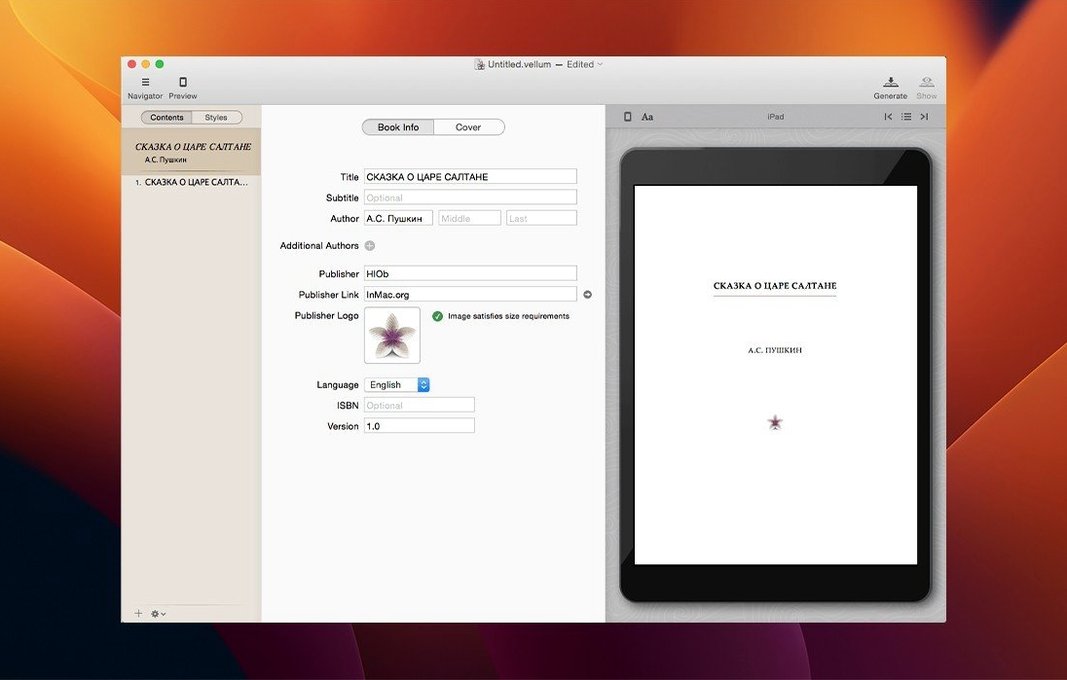
Import a full manuscript and Vellum 4.1.5 already has a title page and table of contents waiting for you. That holds whether you are building a novel from a Word doc or starting a blank project and writing directly inside the app. The point is to get you into the preview pane quickly, where every styling decision appears live.
Toggle print and ebook preview to check adaptive margins
- Switch between print and ebook preview. The same project can target a 6″ × 9″ paperback and a reflowable Kindle file. Toggle the view to see how margins and font choices adapt.
- Apply a heading style block. Highlight a chapter title, pick a style from the panel, and watch the linked table of contents update.
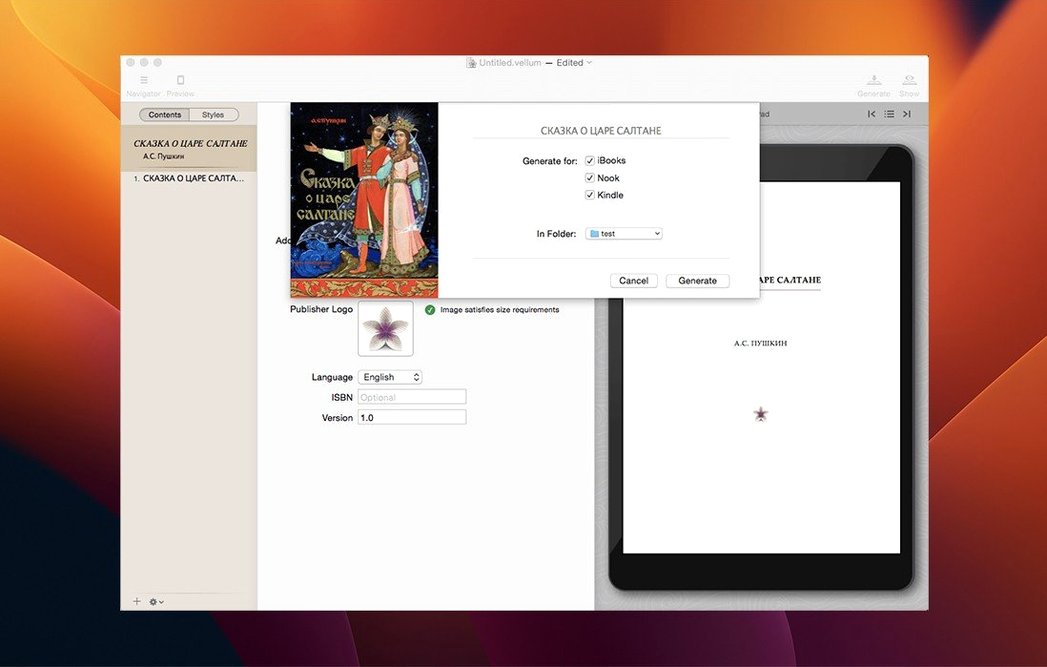
- Generate a test file early. Output to Apple Books, Kindle, or Kobo format after a few minutes of editing. Open it on a device to check how the reader handles your front matter and chapter breaks. Regenerating after changes takes seconds.
- Add back matter from stock elements. Drop in a pre-formatted "Also By" page or a newsletter sign-up block. These elements respect the book’s current geometry.
What makes a sensible starting workflow
Begin with a clean manuscript and let Vellum handle the structure. The app runs natively on Intel and Apple Silicon Macs under macOS 11 or later, and the interface stays in English. Once the book looks right in the instant preview, generate an ebook file for Kindle, Kobo, or Apple Books, then side-load it onto a hardware device. Small tweaks—a different ornament, tighter line spacing—can be regenerated in moments. This loop of preview, output, and device check reveals formatting quirks that no screen simulation can show.
Strip Word manuscripts to plain text before import
Most issues trace back to the source manuscript, not Vellum itself. A Word document heavy with manual overrides—local formatting, custom paragraph spacing, or direct font changes—can produce odd results after import. The fix is to strip formatting back to plain body text and a handful of heading styles before you import. Let the app's style engine take over from there.
Orphan control is another area that trips people up. Vellum handles widows automatically, but a short final paragraph of a chapter—one line dangling alone on a blank page—still slips through. The quickest remedy is to tick Spread Balancing in the print layout panel, which nudges surrounding paragraphs to tighten the spread. For ebooks, where spread balancing does not apply, a light edit to the paragraph text itself is the more reliable path.
Image placement causes frequent second-guessing. A full-page illustration that looks centred in the preview pane can shift left on a Kobo device or appear too large on an iPad. The culprit is usually the image's native resolution and the Image Display setting. Choose Full Bleed only when the image reaches the page edge intentionally; otherwise, keep it as Inline and export a sample to a physical e-reader before finalising. For print, check that the image resolution sits at 300 dpi or above. A 150 dpi scan that looks passable on screen will show softness on paper.
One more common head-scratcher: the table of contents lists a chapter you removed from the manuscript but still shows in the preview. That happens when the heading style lingers on a blank line. Switch to the text editor, find the stray styled line, and clear its formatting. The ToC panel snaps back to accurate within a second.
Avoid drafting an entire novel inside Vellum
The most frequent one is treating Vellum like a word processor. It is not built for heavy drafting. Trying to write an entire novel inside the app's text editor leads to frustration—there is no revision tracking, no commenting, and no way to bounce between scenes quickly. The cleaner approach is to draft elsewhere, then import a finished manuscript. Use Vellum for the last 10% of the process: styling, layout, and output.
Another early error is picking a trim size after building the entire print layout. Changing from 5.5″ × 8.5″ to 6″ × 9″ midway through rewrites all the page breaks and header positions. Set the trim size before doing any fine-tuning. The automatic margin, header, and footer adjustments work reliably, but they work best when applied early, not as a late rescue attempt.
Skipping the device test is a mistake that shows up in reader reviews. The built-in preview simulates multiple devices, yet it cannot replicate how a Kindle Paperwhite handles font scaling or how an older Kobo renders drop caps. Generate an actual ebook file and load it onto at least two devices—one e-ink, one LCD—before you call the project finished. A few minutes of side-loading catches alignment drift and glyph fallback issues that the preview pane simply does not surface.
Combine existing books into a styled boxed set
Self-publishing authors running a series get the strongest return from Vellum. The boxed-set feature lets you combine multiple existing book files into a single omnibus edition without re-importing manuscripts. The app preserves each book's internal styling while applying a unified header and page-numbering scheme across the set. For an author with four or five novels in a series, this turns a weekend project into a one-hour task.
Small-press publishers benefit from the dual-format workflow. A single project file can generate a print-ready PDF for IngramSpark and a reflowable ePub for wide distribution, with the copyright page, dedication, and front matter kept consistent across both. No copying, no pasting, no format drift. The time saved compounds quickly when you are handling multiple titles per season.
Technical writers and documentation teams—people who work with structured text but do not need DITA-level complexity—find the style-block system a good fit. A user guide with clear heading hierarchies imports cleanly, and the instant preview lets a team member verify formatting without learning CSS. The output limitations matter less here: if your audience wants ePub or PDF, Vellum covers that ground without the overhead of a full desktop-publishing suite.
Design-minded authors who want control over ornaments, drop caps, and chapter-head styling without writing a line of code also fit the profile. The style panel exposes typographic choices that would otherwise require manual CSS tweaks in a tool like Sigil, and the live preview makes the feedback loop immediate. If you care about how a chapter opening looks on a Kobo screen and want to iterate quickly, the app aligns with that mindset.
- macOS 11 or later
- Intel 64-bit processor
Questions on file
Can Vellum create a book if I don’t have a finished manuscript?
Yes, you can start a project from scratch and write or paste text directly into the app, building chapters as you go.
Sign in · Create an account to add a field note.
No field notes yet. A measurement, a version, a machine — they appear after moderation.