Office
Things 3.24.1
OfficeUpdated

| Requirement | On file |
|---|---|
| macOS | macOS 10.15 or later |
| CPU | Apple Silicon, Intel 64-bit |
| Download | 37 MB |
If your notes live in Apple Notes and your calendar in Calendar, Things slots in as the action list those apps don't cover. It's a macOS task manager built to pull tasks from Siri and push them into Spotlight, which the 3.24.0 update on 14 September 2026 takes further with full Spotlight integration and support for the Siri AI on OS 27.
System-wide reach
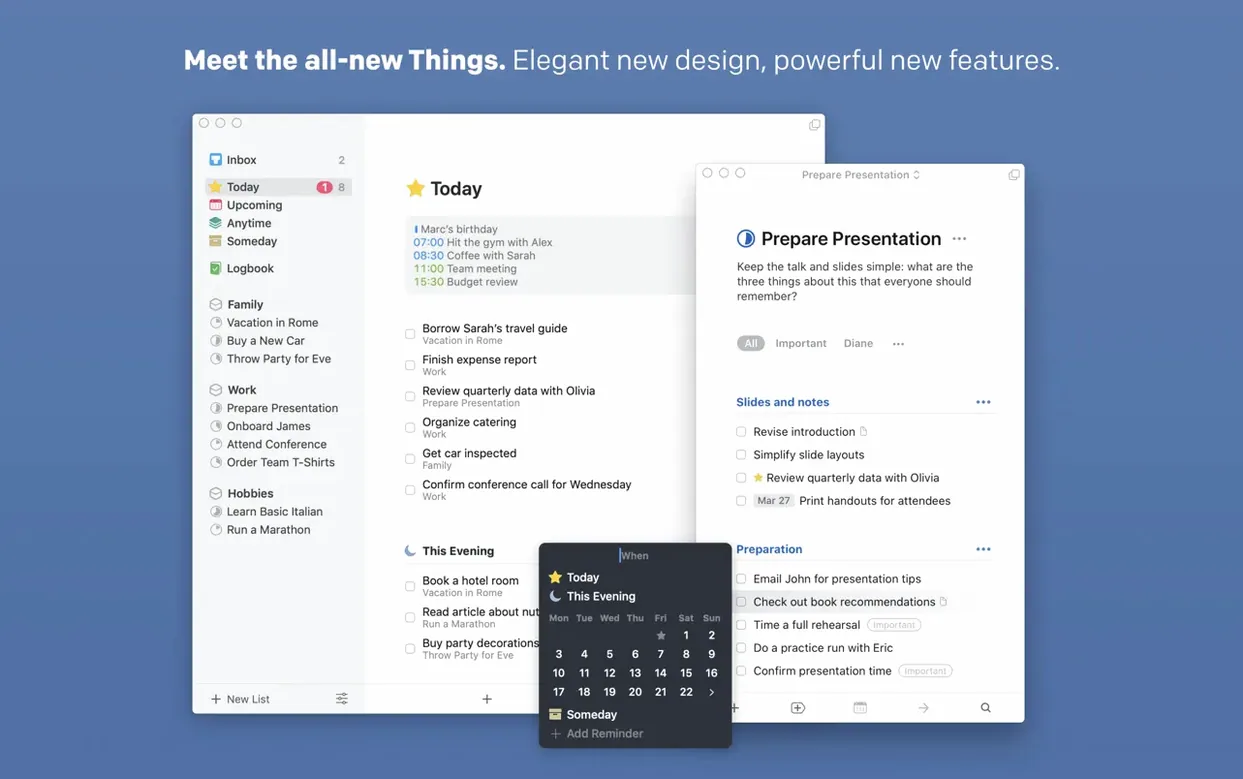
Things does not stay inside its own window. You speak a task to Siri and it lands in the Things inbox. Notification Centre widgets — now including a new extra-tall widget — show your lists without opening the app. And with the latest release, Spotlight indexes your to-dos so a system search finds a project name as easily as it finds a document or an email. Repeating tasks work the way you would expect: set a daily or weekly rule and the next instance appears after you tick off the current one.
Sync and limits
Sync uses Things Cloud, which keeps an iPad, iPhone, and Mac on the same page without any third-party service in between. The Mac app runs on both Apple Silicon and 64-bit Intel machines and requires macOS 10.15 or later. The interface speaks nine languages: Russian, English, German, Spanish, Italian, Traditional Chinese, Simplified Chinese, French, and Japanese. A free Things Cloud account is required for device sync.
Pull a client project from Spotlight in three keystrokes
It is Tuesday morning and about twenty things need attention. Cmd‑Space brings up Spotlight; typing the first three letters of a client’s name pulls the project card straight into view — no need to open Things first. The project holds six tasks. One has a deadline set for Thursday, so it already shows a gentle amber date badge. Another is tagged “waiting” and sits greyed out near the bottom.
I hit the global Quick Entry shortcut (Ctrl‑Space by default) while reading an email in Mail. A small dark panel drops down. I type “Chase updated BOM from Amrita” and press Return. It lands in the Inbox with zero friction — no window switch, no cursor repositioning. I repeat the same gesture twice more for two other emails before I even touch the Things window.
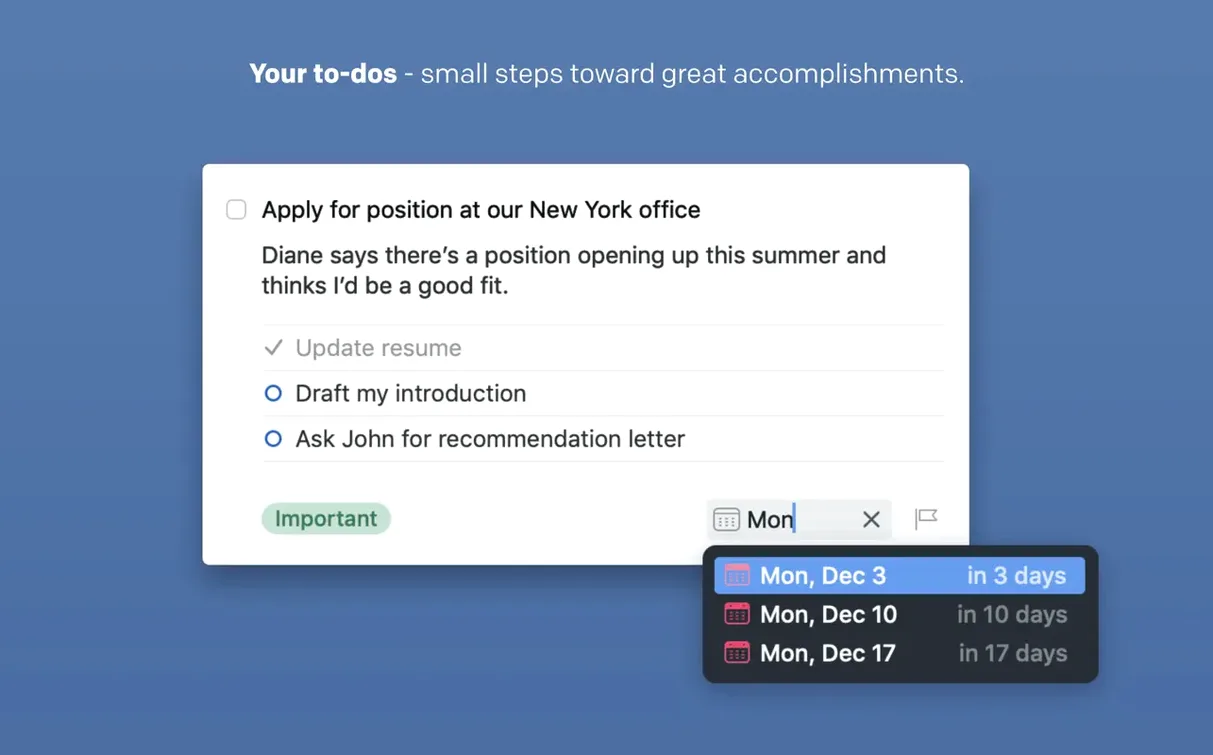
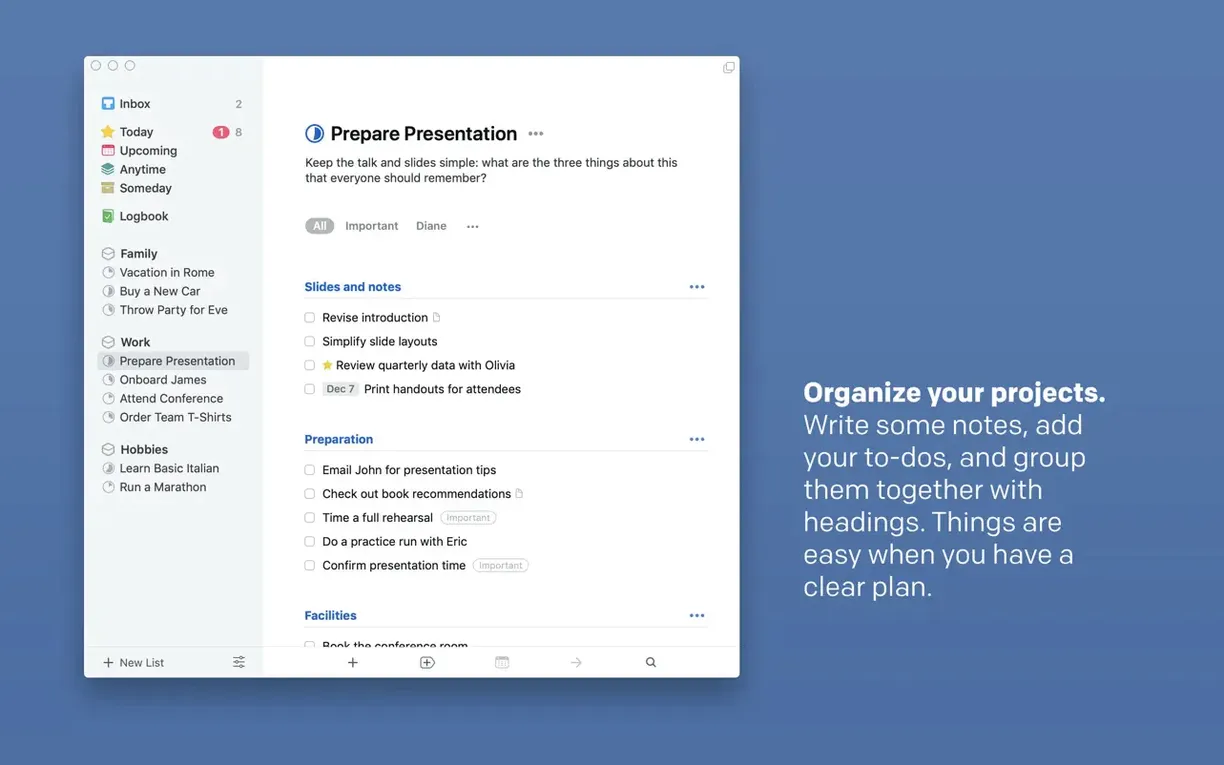
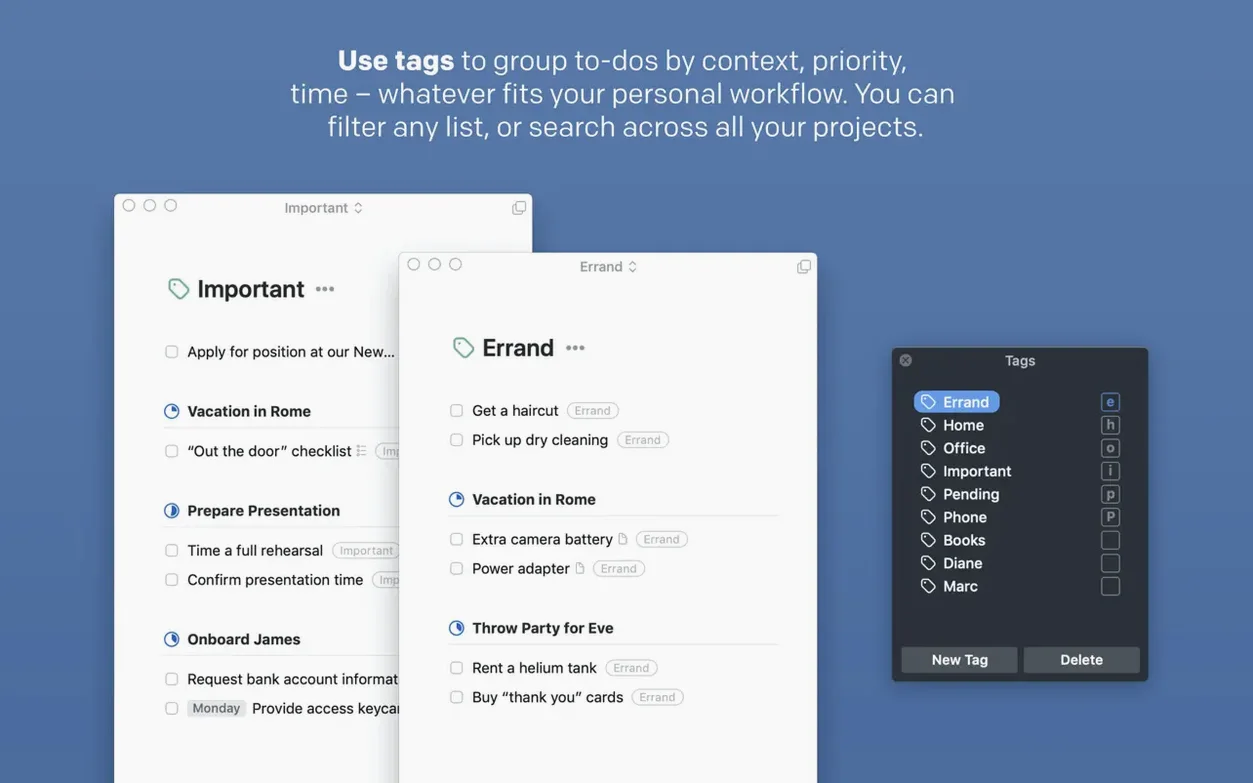
Next I open the app properly. The sidebar shows the familiar structure: Inbox, Today, Upcoming, Anytime, Someday, then my Areas. I select the Inbox and triage the three new items. The BOM task goes into the “Hardware Lab” project under the Work area with a deadline of Friday and a tag “procurement”. The second task becomes a subtask inside an existing project. The third is a personal errand — I drag it onto “Errands” and set a reminder for Saturday morning.
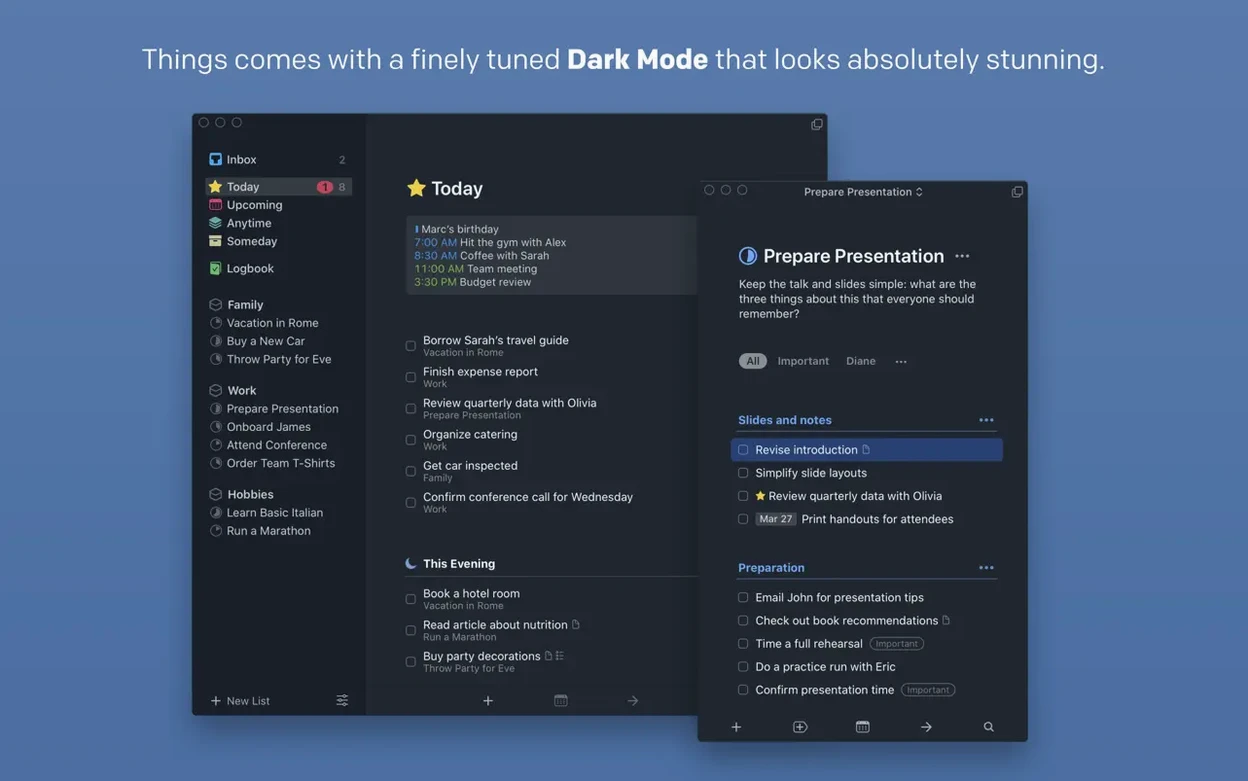
I switch to the Today view. Seven tasks sit there, two of them repeating: a daily stand‑up reminder and a weekly review task. The stand‑up task already shows a checkmark from earlier. I open the weekly review, type a short note about last week’s build delay, tick it, and it vanishes — its next instance will appear next Monday, thanks to the repeat rule. I also notice a calendar event striped into the list at 14:00, a design review. Things pulls this straight from macOS Calendar, so the afternoon’s one hard commitment sits right among the tasks it will interrupt.
Before I close the app I open the Upcoming view to scan the rest of the week. Thursday’s deadline item is flagged; the weekend shows only the Saturday errand. I right‑click a task due Wednesday and choose “Snooze until tomorrow” — the 3.24 update added finer snooze options, so I can push it exactly 24 hours instead of a fixed morning. The task slides from Today into Anytime until tomorrow, when it will reappear automatically.
The session took under four minutes. No drag‑and‑drop gymnastics, no nested menus for basic actions. Quick Entry caught the incoming items, triage put them where they belong, and the Today/Upcoming split gave me a clear horizon for the rest of the week.
What breaks when you outgrow Todoist’s or OmniFocus’s model
Three other Mac task managers often come up alongside Things. Each takes a different approach, and the differences matter once you have more than a couple of dozen tasks.
Todoist is the cross‑platform powerhouse. It runs on Windows, Android, and the web, which Things does not. Its natural‑language date parsing is faster for typing deadlines (“next Thursday 3pm”), and its collaboration features let multiple people share a project — something Things simply omits. In return, Things feels lighter and more deliberate on macOS. Todoist’s interface layers on filters, boards, and karma scores; Things stays closer to a paper planner reimagined for a screen. For a solo user who lives inside the Apple ecosystem, Things is the quieter, more focused tool. For anyone who works on a Windows machine or shares task lists with a team, Todoist wins by default.
OmniFocus is the heavy artillery. It supports custom perspectives, sequential and parallel projects, review intervals, and a scripting model that goes far beyond Things’ AppleScript support. Its learning curve is real — the first hour with OmniFocus often involves reading a manual. Things gives you about eighty percent of the organisational power with about twenty percent of the cognitive load. If you need defer dates, complex project dependencies, or the ability to hide tasks until a specific date, OmniFocus can do it; Things cannot. For most people, that extra twenty percent is not worth the weight.
Apple Reminders has improved dramatically in recent macOS releases — tags, smart lists, and deeper Siri integration close the gap it once had. It costs nothing extra and syncs instantly via iCloud. Things still pulls ahead with its project structure, its clean separation of Areas from projects, and the Quick Entry panel that Reminders lacks without third‑party launchers. If your task system is essentially a grocery list plus a few flagged items, Reminders suffices. If you manage a dozen projects with notes, deadlines, and a weekly review habit, Things earns its place in the dock.
Full offline Mac app, no account required
Does Things work without an internet connection? Yes. The Mac app stores everything locally and runs perfectly offline. You need a connection only for Things Cloud sync, and it catches up silently when you come back online. No data is locked behind a web interface.
Can I import tasks from other apps? Things reads the standard task paper format and can import CSV files through its settings. People migrating from Todoist, OmniFocus, or Reminders often use a third‑party converter, but the app itself handles the import cleanly once the file is ready.
Will the iPhone and iPad versions cost extra? The Mac app is a separate product. The iPhone, iPad, and Vision versions are sold individually. A single Mac licence does not unlock the mobile apps, and vice versa. The sync service itself is free and requires only a Things Cloud account.
Is Touch Bar support still relevant? If you use a MacBook Pro with a Touch Bar, Things shows contextual task‑creation buttons, list navigation, and project shortcuts. The 3.24 update did not remove it. For users on newer hardware without the Touch Bar, the feature is simply invisible, not missed.
A project coordinator’s week with Things
Dani runs a small film production company in Brisbane. She manages five projects at a time — pre‑production, location scouting, equipment hire, permits, and client approvals. Each project becomes a Things project inside an Area called “Productions”. Within each project, she groups tasks under headings like “Legal”, “Crew”, and “Gear”. Deadlines come from permit expiry dates and shoot schedules; she sets them the moment she opens a new project card.
On Monday morning Dani opens Things and checks Upcoming first, not Today. She scans the week’s deadlines — three permits expire Friday, one location scout is due Wednesday — then switches to Today to see what the week demands immediately. The extra‑tall widget on her Notification Centre shows the same Today list without her opening the window fully between calls. When an email from a gaffer arrives with a changed availability, she presses Ctrl‑Space, types “Update call sheet with new gaffer times”, and tags it “crew” in one motion. The task waits in the Inbox until she triages it later in the afternoon.
Dani’s Friday review is a twenty‑minute ritual. She goes project by project, ticking completed tasks, moving Someday items into active projects if they are now relevant, and checking that every task without a tag gets one. The Spotlight integration added in
Things 3.24.1 rolls in a light round of maintenance fixes and stability work for the Mac.
- macOS 10.15 or later
- Apple Silicon or Intel 64‑bit
Questions on file
Does Things support recurring tasks?
Yes. You can set up repeating tasks on a daily, weekly, or custom schedule.
Can I add tasks to Things using Siri?
Yes, Siri integration lets you add tasks by voice, and the 3.24.0 update added support for the new Siri AI on OS 27.
Sign in · Create an account to add a field note.
No field notes yet. A measurement, a version, a machine — they appear after moderation.