
Office
Text Scanner 1.8.1
OfficeUpdated
| Requirement | On file |
|---|---|
| macOS | macOS 10.12 or later |
| CPU | Apple Silicon, Intel 64-bit |
| Download | 23 MB |
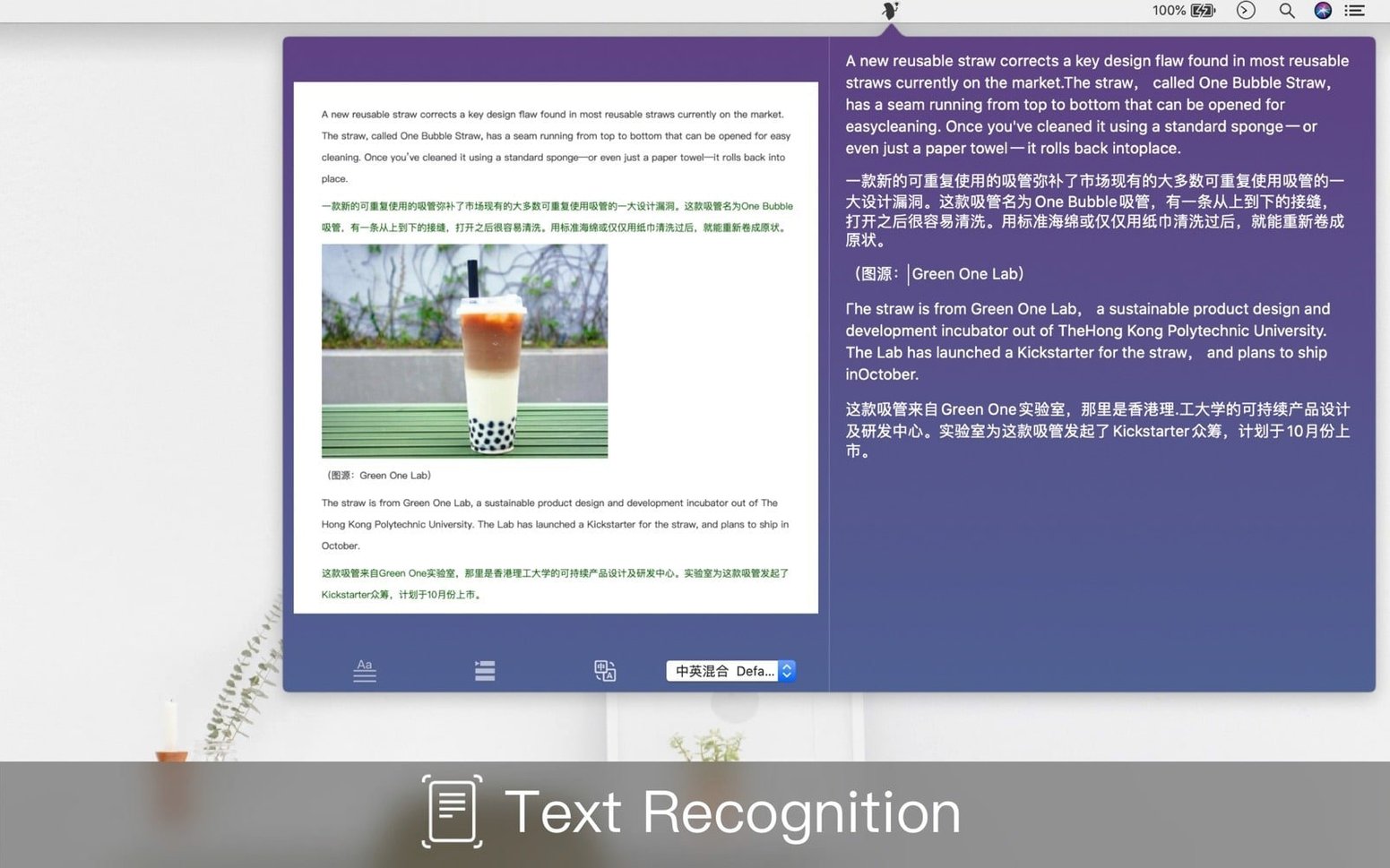
Text Scanner runs on macOS 10.12 or later and works on both Intel and Apple Silicon Macs. The current version is 1.8.1, and the install is a simple drag to the Applications folder after mounting the disk image.
What does the app recognize besides plain text?
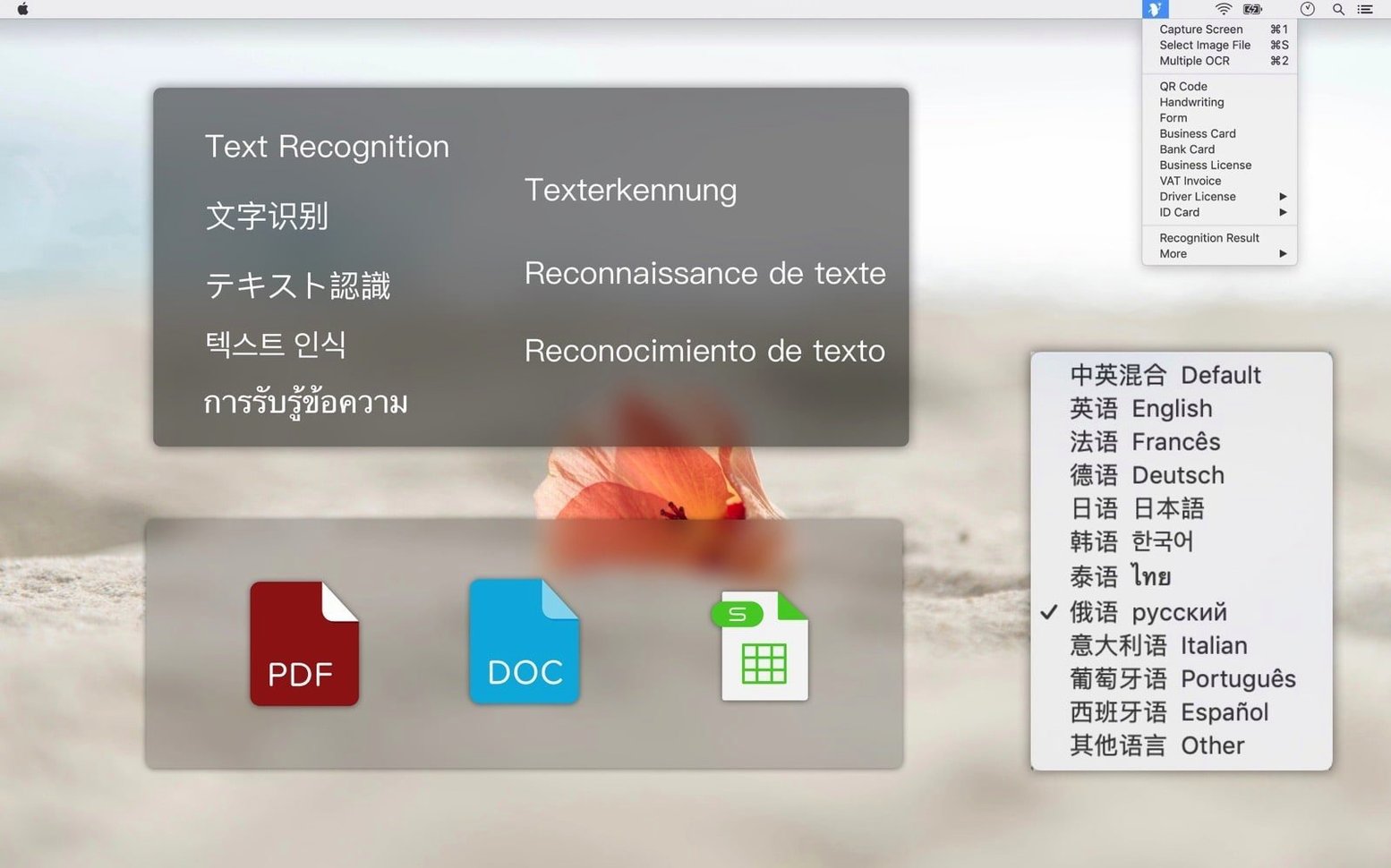
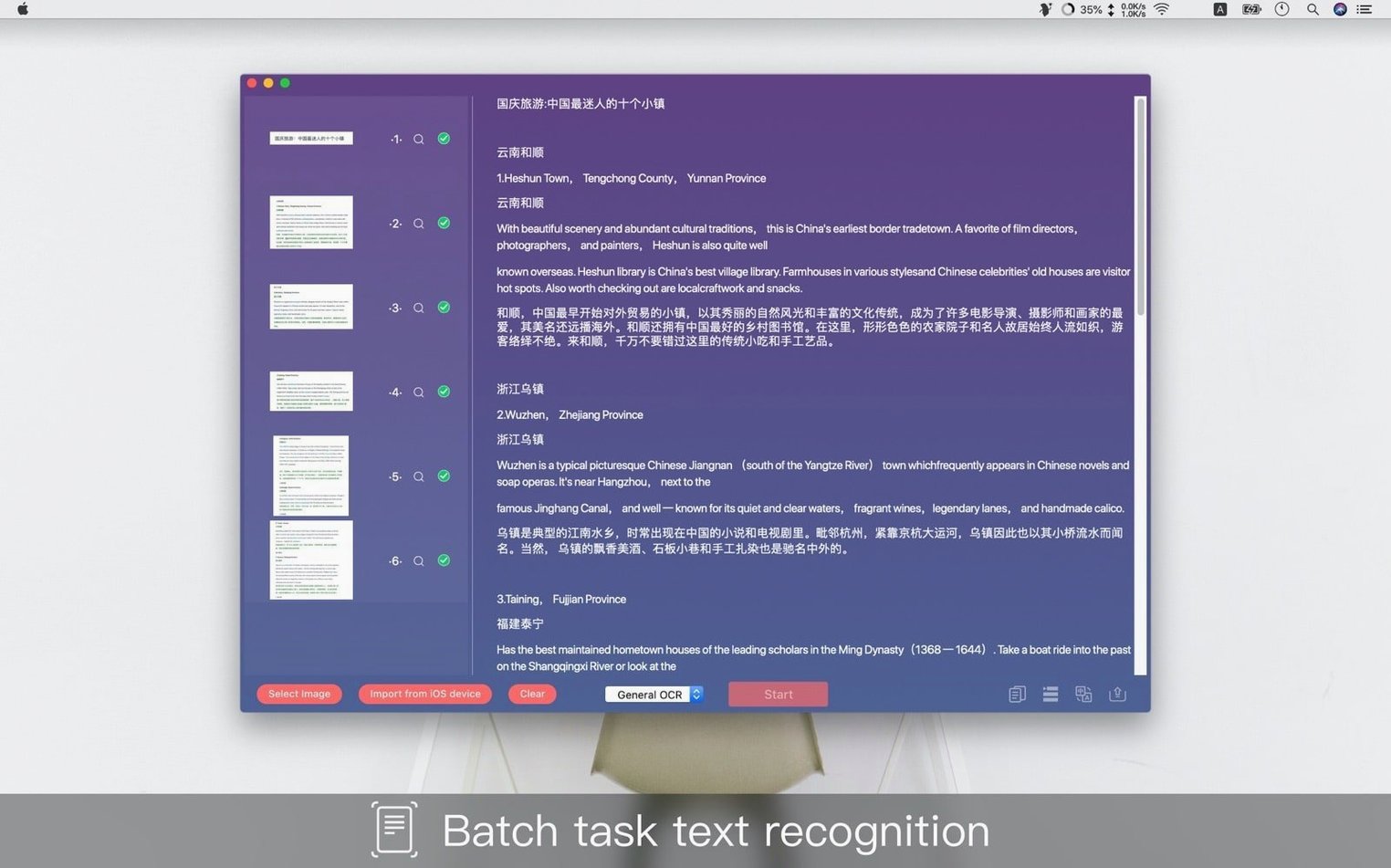
Beyond standard image-to-text conversion, it includes recognition for forms, business cards, ID cards, handwriting, and QR codes. That is a practical spread for anyone digitising paper documents or contact details.
Which recognition languages are available?
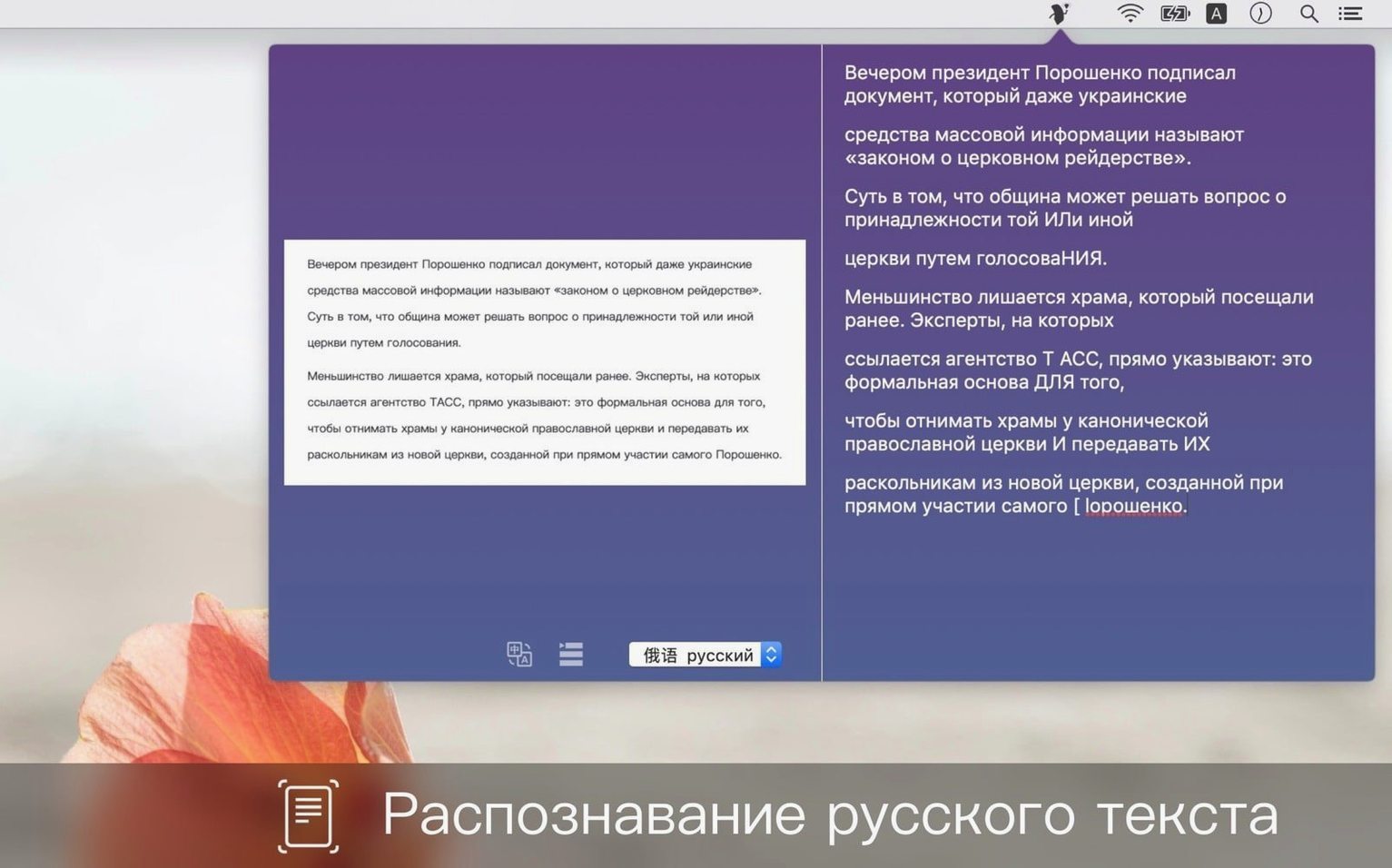
It supports more than ten specialised recognition languages. The interface itself is localised in English, Simplified Chinese, and Traditional Chinese.
Does the current version change anything?
Version 1.8.1 brings no listed changes. What you get is the same feature set as before: editable text output from images, with the recognition modes doing the heavy lifting.
Where Live Text Falls Short and This Steps In
Text Scanner sits in a spot that Apple's own tools only partly cover. Live Text in Preview and Photos handles plain text well enough on recent macOS releases, but it draws a blank on structured documents, handwritten notes, and the kinds of specialised cards Text Scanner targets. The app fills those gaps without trying to replace a full document manager.
Once text is extracted, the clipboard carries it straight into Notes, Pages, a plain text editor, or a spreadsheet. There is no export wizard — just a copy and a paste. That keeps the chain short: drag an image in, let the recognition run, copy the result, and drop it where it belongs. If you keep a scans folder in Finder, Text Scanner works as the extraction step between a quick iPhone shot and the final editable text in your notes app.
QR code recognition follows the same logic. Scan a code from a screenshot or a photo, and the decoded string lands on the clipboard — a URL, a Wi‑Fi credential, a contact card. From there it is a single paste into Safari, a note, or the Wi‑Fi password field in System Settings. No camera required, no extra device handoff.
Bank Cards, Receipts, and Private Scans Stay Local
A few behaviours only become obvious after a week of use. The recognition runs entirely on-device — no network calls, no uploads. That means a bank card scan stays local, and the app stays responsive even without a connection. It also means recognition speed depends on your Mac's silicon, but the processing never queues behind a server.
Dragging an image file onto the dock icon opens it directly, skipping the file picker. The same works with a screenshot still on the clipboard: paste it in with ⌘V and recognition starts immediately. If you use the app alongside a scanner or an iPhone that sends photos to your Mac via iCloud, the workflow becomes capture → drag → copy → paste, with Text Scanner as the silent middle step.
For business cards and ID documents, the app separates fields rather than dumping a single text block. A driver licence scan pulls out the name, licence number, and expiry date into labelled lines. That spares you the chore of reformatting a wall of text before pasting it into a contact record or a form field.
Manually Set a Language Pair to Avoid Slow Recognition
Out of the box, the recognition language defaults to the system setting. If you regularly scan documents in a mix of Chinese and English, switch the recognition language manually in the app preferences. Leaving it on auto can slow down mixed-script pages — setting it explicitly cuts a small but noticeable slice off the processing time.
The output mode toggle between plain text and structured fields is tucked away in the toolbar. For a letter or a book page, plain text works. For a VAT invoice or a business licence, structured mode preserves the field labels and alignment that you will want when the data moves into a spreadsheet or an accounting app. Flipping the toggle before the scan saves a reformatting pass later.
If the app will handle sensitive documents — ID cards, bank cards, invoices — check the clipboard history setting in your system preferences or any clipboard manager you run. Text Scanner places extracted text directly on the general clipboard, which some third-party managers will store and sync. Clearing the history or pausing the manager during a batch of scans keeps the data footprint small.
- macOS 10.12 or later
- Apple Silicon or Intel 64‑bit processor
Sign in · Create an account to add a field note.
No field notes yet. A measurement, a version, a machine — they appear after moderation.