
Office
SideNotes 1.6.6
OfficeUpdated
| Requirement | On file |
|---|---|
| macOS | macOS 13 or later |
| CPU | Apple Silicon, Intel 64-bit |
| Download | 19 MB |
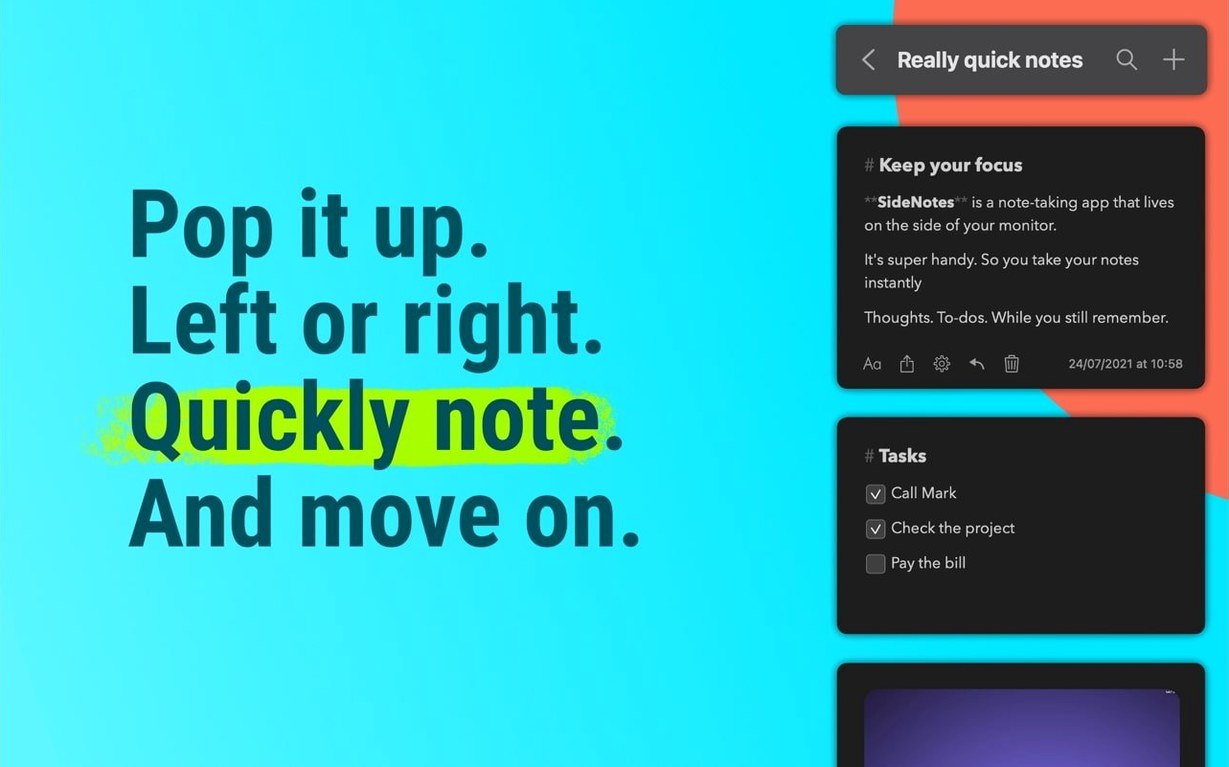
SideNotes 1.6.6 keeps notes as cards that slides out from the edge of your display. It sits next to whatever else you have open — a terminal window, a PDF, a browser tab — without covering your main workspace.
A slide-out scratchpad for the in-between thoughts
The panel tucks against the right or left screen edge. A click or a hotkey pulls it out, and another sends it away. It doesn’t replace a full notes app like Apple Notes or Obsidian. Instead, it catches the small stuff: a hex code from a design review, two lines of a shell command, a bullet list of things to check before a deploy. Because it runs as a floating overlay, you don’t need to switch spaces or windows to jot something down.
What a note can hold
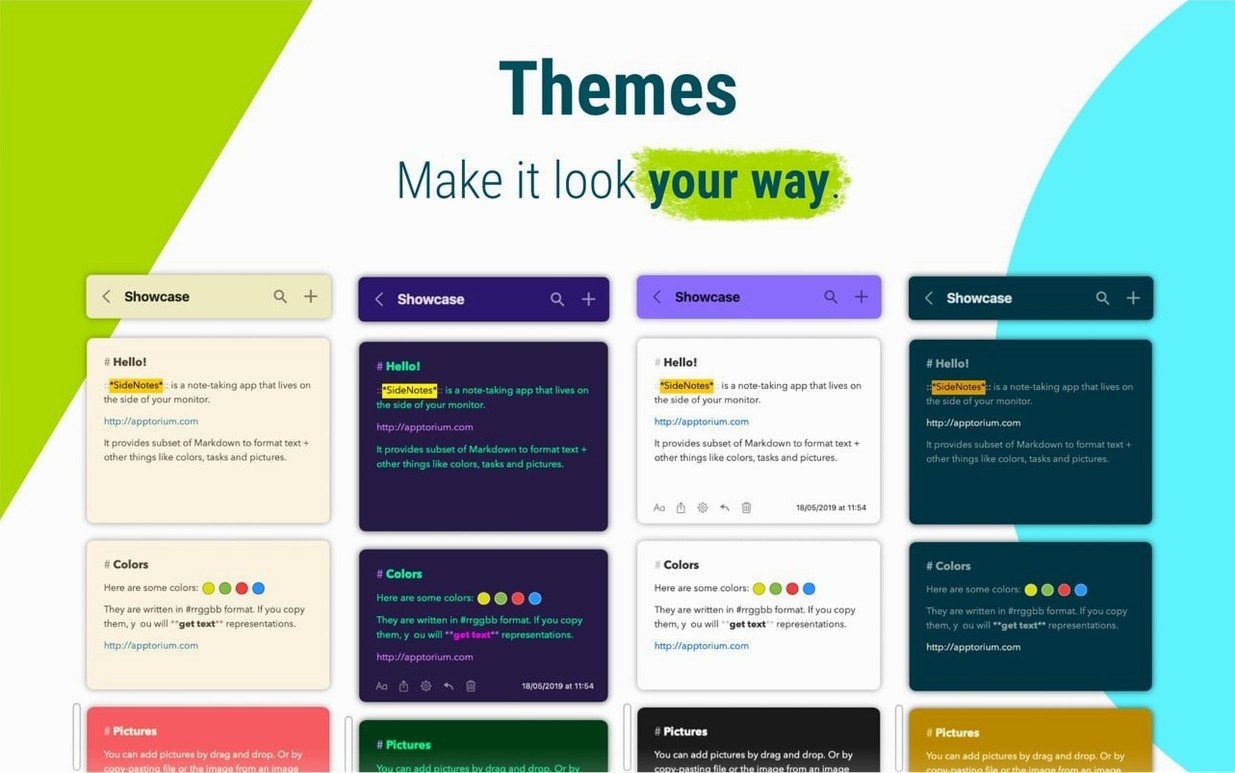
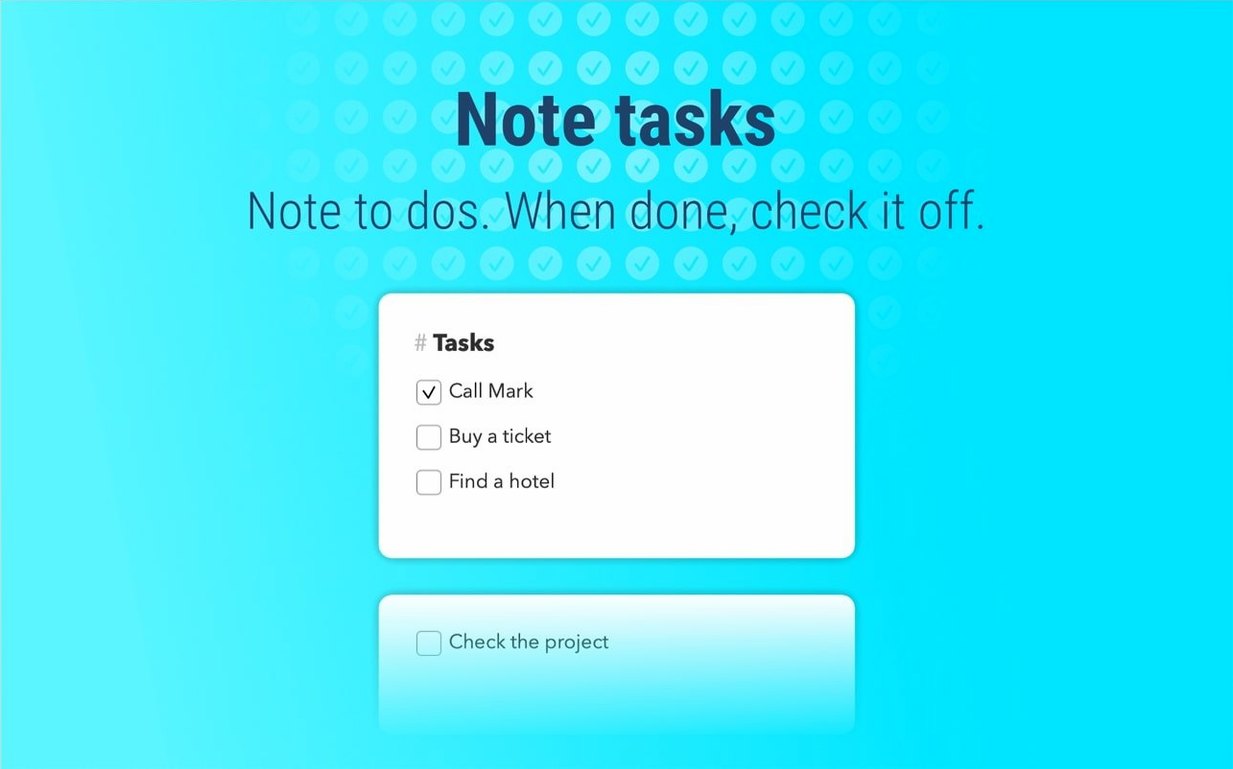
A note card accepts plain text, monospace blocks for code snippets, task checkboxes, and images pasted from the clipboard. You can colour-code cards and share a note directly through Messages. The app speaks six interface languages: English, German, Spanish, Italian, Portuguese, and Russian. An iPhone and iPad companion, SideNotes Mobile, keeps notes available away from the desk.
Resolving edge-of-screen turf wars with other panels
Most friction comes from the panel’s boundary behaviour. When SideNotes lives on the right edge and you also keep a browser sidebar open there, the two compete for the same screen real estate. The fix is to drag the panel to the opposite edge — left placement avoids the clash entirely. A less obvious one: the panel can appear to vanish on multi-display setups when the secondary display is unplugged. Pressing the global hotkey twice usually recalls it to the remaining screen. If that fails, right-clicking the menu bar icon and choosing Reset Panel Position restores it to the default left edge of the primary display.
Images pasted from a browser sometimes balloon past a note’s width. Holding Option while dragging the panel divider constrains image display to a readable width without resizing the note itself. Code blocks that refuse syntax colouring are almost always a font issue: the monospace setting applies to the whole note, not per block. Toggle it from the formatting bar, and the block inherits the fixed-width face you selected in preferences.
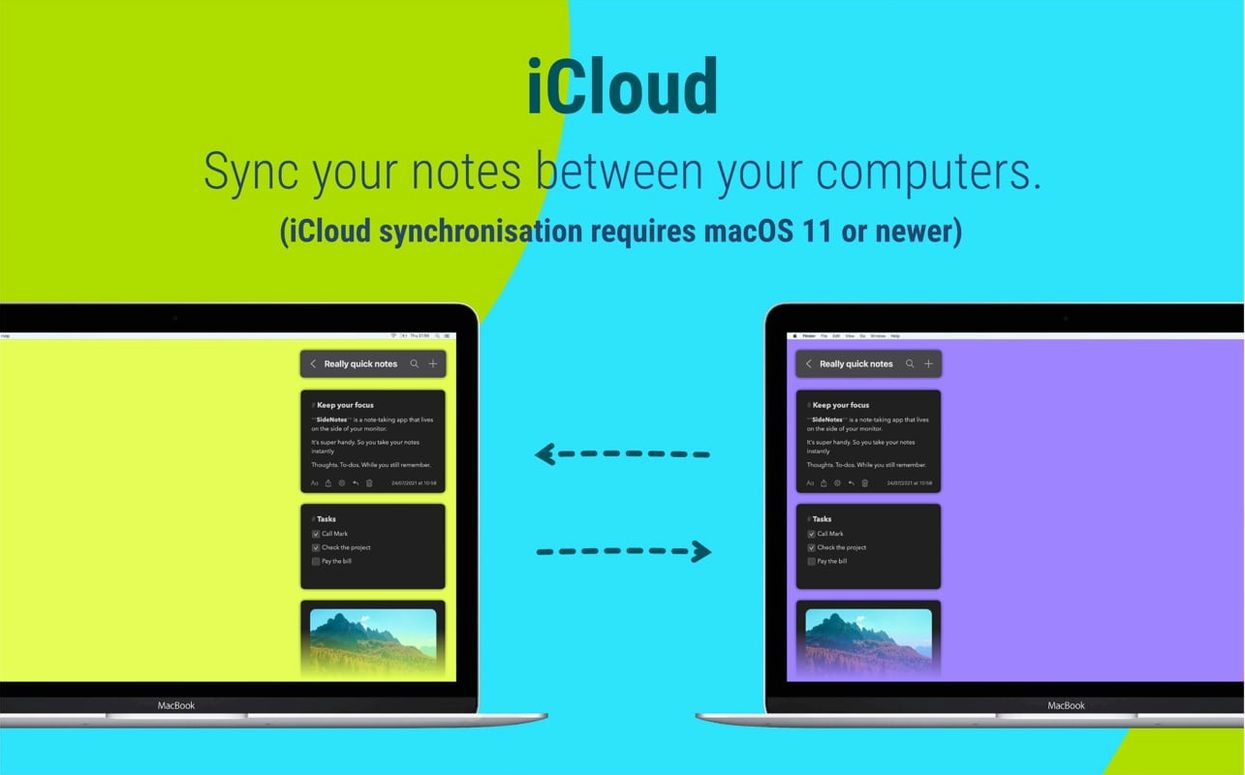
A handful of users report that iCloud sync stalls after a macOS point update. Opening the app’s preferences, switching the storage location to On My Mac, closing preferences, then switching back to iCloud forces a fresh sync token exchange and usually resolves it within a minute.
Escaping the Shift-Command-S shortcut collision
The default hotkey is Shift-Command-S, which conflicts with the standard duplicate-file shortcut in Finder and several Adobe apps. Changing it to something unclaimed — Control-Option-S works cleanly on most systems — prevents muscle-memory collisions. The trigger area width is set to 2 pixels by default, which demands precise mouse aim on a 4K or 5K display. Bumping it to 5 pixels under Panel Behaviour makes the slide-out far easier to catch without false triggers.
Two less visible toggles repay early attention. Start at Login is off by default; turn it on if the panel becomes part of your daily flow. Transparency sits at 85% opacity — dropping it to 70% helps notes feel distinct from the window behind them when you are copying values into a spreadsheet or terminal. If you use the app primarily for task lists, enable Strikethrough Completed Tasks in the formatting section. It saves a step every time you tick a checkbox.
How its custom rendering layer keeps the slide liquid-smooth
The panel renders inside its own lightweight window server layer rather than as a standard NSWindow, which keeps animation frames consistent even when the GPU is busy with other work. Slide-out latency on an M1 MacBook Air clocks around 80–120 ms from hotkey press to fully visible panel — fast enough to feel instant in daily use. On an Intel i7 Mac mini from 2018, the same action adds roughly 200 ms when the machine is under moderate load, which is noticeable but still usable.
Memory footprint sits between 110 MB and 150 MB with fifty notes containing mixed text and images. That figure creeps toward 180 MB when the notes folder holds several dozen high-resolution screenshots, because SideNotes keeps thumbnails in a RAM cache to speed scrolling. CPU usage is negligible at idle — under 0.3% — and spikes briefly to 2–4% during sync operations or when pasting an image from the clipboard.
Stability over a full workday holds up well. The app runs without a single beachball through eight-hour sessions of note capture, colour changes and folder reorganisation, provided macOS is on 13.5 or later. Earlier Ventura builds occasionally drop the panel behind full-screen apps, which a hotkey cycle fixes. The 1.6.6 release cleared a rare crash tied to rapid folder switching while iCloud sync was mid-flight, and that regression has not resurfaced.
- macOS 13 or newer
- Apple Silicon or Intel Mac
Questions on file
Can SideNotes handle code snippets?
Yes, it supports monospace text formatting, so short code blocks and terminal commands stay readable inside a note.
What’s the difference between SideNotes and SideNotes Mobile?
SideNotes is the Mac app. SideNotes Mobile is the companion for iPhone and iPad that carries the same notes to iOS.
Sign in · Create an account to add a field note.
No field notes yet. A measurement, a version, a machine — they appear after moderation.